Set up the lists your team picks from
The dropdown lists your team picks from, such as lead sources, account types and industries, and how to switch off or delete a value.
Updated 12 October 2026 · 2 min read
Many fields in Salesfresh are dropdowns, such as Lead Source on a lead or Industry on an account. Configurations is where you decide what's in those lists, and in what order.
For example, a digital marketing agency's Lead Source list has 30 options, and most don't apply to them. The owner switches off the ones they never use and adds "Google Business Profile" near the top. Now the team picks from a short list that matches how leads really come in, and everyone uses the same names.
Before you start
- To see the lists, you need the View Configurations permission.
- To add a value, you need Create Configurations. To change one or switch it off, you need Edit Configurations. To delete one, you need Delete Configurations.
- Every company starts with ready-made values in each list.
If you don't have a permission you need, ask your admin.
The lists
Go to Settings > Configurations. Each list is a tab. Each has its own page:
| List | Used in |
|---|---|
| Lead sources | Lead Source on leads, contacts and deals, and lead scoring |
| Account types | Account Type on accounts |
| Ownerships | Ownership on accounts |
| Industries | Industry on leads, contacts and accounts, your company settings, lead scoring and web forms |
| Campaign sources | Campaign Source on deals and interested products |
| Billing frequencies | Billing frequency on products |
| Billing terms | Billing Terms on products, and Payment Terms on contracts and contract templates |
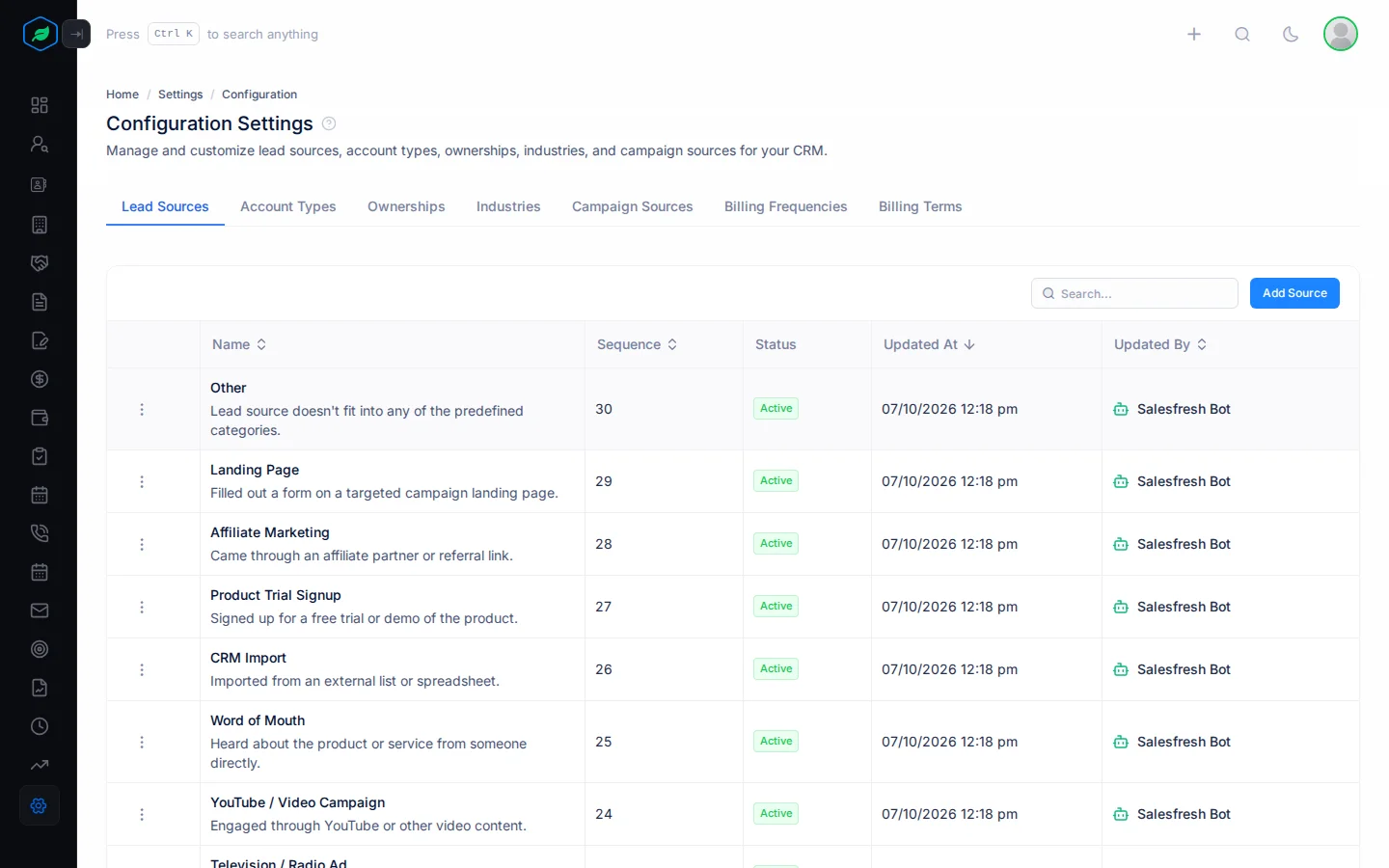
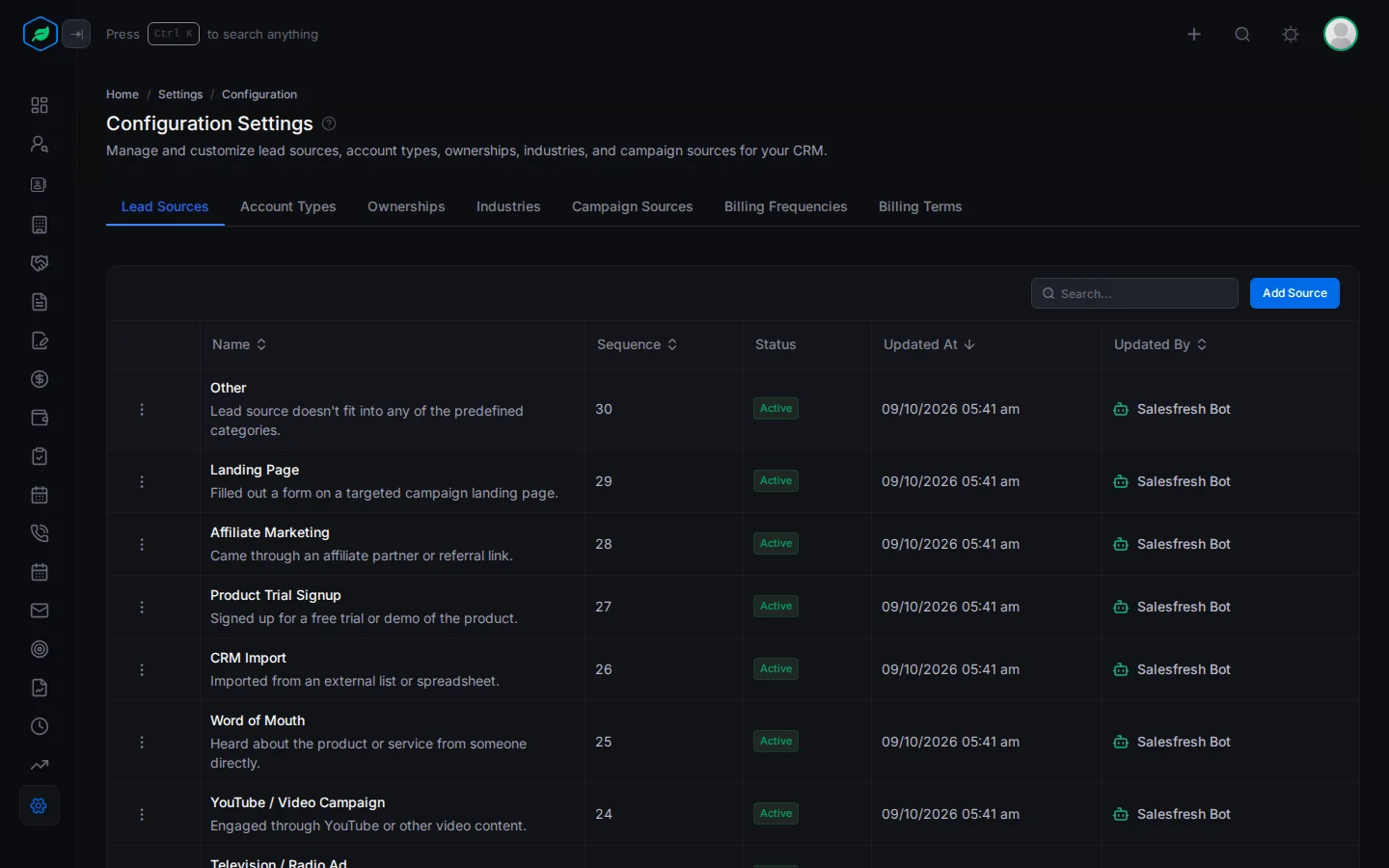
Each row shows the value, its Sequence, its status, and who changed it last. The sequence sets its place in the dropdown. Lower numbers come first.
Switch off or delete a value
Click ⋮ on a value:
| Action | What happens |
|---|---|
| Edit | Changes it. The window is called Update |
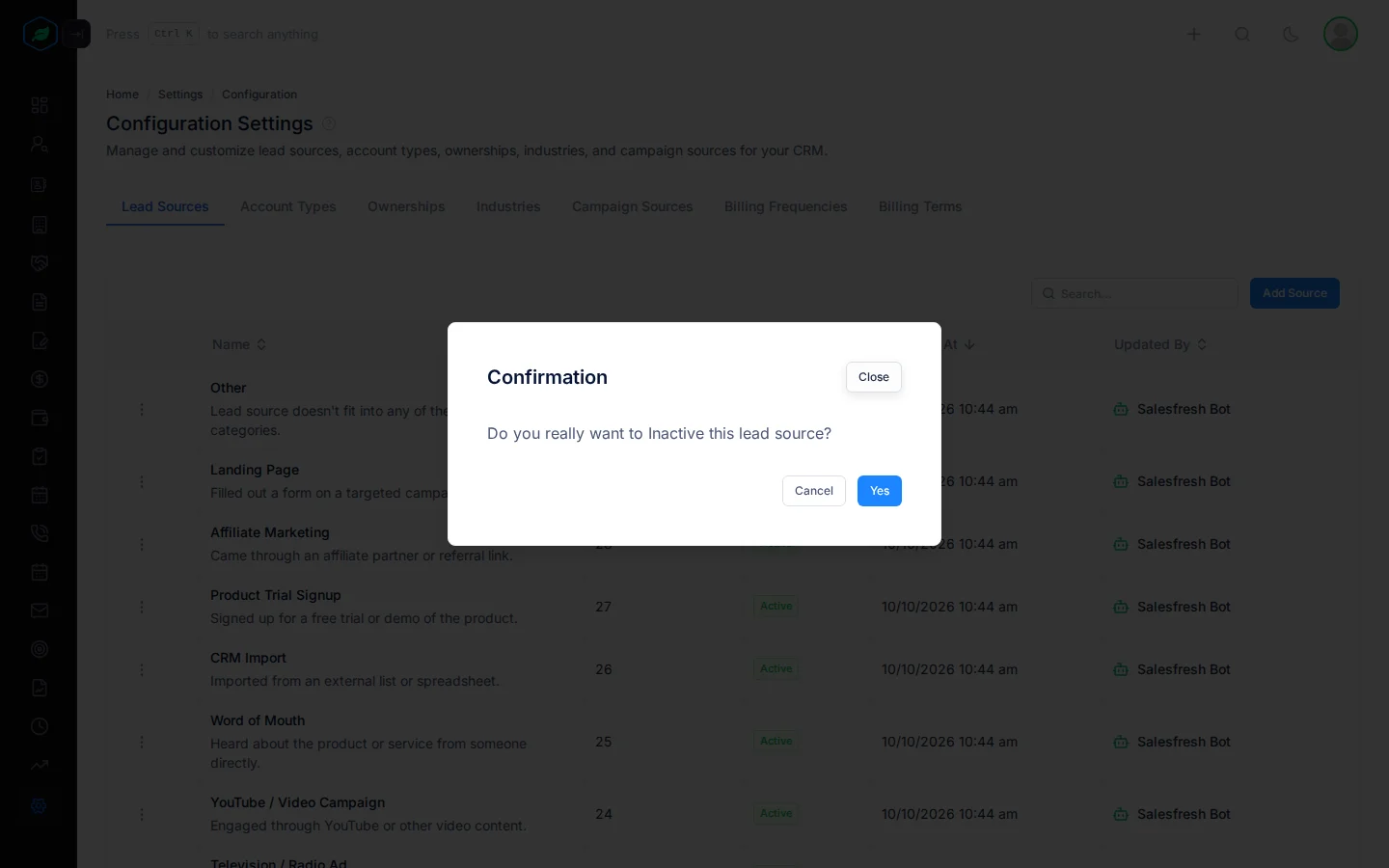
| Make it Inactive | Hides it from dropdowns. Records that already use it keep it. Make it Active shows it again |
| Delete | Removes it. You can't delete a value that records use |
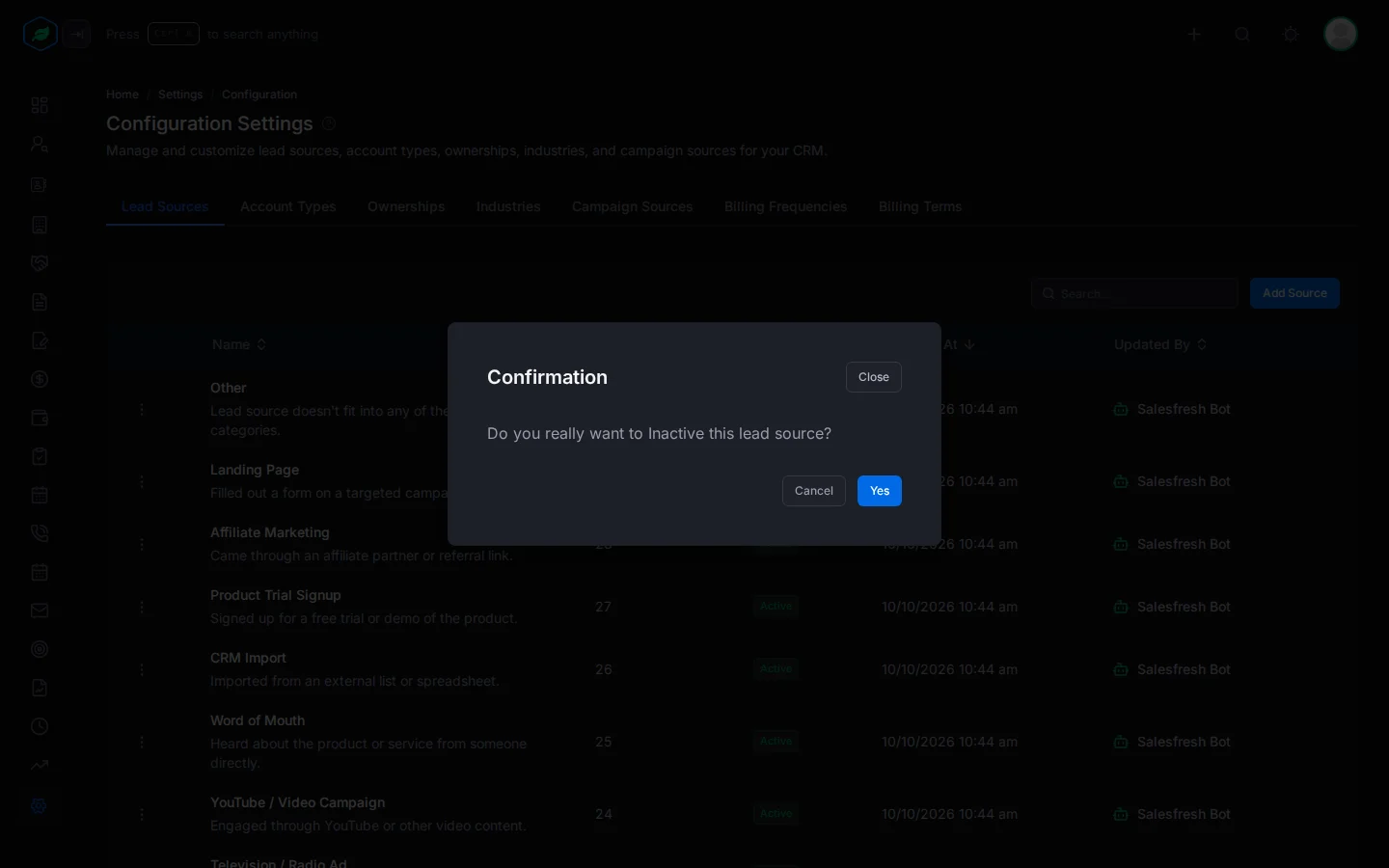
Each one asks you to confirm first. Click Yes to switch a value off or on, or Delete to delete it.
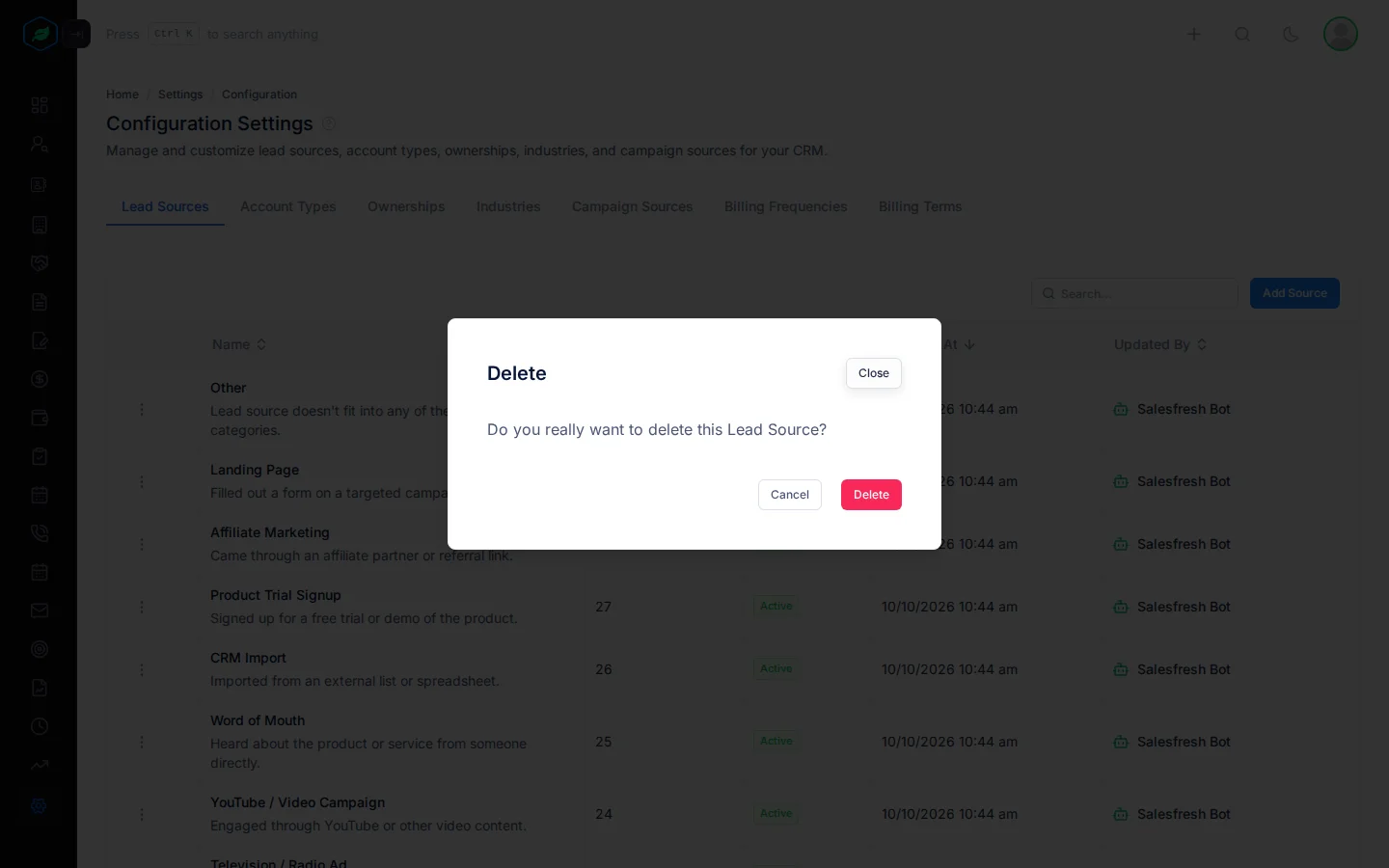
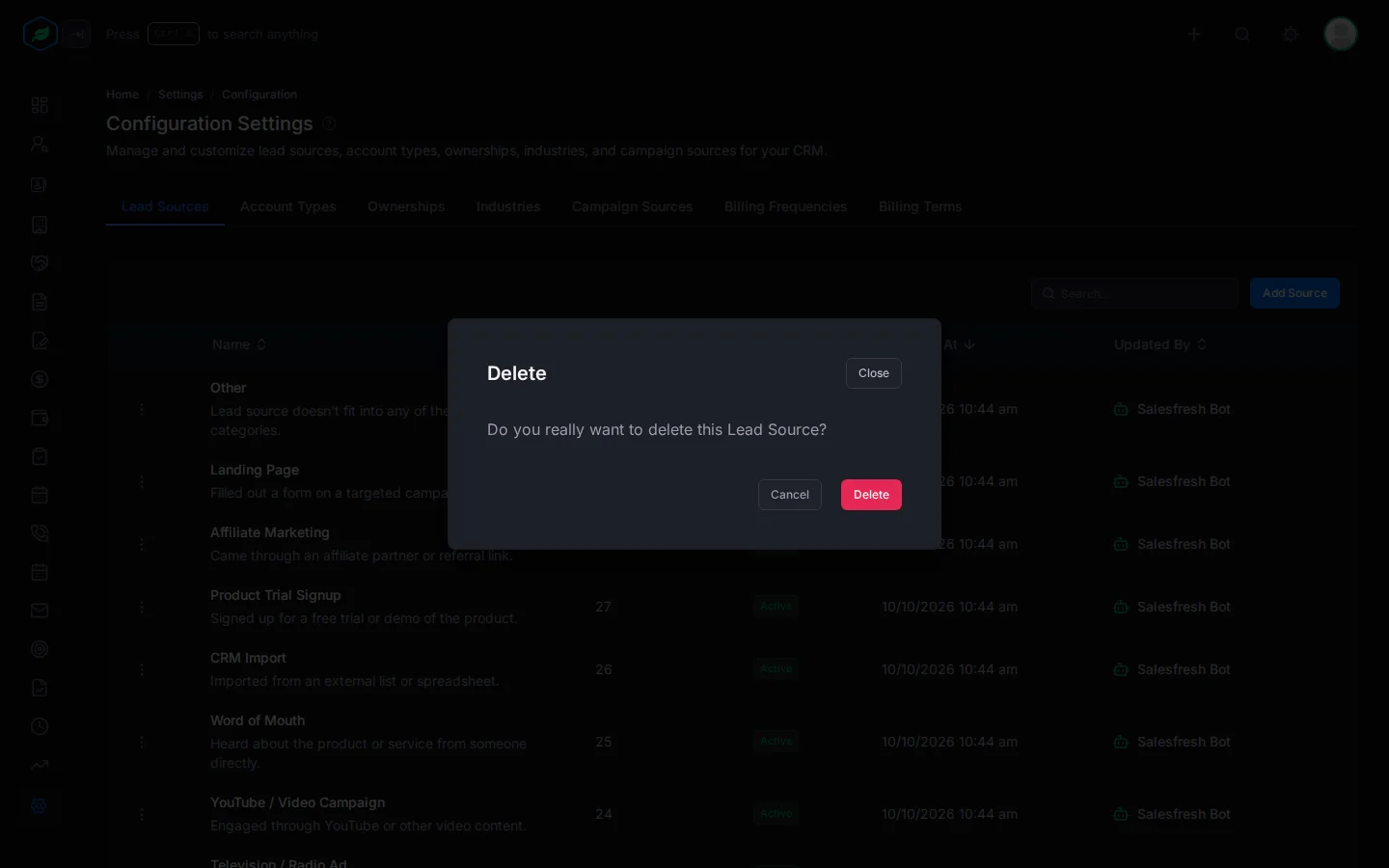
To stop using a value that records still have, make it inactive instead of deleting it.
Related
Still stuck?
Tell us what you were trying to do and we will help.