Tasks: overview, list and views
What a task is, where tasks come from, their statuses, and how to find them on the Tasks page, in views and on the Kanban board.
Updated 10 October 2026 · 5 min read
A task is something you need to do by a date, such as sending a price list or chasing a reply. Every task is linked to a lead, contact, account or deal, so anyone who opens that record sees what was promised and whether it was done.
For example, on a call you promise a customer a price list by Friday. You add a task "Send price list" on the customer's page, due Friday. On Friday morning you get an email reminding you. You send the price list and mark the task complete. If a teammate opens the customer's page later, they can see it was done, so nobody sends it twice.
Other CRMs may call tasks "to-dos" or "action items".
Before you start
- You need View Tasks to see tasks.
- Who else's tasks you see depends on your company's sharing rules for tasks. You always see tasks you created.
Where tasks come from
You add them
- Click Create Task on the Tasks page, or click + at the top of any page and choose Task.
- On a lead, contact, account or deal, click Create and choose Task. The task is already linked to that record.
- On the Calendar, click an empty slot on the day you want, such as Friday at 11 am. In the New Activity window, click Task. The form opens with that day as the due date.
- On an email in your inbox, click Create Task.
Salesfresh adds them for you
Some tasks are made for you, so follow-ups aren't forgotten:
- When a quote is sent with Create task to follow up with contact after sending quote on. See Send a quote.
- When a lead reaches a stage with a task rule, or stays in a stage too long. See Lead status and lead stages.
- When a lead or deal has had no activity for a set time.
- When a flow reaches a task step.
Statuses
| Status | Use it when |
|---|---|
| Not Started | You haven't begun |
| In Progress | You are working on it |
| Waiting for Input | You are waiting for someone else, such as a customer's reply |
| Deferred | You have put it off for now |
| Completed | It's done |
A task that isn't completed by its due date is overdue. The list shows a ⚠ and how late it is, such as "3 days ago", in red.
The Tasks page
Click Tasks in the sidebar. Each row shows the task's title, due date, status, priority, related record, owner, and when and by whom it was made. The coloured edge of each row shows its status.
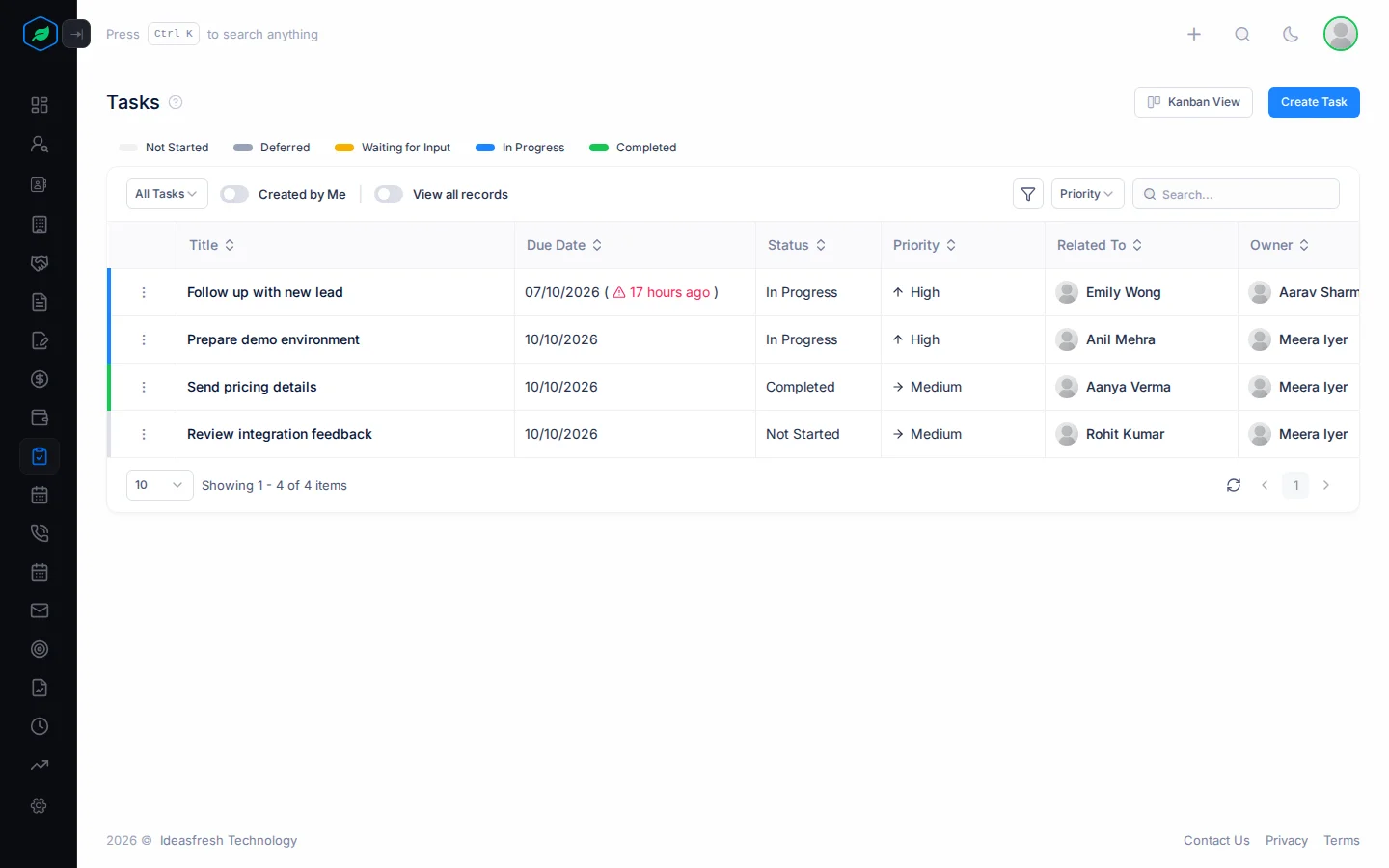
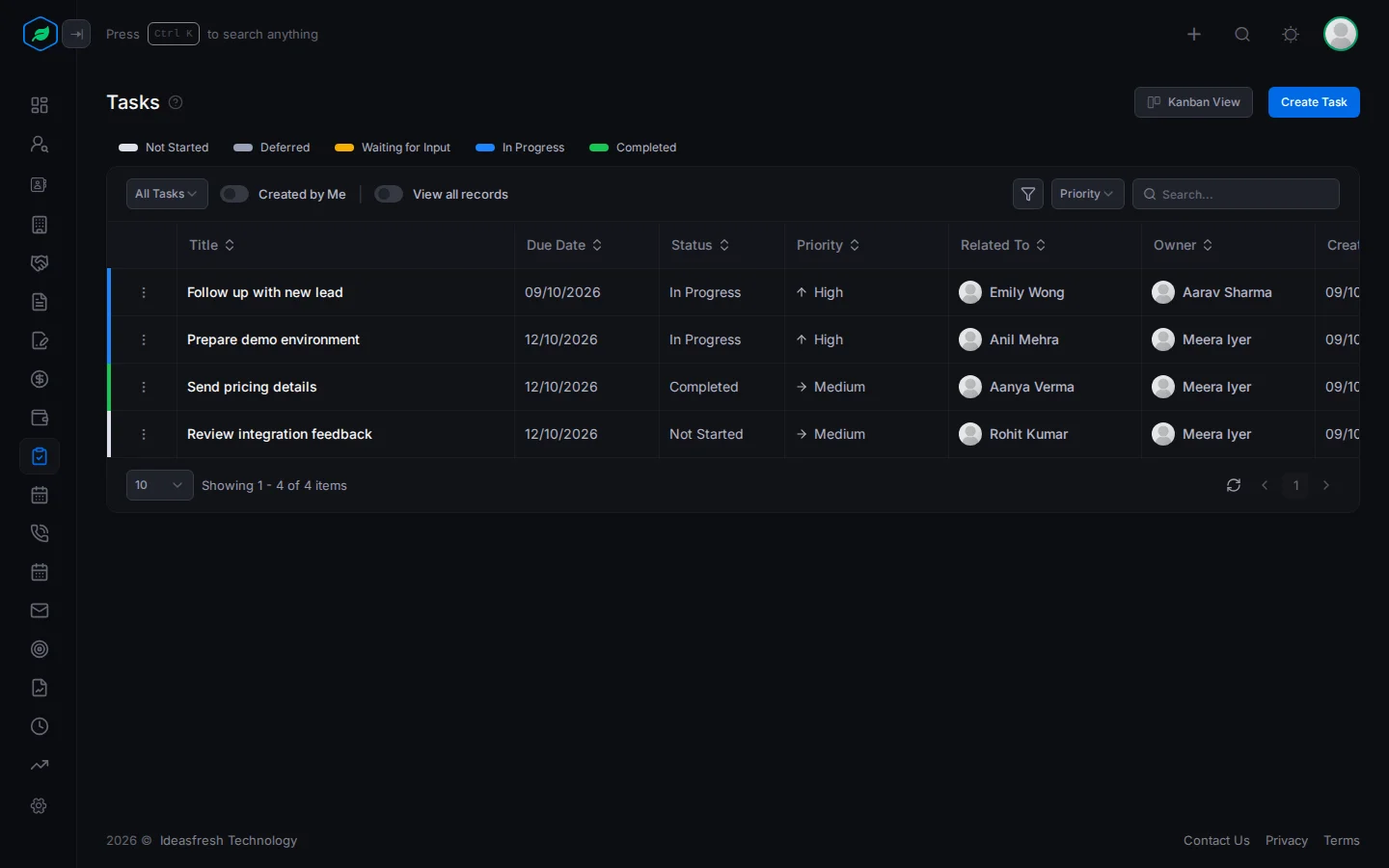
- Click a status above the table to show only those tasks.
- Pick a Priority to show only High, Medium or Low tasks. This also switches to All Tasks.
- Turn on Created by Me to show only tasks you made.
Click a task's title to open it. See The task detail page.
Views
Pick a view to see the tasks you need. For example, open My Overdue Tasks each morning to catch anything you missed.
| View | Shows |
|---|---|
| All Tasks | Every task you can see |
| Today's Tasks and Tomorrow's Tasks | Tasks due on that day |
| Overdue Tasks | Tasks past their due date and not completed |
| Next 7 Days + Overdue Tasks | Tasks due in the next week, and late ones |
| Closing Tasks | Tasks In Progress or Deferred and due in the next 3 days |
Views starting with My, such as My Open Tasks, show only tasks you own that aren't completed.
Kanban view
Click Kanban View to see a column for each status. Drag a card to another column to change its status. For example, when you start on a task, drag it from Not Started to In Progress.
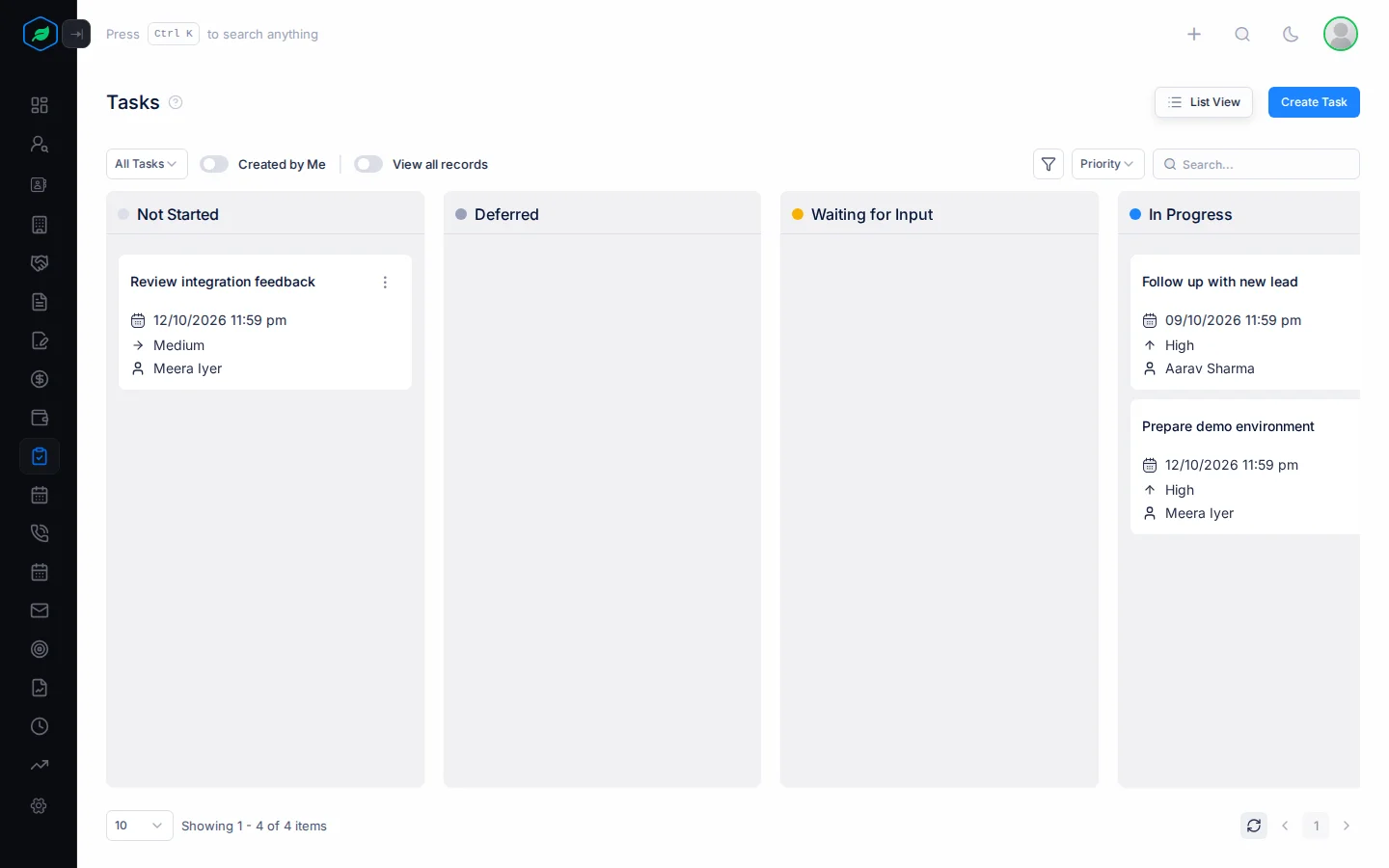
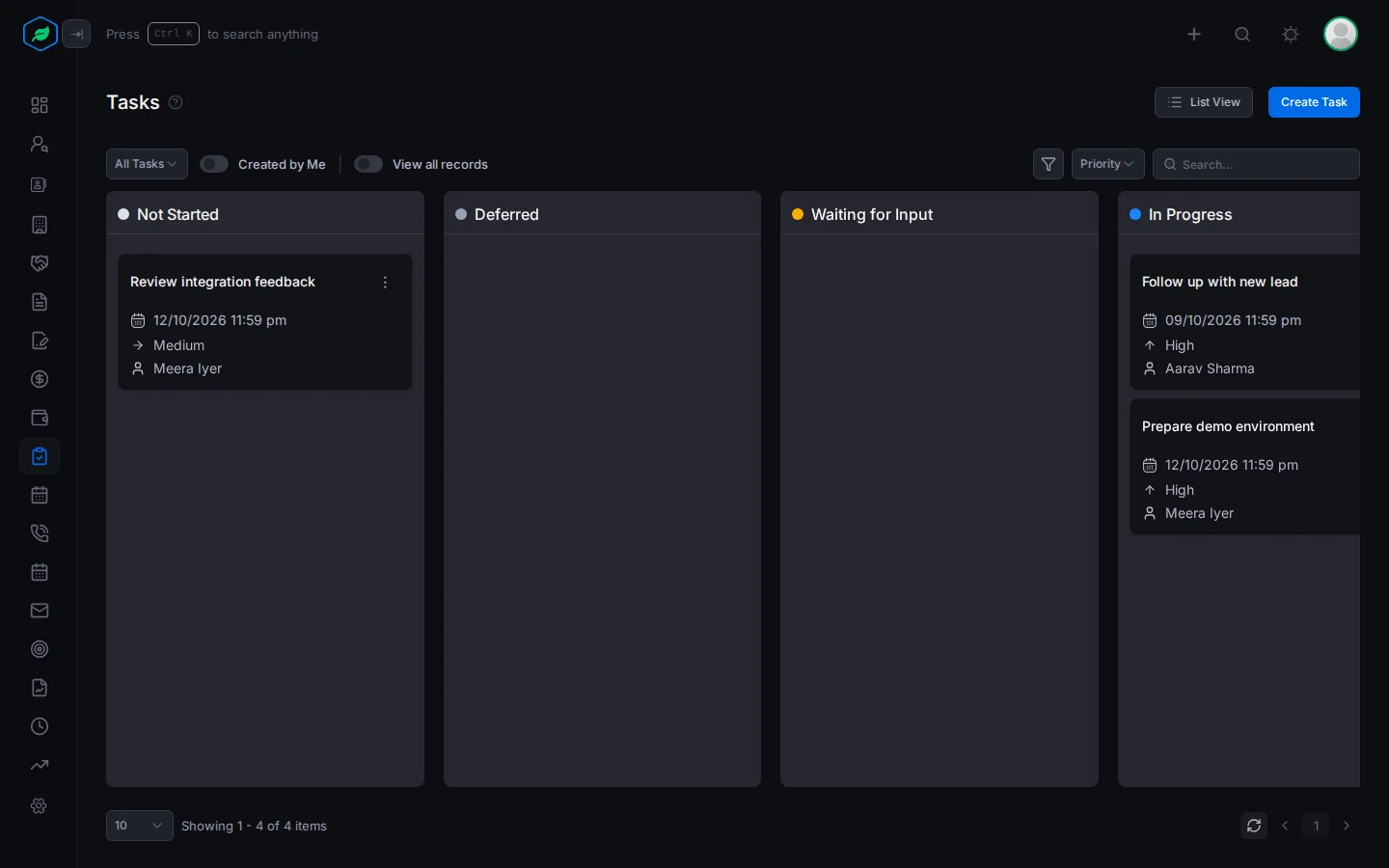
You can drag tasks you own or created. Only the owner can drag a task into Completed, and completed tasks can't be dragged out. Click List View to go back.
Reminder emails
- When someone gives you a task, you get a "New Task Assigned" email. When your task is given to someone else, you get a "Task Reassigned to Another Owner" email. You can turn both off in Notification settings.
- Each morning, the owner gets a "Task Due Reminder" email for each task due that day.
- Each morning, the owner gets a "Task Overdue Reminder" email for each late task, until it's completed.
Troubleshooting
| You see | Why | What to do |
|---|---|---|
| "Only the task owner can mark it as completed." | You dragged someone else's task into Completed | Ask the owner to complete it |
| A task you expect isn't in the list | The sharing rules hide it from you, or the view filters it out | Switch to All Tasks, or ask the owner |
Related
Still stuck?
Tell us what you were trying to do and we will help.