The call detail page
What is on a call's page, how to change its status and mark it complete with an outcome, and what Twilio calls show.
Updated 10 October 2026 · 3 min read
A call's page shows who the call was with, when, why, and how it went. It is also where you mark a scheduled call as done.
To open a call, click its title on the Calls page, on the Calendar, or on a record's Activities tab.
Before you start
- To open a call, you need the View Calls permission.
- To change its status or write notes, you need the Edit Calls permission. You must also be the call's owner, or the person who created it.
If you don't have a permission you need, ask your admin.
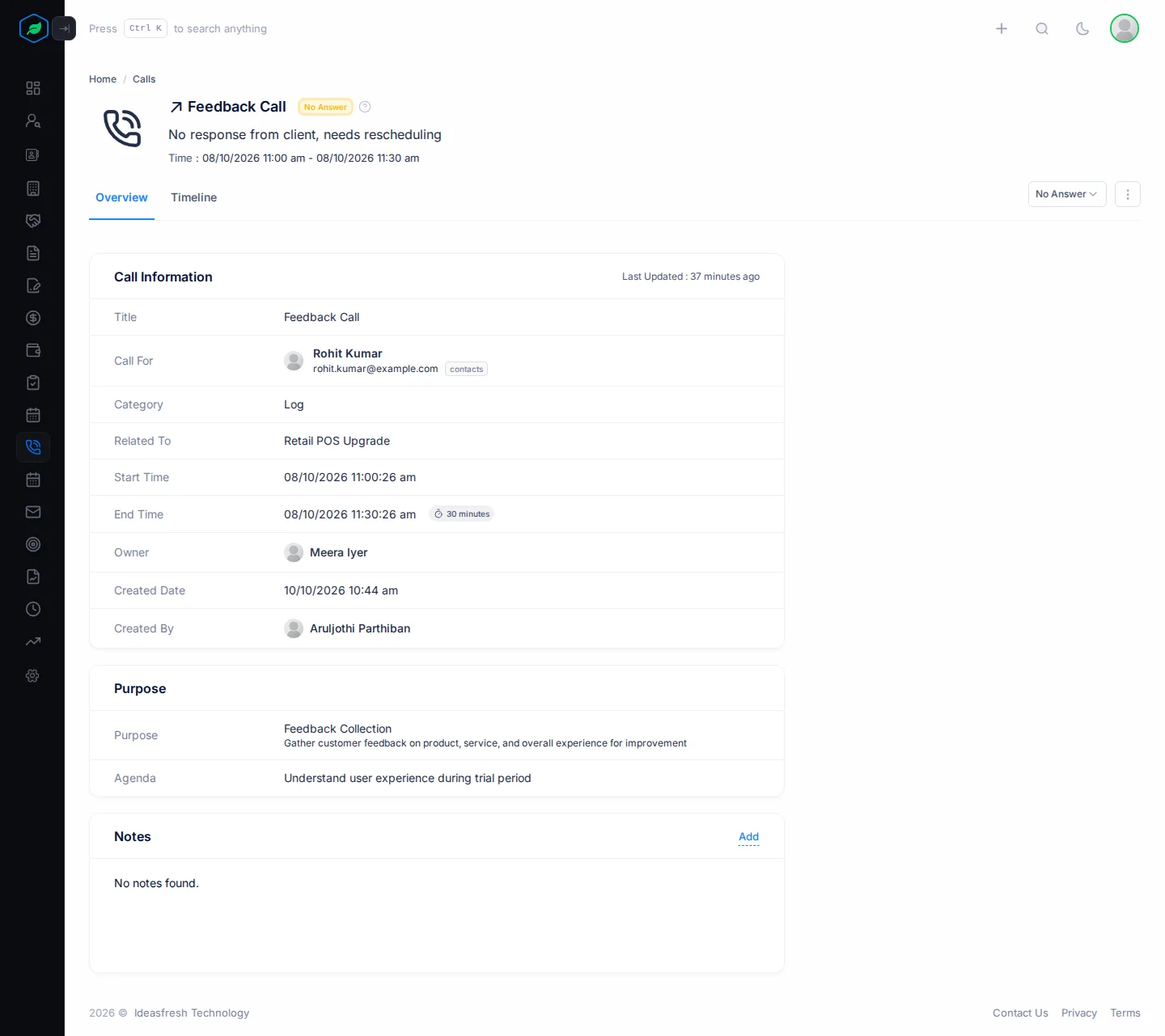
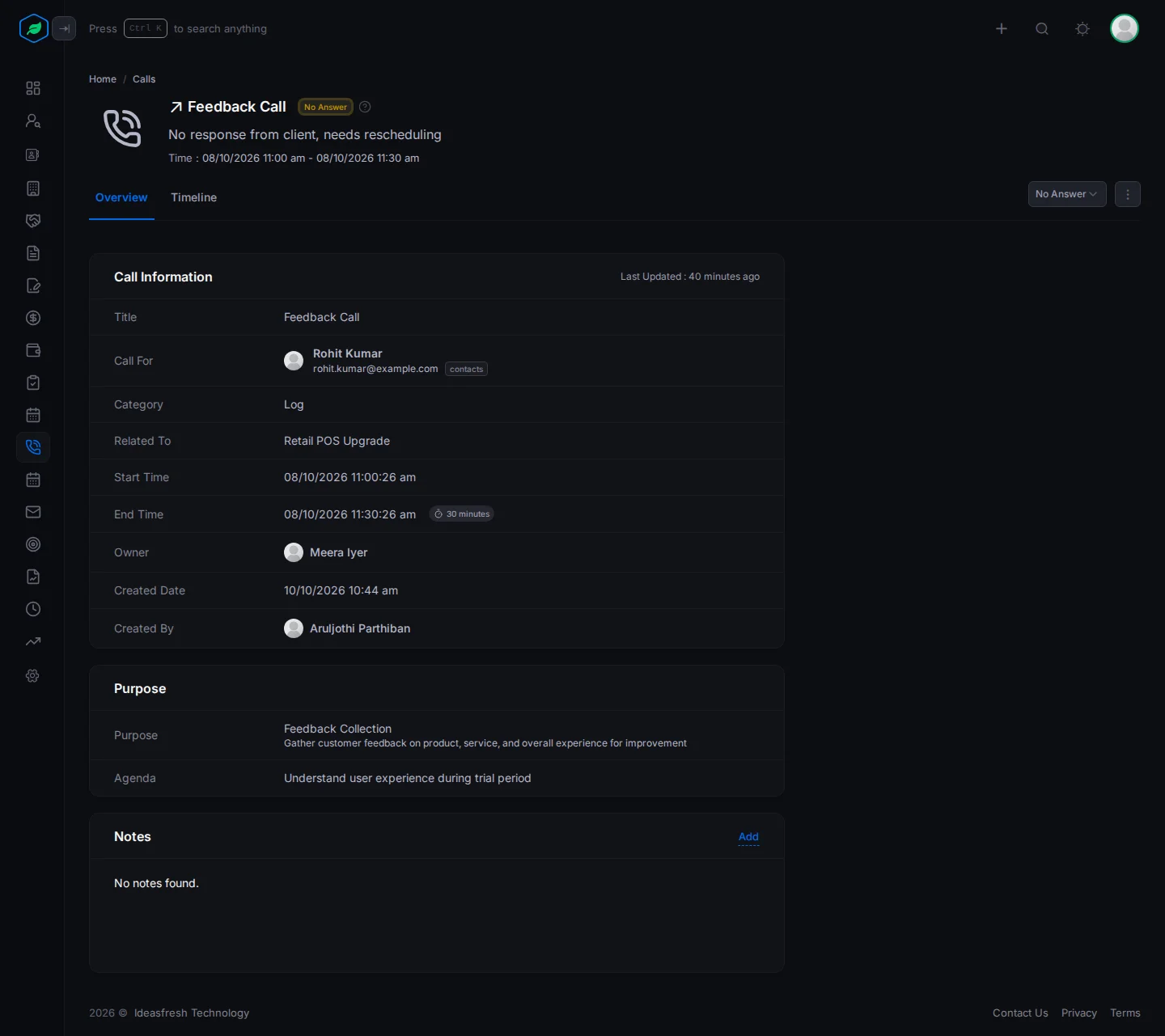
At the top
The top of the page shows the title, with an arrow for incoming or outgoing, the status, the description and the time. On the right are the status dropdown and the ⋮ menu.
Overview
Call Information shows who the call was for, whether it was scheduled or logged, the related record, the start and end time with the length, the owner, and who made the call record and when. A call made through Twilio also shows Twilio as its provider. If someone uploaded a recording, you can play it here.
Purpose shows why the call was made and the agenda. Once the call is complete, it also shows the outcome.
Notes is for anything your team should know, such as what the customer asked for. Click Add or Edit to write notes.
Timeline
Timeline lists every change to the call: who changed what, and when. For example, if the call was moved, you can see who moved it. Click the arrow next to an entry to see exactly what changed.
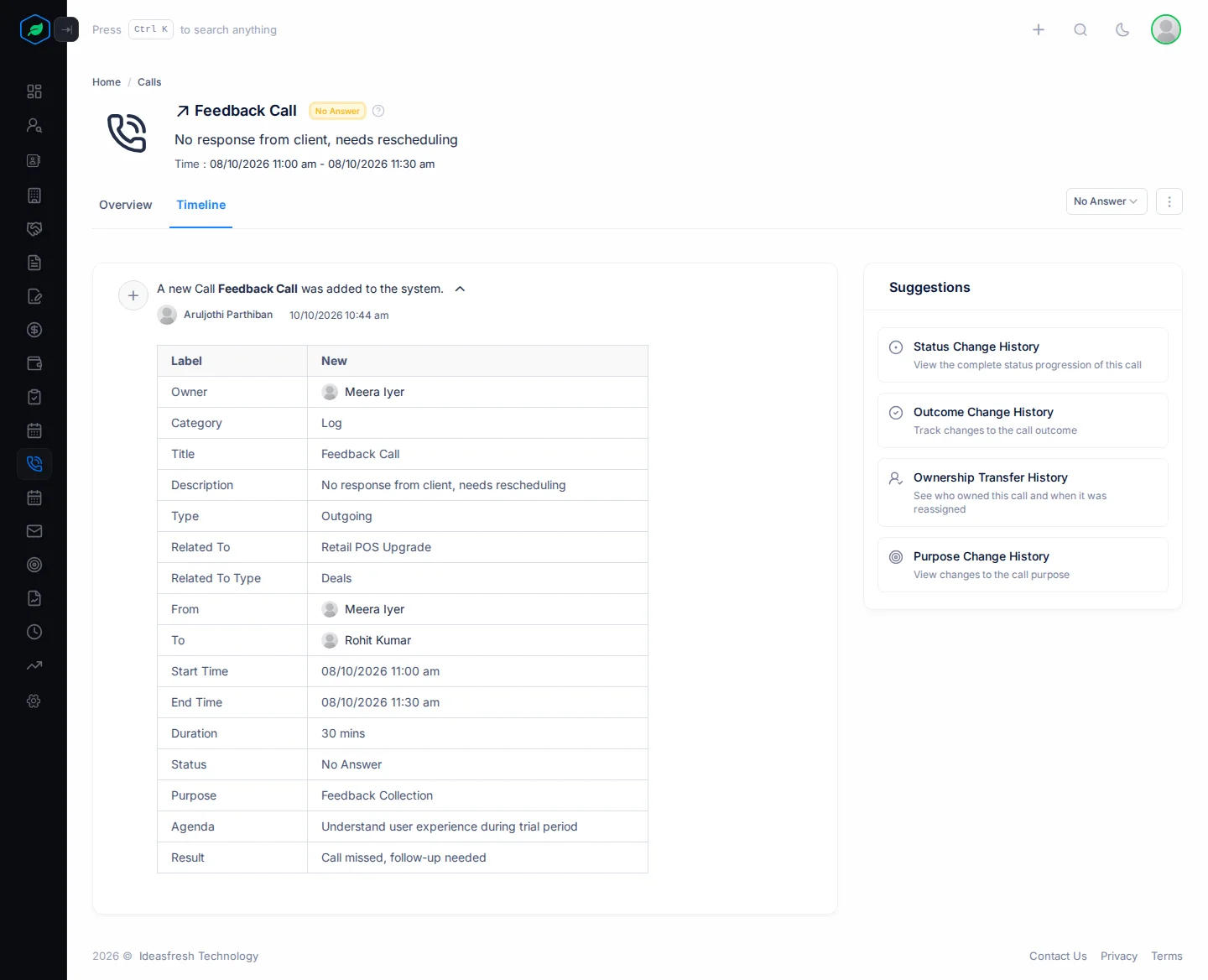
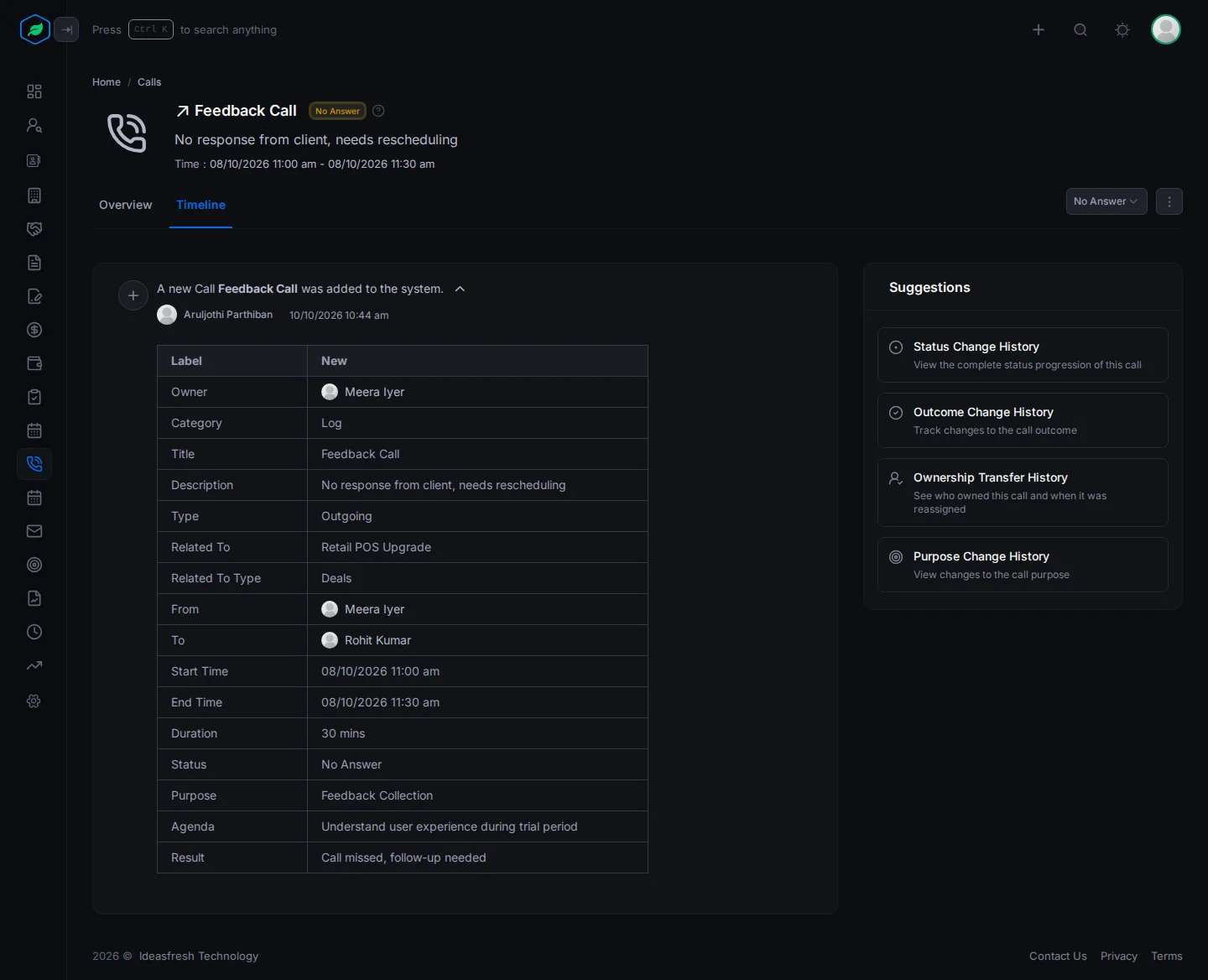
Suggestions on the right lets you see the history of one thing at a time, such as Status Change History or Outcome Change History. Click one to see only those changes. Click it again to go back to the full timeline.
Change the status
Pick a status from the dropdown at the top right and confirm. For example, if the customer didn't pick up, pick No Answer, so your team knows to try again.
You can't change the status of a call made through Twilio. This keeps its details correct.
Complete a call
- Pick Completed from the status dropdown.
- Pick the Purpose and the Outcome, such as Interested or Callback Requested. If the call already has a purpose, it is filled in for you. Pick both, or leave both empty.
- Click Yes.
The outcome tells your team how the call went without reading notes. For example, a manager can see how many calls this week ended with Callback Requested.
The ⋮ menu
Edit, Clone and Delete are in the ⋮ menu at the top right. See Schedule and log a call.
Troubleshooting
| You see | Why | What to do |
|---|---|---|
| The status dropdown is missing or greyed out | It's a Twilio call. Or you don't have the Edit Calls permission | For a Twilio call, write what happened in Notes. Otherwise, ask your admin for the permission |
| "Call not found" | The sharing rules hide the call from you, you don't own it and didn't create it, or it was deleted | Ask the owner |
Related
Still stuck?
Tell us what you were trying to do and we will help.