Schedule, log, edit and clone a call
Every field on the Schedule a call and Log a call forms, and how to edit, clone and delete calls.
Updated 10 October 2026 · 5 min read
The call form has two tabs:
- Schedule a call is for a call you plan to make.
- Log a call is for a call that already happened.
For example, a parent asks you to call back on Thursday at 5 pm. Click Create Call, pick the parent under To, set Thursday at 5 pm and type "Call back about classes" as the title. Click Save, and you get a reminder before the call.
Before you start
- To schedule, log or clone a call, you need the Create Calls permission.
- To edit a call, you need the Edit Calls permission. You must also be the call's owner, or the person who created it.
- To delete a call, you need the Edit Calls and Delete Calls permissions. You must also be the person who created it.
If you don't have a permission you need, ask your admin.
Schedule a call
Schedule a call when you promise to ring someone back, so you don't forget.
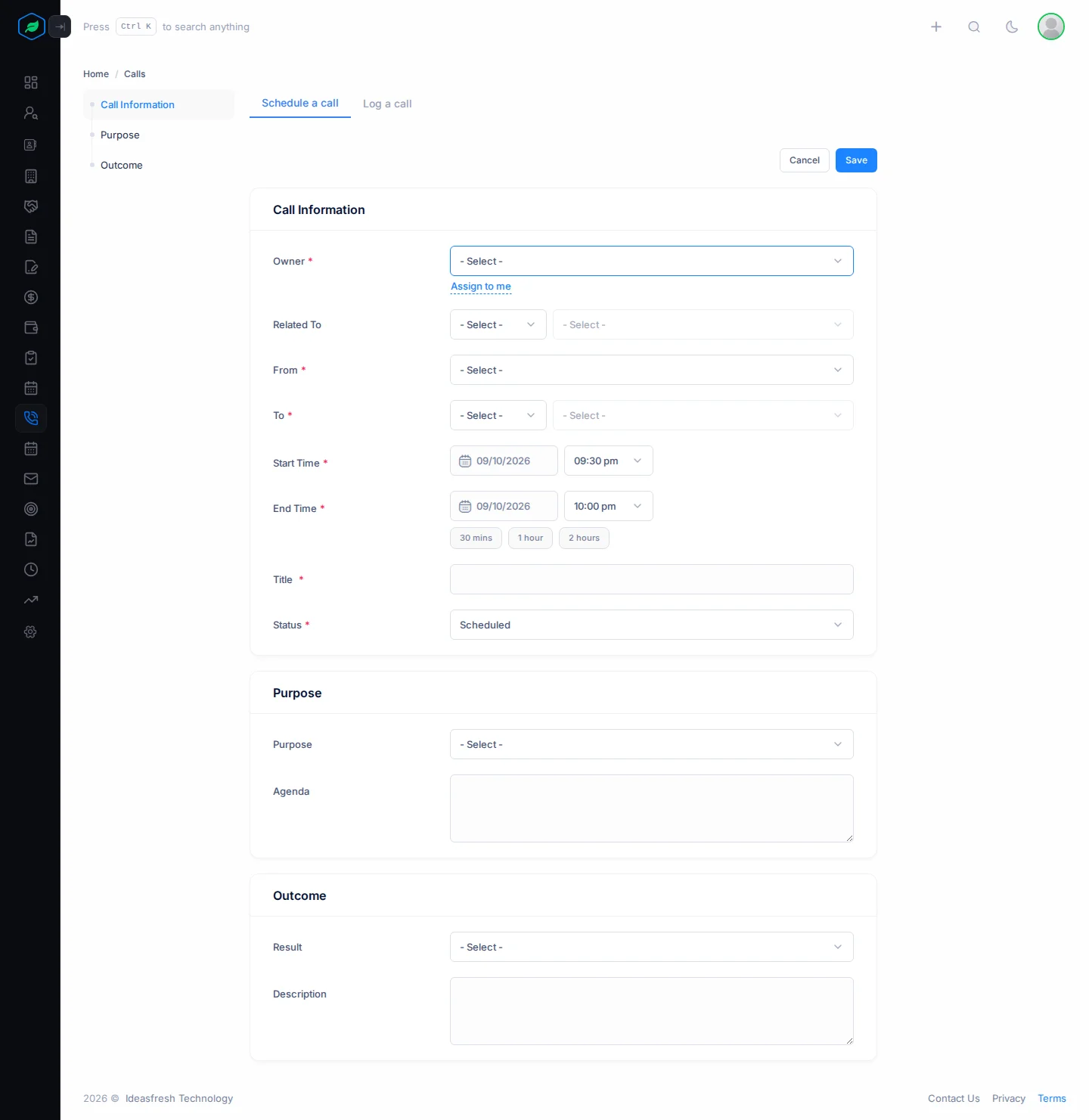
- Click Create Call on the Calls page, or click + at the top of any page and choose Call. Schedule a call is already selected.
- Fill in Call Information. Fields marked * must be filled in.
- Add a Purpose and an Agenda if you like.
- Click Save.
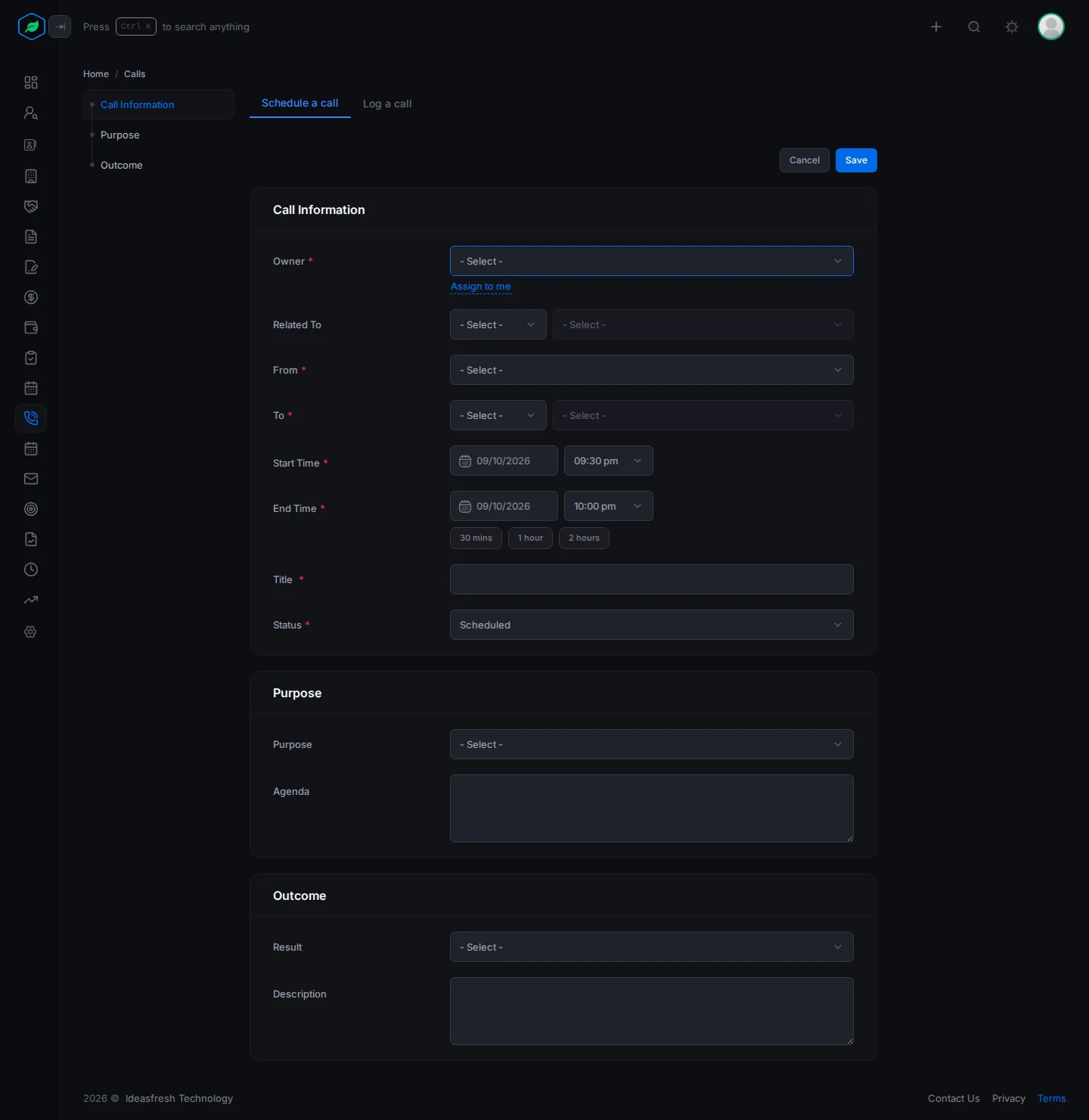
| Field | What to enter |
|---|---|
| Owner * | The person the call belongs to. Click Assign to me to pick yourself |
| Team | One of the owner's teams. You only see this if the owner is in a team |
| Related To | An account or deal the call is about. If you pick one, you can only call its contacts |
| From * | The user making the call |
| To * | The lead or contact you are calling |
| Start Time * and End Time * | When you plan to talk. Click 30 mins, 1 hour or 2 hours to set the length. You can't pick a date in the past |
| Title * | What the call is about, such as "Call back about classes" |
| Status * | Set to Scheduled at first. Scheduled calls are always outgoing |
| Purpose | Why you are calling, such as Follow-up. See Activity purposes and outcomes |
| Agenda | What you want to cover, such as "Go over the price list" |
Log a call
Log a call after it happens, so your team knows you spoke and what was said. For example, a customer rings you on your mobile. Log it, and the call shows on their page like any other.
- Click Create Call, then Log a call.
- Fill in Call Information. Fields marked * must be filled in.
- Add the Purpose, Agenda, Result and Description if you like.
- Click Save.
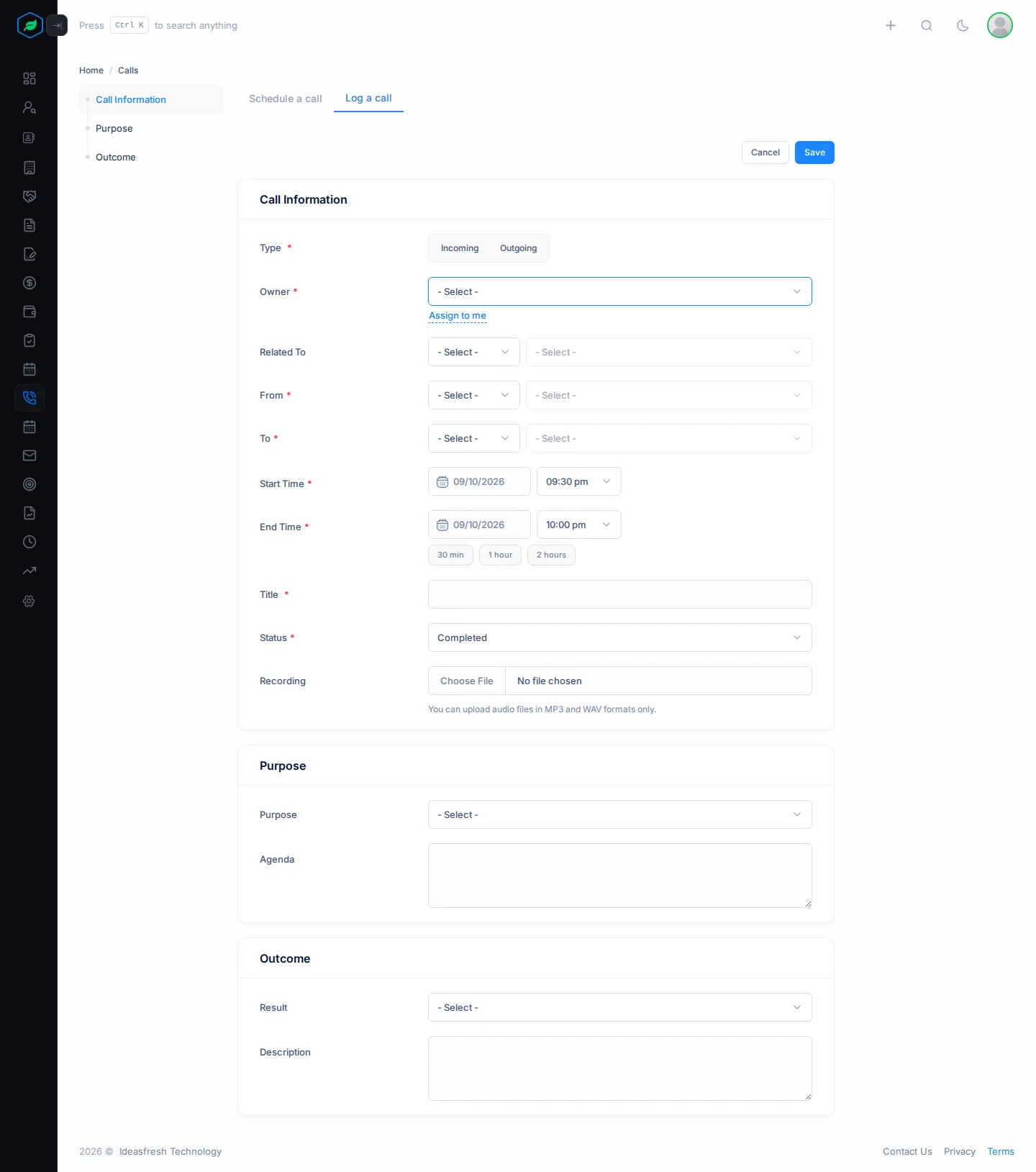
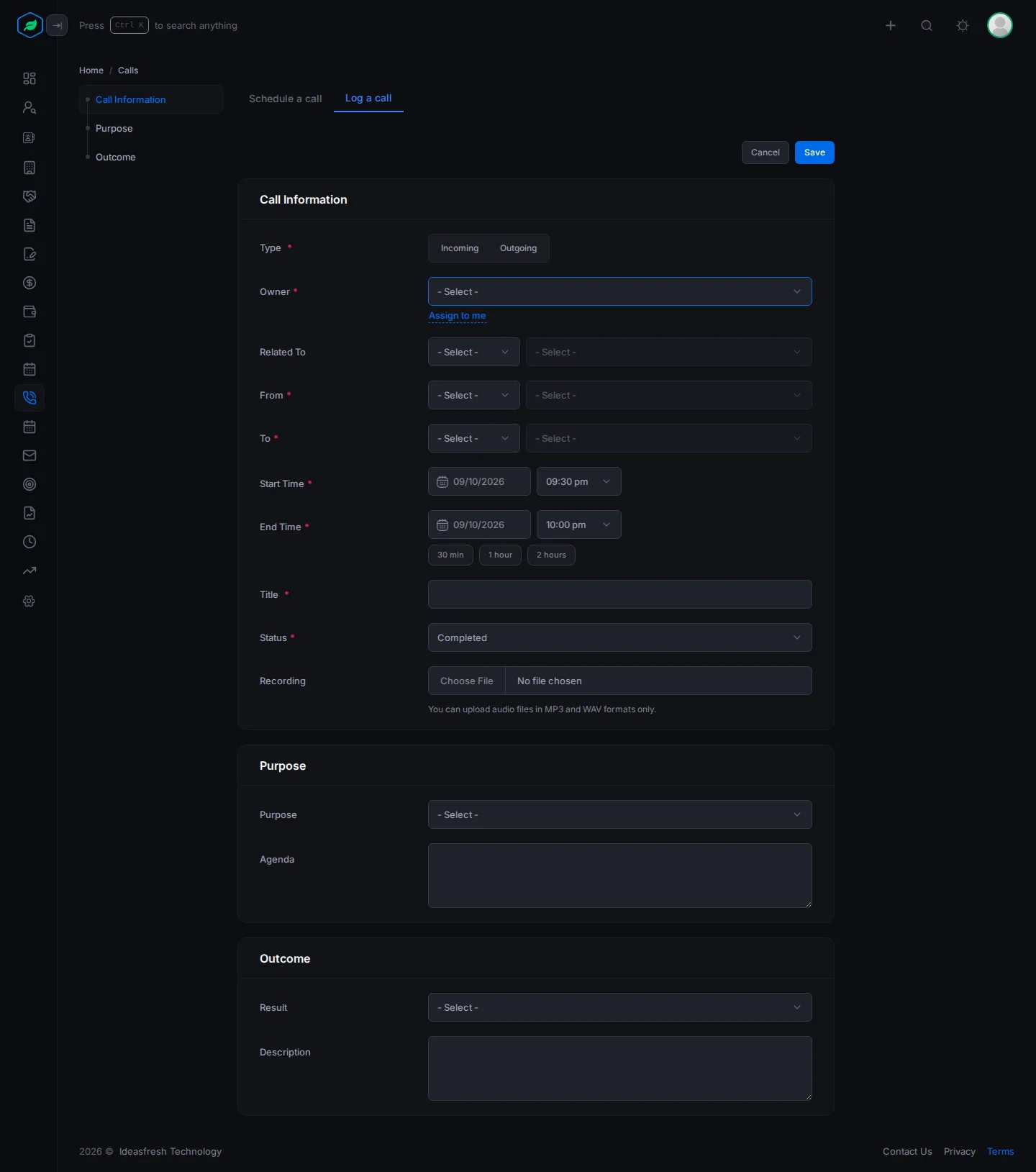
The form is the same as for a scheduled call, with these differences:
| Field | What to enter |
|---|---|
| Type * | Incoming if they called you, or Outgoing if you called them |
| From * and To * | Each can be a lead, contact or user, but not the same person |
| Start Time * and End Time * | When the call happened. You can't pick a future date. The length of the call is worked out for you |
| Status * | How it went: Completed, No Answer, Busy or Failed |
| Recording | A recording of the call, if you have one. It must be an MP3 or WAV file |
| Result | How the call ended, such as Interested or Callback Requested |
| Description | What was said, such as "Wants classes on weekends" |
Edit a call
Click ⋮ on the call's page or on its row, then Edit. Change what you need and click Update.
You can't change a scheduled call into a logged call, or the other way round. You also can't edit a call made through Twilio. This keeps its details correct.
Clone a call
Cloning makes a copy of a call. It saves time when you call several people about the same thing.
- Click ⋮, then Clone, and confirm.
- A copy called "Title (Copy)" opens, with you as the owner.
- Change who you are calling and anything else, and click Update.
Only you can see the copy until you click Update.
Delete a call
Click ⋮, then Delete, and confirm. You can't restore a deleted call.
Troubleshooting
| You see | Why | What to do |
|---|---|---|
| "Please select a different recipient. Sender and receiver cannot be the same." | From and To are the same person | Pick a different From or To |
| "Emojis are not allowed" | The title has an emoji | Remove it |
| "Only MP3 and WAV files are allowed." | The recording is another kind of file | Save it as MP3 or WAV |
| Edit is missing | It's a Twilio call. Or you don't own the call and didn't create it. Or you don't have the Edit Calls permission | Ask the owner, or ask your admin for the permission |
| "Call not found" | You don't own the call and didn't create it, or it was deleted | Ask the owner |
Related
Still stuck?
Tell us what you were trying to do and we will help.