Create, edit and clone a deal
Every field on the deal form, from type and contact to revenue, closing date and stage, plus deals created from quotes and cloning.
Updated 9 October 2026 · 6 min read
You use the deal form to record a sale you are working on: who you are selling to, how much it is worth, and when you expect to close it. Once it's saved, your whole team can follow the sale.
For example, a school asks you for 500 uniforms for next term. Create a deal named "School uniforms 500", pick the school as the account and the principal as the contact. Type the expected revenue, pick Next Month as the closing date and set the stage to Qualification.
Before you start
- To create or clone a deal, you need the Create Deals permission. To edit one, you need Edit Deals, and you must be the deal's owner or the person who created it.
- You can't edit a deal that is locked.
- Lead Sources and Campaign Sources come from lists your admin sets up in Settings > Configurations. See Configurations.
- A deal needs an account, and a contact at that account. If they aren't in Salesfresh yet, add them first. You can also add the contact from the deal form.
Create a deal
- Go to Deals and click Create Deal. You can also click the + button at the top of any page.
- Fill in the form. Fields marked * must be filled in.
- Click Save.
If you try to leave the page before you save, Salesfresh asks you to confirm first.
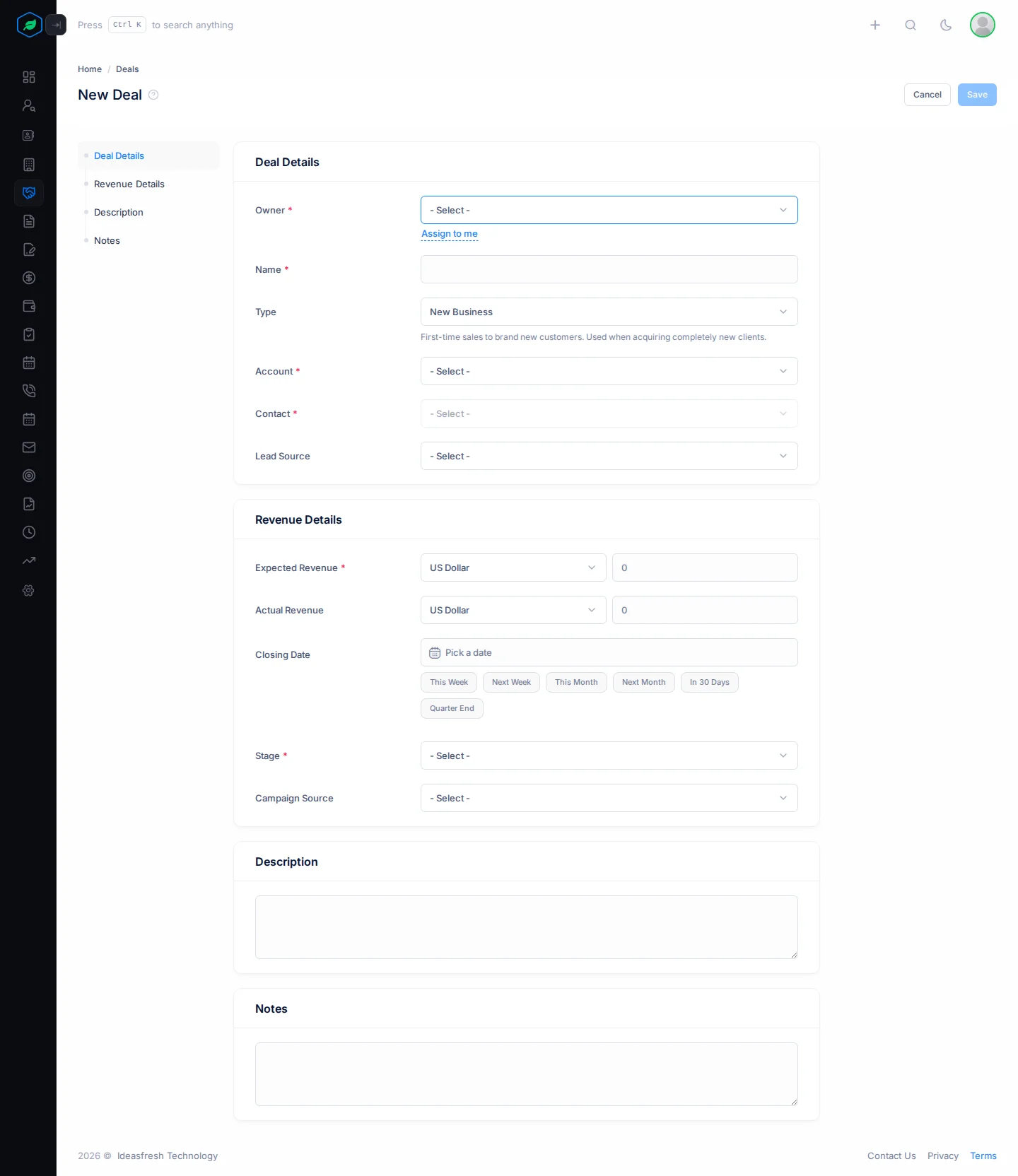
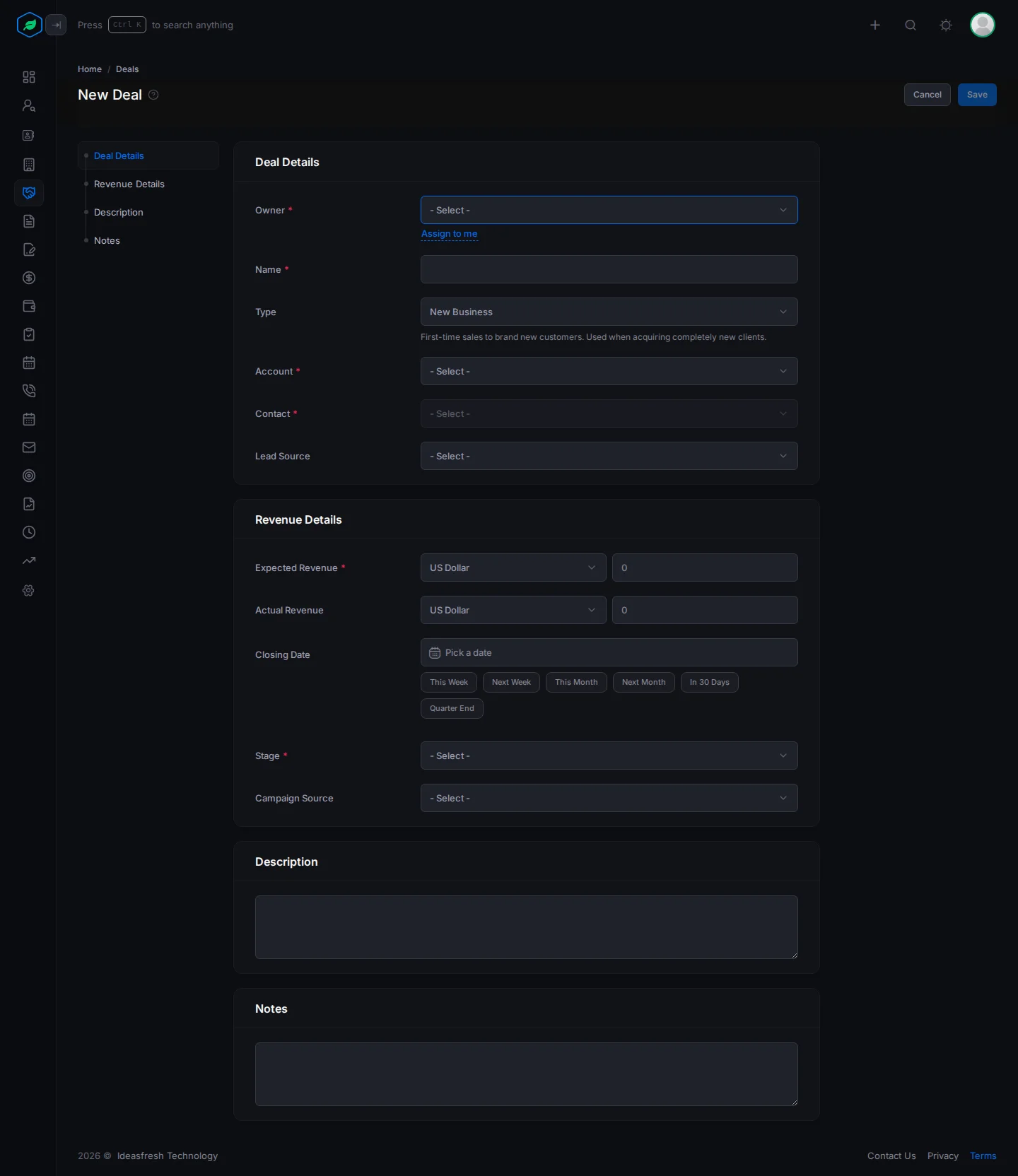
The form, section by section
Deal Details
| Field | What to enter |
|---|---|
| Owner * | The person in charge of the deal. Click Assign to me to pick yourself |
| Team | One of the owner's teams. If your company shares records by team, this decides who can see the deal |
| Name * | A short name for the sale, such as "School uniforms 500" |
| Type * | What kind of sale it is. Set to New Business at first. See the table below |
| Account * | The company you are selling to |
| Contact * | The person you deal with at that company. Pick the account first. If the person isn't in Salesfresh yet, click Add New to add them here |
| Lead Source | Where the customer first came from, such as a referral or your website. Pick from your company's list. Your admin sets up the list in Settings > Configurations > Lead Sources |
| Type | Use it for |
|---|---|
| New Business | A first sale to a new customer |
| Upsell | Selling a higher-priced product to a customer you already have |
| Cross-sell | Selling another product to a customer you already have |
| Renewal | Renewing a contract or subscription a customer already has |
Picking the right type lets you see later how much of your sales come from new customers, and how much from customers you already have.
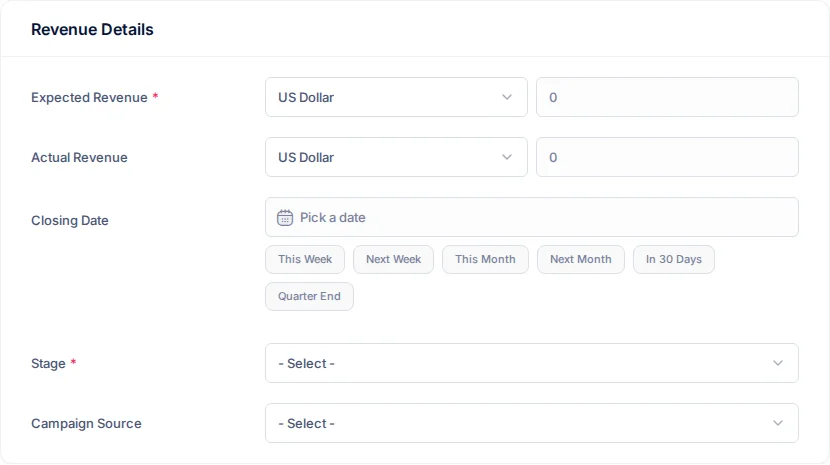
Revenue Details
| Field | What to enter |
|---|---|
| Expected Revenue * | How much you expect the deal to be worth, and the currency. The currency is set to US Dollar at first. This shows how much money is in your pipeline |
| Actual Revenue | How much the customer actually pays. You usually fill this in when you win the deal. Won deals count this towards revenue targets |
| Closing Date | When you expect to close the deal. You can't pick a date in the past. Quick options: This Week, Next Week, This Month, Next Month, In 30 Days and Quarter End. Views such as Closing This Month use this date |
| Stage * | Where the deal is now. A new deal can start in any stage that isn't won or lost. When you pick a stage, its probability (the chance of winning) shows under it, such as 10% for Qualification. You don't type it. Your admin sets each stage's probability. See Deal stages and pipelines |
| Campaign Source | The marketing campaign that brought in the deal, such as a trade show or an email campaign. Pick from your company's list. Your admin sets up the list in Settings > Configurations > Campaign Sources |
Expected Revenue and Actual Revenue always use the same currency. If you change it on one, it changes on the other too.
Description and Notes
Type anything else your team should know. The description can be up to 255 characters.
Edit a deal
Open the deal, open the ⋮ menu and click Edit. Or pick Edit from the row menu on the list. Change what you need and click Update.
Won or lost the deal? Don't use the form for that. Use the stage bar on the deal's page, or drag its card on the Kanban board. They ask for the actual revenue or the reason you lost. See Win or lose a deal.
Deals created from a quote
A deal made from an accepted quote takes its owner, account, contact, expected revenue and closing date from the quote. You can't change these fields on the form, so the deal always matches the quote.
Clone a deal
Cloning makes a copy of a deal. It helps when you sell something similar again, such as the same order to another branch of the same company.
- Open the menu at the start of the deal's row, or the ⋮ menu on its page. Click Clone and confirm.
- Salesfresh makes a Draft copy and opens it so you can edit it.
- Change what you need and click Update. The Draft badge goes away.
The copy keeps the original's details, owner, contact, account and stage. It doesn't copy the tags, team or lost reason. Only the person who made a draft can see it.
Troubleshooting
| You see | Why | What to do |
|---|---|---|
| "Contact is required" | You haven't picked a contact | Pick the account, then a contact there, or click Add New |
| "Account is required" | You haven't picked an account | Pick an account |
| "Expected Revenue is required" | The amount is empty | Type how much you expect, or 0 |
| "Stage is required" | You haven't picked a stage | Pick a stage |
| "You have reached the maximum of N deals on your current plan. Please upgrade for more." | You have used up your plan's deal limit | Upgrade from My Subscription. See Plans and limits |
Related
Still stuck?
Tell us what you were trying to do and we will help.