Deals: overview, list and board
What a deal is, how deals are created, and how to track them in the deals list and on the Kanban board by stage.
Updated 9 October 2026 · 10 min read
A deal is a sale you are working on, with one contact at one company. Deals shows every sale your team is working on, and how far along each one is.
Some other CRMs call a deal an opportunity. If you are used to opportunities, deals in Salesfresh are the same thing.
Each deal moves through your company's deal stages, such as Qualification, Proposal and Negotiation, until it ends as Closed Won or Closed Lost. Each stage has a chance of winning, called the probability, and the deal takes it from the stage it is in.
For example, your team is working on 30 sales at once. Instead of asking everyone for updates every Monday, open Deals and switch to Kanban View. You see every deal in the column for its stage. Pick the Closing This Month view to see which sales should close soon. When a customer agrees to buy, drag their card to Closed Won.
Before you start
| You want to | You need |
|---|---|
| See deals | The View Deals permission |
| Create or clone deals | The Create Deals permission |
| Edit or lock a deal, add tags, or move it to another stage | The Edit Deals permission. You must also be the deal's owner, or the person who created it |
| Delete deals | The Delete Deals permission. You must also be the deal's owner, or the person who created it |
How many deals your company can have depends on your plan. See Plans and limits.
How deals are created
Add one yourself
Click Create Deal on the deals list, or click the + button at the top of any page. Fill in the form. See Create and edit a deal.
From an account
Open an account and go to its Deals tab. Click Create Deal, and the account is already filled in.
By converting a lead
When you convert a lead, tick Add a deal for this contact to create a deal at the same time. See Convert a lead.
From an accepted quote
When a customer accepts a quote, click Create Deal on the quote's page to turn it into a deal.
You can also have this happen on its own, with a quote conversion rule. Your admin sets one up in Settings > Automation > Quote Automation > Quote Conversion. Then, as soon as someone marks a quote Accepted, Salesfresh creates the deal, linked to the quote's contact and account. Nobody has to remember to click Create Deal or type the amount again.
The rule decides how the new deal is set up:
- its name, such as the account name and contact name,
- which stage it starts in,
- its amount, such as the full quote total, a share of it, or a fixed amount,
- its closing date, a number of days after the quote's valid-till date or the day it was accepted,
- who owns it: the quote's owner, or a person you pick.
The quote's status then changes to Deal Created. The new owner doesn't get an email about it, so let them know. See Quote conversion rules.
By cloning
Copy an existing deal as a draft, then change what's different. See Clone a deal.
You can't import deals from a CSV or Excel file yourself. Deals are linked to accounts, contacts, stages and owners, so they need to be matched up carefully when they come in.
Moving from another CRM, such as Salesforce, HubSpot or Zoho? Contact us and our team will handle the migration for you. We migrate your leads, contacts, accounts and deals, with each deal in the right stage and linked to the right customer. You don't need to type anything in again.
List and Kanban
Click Deals in the sidebar. Use Kanban View and List View at the top of the page to switch between them. Salesfresh remembers which one you used last.
List View
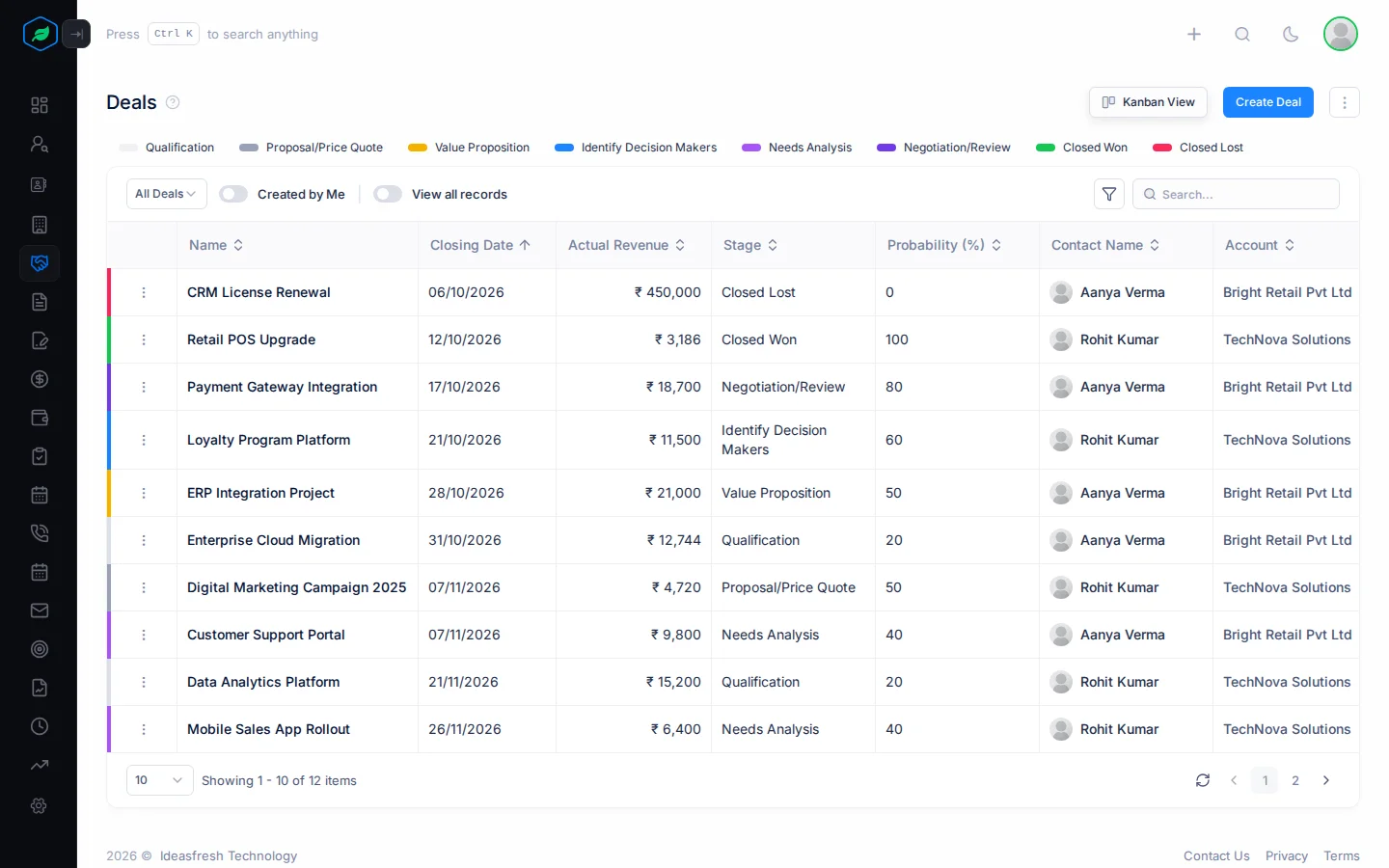
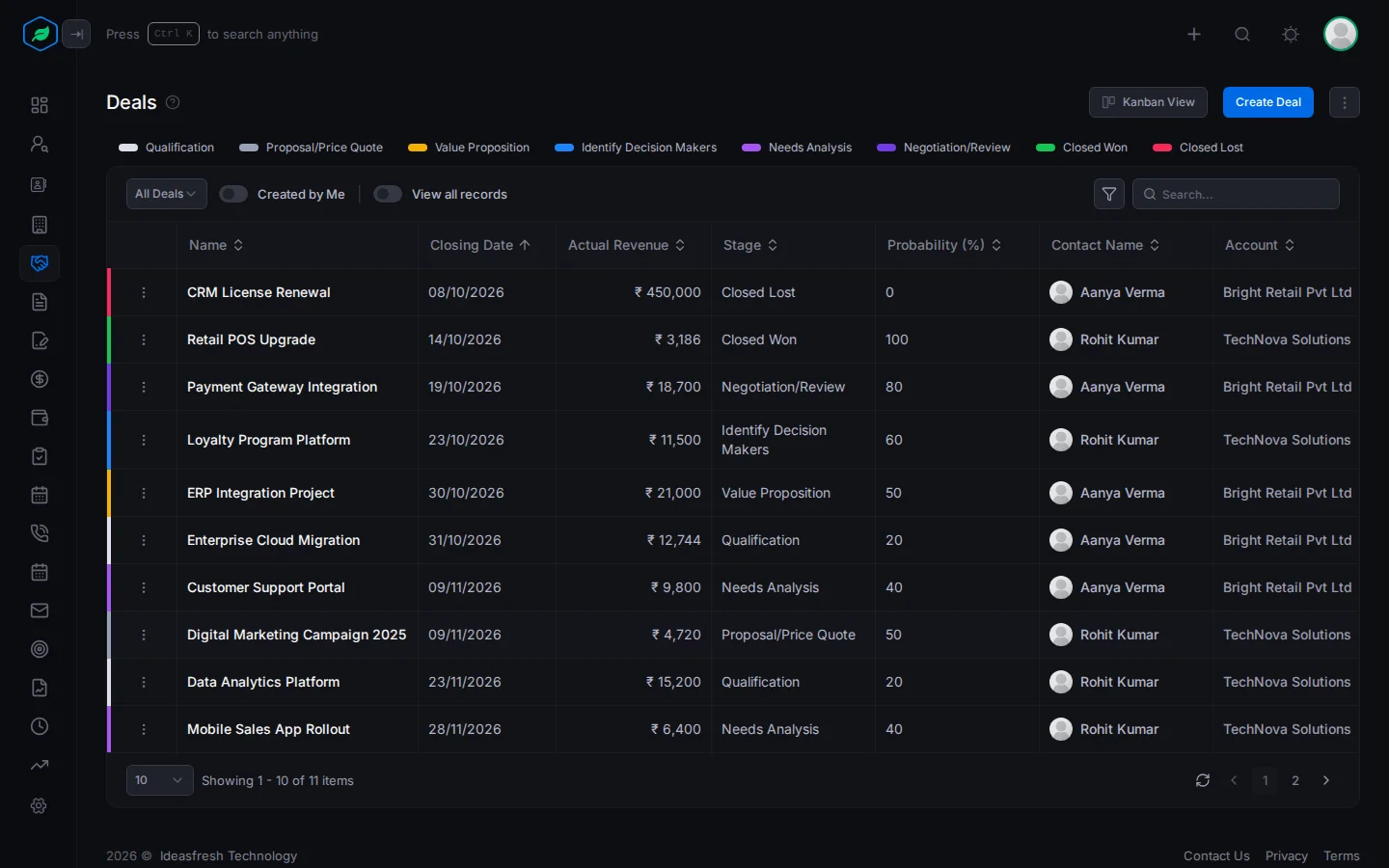
Above the table there is a coloured chip for each of the default stages. Click a chip to see only the deals in that stage. Click it again to see all deals.
The table shows Name, Closing Date, Actual Revenue, Stage, Probability (%), Contact Name, Account, Owner, Created At and Created By. To sort, click a column heading.
- Each row has a light colour that matches its stage.
- A lock icon next to the name means the deal is locked.
- Next Action shows the deal's next task, meeting or call. A Draft badge there means the deal is a copy that hasn't been saved yet.
Kanban View
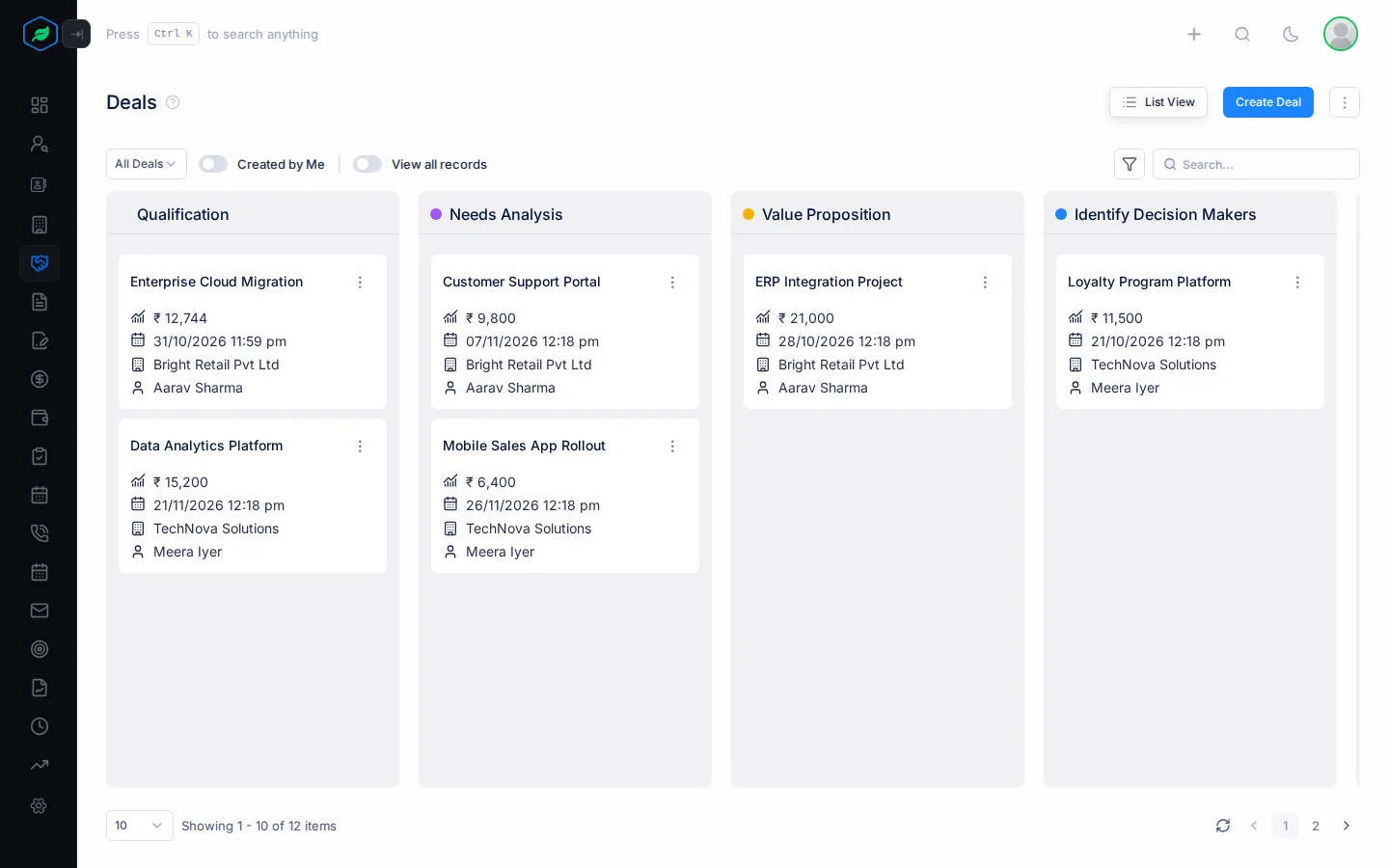
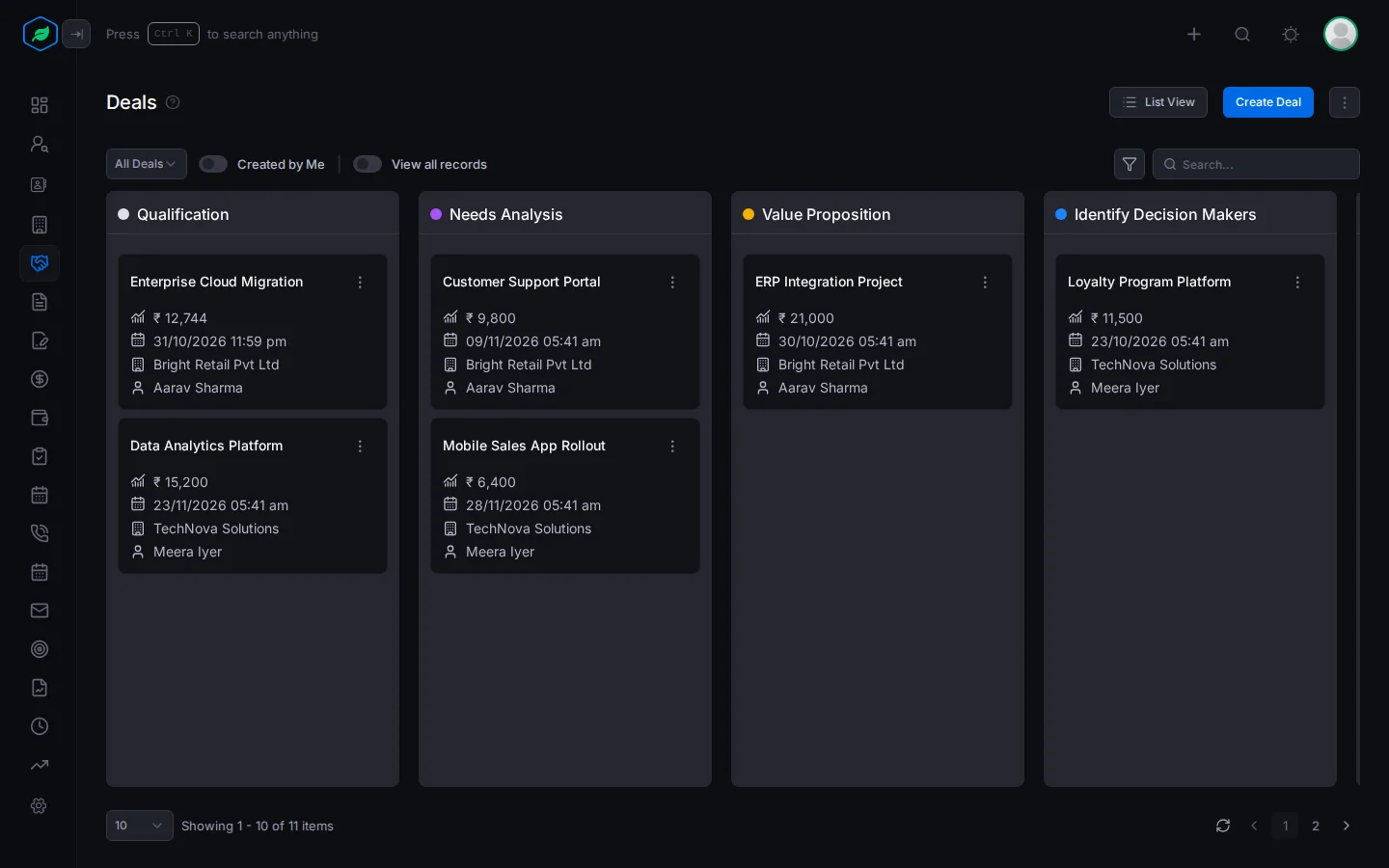
The board has a column for each active stage, in order. Each card shows the deal's name, revenue, closing date, account and owner. This is the quickest way to see where all your sales are.
- To move a deal to another stage, drag its card to that column. You confirm the move first.
- Drop a card on Closed Won or Closed Lost, and a panel opens so you can record the win or loss. See Win or lose a deal.
- The board shows one page of deals at a time. Use the page controls under it to see the rest.
Toolbar
| Control | What it does |
|---|---|
| View list | Switch to another saved view. See Views |
| Created by Me | Show only the deals you created. You won't see this on the My Deals views |
| View all records | Shows the deals of everyone in your company, not just the ones you are allowed to see by default. For example, a sales manager can use it to check all the team's deals. To see this switch, your role needs the View All Records permission. Ask your admin if you need it |
| Filter (funnel icon) | Show only the deals that match what you need. See Filter the list |
| Search | Searches deal name, type and notes |
Filter the list
Want to see only certain deals, for example deals in Negotiation/Review worth more than 50,000? Use the filter to find them.
- Click the funnel icon. The Advanced Filter panel opens.
- Click a saved filter at the top, such as one of your views. Its conditions are loaded below, and you can change them. Or start with an empty condition.
- Build your conditions. Pick a field, how to compare it, and a value. Click + Rule to add another condition, or + Group to add a set of conditions.
- Choose AND to show deals that match every condition, or OR to show deals that match any of them.
- Click Apply. The list now shows only the deals that match.
To see all deals again, click Clear Filter. The filter isn't saved, so if you want to use the same filter again later, ask your admin to add it as a view. You can't use the filter while View All Records is on.
Views
A view is a saved filter. Every company starts with these:
| View | Shows |
|---|---|
| All Deals | Every deal |
| New This Week | Deals created this week |
| New Last Week | Deals created last week |
| Open Deals | Deals in a stage that isn't won or lost |
| Closed Deals | Deals that are won or lost |
| Won Deals | Deals in a won stage |
| Lost Deals | Deals in a lost stage |
| Locked Deals | Locked deals |
| Unread Deals | Deals nobody has opened yet |
| Closing This Month | Deals with a closing date this month |
| Closing Next Month | Deals with a closing date next month |
| Recently Created Deals | Deals created this week, up to today |
| Recently Modified Deals | Deals changed this week, up to today |
| My Deals | Deals you own |
| My Deals Closing This Month | Deals you own that should close this month |
Admins can add more views and tags in Settings > Data Management > Deals.
Row actions
Click the menu at the start of a row to see what you can do with that deal.
| Action | You see it when |
|---|---|
| Edit | You can edit deals, you own or created the deal, and it isn't locked |
| Clone | Always. It is greyed out if you can't create deals |
| Lock / Unlock | You own or created the deal. Locking stops anyone editing or deleting it. Only the person who locked it can unlock it |
| Delete | You can delete deals, you own or created the deal, and it isn't locked |
Who can see and change a deal
Your admin decides who can see deals, in Settings > Data Share Policies. It starts as Company Wide.
| Setting | Who sees a deal |
|---|---|
| Company Wide | Everyone in the company |
| Team Based | Everyone in the team picked on the deal, which is one of the owner's teams |
| Owner Only | Only the deal's owner |
| Owner and Team | The owner, and everyone in the team picked on the deal |
The person who created a deal can always see it.
Being able to see a deal doesn't mean you can change it. To edit it, move it to another stage, lock it, tag it or delete it, you need the permission and you must be the owner or the creator.
To give all of one person's deals to someone else, open the ⋮ menu at the top right of the deals list, next to Create Deal, and click Change Owner.
Emails owners get
| Who gets it | When | |
|---|---|---|
| New Deal Assignment | The owner | Someone else creates a deal for them, or makes them its owner |
| Deal Reassigned to Another Owner | The old owner | Someone else gives their deal to a new owner |
| Deal Stage Change | The owner | Someone else moves the deal to another stage, on its page or on the board |
Don't want these emails? Turn them off in Notification settings.
Deleting a deal
Open the deal's menu, click Delete and confirm.
Deals don't have a recycle bin. A deleted deal is gone straight away, and you can't bring it back. Check before you delete. Quotes linked to the deal are kept.
If you delete an account, its deals are deleted too. Restoring the account brings them back. See Delete and restore an account.
Targets
If your company uses targets, deals count towards the target of the deal's owner. They count as deals won, revenue closed (the actual revenue of won deals), deals created, and pipeline value added (the expected revenue of new deals). See My targets.
Troubleshooting
| You see | Why | What to do |
|---|---|---|
| "Deal not found" | The sharing rules hide the deal from you, it was deleted, or you don't own it and didn't create it | Ask an admin, or the deal's owner |
| "You have reached the maximum of N deals on your current plan. Please upgrade for more." | You have used up your plan's deal limit | Upgrade from My Subscription. See Plans and limits |
Related
Still stuck?
Tell us what you were trying to do and we will help.