Set default approvers for contracts
Set up rules that name who should approve each kind of contract, with the approvers' roles and whether each one is required.
Updated 12 October 2026 · 4 min read
A default contract approver rule names who should approve a kind of contract. Each rule has criteria that pick the contracts it covers, and a list of approvers.
For example, a company wants its finance manager to approve every contract worth more than 50,000, and its legal head to sign off as well. The admin creates a rule called "High value contracts" with the criteria "Contract Value is greater than 50,000", and adds both people as approvers, with the legal head marked Required.
Contracts don't use these rules yet. You can create and manage rules, but new contracts don't get approvers from them, and there's no approve or reject step on a contract yet. Set up your rules now, so they're ready when this is added.
Before you start
- To see the rules, you need the View Contract Settings permission.
- To create a rule, you need Create Contract Settings. To change one or switch it on or off, you need Edit Contract Settings. To delete one, you need Delete Contract Settings.
- How many rules you can have depends on your plan: 5 on Starter, 10 on Professional, and no limit on Enterprise. The Free plan has no automation. See Plans and limits.
If you don't have a permission you need, ask your admin.
Create a rule
- Go to Settings > Automation and click Contract Automation. The Default Contract Approver Rules page opens, with a row for each rule.
- Click Create Rule. The Default Contract Approver Rule panel opens.
- Fill in the fields. Fields marked * must be filled in.
- Click Create. It's greyed out until you change something.
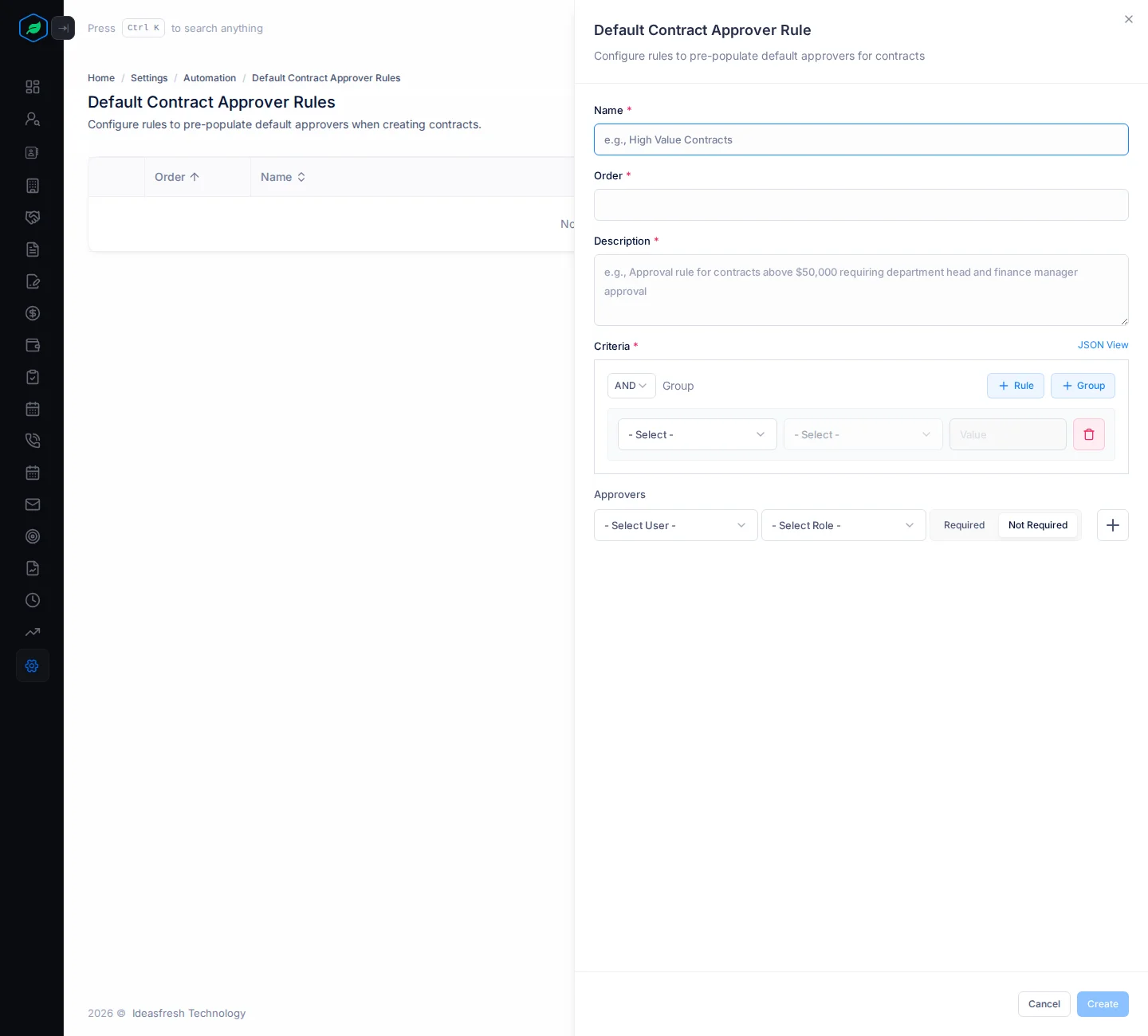
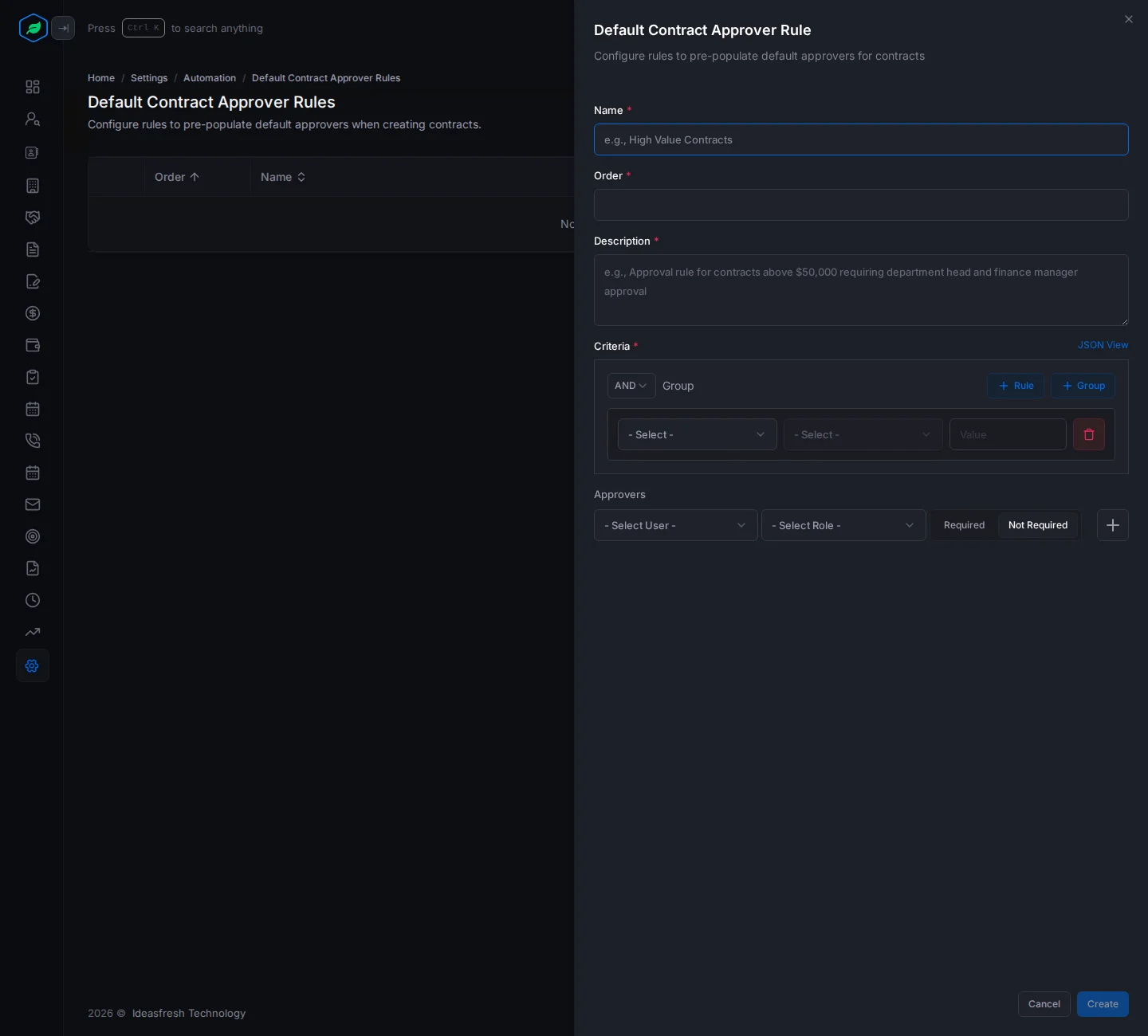
| Field | What to enter |
|---|---|
| Name * | A name for the rule, up to 100 characters, such as "High value contracts". Each rule needs its own name |
| Order * | A whole number, 0 or more. It's the rule's place in the list |
| Description * | What the rule is for, up to 255 characters |
| Criteria * | The contracts the rule covers. Click + Rule and pick a field, a check such as "greater than", and a value. Pick AND for contracts that meet every rule, or OR for any rule. Click + Group to put rules in a group. See Custom views |
| Approvers | At least one. Pick the user and their role: Primary, Secondary, Guarantor or Witness. Click Required if their approval is needed. Set to Not Required at first. Click + to add another approver |
Change, switch off or delete a rule
Click ⋮ on a rule:
| Action | What happens |
|---|---|
| Edit | Changes the rule. The panel is the same, and the button says Update |
| Inactivate | Switches the rule off without deleting it. Activate switches it on again |
| Delete | Removes the rule |
Inactivate and Delete ask you to confirm first. Click Yes to switch a rule off or on, or Delete to delete it.
Troubleshooting
| You see | Why | What to do |
|---|---|---|
| "Contract approval template already exists" | Another rule has that name | Pick another name |
| "At least two rules are required when logic is OR" | An OR group has one condition | Add a condition, or pick AND |
| "An approver must be an active member of this company." | An approver is deactivated | Pick an active user |
| "User is required" or "Role is required" | An approver row isn't complete | Pick both, or remove the row |
| "You have reached the maximum of … rule(s) on your current plan. Please upgrade for more." | You have as many rules as your plan allows | Delete a rule, or upgrade |
| "This feature is not available on your current plan. Please upgrade to access it." | Your plan doesn't include automation | Upgrade your plan |
Related
Still stuck?
Tell us what you were trying to do and we will help.