Set up contract numbers, types and templates
Set up contract numbers, contract types and the templates that become your contract documents.
Updated 10 October 2026 · 5 min read
Settings > Contract Settings controls three things:
- General Settings: how contracts are numbered.
- Contract Types: the kinds of contract you make.
- Templates: the wording of the contract document.
For example, every contract your company sends must use your own legal wording. You copy one of the ready-made templates and change the wording, keeping placeholders such as the customer's name and the start date. Your sales team picks this template when they create a contract. Every contract document now has your wording, filled in with that customer's details.
Before you start
- To see the settings, you need the View Contract Settings permission.
- To add a type or template, you need the Create Contract Settings permission.
- To change a setting, type or template, you need the Edit Contract Settings permission.
- To delete a type or template, you need the Delete Contract Settings permission.
- You only see Contract Settings if your company uses Contracts.
If you don't have a permission you need, ask your admin.
General Settings
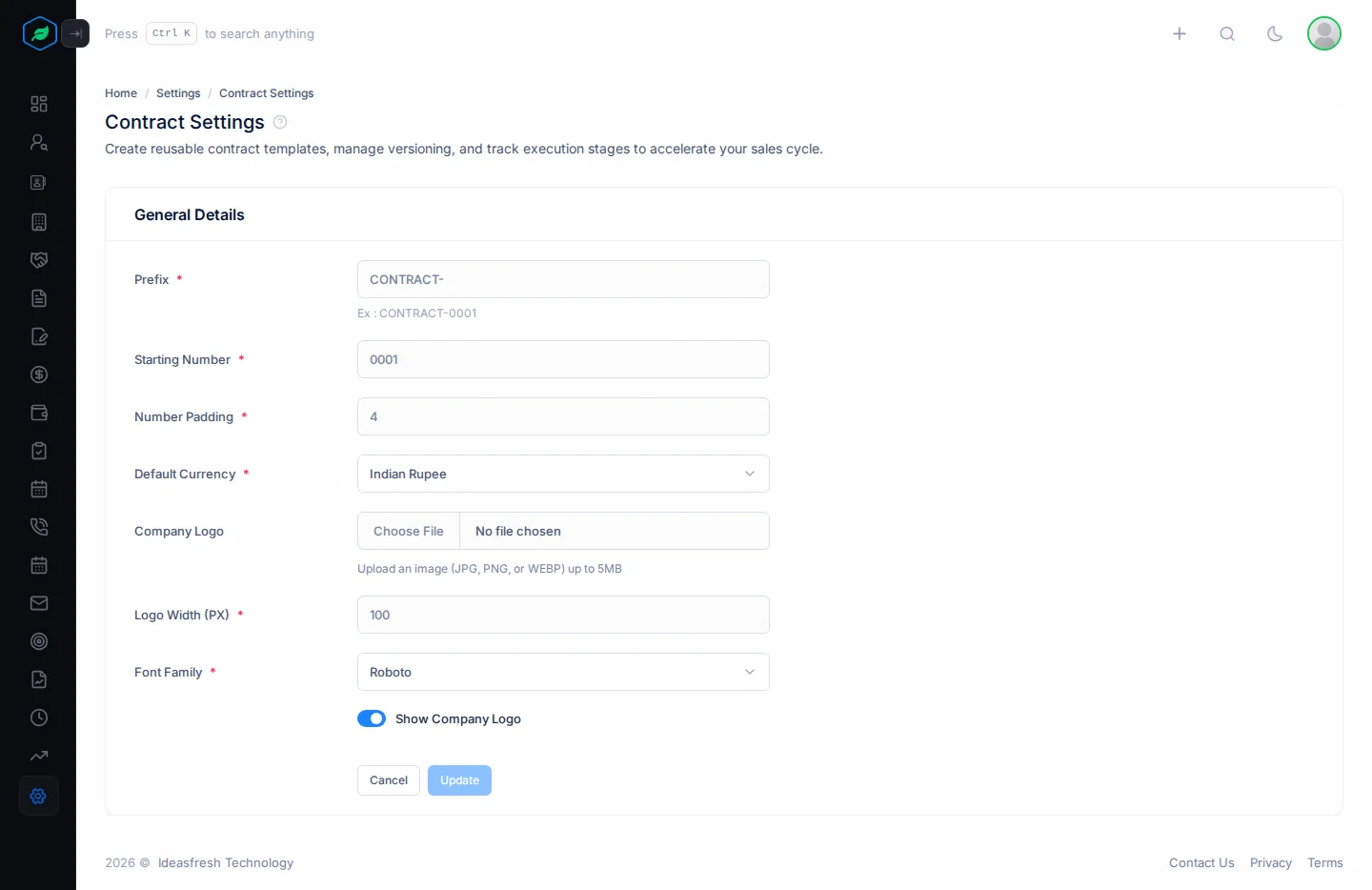
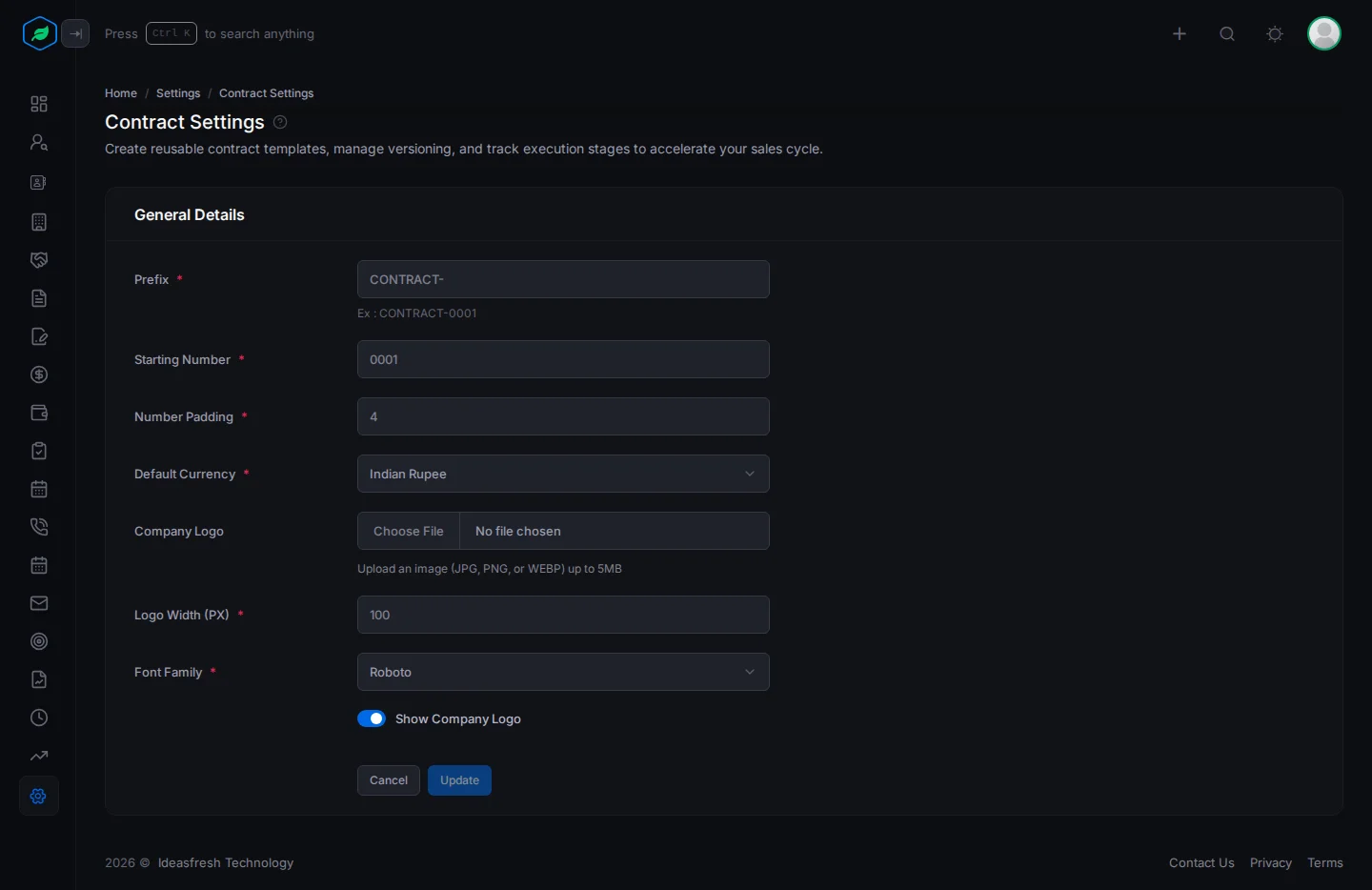
Go to Settings > Contract Settings > General Settings. Change what you need and click Update.
| Field | What to enter |
|---|---|
| Prefix * | The letters at the start of every contract number, such as "CONTRACT-" |
| Starting Number * | The number of your first contract, such as 0001 |
| Number Padding * | How many digits the number has, from 4 to 6. With 4, numbers look like CONTRACT-0001 |
| Default Currency * | The currency new contracts start with |
| Company Logo | Your logo, as a JPG, PNG or WEBP file up to 5 MB |
| Logo Width (PX) * | How wide the logo is, such as 100 |
| Font Family * | The font, such as Roboto |
| Show Company Logo | Turn on to show your logo |
Contract types
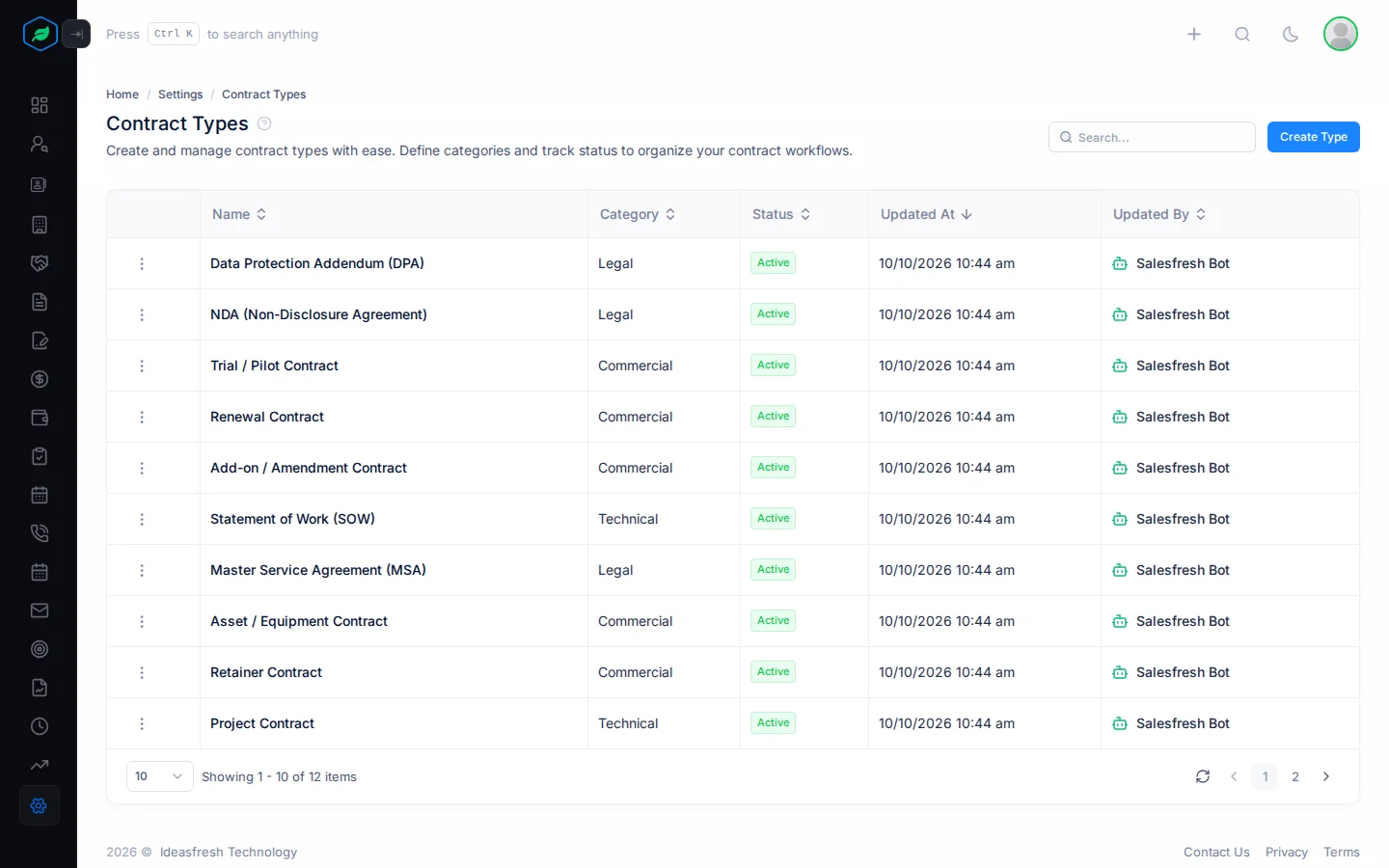
A type groups your contracts, such as "Service / AMC Contract" or "NDA (Non-Disclosure Agreement)". You start with 12 types. Your team picks one when they create a contract, so you can find all contracts of one kind later.
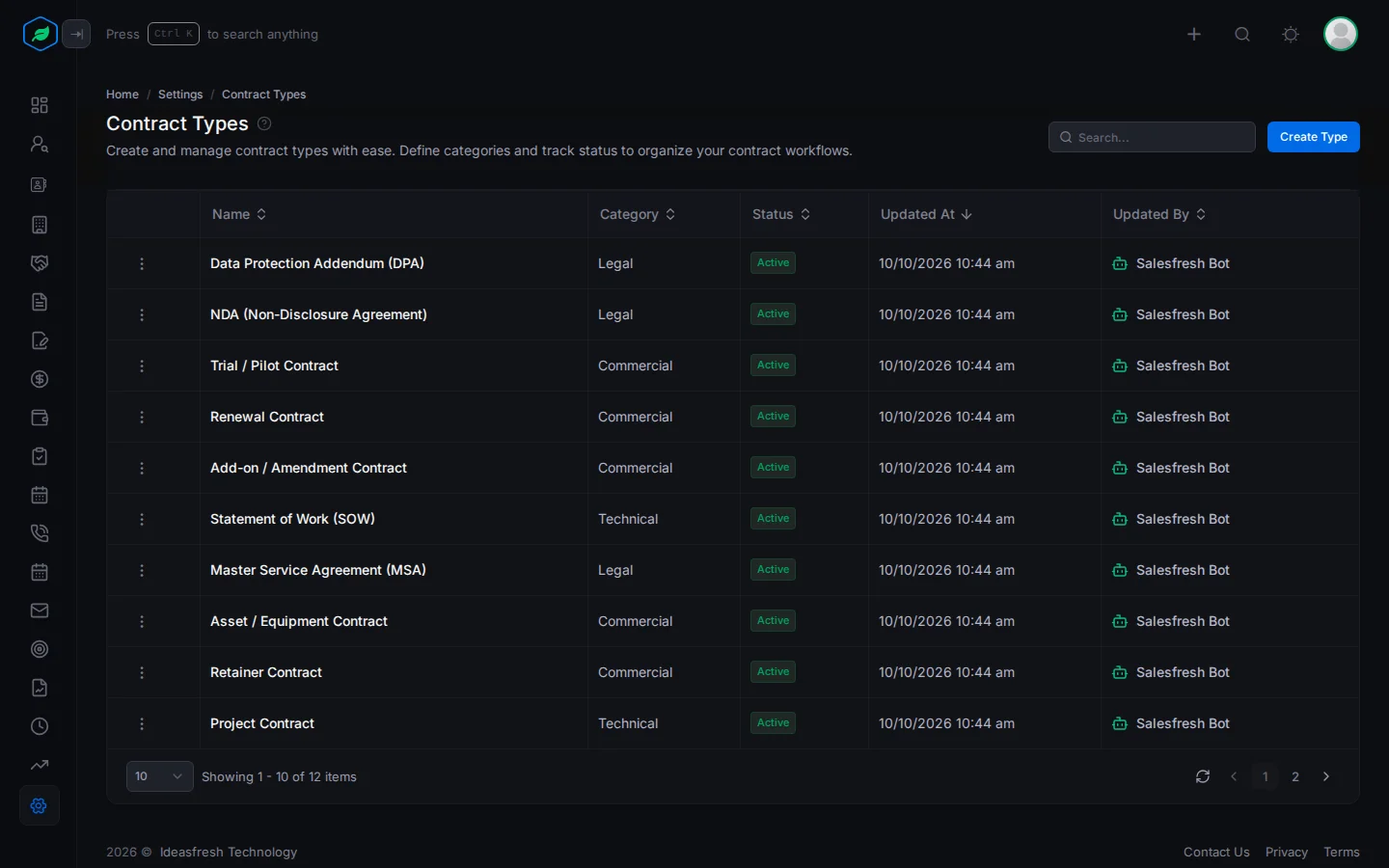
Go to Settings > Contract Settings > Contract Types.
Add a type
- Click Create Type. The Contract Type panel opens.
- Fill in the fields. Fields marked * must be filled in.
- Click Create.
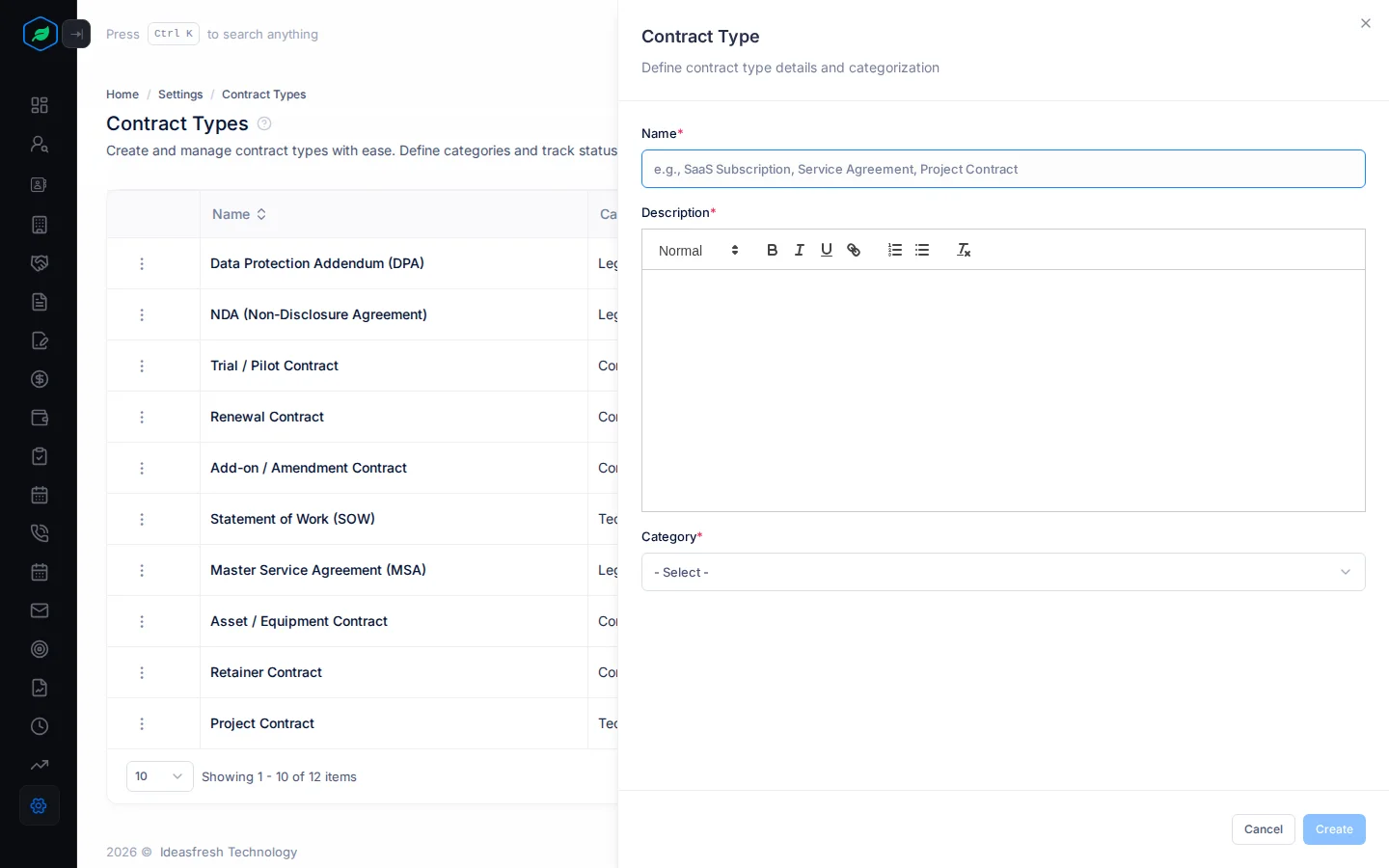
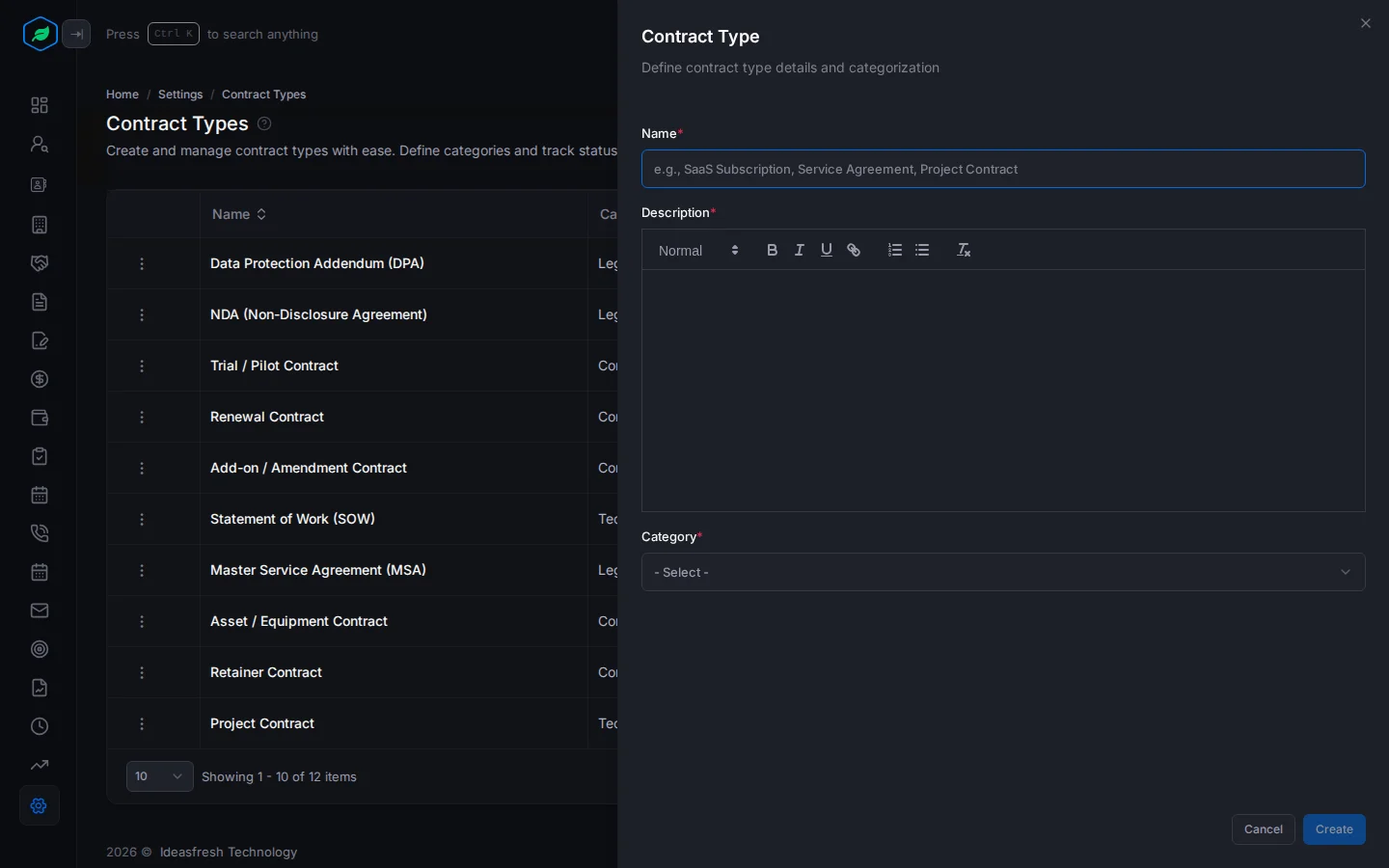
| Field | What to enter |
|---|---|
| Name * | The type, such as "Annual Maintenance Contract" |
| Description * | When to use it, such as "Yearly service visits for installed equipment" |
| Category * | Commercial, Legal or Technical |
Change or remove a type
Click ⋮ on a type:
- Edit changes it.
- Inactivate marks it as no longer used. Activate marks it as used again.
- Delete removes it.
Templates
A template is the wording of the contract document. You start with 9 ready-made templates under System Templates, such as the Service / AMC Contract Template and the Master Service Agreement (MSA) Template. The ones your company makes are under Organization Templates.
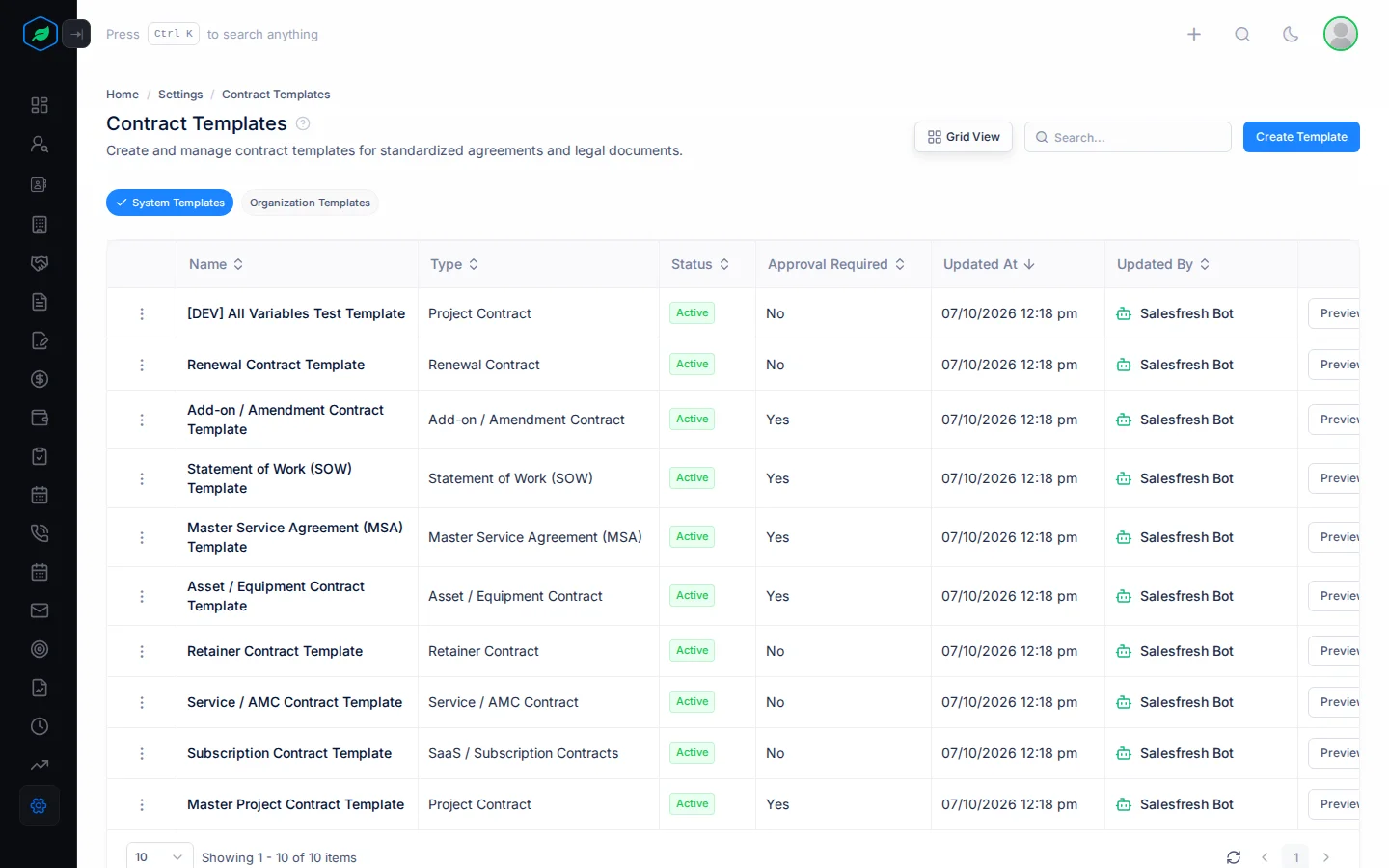
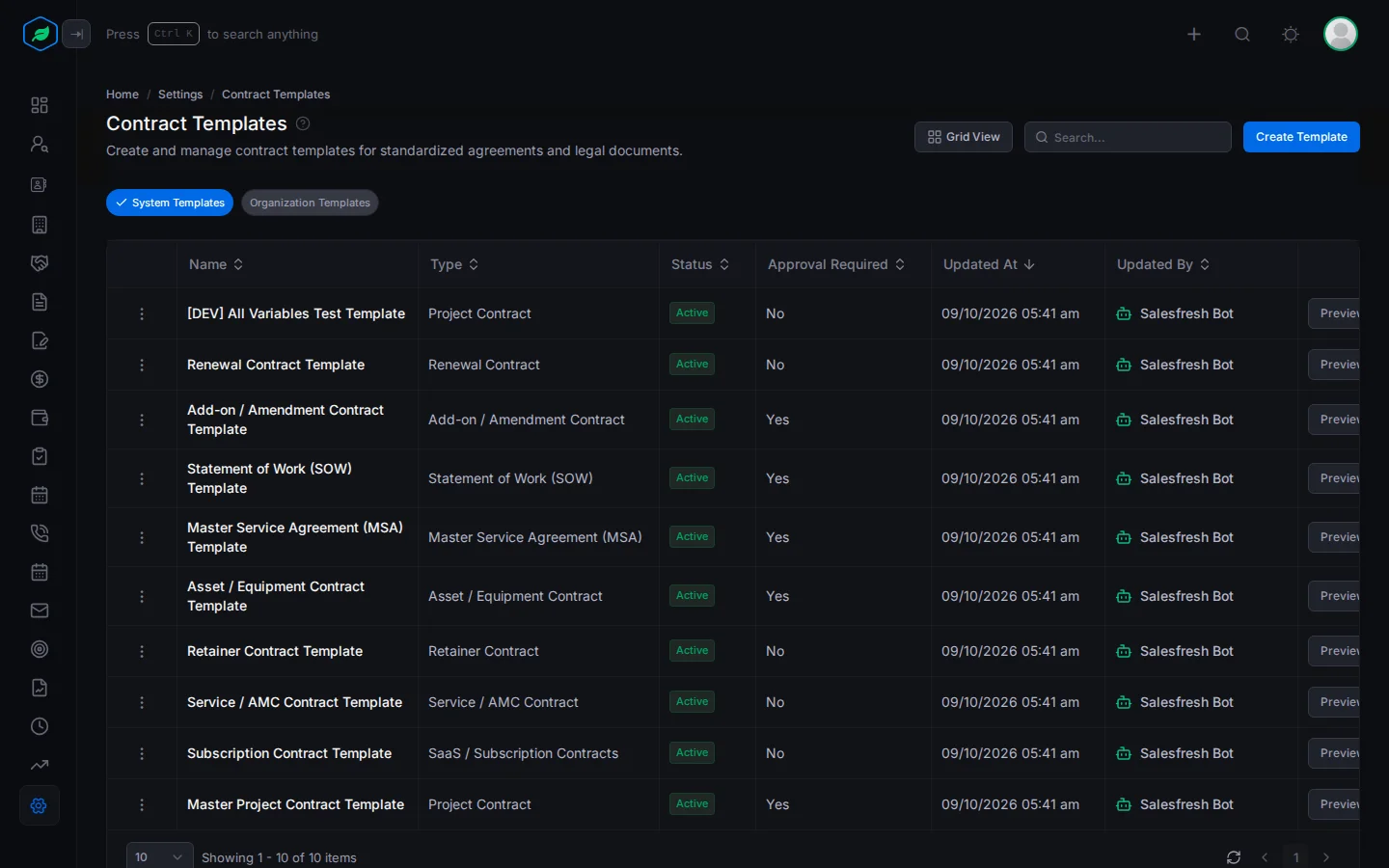
You can't change a System template. To use its wording as a start, copy it with Clone. The copy is called "Copy of" and the template's name, and it goes on the Organization Templates tab.
Add a template
- Go to Settings > Contract Settings > Templates and click Create Template. The Contract Template panel opens.
- Fill in the fields. Fields marked * must be filled in.
- Click Create.
- Point at the new template and click Edit Content.
- Write the contract. To put in a detail that changes for each contract, such as the customer's name, click Variables, click the detail to copy it, and paste it where it belongs.
- Click Save.
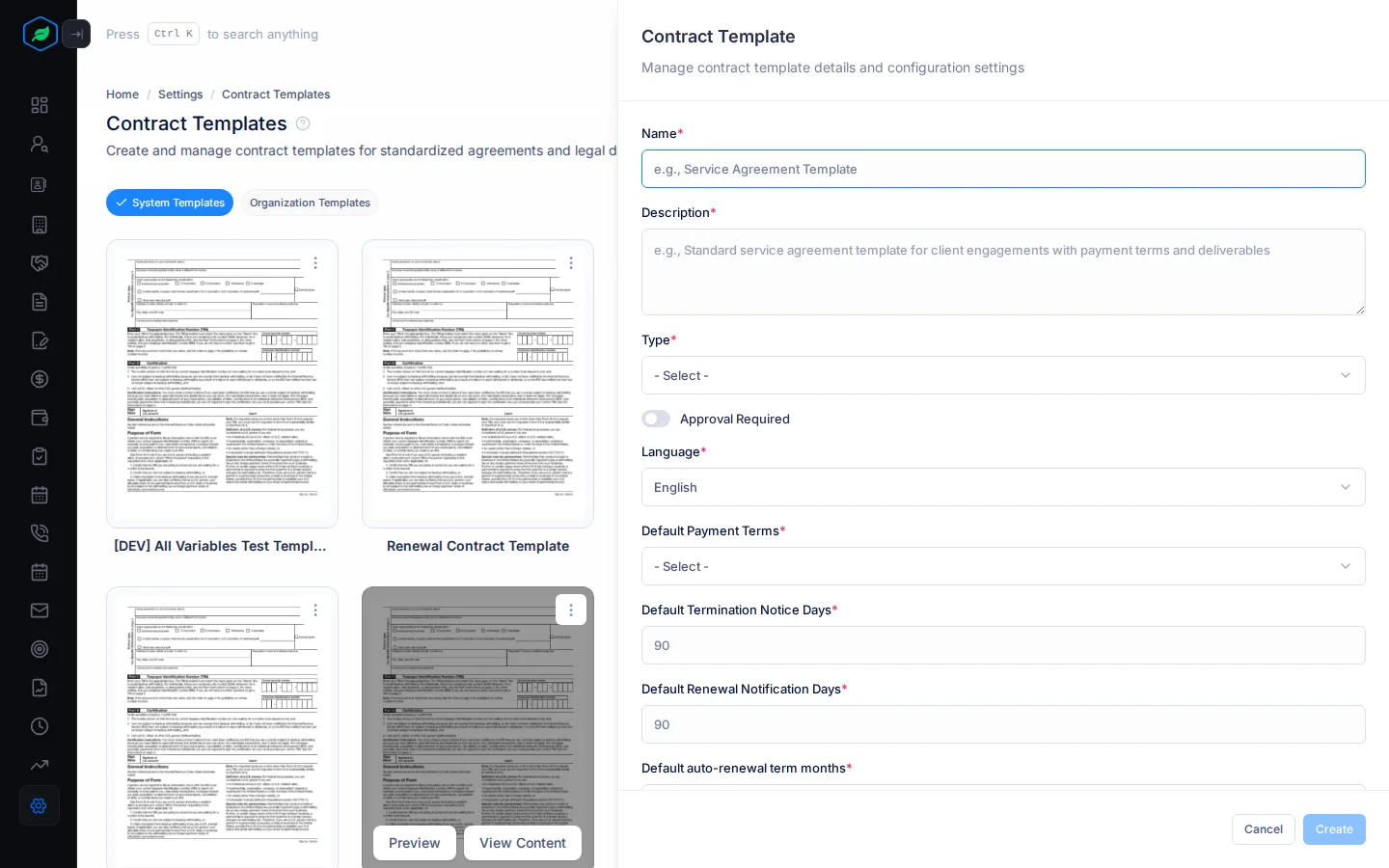
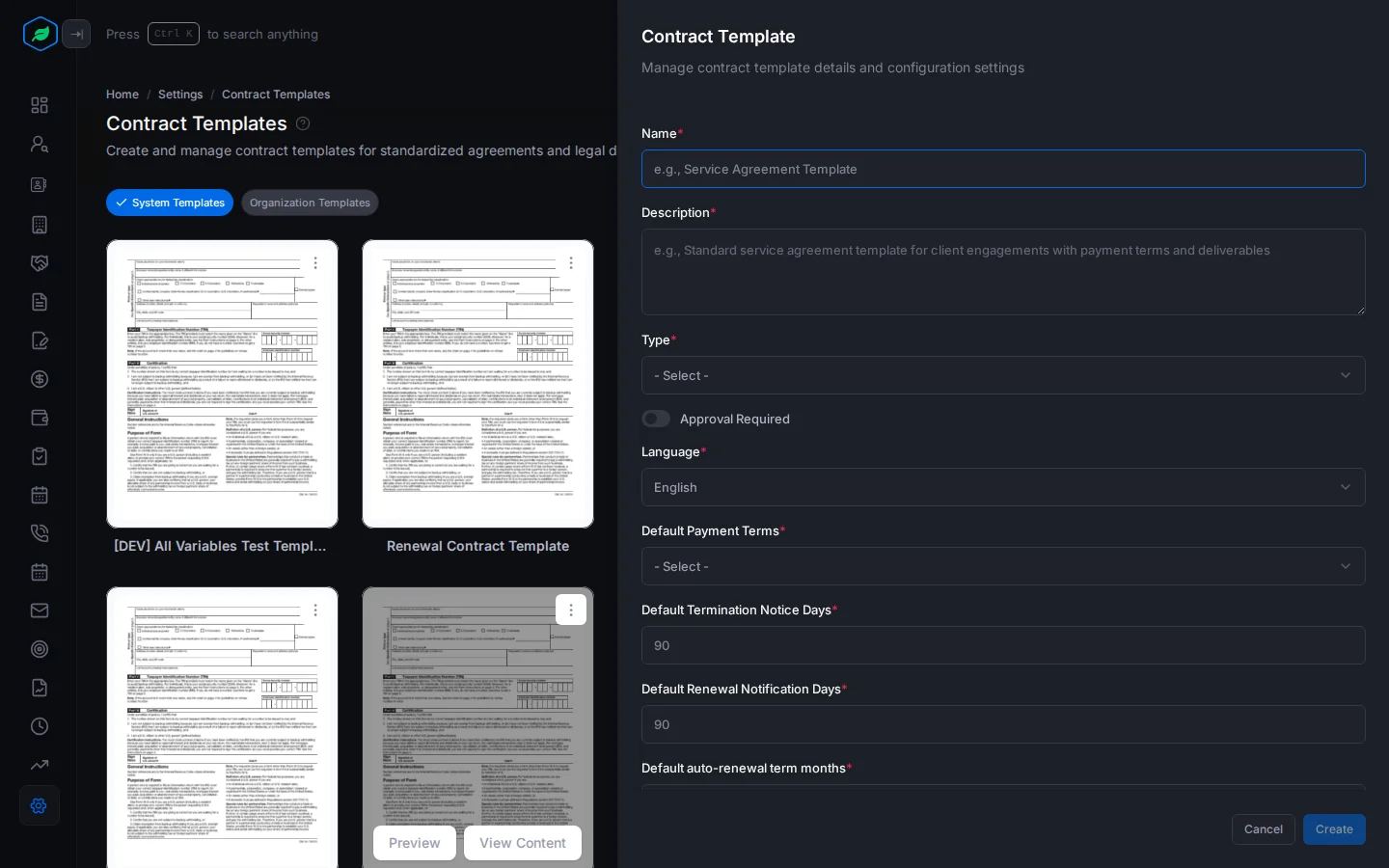
| Field | What to enter |
|---|---|
| Name * | The name your team sees when they pick a template, such as "Our Service Agreement" |
| Description * | When to use it |
| Type * | The kind of contract it's for |
| Approval Required | Turn on if contracts made from it must be approved |
| Language * | Set to English at first |
| Default Payment Terms * | When payment is due, such as Net 30 |
| Default Termination Notice Days * | How many days' notice to end the contract. Set to 90 at first |
| Default Renewal Notification Days * | How many days before the end to think about renewing. Set to 90 at first |
| Default auto-renewal term months * | How many months a renewal lasts, such as 12 |
| Version * | Your own version number, such as 1.0.0 |
Your team can only pick a template once its content is saved.
See a template
To see a template as a PDF, click Preview. The placeholders show as they are. When someone downloads a contract, each placeholder is swapped for that contract's details. See The contract detail page.
Change or remove a template
Click ⋮ on one of your company's templates:
- Edit changes its details.
- Inactivate marks it as no longer used. Activate marks it as used again.
- Clone makes a copy.
- Delete removes it. You can't delete a template that a contract uses.
Troubleshooting
| You see | Why | What to do |
|---|---|---|
| "A contract type with this name already exists." | Another type has that name | Pick another name |
| "Contract template already exists" | Another template has that name | Pick another name |
| "Contract template cannot be deleted as it is referenced in other records." | A contract uses the template | Inactivate it instead |
| A new template isn't offered on the contract form | It has no content yet | Click Edit Content, write the contract and save |
Related
Still stuck?
Tell us what you were trying to do and we will help.