Subscriptions: overview, list and views
What a customer subscription is, its statuses, and how to find subscriptions on the Subscriptions page and in views.
Updated 10 October 2026 · 3 min read
If your customers pay you regularly, such as for software, maintenance or a service plan, you record each one as a subscription. You see what each customer pays, how often, and when the next payment is due.
These are your customers' subscriptions with you. For your own Salesfresh plan, see Plans and limits.
For example, your company sells accounting software to small shops for 1,500 a month. Before, you kept a spreadsheet of who pays. When a shop cancelled, nobody updated it, and you couldn't tell how many shops were paying. Now you add a subscription for each shop. When a shop pays, you click Renew. When one cancels, you click Cancel and note why. The Active Subscriptions view shows exactly who is paying today.
Before you start
- Your company can switch Subscriptions off. If you don't see Subscriptions in the sidebar, ask your admin to switch it on in Settings > Module Customization.
- To see subscriptions, you need the View Subscriptions permission. If you don't have it, ask your admin.
- How many subscriptions you can have depends on your plan: 100 on Free, 2,000 on Starter, 20,000 on Professional, and no limit on Enterprise. See Plans and limits.
Statuses
| Status | Meaning |
|---|---|
| Active | The customer is subscribed. New subscriptions start here |
| Cancelled | The customer stopped |
| Draft | A copy that isn't saved yet |
| Renewed and Expired | Shown on the list, but Salesfresh doesn't set them |
Salesfresh doesn't renew, end or remind you about subscriptions on its own. You record each payment and change yourself. See The subscription detail page.
The Subscriptions page
Click Subscriptions in the sidebar. Each row shows the subscription number, the customer, the product, the billing cycle, the payment status, the total, the status, whether it's a trial, and the next renewal date.
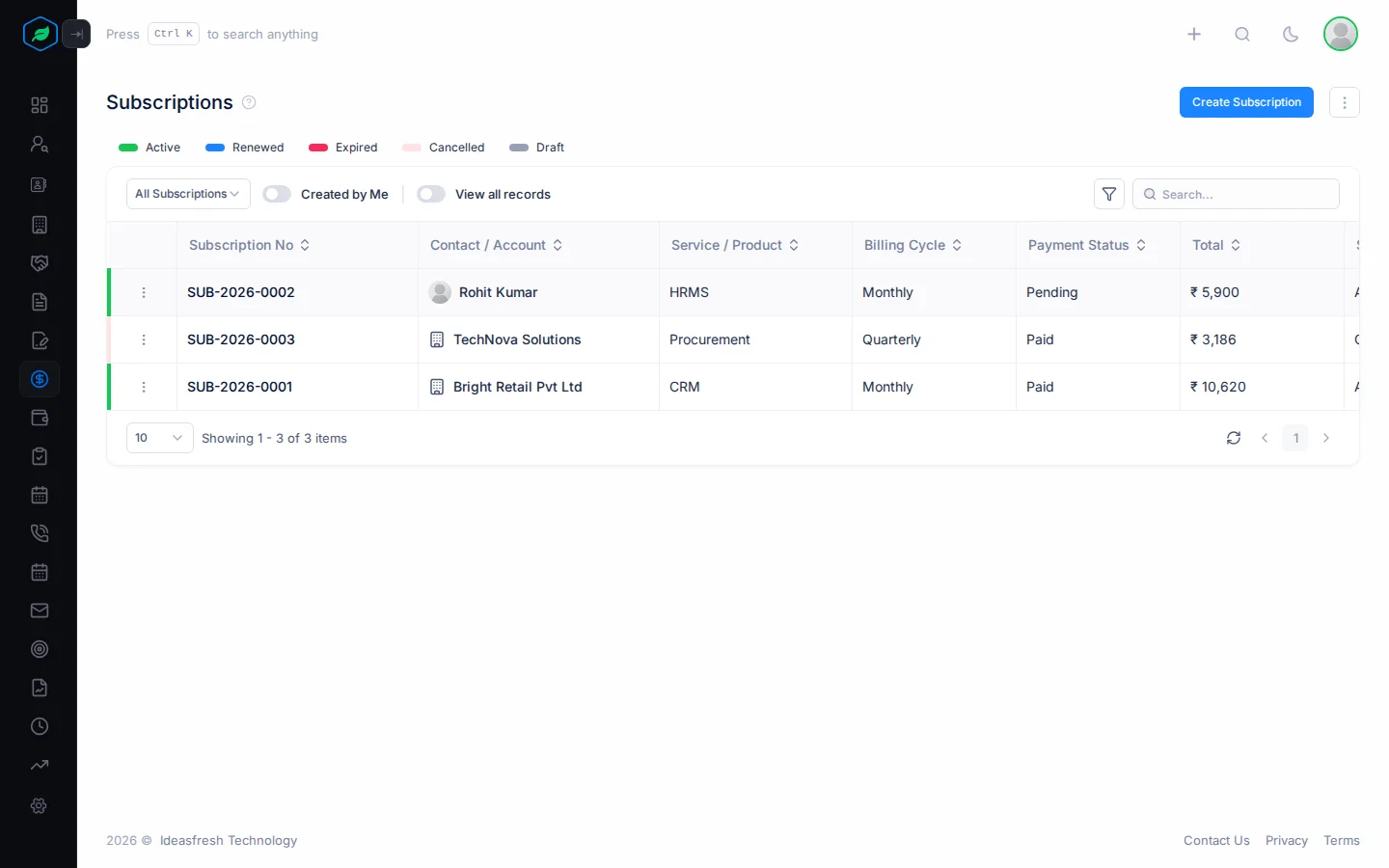
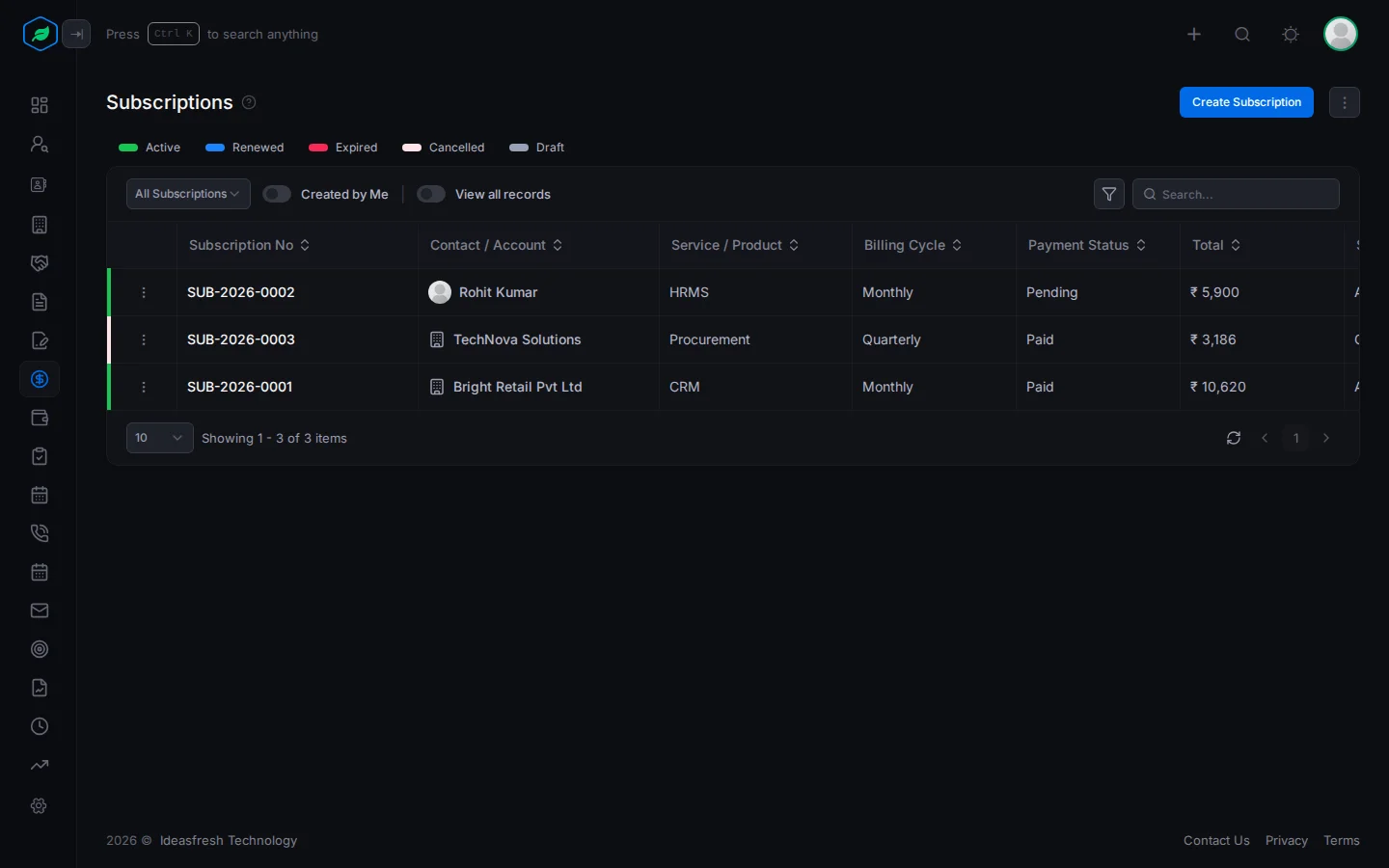
- Click a status above the table to see only those subscriptions.
- Turn on Created by Me to see only the subscriptions you added.
- Click a subscription's number to open it.
From the ⋮ on a row, you can Edit, Clone or Delete the subscription.
Views
A view is a ready-made list. Pick one to see the subscriptions you need. For example, open Expiring Soon each month to see which customers to call about renewing.
| View | Shows |
|---|---|
| All Subscriptions | Every subscription you can see |
| Active Subscriptions | Customers who are subscribed now |
| Trial Subscriptions | Customers on a free trial |
| Expiring Soon | Subscriptions that end in the next 30 days |
| Auto Renewal | Subscriptions set to renew |
| Monthly Billing | Subscriptions paid every month |
| Cancelled Subscriptions | Customers who stopped |
| My Subscriptions | Subscriptions for customers you look after |
Related
Still stuck?
Tell us what you were trying to do and we will help.