The subscription detail page
What is on a subscription's page, and how to record a payment, cancel, reactivate or convert a trial.
Updated 12 October 2026 · 3 min read
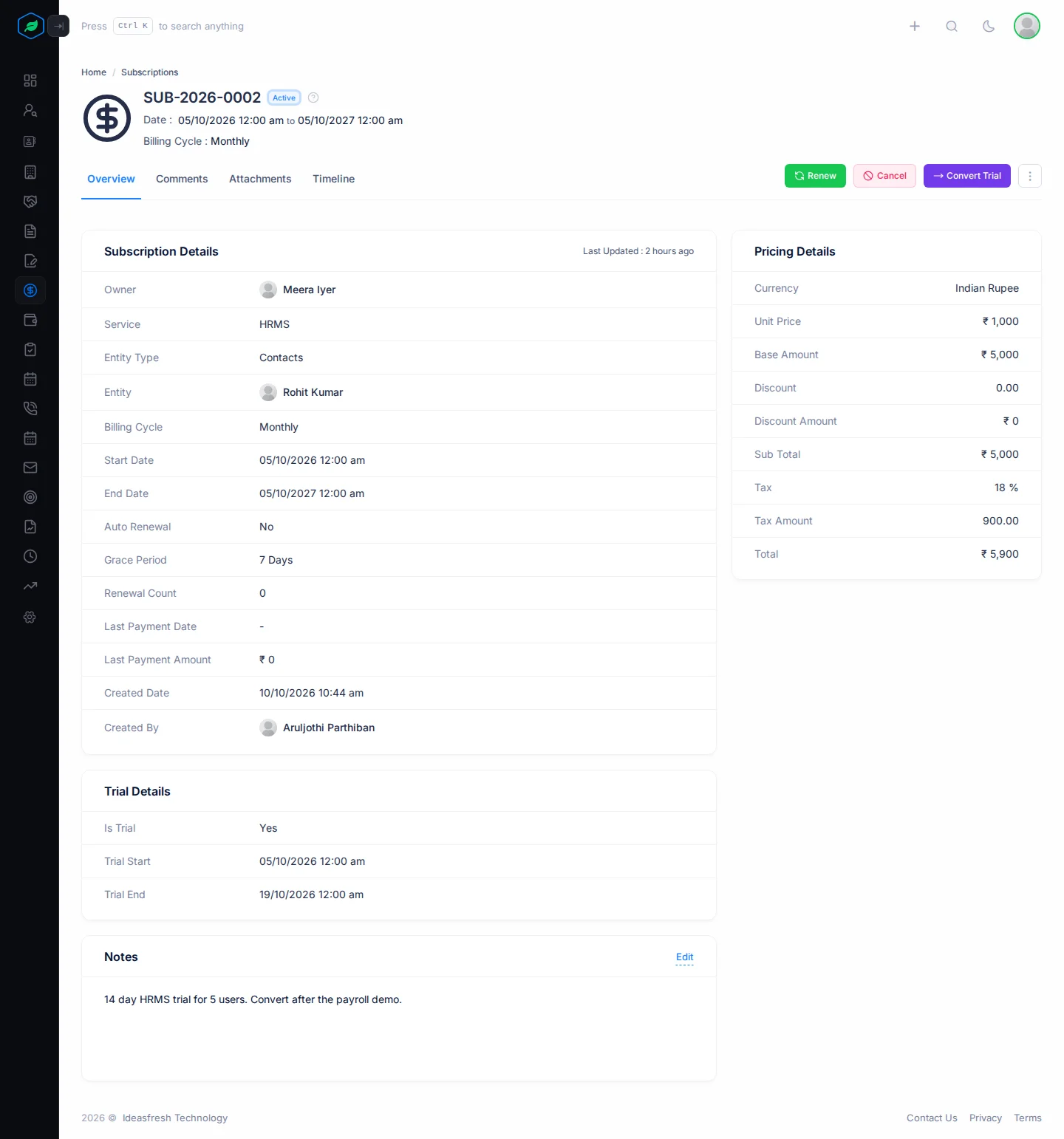
A subscription's page shows what the customer pays for, how often, how much, and their payments so far. It's also where you record each payment and any change, such as a cancellation.
To open it, click a subscription's number on the Subscriptions page.
Before you start
- To open a subscription, you need the View Subscriptions permission.
- To renew, cancel, reactivate or convert a trial, you need the Edit Subscriptions permission.
If you don't have a permission you need, ask your admin.
At the top
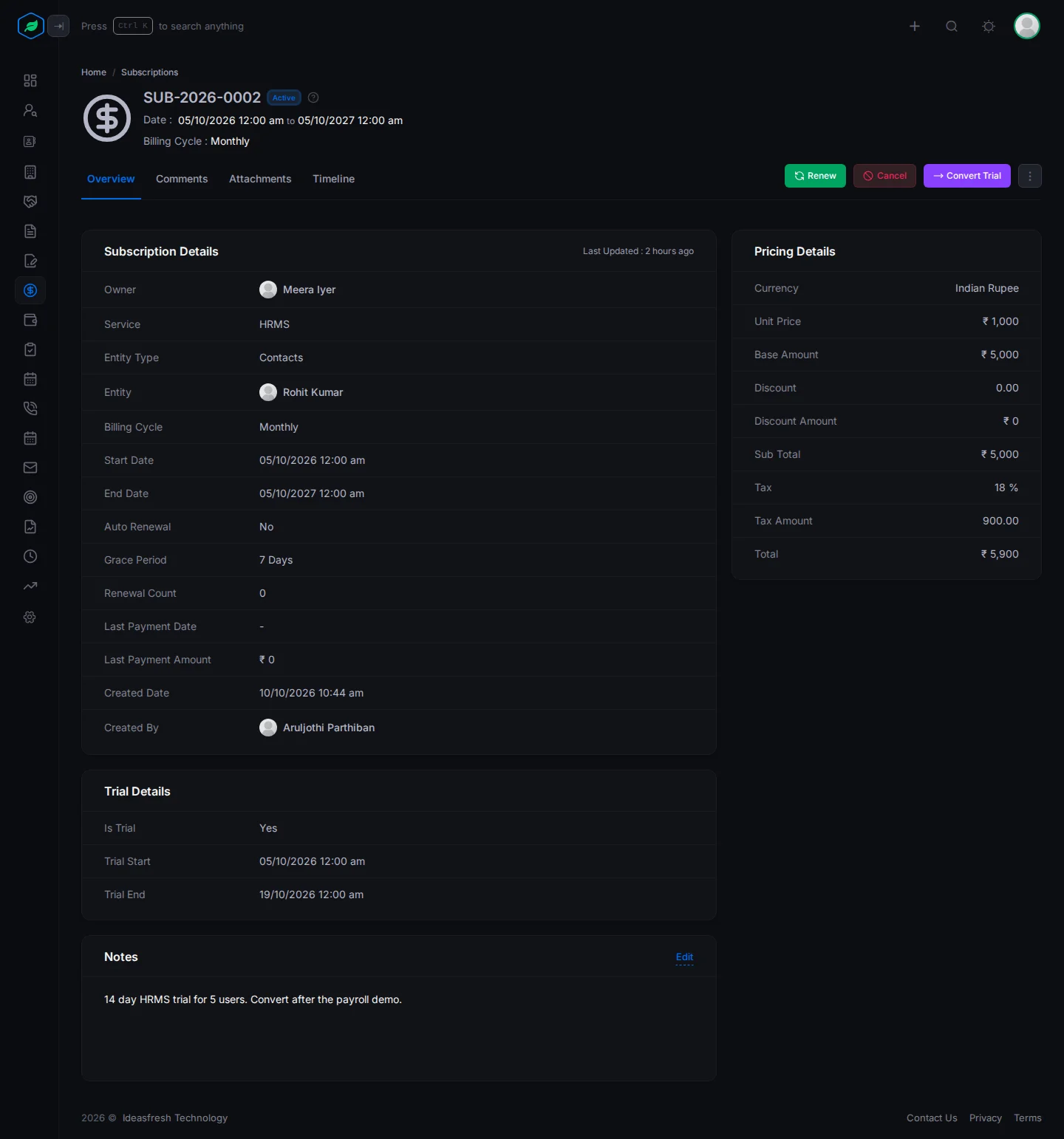
The top of the page shows the subscription number, its status, the start and end dates, and the billing cycle. On the right are the buttons to record what happens, and the ⋮ menu.
Overview
- Subscription Details shows the owner, the product, the customer, the billing cycle, the dates, the grace period, how many times it was renewed, and the last payment.
- Pricing Details shows the price, discount, tax and total.
- Trial Details shows if it's a trial, and the trial dates.
- Contract Details and Asset Details show the contract and equipment it's linked to, if any.
- Notes is for anything your team should know. Click Edit to change it.
The Comments, Attachments and Timeline tabs work like on other records. See Comments.
Record what happens
Salesfresh doesn't renew, end or remind you about subscriptions on its own. Use these buttons to record what happens.
Renew: record a payment
When the customer pays:
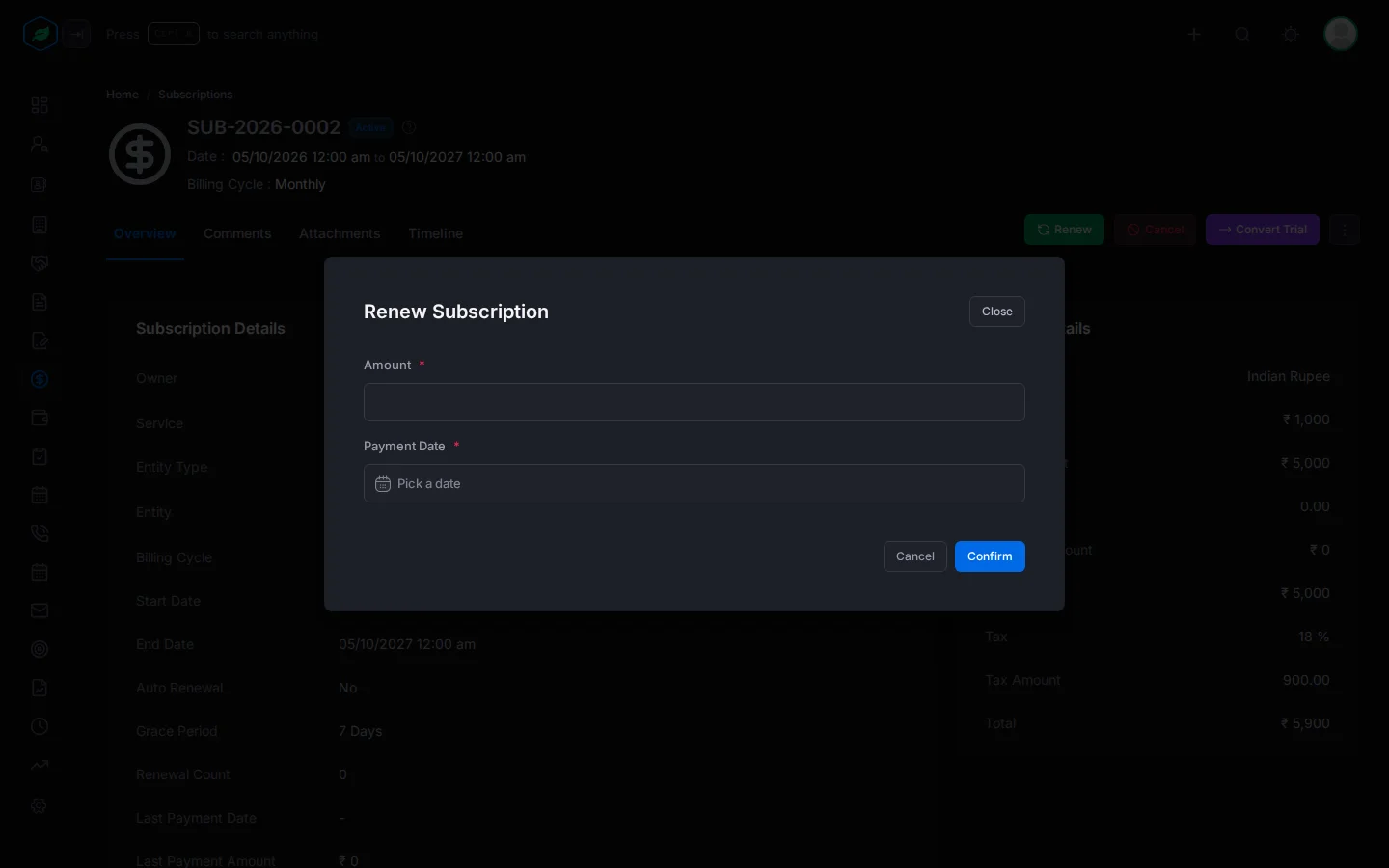
- Click Renew. The Renew Subscription window opens.
- Enter the Amount they paid and the Payment Date.
- Click Confirm.
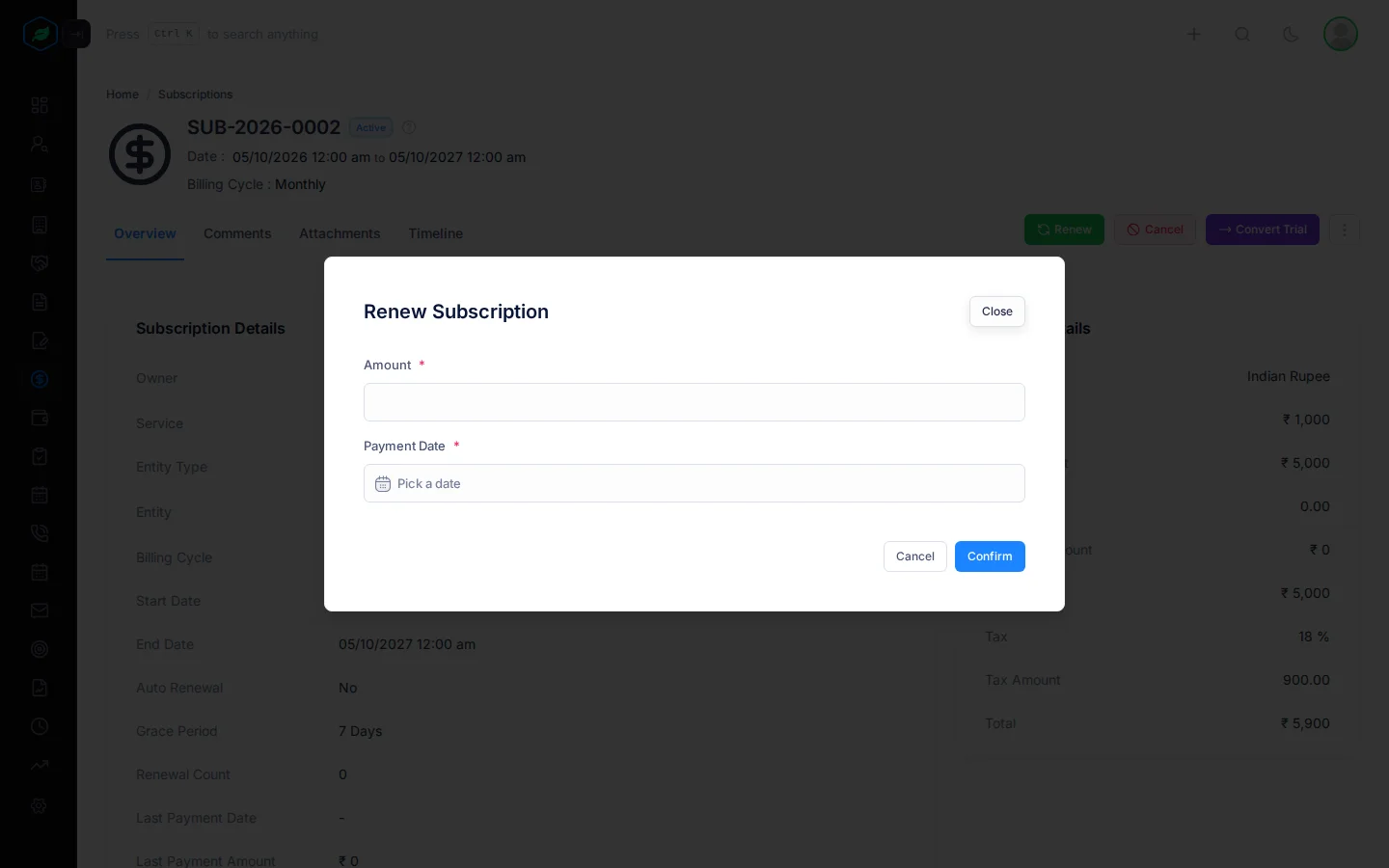
Salesfresh records the payment, marks it paid, adds one to the renewal count, and sets the next renewal date to one billing cycle after the payment date. It doesn't change the end date. To extend the subscription, edit it.
Cancel
When the customer stops:
- Click Cancel. The Cancel Subscription window opens.
- Write the reason, such as "Moved to another software". Confirm stays greyed out until you do.
- Click Confirm.
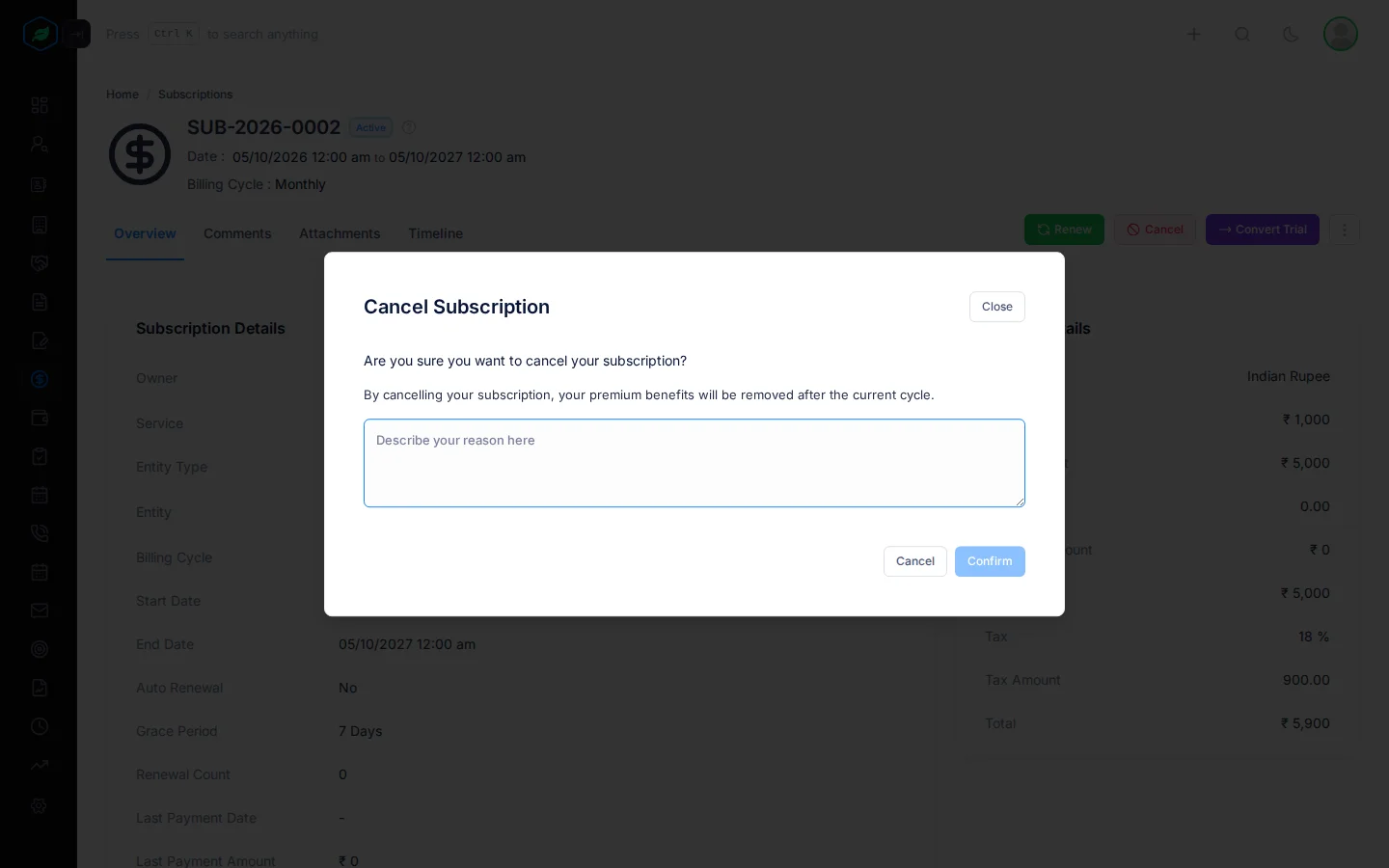
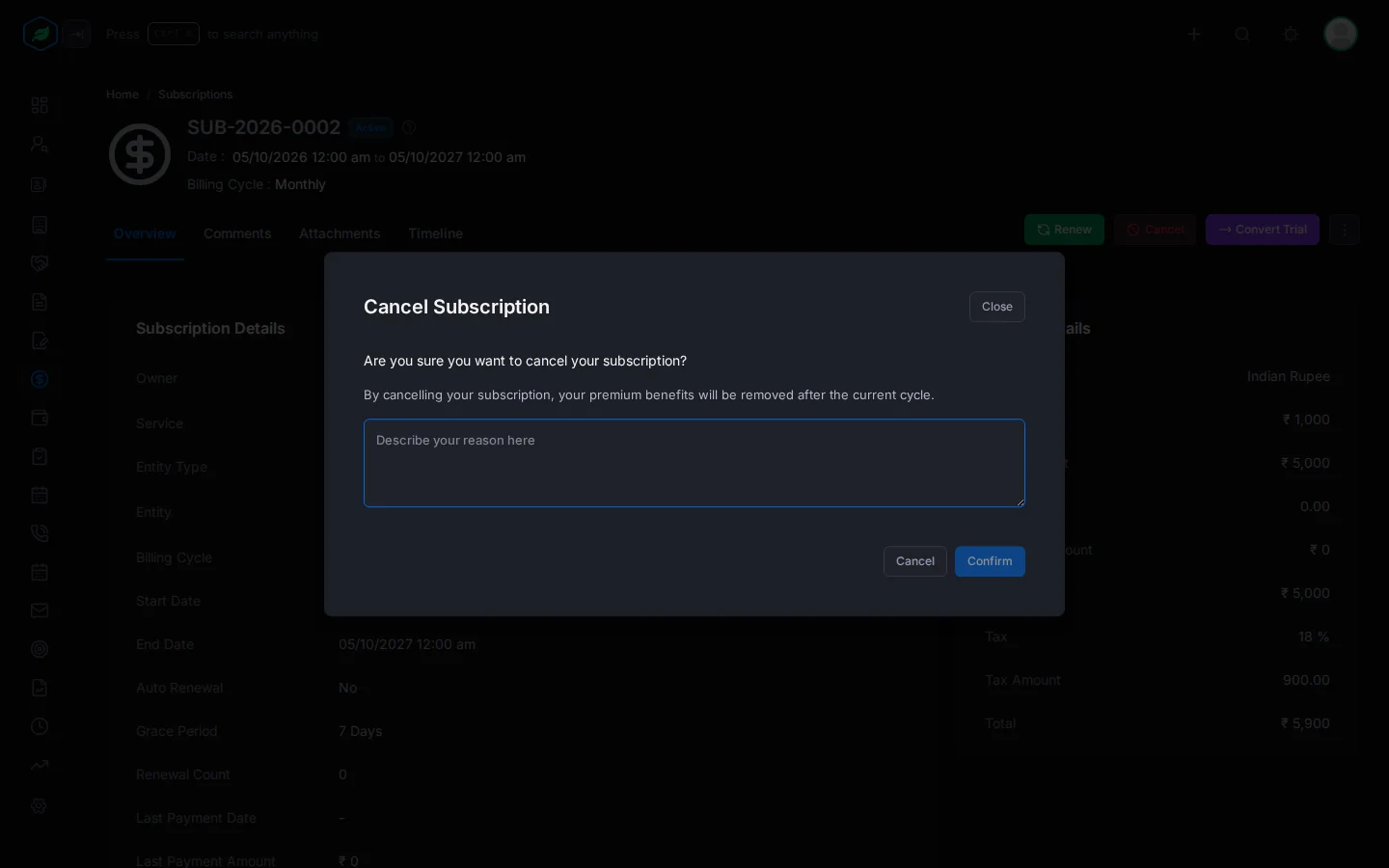
The subscription is cancelled straight away, and can't be edited after that. Its page shows the reason.
Reactivate
If a cancelled customer comes back:
- Click Reactivate. A window asks "Are you sure you want to reactivate this subscription?"
- Click Yes.
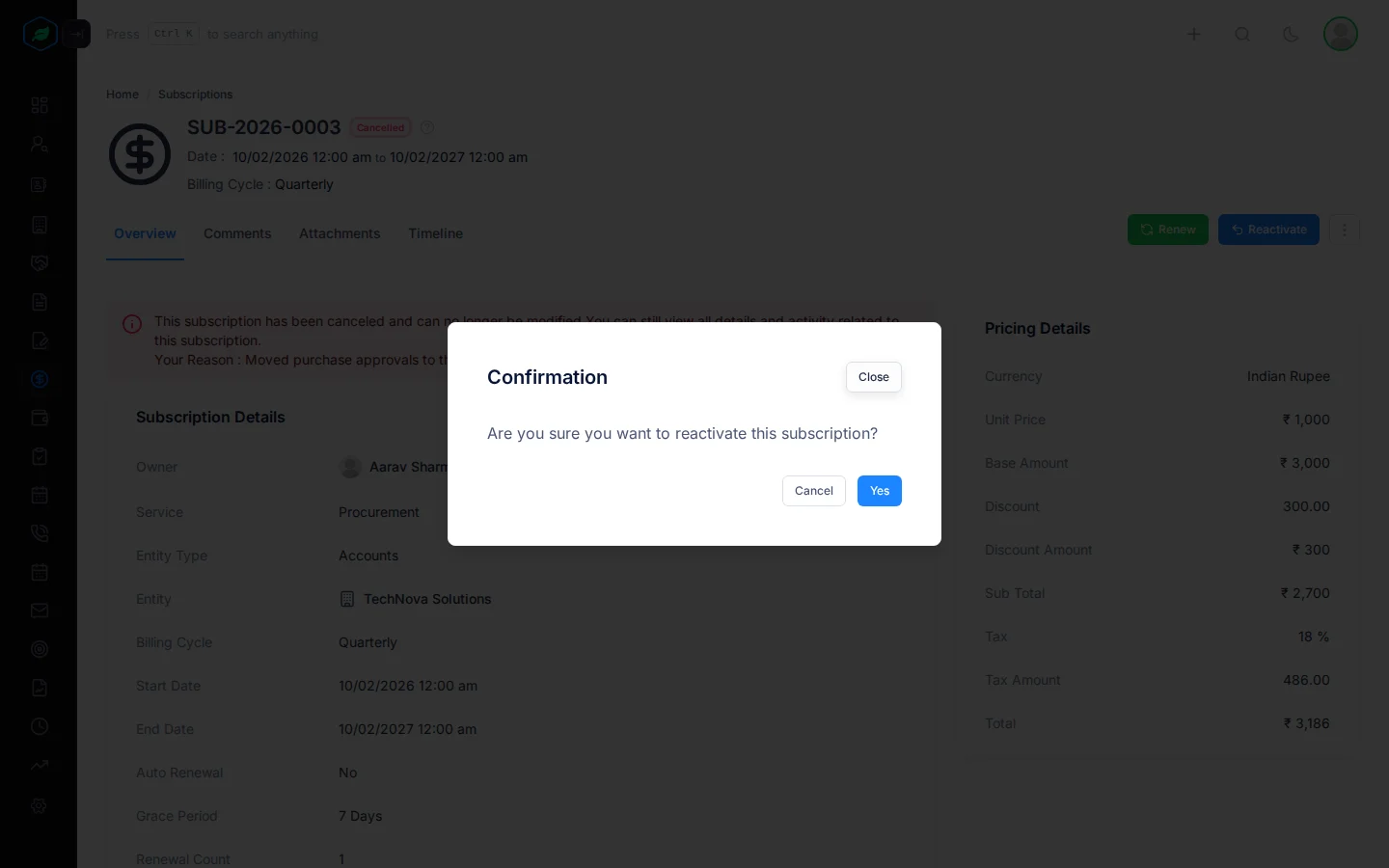
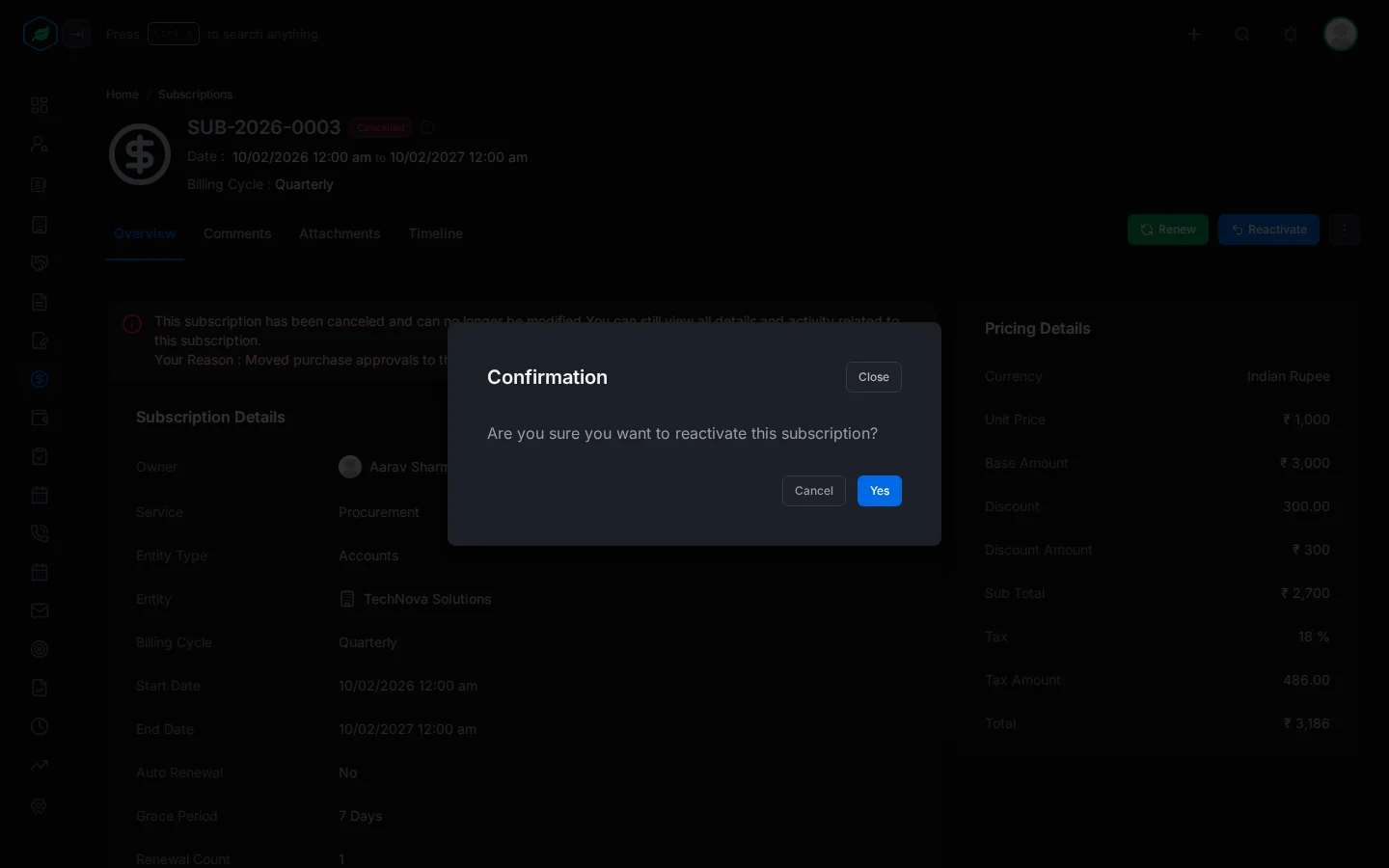
The subscription is Active again.
Convert Trial
When a trial customer starts paying:
- Click Convert Trial. A window asks "Are you sure you want to convert this trial subscription to a paid subscription?"
- Click Yes.
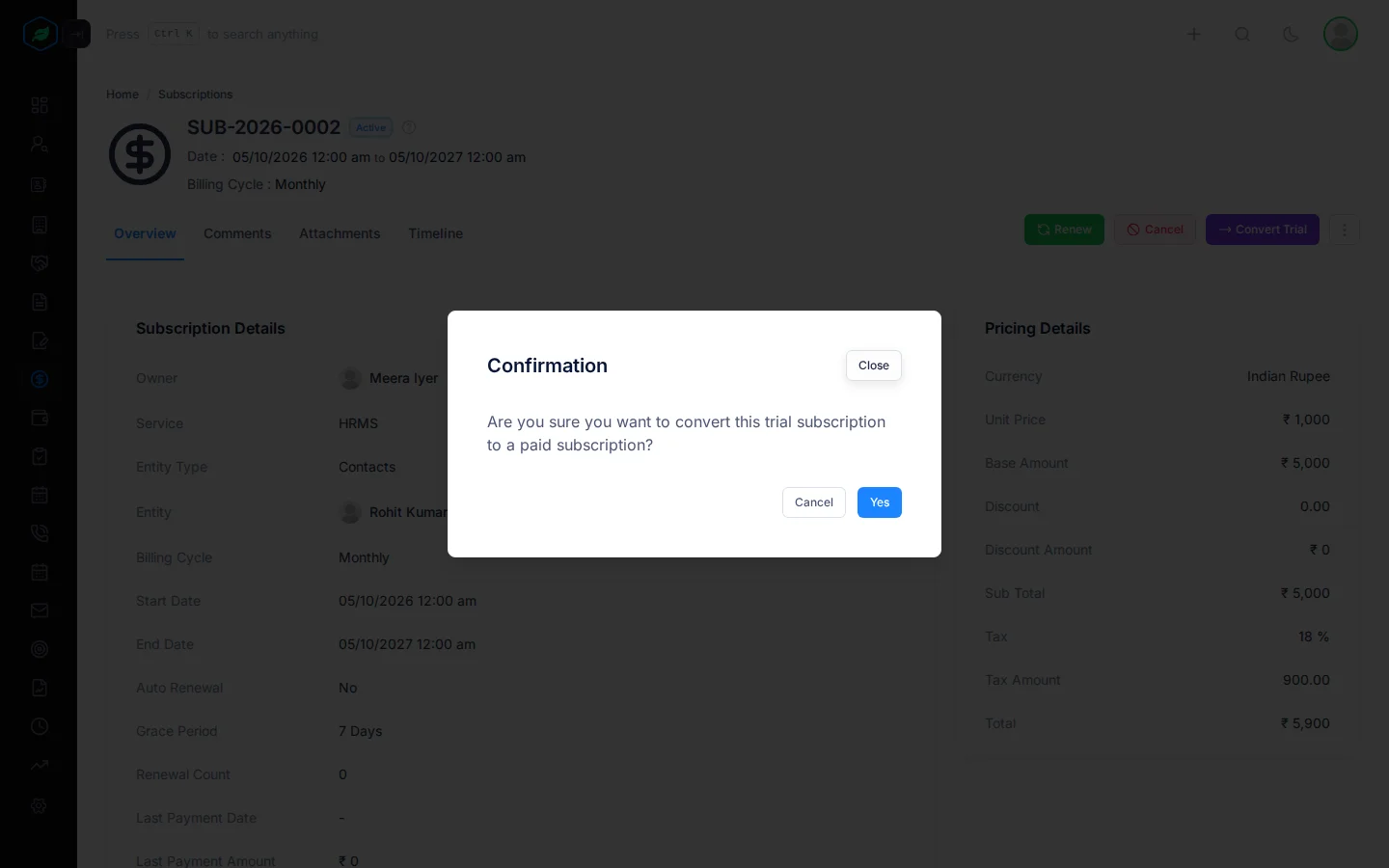
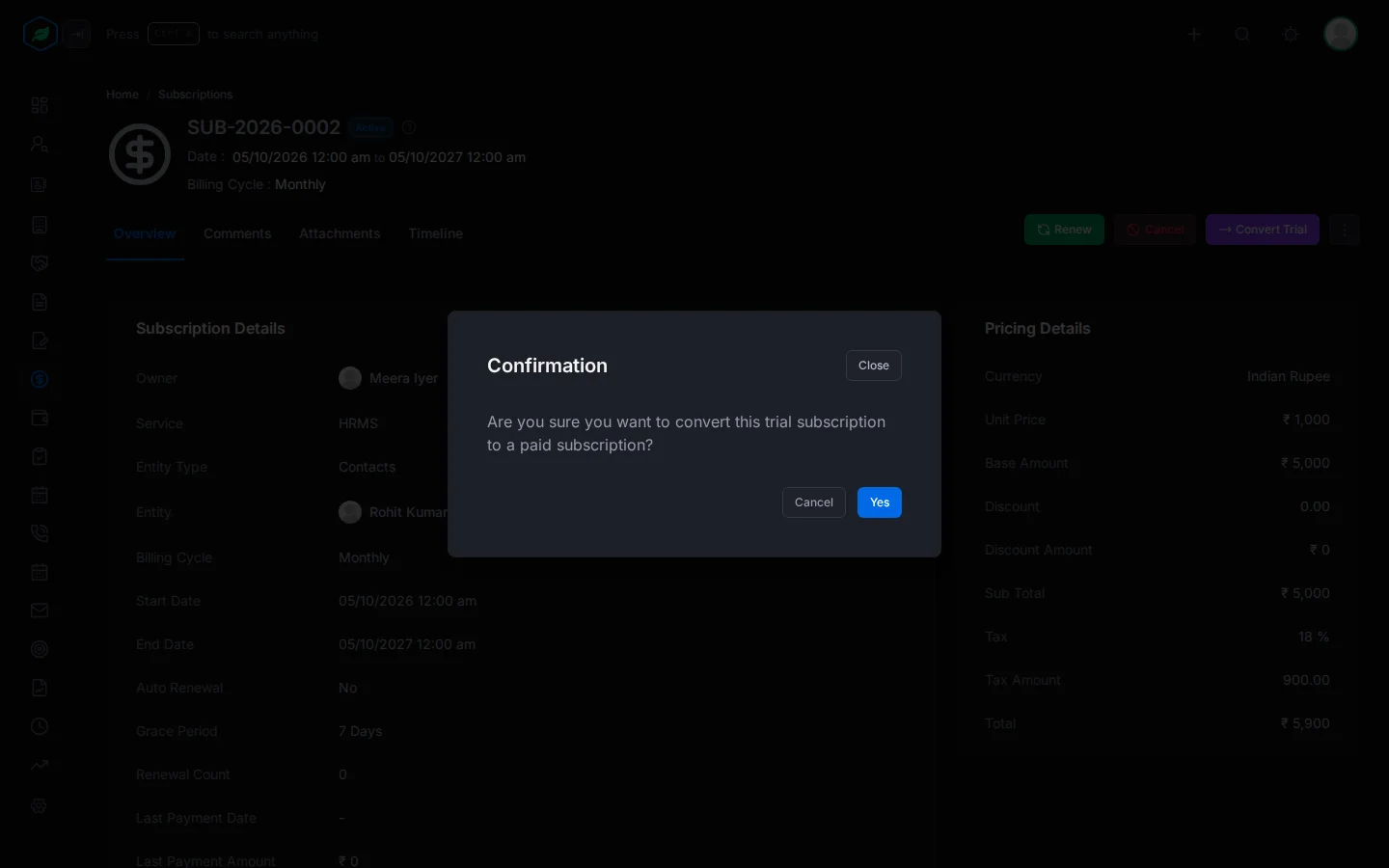
Salesfresh marks it as no longer a trial, and records the payment as paid today.
The ⋮ menu
Edit, Clone and Delete are in the ⋮ menu. See Create and edit a subscription.
Troubleshooting
| You see | Why | What to do |
|---|---|---|
| "Access denied" when you click a button | You don't have the Edit Subscriptions permission | Ask your admin for the permission |
| Edit is missing | The subscription is cancelled | Click Reactivate first |
| Cancel is missing | The subscription isn't Active | Nothing to do |
Related
Still stuck?
Tell us what you were trying to do and we will help.