Create, edit and clone a subscription
Every field on the subscription form, from product and customer to billing cycle, trial and price, and how to edit, clone and delete subscriptions.
Updated 10 October 2026 · 5 min read
You use the subscription form to record what a customer pays for, how often, and how much.
For example, a shop signs up for your accounting software at 1,500 a month. You click Create Subscription, pick the product and the shop, and pick Monthly as the billing cycle. You enter 1,500 as the price and click Save.
Before you start
- To create or clone a subscription, you need the Create Subscriptions permission.
- To edit a subscription, you need the Edit Subscriptions permission. To delete one, you need the Delete Subscriptions permission.
- The product must be in your product list as a service. See Products and categories.
- The customer must already be a contact or an account.
If you don't have a permission you need, ask your admin.
Create a subscription
- Click Create Subscription on the Subscriptions page, or click + at the top of any page and choose Subscription. You can also click Create on a contract's or asset's Subscriptions tab.
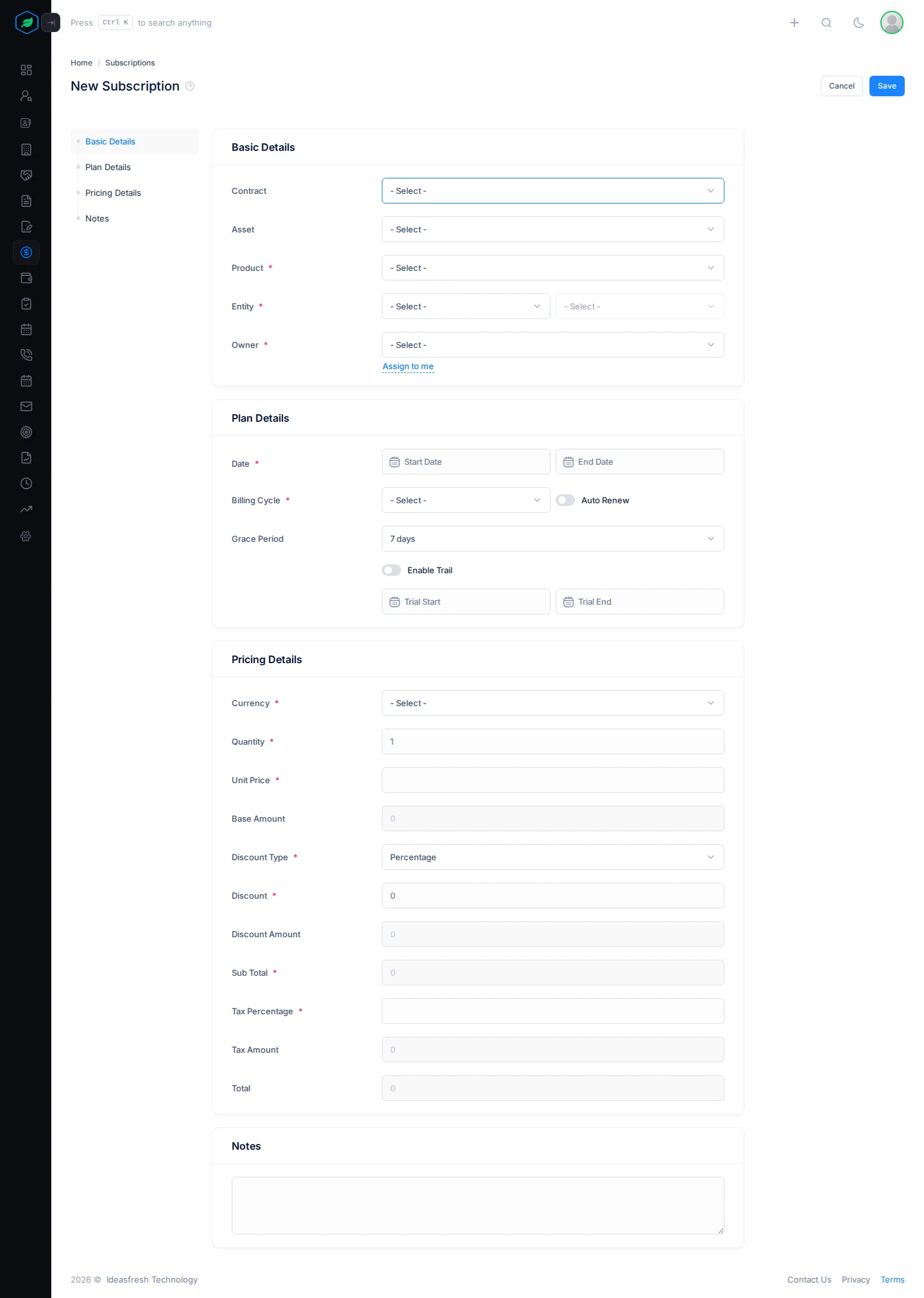
- Fill in the form. Fields marked * must be filled in.
- Click Save.
The subscription gets a number such as SUB-2026-0001, and starts as Active.
Basic Details
| Field | What to enter |
|---|---|
| Contract | The contract the subscription comes from, if any. Picking one fills in the product and customer |
| Asset | The equipment it covers, if any. Picking one fills in the product and customer |
| Product * | The service the customer pays for. Only service products are listed |
| Entity * | Pick Contacts or Accounts, then the customer |
| Owner * | The person who looks after the subscription. Click Assign to me to pick yourself |
| Team | One of the owner's teams. You only see this if the owner is in a team |
Plan Details
| Field | What to enter |
|---|---|
| Date * | The start and end date. After you pick the start, click 3 Months, 6 Months, 1 Year, 2 Years or 3 Years to fill in the end |
| Billing Cycle * | How often the customer pays: Monthly, Quarterly, Semi Annual, Annual or Custom |
| Auto Renew | Turn on if the subscription renews by agreement. This is only a note. Salesfresh doesn't renew anything for you |
| Grace Period | How many days late a payment can be: None, or 1 to 14 days. Set to 7 days at first |
| Enable Trail | Turn on for a free trial, then fill in Trial Start and Trial End |
Pricing Details
| Field | What to enter |
|---|---|
| Currency * | The currency the customer pays in |
| Quantity * | How many, such as 5 users. Set to 1 at first |
| Unit Price * | The price of one. It's filled in from the product. Change it if you agreed a different price |
| Discount Type * | Percentage or Amount. Set to Percentage at first |
| Discount * | How much off, such as 10. Set to 0 at first |
| Tax Percentage * | The tax rate, such as 18 |
The base amount, discount amount, sub total, tax amount and total are worked out for you.
Notes
Anything else your team should know, such as "Convert after the payroll demo".
Edit a subscription
Click ⋮ on the subscription's page or on its row, then Edit. Change what you need and click Update.
You can't edit a cancelled subscription.
Saving the form sets the next renewal date back to one billing cycle after the start date. If you already recorded renewals, check the next renewal date after you save.
Clone a subscription
Cloning saves time when another customer takes the same plan.
- Click ⋮, then Clone, and confirm.
- A copy opens. Change the customer and anything else, and click Update.
Delete a subscription
Click ⋮, then Delete, and confirm.
Deleting a subscription removes it for good. You can't restore it.
Troubleshooting
| You see | Why | What to do |
|---|---|---|
| "Subscription already exists for this customer and product" | The customer already has an active subscription to that product | Open and edit the one they have |
| "End date must be greater than start date" | The end date is the same as, or before, the start date | Pick a later end date |
| "Trial end date must be greater than trial start date" | The trial dates are the wrong way round | Fix the dates |
| "Percentage discount cannot be 100% or more" | The discount is too high | Use a lower discount |
| "You have reached the maximum of … on your current plan. Please upgrade for more." | You have as many subscriptions as your plan allows | Upgrade your plan |
| The totals look wrong after you change the price on an existing subscription | Totals are only worked out when the subscription is created | Check the Pricing Details on the subscription's page |
Related
Still stuck?
Tell us what you were trying to do and we will help.