Manage your product catalog and categories
Build your product catalog with categories, product codes, prices and billing terms, and see where products are used across quotes and leads.
Updated 9 October 2026 · 6 min read
Your product catalog is the list of everything you sell, with its price. Your team picks from it when they make a quote, so the product name and price are filled in for them.
For example, your company sells software modules. Without a catalog, each salesperson types the module name and price into every quote. One uses last year's price, and another spells the name wrong. With a catalog, you add the Payroll Module once, with its code and a price of 1,200 a month. Now everyone picks it from a list, and every quote has the same name and the right price. When you stop selling it, you mark it Inactive, so nobody quotes it by mistake.
Your team also uses the catalog to record which products a lead or contact wants, and your web forms can ask visitors which products they are interested in.
Other CRMs may call the product catalog a "price book" or a "product library".
Before you start
- You need the Product Management permissions: View to see the catalog, Create to add, Edit to change and Delete to remove. Each one covers both products and categories.
- Every product needs at least one category, so add your categories first.
- Prices are in your company's currency. You don't set tax on a product. Your team enters it on each quote line.
Open Settings > Product Management, then Categories or Products.
Categories
Categories group your products, so they are easier to find. For example, a software company might have "Finance", "Human Resources" and "Sales & Marketing". A category can sit under another one, such as "Payroll" under "Human Resources".
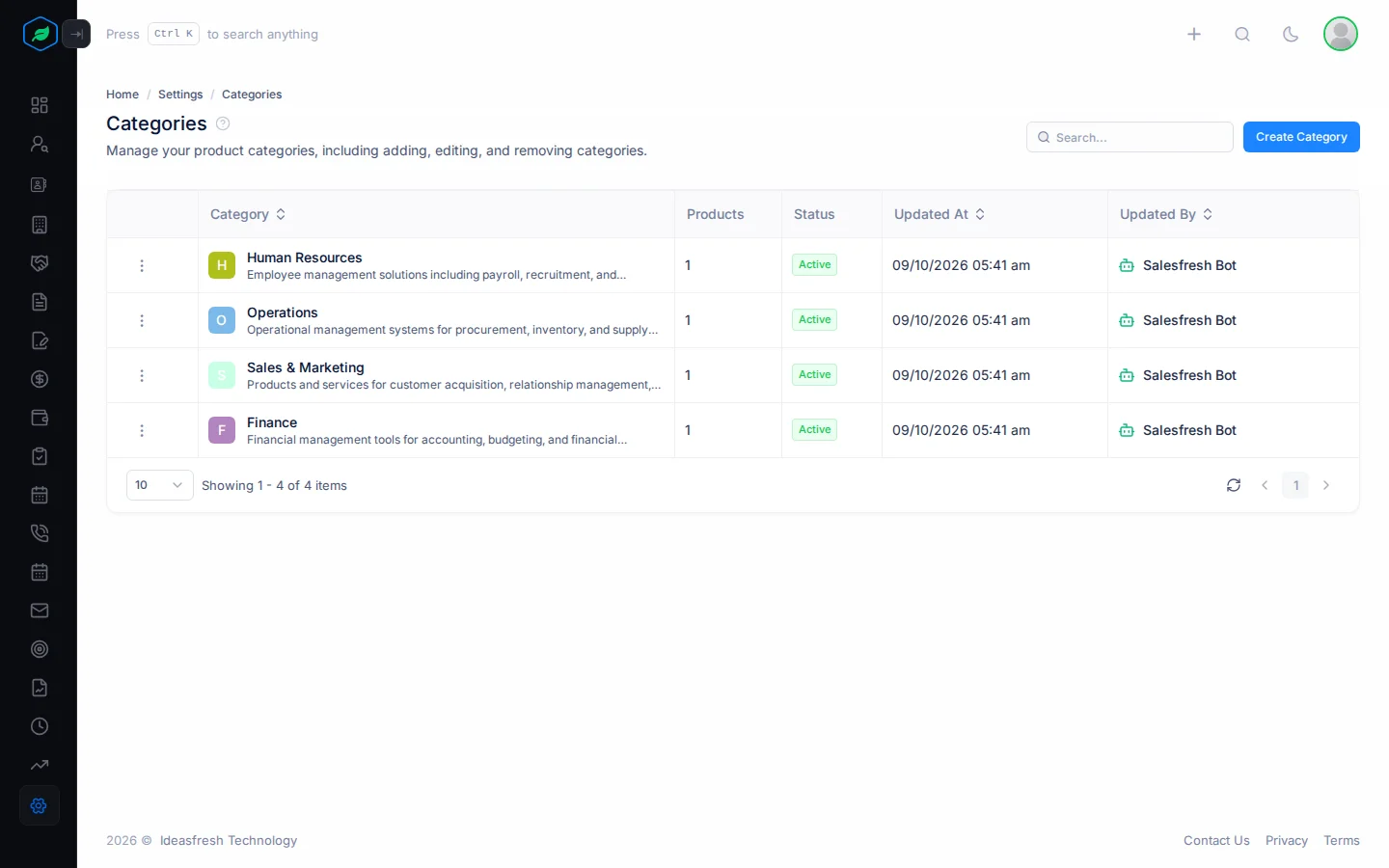
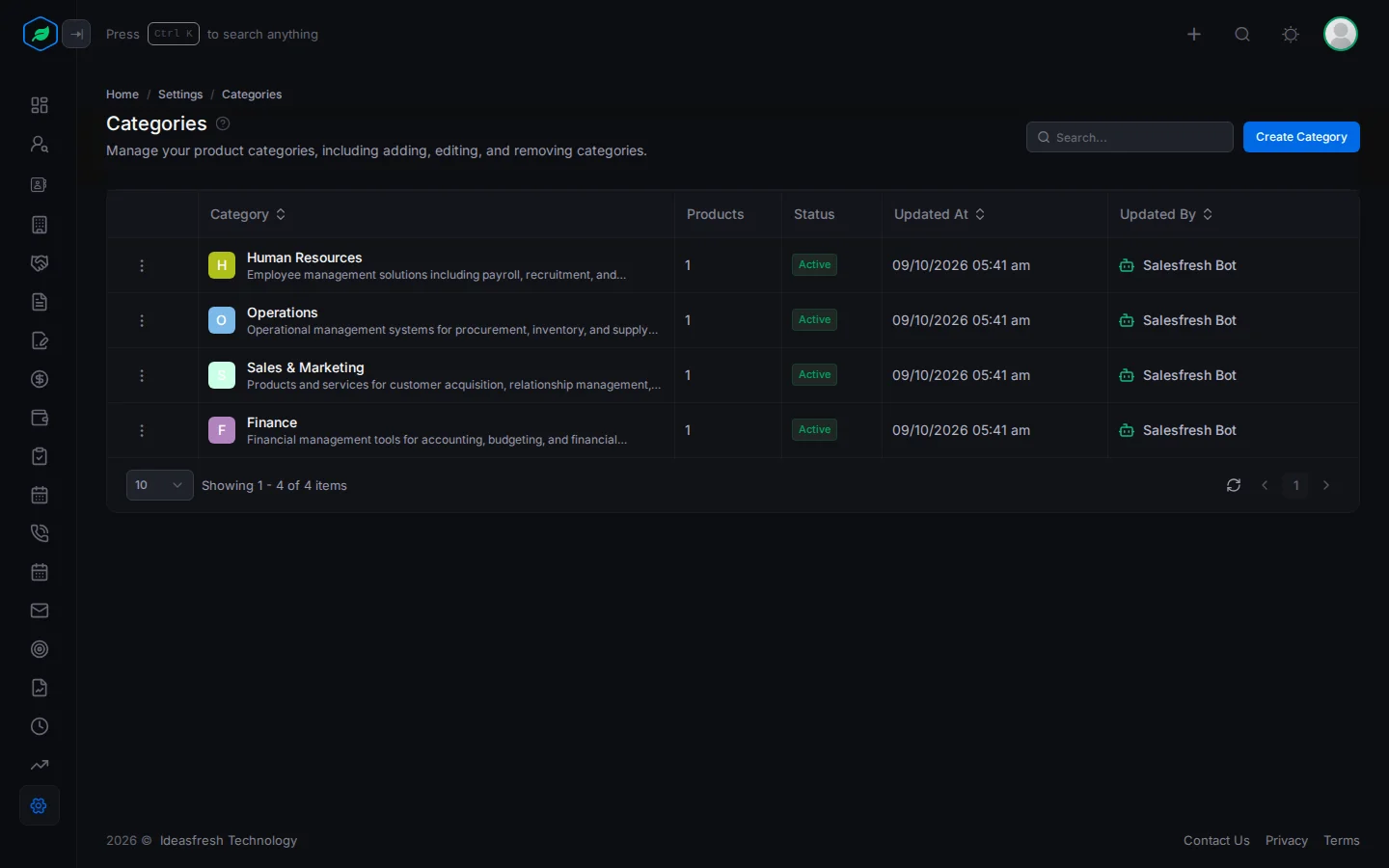
The Products column shows how many products are in each category.
Add a category
- Go to Categories and click Create Category.
- Enter a Name. No other category can have the same name.
- Add a Description if you like.
- To put it under another category, pick that one as the Parent.
- Click Save.
Edit or delete a category
Click ⋮ on the category's row, then Edit or Delete.
A category can't be its own parent. It also can't sit under one of its own subcategories.
Before you delete a category, move its products and subcategories to another one. Deleting doesn't change the products, so they still show the deleted category. Its subcategories drop out of the list.
If you later add a category with the same name as one you deleted, the old one comes back with the details you entered.
Products
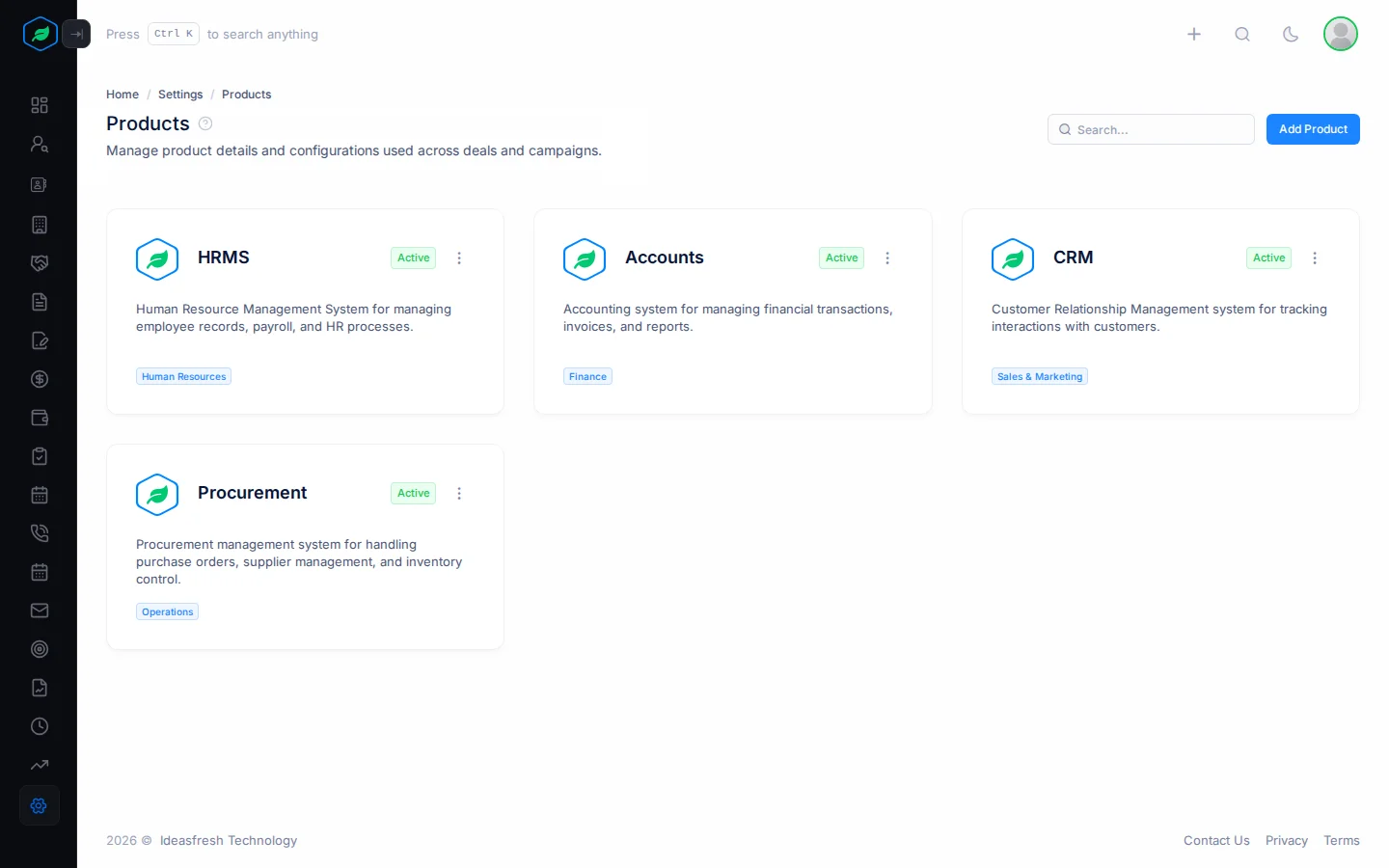
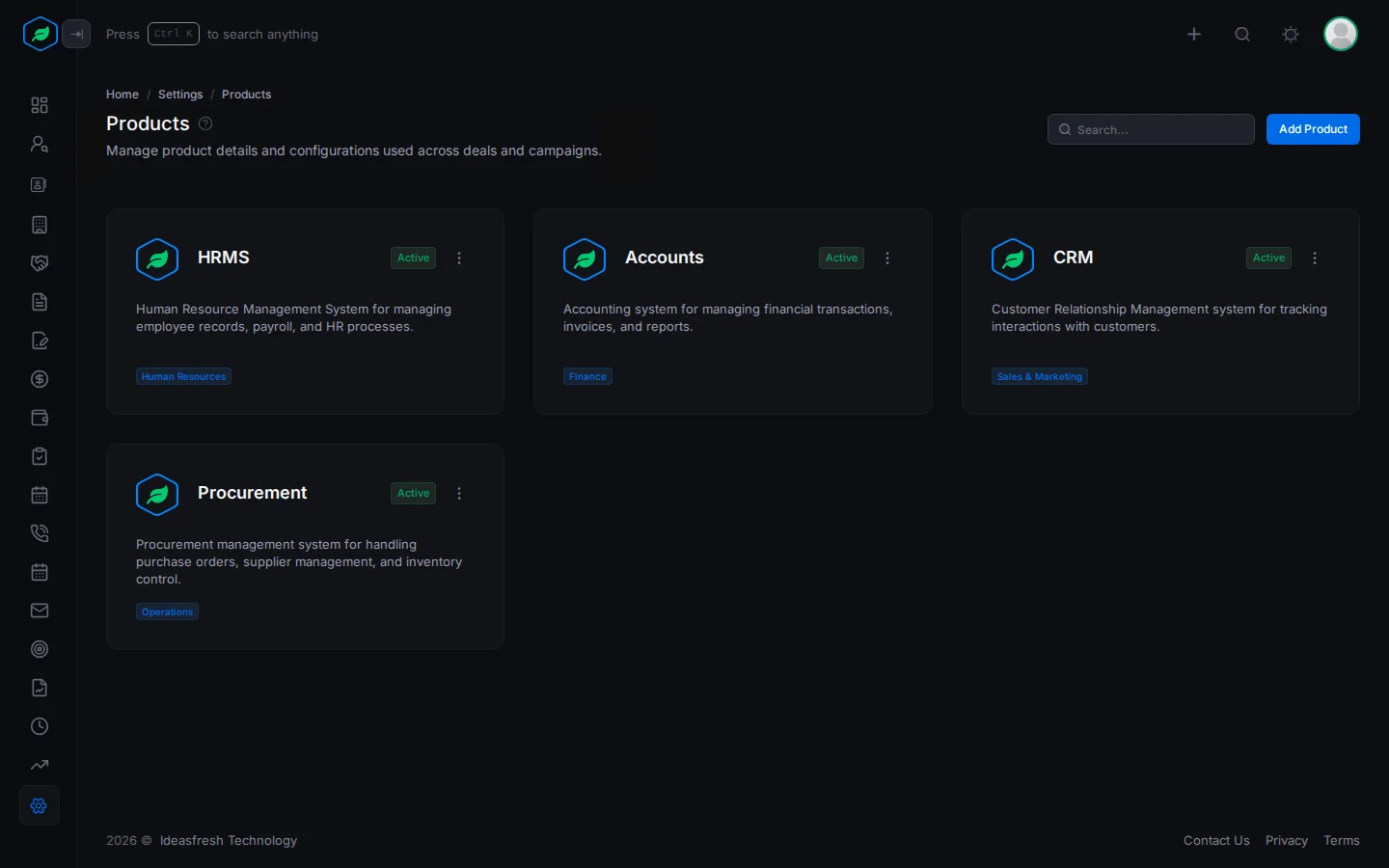
The Products page shows a card for each product, with its image, name, description, status and categories. Use the search box to find a product by its name, description or product code.
Add a product
- On Products, click Add Product.
- Fill in Product Details and Pricing Details. Fields marked * must be filled in. Product Type must be filled in too.
- Click Save.
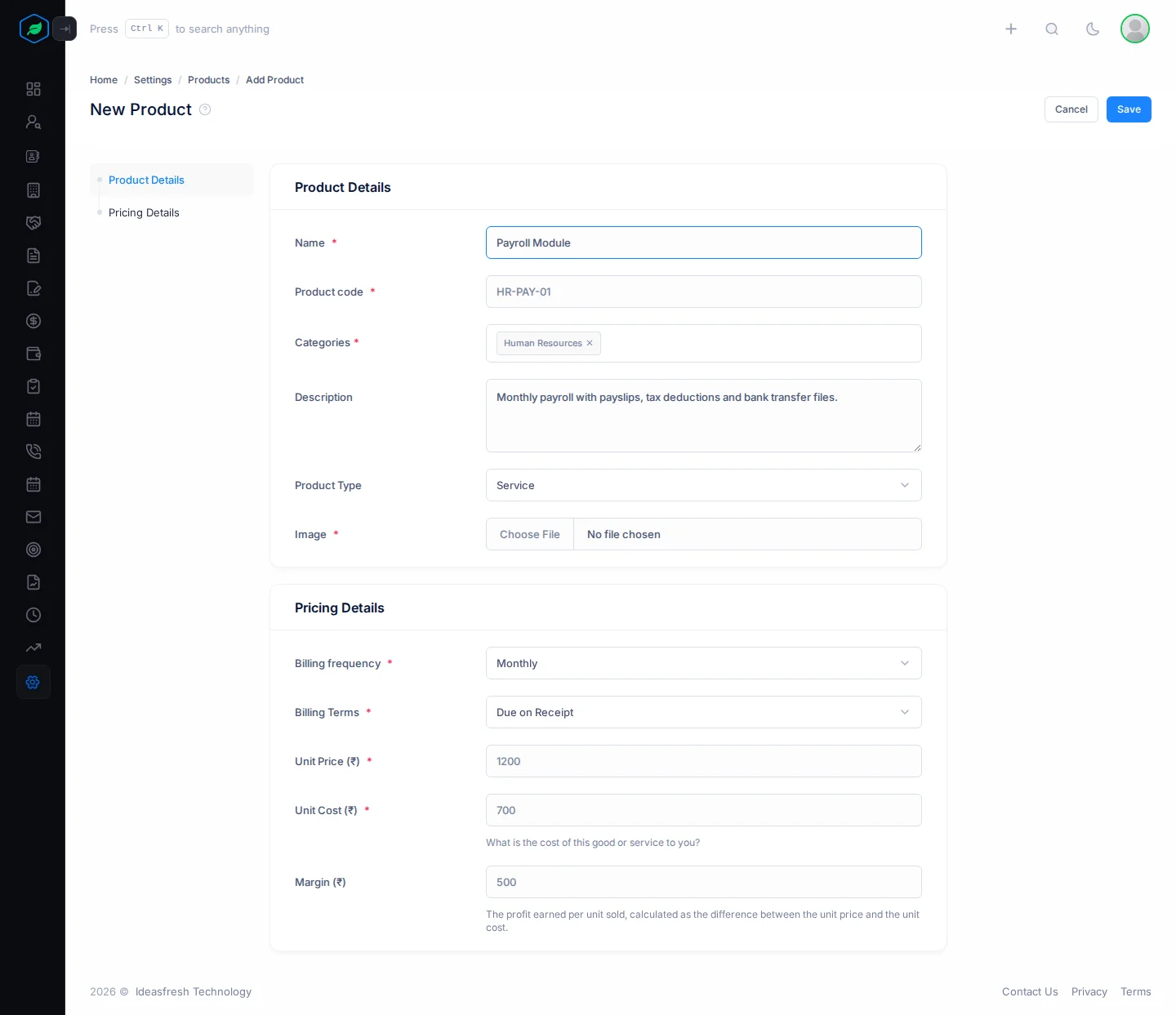
Product Details
| Field | What to enter |
|---|---|
| Name * | The name your customers see on the quote, such as "Payroll Module" |
| Product code * | Your own code for it, such as HR-PAY-01. Two products can't have the same code |
| Categories * | One or more categories. Type 2 letters to search |
| Description | A short line about the product. It is printed under the product on quotes |
| Product Type | Inventory for goods you keep in stock, Non-Inventory for goods you buy in only when someone orders, or Service for work such as setup or training |
| Image * | A picture of the product, JPG, PNG or WEBP, up to 5MB. You can crop it after you pick it |
A product code helps when two products have similar names. For example, HR-PAY-01 and HR-PAY-02 can be two editions of the Payroll Module.
Pricing Details
| Field | What to enter |
|---|---|
| Billing frequency * | How often the customer pays, such as One Time or Monthly |
| Billing Terms * | When payment is due, such as Due on Receipt or Net 30 |
| Unit Price * | What you charge for one, such as 1200 |
| Unit Cost * | What one costs you, such as 700. It can't be more than the unit price |
| Margin | Worked out for you. Here, 1200 minus 700 is a margin of 500 |
The margin shows your profit on each sale, so you can see which products earn you the most. Your admin adds billing frequencies and terms in Settings > Configurations.
Edit a product
Click ⋮ on the product's card and click Edit. Change what you need and click Save.
A new price only applies to new quote lines. Quotes you already made keep the name, description and price they had.
Stop selling a product
Click ⋮ on the product's card and click Inactive, then confirm. The product no longer shows when your team adds a product to a quote, or on your web forms. Quotes and records that already have it don't change.
To sell it again, click Activate.
Delete a product
Click ⋮ on the product's card and click Delete. You can only delete a product that nothing uses yet. If a quote, contract, subscription, asset, work order or a lead's interested products include it, mark it Inactive instead.
Where products are used
- On quotes, each line is a product, starting at its unit price. See Create and edit a quote.
- On leads and contacts, to record what someone wants. See Interested products.
- On web forms, to ask visitors which products they are interested in.
Troubleshooting
| You see | Why | What to do |
|---|---|---|
| The product form says no categories are available yet | Every product needs a category | Add a category, then the product |
| "A product with this product code already exists." | Another product uses that code | Use a different code |
| "Unit price cannot be less than the unit cost" | The price is lower than the cost | Raise the price or lower the cost |
| "Product cannot be deleted as it is used by … Deactivate it instead to hide it from new records." | Quotes or other records use the product | Mark it Inactive instead |
| "A category with this name already exists." | Another category has that name | Use a different name |
| "No products are configured in your account. To proceed, …" | You opened a new quote while the catalog is empty | Add a product first |
Related
Still stuck?
Tell us what you were trying to do and we will help.