Contracts: overview, list and views
What a contract is, its statuses, and how to find contracts on the Contracts page and in views.
Updated 10 October 2026 · 3 min read
A contract records an agreement with a customer: what you'll provide, for how long and for how much. Salesfresh keeps each contract with the people who sign it, its steps and payments, and its document. It makes the document for you from a template.
For example, your company cleans offices on yearly contracts. Before, your contracts were Word files in different folders, and you couldn't easily see which ones end next month. Now you add each contract in Salesfresh with the customer, the value and the dates, and download the document ready to sign. Every month, you open the Expiring Soon view to see which contracts to renew.
Before you start
- Your company can switch Contracts off. If you don't see Contracts in the sidebar, ask your admin to switch it on in Settings > Module Customization.
- To see contracts, you need the View Contracts permission. If you don't have it, ask your admin.
- Your admin sets up contract numbers and templates first. See Contract settings and templates.
- How many contracts you can have depends on your plan: 100 on Free, 2,000 on Starter, 20,000 on Professional, and no limit on Enterprise. See Plans and limits.
Statuses
| Status | Use it when |
|---|---|
| Draft | You are still writing it. New contracts start here |
| Under Review | Someone is checking it |
| Awaiting Signature | You sent it for signing |
| Active | It's signed and running |
| Fully Executed | Everyone has signed it |
| Expired | It ended |
| Cancelled | It was called off |
| Breached | One side broke the terms |
You change the status yourself on the contract's page. It never changes on its own, not even on the end date. See The contract detail page.
The Contracts page
Click Contracts in the sidebar. Each row shows the contract's number, title, customer, type, start and end dates, and status. The colour of each row shows its status.
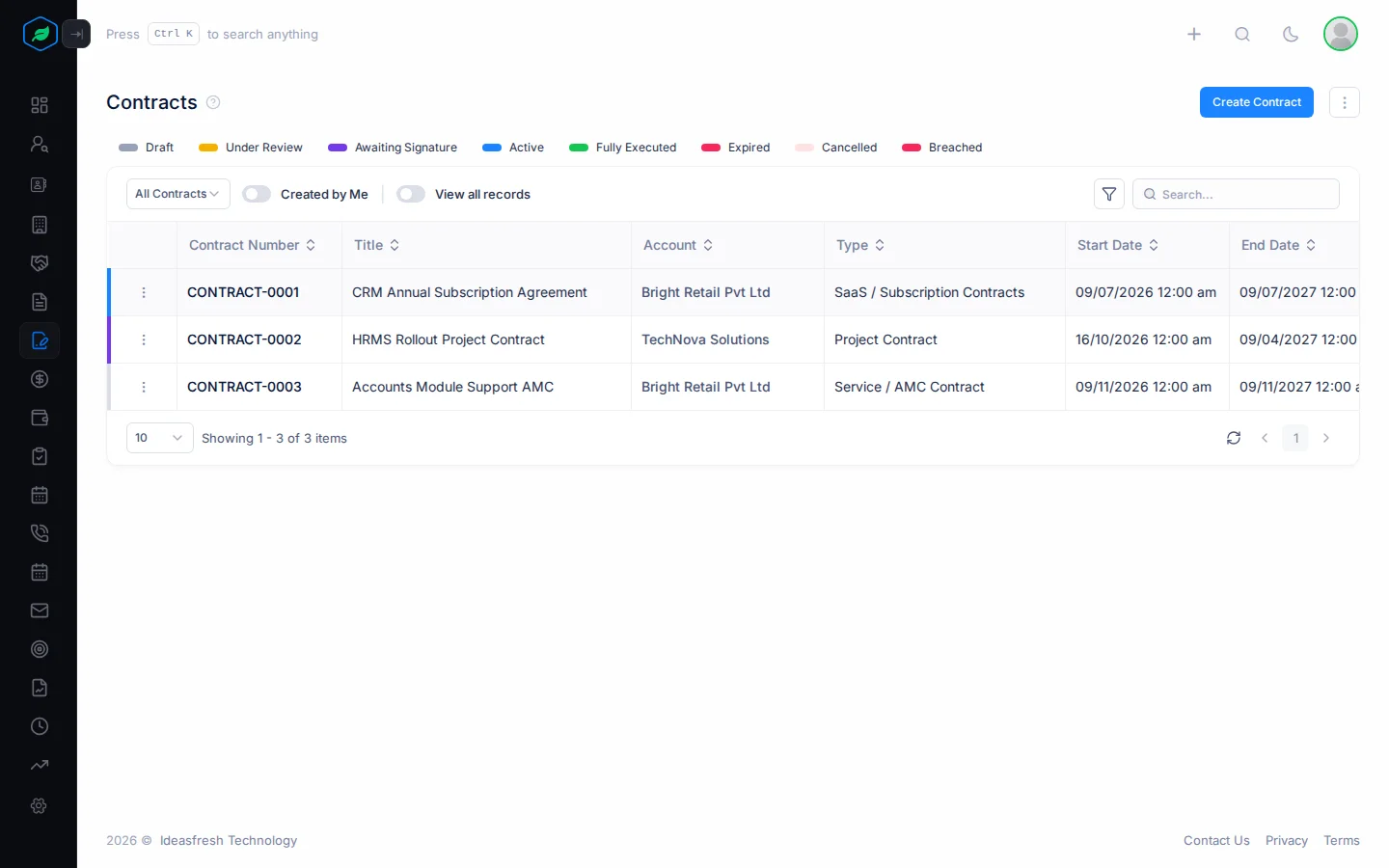
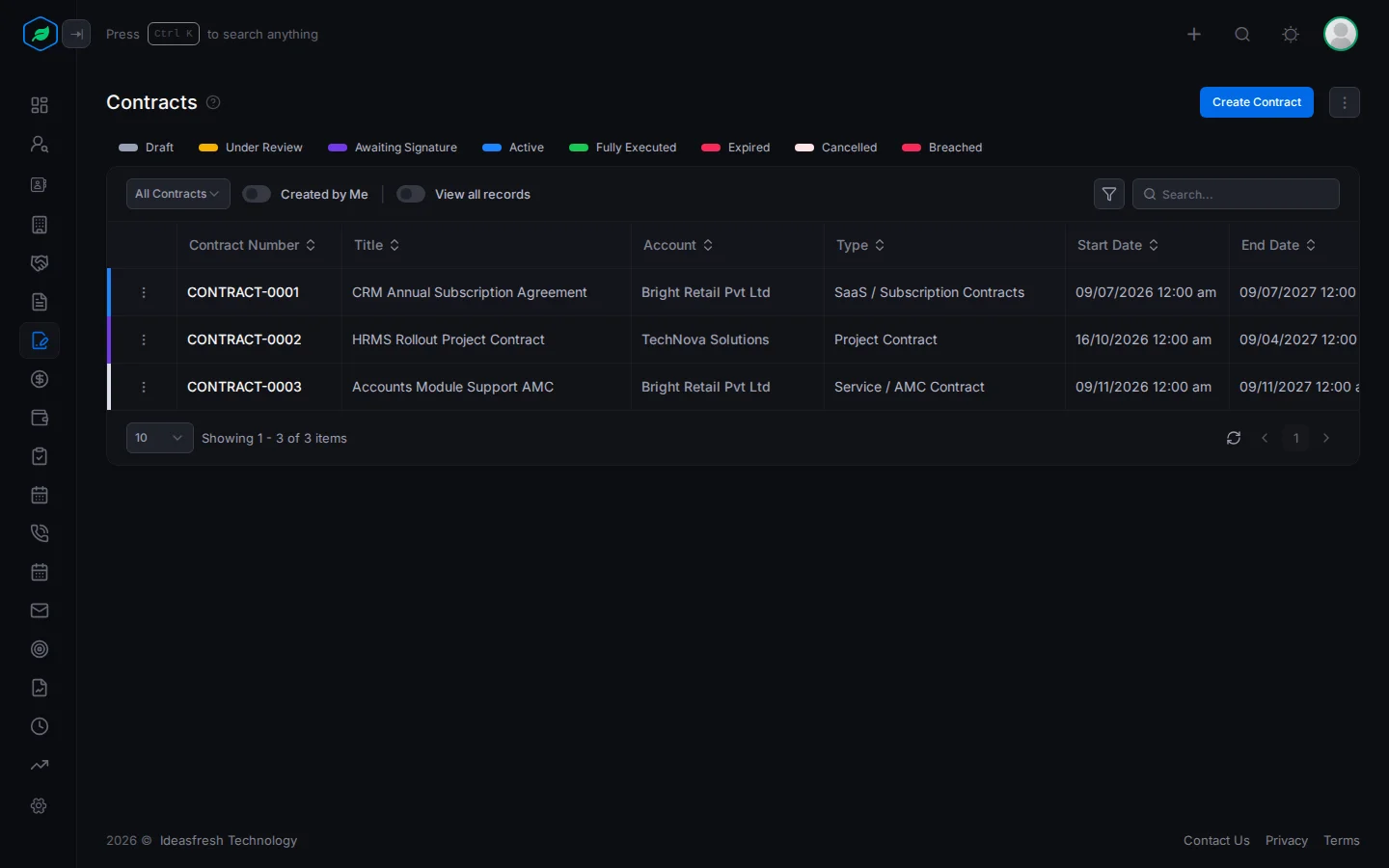
- Click a status above the table to see only those contracts.
- Turn on Created by Me to see only the contracts you added.
- Click a contract's number to open it.
From the ⋮ on a row, you can Preview or Download the contract document, or Edit, Clone or Delete the contract.
Views
A view is a ready-made list. Pick one to see the contracts you need. For example, open Expiring Soon each month to plan your renewals.
| View | Shows |
|---|---|
| All Contracts | Every contract you can see |
| Active Contracts | Contracts that are running |
| Draft Contracts | Contracts still being written |
| Expiring Soon | Contracts that end in the next 30 days |
| Expired Contracts | Contracts whose end date has passed |
| High Priority and High Risk | Contracts marked high priority or high risk |
| Auto Renewal | Contracts set to renew |
| Pending Approval | Contracts waiting to be approved |
| My Contracts | Contracts you own |
Related
Still stuck?
Tell us what you were trying to do and we will help.