Create, edit and clone a contract
Every field on the contract form, adding the people who sign, and how to edit, clone and delete contracts.
Updated 10 October 2026 · 6 min read
You use the contract form to record who the contract is with, what it's for, how long it runs, and who signs it.
For example, your company maintains lifts, and a new building signs up for 2 years. You click Create Contract. You pick the product "Lift maintenance", the building's account and the service contract template. You set the dates with the 2 Years quick pick and enter the value. You add the building's secretary and yourself as the people who sign, and click Save. Then you download the contract, ready to sign.
Before you start
- To create or clone a contract, you need the Create Contracts permission. To pick a template, you also need the View Contract Settings permission.
- To edit a contract, you need the Edit Contracts permission. To delete one, you need the Delete Contracts permission.
- The customer must already be an account, and the people who sign must be contacts or users.
If you don't have a permission you need, ask your admin.
Create a contract
- Click Create Contract on the Contracts page, or click + at the top of any page and choose Contract.
- Fill in the form. Fields marked * must be filled in.
- Add the people who sign. See Add the people on the contract.
- Click Save.
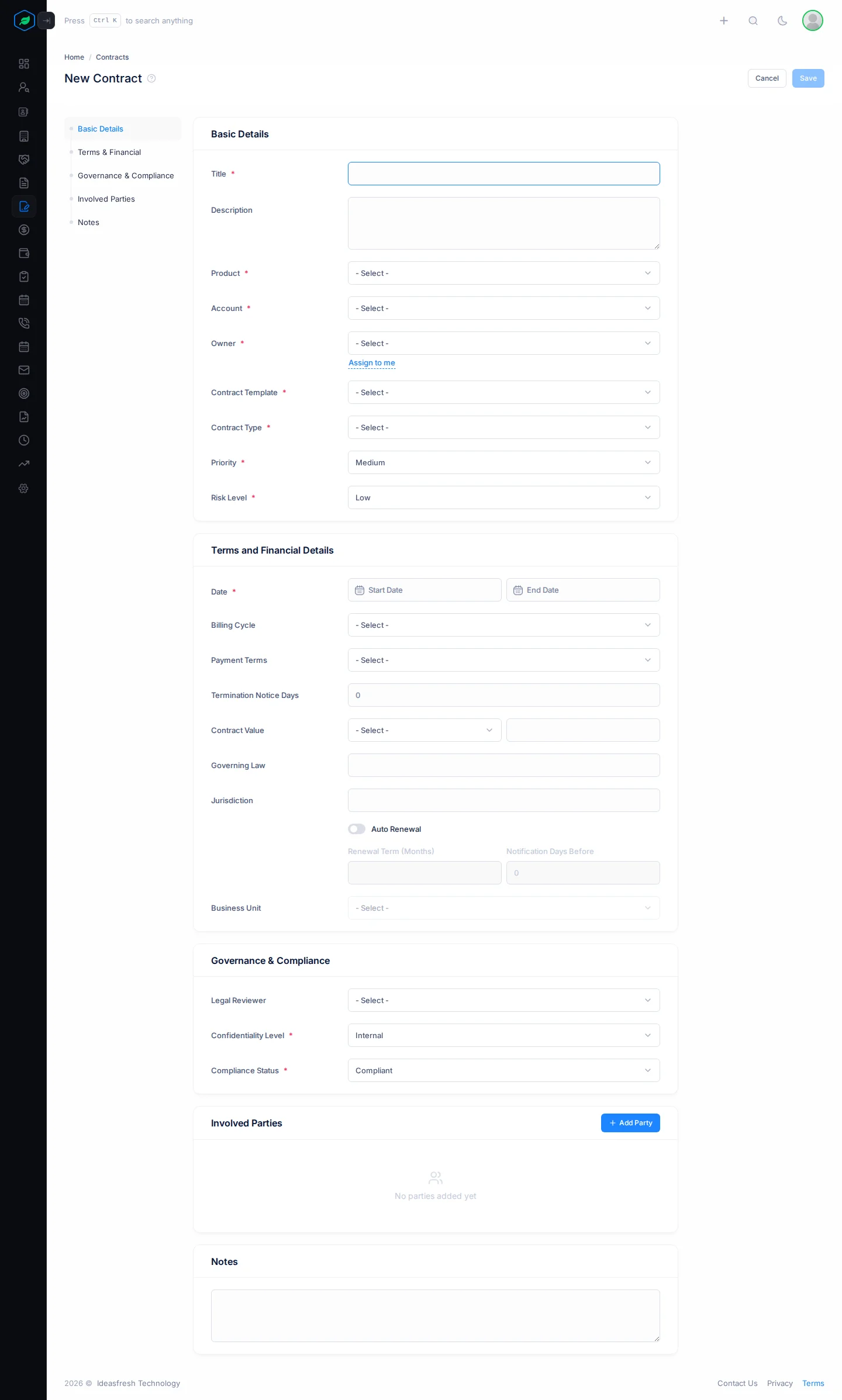
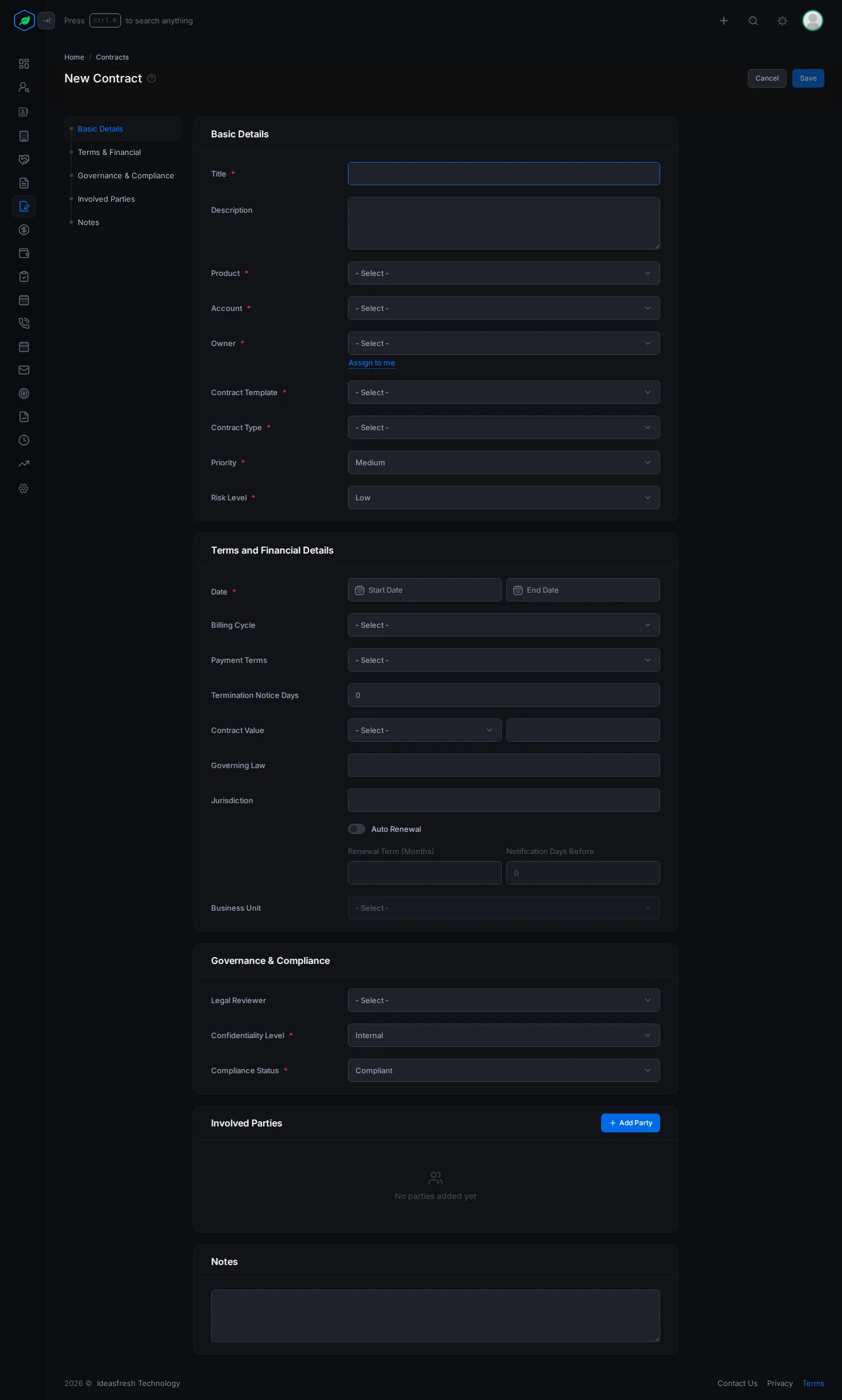
The contract gets the next number, such as CONTRACT-0001, and starts as Draft.
Basic Details
| Field | What to enter |
|---|---|
| Title * | What the contract is, such as "Lift maintenance, 2 years" |
| Description | A short summary of what you'll provide |
| Product * | What the contract is for. Only service products are listed |
| Account * | The customer |
| Owner * | The person who looks after the contract. Click Assign to me to pick yourself |
| Team | One of the owner's teams. You only see this if the owner is in a team |
| Contract Template * | The layout of the contract document. Picking it fills in the contract type and the notice days |
| Contract Type * | The kind of contract, such as Service / AMC Contract or NDA |
| Priority * | Low, Medium or High. Set to Medium at first |
| Risk Level * | Low, Medium, High or Critical. Set to Low at first |
Terms & Financial
| Field | What to enter |
|---|---|
| Date * | The start and end date. After you pick the start, click 3 Months, 6 Months, 1 Year, 2 Years or 3 Years to fill in the end |
| Billing Cycle | How often the customer pays: Monthly, Quarterly, Semi Annual or Annual |
| Payment Terms | When payment is due, such as Net 30 |
| Termination Notice Days | How many days' notice either side must give to end it, such as 30 |
| Contract Value | The currency and the amount, such as 1,20,000 |
| Governing Law and Jurisdiction | Which country's laws and courts apply |
| Auto Renewal | Turn on if the contract renews by itself. Then fill in Renewal Term (Months) and Notification Days Before. These are only notes. Salesfresh doesn't renew anything for you |
Governance & Compliance
| Field | What to enter |
|---|---|
| Legal Reviewer | The user who checks the contract |
| Confidentiality Level * | Internal, Public, Confidential or Restricted. Set to Internal at first |
| Compliance Status * | Compliant, Non-Compliant or Under Review. Set to Compliant at first |
Notes
Anything else your team should know about the contract.
Add the people on the contract
A contract needs at least two people, such as the customer's director and you.
- Under Involved Parties, click Add Party. The Add Party panel opens.
- Fill in the fields.
- Click Add.
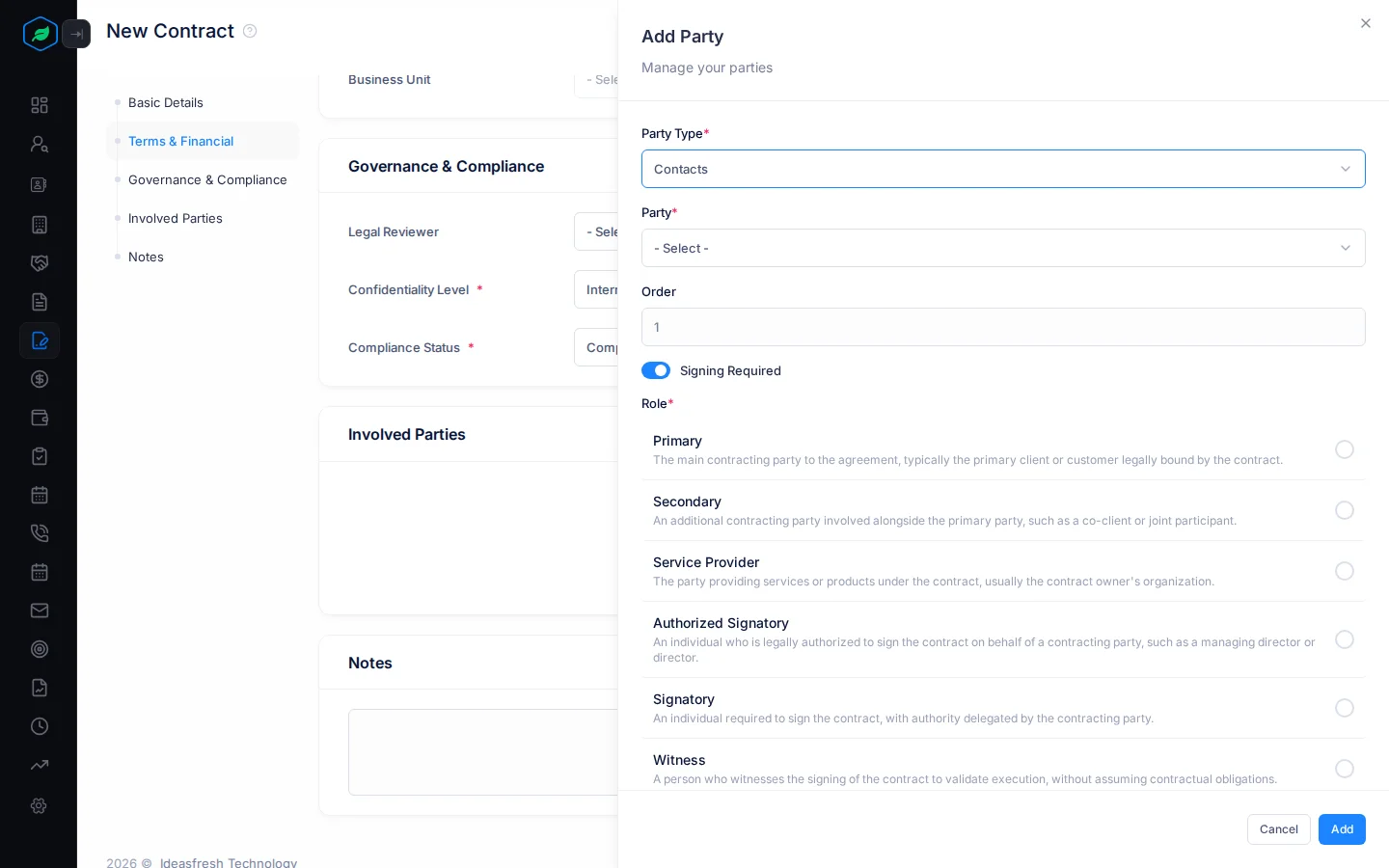
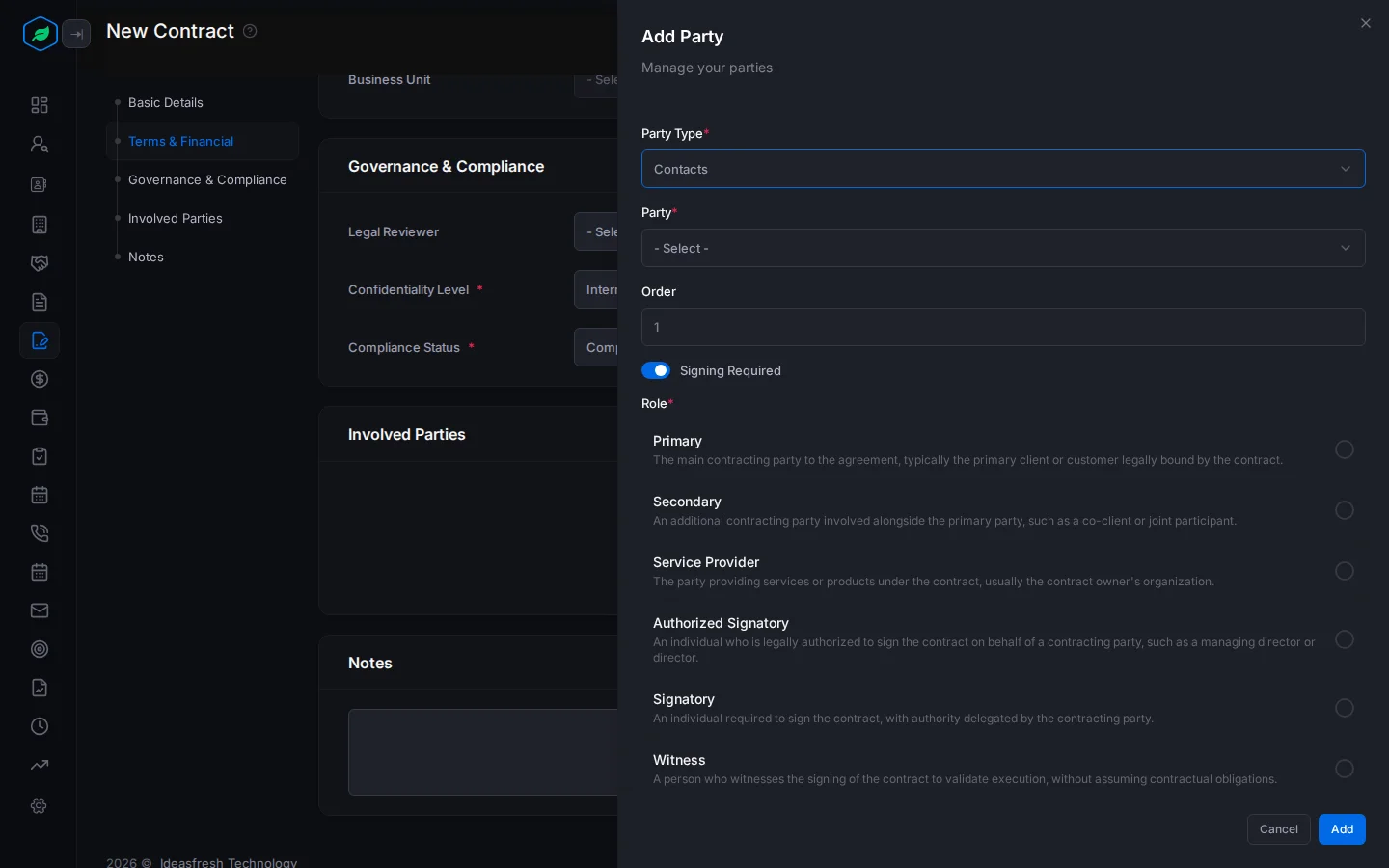
| Field | What to enter |
|---|---|
| Party Type * | Contacts for people at the customer, or Users for your own team. Set to Contacts at first |
| Party * | The person |
| Order | Their place in the signing order, such as 1 for the first to sign |
| Signing Required | On at first. Leave it on if this person must sign |
| Role * | What they do on the contract, such as Primary, Authorized Signatory, Witness or Guarantor |
Everyone with Signing Required on gets a row on the contract's Signatures tab. See Contract signatures, risks, SLAs and metrics.
Edit a contract
Click ⋮ on the contract's page or on its row, then Edit. Change what you need and click Update.
If you remove a person, or turn off their Signing Required, their signature row is removed too.
Clone a contract
Cloning saves time when you make a similar contract, such as the same service for another building.
- Click ⋮, then Clone.
- Tick the related items to copy, such as Milestones, Parties or Obligations, and confirm.
- A copy called "Title (Copy)" opens, with a new number, in Draft. Change what you need and click Update.
Only you can see the copy until you click Update. If you didn't copy the parties, add at least two before you save.
Delete a contract
Click ⋮, then Delete, and confirm. You can't restore a deleted contract.
An account can't be deleted while it has Active or Fully Executed contracts.
Troubleshooting
| You see | Why | What to do |
|---|---|---|
| "Minimum 2 involved party is required" | The contract has fewer than two people | Add another person |
| "Template is required", and no templates to pick | You don't have the View Contract Settings permission, or no template has content yet | Ask your admin |
| "End date must be greater than start date" | The end date is the same as, or before, the start date | Pick a later end date |
| "This party has already been added" | That person is already on the contract | Edit their row instead |
| "You have reached the maximum of … contracts on your current plan. Please upgrade for more." | You have as many contracts as your plan allows | Upgrade your plan |
| An error when you save with Critical priority | The form offers Critical, but it can't be saved | Pick High instead |
Related
Still stuck?
Tell us what you were trying to do and we will help.