The contract detail page
What is on a contract's page, its tabs, how to change its status, and how to preview and download the contract document.
Updated 10 October 2026 · 3 min read
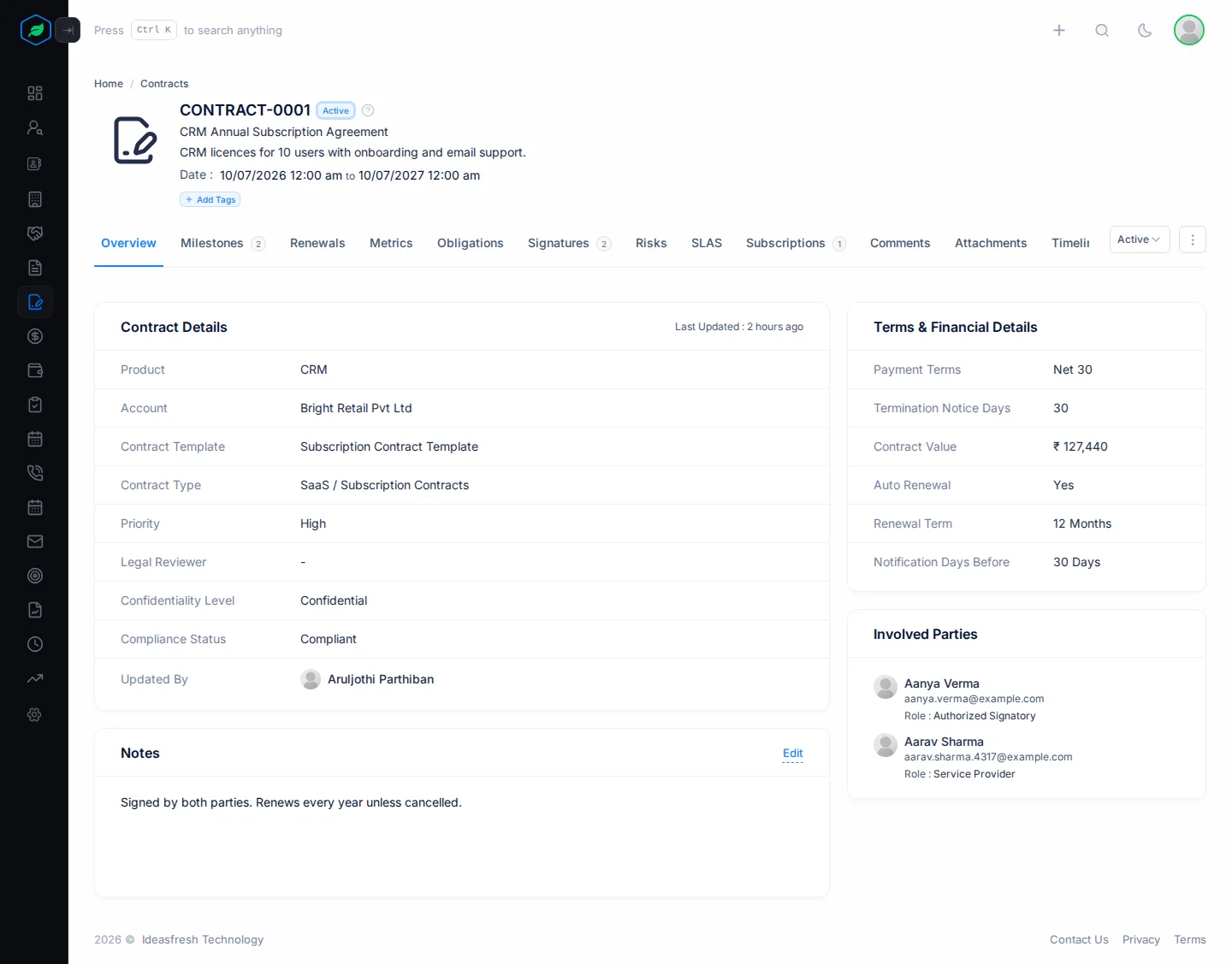
A contract's page shows everything about it: who it's with, its terms, the people who sign, and everything you track on it, such as payments and risks. It's also where you change its status and get the contract document.
To open it, click a contract's number on the Contracts page.
Before you start
- To open a contract, you need the View Contracts permission.
- To change its status, you need the Edit Contracts permission. You must also be the contract's owner, or the person who created it.
If you don't have a permission you need, ask your admin.
At the top
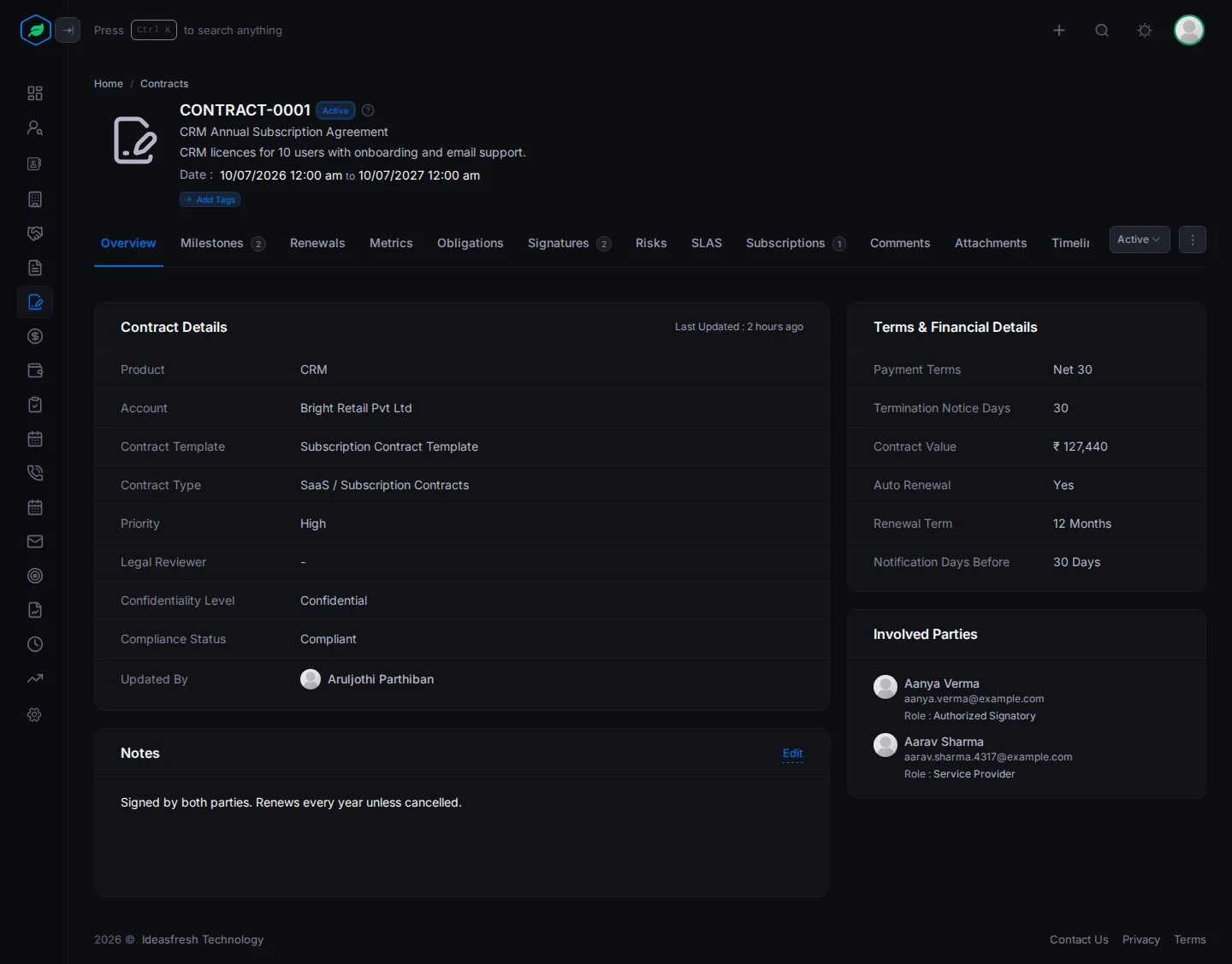
The top of the page shows the contract number, its status, the title, the description, and the start and end dates. You can add tags under the dates. On the right are the status dropdown and the ⋮ menu.
Overview
- Contract Details shows the product, customer, template, type, priority, legal reviewer, confidentiality level and compliance status.
- Terms & Financial Details shows the payment terms, notice days, value and renewal details.
- Involved Parties shows the people on the contract and their roles.
- Notes is for anything your team should know. Click Edit to change it.
The tabs
| Tab | What it's for |
|---|---|
| Milestones, Renewals and Obligations | The steps, renewals and promises of the contract. See Contract milestones, renewals and obligations |
| Metrics, Signatures, Risks and SLAS | How it's going, who has signed, what could go wrong and the service you promised. See Contract signatures, risks, SLAs and metrics |
| Subscriptions | The customer subscriptions under this contract. Click Create to add one. See Create and edit a subscription |
| Comments, Attachments and Timeline | Notes for your team, files, and every change. See Comments |
The number on a tab shows how many items it has.
Change the status
Pick a status from the dropdown at the top right and confirm. For example, when everyone has signed, pick Fully Executed.
The status never changes on its own, not even on the end date. See Statuses.
The contract document
Salesfresh makes the contract document for you. It fills the contract's template with the contract's details, the customer's addresses, the people who sign and the milestones.
- Click ⋮, then Preview to open it as a PDF.
- Click ⋮, then Download to save it.
The document has a large "CONFIDENTIAL" mark across each page.
If the document starts with Missing Template Variables, some details it needs are empty. They may be on the contract, or somewhere else, such as the customer's billing address or a person's phone number. Fill them in and download again.
The ⋮ menu
Edit, Clone and Delete are also in the ⋮ menu. See Create and edit a contract.
Troubleshooting
| You see | Why | What to do |
|---|---|---|
| The status dropdown is missing | You don't own the contract and didn't create it | Ask the owner |
| The status doesn't change | You don't have the Edit Contracts permission | Ask your admin for the permission |
| "Contract template is empty" in a new browser tab | The contract's template has no content | Ask your admin to add content to the template |
| The document starts with Missing Template Variables | Some details the template needs are empty | Fill in the details listed, then download again |
Related
Still stuck?
Tell us what you were trying to do and we will help.