Track signatures, risks, SLAs and metrics on a contract
Record who has signed a contract, what could go wrong, the service you promised and how the contract is doing.
Updated 10 October 2026 · 5 min read
These four tabs help you look after a contract once it's written:
- Signatures: who has signed it.
- Risks: what could go wrong.
- SLAS: the service you promised.
- Metrics: how the contract is doing.
For example, your company runs IT support for a chain of clinics on a yearly contract. When the signed copy comes back, you mark both signers Signed. The clinic pays late twice, so you add a High financial risk with a plan to ask for payment in advance. The contract promises a reply within 2 hours, so you record that target and, each month, what you really delivered. At renewal time, you open one contract and see the whole story.
Before you start
- To add an item, you need the Create Contracts permission.
- To change an item, you need the Edit Contracts permission. To delete one, you need the Delete Contracts permission.
If you don't have a permission you need, ask your admin.
These tabs only keep records. Salesfresh doesn't send anything to sign, and it doesn't check or change anything on its own. Update them yourself.
Signatures
You don't add signatures by hand. A signature row is added for each person on the contract who is marked Signing Required. The name, email and job title are filled in for you. See Create and edit a contract.
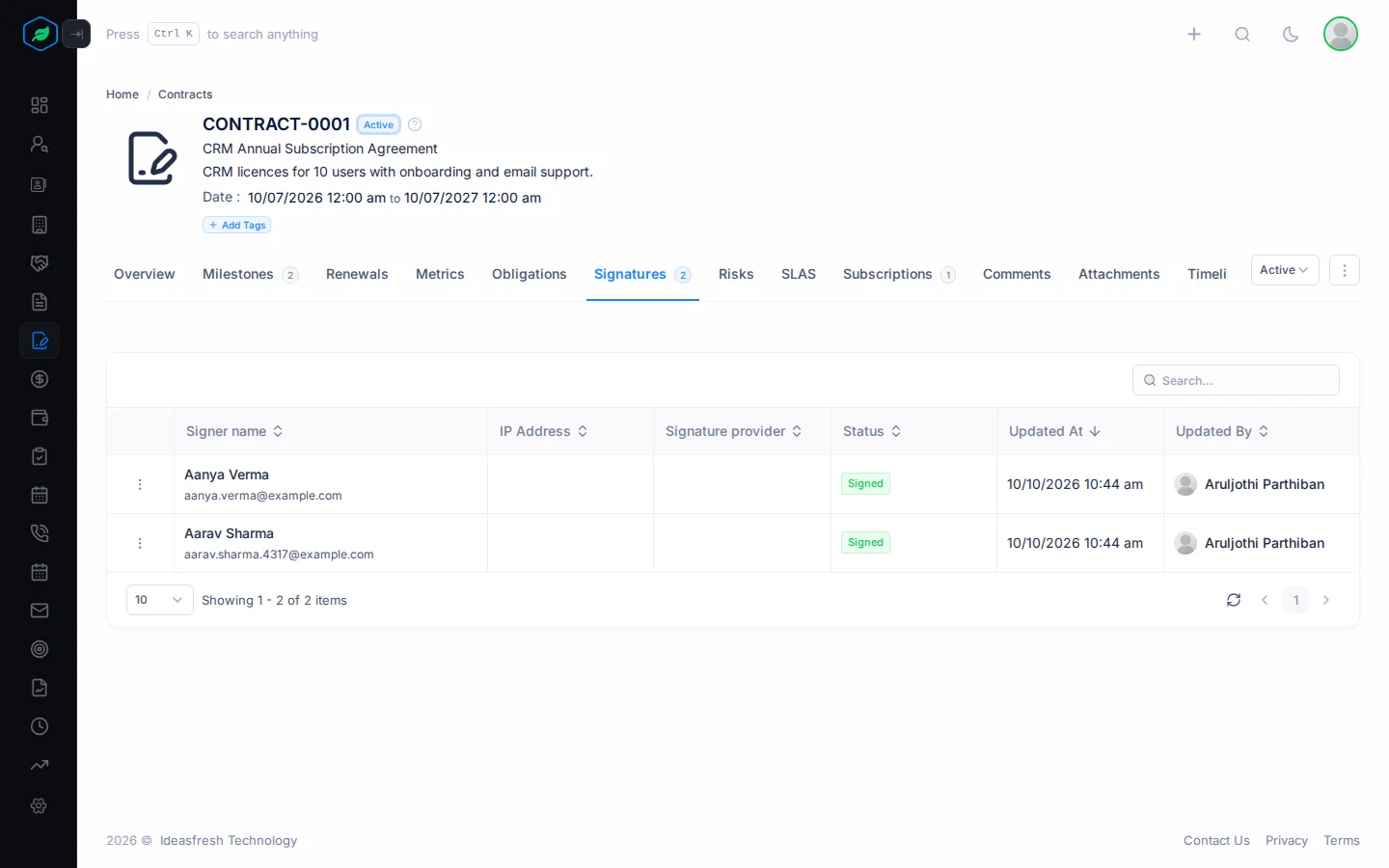
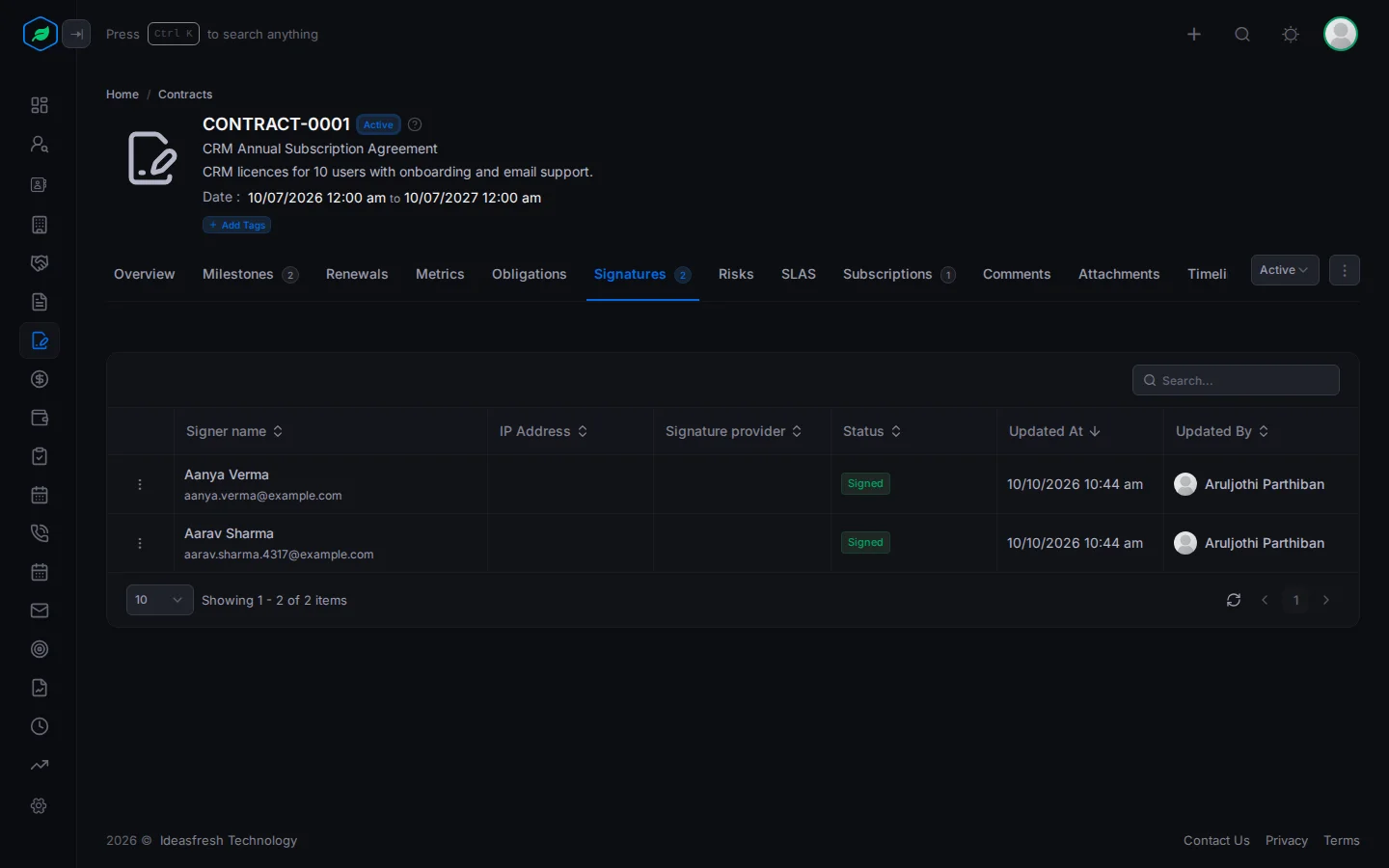
When someone signs the paper or PDF copy:
- Open the contract and click Signatures.
- Click ⋮ on their row, then Edit.
- Fill in the fields and click Update.
| Field | What to enter |
|---|---|
| Party * | The person on the contract who signed |
| Signer Name * | Their name |
| Signer Email * | Their email address |
| Signer Designation | Their job title, such as "Director" |
| Signer Provider | Manually Signed |
| Signed At | When they signed |
| Status * | Pending, Signed or Declined. Set to Pending at first |
When everyone has signed, change the contract's status yourself, such as to Fully Executed. See The contract detail page.
Risks
A risk is something that could go wrong with the contract, such as late payments.
- Open the contract and click Risks.
- Click Create. The Contract Risk panel opens.
- Fill in the fields and click Create.
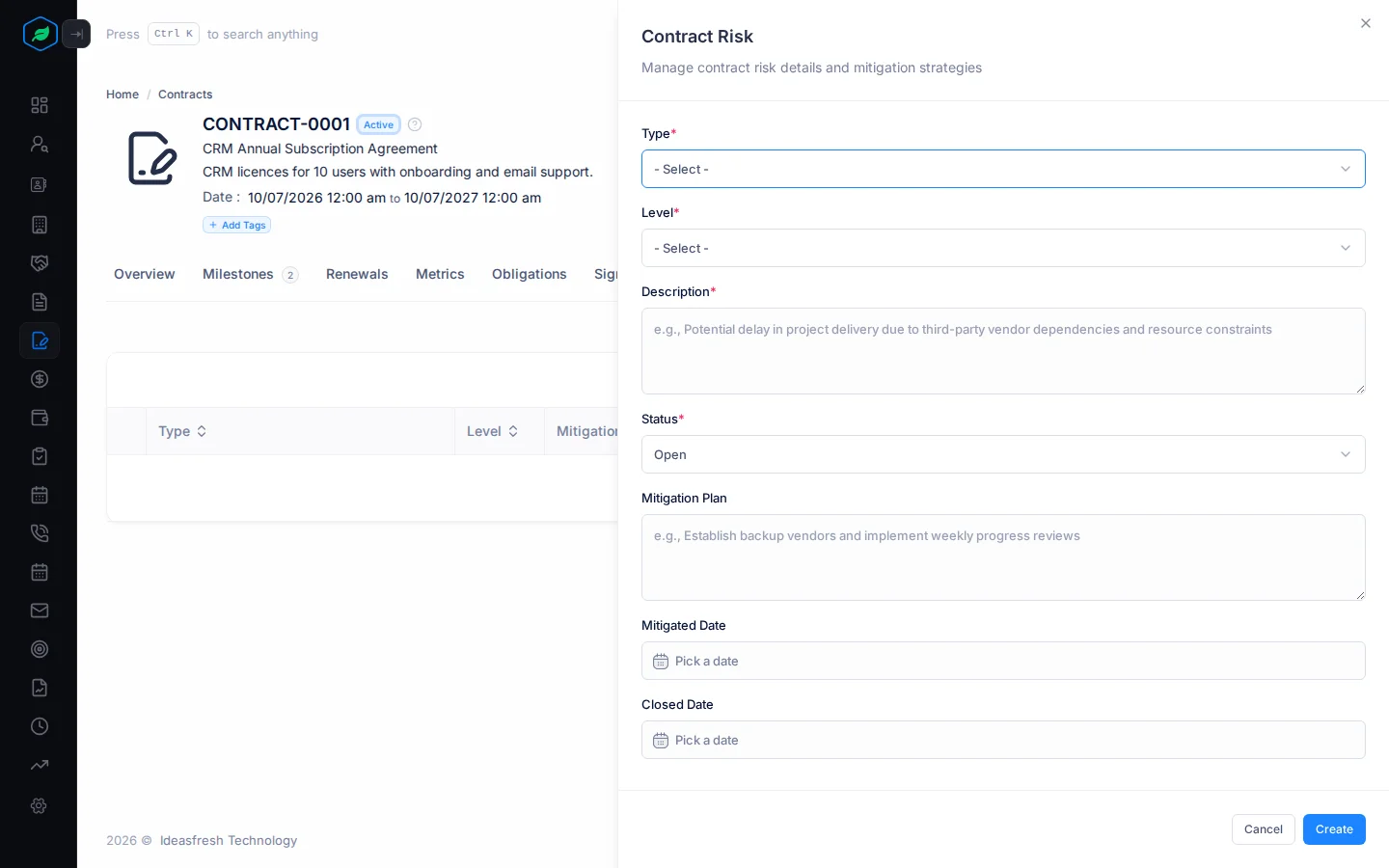
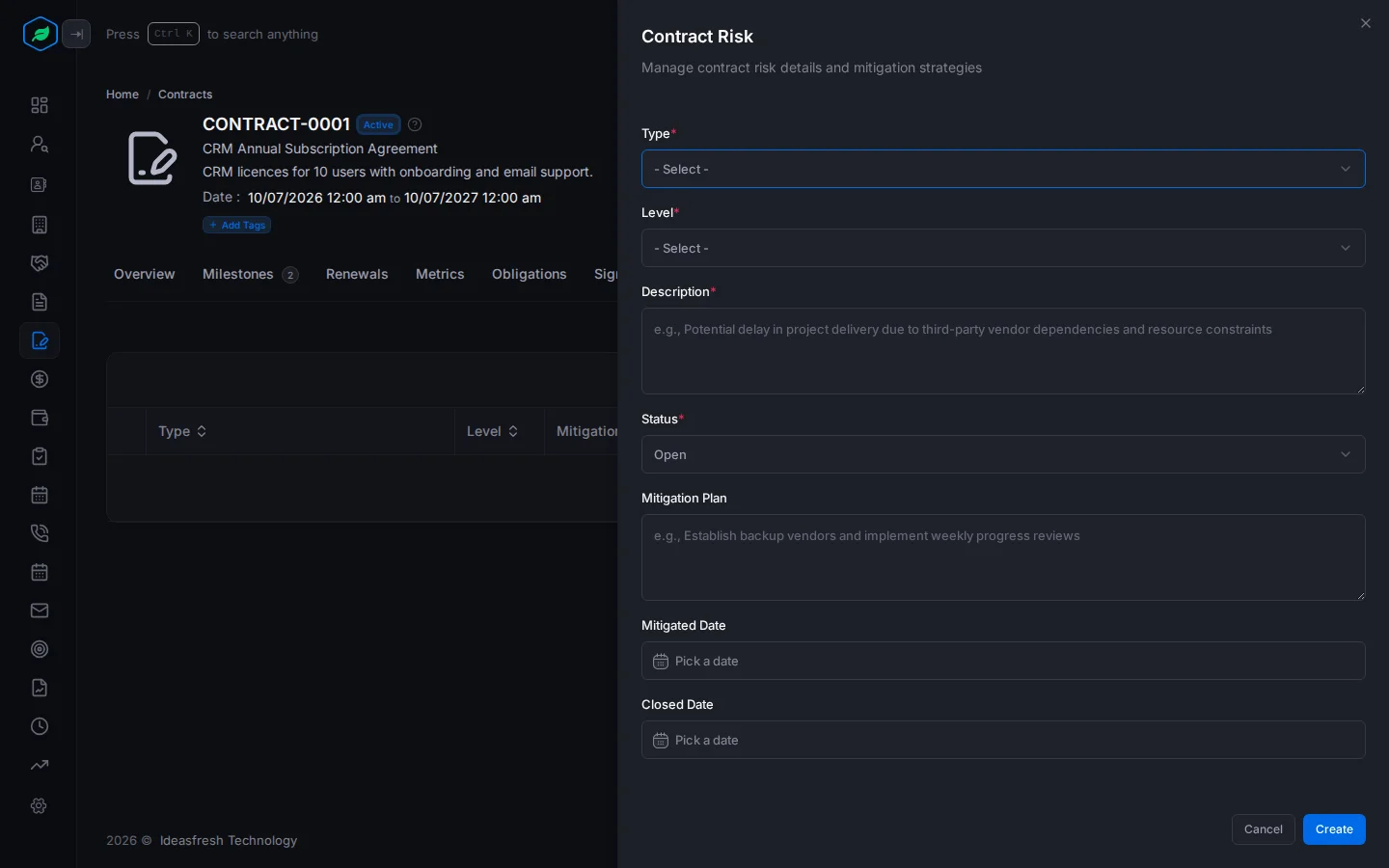
| Field | What to enter |
|---|---|
| Type * | Financial, Legal, Operational or Compliance |
| Level * | Low, Medium, High or Critical |
| Description * | What could go wrong, such as "Customer has paid late twice" |
| Status * | Open, Mitigated or Closed. Set to Open at first |
| Mitigation Plan | What you'll do about it, such as "Ask for payment in advance next quarter" |
| Mitigated Date | When you dealt with it. Fill this in when you set the status to Mitigated |
| Closed Date | When the risk ended. Fill this in when you set the status to Closed |
SLAs
An SLA (service level agreement) is a promise about your service, such as replying within 2 hours.
- Open the contract and click SLAS.
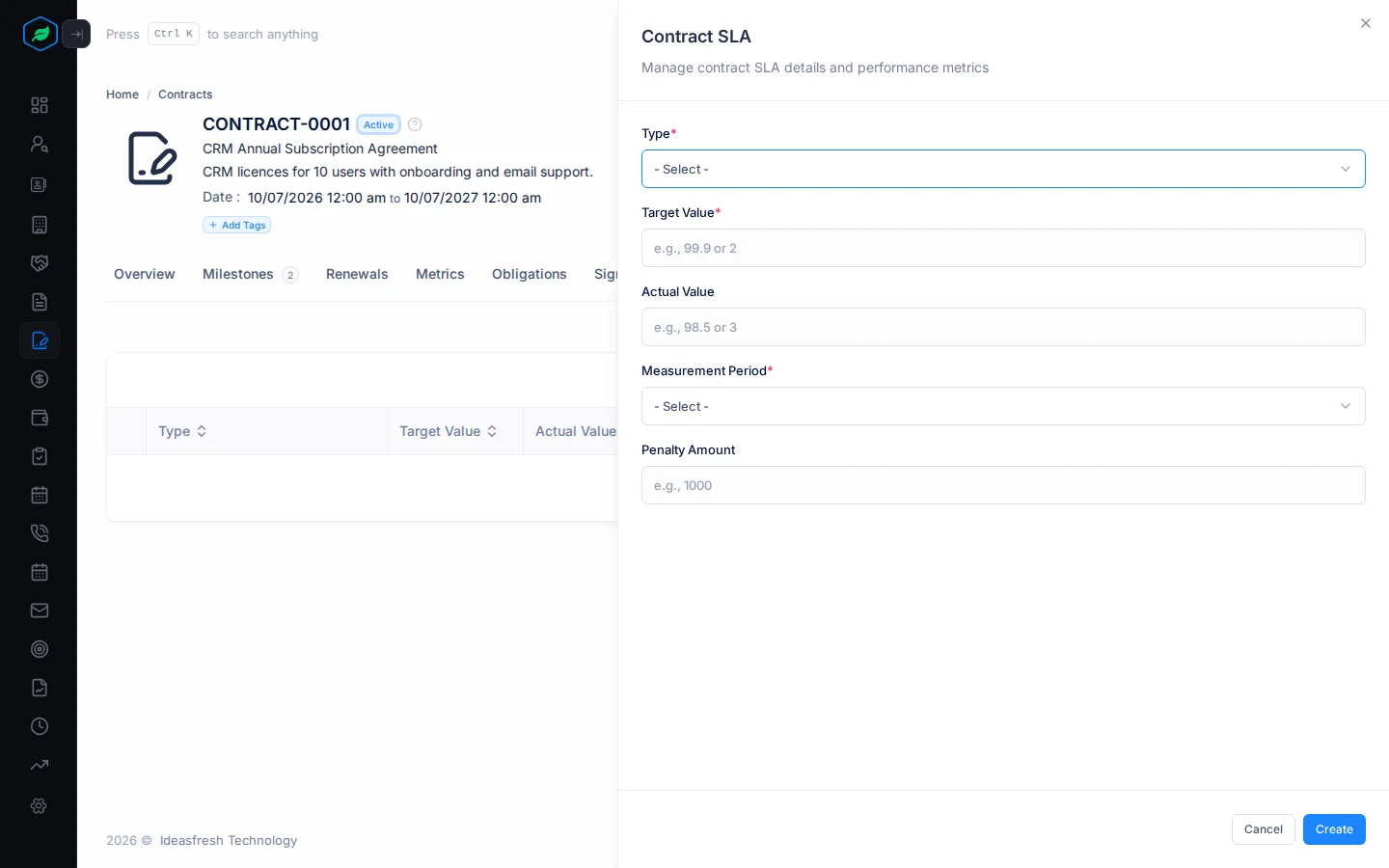
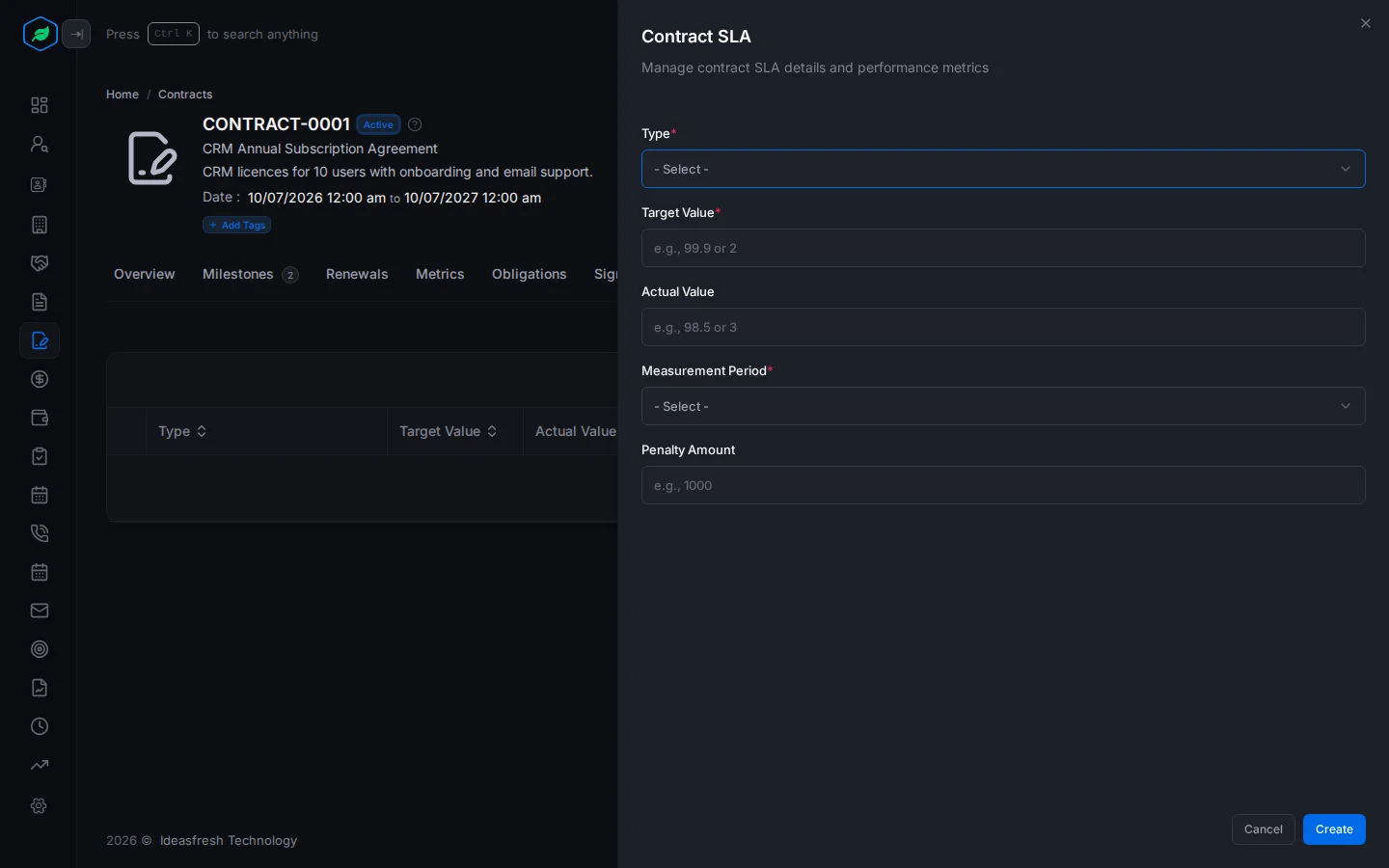
- Click Create. The Contract SLA panel opens.
- Fill in the fields and click Create.
| Field | What to enter |
|---|---|
| Type * | Response Time, Uptime or Performance |
| Target Value * | What you promised, such as 2 (hours) or 99.9 (per cent) |
| Actual Value | What you really delivered, such as 1.5 |
| Measurement Period * | How often you measure it: Daily, Weekly, Monthly, Quarterly or Annually |
| Penalty Amount | What you pay if you miss the target, such as 1000 |
Salesfresh doesn't warn you when you miss a target. Compare the target and actual values yourself.
Metrics
A metric records how the contract is doing, such as the revenue it earned this quarter.
- Open the contract and click Metrics.
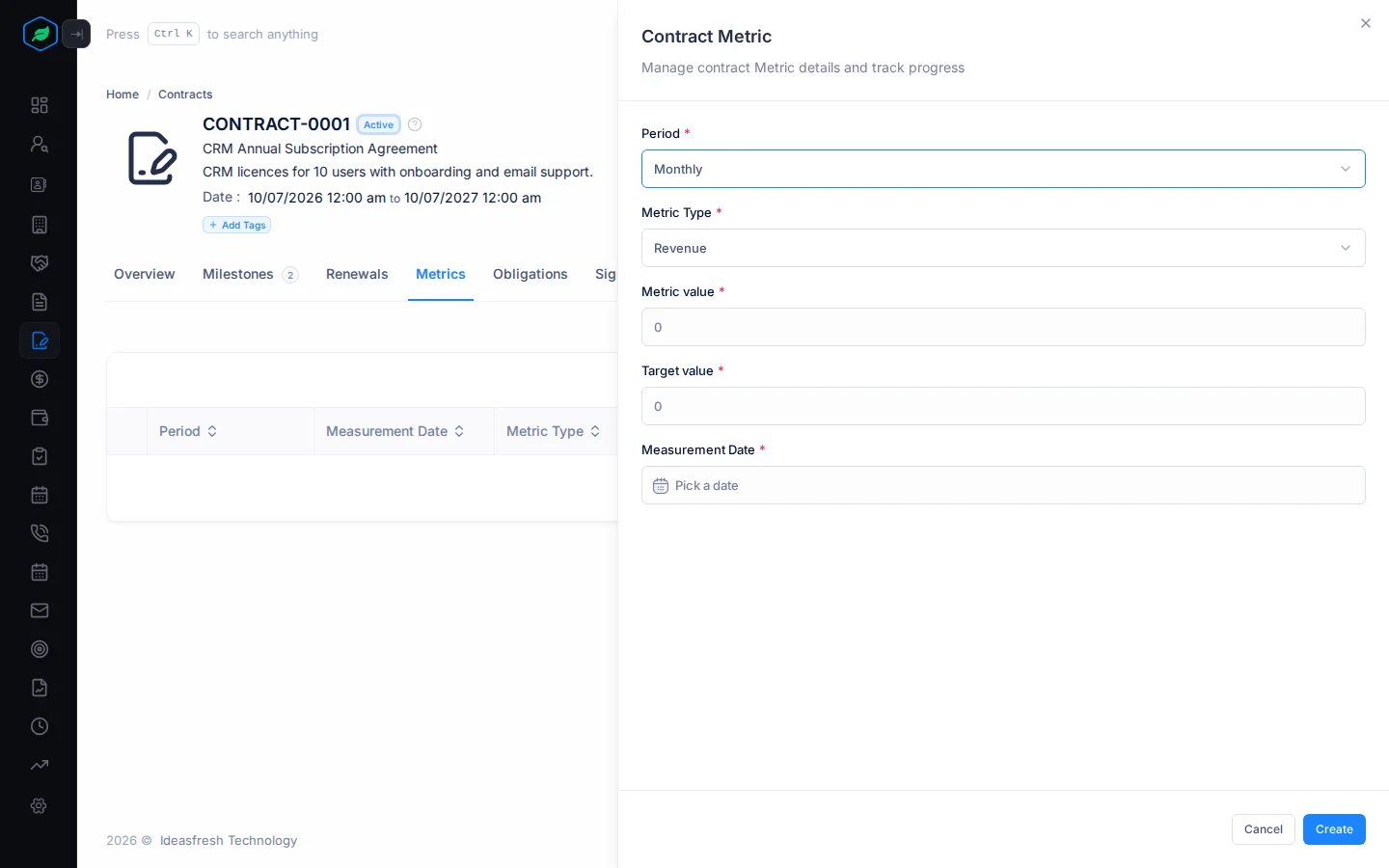
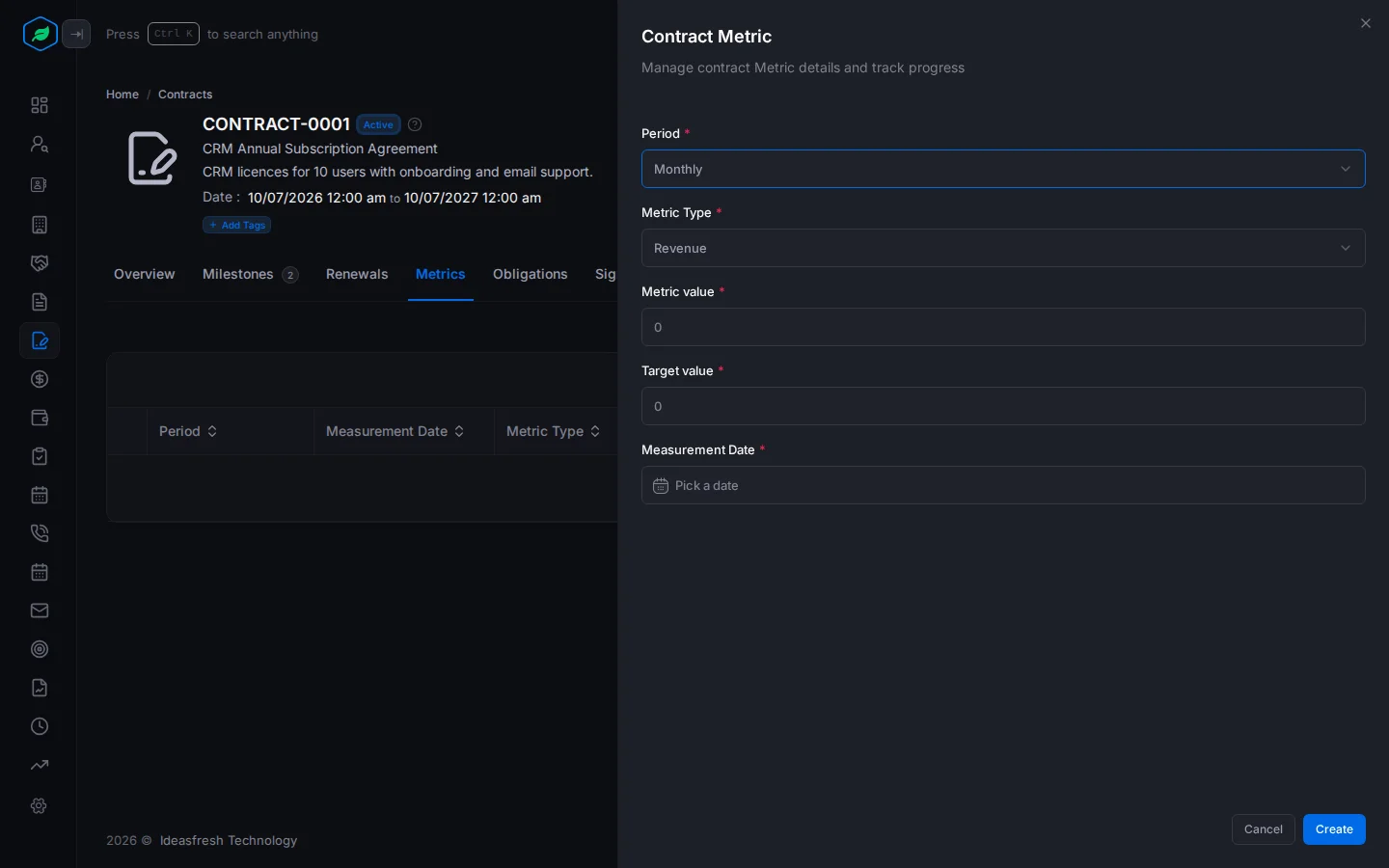
- Click Create. The Contract Metric panel opens.
- Fill in the fields and click Create.
| Field | What to enter |
|---|---|
| Period * | Monthly, Quarterly or Annual. Set to Monthly at first |
| Metric Type * | Revenue, Cost, Performance or Compliance. Set to Revenue at first |
| Metric value * | The real figure, such as 120000 |
| Target value * | The goal, such as 150000 |
| Measurement Date * | When it was measured |
Change or delete an item
On any of these tabs, click ⋮ on a row, then Edit or Delete. To find an item, type in the search box above the list.
Every change shows on the contract's Timeline.
Troubleshooting
| You see | Why | What to do |
|---|---|---|
| No Create button on Signatures | Signature rows come from the people on the contract | Edit the contract and turn on Signing Required for that person |
| A signature row you deleted came back | That person is still marked Signing Required | Edit the contract and turn off Signing Required for them |
| "Mitigated date is required" or "Closed date is required" | You set the risk to Mitigated or Closed | Fill in the date |
| The signer's name doesn't fill in when you pick the party | The form doesn't fill it in | Type the name and email |
Related
Still stuck?
Tell us what you were trying to do and we will help.