Remind owners to follow up on inactive leads
Create a follow-up task automatically when a lead has gone quiet for a set time.
Updated 12 October 2026 · 4 min read
An inactive lead reminder gives the owner a follow-up task when a lead hasn't been touched for a while. Quiet leads come back to the top of someone's list.
For example, you fit kitchens, and many leads ask for a price and then go quiet. A lead asks about a new kitchen while your salesperson is busy, and weeks pass with no follow-up. The lead buys from someone else. With a reminder set to 2 weeks, the owner gets a task "Re-engage inactive lead - Follow up required" once the lead has gone quiet for 2 weeks. They call the lead in time.
Before you start
- To see reminders, you need the View Automation permission. To add one, you need Create Automation. To change one, or switch it on or off, you need Edit Automation. To delete one, you need Delete Automation.
- Automation needs a paid plan. You can have 5 reminders on Starter, 10 on Professional, and as many as you like on Enterprise. Switched-off reminders count. See Plans and limits.
- Reminders run once a day at your company's office start time, in its time zone. Your company needs a time zone in company settings. See Company settings.
If you don't have a permission you need, ask your admin.
Add a reminder
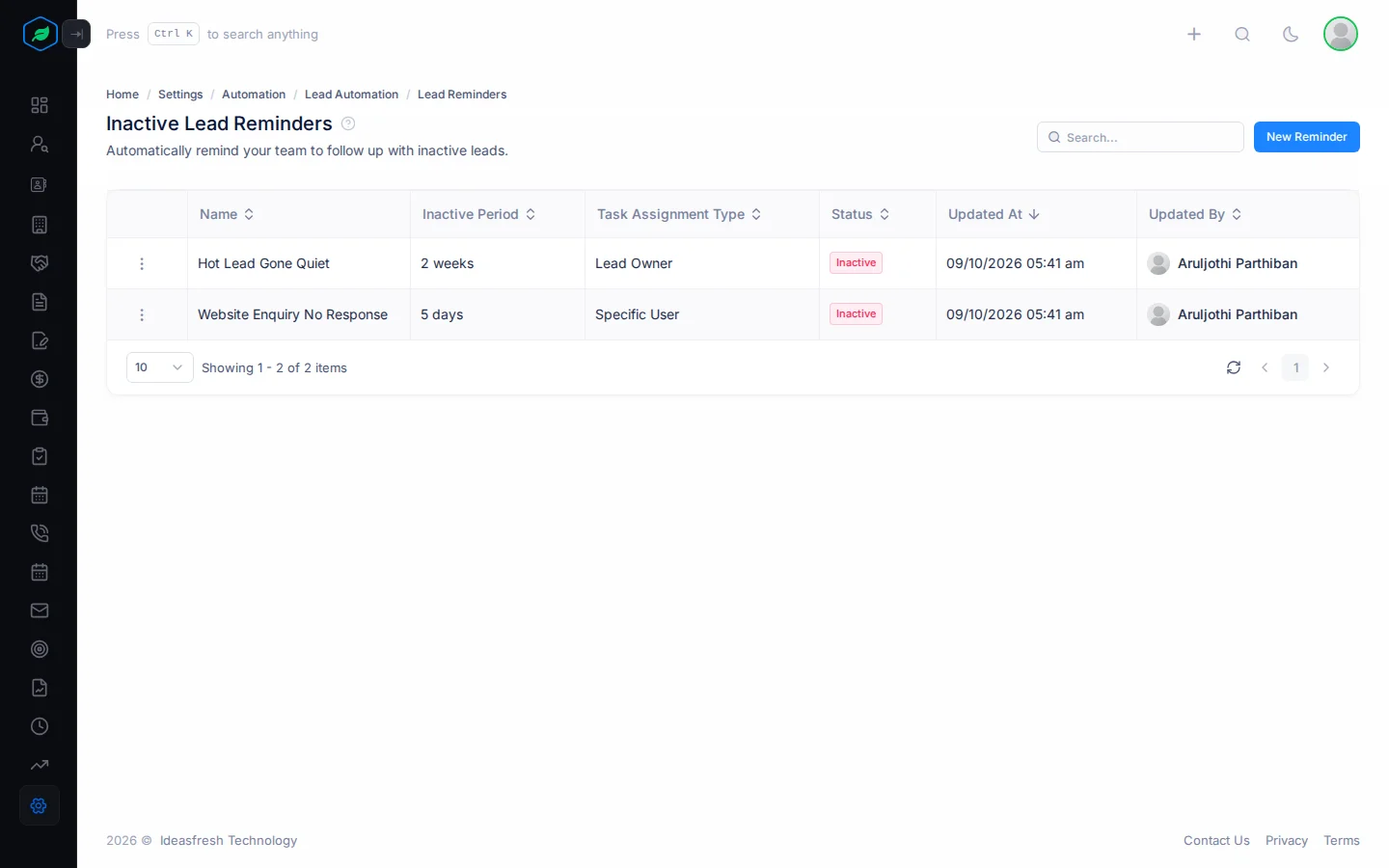
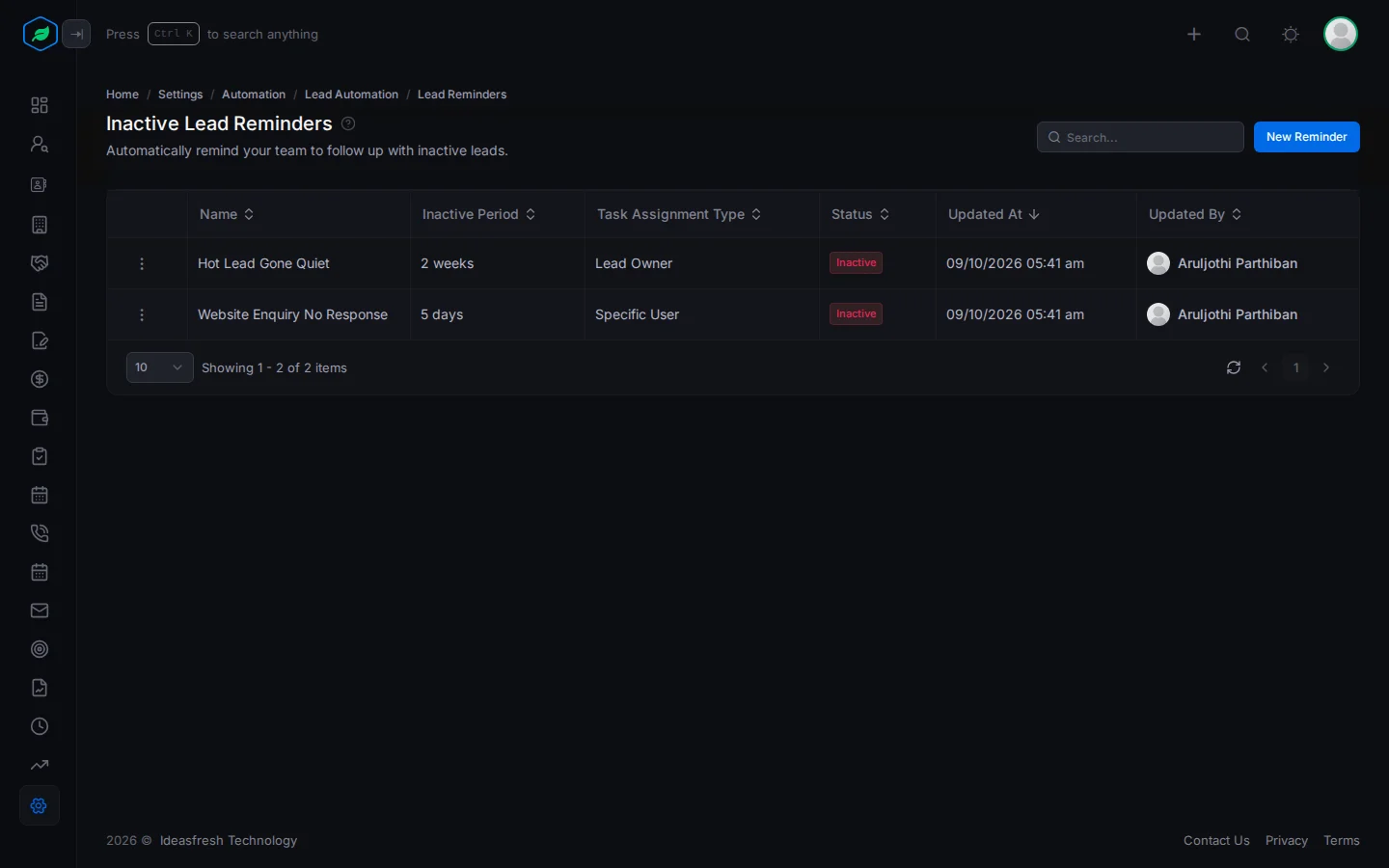
- Go to Settings > Automation > Lead Automation > Inactive Lead Reminders.
- Click New Reminder. The Inactive Lead Reminder panel opens.
- Fill in the fields. Fields marked * must be filled in.
- Click Create.
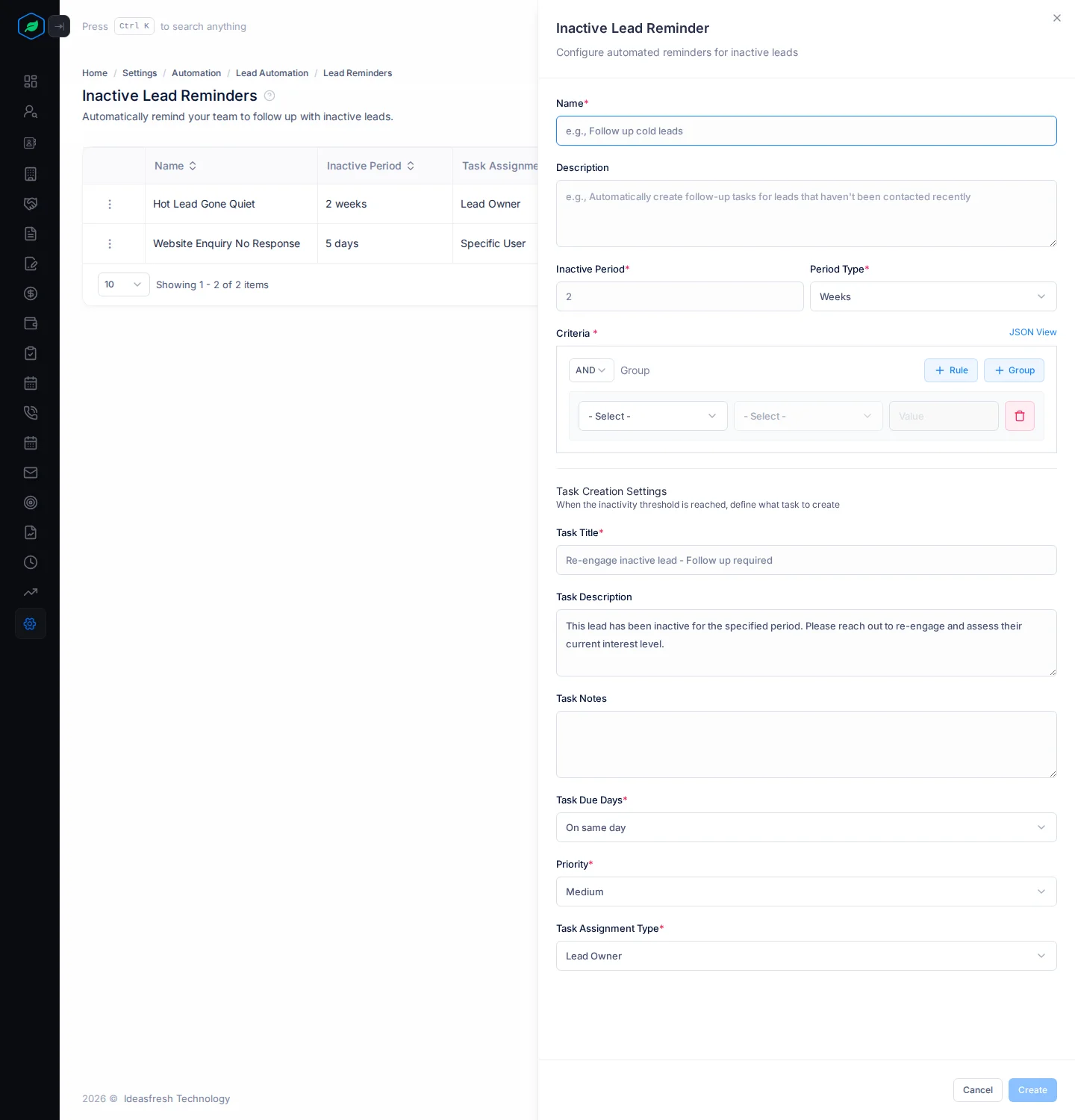
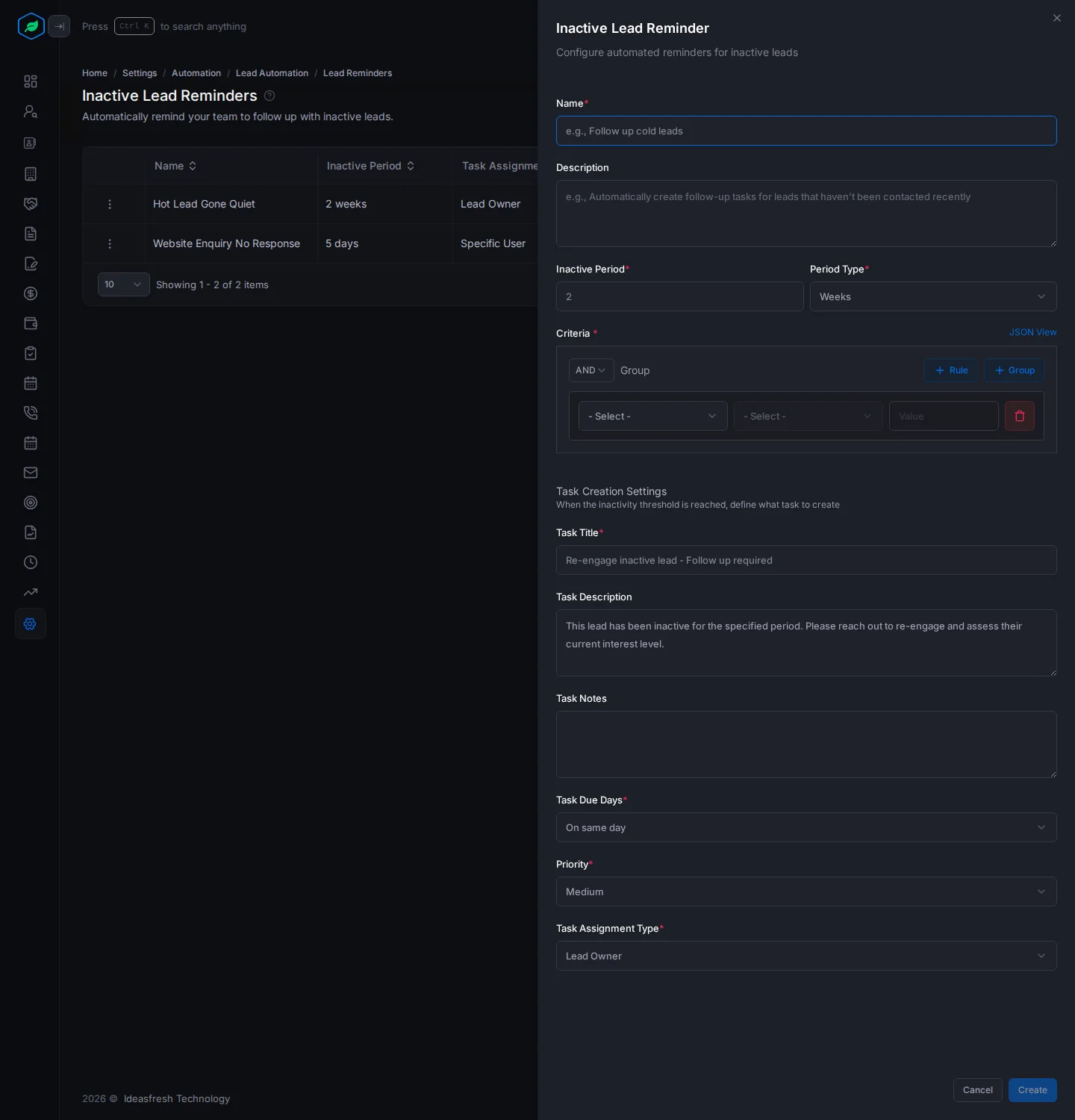
| Field | What to enter |
|---|---|
| Name * | What the reminder is for, such as "Follow up cold leads" |
| Description | When the reminder applies |
| Inactive Period * | How long a lead can go without updates, such as 2. Set to 2 at first |
| Period Type * | Days, Weeks or Months. Set to Weeks at first |
| Criteria * | Which leads it covers, such as leads from your website |
| Task Title * | The task's title. Set to "Re-engage inactive lead - Follow up required" at first |
| Task Description | What the owner should do |
| Task Notes | Anything else for the owner |
| Task Due Days * | When the task is due: On same day, or After 1 day up to After 7 days |
| Priority * | Low, Medium or High. Set to Medium at first |
| Task Assignment Type * | Lead Owner, or Specific User, such as a sales manager |
| Assignee | The user who gets the task. Only shown when you pick Specific User, and you must fill it in |
How reminders run
Every day at your office start time, each Active reminder finds leads that match its criteria, aren't converted, and haven't been updated within the inactive period. Each one gets a task linked to the lead. The person who gets the task gets the usual task email.
What counts as activity
These change a lead's last activity, so it starts counting again:
- editing the lead, or one of its fields, such as Notes,
- changing its status or stage,
- locking or unlocking it, or changing its tags.
Tasks, calls, meetings and emails don't count.
Until someone edits the lead, it gets a new task every day.
Change, switch off or remove a reminder
Click ⋮ on a reminder:
- Edit changes it.
- Inactive stops it adding tasks. Activate starts it again.
- Delete removes it.
Troubleshooting
| You see | Why | What to do |
|---|---|---|
| "Inactive lead reminder already exists" | Another reminder has that name | Pick another name |
| "You have reached the maximum of … rule(s) on your current plan. Please upgrade for more." | You have as many reminders as your plan allows | Delete one, or upgrade |
| No tasks are made | Your company has no time zone | Ask your admin to set it in company settings |
Related
Still stuck?
Tell us what you were trying to do and we will help.