Create import templates for leads, contacts and accounts
Create import templates that map your spreadsheet columns to lead, contact and account fields, clean the values with rules, and manage your templates.
Updated 12 October 2026 · 5 min read
An import template tells Salesfresh which column in your spreadsheet goes into which field. You make it once, from a sample file. After that, anyone can import files with the same columns. See Import from CSV or Excel.
For example, every month a property website sends you a spreadsheet of new leads. The columns are always the same. Without a template, someone has to work out each month which column is the name, the email and the phone number, and phone numbers end up in the wrong place. With a template, you match the columns once. Every month after that, anyone in your team imports the file in a few clicks, and the data always goes to the right place.
Before you start
- To see templates, you need the View Data Import Templates permission.
- To make a template, you need the Create Data Import Templates and Edit Data Import Templates permissions.
- To delete a template, you need the Delete Data Import Templates permission.
- How many templates you can have depends on your plan. On the Free plan, you can have one template, for leads only. See Plans and limits.
- Have a sample file ready. It must have the same columns as the files you will import, and a few rows of real data. Use a
.csvor.xlsxfile.
If you don't have a permission you need, ask your admin.
Make a template
Go to Settings > Import Templates Settings and click Create Template. There are four steps.
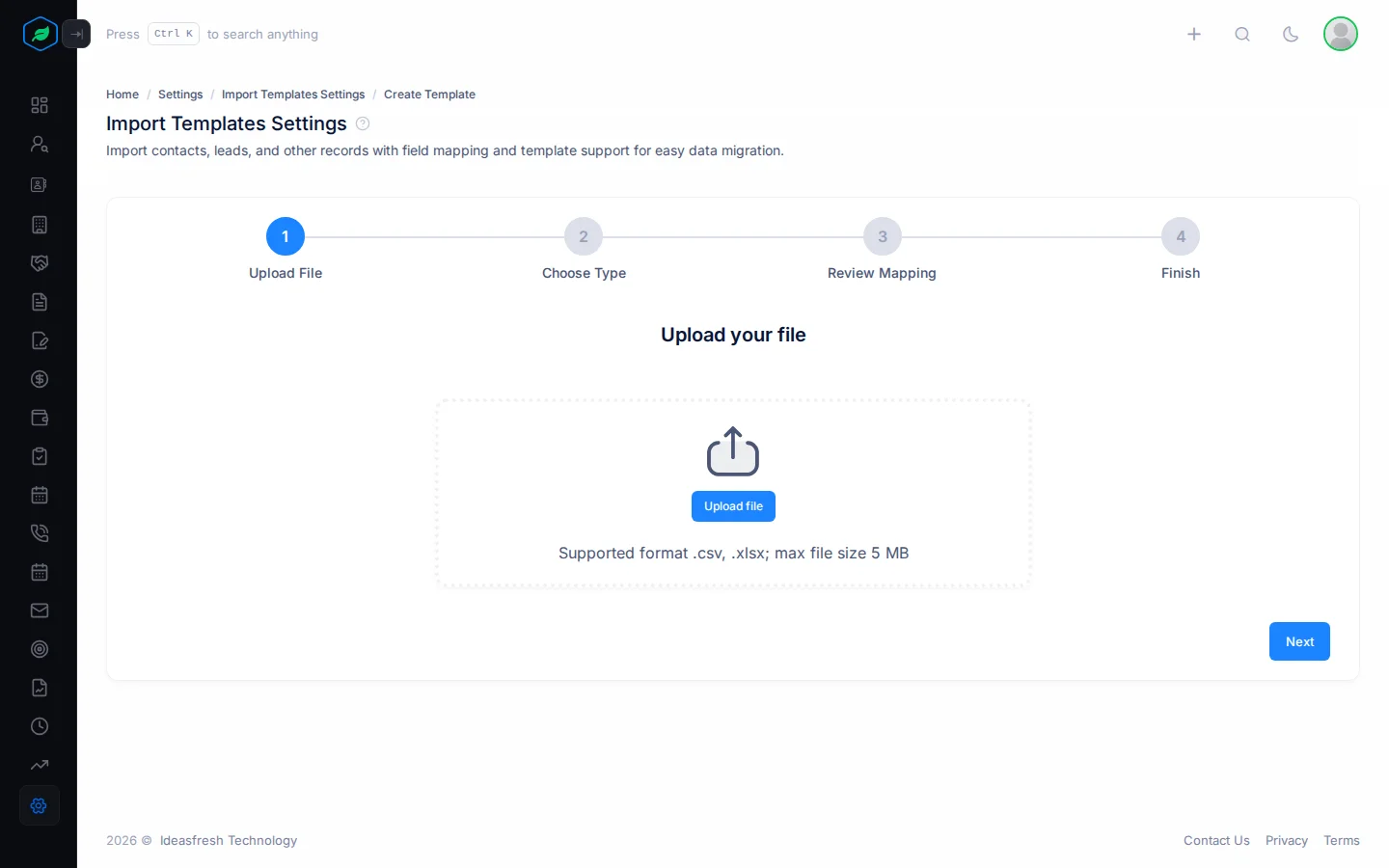
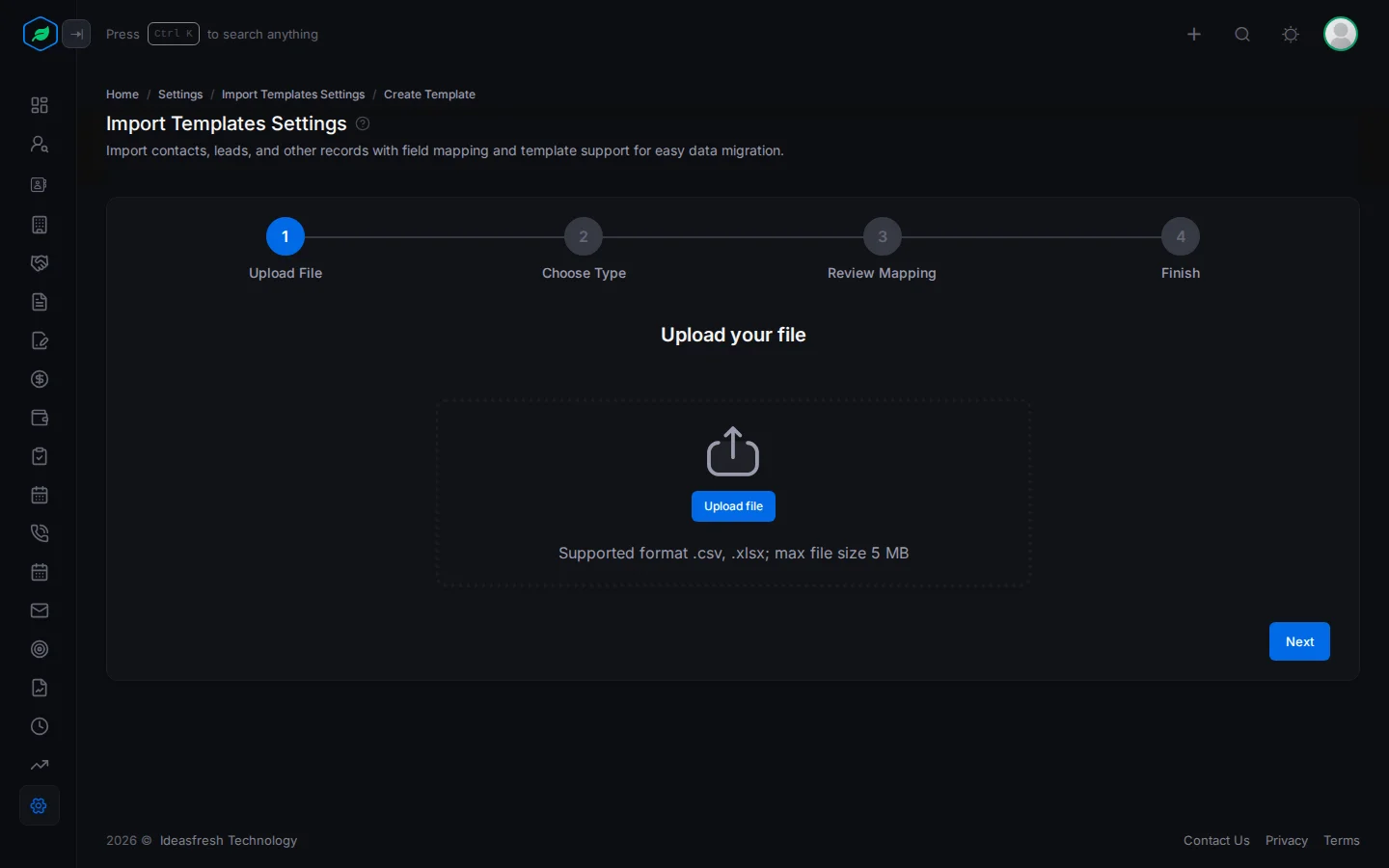
- Upload File: upload your sample file and click Next.
- Choose Type: pick Leads, Contacts or Accounts, and click Next.
- Review Mapping: for each field, pick the column it comes from under CSV Column. For example, the "Buyer Email" column goes into Email. Click Preview to check your sample rows. You can go to the next step when every required field has a column and every sample row is valid.
- Finish: give the template a Name, such as "Property site leads", and add Notes if you like. Click Complete.
The template is now Ready, and anyone can use it to import. Until you complete it, it's a Draft. To carry on with a draft, click its name in the list.
Fields you must match
| Module | Required fields |
|---|---|
| Leads | Salutation, First Name, Email, Status |
| Contacts | Salutation, First Name, Email |
| Accounts | Name, Entity Type, Type, Industry |
Lead Status isn't marked with *, but you must still match it.
Phone numbers and addresses
Phone numbers and addresses come in groups. To add one, click + next to the group, even for the first one. Then do one of these:
- Match all four parts of the number: Label, Country Code, Calling Code and Number.
- Or match only Number, and add the Parse Phone Numbers rule. It fills in the other parts for you.
To add a second phone number or address, click + again.
Clean the values with rules
Spreadsheets are often messy, with extra spaces or "Mr." in one row and "Mr" in the next. Rules clean each value before it's saved.
- Click the gear next to a field. The Transformation Rules panel opens.
- Click + Add Transformation Rule and pick a rule. You can add more than one. They run in order.
- Click Save.
- To test the rules on your sample file, open the panel again and click Validate.
| Rule | Use it to |
|---|---|
| Trim | Remove spaces at the start and end, such as " Sam " to "Sam" |
| Case Transform | Change to Lowercase, UPPERCASE or Capitalize. Capitalize only makes the first letter a capital |
| Default Value | Fill in a value when the cell is empty |
| Map | Swap each value for another, such as "M" to "Male". Every value must be in your list, or the row is skipped |
| Replace | Change part of a value, such as "Mr." to "Mr" |
| Validate Email | Skip rows where the value isn't an email address |
| Parse Phone Numbers | Split a phone number into its parts |
| Lookup | Match a value to a country or a currency |
| Split Text, Regex, Boolean Conversion, Type Conversion | Change the shape of text, yes or no values, and numbers |
Your templates
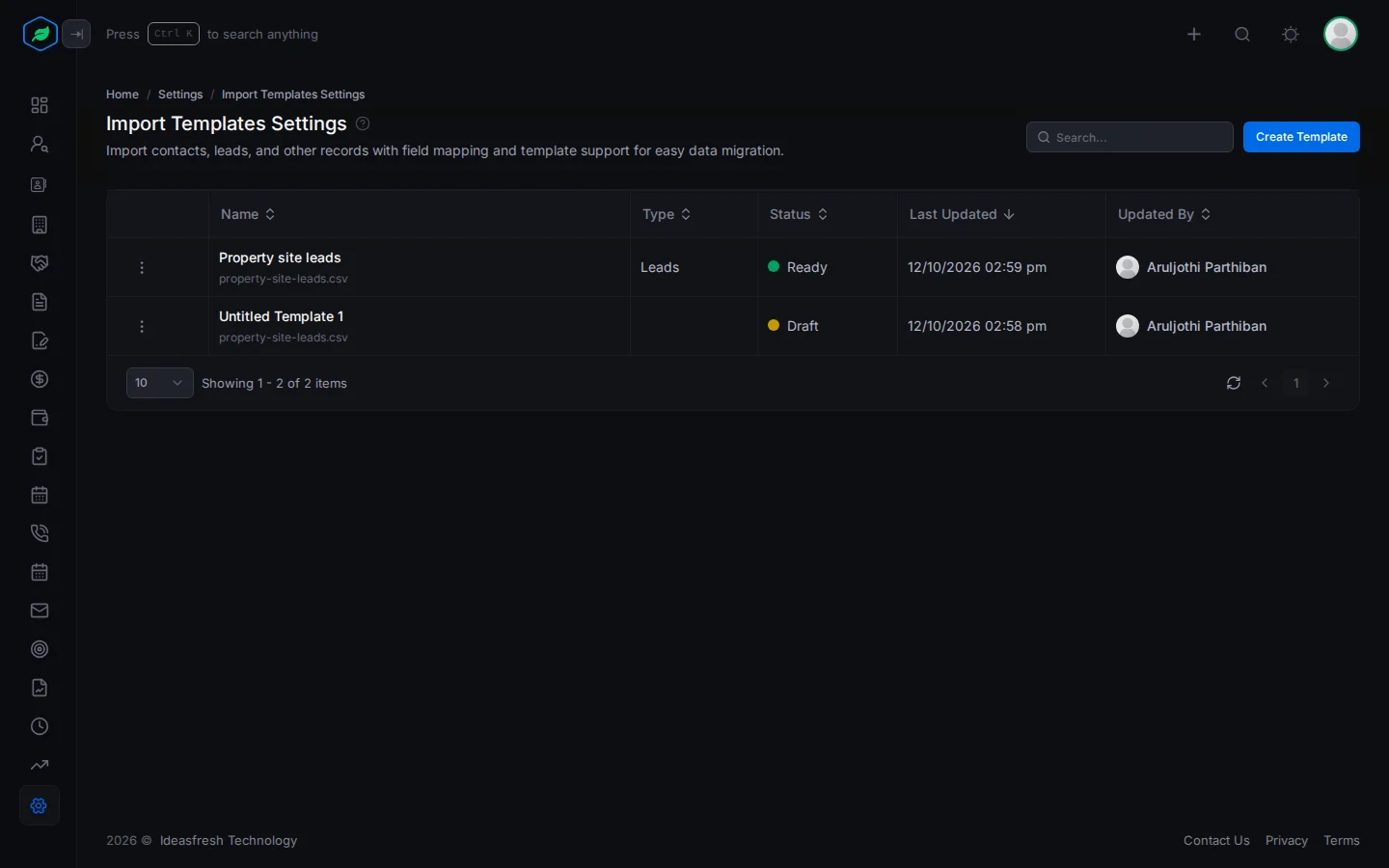
The Import Templates Settings page lists your templates, with their type, status and when they were last changed.
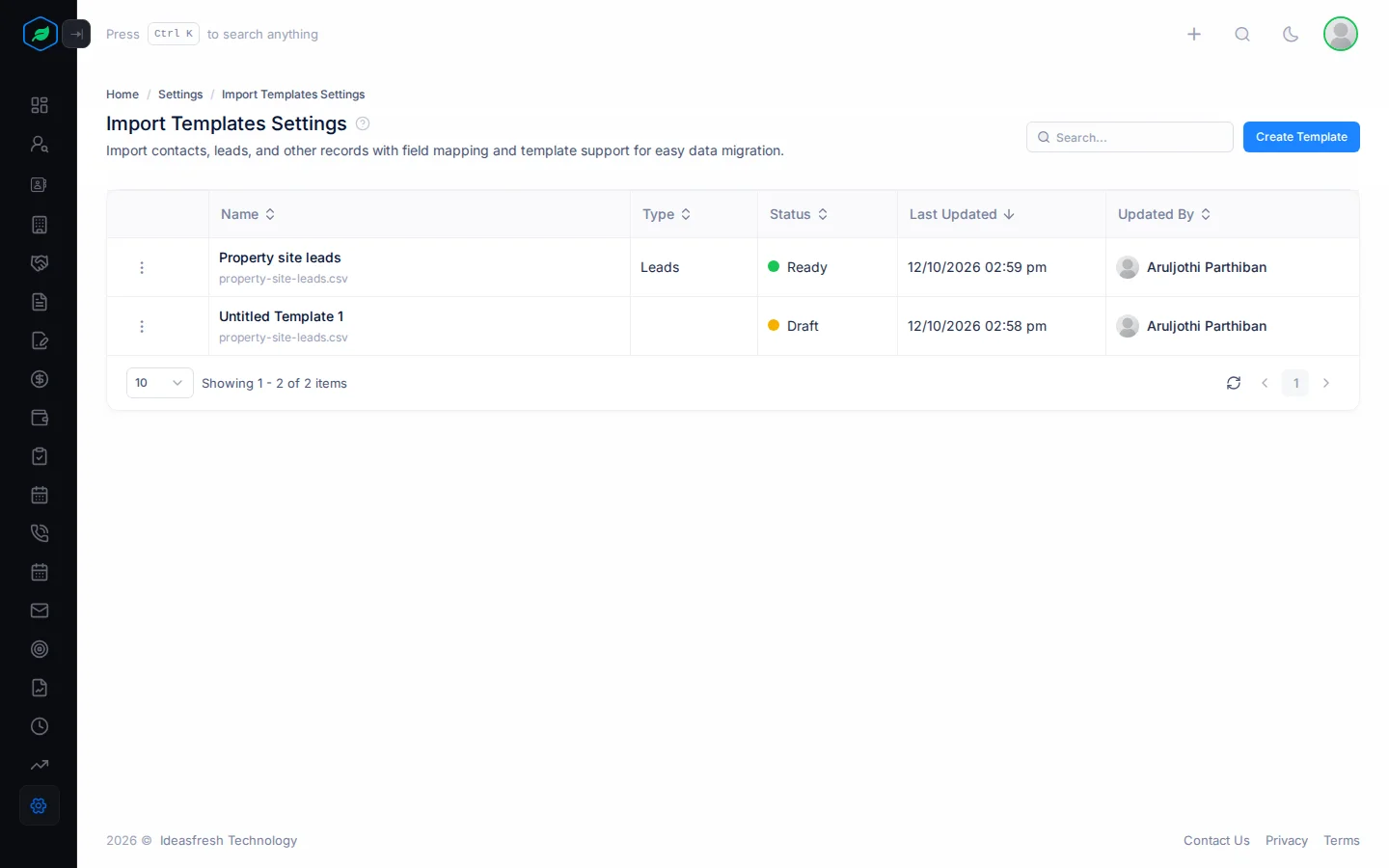
- To see a ready template's columns and sample rows, click its name. You can still change the columns there.
- To carry on with a draft, click ⋮, then Edit.
- To delete a template, click ⋮, then Delete. A deleted ready template's name can't be used again, so pick a new name for the next one.
Only the person who made a template can change its type or complete it.
Troubleshooting
| You see | Why | What to do |
|---|---|---|
| "Not all required fields are mapped." | A required field has no column | Match it, or add a Default Value rule |
| "Some rows in your import template contain validation errors. Please …" | A sample row has a problem | Open Preview, then fix the file or add a rule |
| "Template name already exist" | Another template has that name, maybe a deleted one | Pick another name |
| "You have reached the maximum of … import template(s) on your current plan. Please upgrade for more." | You have as many templates as your plan allows | Delete a template, or upgrade |
| "Import templates for … are not available on your current plan. Please upgrade to access it." | Your plan doesn't include templates for this module | Upgrade your plan |
Related
Still stuck?
Tell us what you were trying to do and we will help.