Import leads, contacts and accounts from CSV or Excel
Import leads, contacts and accounts from a CSV or Excel file using a saved import template, and read the summary of what was added and skipped.
Updated 10 October 2026 · 4 min read
If your records are in a spreadsheet, you can upload the file instead of typing each one in. You can import leads, contacts and accounts.
Every import uses an import template. A template says which column in your file goes into which field in Salesfresh. Your admin makes the template once. After that, anyone can import files with the same columns. See Import templates.
For example, your gym has 800 members in an Excel sheet. Typing them in by hand would take weeks, and some emails would be typed wrong. Instead, you upload the sheet, pick the template and click Import. All 800 members are in Salesfresh in a few minutes. Members who are already there are skipped, so nobody is added twice.
Moving from another CRM? Export your records from it as a CSV or Excel file and import them here. For a full move, including deals and quotes, contact us and we'll do it for you.
Before you start
- To import into a module, you need its create permission, such as Create Leads. You also need the Create Data Import Templates permission.
- A template for that module must be ready. If there isn't one, ask your admin.
- Your file must be a
.csvor.xlsxfile, up to 5 MB. Its first row must be the column names. - The column names must be exactly the same as in the template's sample file, and there must be the same number of columns. For an Excel file, only the first sheet is read.
- Imported records count towards your plan's limits. See Plans and limits.
If you don't have a permission you need, ask your admin.
Import a file
-
Open Leads, Contacts or Accounts. Click ⋮ next to the create button, then Import.
-
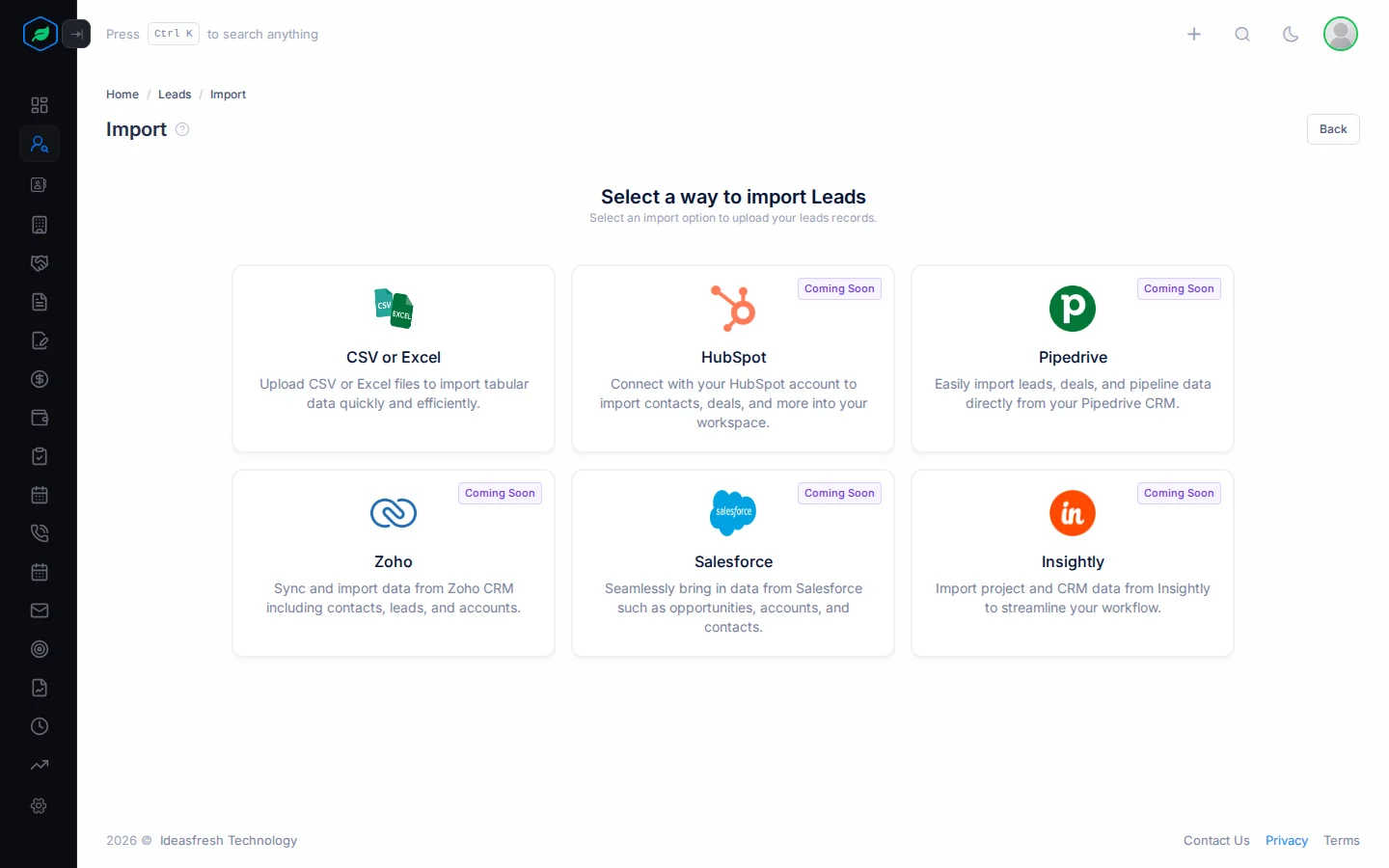
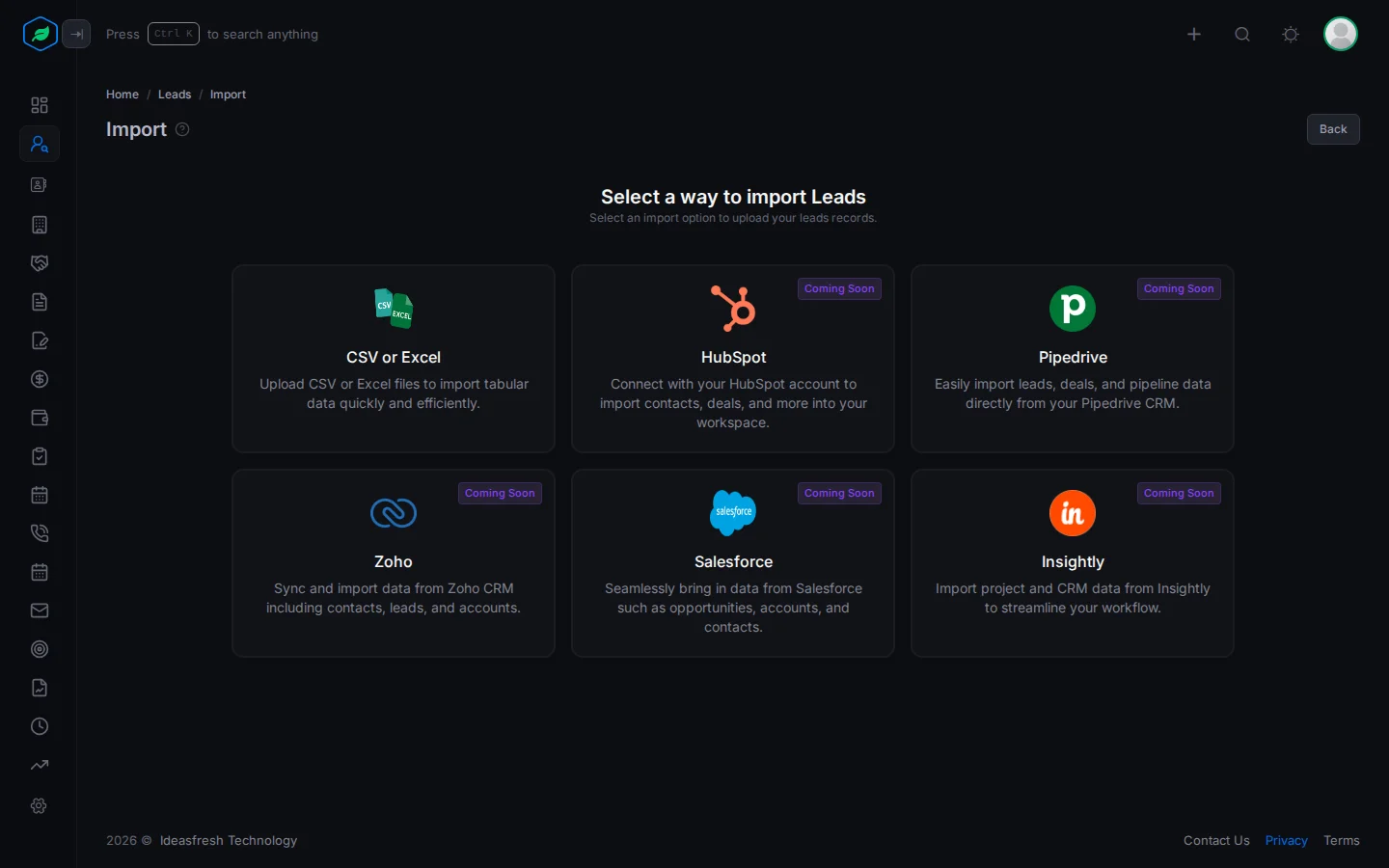
Click CSV or Excel.
-
File Upload: click Upload file, pick your file, then click Next.
-
Select Template: pick the template that matches your file, then click Next. Salesfresh checks that your columns match the template.
-
Finalize: check the rows. Each row shows Valid, or what is wrong with it.
-
Click Import and confirm.
Keep the page open until the summary shows. This can take a minute for a big file.
The summary
| Card | What it means |
|---|---|
| Imported | New records added |
| Skipped (duplicates / invalid) | Rows that were already in Salesfresh, were in your file twice, or had a problem |
| Skipped (plan limit reached) | Rows that would take you over your plan's limit |
Click View Leads (or View Contacts, View Accounts) to see the new records. To import more, click Import another file.
What an import does
- You are the owner of every record you import. To give them to someone else, see Change owner.
- Records already in Salesfresh are skipped, not changed. A lead or contact is skipped if its email is already used. An account is skipped if its name is already used. This includes deleted records.
- New leads go into the first open stage of your lead pipeline.
- Contacts whose email matches a lead are marked as converted, and so are those leads.
- Reporting To and Parent Account are filled in when they match a contact's email or an account's name that's already in Salesfresh.
- Imported records don't start automation rules or flows.
There is no undo. To take back an import, delete the records.
Troubleshooting
| You see | Why | What to do |
|---|---|---|
| "Unsupported file format. Please upload .csv or .xlsx file." | The file isn't CSV or Excel. Some computers mark CSV files as Excel | Open the file in Excel and save it as .xlsx |
| "No templates found for this type." | There is no ready template for this module | Ask your admin to make one |
| "The columns in the uploaded file do not match the selected template. Please ensure the file structure aligns exactly with the template." | The column names or the number of columns are different from the template | Change your file's columns to match the template's sample file |
| "No valid rows detected in this file. Please provide a file with data." | The file has column names, but no rows | Add your data |
An error such as "email" must be a valid email after you click Import | A row has a value Salesfresh can't save, such as a wrong email | Fix that row in your file and import it again. Rows already added are skipped next time |
| "You have reached the maximum of … on your current plan. Please upgrade for more." | You are already at your plan's limit | Upgrade, or delete records you no longer need |
Related
Still stuck?
Tell us what you were trying to do and we will help.