Move all of a person's records to a new owner
Hand all of one person's leads, contacts, accounts, deals and more to someone else in one step, for example when they leave or change role.
Updated 10 October 2026 · 3 min read
Every lead, contact, account and deal has an owner: the person who looks after it. When someone leaves or changes role, Change Owner moves all the records they own to another person in one step.
For example, a salesperson is leaving. They own 200 leads, 80 contacts and 30 deals. Without Change Owner, you would open each record and change its owner by hand. That takes days, and you would miss some. With Change Owner, you pick the salesperson leaving and the person taking over, tick the modules, and click once. Every record moves, and none are missed.
To change the owner of just one record, edit that record and pick a new Owner.
Before you start
- To open Change Owner, you need the Change Record Ownership permission. This permission ignores your company's sharing rules, so give it only to admins.
- To see how many records each person owns, you need the View Ownership Summary permission.
- To move a module's records, you need its edit permission, such as Edit Leads or Edit Deals.
- The new owner must be an active user. The current owner can be inactive, for example someone who has left.
If you don't have a permission you need, ask your admin.
Move records to a new owner
- Open Leads, Contacts, Accounts, Deals, Quotes, Contracts, Subscriptions or Assets.
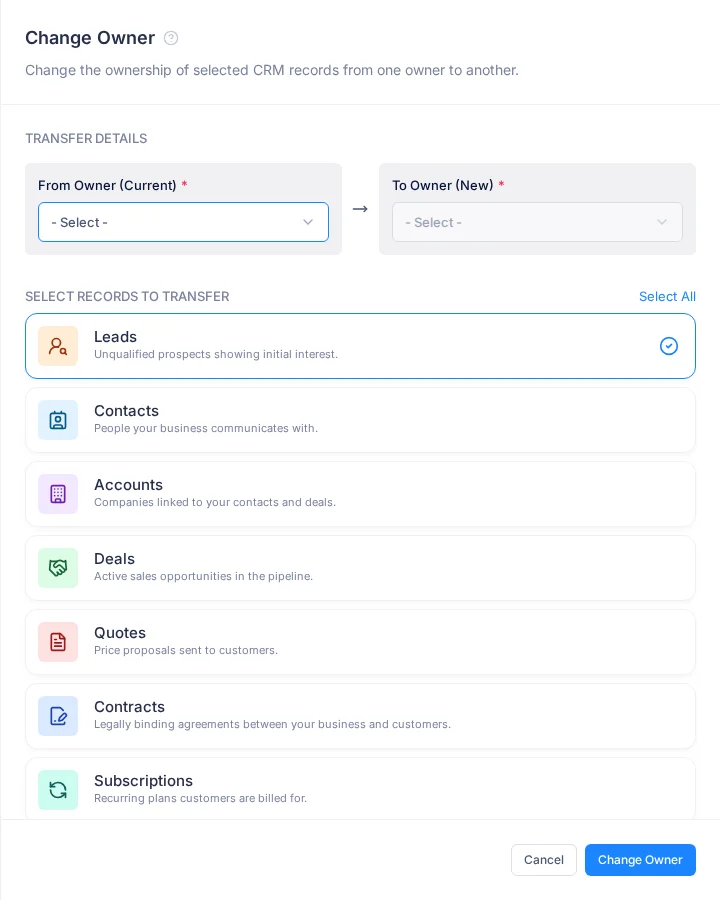
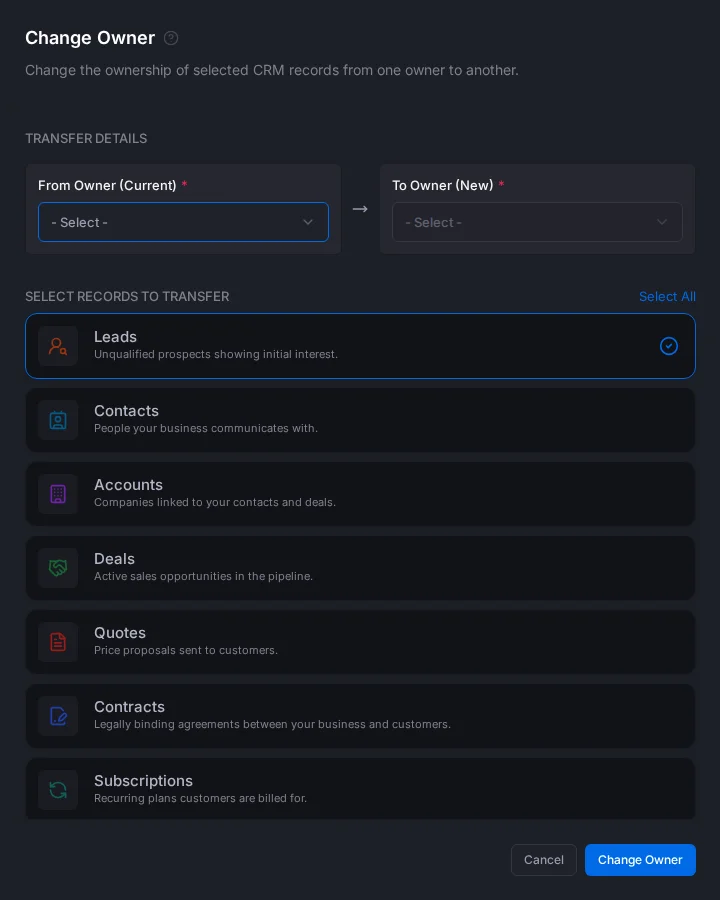
- Click ⋮ at the top right, then Change Owner. The Change Owner panel opens. The module you started from is already ticked.
- Fill in the fields.
- Check the line at the bottom. It shows how many modules and records will move.
- Click Change Owner.
| Field | What to enter |
|---|---|
| From Owner (Current) * | The person whose records you are moving, such as the salesperson who is leaving |
| To Owner (New) * | The person taking over. You can pick this after you pick From Owner |
| Select records to transfer * | The modules to move. Each one shows how many records the person owns there. To tick them all, click Select All |
What happens
- Every record the person owns in the ticked modules gets the new owner, straight away.
- Locked records move too. Deleted records stay with the old owner.
- Each record's Timeline shows the change.
- The Team on each record stays the same. Change it on the records that need it.
- Tasks, meetings and calls linked to the records don't move.
- Nobody gets an email. Tell the new owner yourself.
If you ticked a module you can't edit, nothing moves. Untick that module and try again.
Troubleshooting
| You see | Why | What to do |
|---|---|---|
| "New owner cannot be the same as current owner" | You picked the same person twice | Pick a different new owner |
| "Select at least one record" | No module is ticked | Tick at least one |
| "The new owner must be an active member of this company." | The new owner is inactive | Pick an active user |
| "You do not have permission to change ownership of: …" | You don't have the edit permission for those modules | Untick them, or ask your admin for the permission |
| Change Owner isn't in the ⋮ menu | You don't have the Change Record Ownership permission | Ask your admin |
Related
Still stuck?
Tell us what you were trying to do and we will help.