Set up contract numbers, types and templates
Set up contract numbers, contract types and the templates that become your contract documents.
Updated 28 October 2026 · 6 min read
Settings → Contracts controls three things:
- General Settings: how contracts are numbered.
- Contract Types: the kinds of contract you make.
- Templates: the wording of the contract document.
For example, every contract your company sends must use your own legal wording. You copy one of the ready-made templates and change the wording, keeping placeholders such as the customer's name and the start date. Your sales team picks this template when they create a contract. Every contract document now has your wording, filled in with that customer's details.
Before you start
- Permission: View Contract Settings to see the settings. Create Contract Settings to add a type or template, Edit Contract Settings to change a type or template, and Delete Contract Settings to delete one. To save General Settings, you need both Create Contract Settings and Edit Contract Settings.
- Plan: Every plan. See Plans and limits.
- Set up first: Contracts switched on for your company. See Modules. Billing terms for Default Payment Terms come from Billing terms.
If you don't have a permission you need, ask your admin.
General Settings
Go to Settings → Contracts → General Settings. Change what you need and select Update.
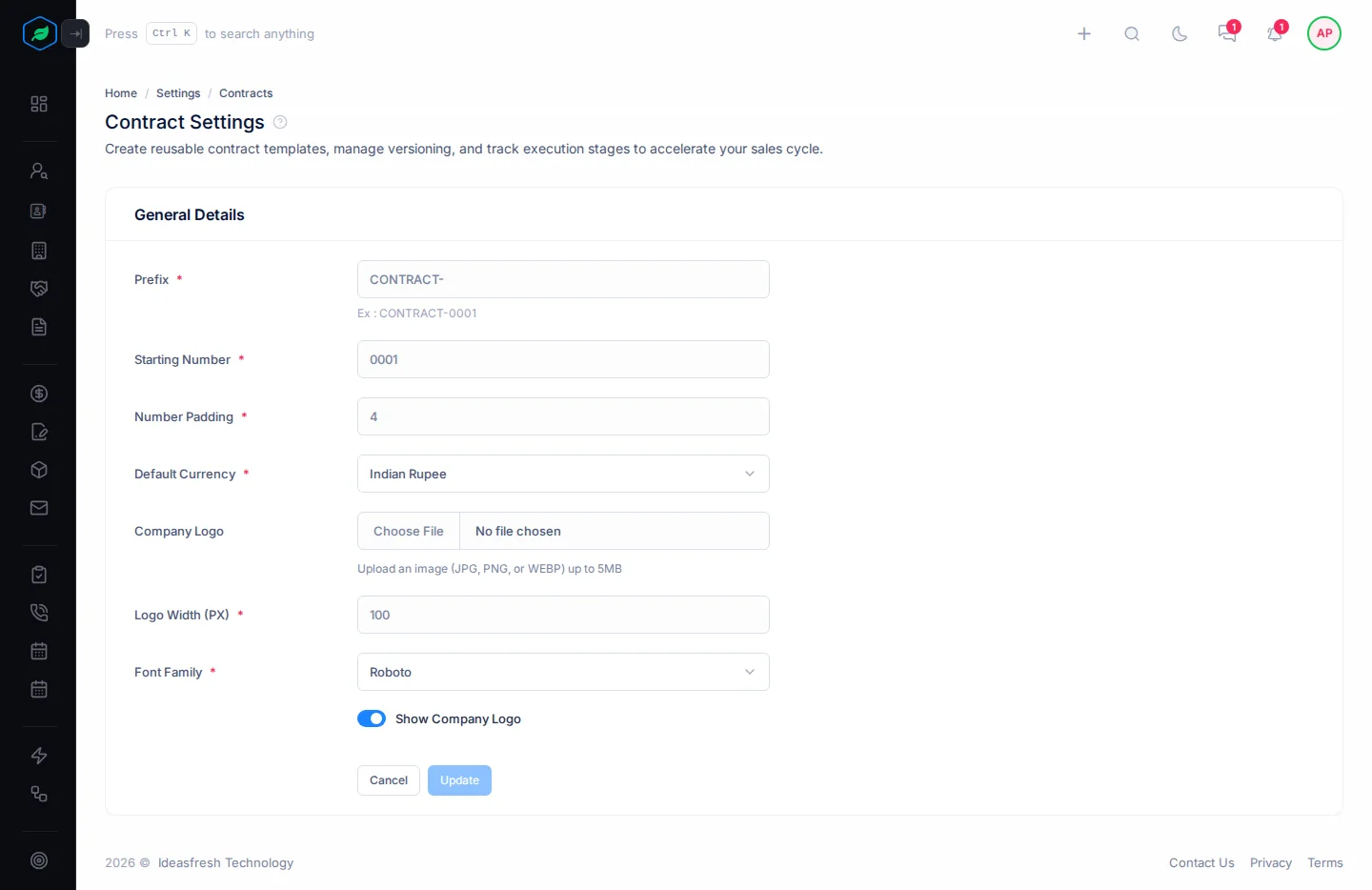
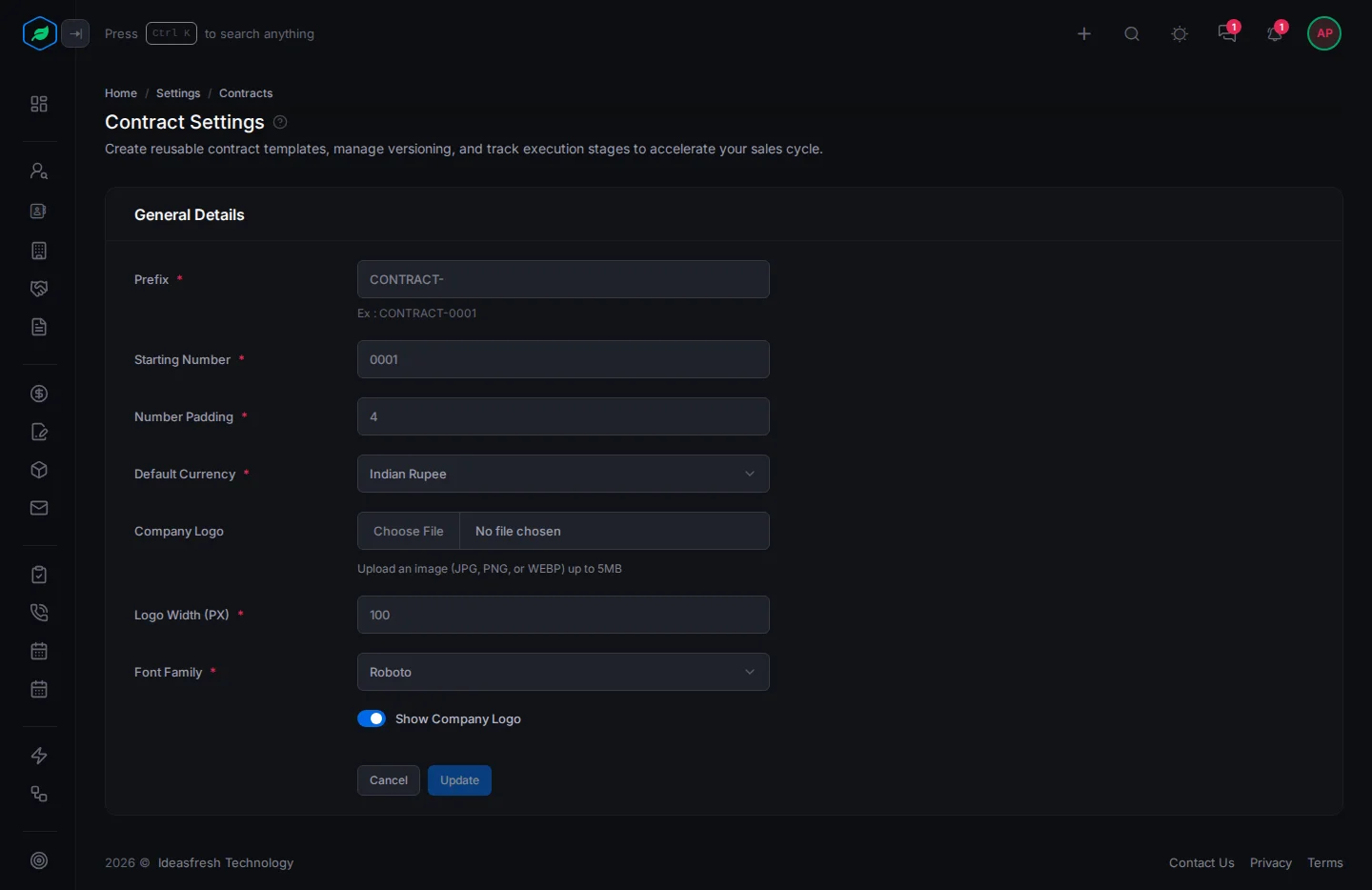
| Field | What to enter |
|---|---|
| Prefix * | The letters at the start of every contract number, such as "CONTRACT-". Up to 10 characters |
| Starting Number * | The number of your first contract, such as 0001 |
| Number Padding * | How many digits the number has, from 4 to 6. With 4, numbers look like CONTRACT-0001 |
| Default Currency * | The currency new contracts start with |
| Company Logo | Your logo, as a JPG, PNG, SVG or WEBP file up to 5 MB. You crop it after you pick it |
| Logo Width (PX) * | How wide the logo is, such as 100 |
| Font Family * | The font, such as Roboto |
| Show Company Logo | Turn on to show your logo |
Contract types
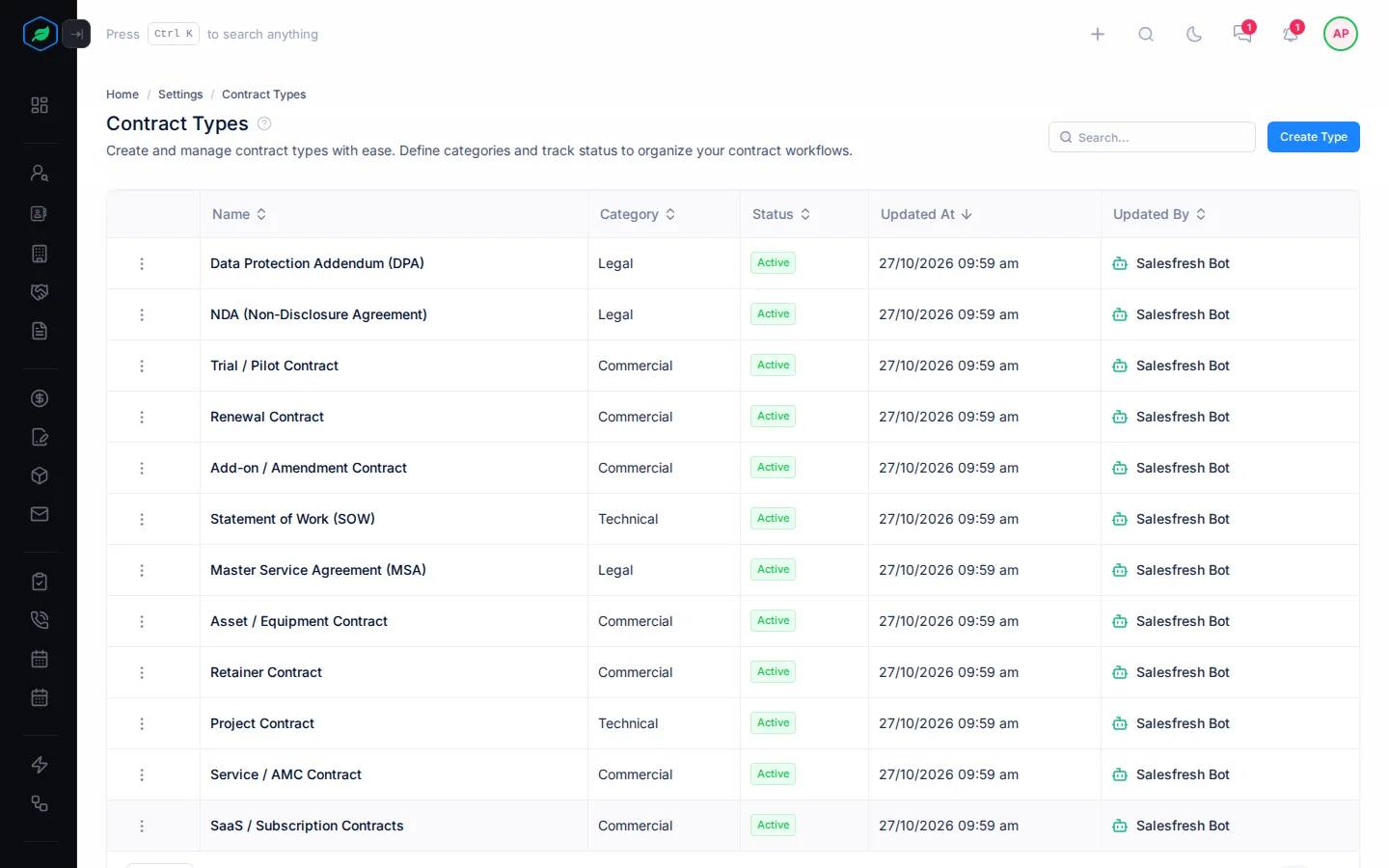
A type groups your contracts, such as "Service / AMC Contract" or "NDA (Non-Disclosure Agreement)". You start with 12 types. Your team picks one when they create a contract, so you can find all contracts of one kind later.
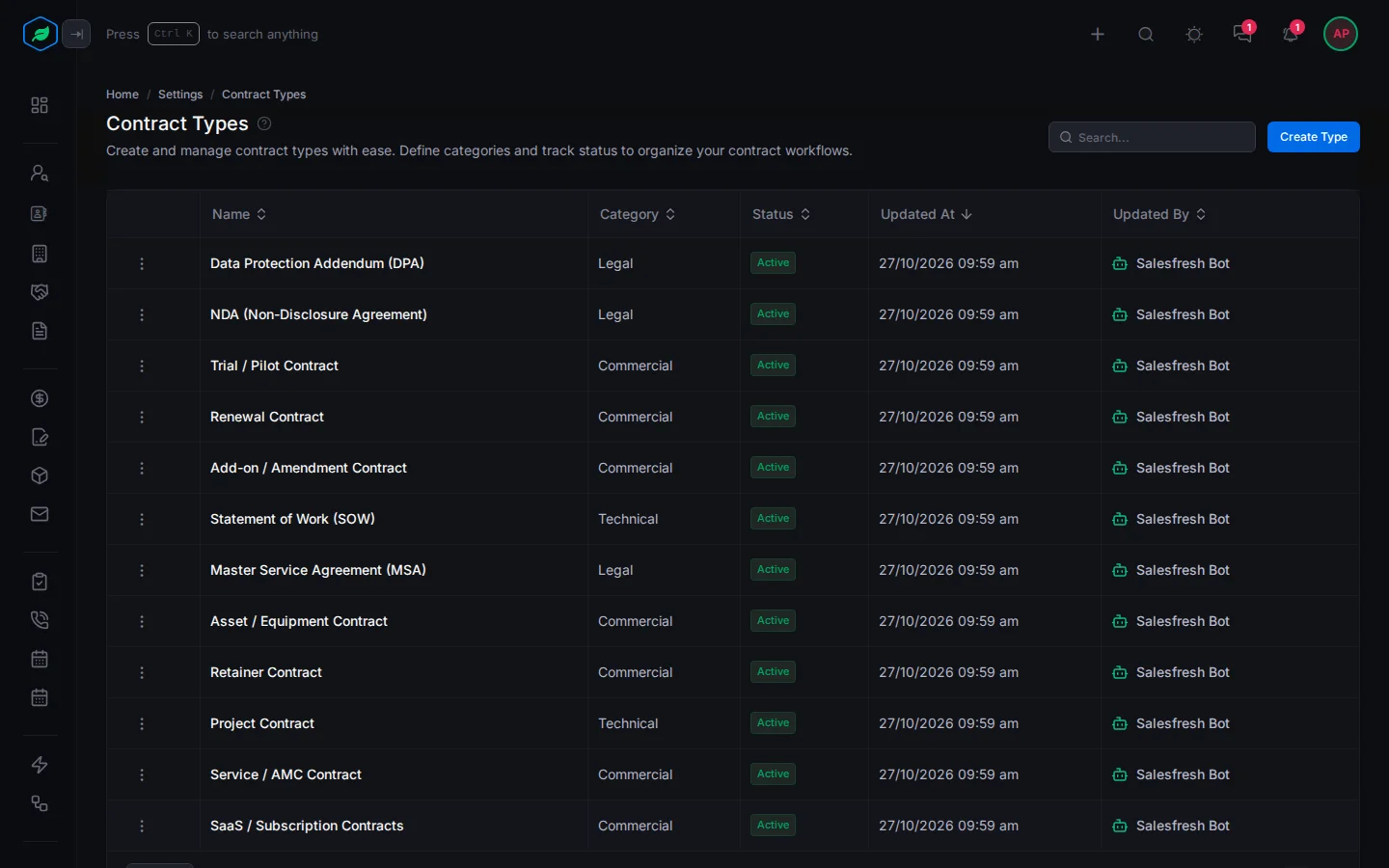
Go to Settings → Contracts → Contract Types. Each row shows the type, its category and status, and when it last changed. Type in Search to find one.
Add a type
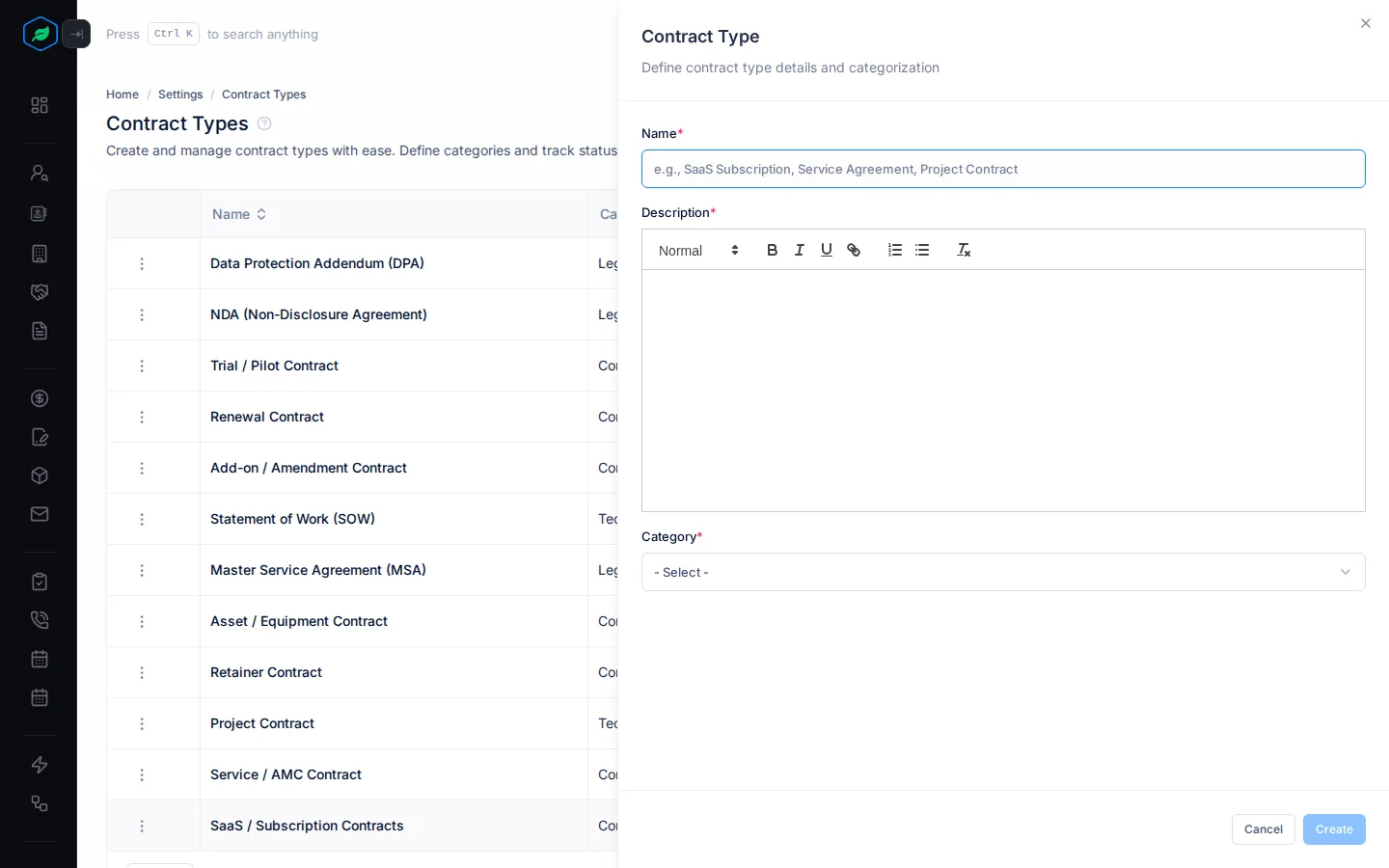
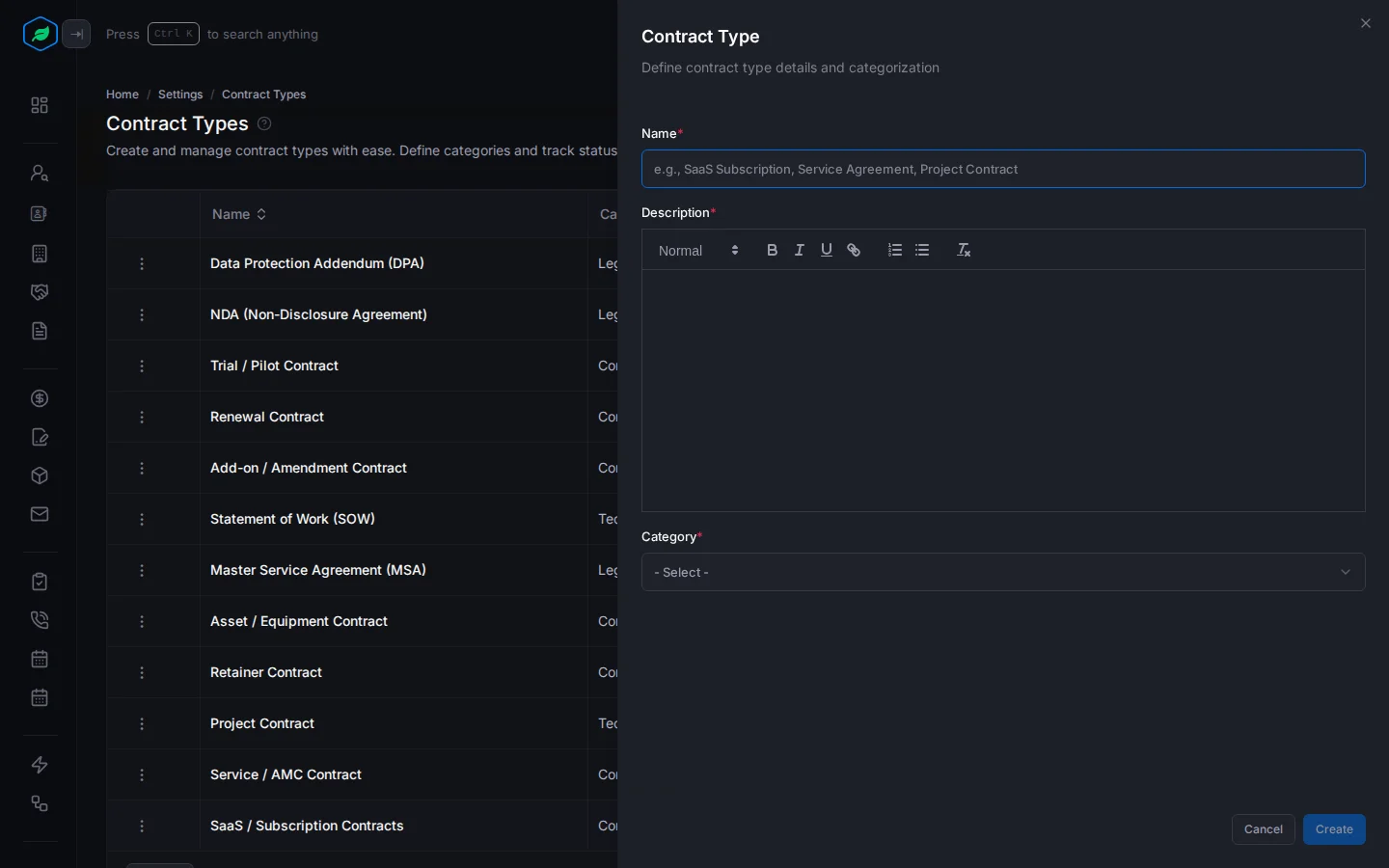
- Select Create Type. The Contract Type panel opens.
- Fill in the fields. Fields marked * must be filled in.
- Select Create.
| Field | What to enter |
|---|---|
| Name * | The type, such as "Annual Maintenance Contract". No two types can have the same name, whatever the capitals |
| Description * | When to use it, such as "Yearly service visits for installed equipment" |
| Category * | Commercial, Legal or Technical |
Change or remove a type
Select ⋮ on a type:
- Edit changes it.
- Inactivate marks it as no longer used. Activate marks it as used again. An inactive type is still offered on the contract form.
- Delete removes it, even if contracts use it.
Templates
A template is the wording of the contract document. You start with 9 ready-made templates under System Templates, such as the Service / AMC Contract Template and the Master Service Agreement (MSA) Template. The ones your company makes are under Organization Templates. Select System Templates or Organization Templates at the top to switch. List View and Grid View change how they're shown, and Salesfresh remembers your choice.
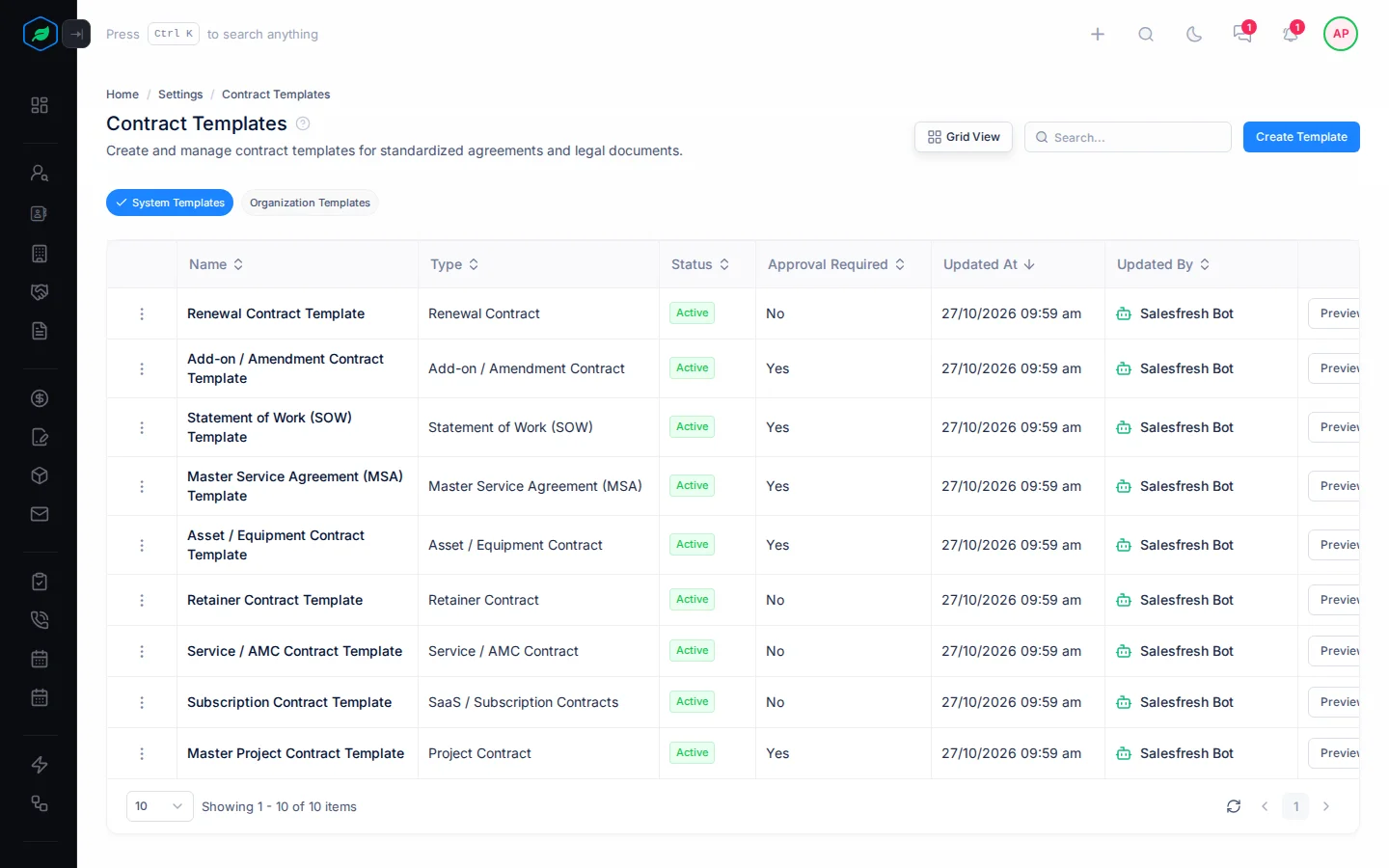
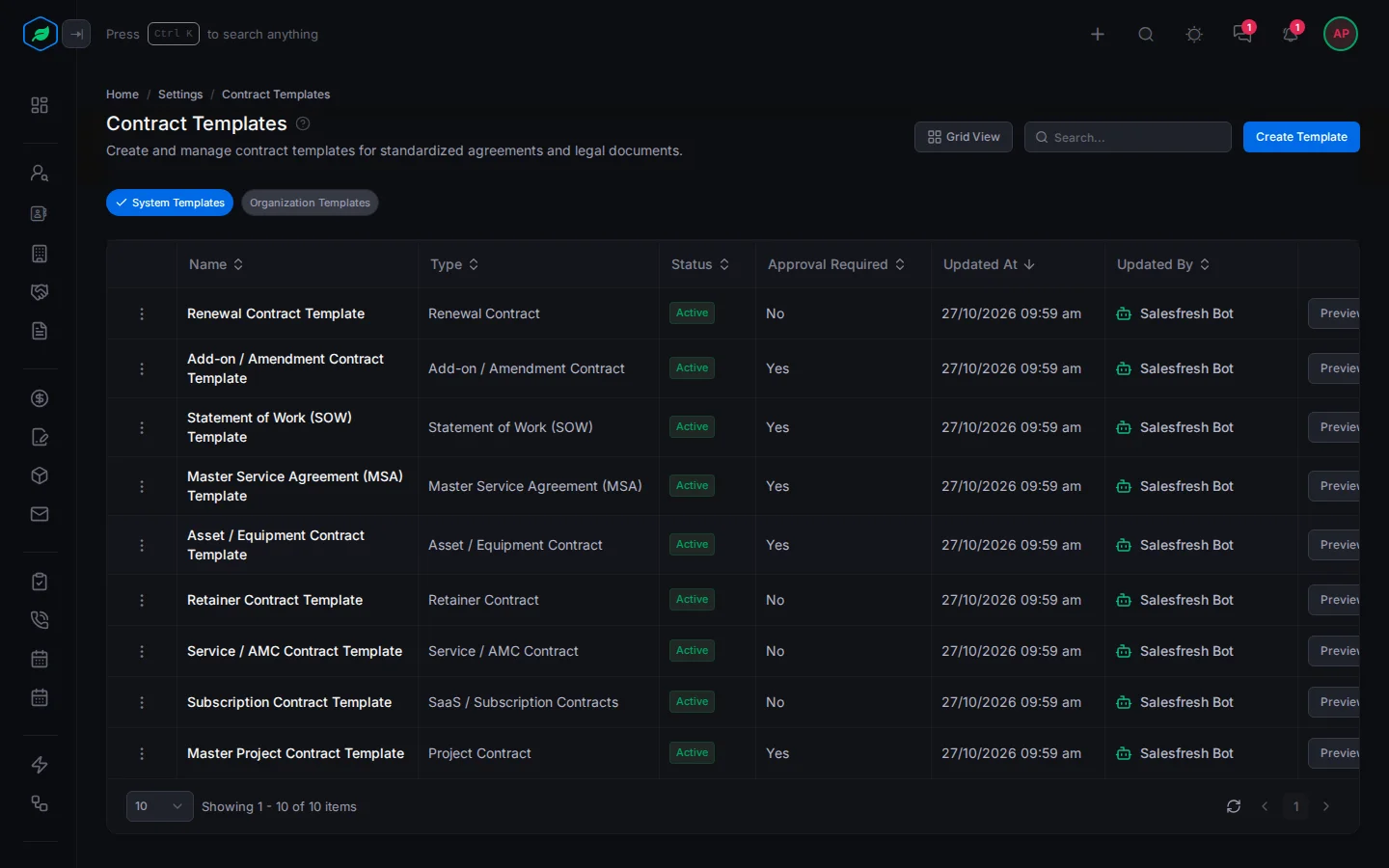
You can't change a System template, but you can read it with View Content or Preview. To use its wording as a start, copy it with Clone. The copy is called "Copy of" and the template's name, and it goes under Organization Templates.
Add a template
- Go to Settings → Contracts → Templates and select Create Template. The Contract Template panel opens.
- Fill in the fields. Fields marked * must be filled in.
- Select Create.
- Point at the new template and select Edit Content.
- Write the contract. To put in a detail that changes for each contract, such as the customer's name, select Variables, select the detail to copy it, and paste it where it belongs.
- Select Save.
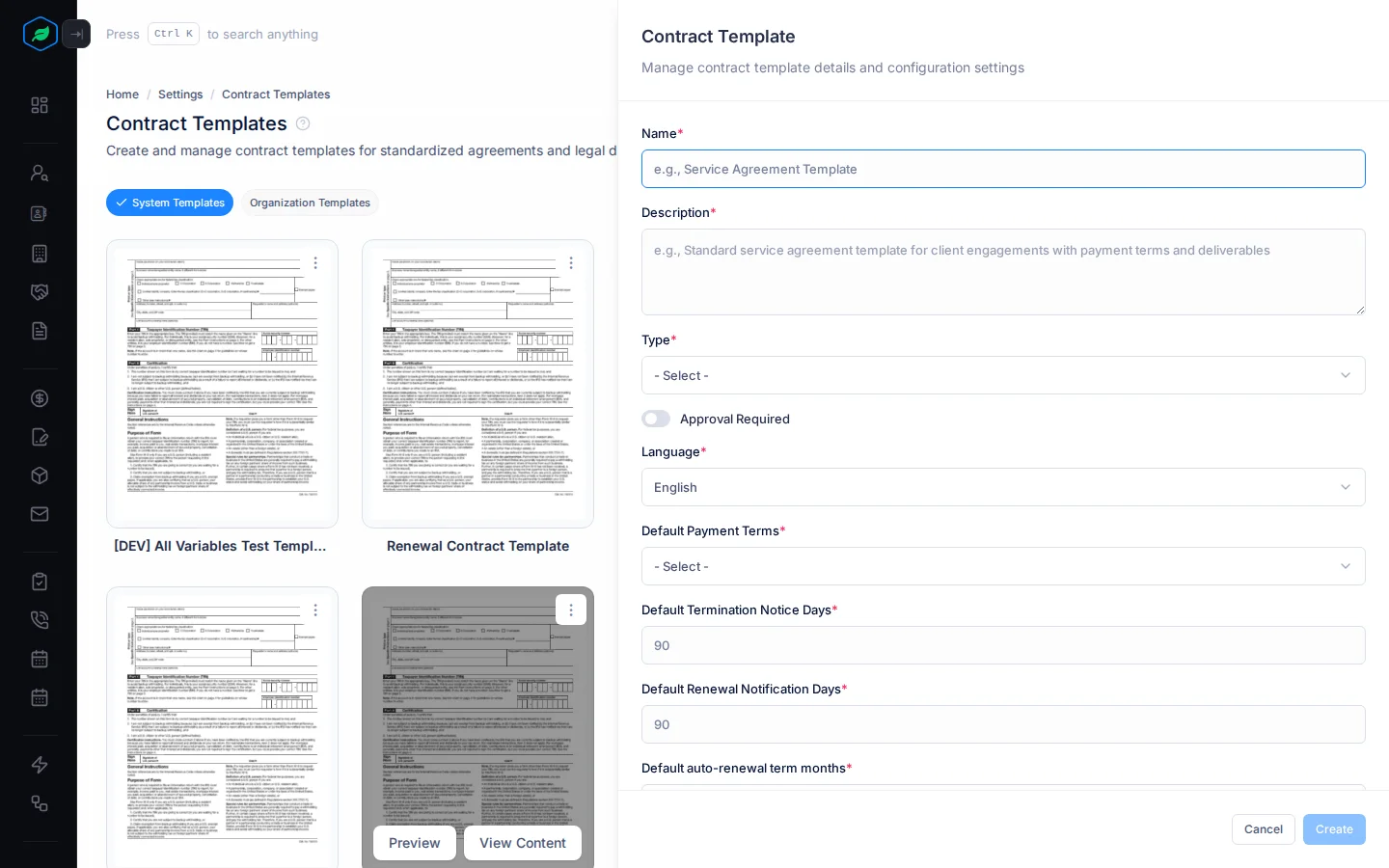
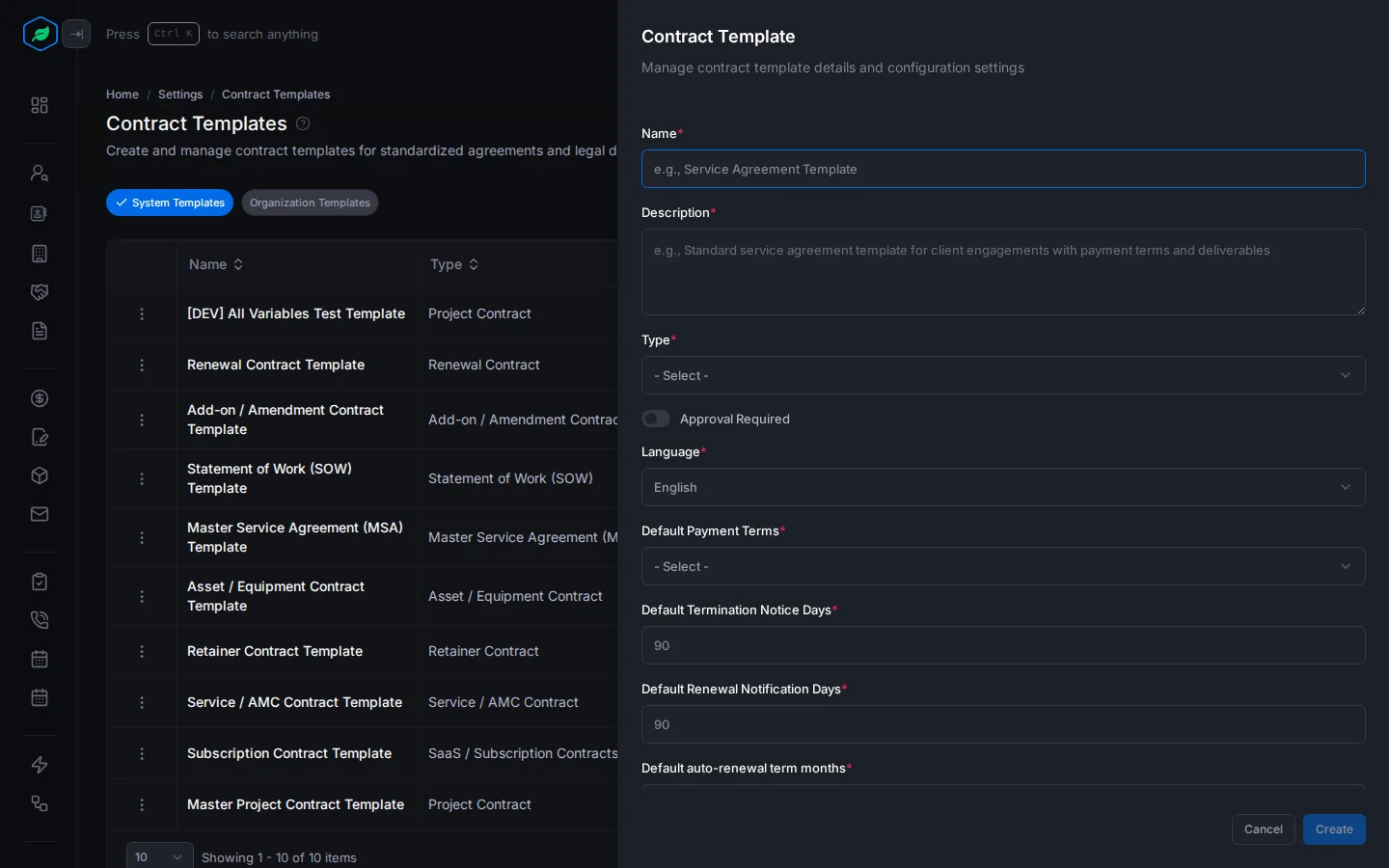
| Field | What to enter |
|---|---|
| Name * | The name your team sees when they pick a template, such as "Our Service Agreement" |
| Description * | When to use it |
| Type * | The kind of contract it's for |
| Approval Required | Turn on if contracts made from it must be approved |
| Language * | Set to English at first |
| Default Payment Terms * | When payment is due, such as Net 30 |
| Default Termination Notice Days * | How many days' notice to end the contract. Set to 90 at first |
| Default Renewal Notification Days * | How many days before the end to think about renewing. Set to 90 at first |
| Default auto-renewal term months * | How many months a renewal lasts, such as 12. Set to 90 at first, so change it |
| Version * | Your own version number, such as 1.0.0 |
Your team can only pick a template once its content is saved.
See a template
To see a template as a PDF, select Preview. It shows the saved content, so save first. The placeholders show as they are. When someone downloads a contract, each placeholder is swapped for that contract's details. See The contract detail page.
Change or remove a template
Select ⋮ on one of your company's templates:
- Edit changes its details.
- Inactivate marks it as no longer used. Activate marks it as used again. An inactive template is still offered on the contract form.
- Clone makes a copy.
- Delete removes it. You can't delete a template that a contract uses.
Troubleshooting
| Message | Why | What to do |
|---|---|---|
| "A contract type with this name already exists." | Another type has that name | Pick another name |
| "Contract template already exists" | Another template has that name | Pick another name |
| "Contract template cannot be deleted as it is referenced in other records." | A contract uses the template | Keep it. Tell your team not to pick it |
| A new template isn't offered on the contract form | It has no content yet | Select Edit Content, write the contract and save |
Related
Still stuck?
Tell us what you were trying to do and we will help.