Explore with demo data
Fill your CRM with demo leads, deals, contacts and activities to explore it, then remove them all in one go.
Updated 28 October 2026 · 3 min read
A new CRM is empty, so it's hard to see what each page does. Demo data fills Salesfresh with demo records you can select through. When you're ready to start for real, you remove all of it at once.
Before you start
- Permission: View Views and Tags to see the page, Create Views and Tags to add demo data, and Delete Views and Tags to remove it.
- Plan: Every plan. Demo users need free seats.
- Set up first: Nothing. Add it before you enter your real data.
What gets added
- About 6 accounts, 11 leads, 2 contacts, 11 deals and 3 quotes
- 4 products in 4 categories, with interested products on some leads
- 4 tasks, 3 meetings, 3 calls, comments and an attachment
- 3 contracts, 3 customer subscriptions, and 3 assets with work orders and a service schedule
- Lead, deal, account, contact and quote automation rules, all turned off
- A lead scoring setup, so the demo leads have scores. If your admin has already set up lead scoring, yours is kept
- 4 form submissions, an announcement site with 2 announcements, and an email signature for you
- A live chat with saved replies and visitor chats
- Targets for the demo users, and, if there are demo users, a direct chat and a group chat with them
- Up to 2 demo users, if your plan has free seats
The demo records are spread across the demo users, so pages that show a team's work have something to show.
Add demo data
Add demo data only before you start entering your real data, and remove it before you do. Removing it also deletes any of your records added under a demo record.
- Go to Settings → Demo Data and select Add Demo Data.
- The Set a password for demo users window opens. Type the password twice. You can use it to sign in as them.
- Select Add demo data.
You can also pick Yes, add demo data right after you choose a plan.
Adding demo data cancels all invitations that haven't been accepted yet. This frees seats for the demo users. Send those invitations again afterwards. See Invite users.
While demo data is in your CRM, a banner at the top reminds you. Select Manage demo data on it to go to the Demo Data page.
Remove demo data
- Go to Settings → Demo Data and select Delete Demo Data.
- Type
DELETEand select Delete. The window says when it's done.
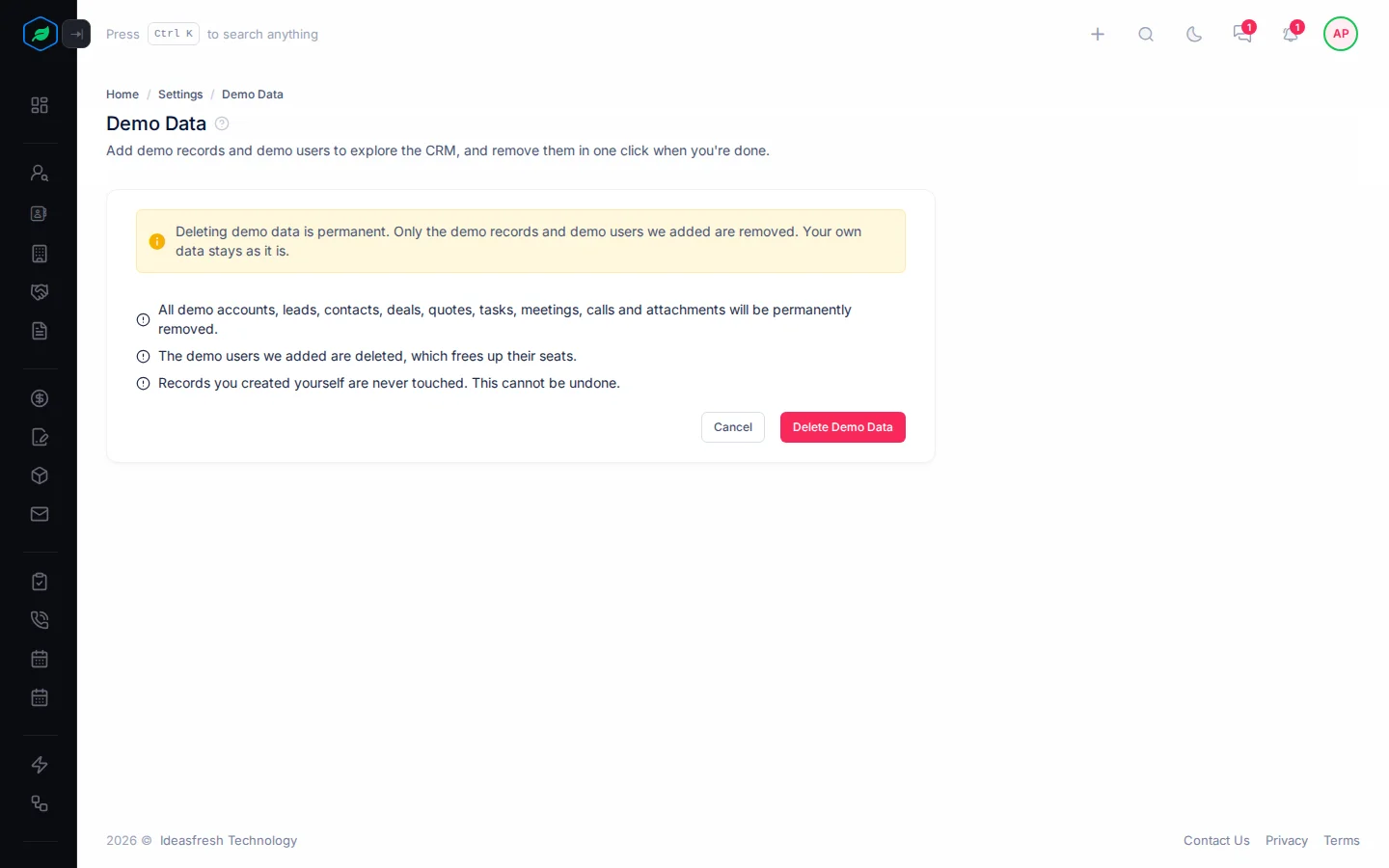
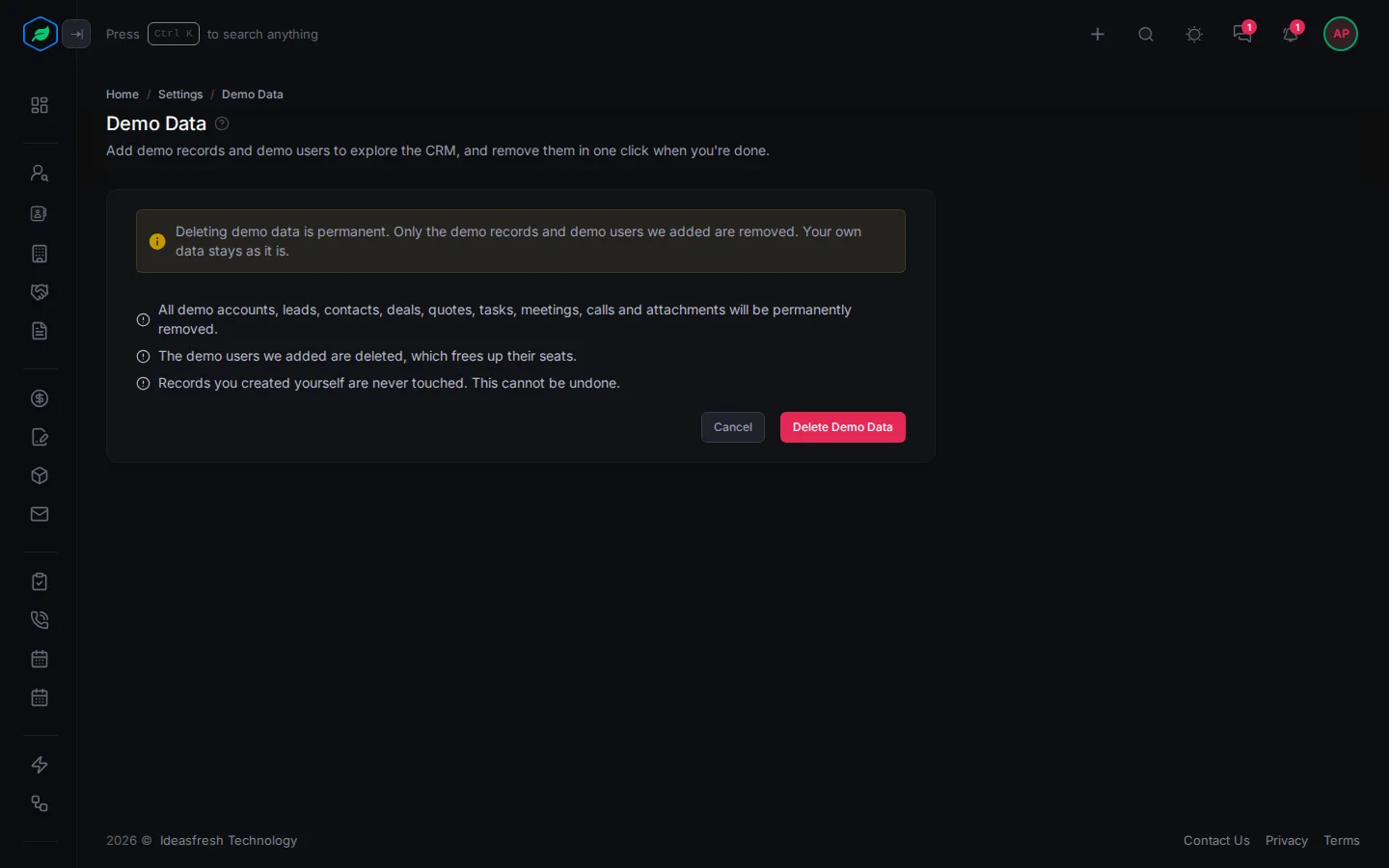
All demo records and demo users are removed, and their seats are free again. You can add demo data again later.
If you create a record under a demo record, it is deleted too. For example, a contact or deal you add to a demo account is deleted along with that account. Keep your real work on your own records.
Troubleshooting
| Message | Why | What to do |
|---|---|---|
| "Demo data already exists for this company. Delete it before adding it again." | You have already added it | Remove it first |
| "Some demo records are linked to data you created, such as a record assigned to a demo user. Reassign or remove those links, then try again." | One of your own records is linked to demo data, such as a lead owned by a demo user | Give it a new owner with Change owner, then try again |
| "Password must be at least 8 characters and contain a letter and a number." | The password is too short or too simple | Use at least 8 characters, with a letter and a number |
| "Passwords do not match." | The two passwords are different | Type the same password twice |
Related
Still stuck?
Tell us what you were trying to do and we will help.