Invite your team
Invite people to your company by email with a role, and resend or revoke invites.
Updated 28 October 2026 · 3 min read
You add people to Salesfresh by inviting them by email, each with a role. They get an email, accept it, and set up their account.
For example, a solar installation company hires two salespeople. The owner invites both at once, with the Sales Representative role. Each gets an email, selects Accept Invitation, and sets a password. They start working the same day.
Before you start
- Permission: View Invited Users to see invites. Invite Users to send one. Resend Invitations to resend one, and Revoke Invitations to revoke one.
- Plan: Your plan sets how many users you can have: 3 on Free, and the seats you bought on other plans. Active users and invites that haven't expired both count. See Your subscription and billing.
- Set up first: The roles. See Create a role.
If you don't have a permission you need, ask your admin.
Invite people
- Go to Settings → Users & Teams → Users, and select Invite Users. The Invite Users page opens.
- Select Invite Users. The Invite Users window opens.
- Enter an email and pick a role. Select Add Another to invite more people at once. The bin removes a row.
- Select Send Invite. With more than one row, it says how many, such as Send 2 Invites.
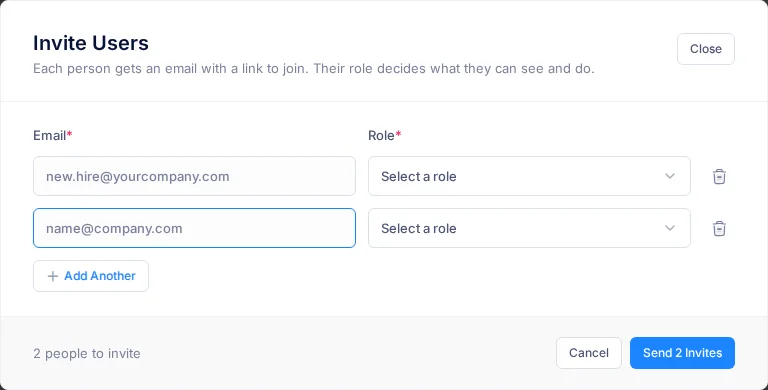
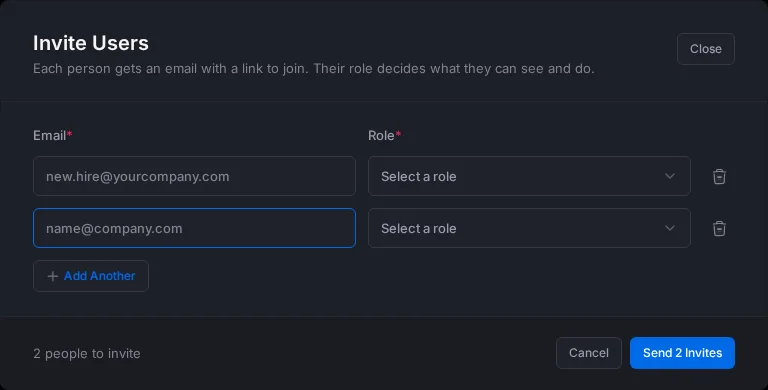
| Field | What to enter |
|---|---|
| Email * | The person's email address |
| Role * | The role they get when they join. Disabled roles are listed too, but give no access until enabled |
Each person gets an email with an Accept Invitation button. The link works for 3 days.
If the person is already active in your company, they get the new role straight away, without an email. If they already have that role, nothing changes.
Follow up on invites
The Invite Users page lists every invite with its role, status, and when it was updated, accepted or revoked. Select a status at the top, such as Pending, to see only those invites, and select it again to see them all. You can also pick a Role, or search by email.
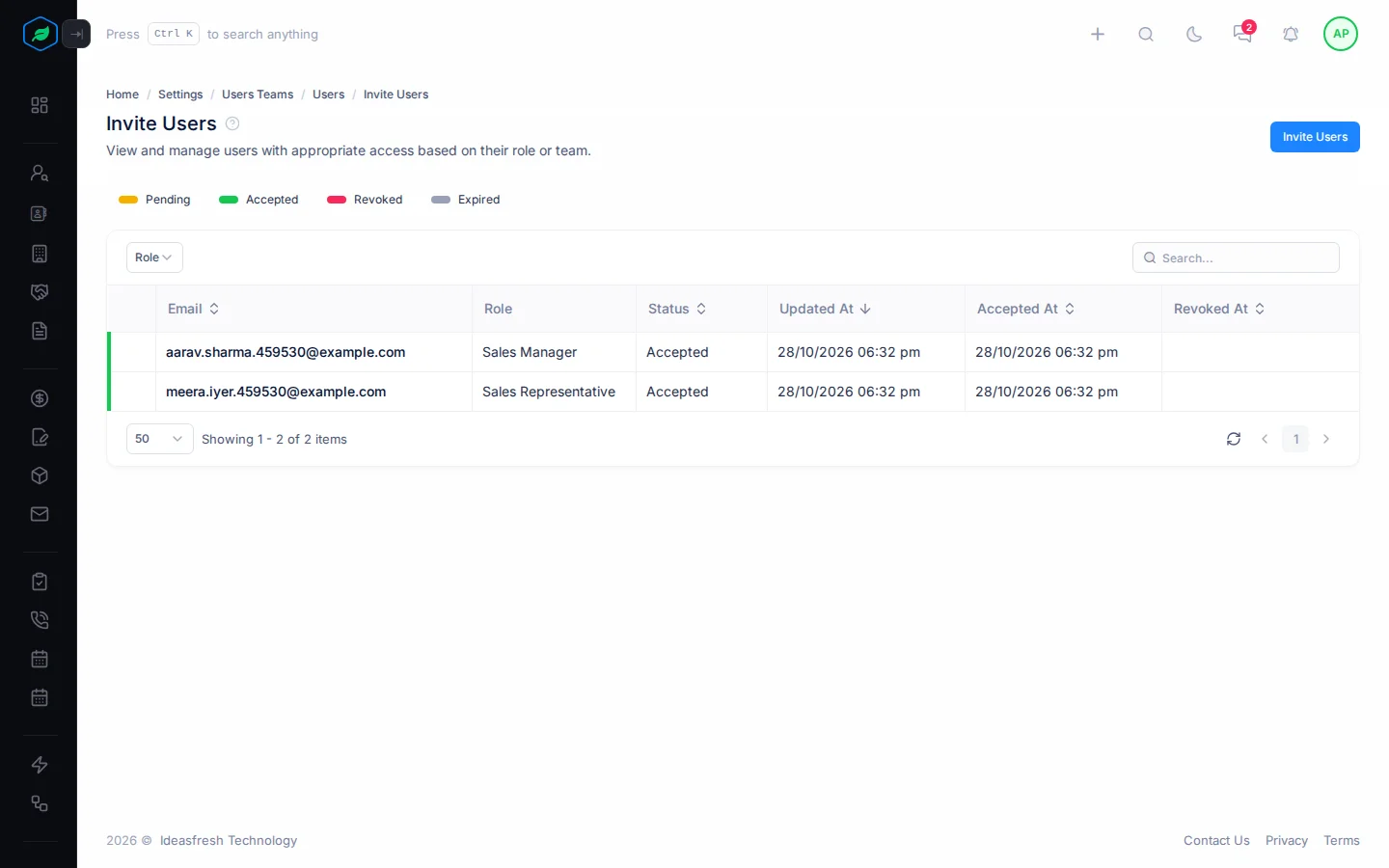
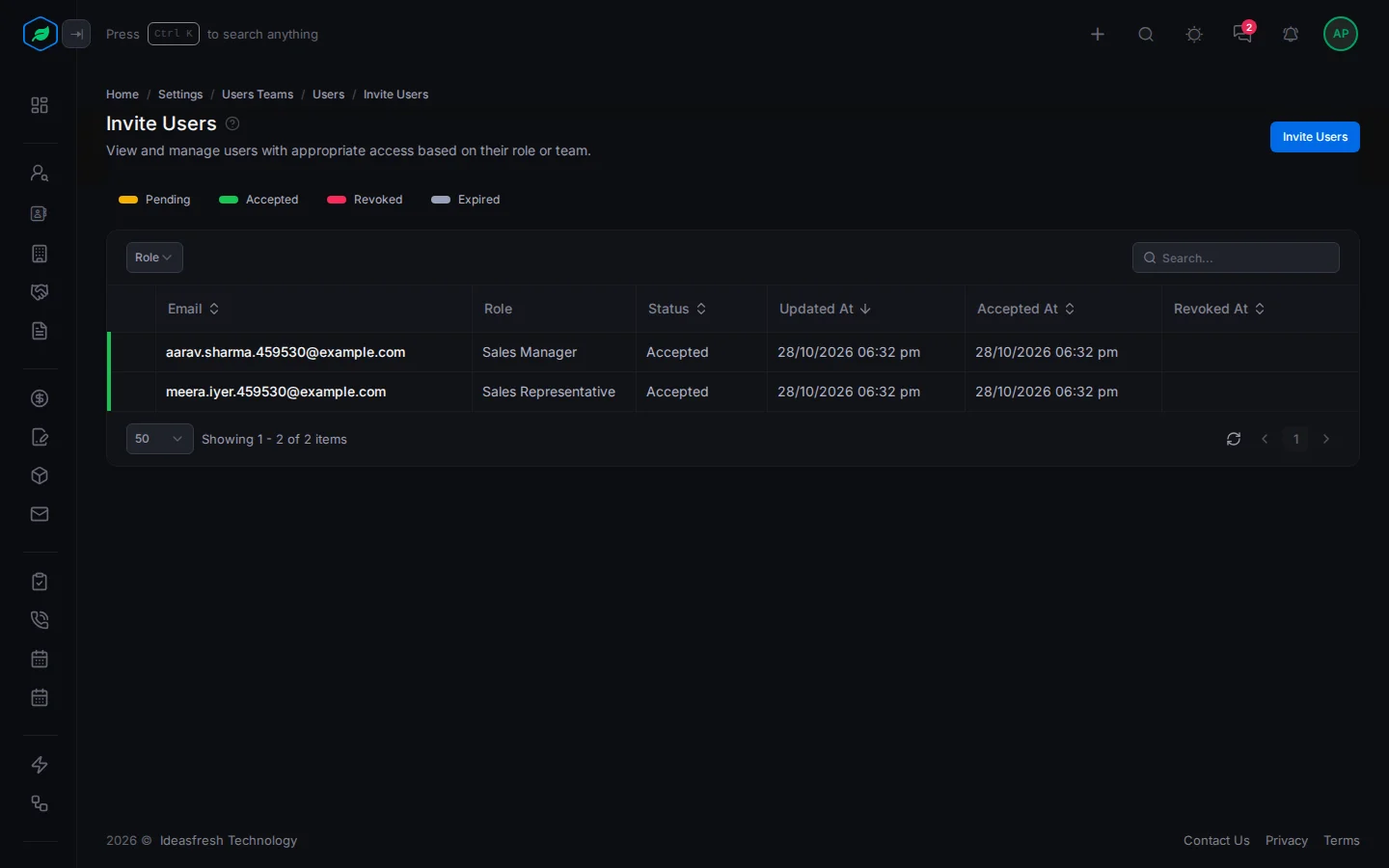
| Status | Means | You can |
|---|---|---|
| Pending | Sent, not accepted yet | Select ⋮, then Resend to give them 3 more days, or Revoke to cancel it |
| Accepted | They've joined | Nothing more to do |
| Revoked | You cancelled it | Select Invite Users and invite them again |
Resend and Revoke ask you to confirm first. When you revoke an invite, the person gets an email.
Troubleshooting
| Message | Why | What to do |
|---|---|---|
| A message that you've reached the maximum users on your plan | Your plan's users are used up | Revoke pending invites, deactivate someone, or add seats |
| "This invite has already expired." | The 3 days have passed | Resend the invite |
| "This invite was not sent to your email address." | They signed in with a different email | Sign in with the invited email |
| "An account with this email already exists. Please sign in to continue and accept your invite." | They already have an account | Sign in instead of signing up |
| "Invalid email" or "Please choose a role" | An email or role is missing or wrong | Fix the row |
Related
Still stuck?
Tell us what you were trying to do and we will help.