Manage the people in your company
See everyone in your company, and deactivate, activate or delete users without losing their records.
Updated 28 October 2026 · 3 min read
The Users page lists everyone in your company, with their roles and status. When someone leaves, deactivate them. They can't sign in, but their records stay.
For example, an installer leaves a solar company. The owner deactivates them. The installer is signed out and can't sign in again, but their customers and history stay in Salesfresh. The owner then gives the installer's open leads to someone else with Change owner.
Before you start
- Permission: View Users to see users. Edit Users to change someone's roles, or deactivate or activate them. Delete Users to delete someone.
- Plan: Every plan. See Plans and limits.
- Set up first: Nothing.
If you don't have a permission you need, ask your admin.
Users & Teams
Go to Settings → Users & Teams. It has a card for each part of who's in your company and what they can do: Users, Roles, Teams and Sharing Rules. You see the cards you have permission for.
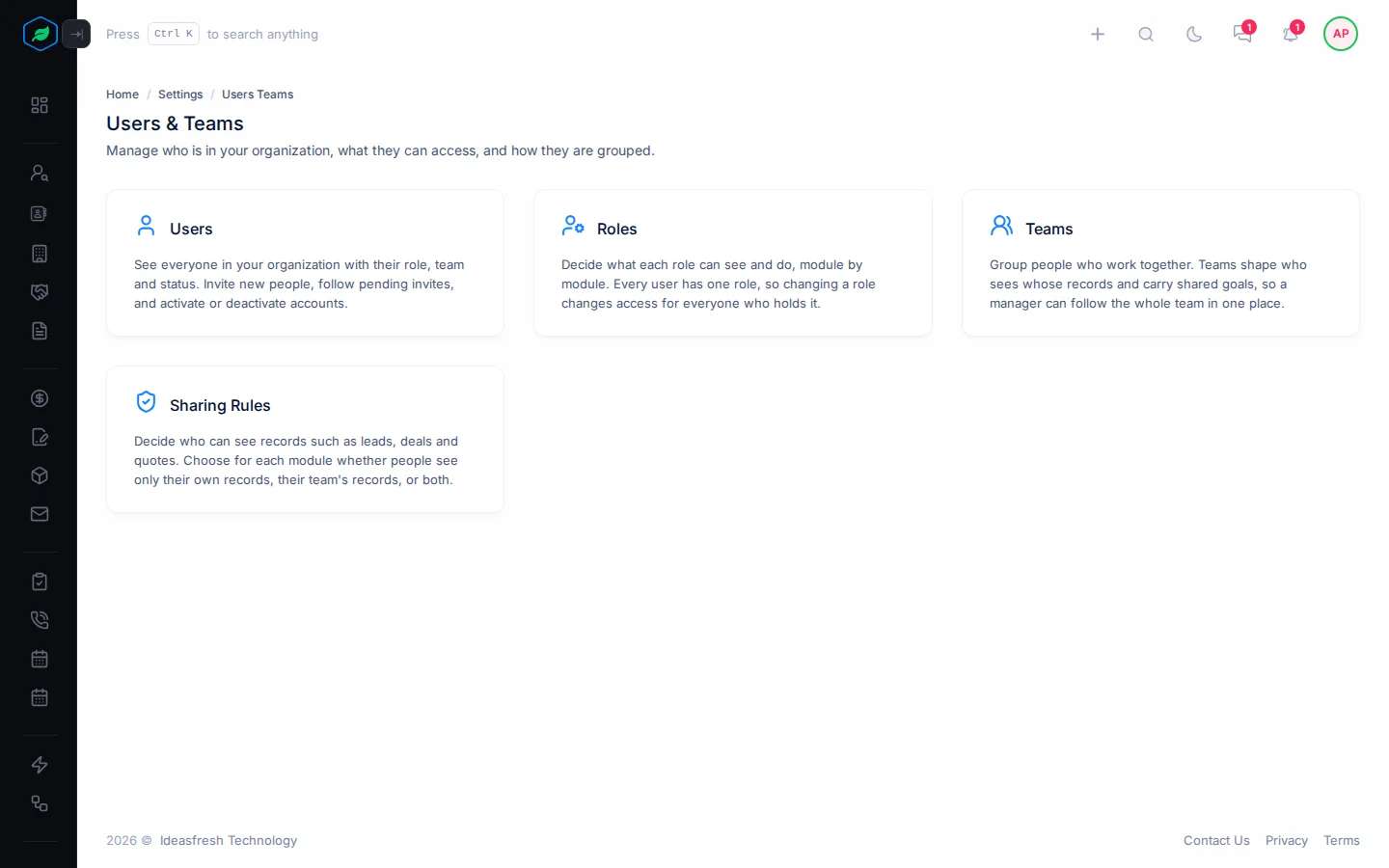
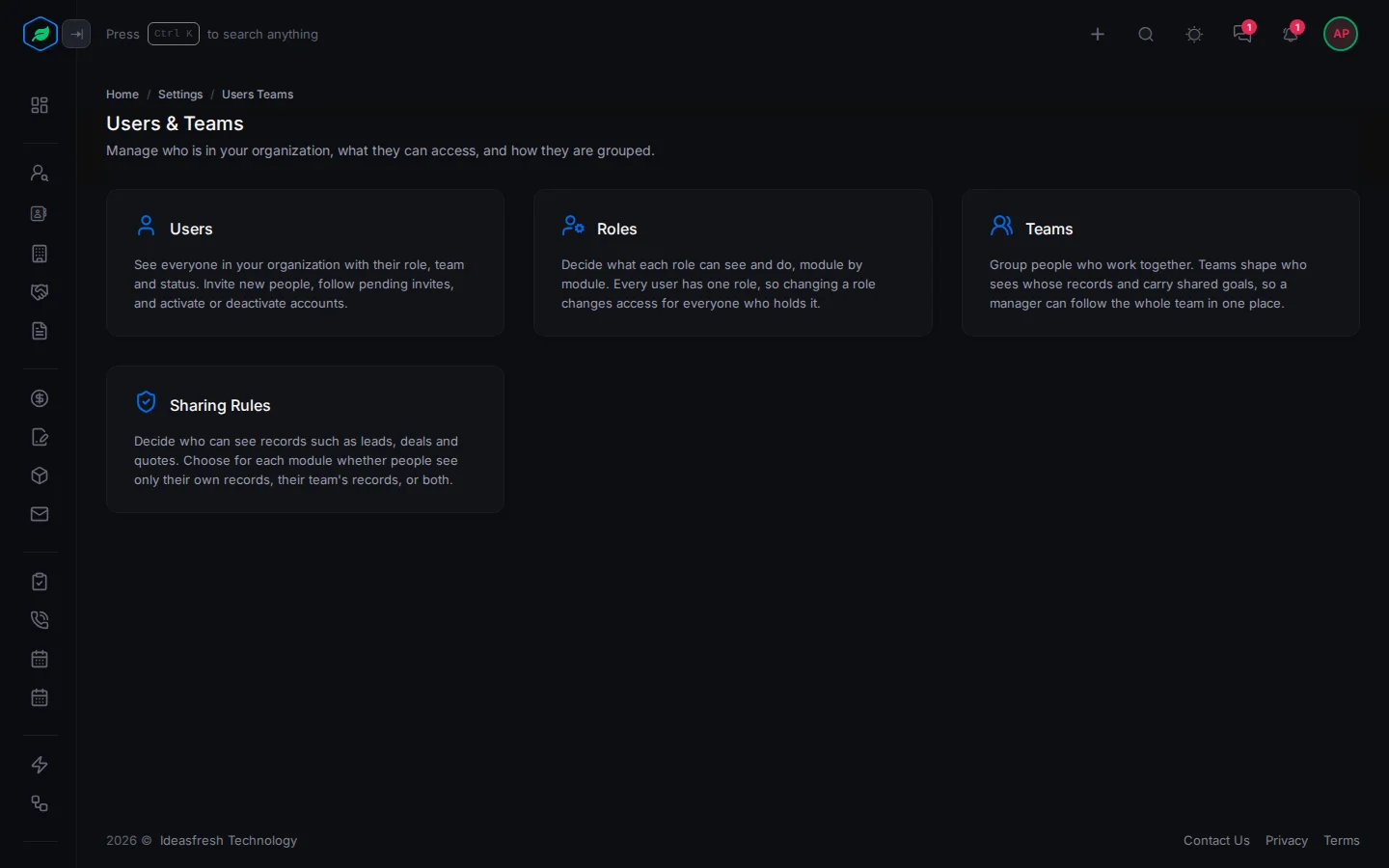
The Users page
Select Users. Each row shows the person's name, email, roles and status, how they sign in (OAuth Provider), and when their status or roles last changed and who changed them (Last Updated, Updated By). The newest changes show first. To find someone, type their name, email or mobile number in Search. To add people, select Invite Users. See Invite users.
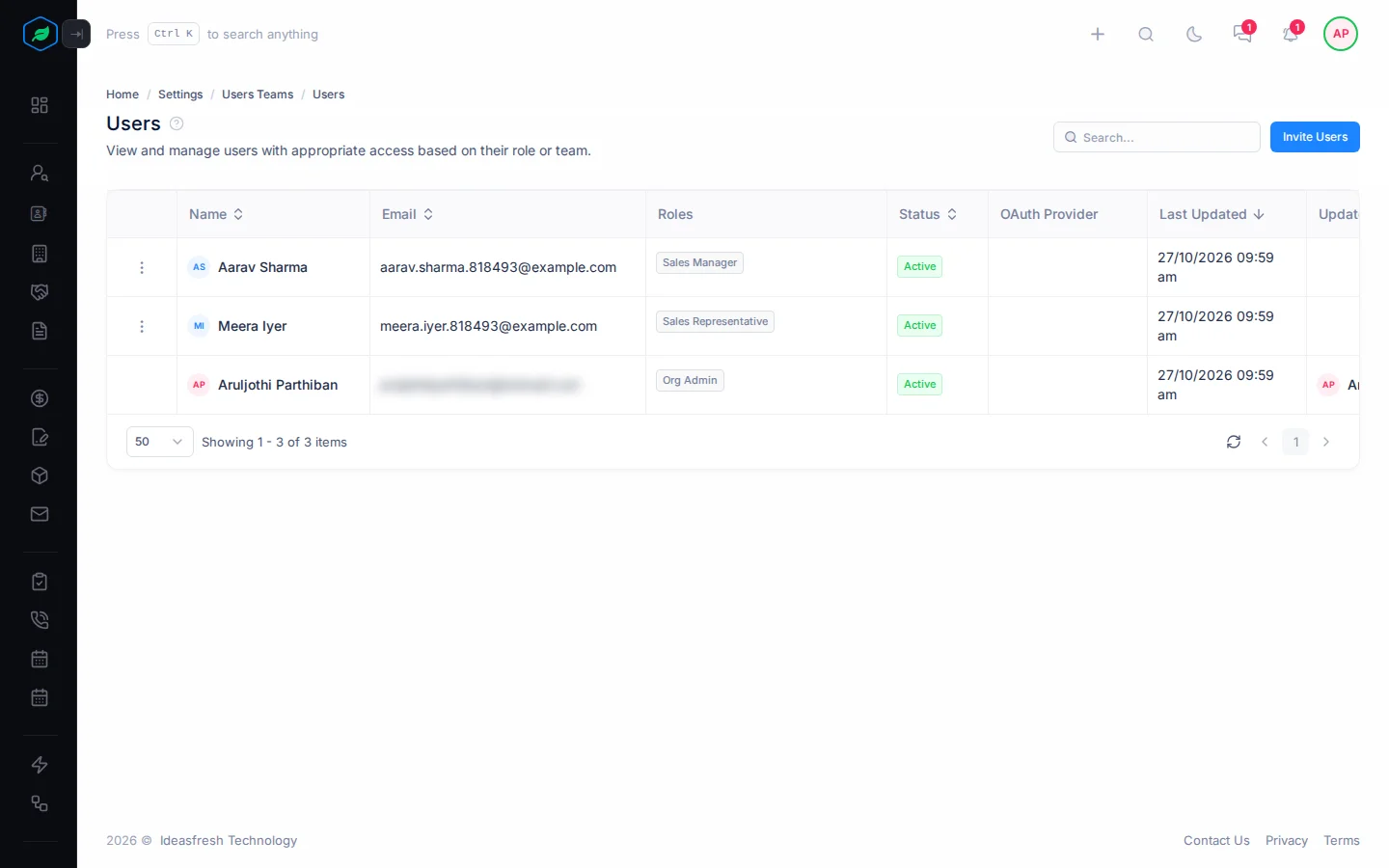
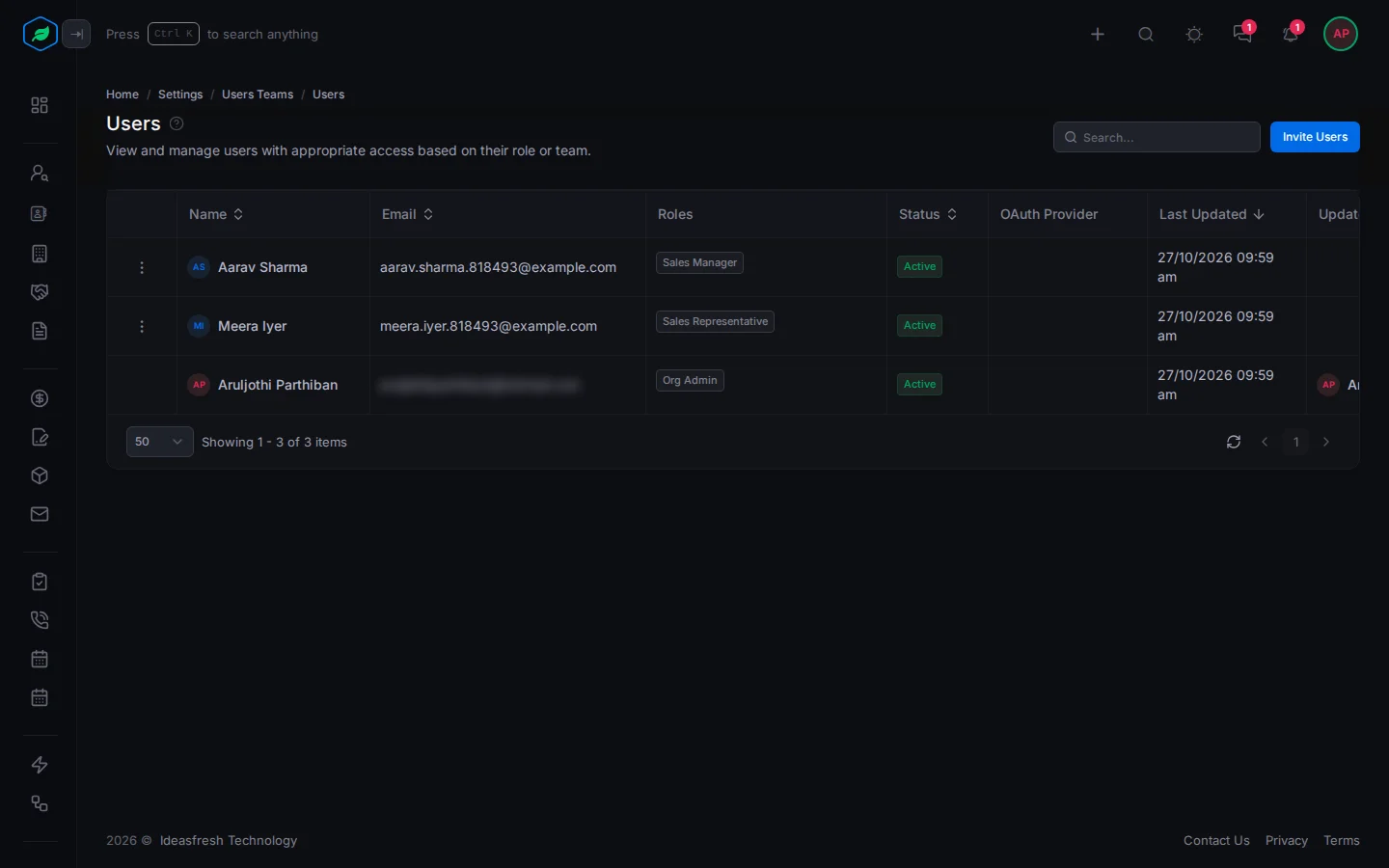
To change someone's roles, select ⋮, then Manage roles. See Assign roles to users.
Deactivate or delete someone
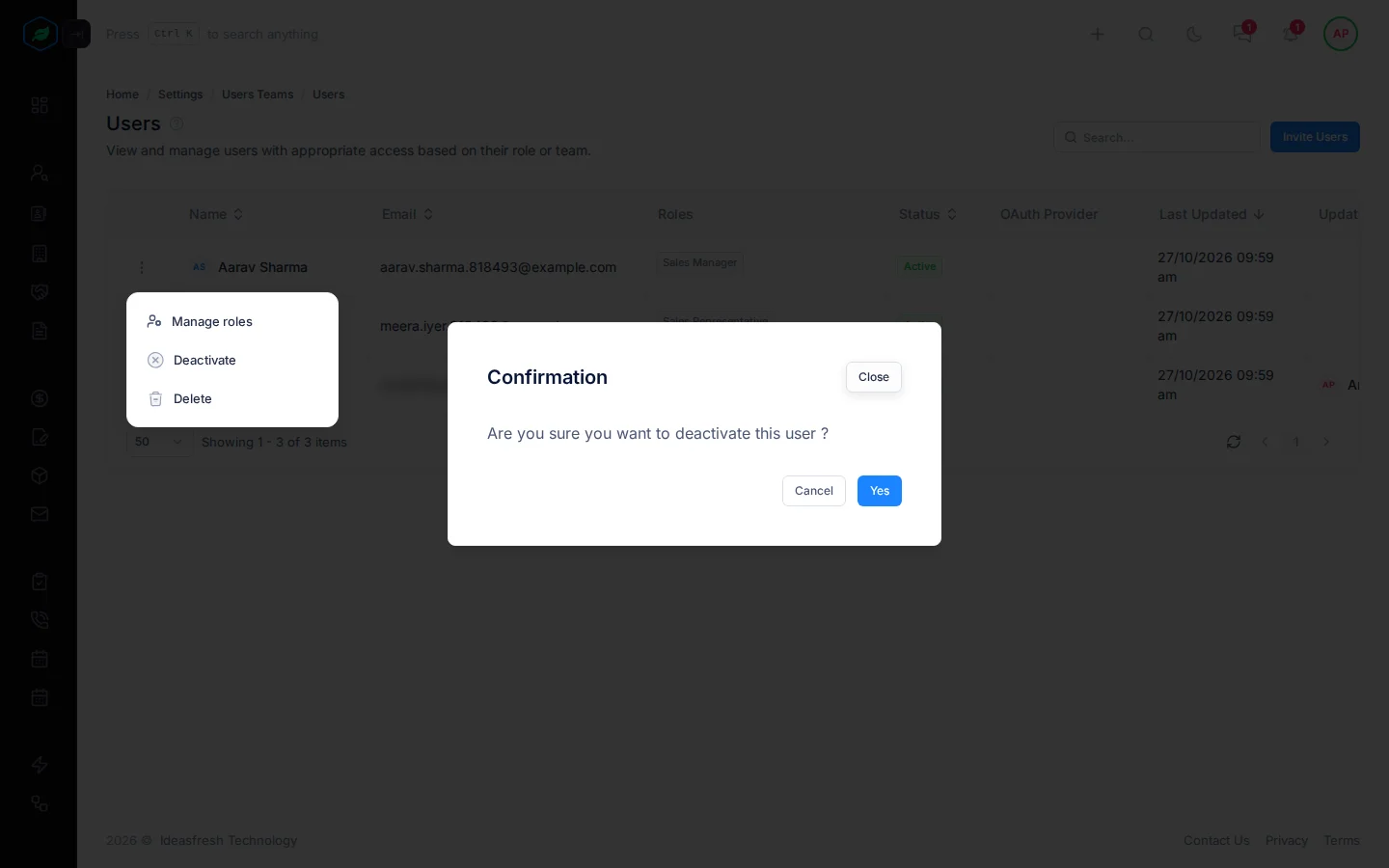
Select ⋮ on a person:
| Action | What happens |
|---|---|
| Deactivate | They're signed out and see an Account Deactivated window. They can't sign in. Records they own stay theirs until you change the owner |
| Activate | They can sign in again. This also brings back someone you deleted |
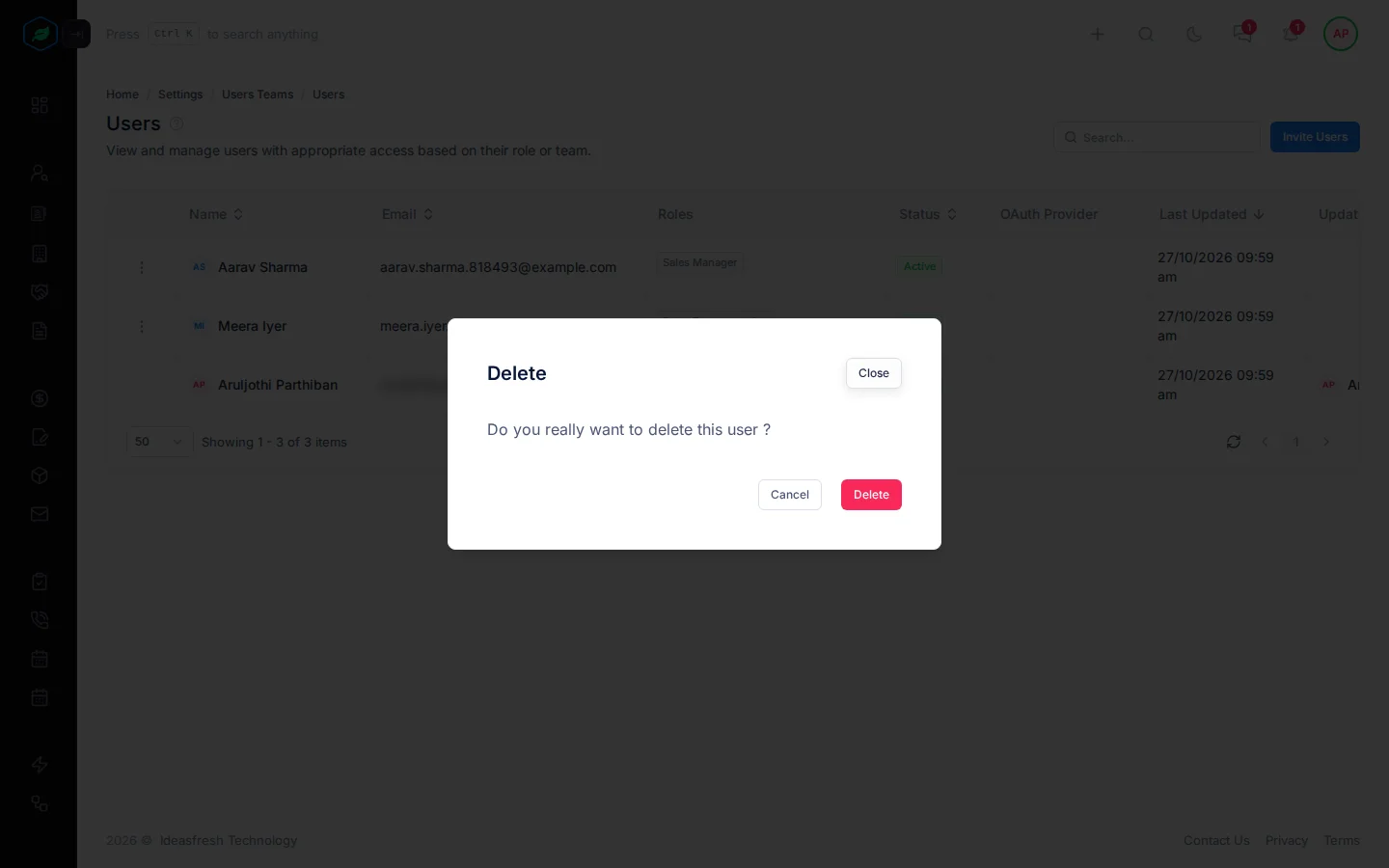
| Delete | Removes them from your company. They're signed out and see an Account Deleted window, and they disappear from the list. Their records stay. To bring them back, invite them again |
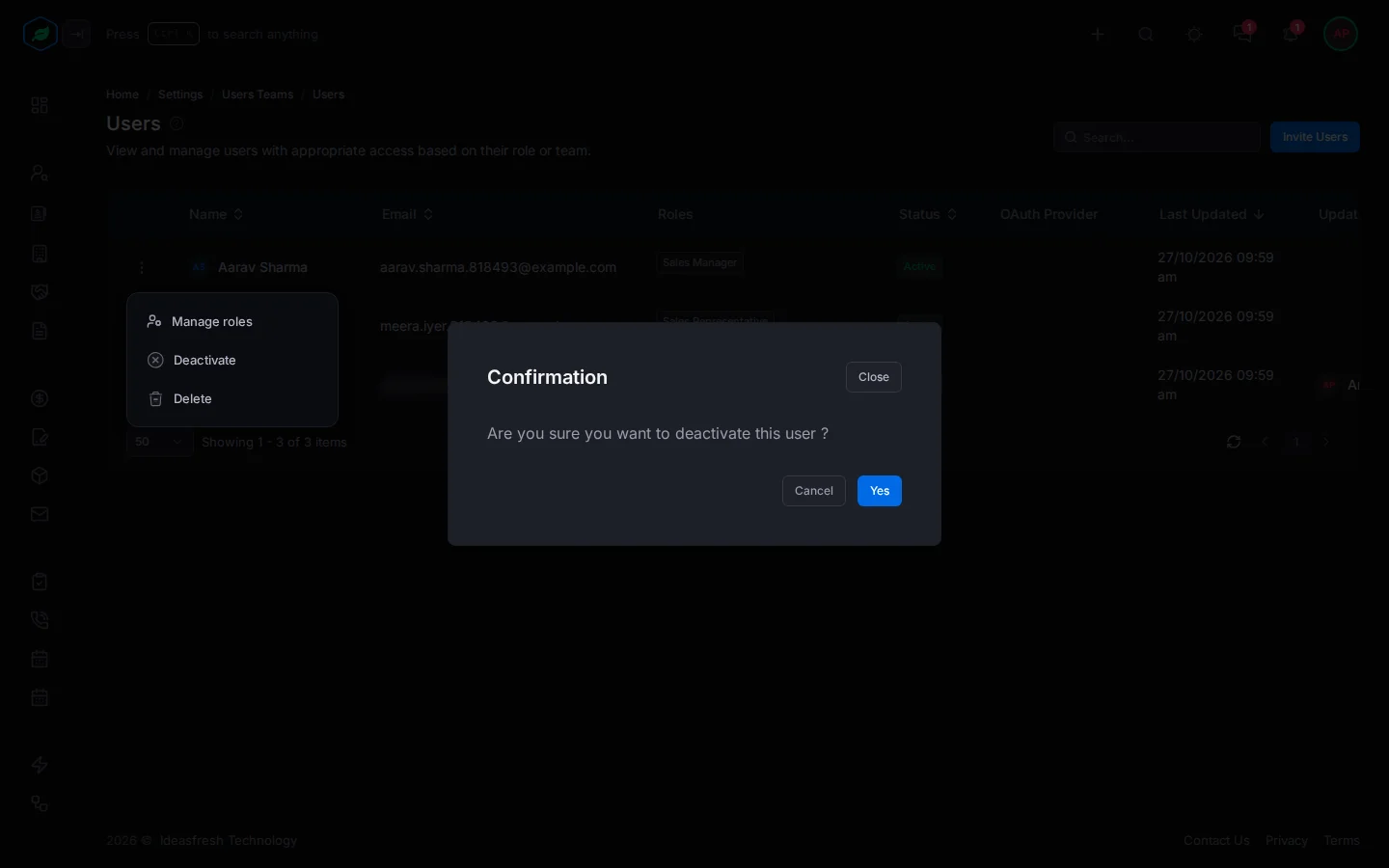
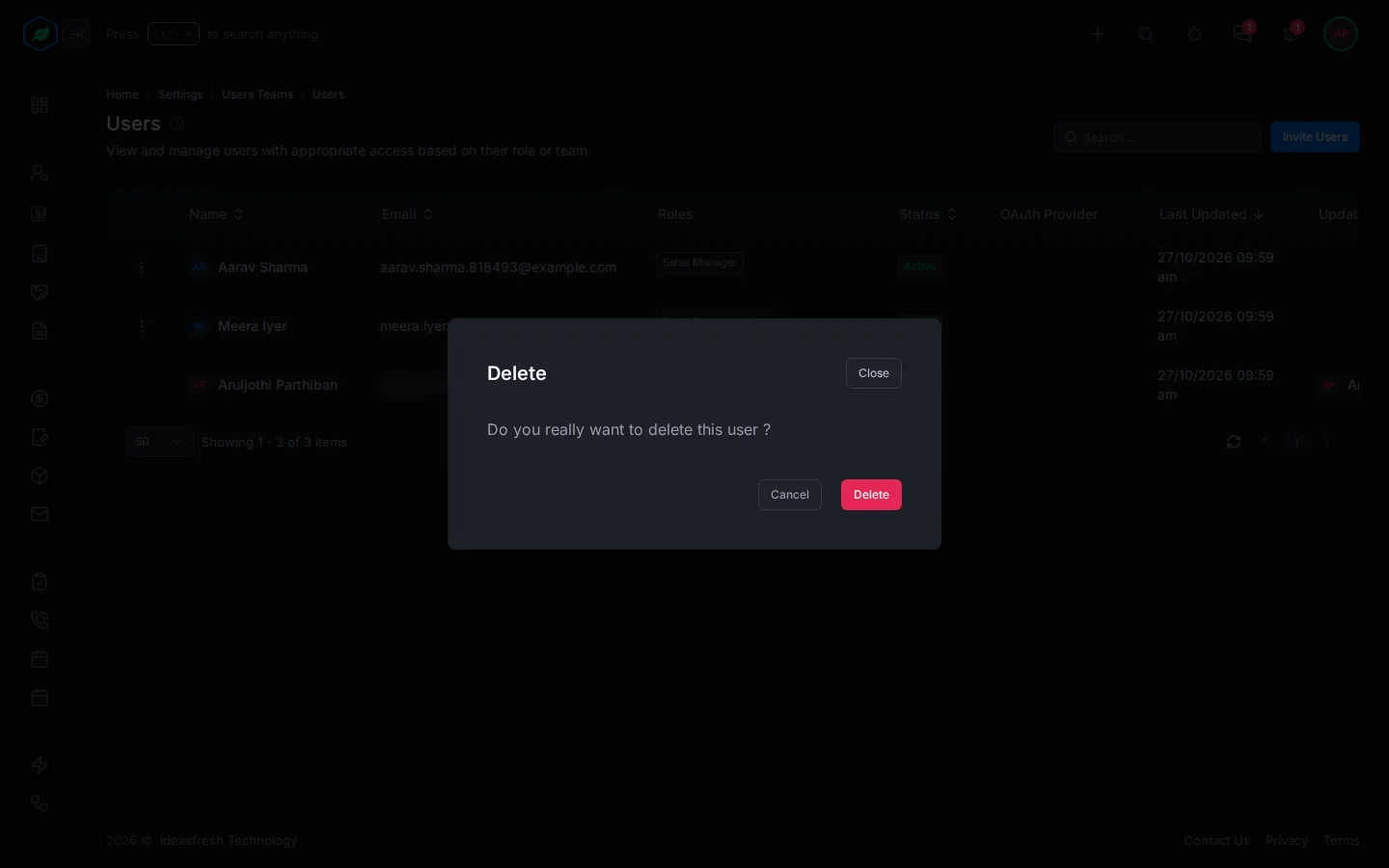
Each one asks you to confirm first. Select Yes to deactivate or activate, or Delete to delete.
People with the Org Admin role have no ⋮, so they can't be deactivated, deleted or given other roles here.
Troubleshooting
| Message | Why | What to do |
|---|---|---|
| "You cannot deactivate or delete your own user from here. …" | You picked yourself | Ask another admin |
| A person has no ⋮ | They have the Org Admin role | Remove them from the Org Admin role first, from the role's Manage users panel. See Assign roles to users |
Related
Still stuck?
Tell us what you were trying to do and we will help.