Decide what each person can do with roles
What a role is, the three built-in roles, and how to change, disable or delete your own roles.
Updated 28 October 2026 · 3 min read
A role is a set of permissions, such as "can view leads" or "can delete deals". You give each person one or more roles, and they can do what their roles allow.
For example, a property company has a manager and four sales agents. If everyone joins as an admin, a new agent might delete a deal by mistake, or change the company's settings. Instead, the owner creates a "Sales Agent" role that can view, create and edit leads, contacts and deals, but not delete them, and nothing in Settings. The four agents get that role. They can do their daily work, and nothing more.
Before you start
- Permission: View Roles to see roles. Create Roles to create one, Edit Roles to change, disable or enable one, and Delete Roles to delete one.
- Plan: Every plan. See Plans and limits.
- Set up first: Nothing.
If you don't have a permission you need, ask your admin.
The Roles page
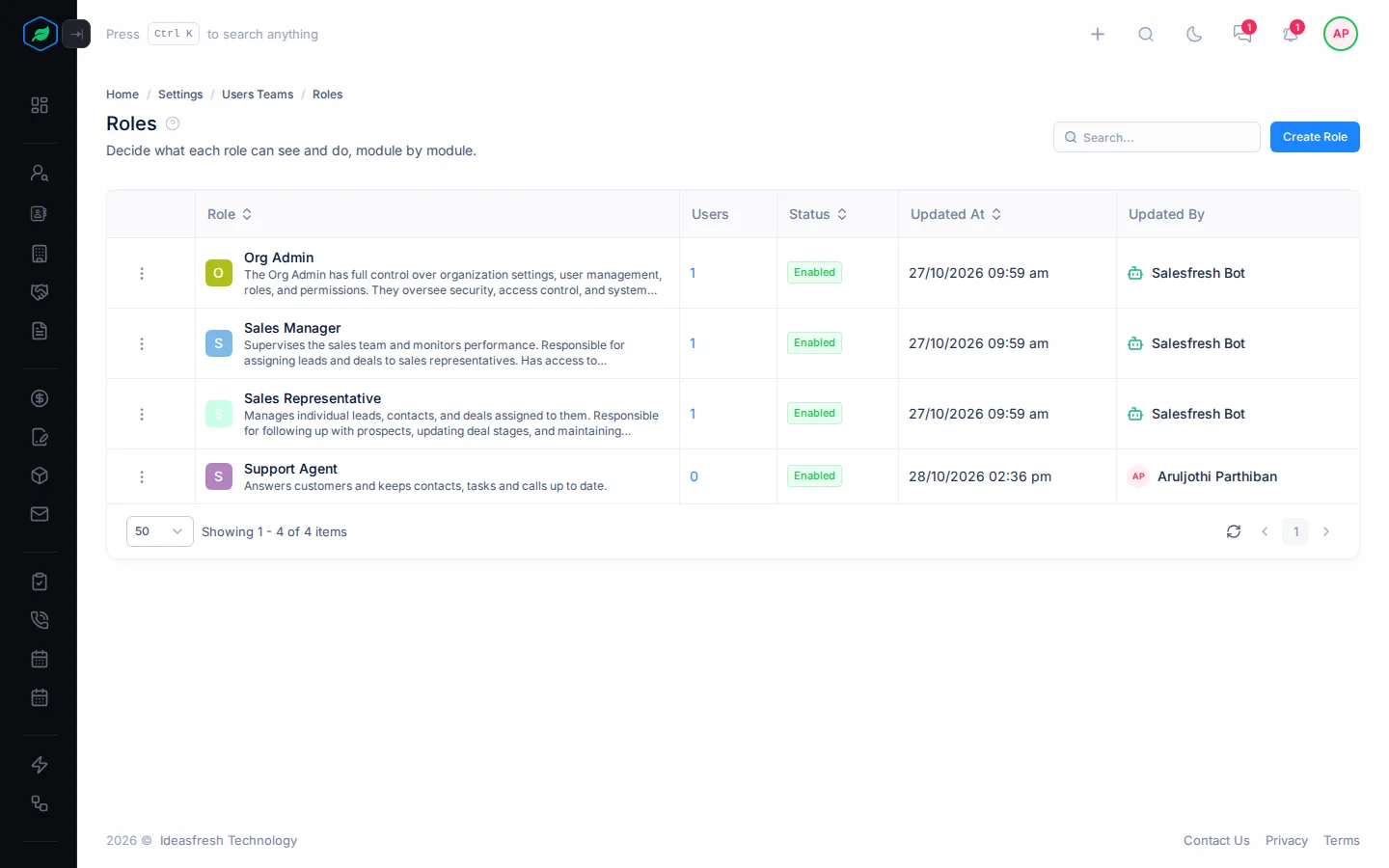
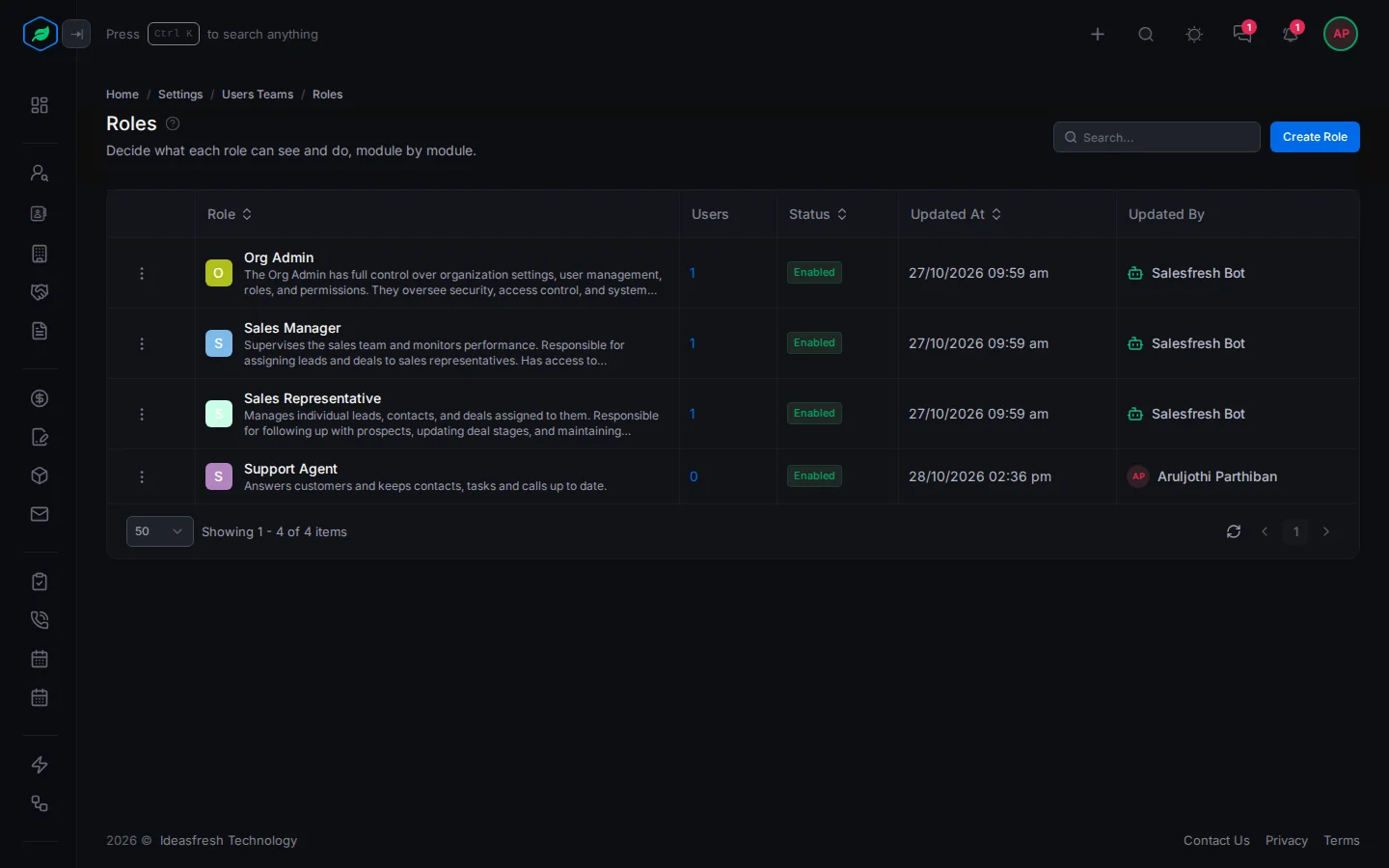
Go to Settings → Users & Teams → Roles. Each row shows a role's name and description, how many Users have it, its Status (Enabled or Disabled), and when it last changed and who changed it. Type in Search to find a role by name or description.
Select ⋮ on a role, then View Permissions to see what it allows, or Manage Users to see who has it. Selecting the role's name or its number of users also opens Manage Users. See Assign roles to users.
Built-in roles
Every company starts with three roles:
| Role | Can do |
|---|---|
| Org Admin | Everything |
| Sales Manager | Work with leads, contacts, accounts, deals, quotes, calls, meetings and tasks, and use forms, views and tags, reports, targets and the email client. View quote settings and Trash |
| Sales Representative | The same, without targets and the email client |
You can't change, disable or delete a built-in role, so its ⋮ has only View Permissions and Manage Users. For different access, create your own role. See Create a role.
Change, disable or delete a role
Select ⋮ on one of your own roles:
| Action | What happens |
|---|---|
| Edit | Changes its name and description |
| Disable | The role gives no permissions, but keeps its settings. Enable turns it back on |
| Delete | Removes the role, even if people have it. They lose its access. Its name can't be used again |
Disable and Delete ask you to confirm first.
When a role changes
The people affected who are signed in see a window they can't close, with a Logout button:
- Role Updated, when someone gives them a role or takes one away. They're signed out, and their new access starts when they sign back in.
- Permissions Updated, when someone changes one of their roles: its permissions, its name, or whether it's enabled, or deletes it. The new permissions already apply, but they must log out and back in to see every change.
Troubleshooting
| Message | Why | What to do |
|---|---|---|
| "Role already exist" | Another role has that name, maybe a deleted one | Pick another name |
| Edit, Disable and Delete are missing | It's a built-in role | Create your own role |
| Someone still sees an old option | They haven't logged out and back in | Ask them to log in again |
Related
Still stuck?
Tell us what you were trying to do and we will help.