Give people a role
Give people a role from the role or from the person, see who has each role, and take a role away again.
Updated 28 October 2026 · 3 min read
Each person can have more than one role. They can do everything any of their enabled roles allows. You can give roles from two places: from a role, to add several people at once, or from a person, to change all their roles at once.
For example, a salesperson is promoted to team manager. The admin opens the Sales Manager role and assigns them to it. After they log in again, they can see their team's targets. Their old Sales Representative role can stay, or the admin can remove it.
Before you start
- Permission: View Roles to see a role's users. Edit Users to change a person's roles from the Users page. If you don't have them, ask your admin.
- Plan: Every plan. See Plans and limits.
- Set up first: The role. See Create a role. When you invite someone, you pick their first role then. See Invite users.
From a role
See who has a role
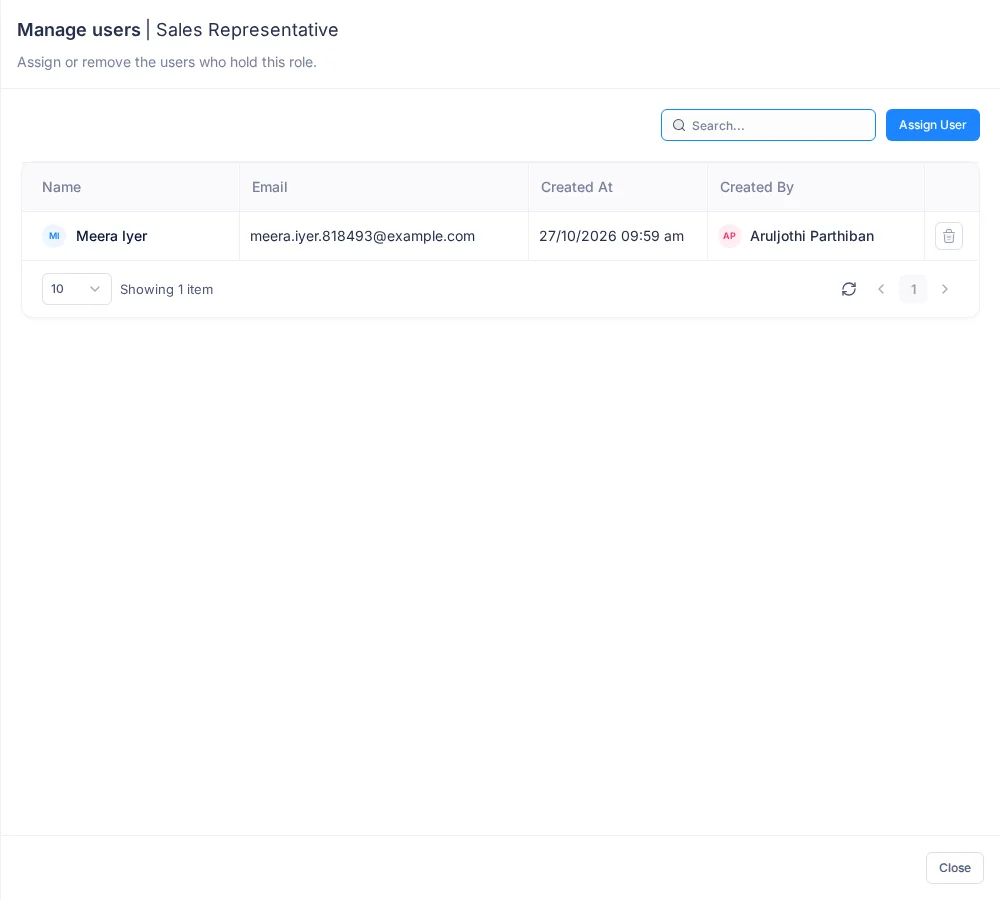
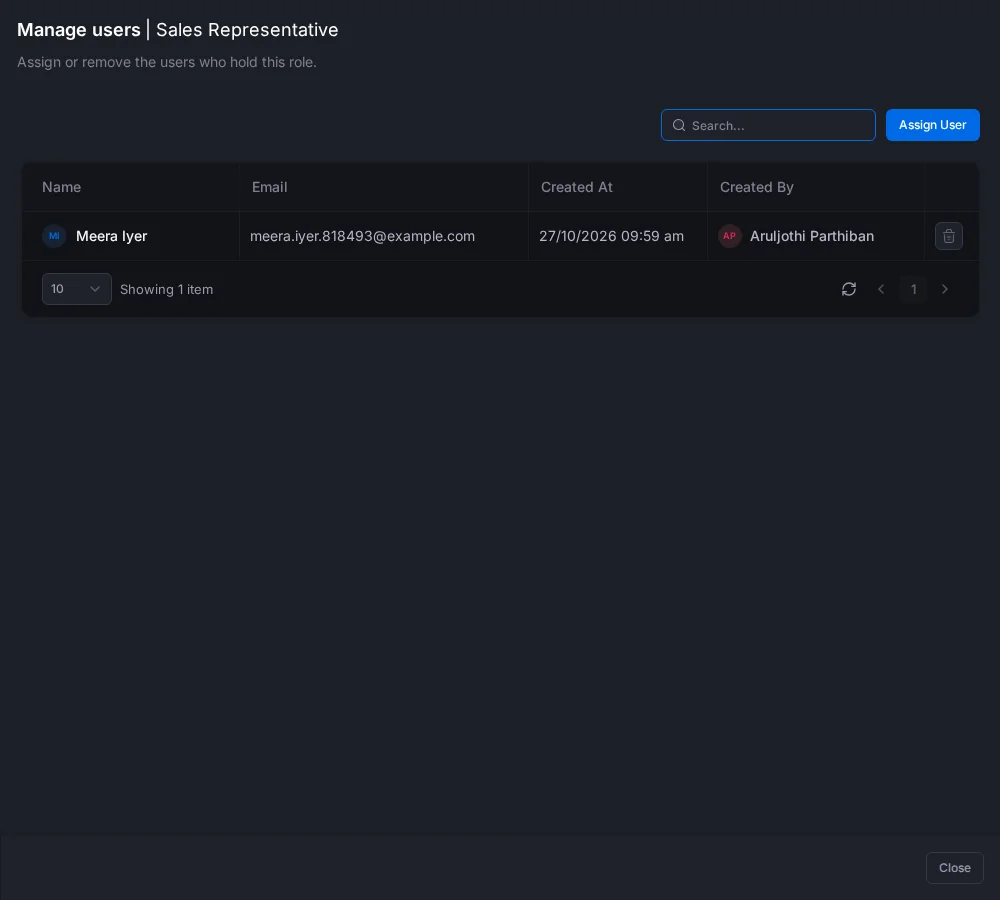
Go to Settings → Users & Teams → Roles. Select the role's name or its number of users, or select ⋮, then Manage Users. The Manage users panel lists each person with their email, and when they got the role and who gave it. Type in Search to find someone.
Assign people
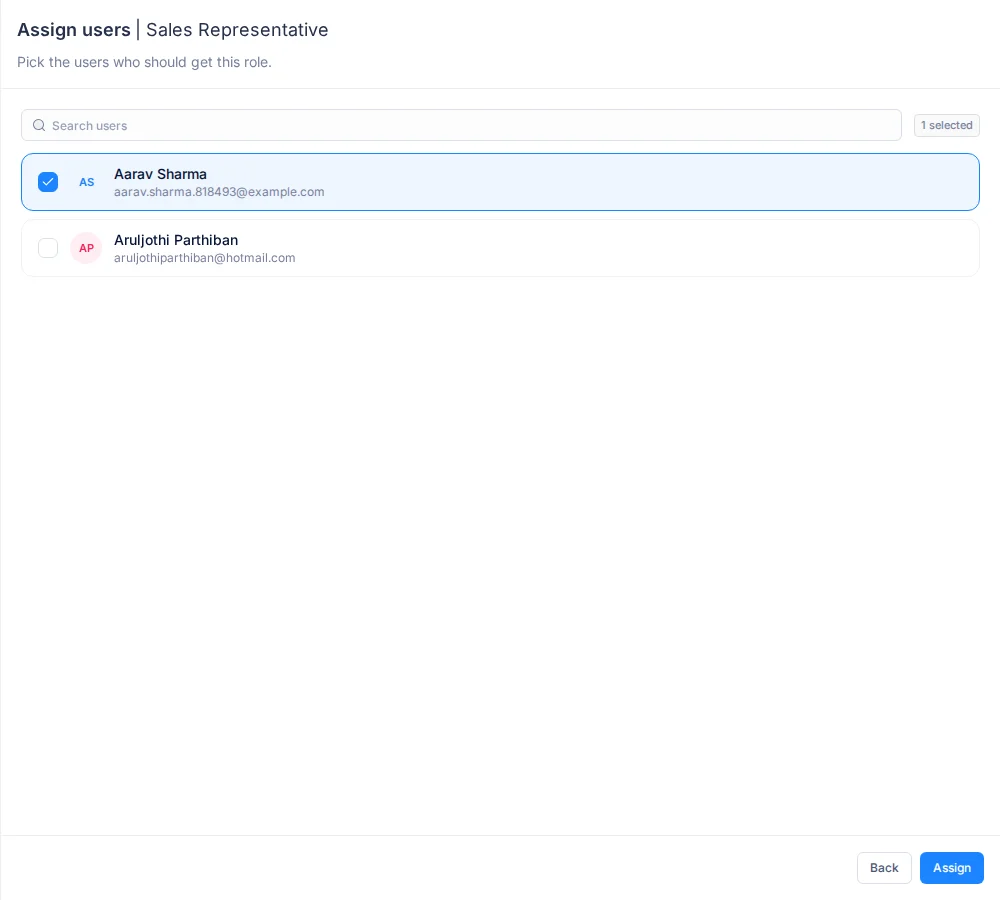
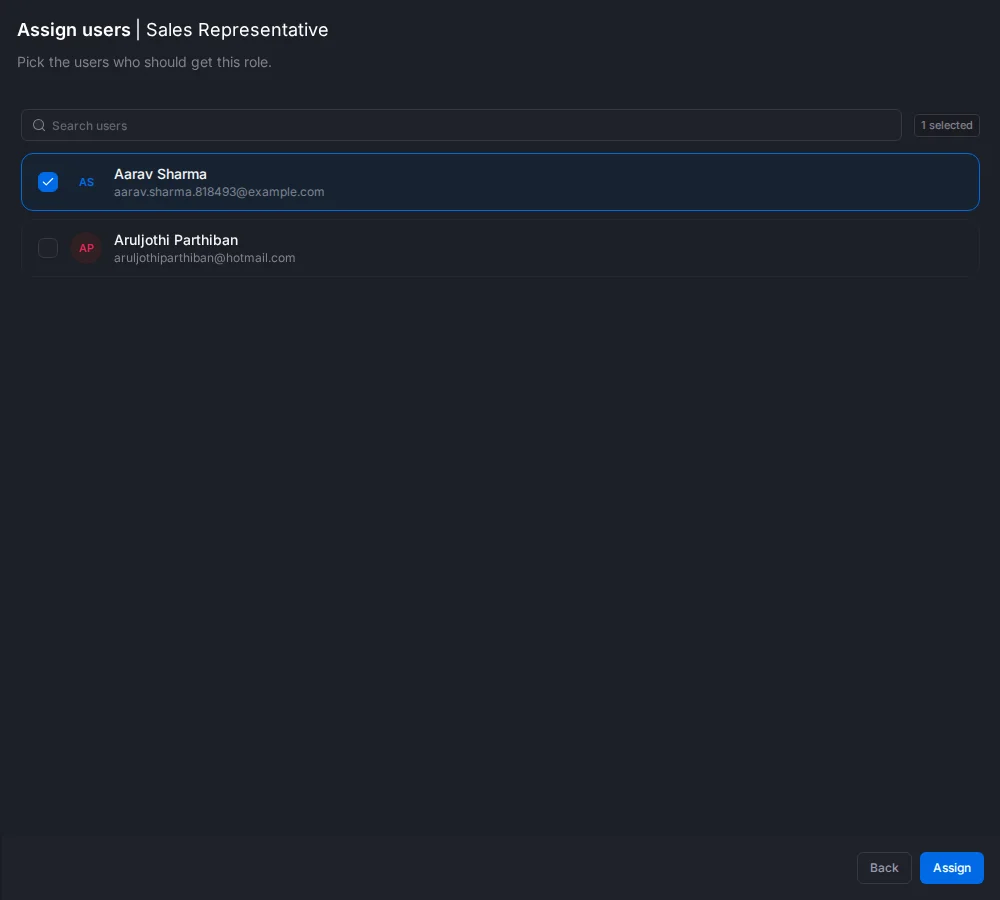
- Select Assign User. The panel shows everyone who doesn't have the role yet.
- Select the people to add. Type in Search users to find someone. The count at the top says how many you picked.
- Select Assign. Back returns to the list without assigning.
Take a role away
- Select the bin on the person's row.
- A window asks "Do you really want to remove this user ?". Select Delete.


From a role, you can take away someone's only role, or the Org Admin role. Check who you're removing before you select Delete.
From a user
- Go to Settings → Users & Teams → Users.
- Select ⋮ on the person, then Manage roles. The Manage roles panel opens.
- Under Current roles, select the bin on a role to take it away. It's marked in red. Select the arrow to keep it after all.
- Under Add roles, select the roles to give. Type in Search roles to find one.
- Select Update. Nothing changes until you do.
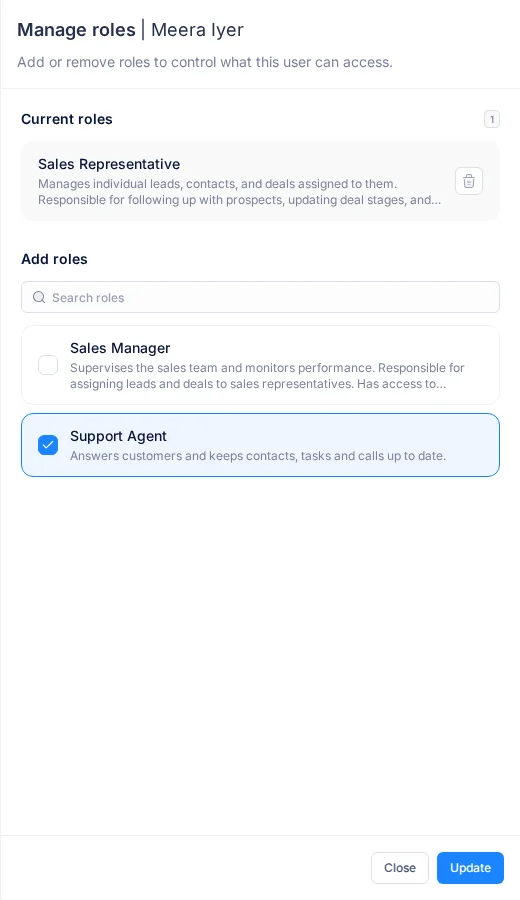
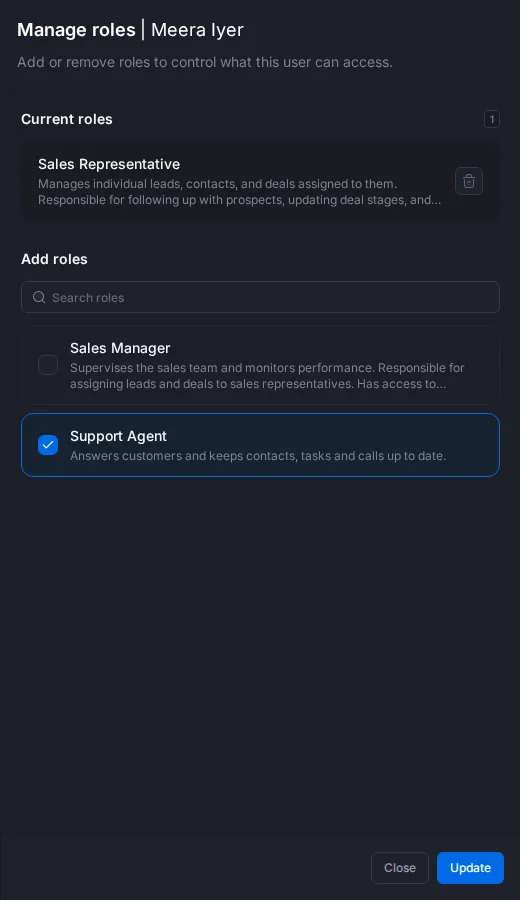
The panel follows these rules:
- The Org Admin role can't be removed here, or given here.
- A person keeps at least one role.
- A Disabled role can be given, but gives no access until it's enabled.
People with the Org Admin role have no ⋮ on the Users page.
After a change
The person sees a Role Updated window and is signed out. Their new access starts when they sign back in. See Roles and permissions.
Troubleshooting
| Message | Why | What to do |
|---|---|---|
| Assign is greyed out | Nobody is selected | Select a person first |
| "Every user already has this role." | Everyone has the role already | Nothing to do |
| "No users match your search." | Nobody matches what you typed | Check the spelling |
| "The Org Admin role cannot be removed" | You tried to take Org Admin away from the person's panel | Use the Org Admin role's Manage users panel |
| "A user must keep at least one role" | You marked every role for removal | Keep one, or add another first |
Related
Still stuck?
Tell us what you were trying to do and we will help.