Choose your company's modules and sidebar
Choose which modules your company uses, arrange and group them in the sidebar for everyone, and decide whether people can arrange their own.
Updated 28 October 2026 · 3 min read
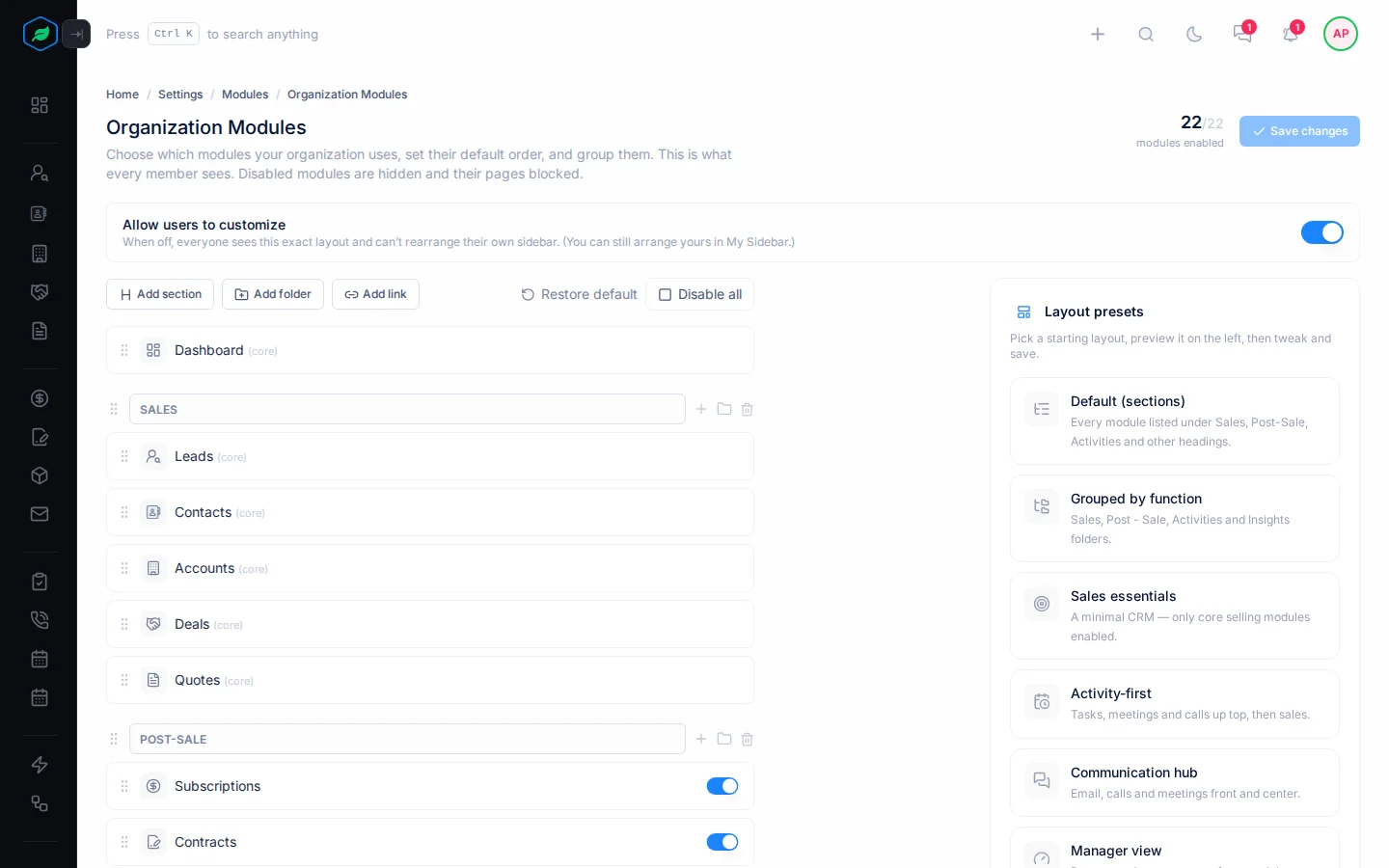
Organization Modules decides which modules your company uses, and how the sidebar looks for everyone: the order, the headings, and which modules sit together in folders.
For example, a recruitment agency doesn't sell contracts, subscriptions or equipment, and the team finds the long sidebar confusing. The owner picks the Activity-first layout so tasks, meetings and calls come first. Then they switch off Contracts, Subscriptions and Assets, and save. Everyone's sidebar now shows only what the agency uses.
Before you start
- Permission: View Modules to see the page. Edit Modules to change it. With only View Modules, the page is read-only.
- Plan: Every plan. See Plans and limits.
- Set up first: Nothing.
No data is deleted when you switch a module off. Switching it back on brings everything back.
If you don't have a permission you need, ask your admin.
Switch modules on or off
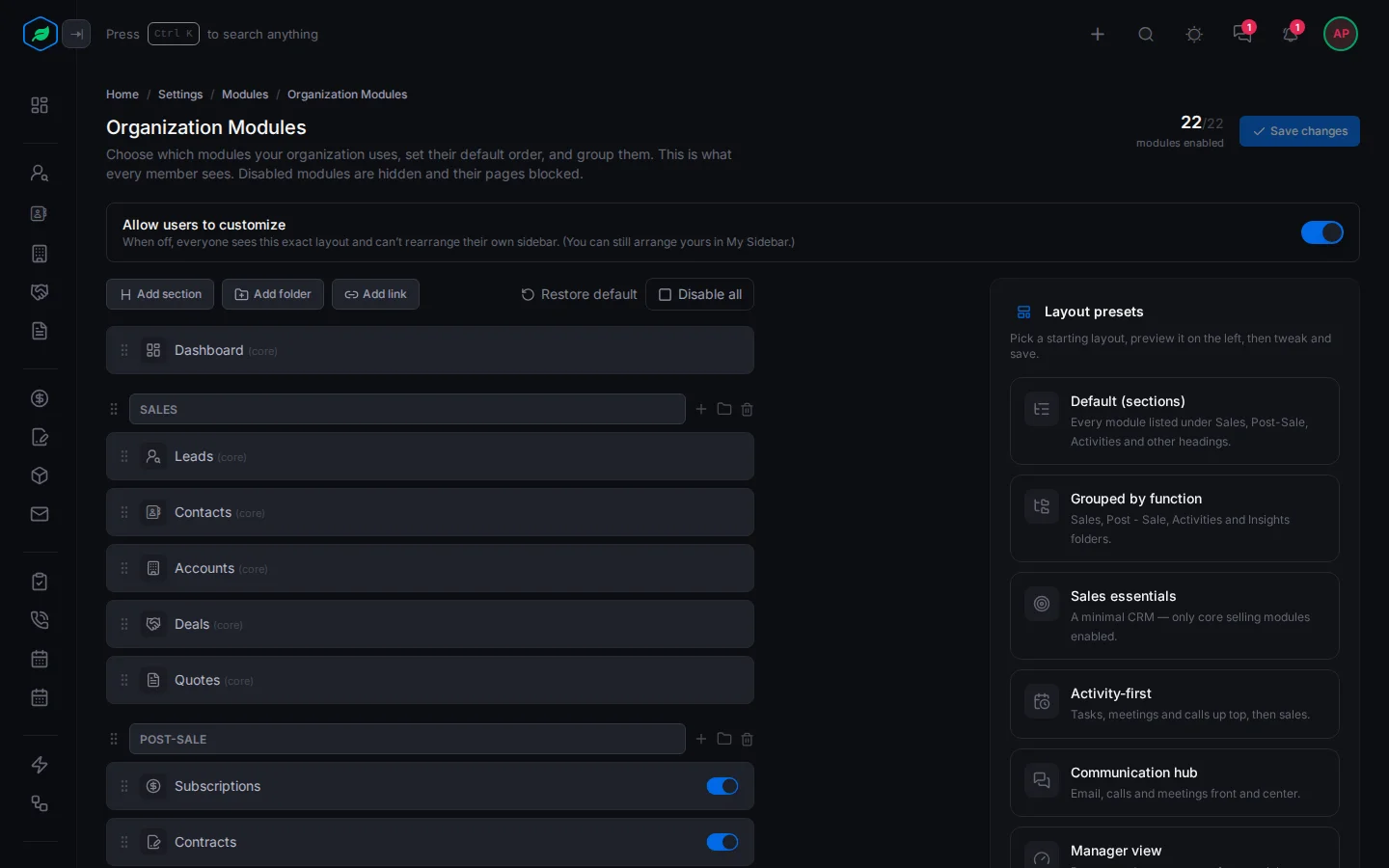
Go to Settings → Modules → Organization Modules. The top shows how many modules are on, such as 14/22 modules enabled.
You can switch off Contracts, Subscriptions, Assets, My Targets, Automation, Flows, Recently Accessed and Frequently Accessed. The others are always on and marked (core). Enable all or Disable all switches every optional module at once.
A switched-off module disappears for everyone from the sidebar, the + create menu, global search and Trash, and its settings are hidden. Contracts, Subscriptions, Assets and My Targets also stop working, even from a saved link.
Arrange the sidebar
- Drag a module by its handle to move it.
- Add section adds a heading, with its modules listed under it. Add folder adds a folder that opens and closes. Drag modules into either. You can switch one to the other, and deleting one moves its modules back to the top level.
- Add link adds a link to another website or page, for everyone.
- Restore default puts the layout back as it started, and switches every module on. Nothing is saved until you select Save changes.
Layout presets
A preset is a ready-made layout to start from. There are 9: Default (sections), Grouped by function, Sales essentials, Activity-first, Communication hub, Manager view, Sales rep, Service desk, and Compact (2 groups).
Picking a preset also switches modules on. All except Sales essentials switch on every module except Recently Accessed and Frequently Accessed. So pick the preset first, then switch off the modules you don't use.
Select Save changes. Everyone's sidebar changes straight away.
Let people arrange their own
With Allow users to customize on, each person can arrange their own sidebar. See My sidebar. Turn it off to give everyone exactly your layout. People with Edit Modules can still arrange their own.
If anyone has arranged their own sidebar, turning Allow users to customize off and saving asks you to confirm with Clear and turn off. Their layouts are deleted, and turning the switch back on doesn't bring them back. Cancel saves nothing, so their layouts stay.
Troubleshooting
| Message | Why | What to do |
|---|---|---|
| "This module is not enabled for your organization." | The module is switched off | Switch it on here |
| A module has no switch | It's a core module, which is always on | Nothing to do. Core modules can't be switched off |
| Modules you switched off are on again | You picked a preset or Restore default after switching them off | Switch them off again, then save |
Related
Still stuck?
Tell us what you were trying to do and we will help.