Configure lead scoring for your company
Set up the rules behind the 0 to 100 lead score. Rate values for each factor on the classification board and balance the factor weights.
Updated 28 October 2026 · 6 min read
The lead score tells your team which leads to call first. But only you know what a good lead looks like for your business. Here you tell Salesfresh: which industries, sources, job titles, places and company sizes matter to you, and how much each one counts.
For example, say your best customers are large delivery companies. You grade the Logistics industry as Excellent, and companies with 50 to 500 staff as Good. From then on, a lead from a big delivery company scores high, and your team knows to call it first.
To see how a lead's score is read, see Lead score and rating.
Before you start
- Permission: View Lead Scoring to open the page. Edit Lead Scoring to save changes. Adding values also needs Create Lead Scoring, and removing them needs Delete Lead Scoring.
- Plan: Lead scoring needs a paid plan. See Plans and limits.
- Set up first: Your lead stages, lead sources and industries, which the board picks from. See Pipelines and Dropdown lists.
Until you add some values, every lead scores 0.
To open it, go to Settings → Lead Scoring.
The classification board
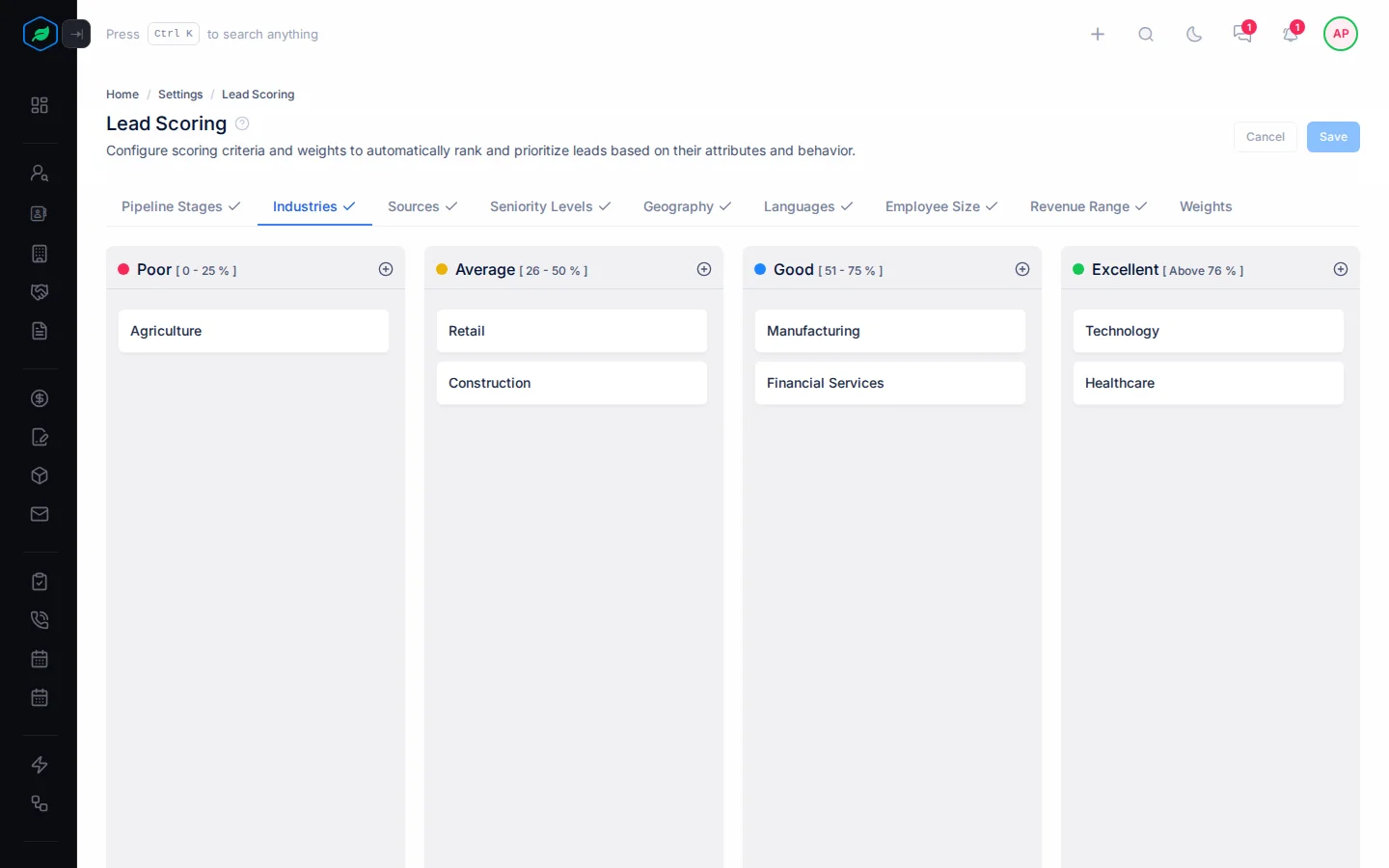
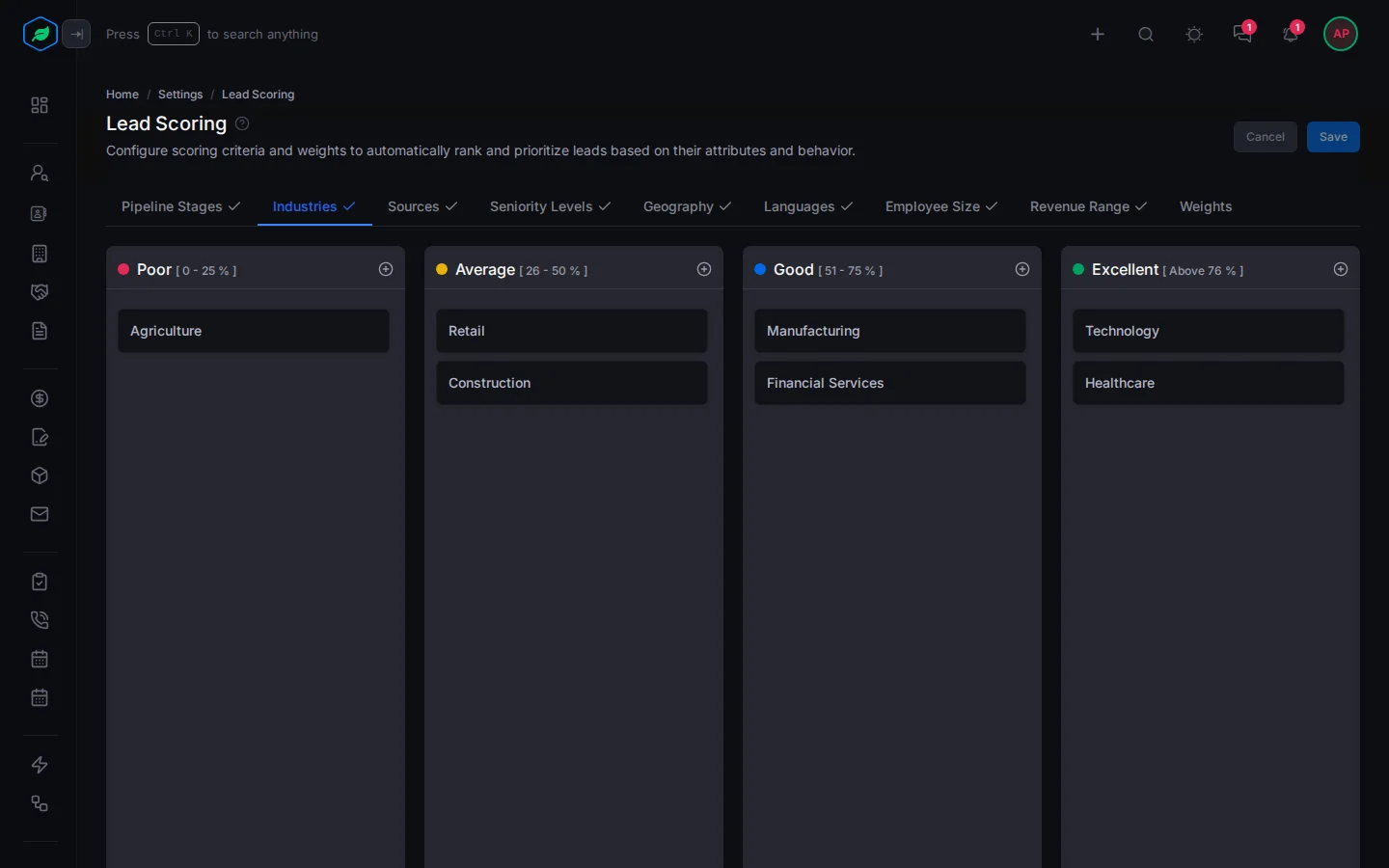
The page has a tab for each factor: Pipeline Stages, Industries, Sources, Seniority Levels, Geography, Languages, Employee Size and Revenue Range. A tab gets a check mark once it has values.
Each tab has four columns: Poor, Average, Good and Excellent. You put each value in the column that fits it. The column decides how many of the factor's points a lead with that value gets.
| Column | Points the lead gets |
|---|---|
| Poor | 25% of the factor's weight |
| Average | 50% |
| Good | 75% |
| Excellent | All of it |
The ranges shown in the column headings are only a guide. The percentages above are what count.
Grade values for a factor
- Open the factor's tab.
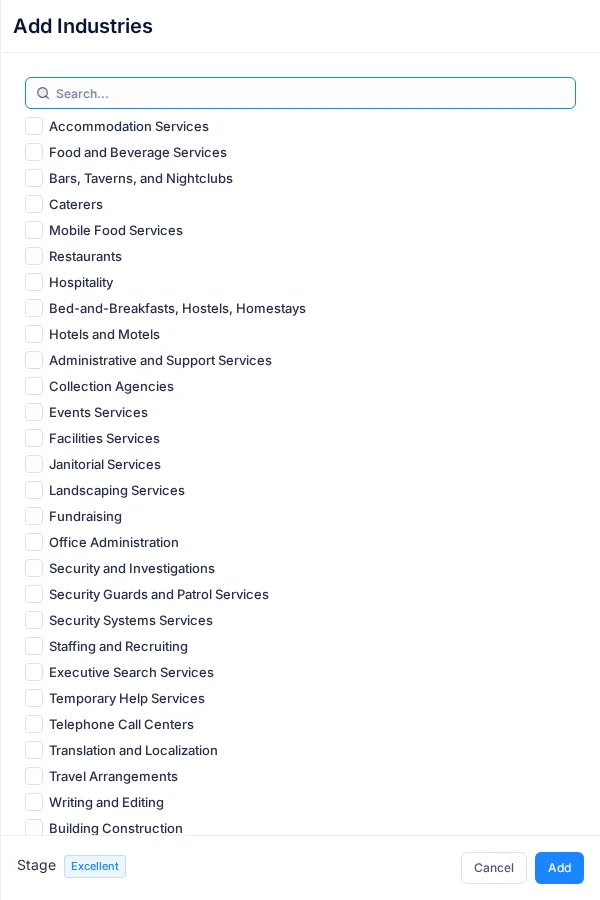
- Select + in the column you want, such as Excellent.
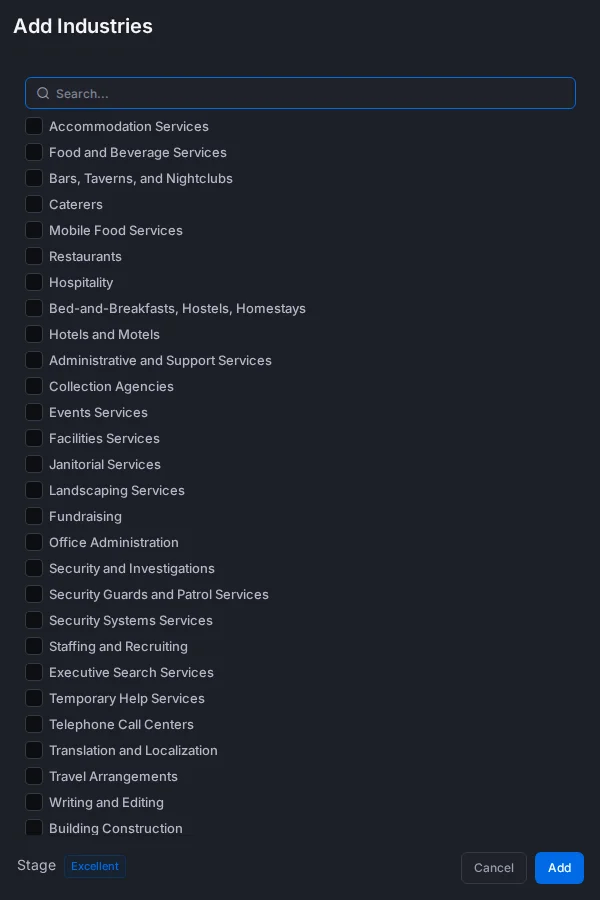
- Select the values to add, then select Add.
- Select Save at the top of the page.
Changed your mind? Drag a value's card to another column. To remove a value, point at its card and select the bin icon.
Your changes aren't saved until you select Save. Until then, you see Unsaved changes at the top of the page. Select Cancel to throw them away.
Where each tab's values come from
| Tab | Values |
|---|---|
| Pipeline Stages | The stages in your active lead pipelines, in Settings → Pipelines → Lead Pipelines |
| Industries | The industries in Settings → Dropdown Lists |
| Sources | The lead sources in Settings → Dropdown Lists |
| Seniority Levels | A fixed list of job levels, from Intern up to Chief Officer roles |
| Geography | Regions or countries. Pick By Region or By Country |
| Languages | A list of languages |
| Employee Size | Ranges you type, with a Minimum Size and Maximum Size |
| Revenue Range | Ranges you type, with a Minimum Revenue and Maximum Revenue |
Geography can hold regions or countries, but not both. If you switch from one to the other, the values you already added are cleared.
How values match a lead
- A value matches when the lead's field contains it. So a seniority level called "Director" matches a lead with the title "Senior Director".
- Matching isn't case-sensitive. "Director" also matches "director" and "DIRECTOR".
- Pick specific values. A short value can match more leads than you meant. For example, "Lead" matches "Team Lead", but also "Lead Generation Executive". Stages, sources and industries match the same way, so a stage called "Qualified" also matches "Disqualified".
- Seniority Levels are compared with the lead's Title.
- Geography looks at the lead's country first, then at the region the country is in.
- Languages must match exactly.
- Employee Size and Revenue Range match when the lead's number is inside the range. The first and last numbers count as inside.
- If more than one value matches, the best column counts.
Set the weights
Each factor's weight is the most points it can add to a lead's score. Use the weights to say which factors matter most to you.
- Select Weights after the last tab. The Weights Configuration panel opens.
- Give each factor a weight from 0 to 100, in steps of 5.
- Don't care about a factor, such as Languages? Turn it off. It stops counting, but its values are kept.
- Check that Total Weight shows 100 / 100.
- Select Save.
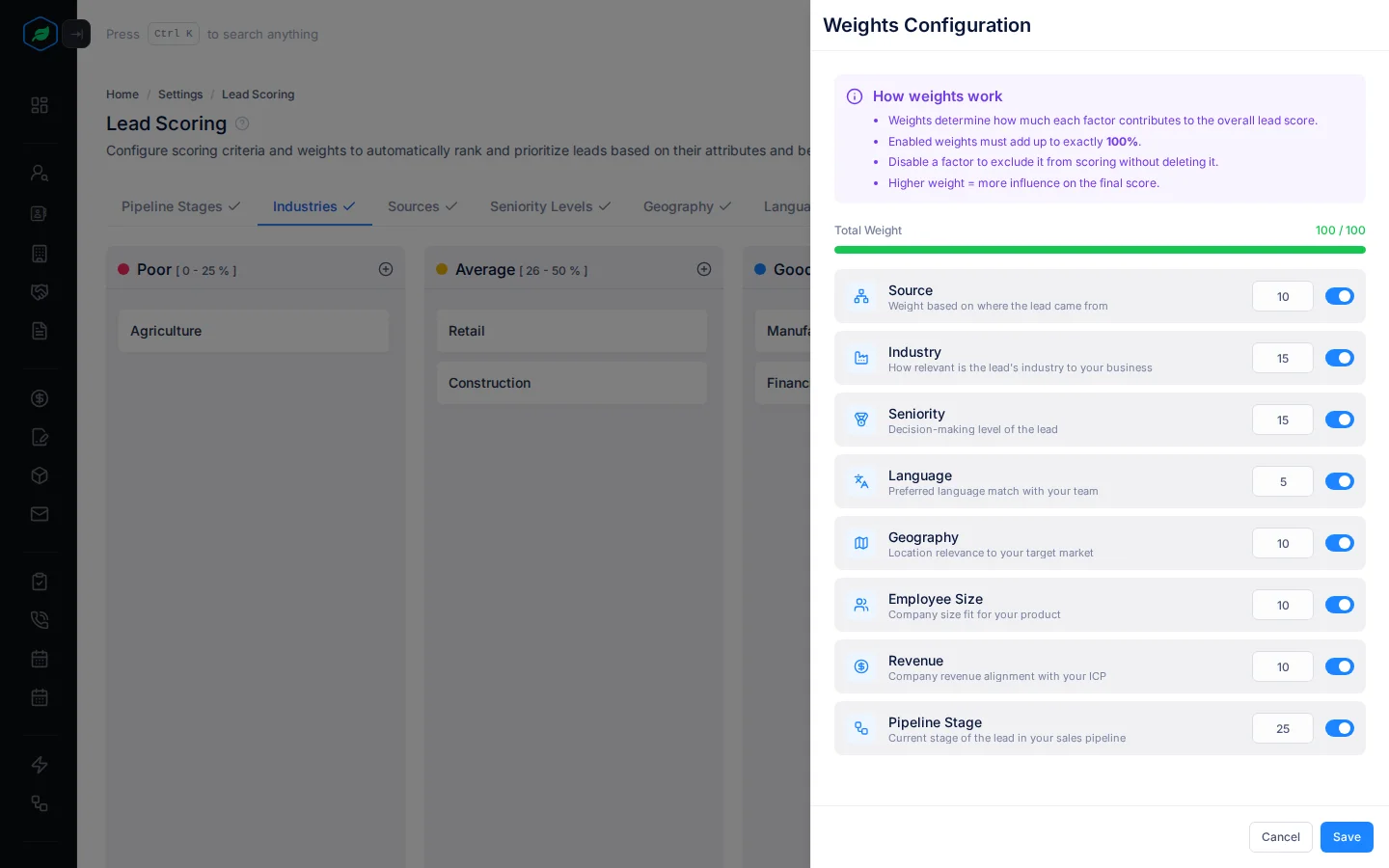
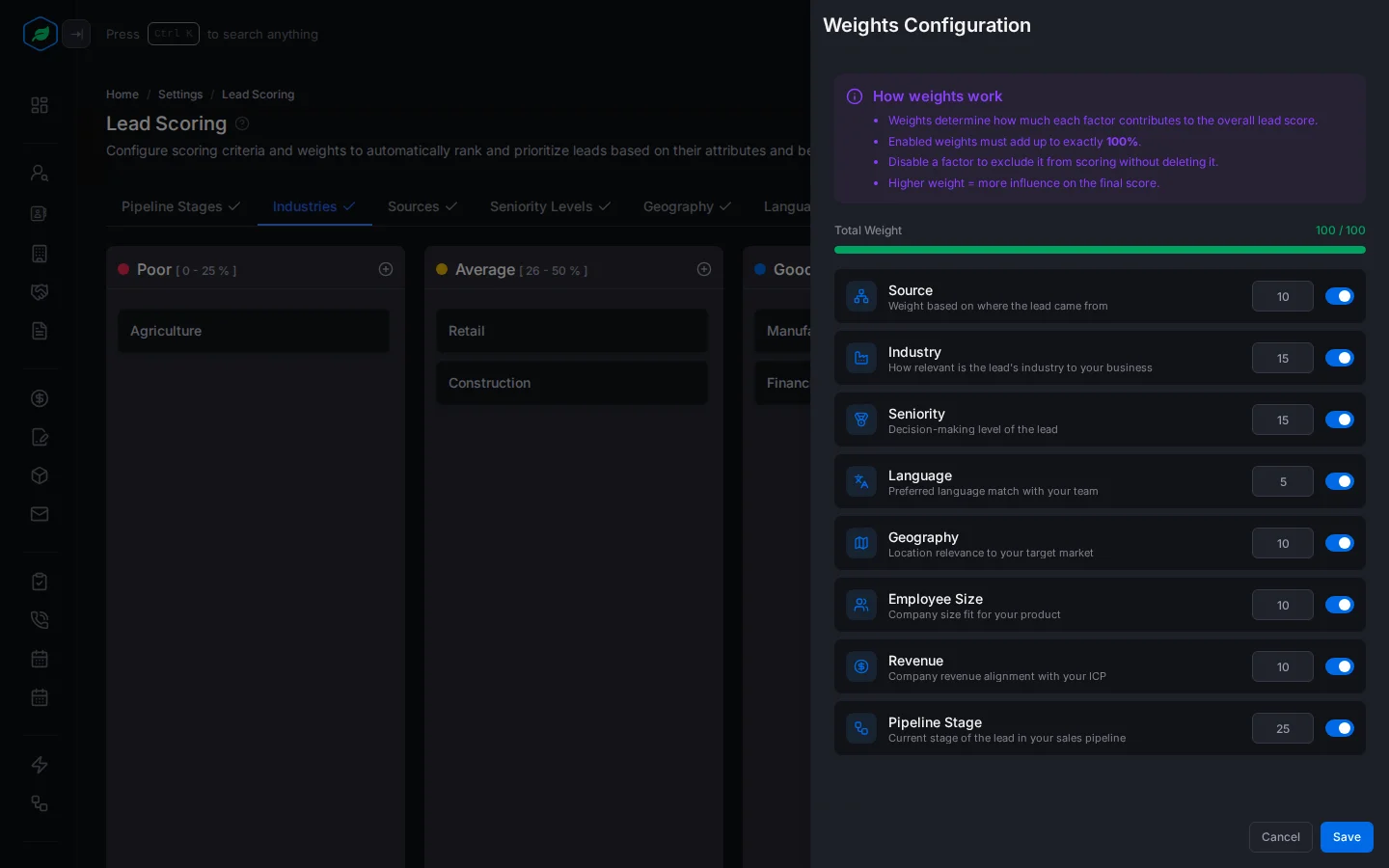
Weights are saved when you select Save in this panel. They don't wait for the Save at the top of the page.
The weights to start with are 25 for Pipeline Stage, 15 for Industry and Seniority, 5 for Language, and 10 for each of the others.
Language only counts for leads added with the browser extension. For all other leads, its 5 points can't be earned, so their highest score is 95. If most of your leads come from other places, turn Language off and give its 5 points to a factor that matters to you.
When your changes show
Scores aren't stored. A lead's score is worked out each time someone opens it. So after you save, every lead uses your new setup the next time it is opened.
Troubleshooting
| Message | Why | What to do |
|---|---|---|
| "Total weight must equal 100, but got N" | The weights of the factors that are on don't add up to 100 | Change them until the total is 100 |
| "Over by N%. Reduce some weights." | The weights add up to more than 100 | Lower some weights |
| "This employee size range already exists" | That exact range is already on the board | Change the numbers |
| "Maximum Revenue must be greater than Minimum Revenue" | The range is the wrong way round | Swap the numbers |
| "This feature is not available on your current plan. Please upgrade to access it." | Lead scoring needs a paid plan | Upgrade from My Subscription |
| Save does nothing in Weights | One of the weight boxes is empty | Type a number in every box |
Related
Still stuck?
Tell us what you were trying to do and we will help.