Find answers in ready-made reports
Find ready-made reports on leads, contacts, accounts, deals, quotes and contracts, keep your favourites close, and organise reports in folders.
Updated 12 October 2026 · 4 min read
A report is a saved list or chart that answers a question, such as "Which leads has nobody contacted?" or "How much revenue is in each deal stage?". Salesfresh comes with 139 ready-made reports.
For example, a solar panel business has many new leads, and the owner wants to know which ones nobody has called. Opening each lead to check would take an hour. Instead, the owner opens Reports, then Leads, and opens Leads with No Activities. It lists every lead with no call, email or meeting. The owner adds it to their favourites and checks it every Monday.
You can also see Revenue by Stage as a chart, find leads with no phone number before a calling day, or download a list to Excel.
Before you start
- To see reports, you need the View Reports permission.
- To create a report or folder, or copy a report, you need Create Reports. To change or move one, you need Edit Reports. To delete one, you need Delete Reports.
- Your plan sets which modules you can report on. See Plans and limits.
If you don't have a permission you need, ask your admin.
Reports show records from the whole company, whatever records you can usually see.
The Reports page
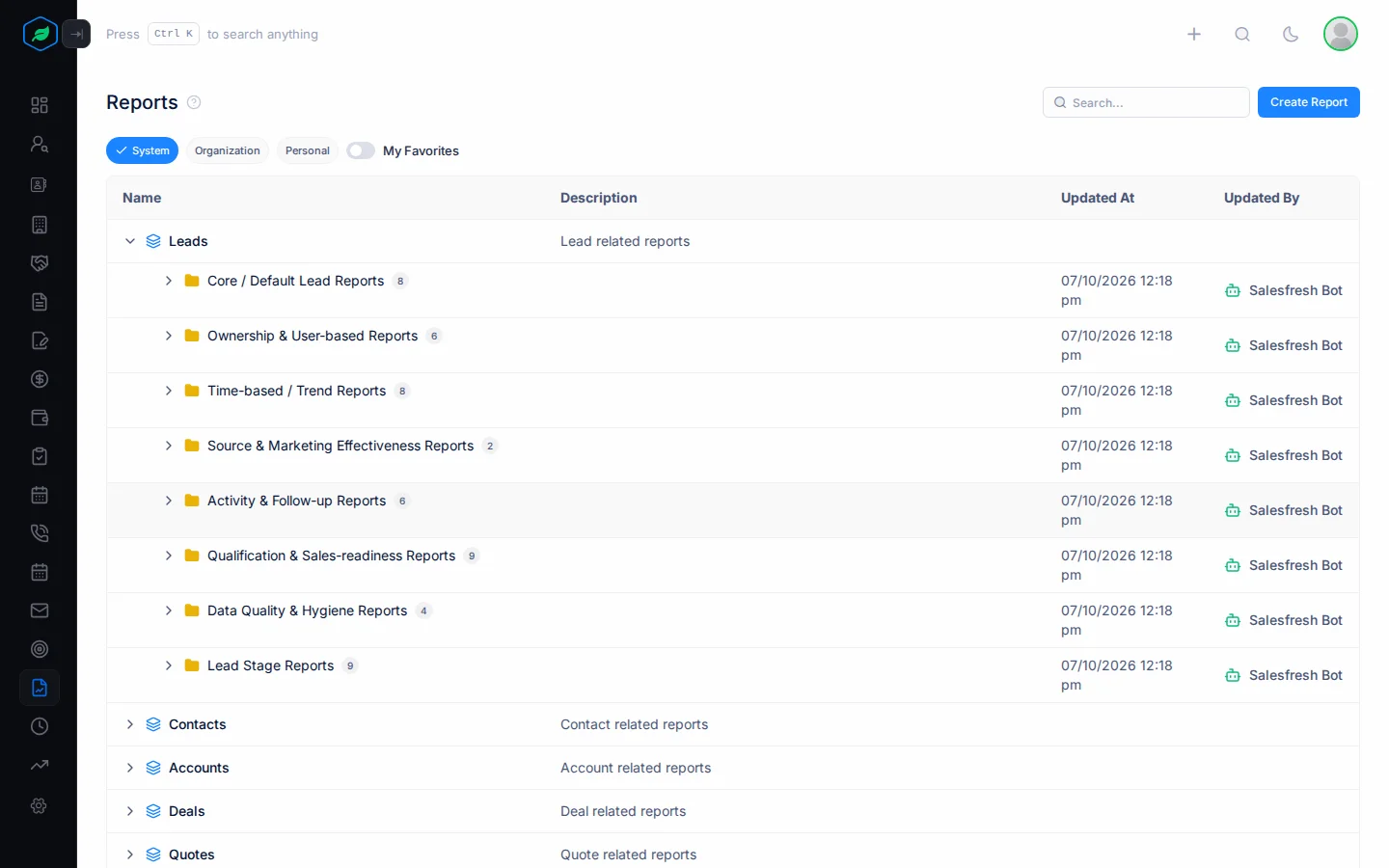
Click Reports in the sidebar. Reports are on three tabs:
| Tab | Has |
|---|---|
| System | The ready-made reports. You can't change them |
| Organization | Reports your company made |
| Personal | Reports people made for themselves |
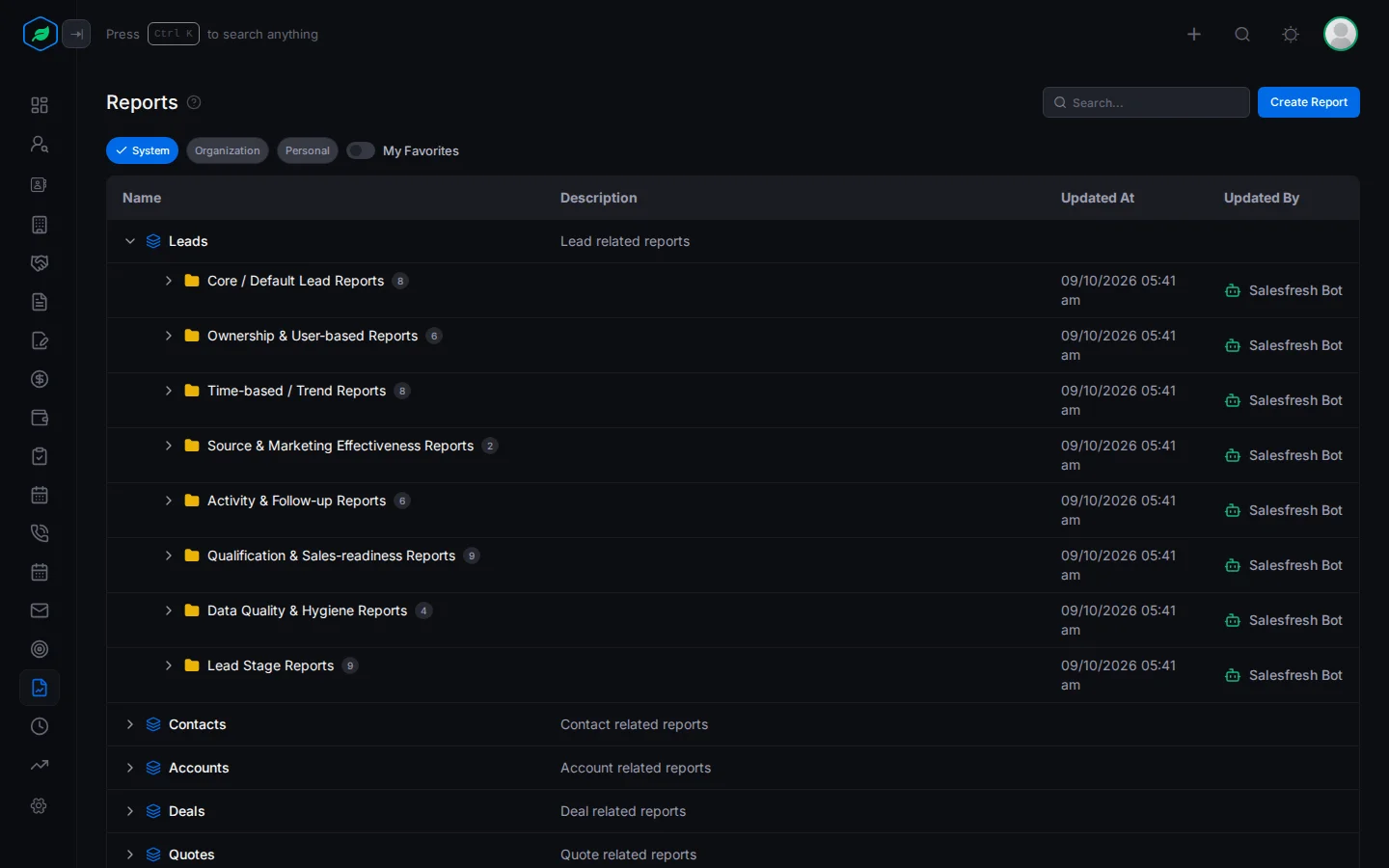
On each tab, reports are grouped by module, such as Leads or Deals, then by folder, such as Lead Overview Reports. Leads is open at first. Click a module to open or close it. To open every folder in a module, point at it and click the Expand All icon.
Find a report
- Type in the search box to find a report by its name, description or module.
- Click the heart next to a report to add it to your favourites. Turn on My Favorites to see only those. Search and My Favorites don't work together. Using one clears the other.
To open a report, click its name. It opens in a new tab. See Open a report.
Manage reports and folders
Click ⋮ on a report:
| Tab | Actions |
|---|---|
| System | Preview Conditions, to see which records it includes. Chart reports have no ⋮ |
| Organization, Personal | Edit, Preview Conditions, Clone, Move to Folder, Delete |
- Clone asks for a folder for the copy. Pick one and click Move, or click Skip. The copy goes on the Organization tab.
- Move to Folder moves the report into another folder of the same module.
Add a folder
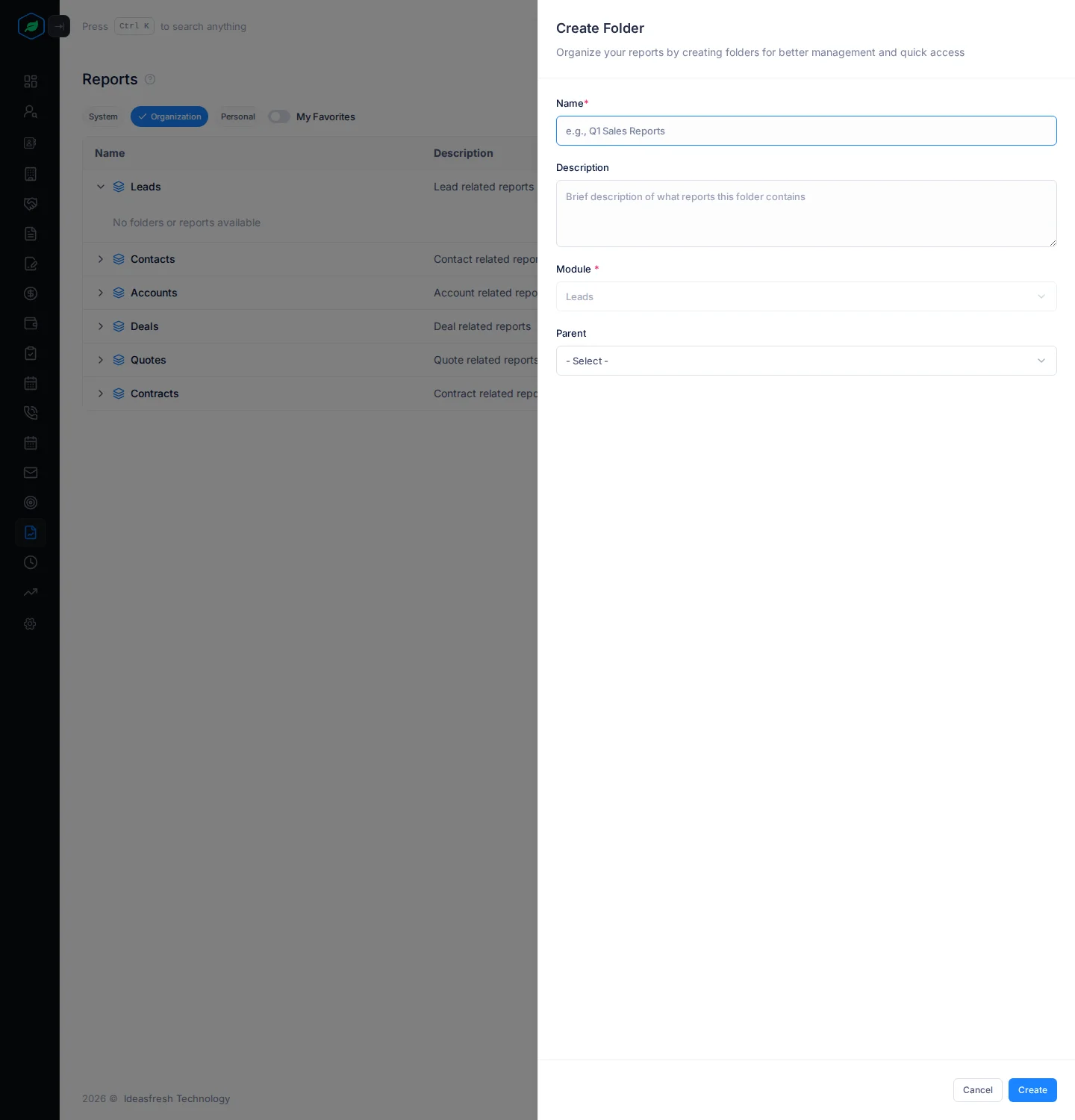
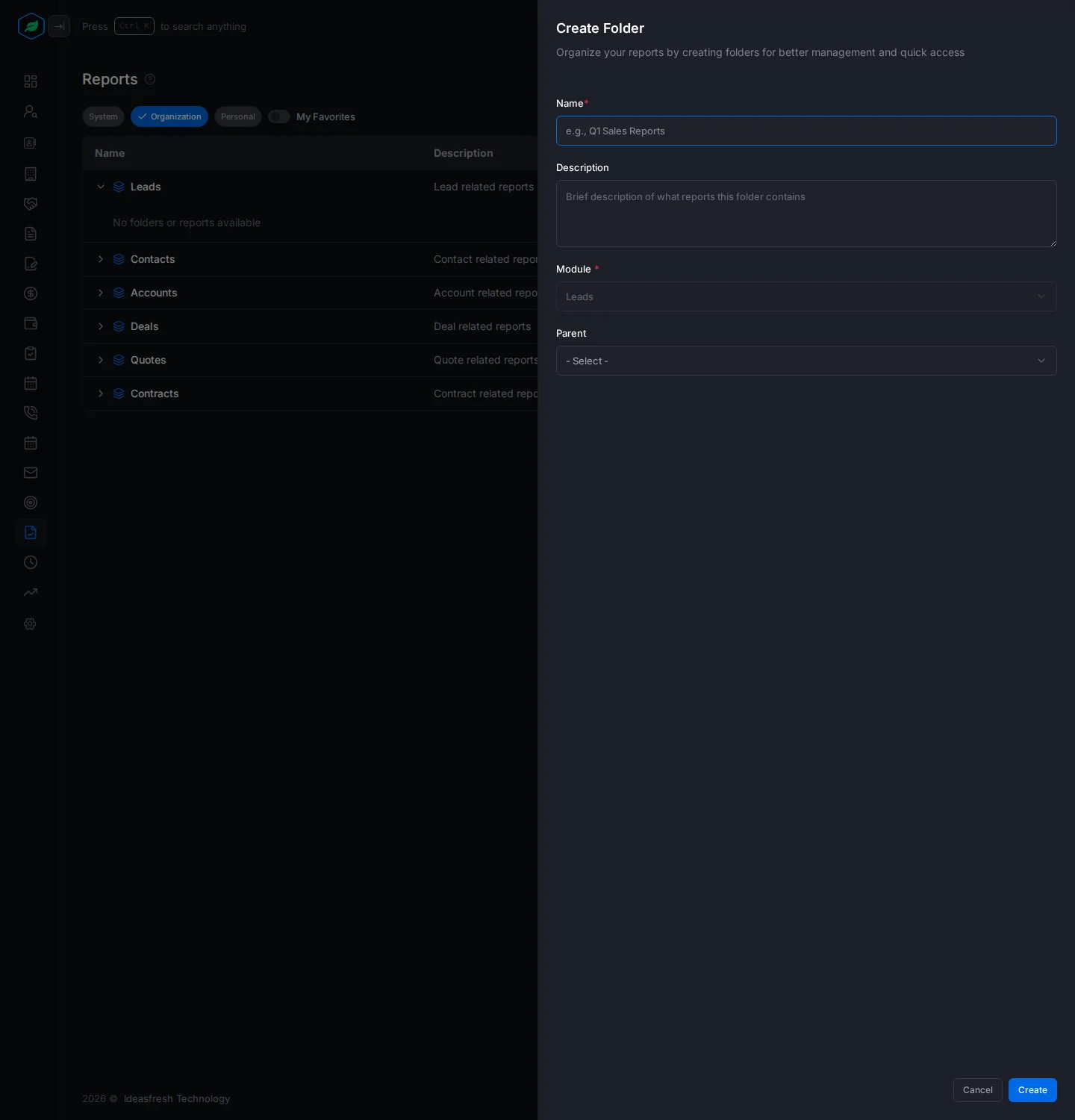
- On the Organization or Personal tab, point at a module and click the Create Folder icon. The Create Folder panel opens.
- Fill in the fields. Fields marked * must be filled in.
- Click Create.
| Field | What to enter |
|---|---|
| Name * | The folder name, such as "Q1 Sales Reports" |
| Description | What goes in it |
| Module * | Already set to the module you picked |
| Parent | Another folder to put it in, if you like |
To make your own report, see Create a custom report.
Troubleshooting
| You see | Why | What to do |
|---|---|---|
| A module is missing | Your company switched it off | Ask your admin |
| "Reports for "…" are not available on your current plan. Please upgrade to access this module." | Your plan doesn't include reports for that module | See Plans and limits |
| "This folder contains … Please move or delete … before deleting the folder." | The folder isn't empty | Move its reports out first |
| "Report folder already exists" | Another folder in that module has that name | Pick another name |
Related
Still stuck?
Tell us what you were trying to do and we will help.