Read a report and choose its columns
Read a report as a table or chart, see the rules behind it, and pick its columns and rows per page.
Updated 12 October 2026 · 3 min read
When you open a report, you see the records that match it right now. Open it again next week and it shows next week's records.
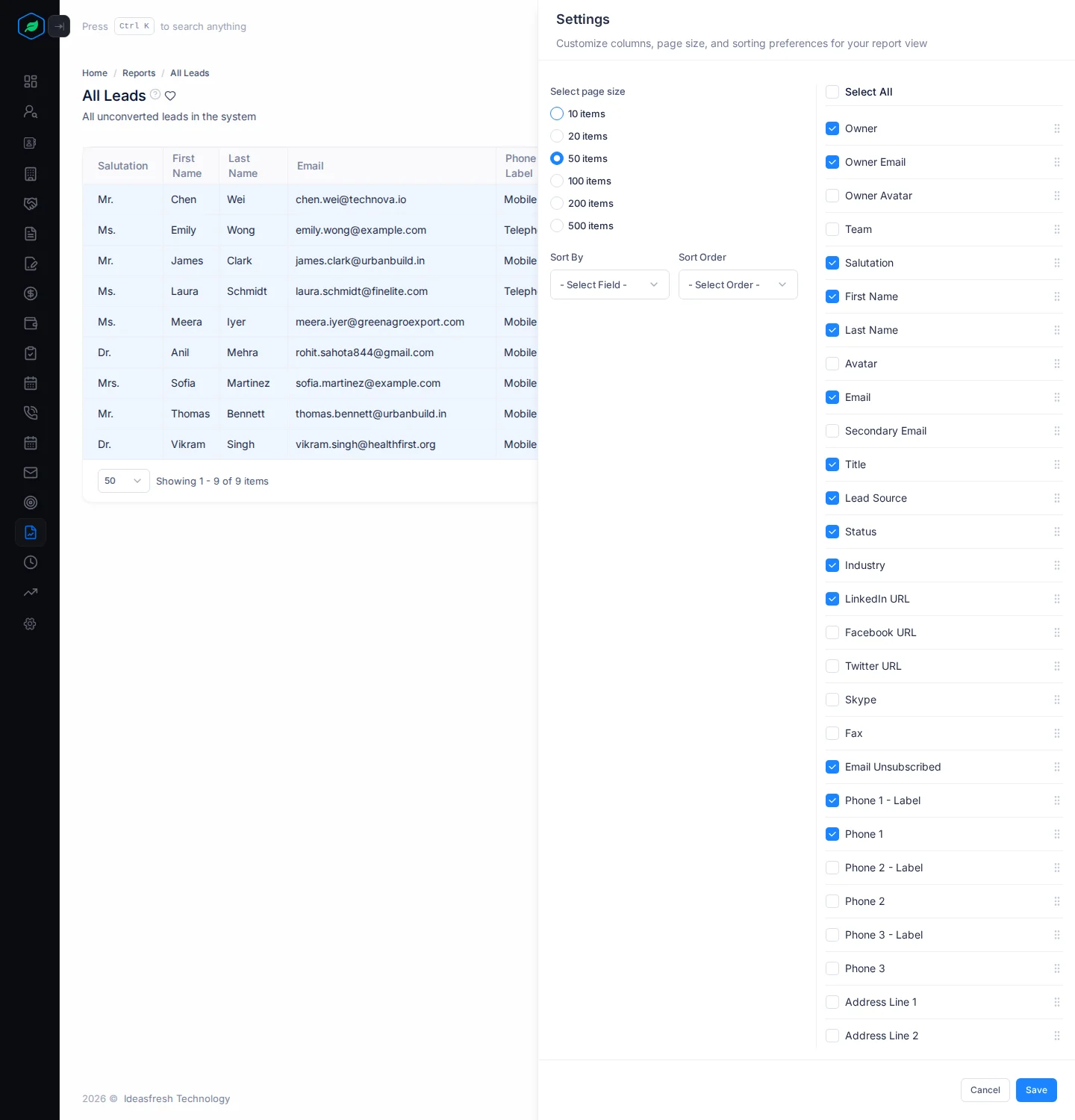
For example, a sales manager opens All Leads before the Monday meeting. The table shows too many columns, so they open Settings, keep only name, email, source and status, and show 50 rows per page. The report opens like that every time after.
Before you start
To open reports, you need the View Reports permission. If you don't have it, ask your admin.
Open a report
Go to Reports and click a report's name. It opens in a new tab.
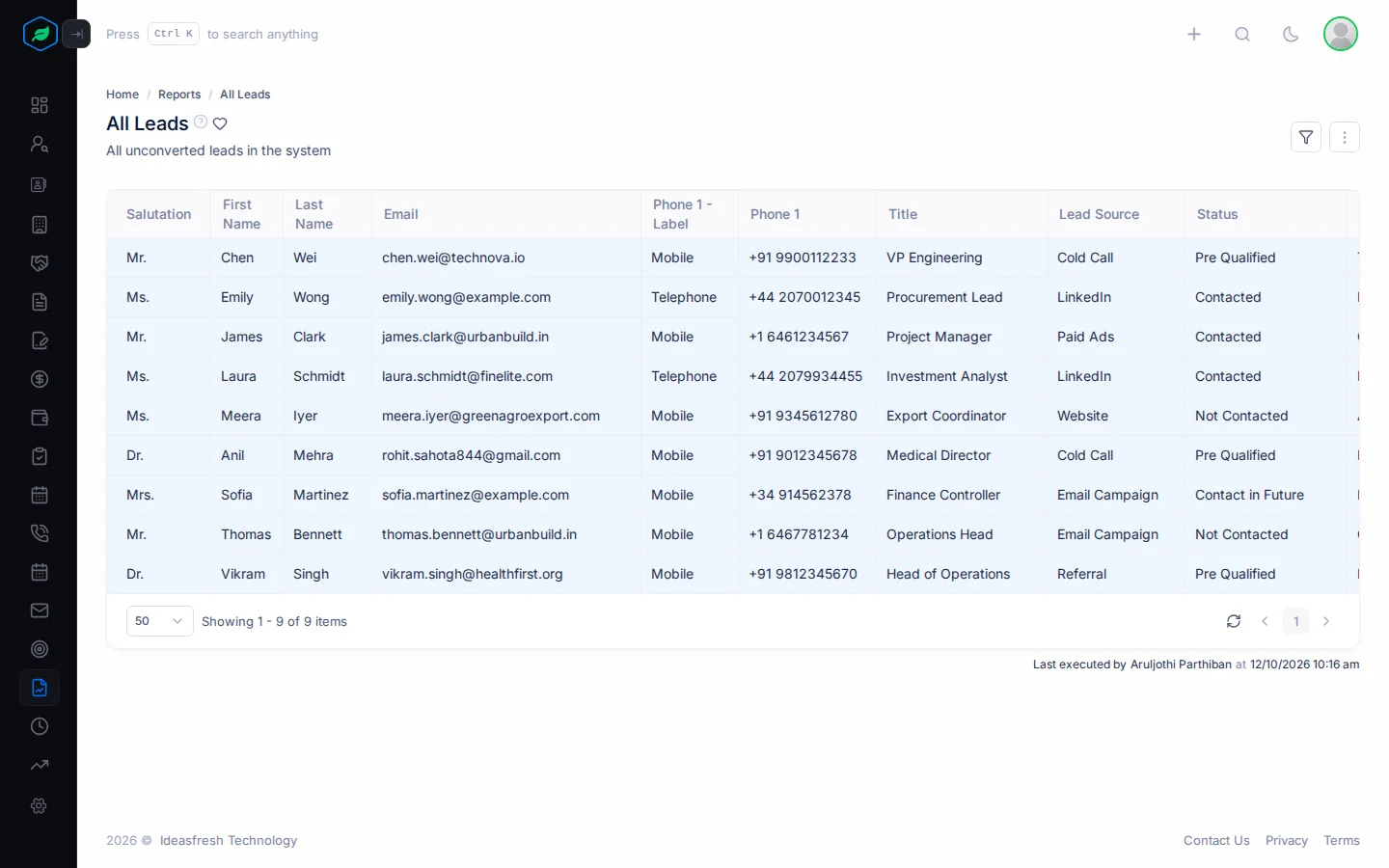
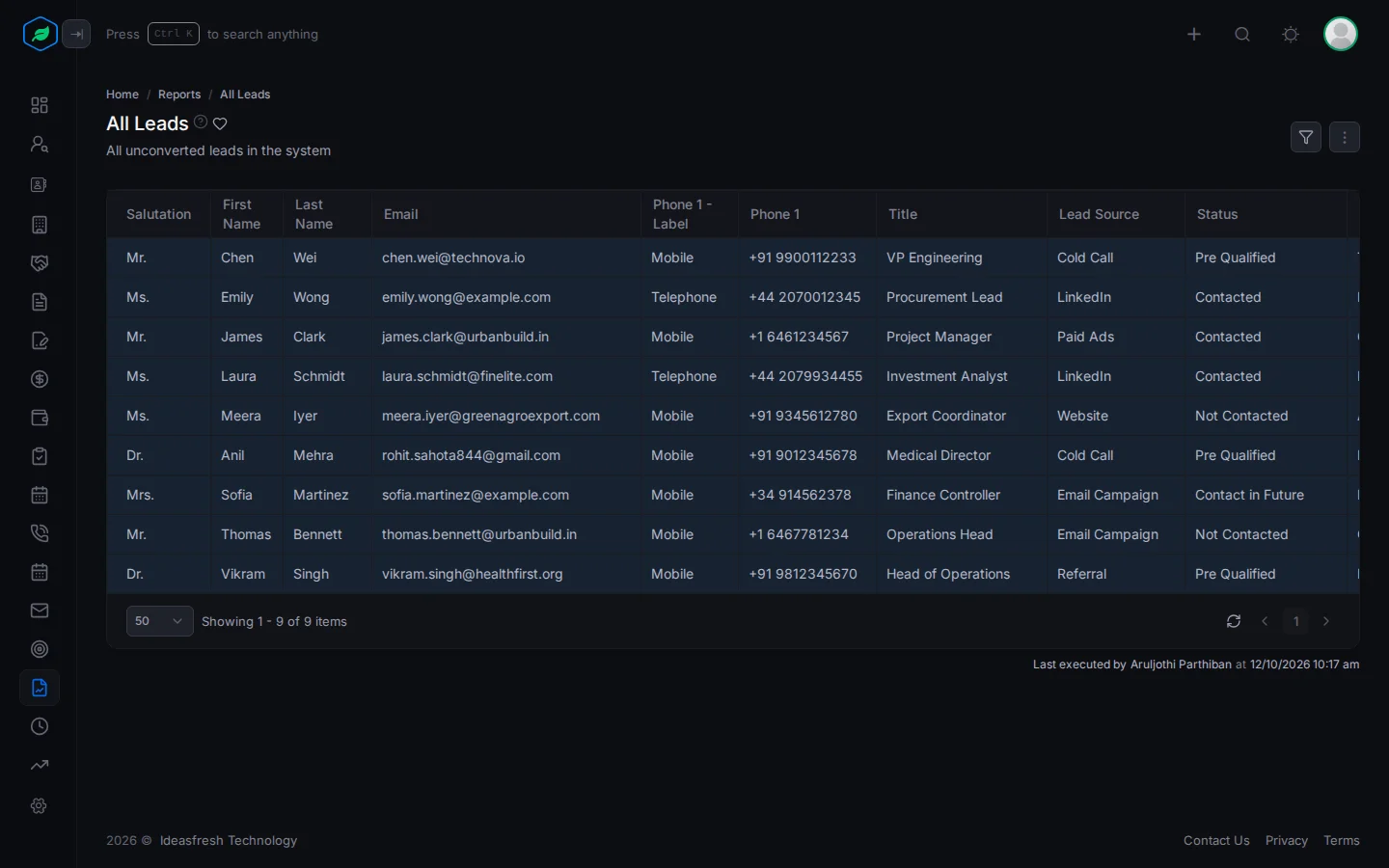
At the top, you see:
- the report's name and description,
- the heart, to add it to your favourites or remove it,
- a button to switch between a table and a chart, on some ready-made chart reports,
- the filter icon, View Report Conditions, to see the rules that pick its records,
- ⋮, with Settings, Download and Download History.
Ready-made reports show as a table, or as a Bar, Line, Pie, Funnel or Summary chart. Under a table, Last executed by shows who ran the report last, and when.
See the rules behind a report
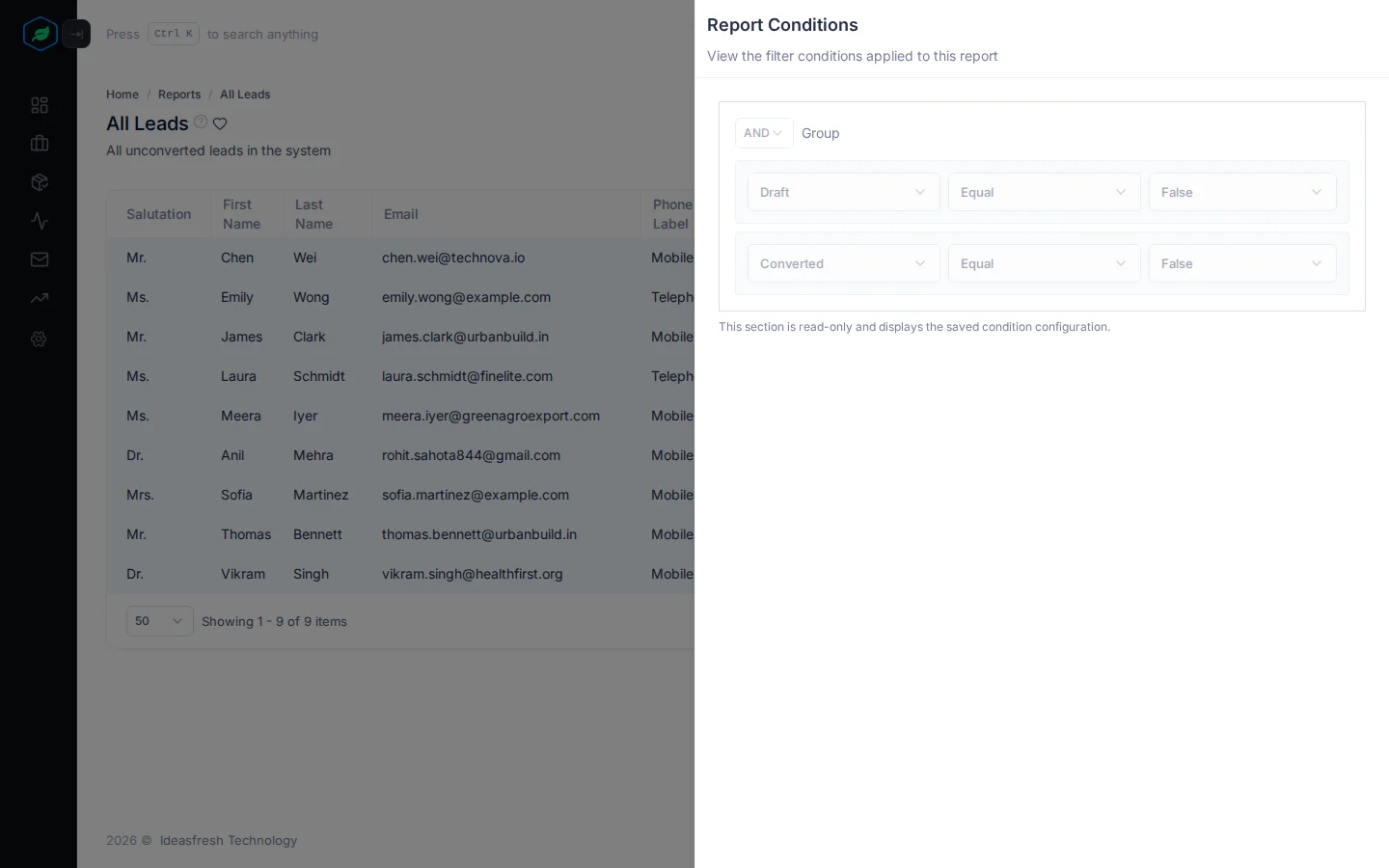
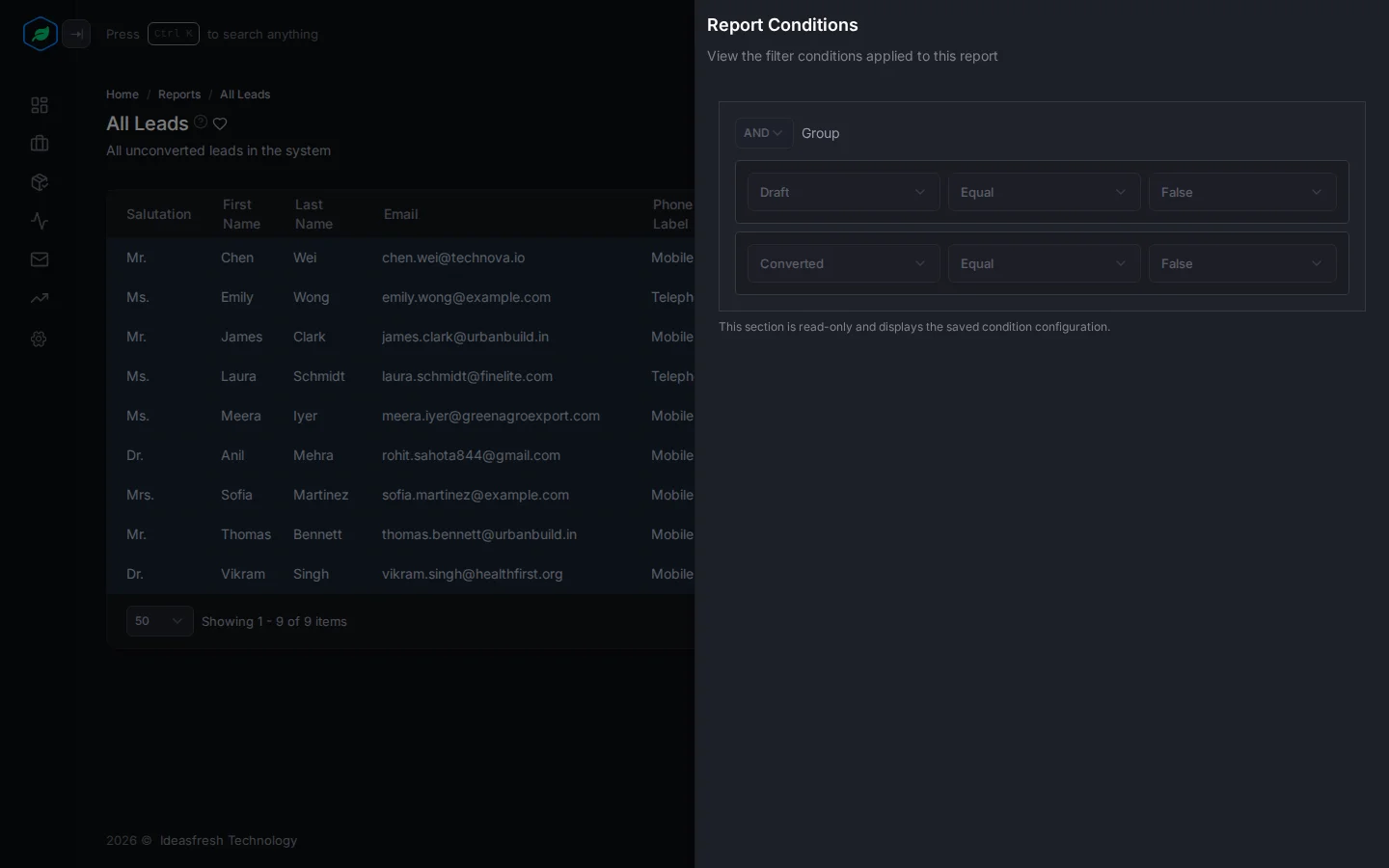
Click the filter icon, View Report Conditions, at the top right. The Report Conditions panel shows the rules that pick the report's records. It's read-only. To change a report you made, click ⋮ on it on the Reports page, then Edit.
For example, All Leads shows leads that aren't drafts and haven't been converted: Draft equals False, AND Converted equals False.
Some ready-made chart reports have no filter icon.
Choose the columns
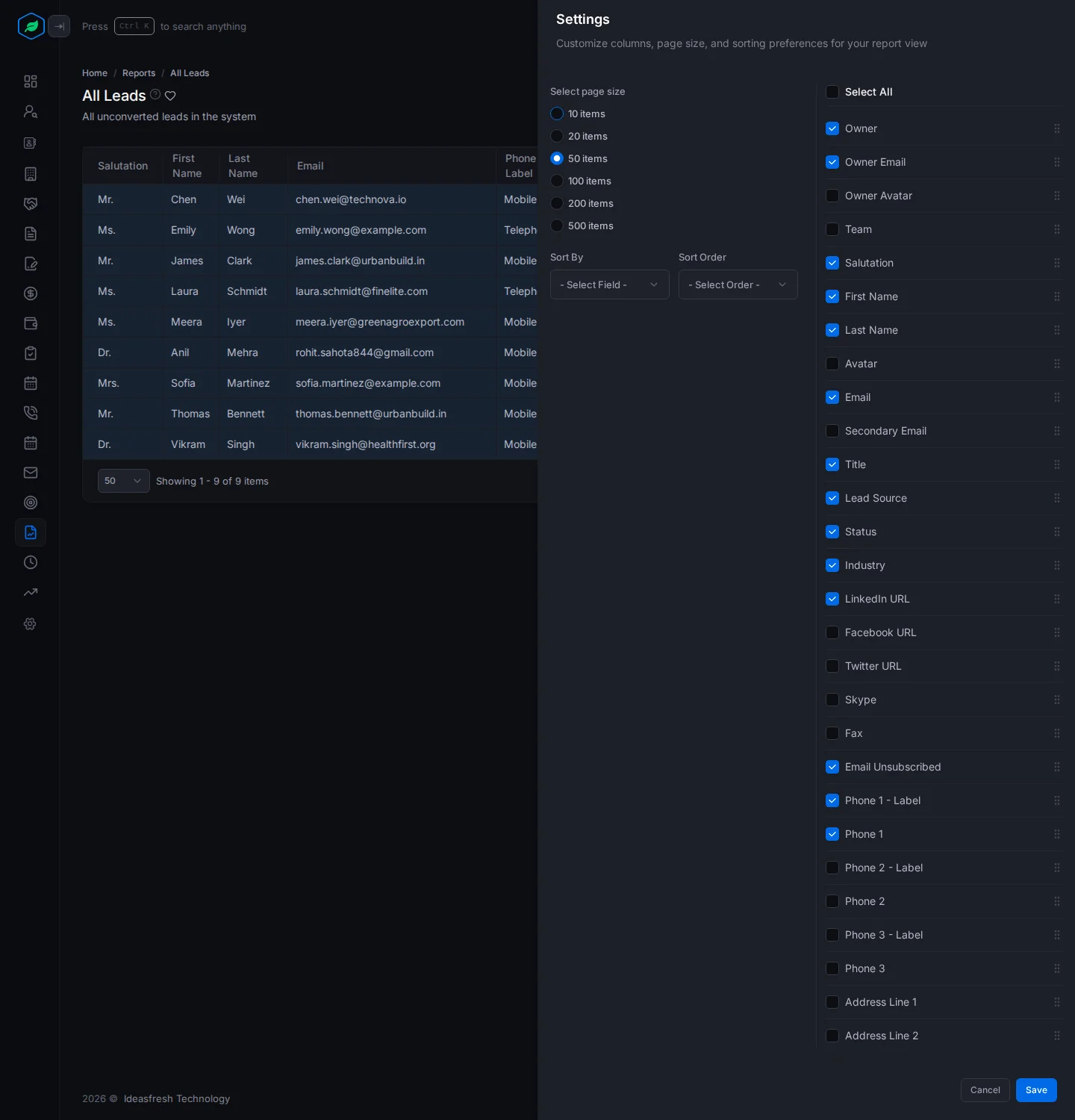
- Click ⋮, then Settings. The Settings panel opens.
- Change what you need.
- Click Save.
| Field | What to enter |
|---|---|
| Select page size | How many rows show on each page: 10, 20, 50, 100, 200 or 500 |
| Sort By, Sort Order | Saved, but they don't change the order of the rows yet |
| Columns | Tick the columns to show. Drag a column by its handle to move it. Select All ticks every column |
Your settings are only for you. Others see their own.
Chart reports have no Settings.
Troubleshooting
| You see | Why | What to do |
|---|---|---|
| "Please select both Sort By and Sort Order" | Only one of the two is picked | Pick both, or clear both |
| "Reports for "…" are not available on your current plan. Please upgrade to access this module." | Your plan doesn't include reports for that module | See Plans and limits |
Related
Still stuck?
Tell us what you were trying to do and we will help.