Qualify a lead
Answer the BANT, MEDDIC or MEDDICC questions on a lead, see what they do to its score, keep answers fresh, and get key answers verified before you convert.
Updated 5 November 2026 · 8 min read
A lead can look like a great fit and still not be ready to buy. Qualifying it is how you find out. After a call, you note what you learned: is there a budget, is this the person who signs, how badly do they need it, and when.
Say you call a lead from a large logistics company. The fit is excellent, so it sits at the top of your list. On the call you learn there's no budget until next year. You answer Budget with "No budget", and the lead drops down your list so you spend this week on leads that can buy now.
Before you start
- Permission: View Leads to see the answers. Edit Leads to answer, on a lead you own or created. Moving a lead to another framework needs Edit Lead Qualification.
- Set up first: An admin turns on a framework in Configure lead qualification. Until then, the lead page has no Qualification card.
Answer the questions
Open the lead. On the Overview tab, the Qualification card lists the questions and shows how many are answered, such as "1 of 4 answered". A bar at the top fills in as you go, coloured by how good each answer is.
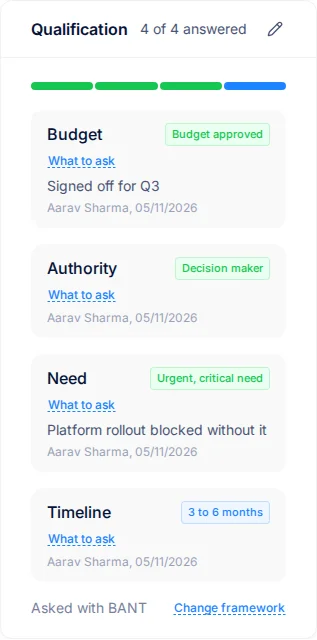
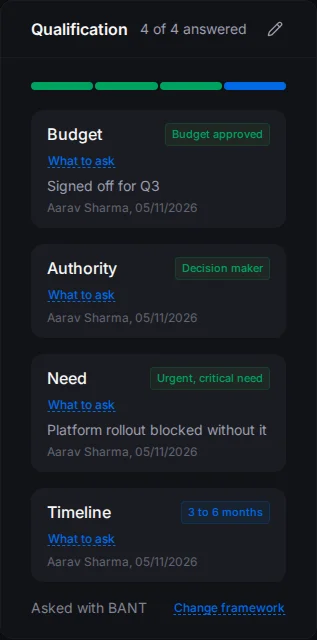
- Select Qualify, or the pencil icon if some questions are already answered.
- For each question you can answer, pick the answer that fits.
- Add a note if it helps, for example "Signed off for Q3".
- Select Save.
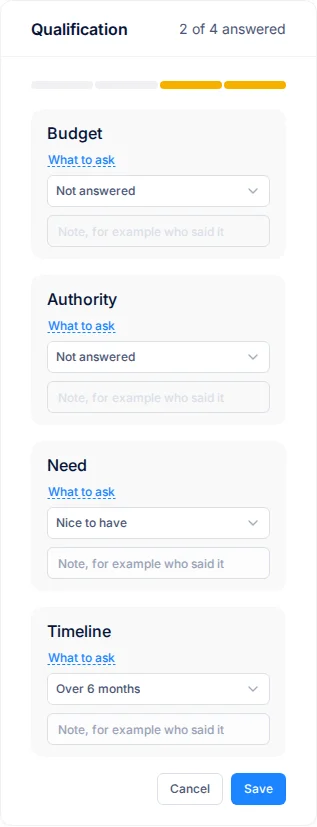
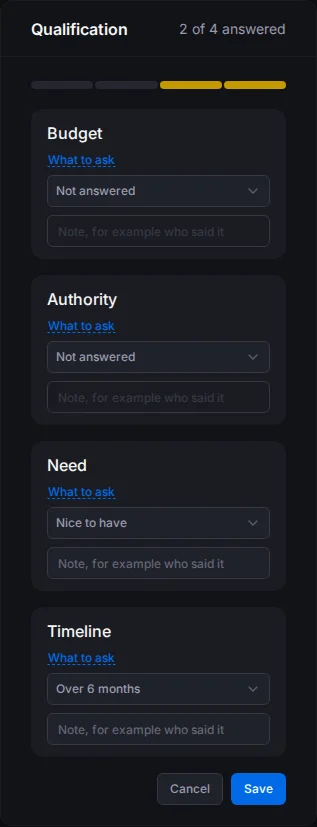
You don't have to answer everything at once. Answer what you know, and come back after the next call. To take an answer back, clear it and save.
Each answer shows who gave it and when.
Not sure how to ask?
Under each question, select What to ask. You see the questions your team uses to find the answer, such as "Has budget been set aside for this?". Select Hide what to ask to close them again.
Which questions you see
Your admin picks the framework. You don't choose it. It depends on the lead's team: an enterprise team might use MEDDIC while everyone else uses BANT. The Lead Score card names it under the qualification score.
Once you save the first answer, the lead keeps that framework, even if your admin later changes the default.
What the answers do to the score
Each answer adds to the lead's qualification score, from 0 to 100. The better the answer, the more it adds.
The Lead Score card then shows three scores:
| Score | What it tells you |
|---|---|
| Fit | How closely the lead matches your ideal customer, from its details |
| Qualification | How ready the lead is to buy, from your answers. The card names the framework |
| Overall | A blend of the two, which the big gauge shows |
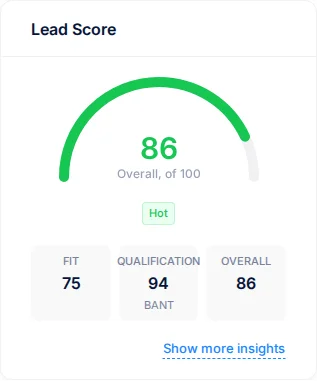
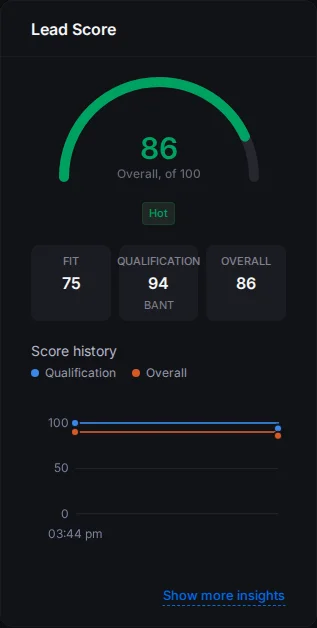
Before anyone answers a question, the card says Fit only and the overall score is the fit score. For more on the scores, see Lead score and rating.
See how the score moved
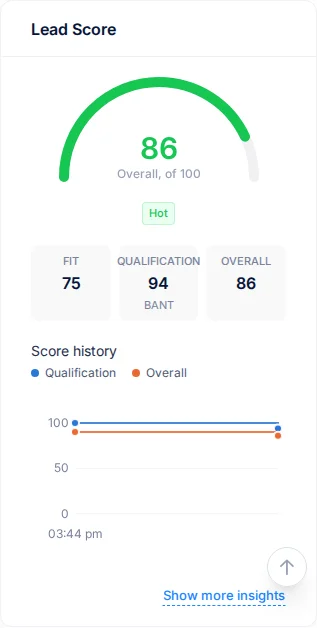
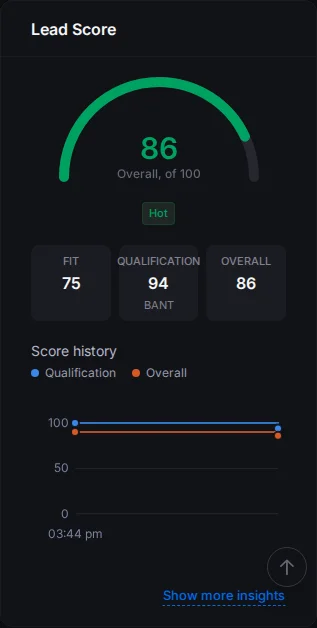
Below the scores, Score history draws the qualification and overall scores over time. It appears once the lead's score has changed twice. Point at a step to see the scores, what changed and who changed it. So when a lead's score drops, you can see it was the day Budget changed to "Planned later".
Deal breakers
Some answers mean the lead can't buy right now, such as "No budget". These are deal breakers. When you pick one:
- a red banner on the card names it, for example "Deal breaker: No budget. Score capped at 20.",
- the qualification and overall scores can't go above that cap, however good the other answers are,
- a red crossed-circle mark shows next to the capped scores. Point at it to see why.
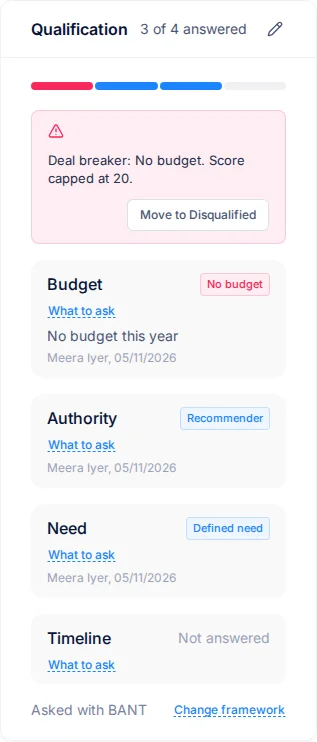
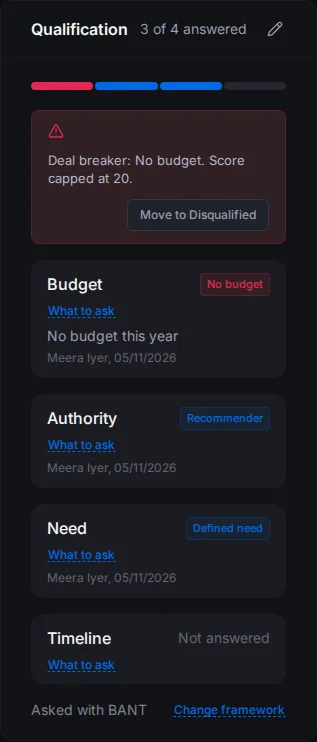
The lead isn't disqualified for you. If it really is a dead end, select Move to Disqualified in the banner and confirm the stage change. If things change later, update the answer and the cap goes away when you save.
When your admin requires qualification
Your admin can require qualification before a lead moves to a Qualified stage or is converted. If so:
- the Qualified and Converted stages at the top of the lead show a lock until the lead is ready. Point at the lock to see what's missing,
- a stage change or conversion that isn't allowed yet tells you why, for example "Answer Budget and Timeline before qualifying this lead.",
- select Go to qualification under that message to jump to the card.
You can always move a lead to New, Open, Disqualified, Lost or Junk.
Keep answers fresh
A lead that said "Under 3 months" in January is a different lead by June. So each question has a recheck limit, set by your admin. When an answer gets older than that:
- it shows Recheck: answered over 60 days ago., with the days your admin set,
- the card's count adds how many need it, such as "4 of 4 answered, 1 to recheck",
- you get one notification, "Answers to recheck on" the lead, with the questions in brackets. It opens the lead.
If the answer still holds, select Still true. If it doesn't, edit it. Either way the reminder goes away.
If your admin requires qualification, an answer waiting for a recheck counts as unanswered. The stage change tells you, for example "Recheck Timeline before qualifying this lead."
Closed leads, such as converted, lost or junk ones, don't get reminders.
Answers from a web form
If the lead came in through a web form that asked a qualification question, the answer is already there. It shows From web form instead of a name. Check it on your first call. If it's right, select Confirm and it becomes your answer. If not, change it.
Get key answers verified
Your admin can ask a manager to check certain answers, such as Budget and Authority, before a lead can be converted. If so, the card shows a blue strip: "Waiting for a manager to verify Budget, Authority before this lead can be converted."
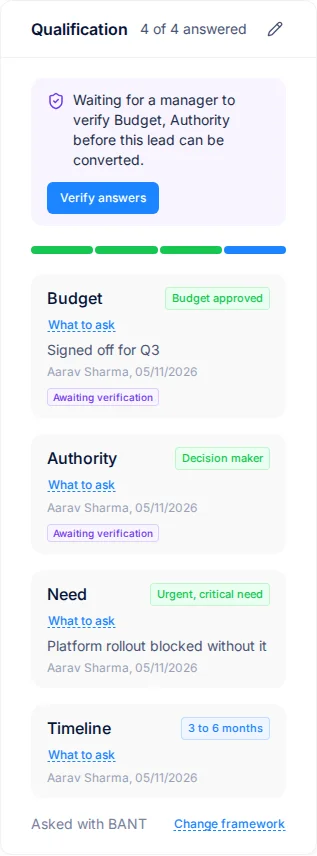
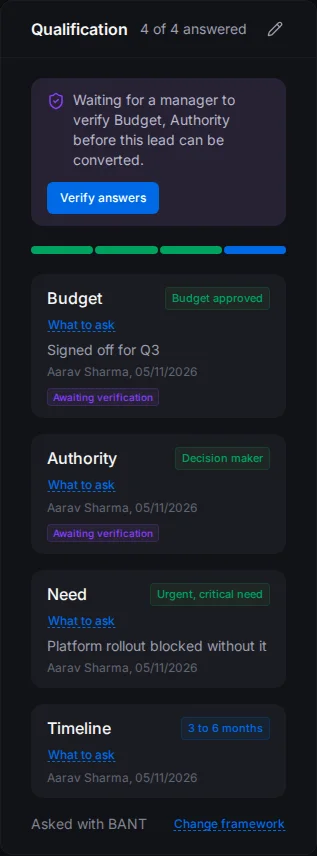
- If you can't verify, select Request verification. The leads and managers of the lead's team get a notification.
- If you can verify, select Verify answers. You can verify if you're a lead or manager of the lead's team, or your role has the Verify Lead Qualification permission.
Verified answers show Verified. Answers still waiting show Awaiting verification. If someone changes a verified answer, it needs verifying again.
Until then, converting is refused with a message such as "Ask a manager to verify Budget and Authority before converting this lead." Moving the lead to a Qualified stage still works.
Qualify during a call
When you call a lead from Salesfresh, the dial pad has a Qualify tab next to Call. Pick answers there while you talk. Each one saves as you pick it, and the lead page updates if it's open.
If the lead picked up and you didn't answer anything during the call, the call logged message asks Update qualification?. Select Update qualification to open the questions. To set up calling, see Call with Twilio.
Move a lead to another framework
Sometimes a lead turns out bigger than it looked. A small BANT lead becomes a six-month enterprise deal, and MEDDIC fits better.
If you can edit lead qualification settings and more than one framework is turned on, the card ends with Asked with BANT and a Change framework link.
- Select Change framework.
- Select Move to MEDDIC, or whichever framework you want.
The lead's scores are worked out again for the new framework. Its BANT answers are kept, so moving back restores them. A converted lead can't change framework.
Find your best leads
In the leads list, the Score column shows each lead's overall score. Point at it to see the fit score, and the qualification score with its framework and status: not started, in progress, complete or deal breaker.
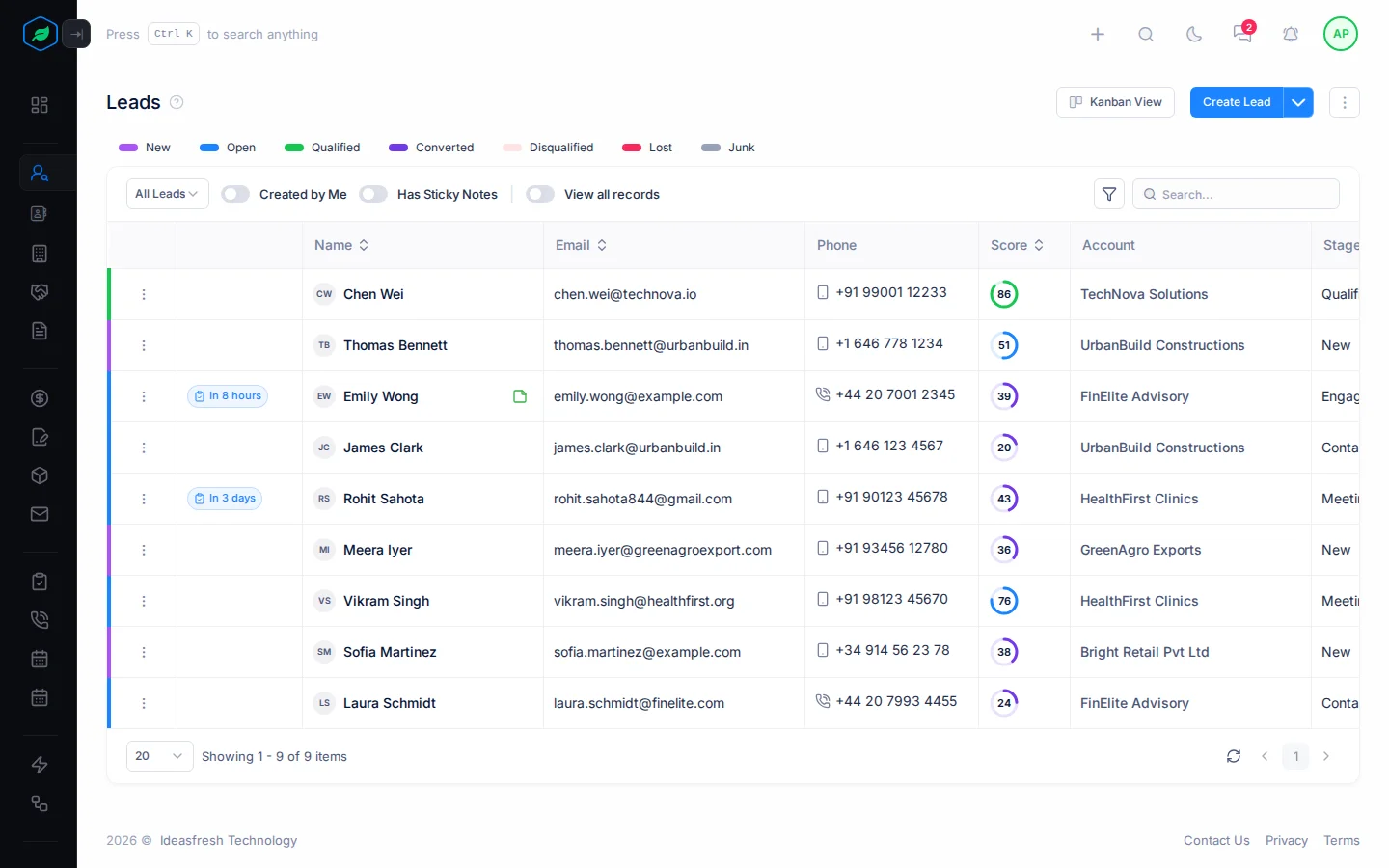
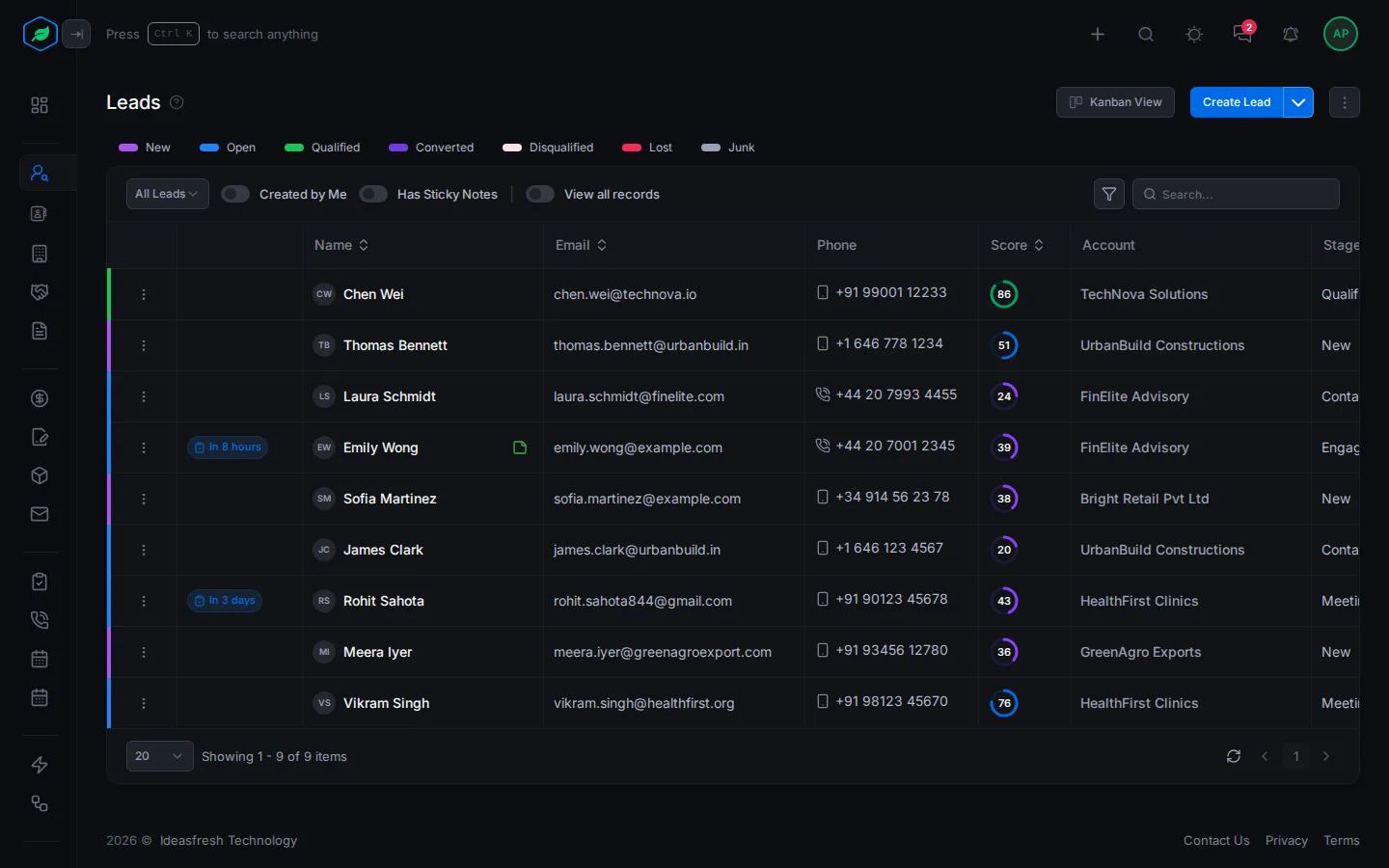
Select the Score column to sort by it. Leads with no score always come last. You can also filter by Score Band, Fit Score, Qualification Score, Overall Score, Qualification Status and Qualification Framework, and save the filter as a custom view. For example, a view of Hot leads that are still in progress shows who to call next.
Every change is on the timeline
Each save adds one entry to the lead's Timeline, such as "Budget (BANT) changed from Planned later to Budget approved." So when a lead moves to a teammate, they can see what was learned and when.
After you convert
When you convert the lead, its answers move to the new deal, with who answered them and whether they were verified. You can keep updating them there. See Deal detail page.
Related
Still stuck?
Tell us what you were trying to do and we will help.