Save filtered lists as custom views
Save filtered lists as views for leads, contacts, deals, tasks and more, build their conditions, and manage System, Organization and Personal views.
Updated 28 October 2026 · 6 min read
A view is a saved list, such as "Open Leads" or "My Overdue Tasks". You set its rules once. After that, you open the list straight from the view menu at the top of the page.
Every list starts with ready-made views. You can add your own for leads, contacts, accounts, deals, quotes, contracts, subscriptions, assets, tasks, meetings and calls.
For example, you run a furniture shop. Every morning, you want to see the leads who came from your website. Without a view, you open Leads and set the same filter again each day, and some days you set it wrong. With a view called "Website Leads", you pick it from the view menu and the right list is ready. Your whole team can use it too.
Before you start
- Permission: View Views and Tags to see the views in Settings. Create Views and Tags to add or copy a view, Edit Views and Tags to change one, switch it off or on, or change the order, and Delete Views and Tags to delete one.
- Plan: On the Free plan, you can only use the views Salesfresh gives you. To add your own, you need a paid plan. See Plans and limits.
- Set up first: Nothing.
If you don't have a permission you need, ask your admin.
Kinds of view
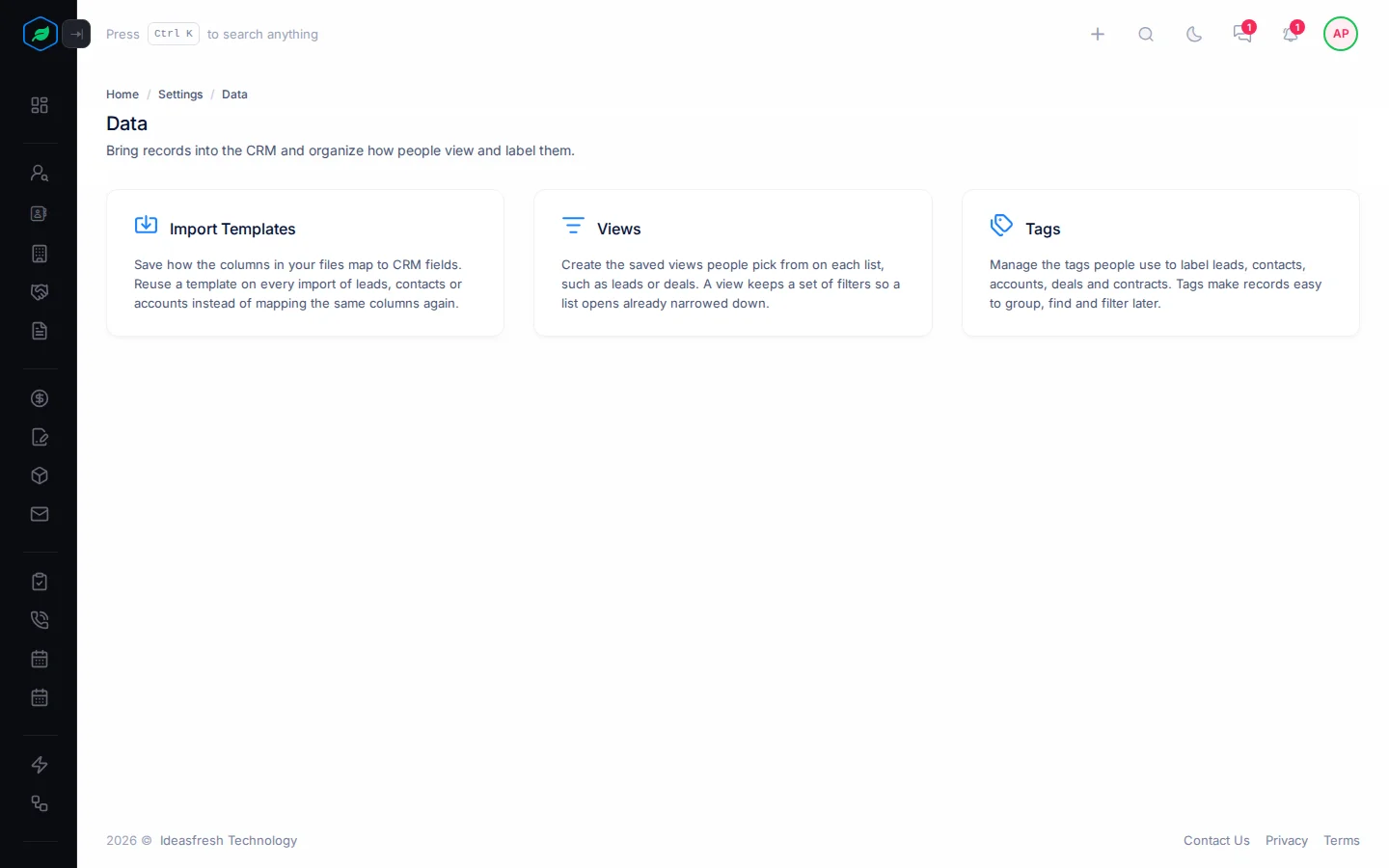
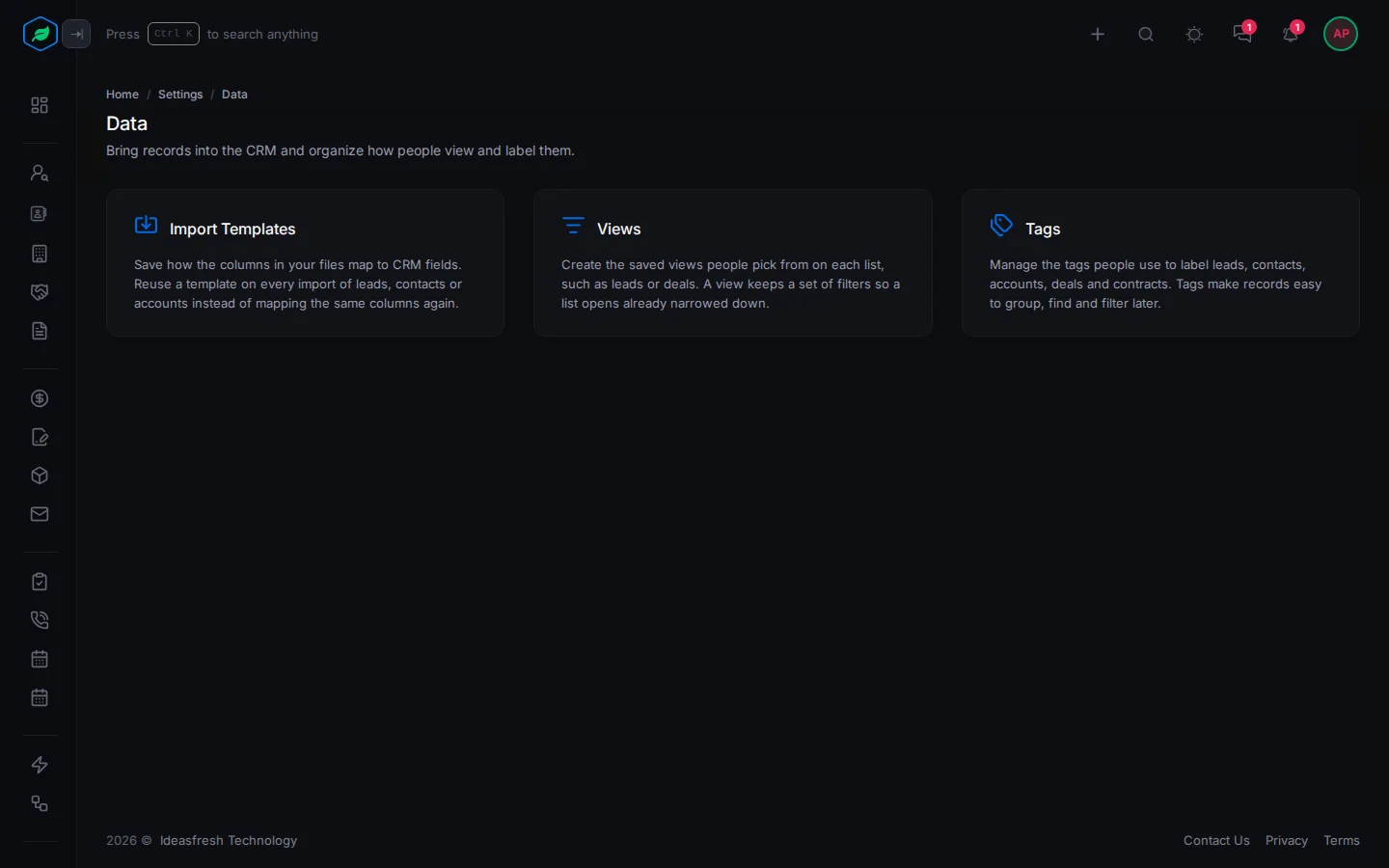
Go to Settings → Data. The Data page has a card for Import Templates, Views and Tags.
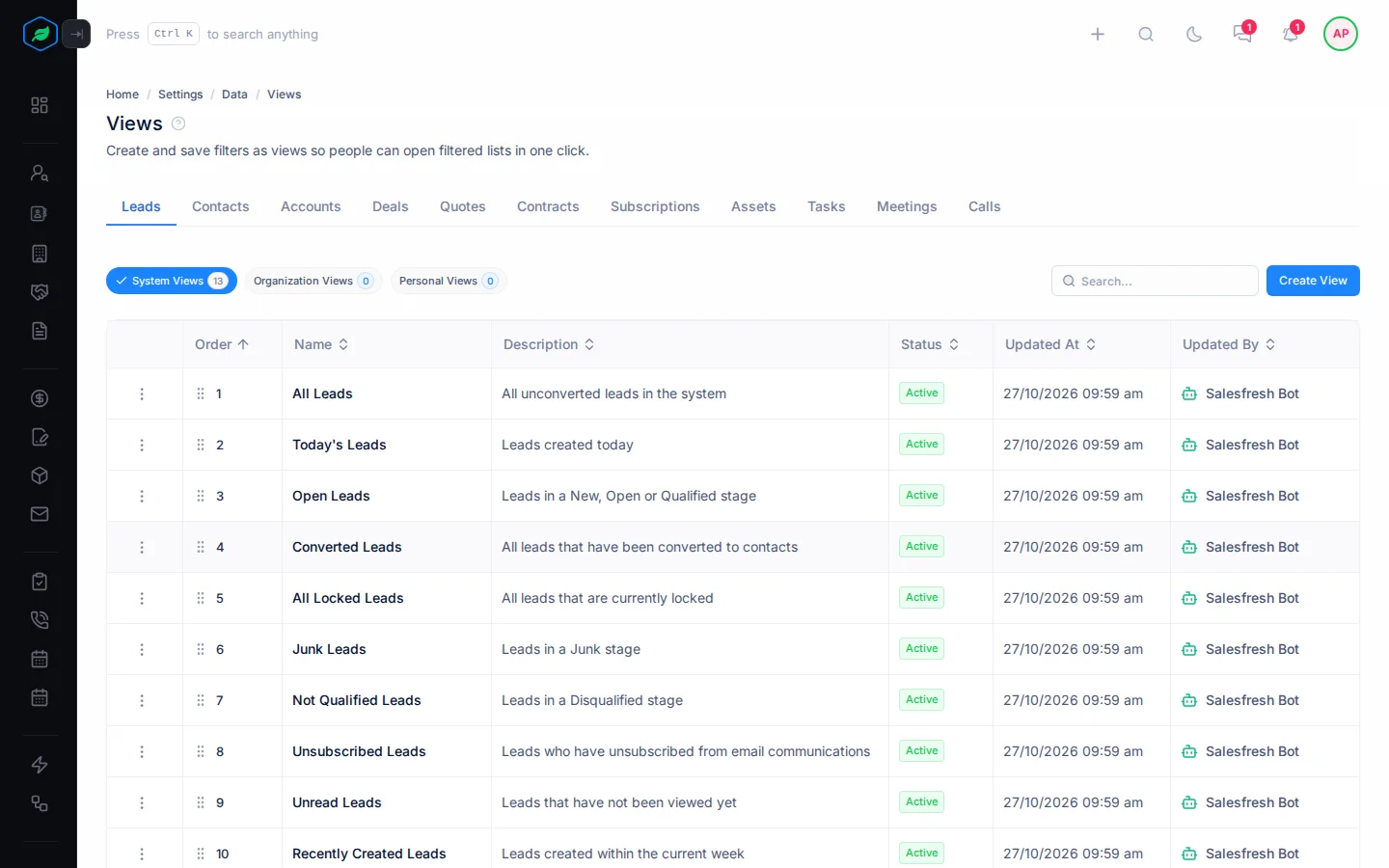
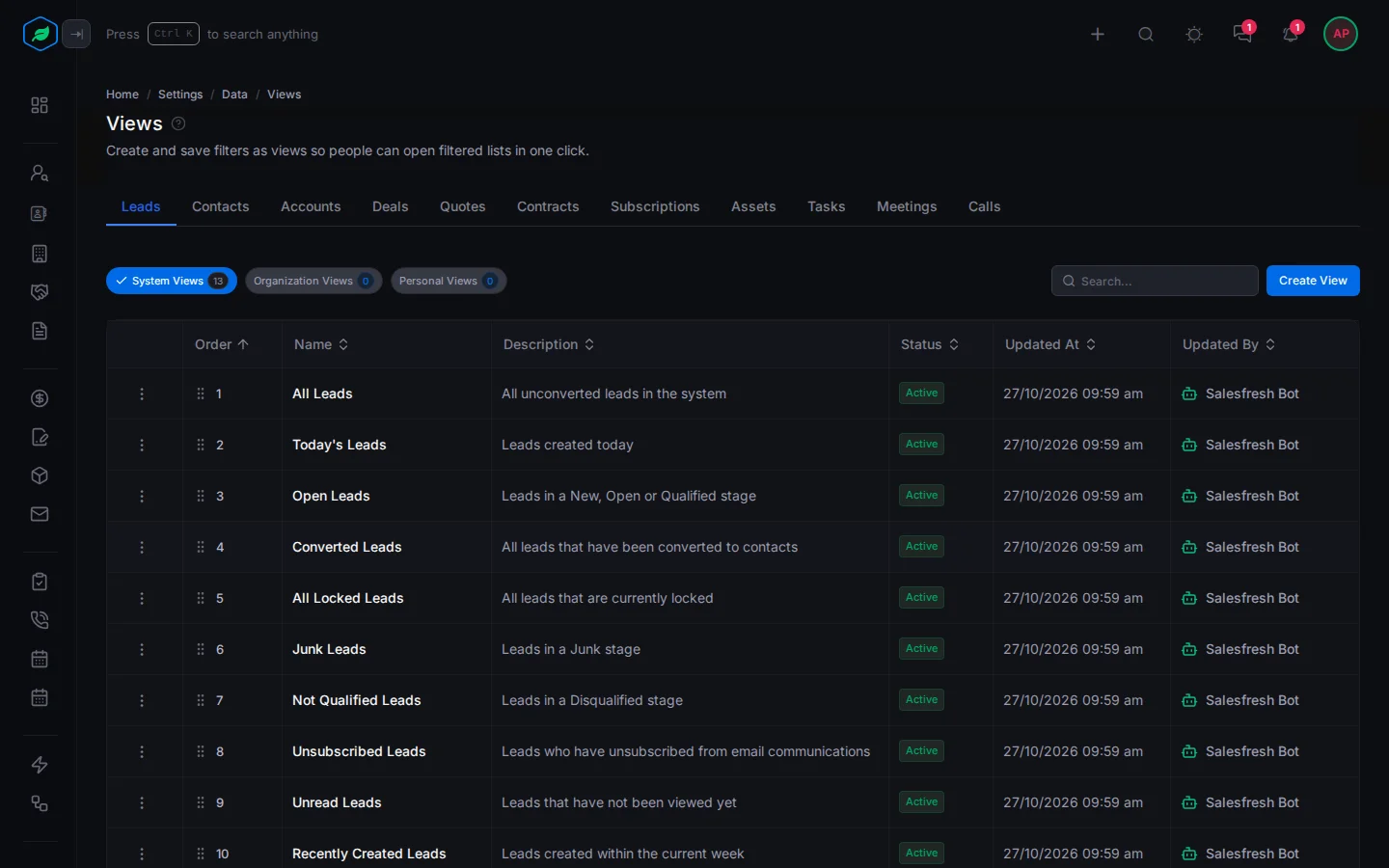
Select Views, then a module at the top, such as Leads. Each row shows a view's order, name, description, status, and when it last changed. The views come in three kinds. Select one at the top to see only those:
- System Views are the ones Salesfresh gives you, such as "Open Leads". Everyone sees them. You can switch them off or change their order, but you can't change their rules. To change one, copy it with Clone.
- Organization Views are the ones your company added. Everyone sees them.
- Personal Views are the ones you added for yourself. Only you see them.
Add a view
- Select Create View. The Custom View panel opens.
- Fill in the fields. Fields marked * must be filled in.
- Add the rules under Conditions. See Build the rules.
- Select Create.
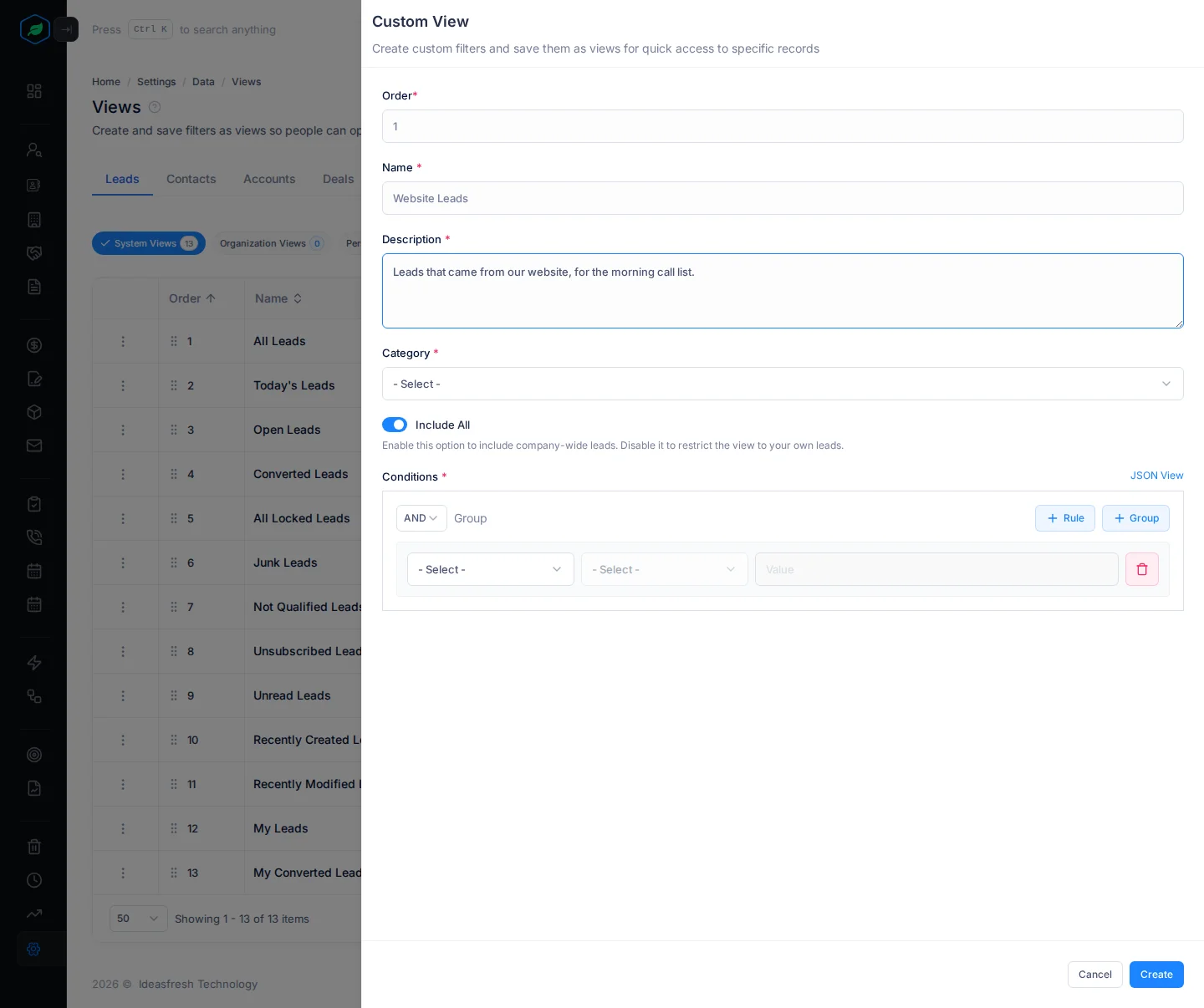
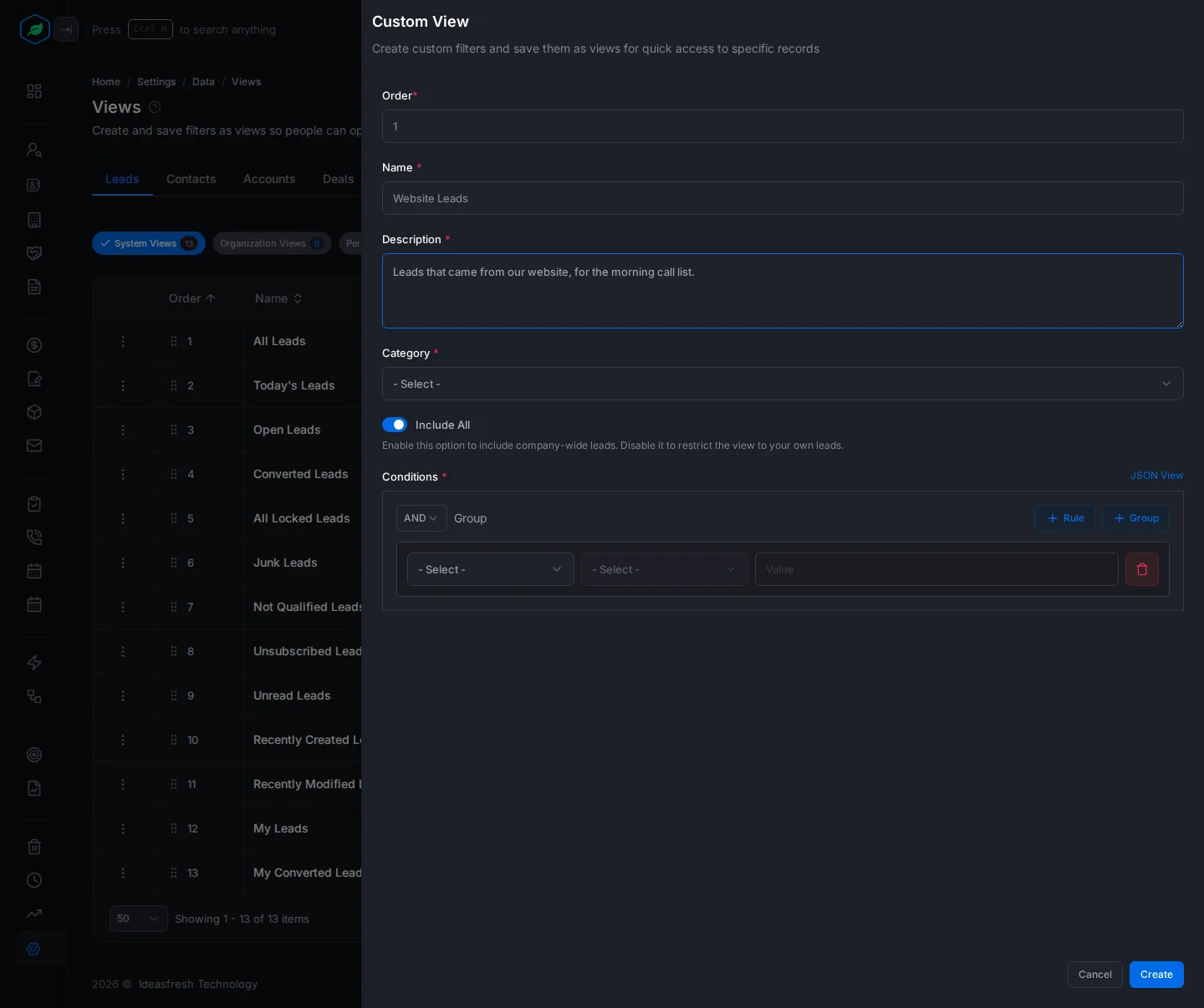
| Field | What to enter |
|---|---|
| Order * | Where it shows in the view menu. For example, 1 puts it first |
| Name * | What people see in the view menu, such as "Website Leads". Up to 30 characters |
| Description * | What the view shows, such as "Leads that came from our website" |
| Category * | Organization, so everyone can use it, or Personal, so only you can |
| Include All | On at first. Leave it on, so the view only shows records you are allowed to see. See Who owns and who can see a lead |
| Conditions * | The rules a record must match to show in the view |
Build the rules
A rule has three parts: a field, a check and a value. For example, Lead Source, Equal, Website.
- The first rule is there already. Pick the field, the check and the value.
- To add another rule, select + Rule again.
- Pick how the rules work together:
- AND shows records that match every rule.
- OR shows records that match any rule. It needs at least two rules.
- For more complex lists, select + Group to put rules inside rules. You can go 5 levels deep.
Some useful rules:
- For dates, pick a moving date such as Start of Today or End of Next 7 Days. For example, Due Date before End of Next 7 Days always shows the coming week.
- For a "my records" view that works for everyone, add the rule Owner, Equal, Any logged-in User. It means whoever is using the view.
Change, copy or remove a view
Select ⋮ on a view:
- Edit changes one of your company's own views.
- Preview Conditions shows the rules of a System view.
- Clone makes a copy called "Name (Copy)". A copy of a System view goes under Organization Views, where you can change it.
- Inactive hides the view from the view menu. Activate shows it again.
- Delete removes one of your company's own views.
To change the order in the view menu, drag a view by the handle in the Order column.
If you rename, switch off or delete a view, people who had it open go back to the first view in the menu.
Use a view on a list
Open the list, such as Leads, and pick a view from the view menu at the top. The menu is split into System, Organization and Personal views.
The list has some more controls next to it:
- Created by Me shows only the records you created. It's greyed out on views that show only your own records.
- View all records shows every record in the company, even ones your sharing rules hide. You only see it if you have the View All Records permission. While it's on, the view menu, Created by Me and the filter are off.
- The funnel button opens Advanced Filter, to filter the list once without saving a view. Pick a view to start from, change the rules and select Apply. To remove the filter, select Clear Filter.
Each list remembers the view, sorting, page size and switches you used last.
Troubleshooting
| Message | Why | What to do |
|---|---|---|
| "Creating views is not available on your current plan. You can only use system views. Please upgrade to access it." | You are on the Free plan | Use the System views, or upgrade your plan |
| "View already exist" | A view with that name is already in this module, maybe as someone's Personal view | Pick another name |
| "Field is required", "Operator is required" or "Value is required" | A rule isn't finished | Fill it in, or delete it with the bin button |
| "At least two rules are required when logic is OR" | An OR group has only one rule | Add a rule, or switch to AND |
| A message about too many nested condition groups | Groups are more than 5 levels deep | Put fewer groups inside each other |
| A message that you've reached the limit of 100 views | The module already has 100 views of that kind | Delete views you no longer use |
Related
Still stuck?
Tell us what you were trying to do and we will help.