Connect other apps to Salesfresh
See which apps connect to the CRM, such as Gmail, Outlook and Twilio, which plan includes them, and set up domain authentication.
Updated 28 October 2026 · 4 min read
An integration links Salesfresh to another app you already use, such as your mailbox or phone system.
For example, a recruitment firm emails candidates from Gmail and calls them from their desks. Recruiters copy emails into the CRM by hand, and nobody knows who called whom. Each recruiter connects their Gmail, so every email is linked to the right contact. The admin connects Twilio once for the firm, so the team calls from inside the CRM and every call is logged.
Before you start
- Permission: Manage Integration to connect Twilio, choose who can use a mailbox, or set up domain authentication. If you don't have it, ask your admin.
- Plan: Your plan sets which integrations you can use. See the table below and Plans and limits.
- Set up first: Nothing.
| Plan | Integrations | Mailboxes |
|---|---|---|
| Free | None | None |
| Starter | Gmail and Outlook | Up to 10 |
| Professional | Gmail, Outlook and Twilio | Up to 20 |
| Enterprise | Gmail, Outlook and Twilio | No limit |
Available integrations
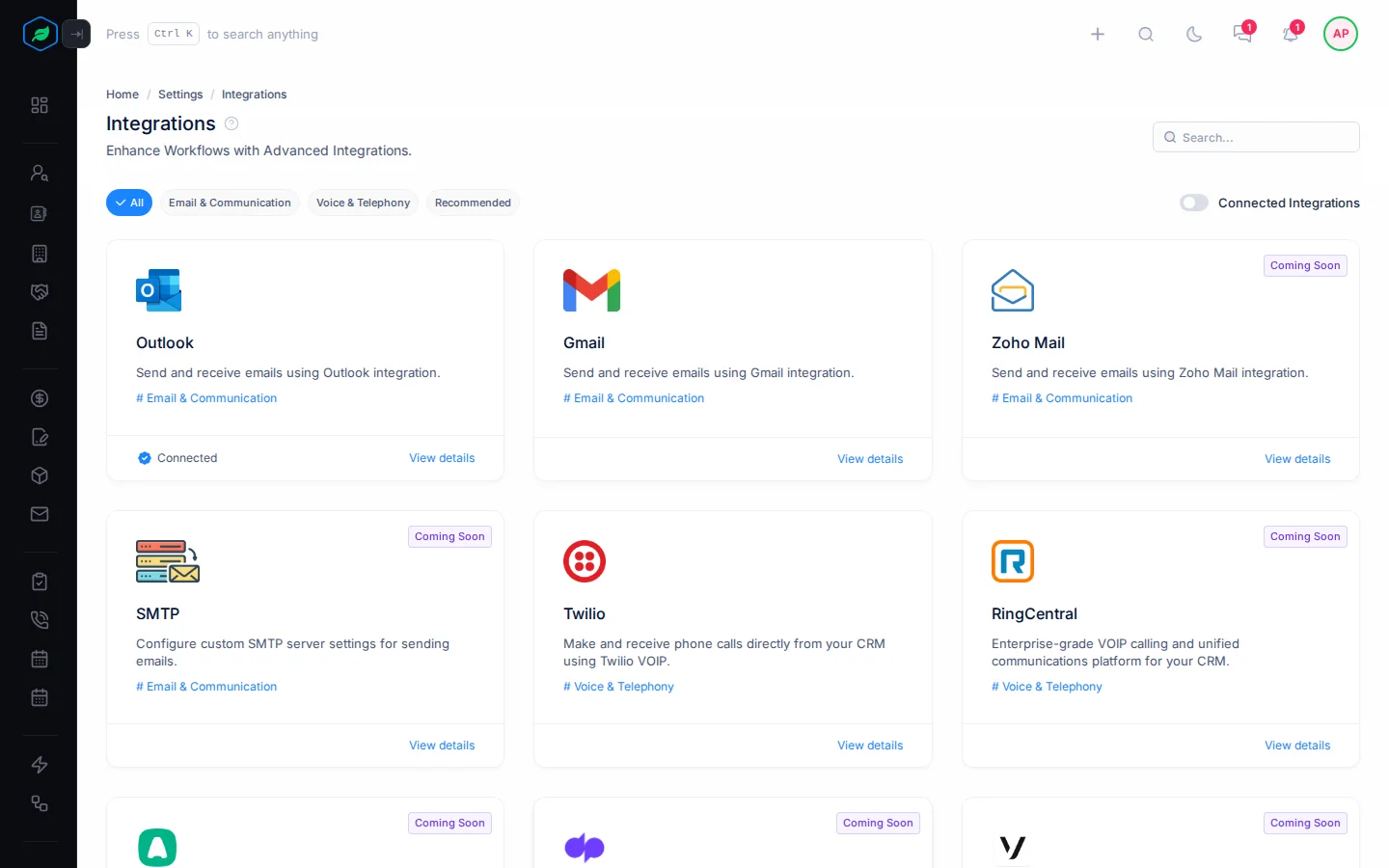
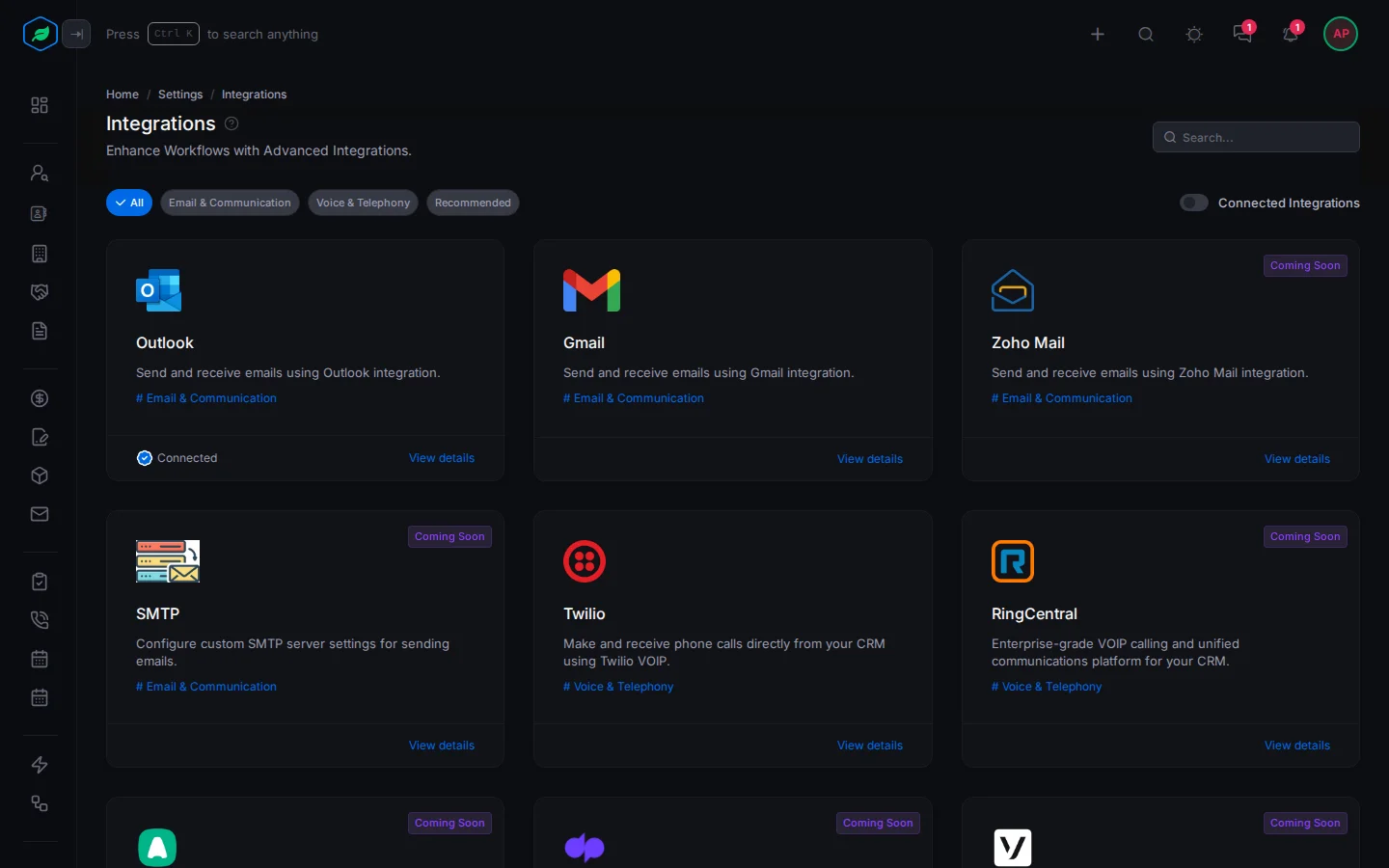
Go to Settings → Integrations. Each integration has its own page:
| Integration | What it does | Connected by |
|---|---|---|
| Gmail | Syncs your Gmail or Google Workspace mailbox, and sends email from the CRM | Each person, for their own mailbox |
| Outlook | The same, for Microsoft 365 and Outlook.com | Each person, for their own mailbox |
| Twilio | Makes, receives and logs calls in the CRM | An admin, once for the whole company |
Others, such as Zoho Mail, SMTP, RingCentral, Aircall, Dialpad, Vonage, Ozonetel, 8x8, CloudTalk, JustCall and Exotel, say Coming Soon and can't be connected yet.
Find an integration
- Type in the search box, or select a category at the top: All, Email & Communication or Voice & Telephony. Recommended shows the mailbox that matches your company's email, such as Gmail for a Google Workspace address.
- Turn on Connected Integrations to see only the ones in use.
- Select View details, or the integration's name, to open its page.
Gmail and Outlook only show to people on their Allowed Users list and to people with Manage Integration. Twilio only shows to people with Manage Integration.
The integration page
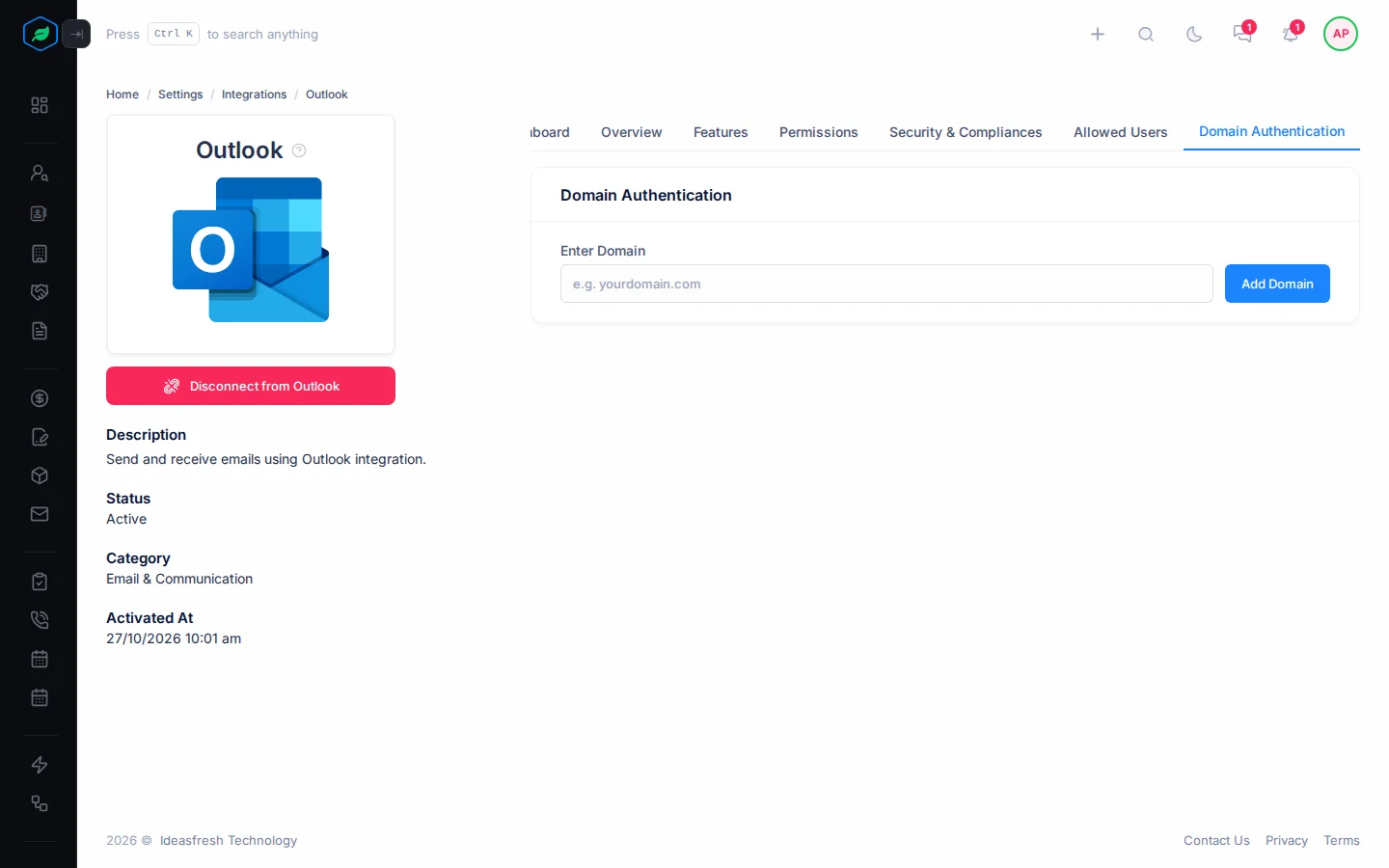
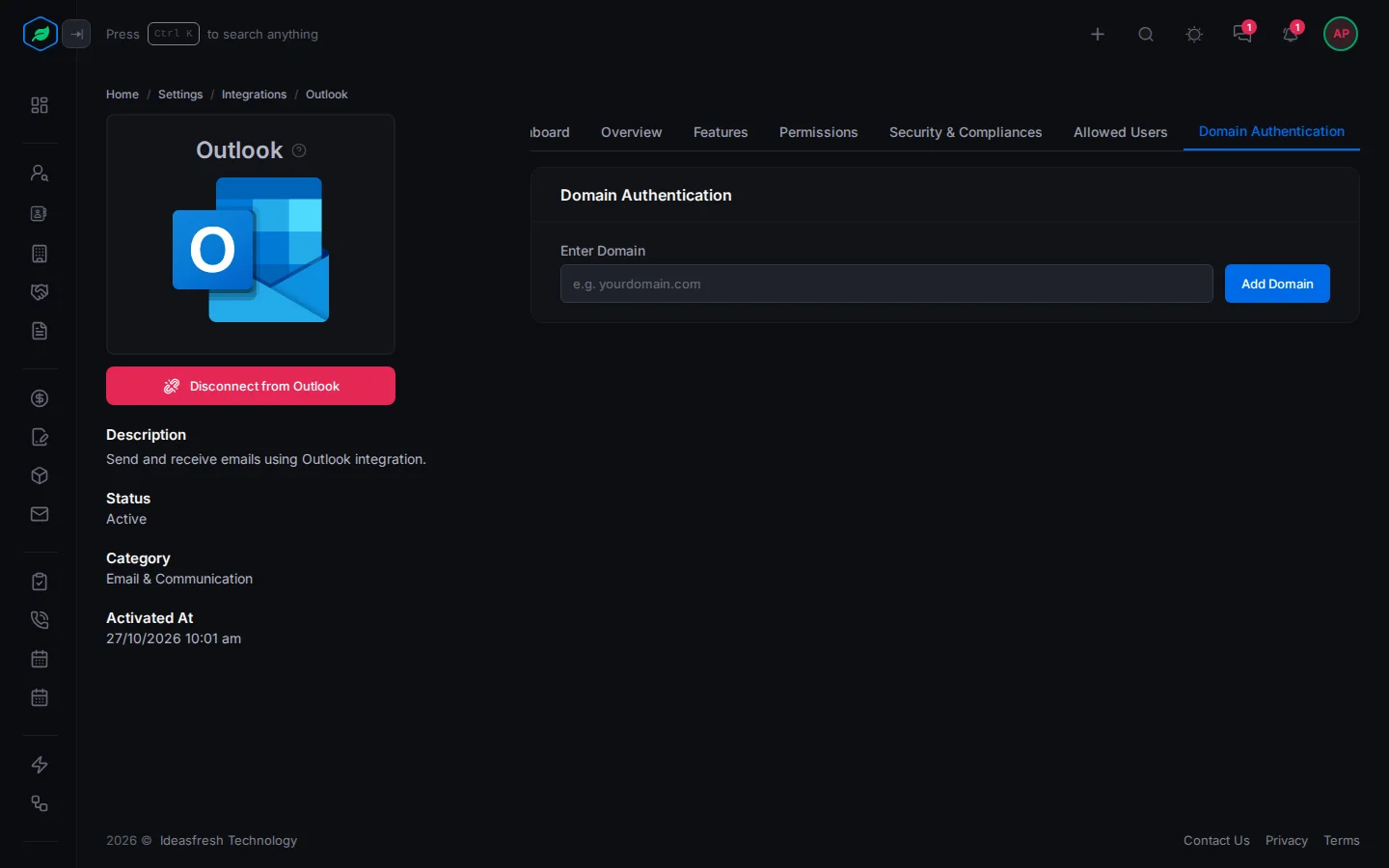
The left side shows the integration's Description, Status, Category and Activated At. Above them is Connect to or Disconnect from and its name, such as Connect to Gmail.
The tabs on the right:
| Tab | Shows |
|---|---|
| Dashboard | Figures and charts for the integration. Only once it's connected |
| Overview, Features, Permissions, Security & Compliances | What it does, and what it can reach |
| Allowed Users | Who can connect a mailbox. Gmail and Outlook, for people with Manage Integration |
| Domain Authentication | Your sending domain. Gmail and Outlook, for people with Manage Integration |
| Settings | Twilio's connection details. Only once it's connected |
| Logs | Your own mailbox's sync history, and Create Request to sync a date range again. Gmail and Outlook, once you've connected |
Domain authentication
Domain authentication lets Salesfresh send email in your domain's name. Once it's verified, emails sent for your team no longer show a "via" tag in the recipient's inbox. You set it up once for the whole company, from the Gmail or Outlook page.
- Open Gmail or Outlook and select Domain Authentication.
- Under Enter Domain, type your domain, such as
yourcompany.com, and select Add Domain. - A DNS Records card lists records, each with a type, host and value. Add each one at your domain provider. Select the copy icon to copy a value.
- Select Verify DNS Records. DNS changes can take up to 48 hours to work.
The status says Pending, Verified or Failed. A failed record says why, such as "DNS record value does not match. Please update your DNS settings." To remove the domain, select the bin icon and confirm. Your company can have one domain.
Troubleshooting
| Message | Why | What to do |
|---|---|---|
| "This feature is not available on your current plan. Please upgrade to access it." | Your plan has no integrations | Upgrade. See Change or cancel your plan |
| "Domain is required" | The domain box is empty | Type your domain |
| "Domain authentication already exists for this company" | You already added a domain | Remove it first to add another |
| Connect to is greyed out | It says Coming Soon, or you're already connected to another one of the same kind | Pick another, or disconnect the other first |
Related
Still stuck?
Tell us what you were trying to do and we will help.