Label records with tags
Label leads, contacts, accounts, deals and contracts with coloured tags, and manage your company's tags and tag groups in Settings.
Updated 28 October 2026 · 4 min read
A tag is a coloured label on a record, such as "Hot Lead" or "Decision Maker". It shows under the record's name, so anyone who opens the record sees it straight away.
You can tag leads, contacts, accounts, deals and contracts.
For example, you run a wedding photography studio. Many couples ask about prices, but only some are ready to book. Your assistant talks to a couple who want to book this month, and tags their lead "Hot Lead". The next morning, you open your leads and see the tag. You call that couple first. Nobody has to read long notes to know who matters most.
Before you start
- Permission: To tag a record, its edit permission, such as Edit Leads, and you must be its owner or the person who created it. View Views and Tags to see your company's tags, Create Views and Tags to add tags, Edit Views and Tags to change them or switch them off, and Delete Views and Tags to delete them.
- Plan: On the Free plan, you can only use the tags Salesfresh gives you. To add your own, you need a paid plan. See Plans and limits.
- Set up first: Nothing.
If you don't have a permission you need, ask your admin.
Tag a record
- Open the record. Under its name, select Add Tags. If it already has tags, select the + next to them.
- The Manage Tags panel opens. Tags are in groups, such as Priority or Lead Temperature. Select a group, then select the tag you want.
- Select Save.
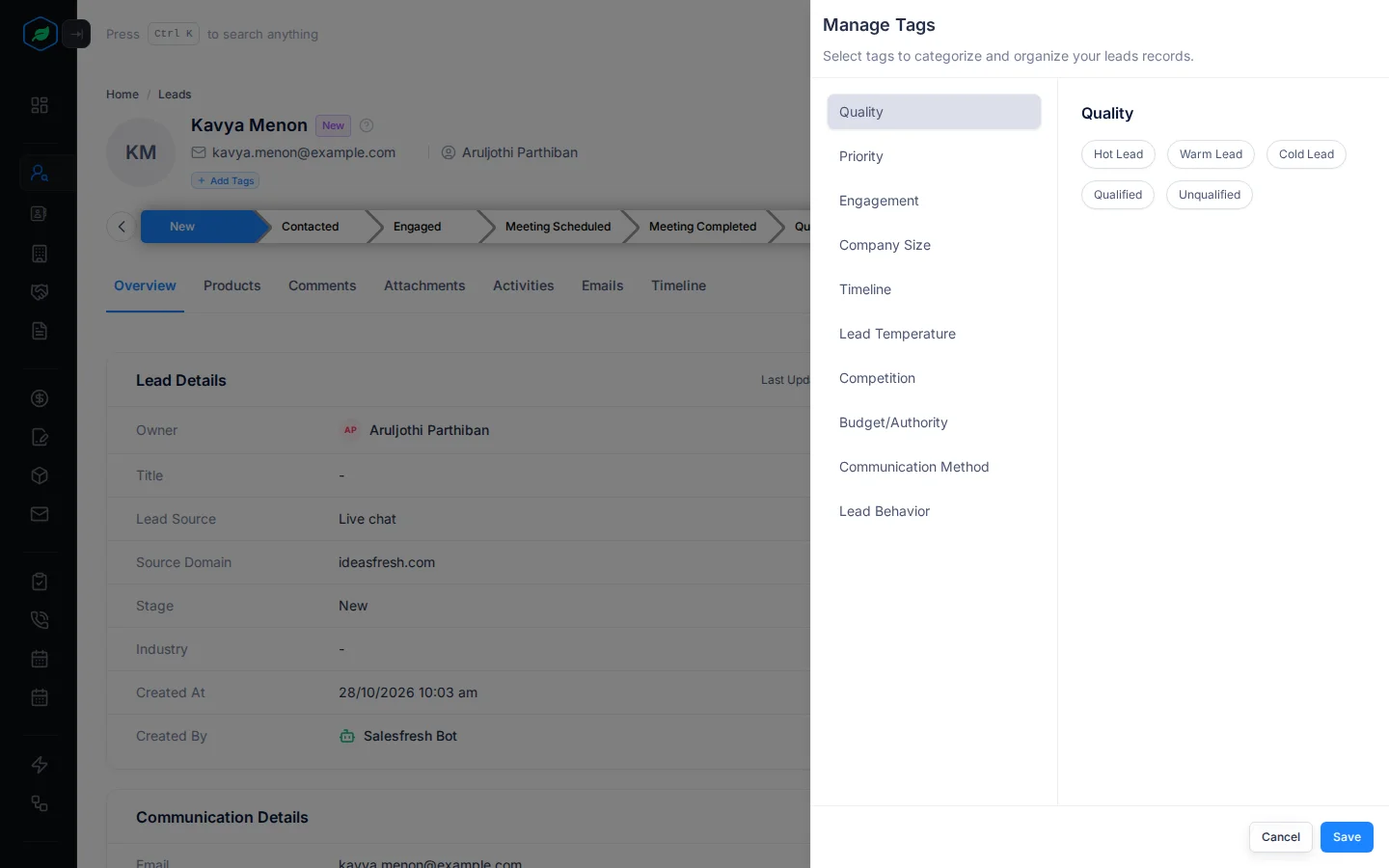
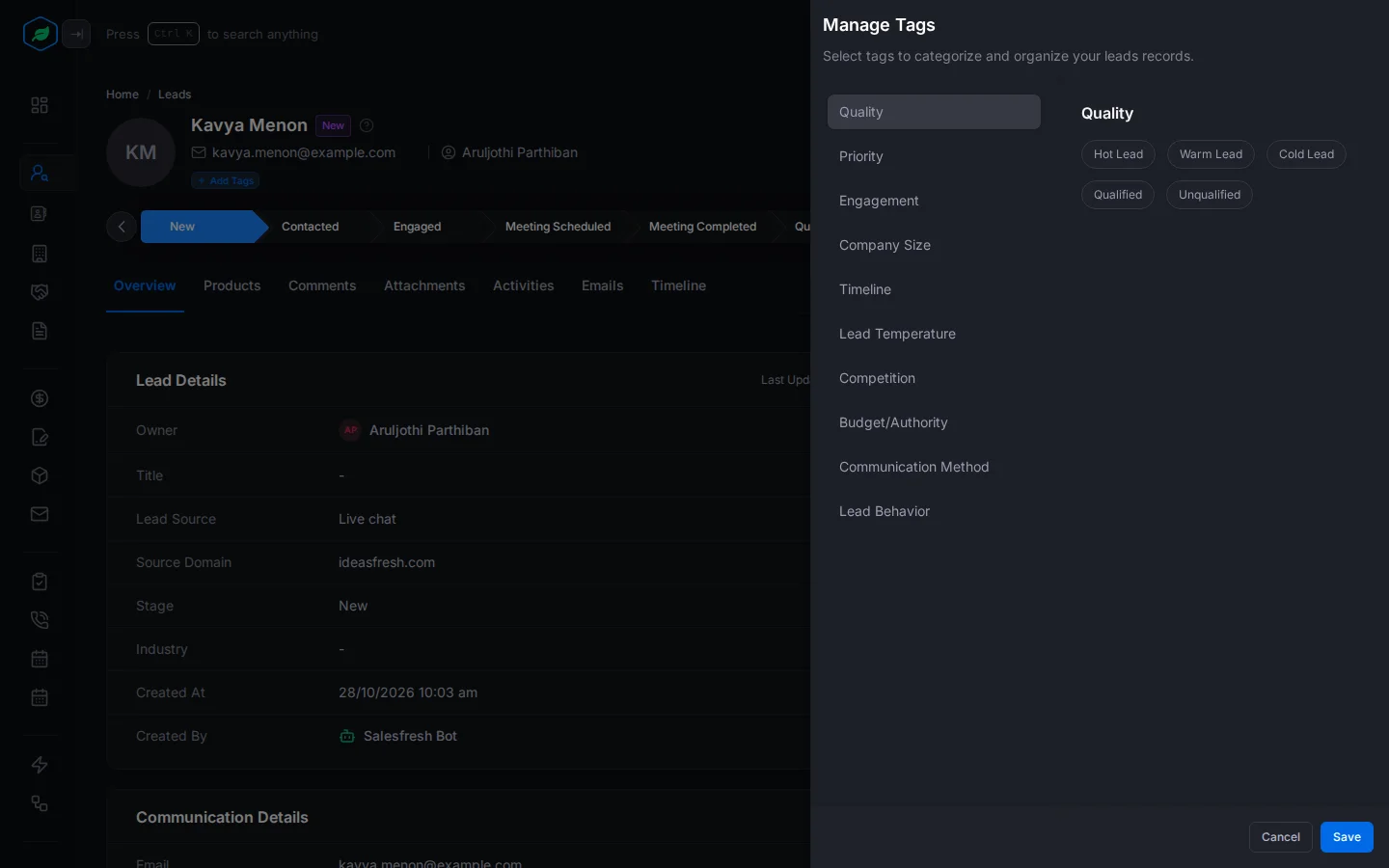
You can pick one tag from each group. For example, a lead can't be both Hot and Cold. To remove a tag, select it again, then select Save.
To see what a tag means, point at it on the record.
You can't filter or sort a list by tag yet.
Your company's tags
Go to Settings → Data → Tags, then select Leads, Contacts, Accounts, Deals or Contracts at the top. Each module has its own tags. Each row shows the tag's colour and description, its group, its status, and when it last changed.
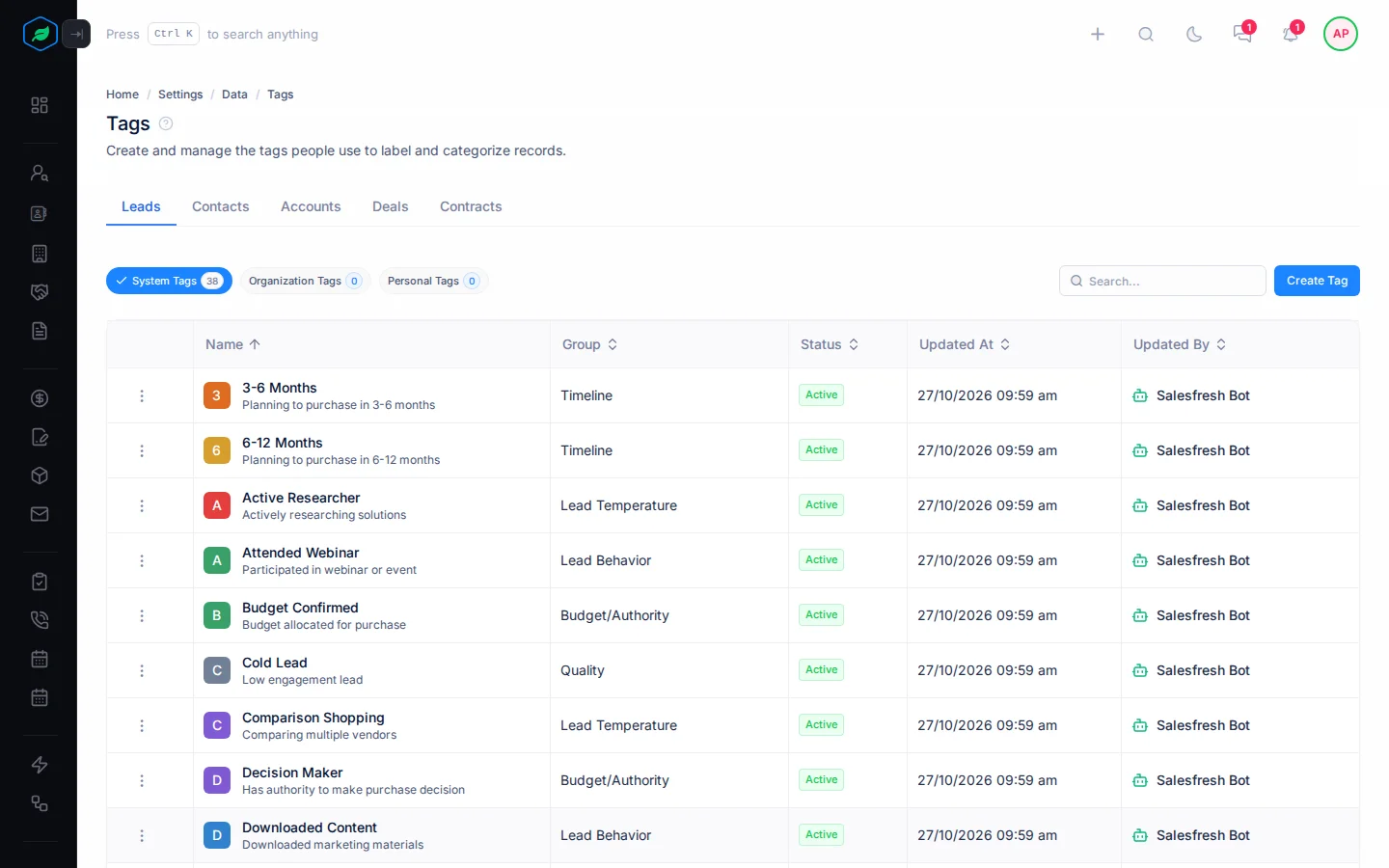
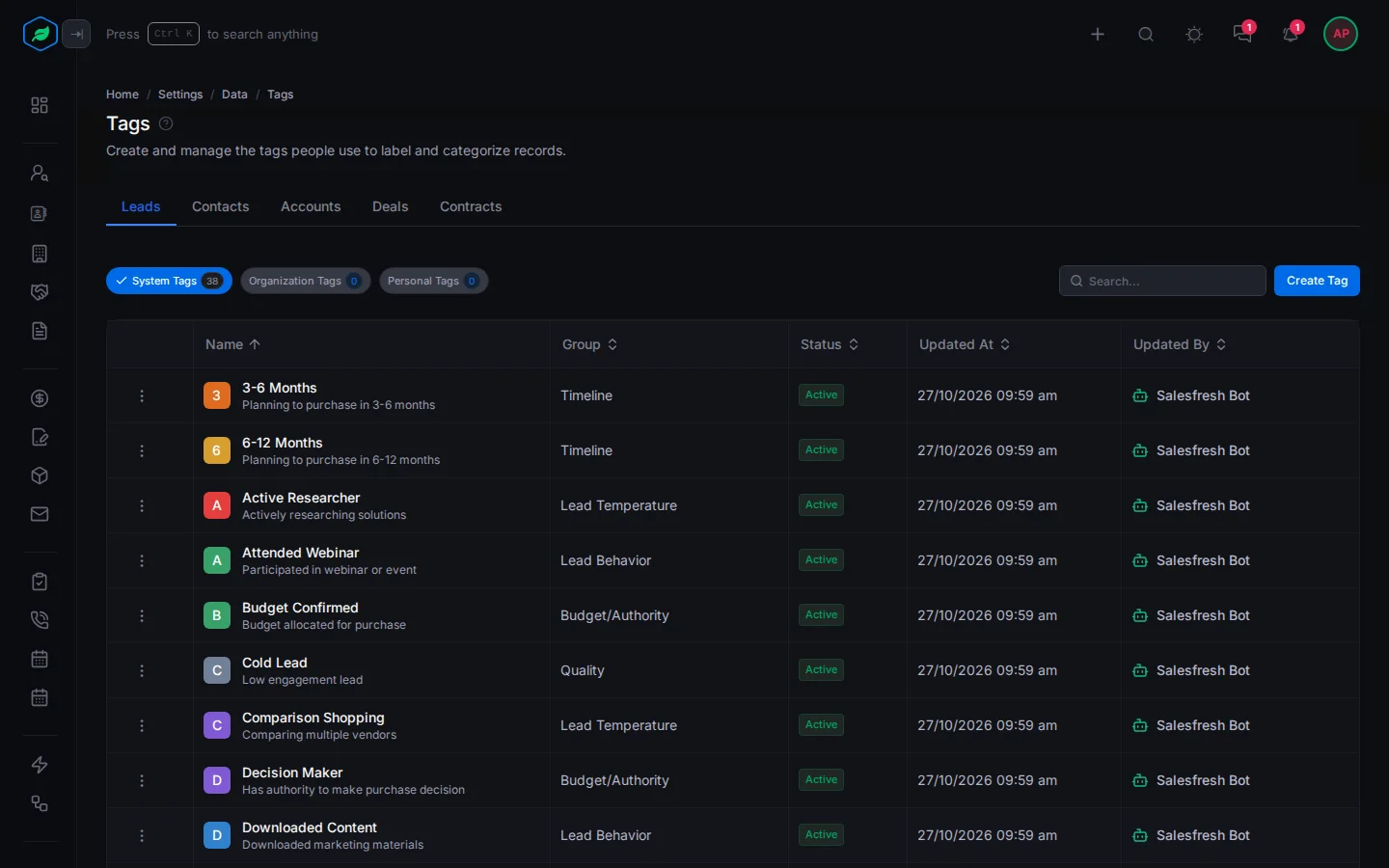
The tags come in three kinds. Select one at the top to see only those:
- System Tags are the ones Salesfresh gives you. Everyone sees them. You can switch them off, but you can't change or delete them.
- Organization Tags are the ones your company added. Everyone sees them.
- Personal Tags are the ones you added for yourself. Only you see them.
Add a tag
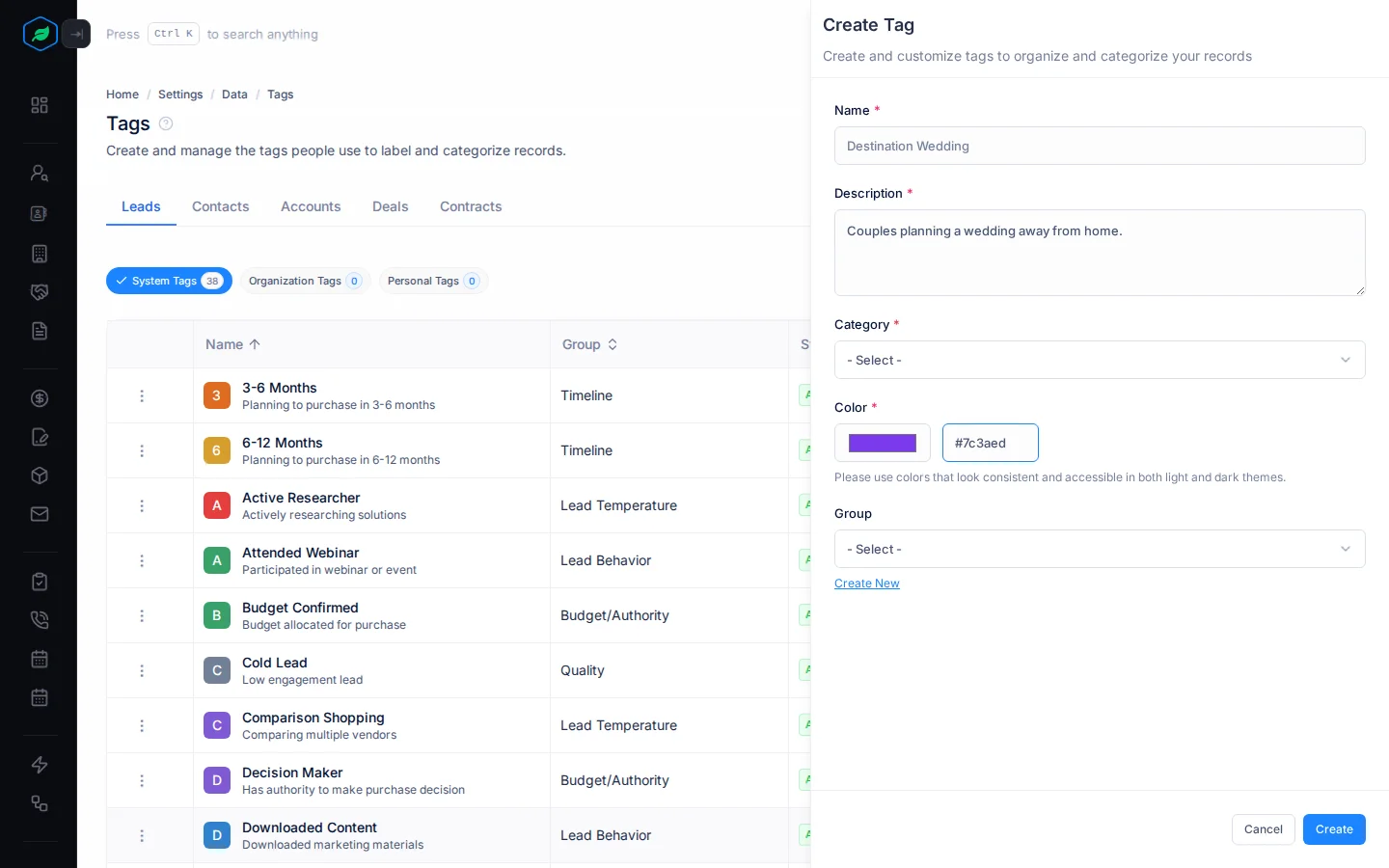
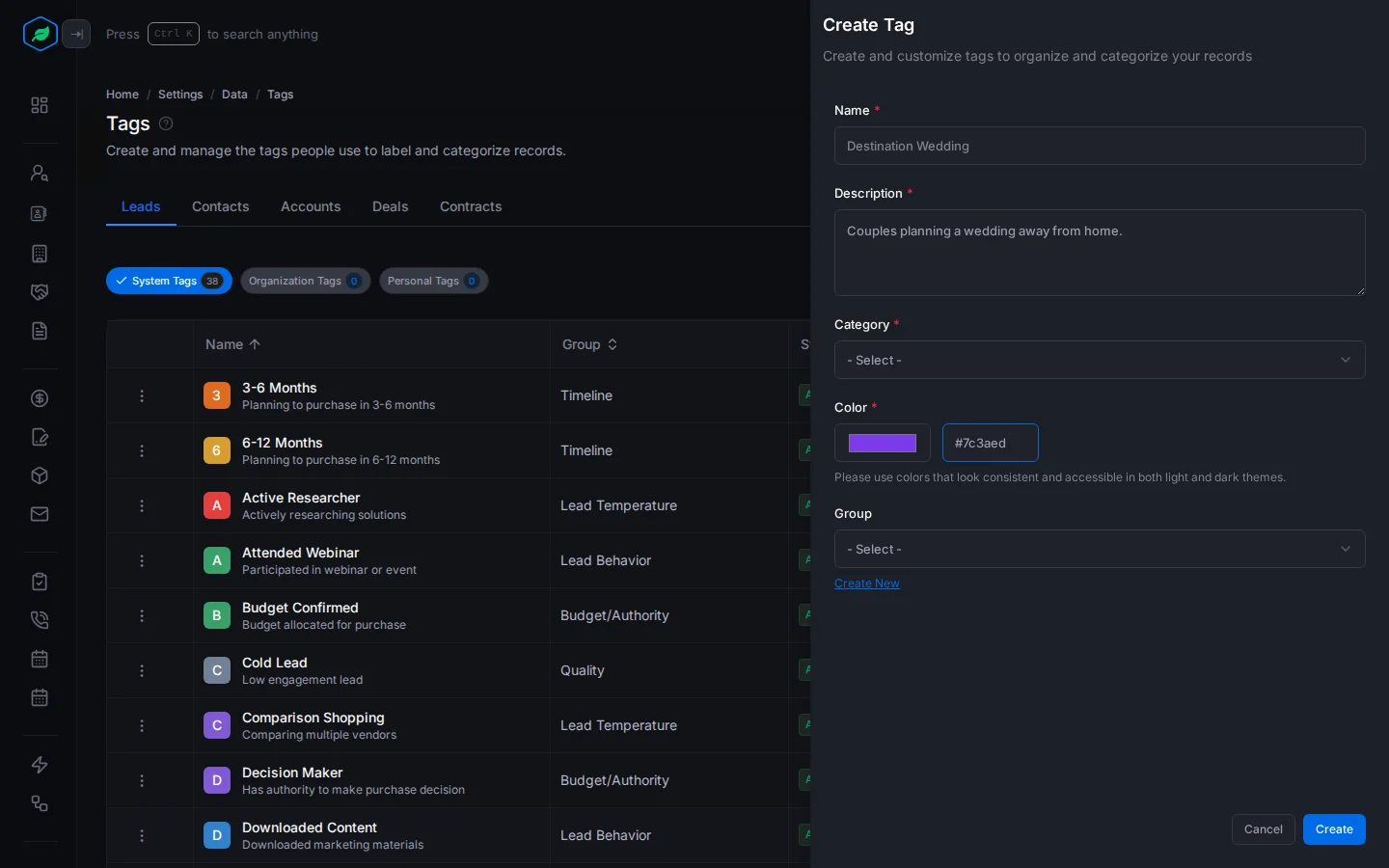
- Select Create Tag. The Create Tag panel opens.
- Fill in the fields. Fields marked * must be filled in.
- Select Create.
| Field | What to enter |
|---|---|
| Name * | The label people see, such as "Destination Wedding", up to 30 characters. Two tags in a module can't have the same name |
| Description * | What the tag means, such as "Couples planning a wedding away from home" |
| Category * | Organization, so everyone can use it, or Personal, so only you can |
| Color * | Pick a colour, or type a colour code such as #7c3aed. Pick one that is easy to read in both light and dark mode |
| Group | The group to put it in, such as "Quality". To make a new group, select Create New. To use one you have, select Choose existing group. A record can have only one tag from each group |
Change or remove a tag
Select ⋮ on a tag:
- Edit changes it. The panel is called Update Tag.
- Inactive hides it from records. Activate shows it again.
- Delete removes it.
If you switch off or delete a tag, it no longer shows on the records that had it.
Troubleshooting
| Message | Why | What to do |
|---|---|---|
| "Creating tags is not available on your current plan. You can only use system tags. Please upgrade to access it." | You are on the Free plan | Use the System tags, or upgrade your plan |
| "Tag already exist" | A tag with that name is already in this module, maybe as someone's Personal tag | Pick another name |
| "Color must be a full 6-digit hex code (e.g. #3b82f6)" | The colour code is too short | Type # and six letters or numbers |
| Add Tags is greyed out | The record is locked, or you don't own it and didn't create it, or you don't have its edit permission | Ask the owner, or ask your admin for the permission |
Related
Still stuck?
Tell us what you were trying to do and we will help.