Change or cancel your plan
Add or remove seats, move to another plan, change how often you pay, and cancel or come back.
Updated 28 October 2026 · 5 min read
As your company changes, change your plan: add seats when you hire, move to a bigger plan when you need more, or cancel.
For example, a travel agency hires 2 more people a month into its plan. The owner selects Upgrade Plan, adds 2 users, and pays only for the rest of the month. Later, two people leave. The owner deactivates them and lowers the users, and the change starts at the next payment.
Before you start
- Permission: Edit Subscription to change or cancel your plan. To move from Free or a trial to another plan, or to a cheaper plan, you also need Create Subscription.
- Plan: A paid plan. On Free or a trial, see Choose a plan.
- Set up first: Nothing.
Only one change can wait at a time. Pay for it or cancel it before you make another.
If you don't have a permission you need, ask your admin.
Add seats or move to a bigger plan
- Go to My Subscription and select Upgrade Plan. The Upgrade Plan window opens.
- Pick your plan, marked Current plan, or a bigger one, and set the Users. For Enterprise, select Contact sales.
- Check the amount due now. You only pay for the rest of the current period.
- Select the pay button, such as "Pay ₹… & Upgrade". The change applies once the payment goes through.
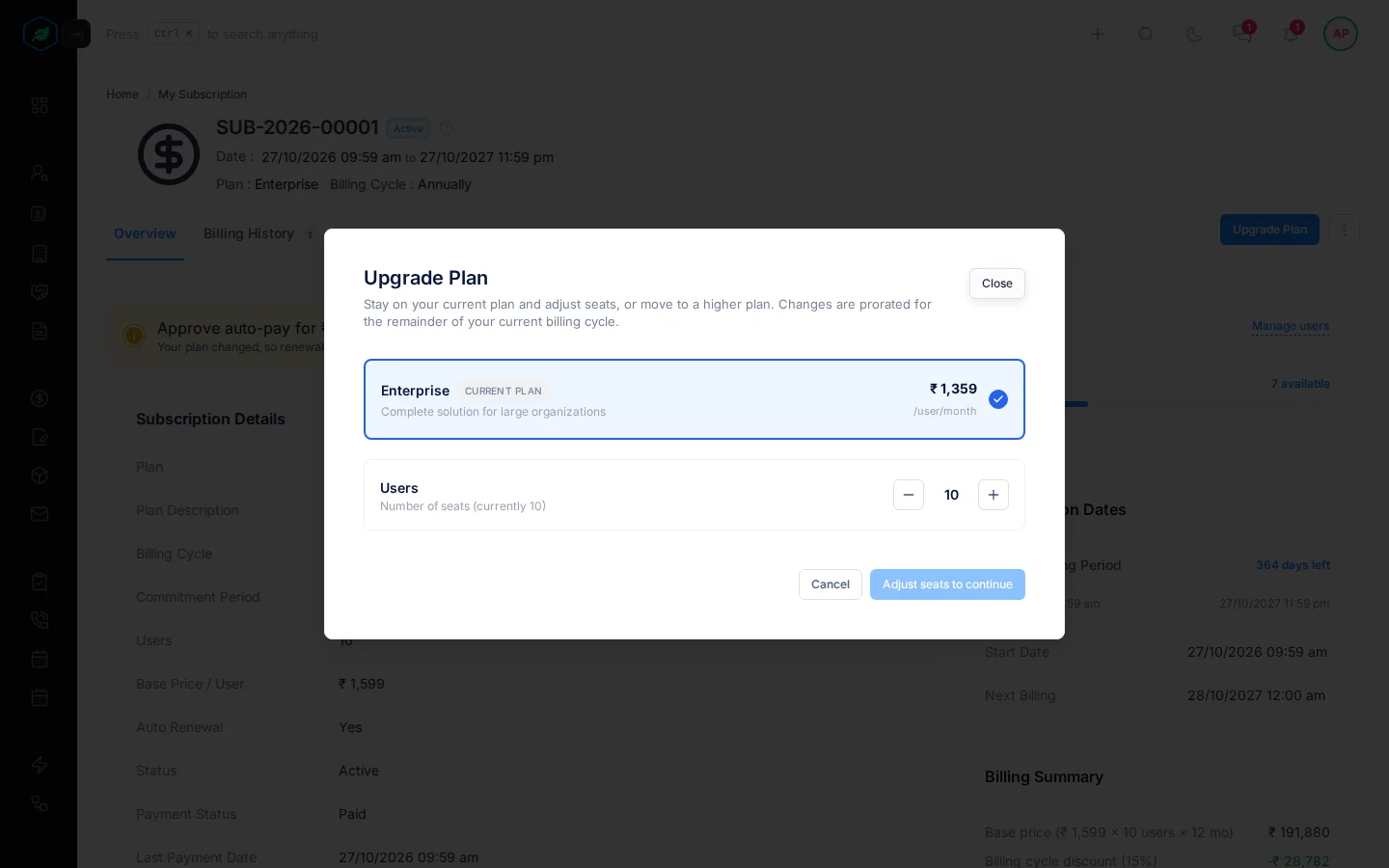
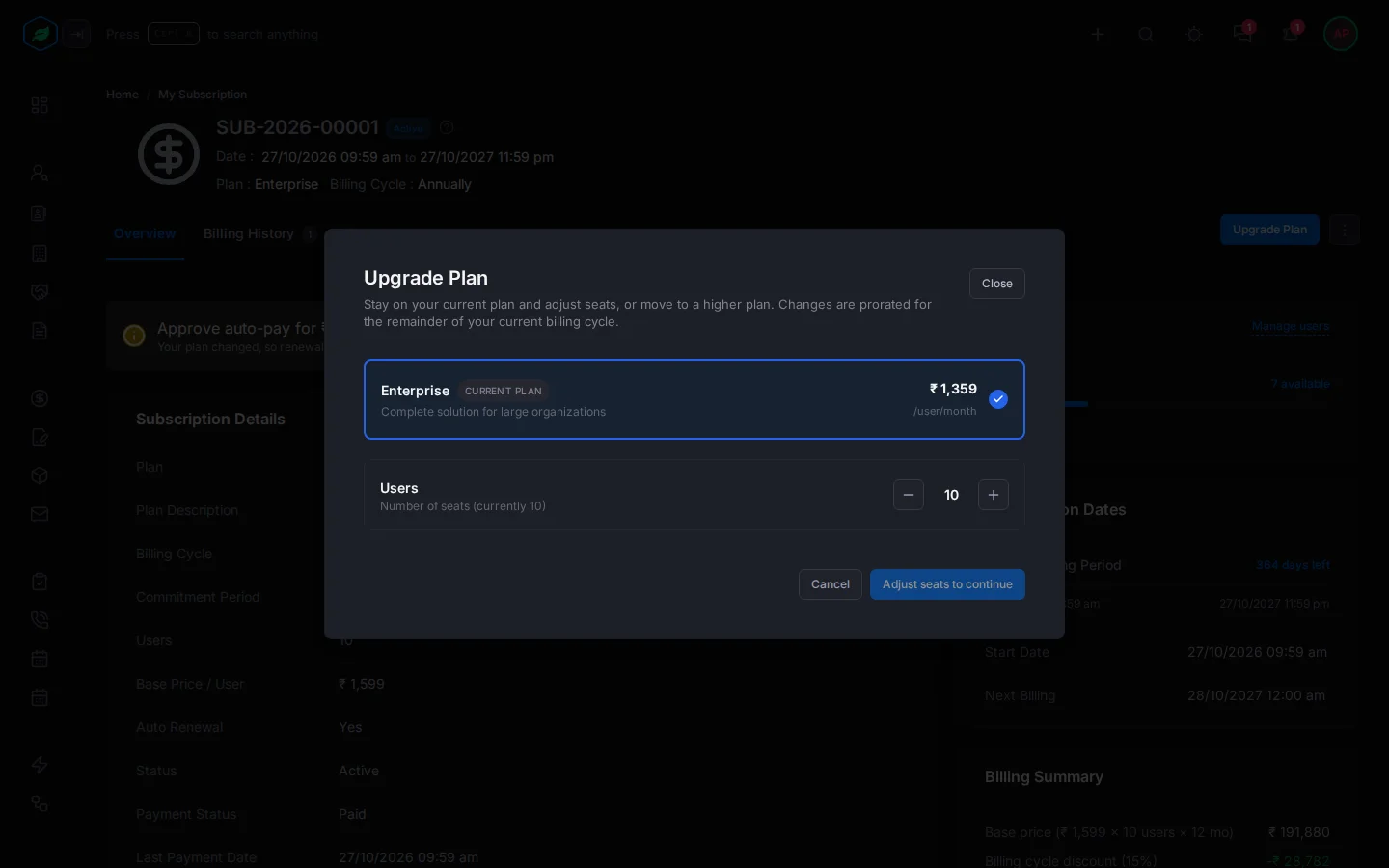
On Free or a trial, Upgrade Plan opens the plan picker instead. See Choose a plan.
Fewer seats or a cheaper plan
- Fewer seats: select Upgrade Plan and lower the Users. Deactivate people first, so you don't have more active users than seats.
- A cheaper plan: select ⋮, then Downgrade Plan. The plans open. Pick the plan and confirm it on the review page.
These start at your next billing period, with no charge or refund now. You keep what you have until then. To undo one, select Cancel scheduled change on the Overview tab.
Change how often you pay
- Select ⋮, then Change Billing Cycle. The Change Billing Cycle window opens.
- Pick the new cycle and select the button. It says what happens, such as Schedule change or the amount to pay and switch.
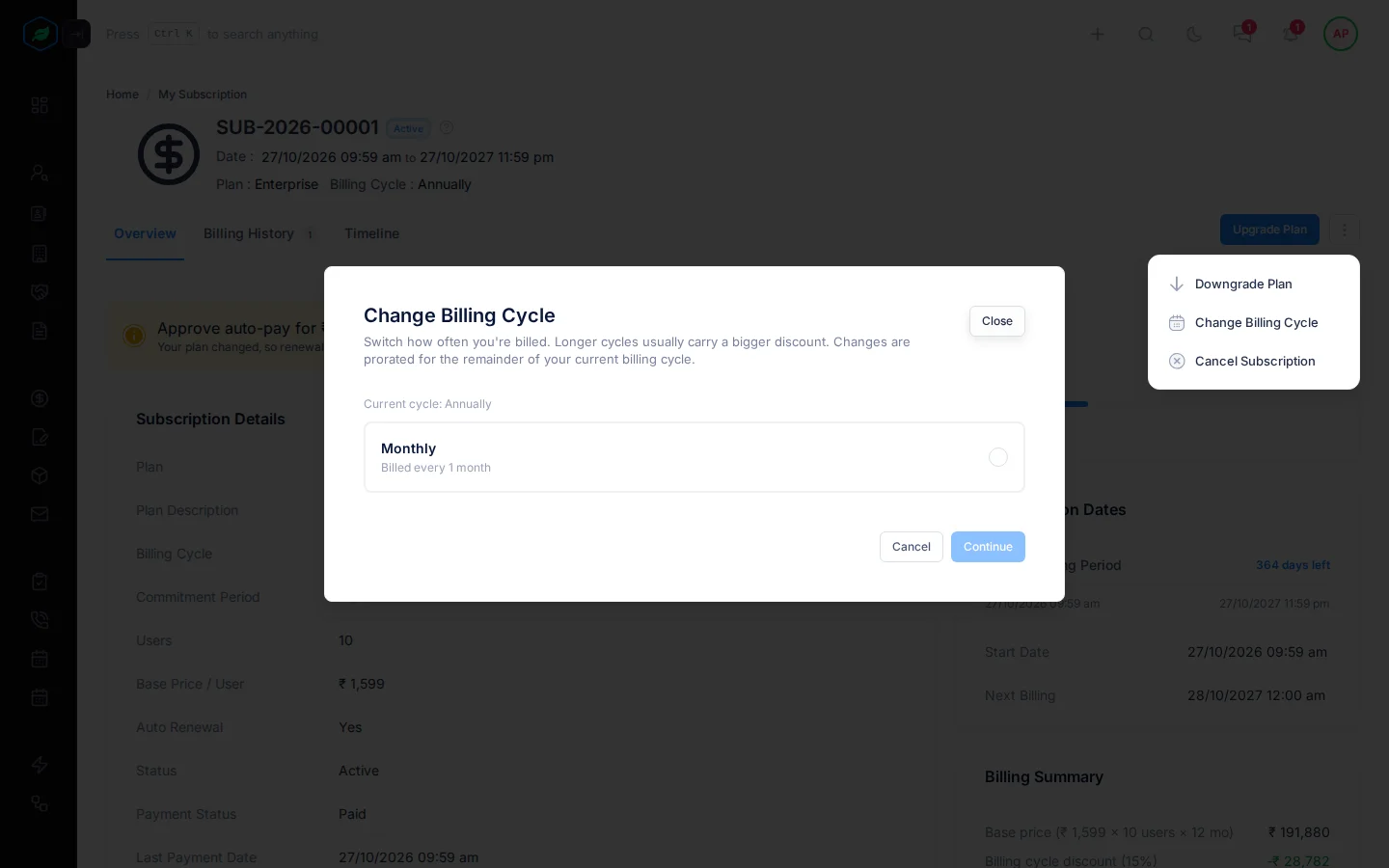
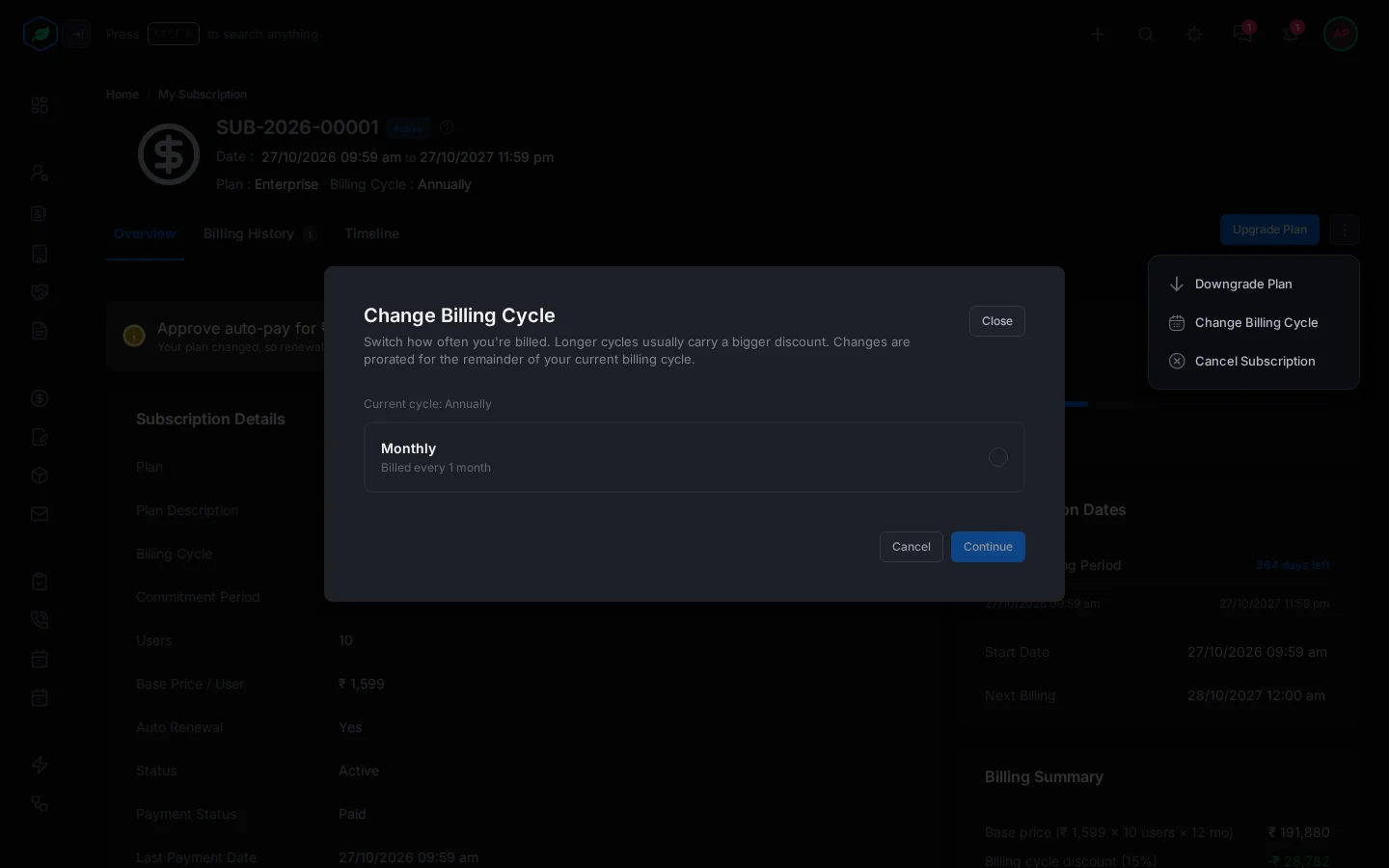
- To a longer cycle, such as Monthly to Annually: it starts now, and you pay now.
- To a shorter cycle: it starts at your next billing period.
You can change the billing cycle once every 7 days. Downgrade Plan and Change Billing Cycle aren't on the Free plan.
Cancel
- Select ⋮, then Cancel Subscription. The Cancel Subscription window opens.
- Read when access ends. If you're inside a commitment period, the early termination fee shows, and you select I understand and accept the early termination fee.
- Pick a Reason for cancellation. For Other, describe it.
- Select Cancel Subscription. To change your mind, select Keep Subscription.
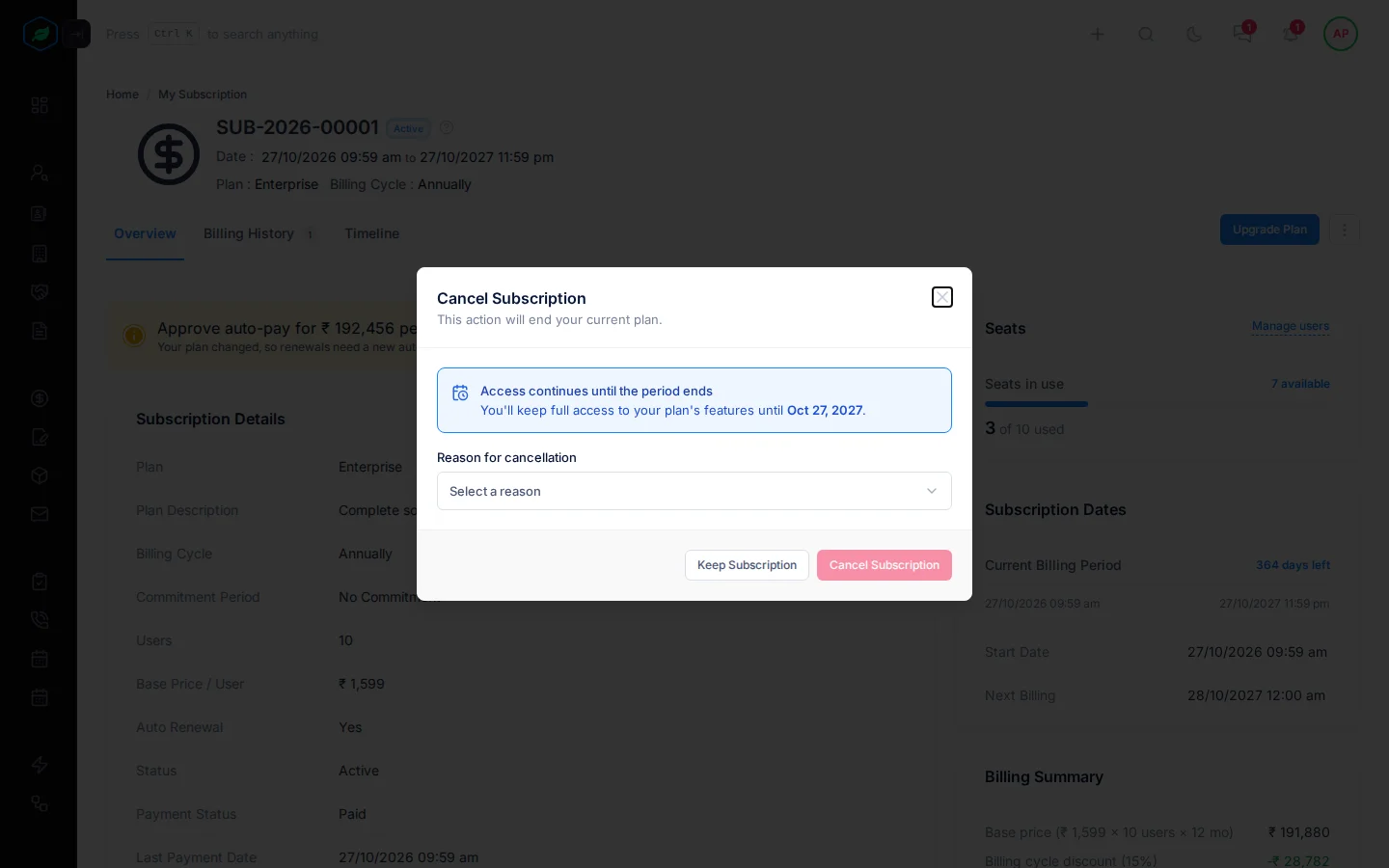
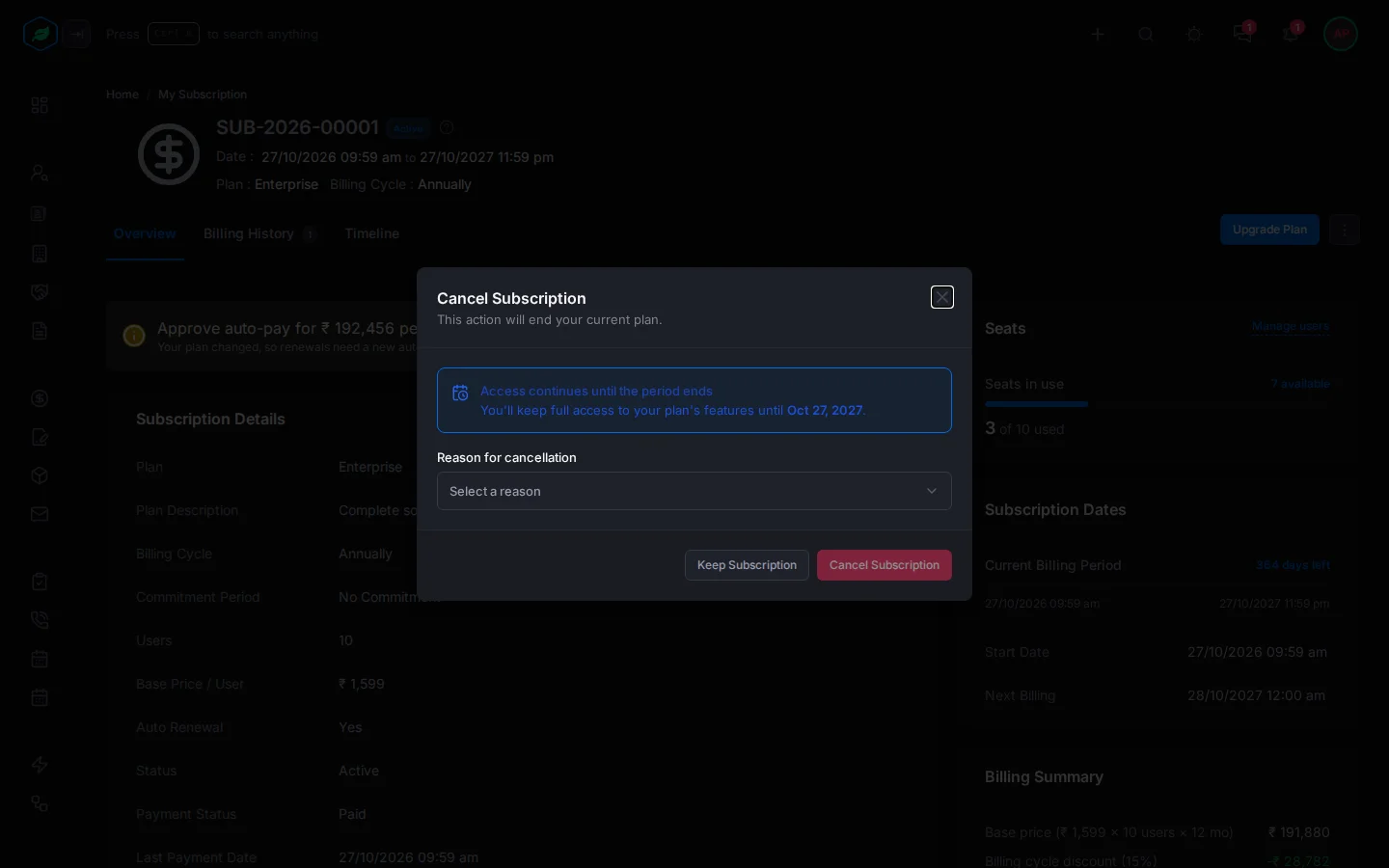
You keep full access until the end of the period you've paid for, and auto-pay stops straight away. Until the period ends, you can undo the cancellation with Keep subscription on the Overview tab. You approve auto-pay again to keep it.
Access stops straight away in two cases: on the Free plan, and when you cancel inside a commitment period. In a commitment period, the window still says access continues, but it doesn't. The early termination fee comes as an invoice in Billing History.
A trial can't be cancelled or moved to another billing cycle here. Let it end, or choose a plan.
Come back
When a subscription is cancelled or expired, Salesfresh takes everyone to the plans. Choose a plan there to start again. See Choose a plan.
On My Subscription, a Cancelled subscription also has Reactivate, and an Expired one has Renew. A window asks "Are you sure you want to reactivate your subscription?". Select Yes, and the plans open.
Troubleshooting
| Message | Why | What to do |
|---|---|---|
| "A subscription change is already awaiting payment. Complete that payment before making another change." | A change is waiting for payment | Pay it, or cancel it in Billing History |
| "A plan change is already scheduled for the end of your billing period. Please wait for it to take effect before making another change." | A change is waiting for your next period | Wait, or select Cancel scheduled change |
| A message that you have more active users than the new seats | More people are active than the new seats | Deactivate people first. See Manage users |
| A message that you changed your billing cycle recently | You changed it in the last 7 days | Wait until the date shown |
| "Only active subscriptions can be cancelled" | It's a trial | Let the trial end, or choose a plan |
| "Your subscription is already scheduled for cancellation." | You've already cancelled | Nothing to do. Select Keep subscription to undo |
Related
Still stuck?
Tell us what you were trying to do and we will help.