Visitor questions, saved replies and FAQs
Ask visitors questions while they wait, save answers your agents reuse, and let the chat answer common questions by itself with FAQs.
Updated 28 October 2026 · 4 min read
Three things on a website's page make live chat faster:
- Visitor questions are asked while the visitor waits for an agent, and their answers fill in the lead.
- Saved replies are answers your agents send again and again, ready to pick.
- FAQs are answers the chat sends by itself, or fills in for the agent.
Say visitors keep asking whether you offer a free trial. Add it as an FAQ that sends itself, and nobody has to type the answer again. Ask visitors for their company size while they wait, and the lead arrives with it filled in.
Before you start
- Permission: Manage Live Chat for visitor questions, organization replies and FAQs. Anyone who answers chats can add personal replies.
- Plan: Every plan. See Plans and limits.
- Set up first: Live chat on the website. See Set up live chat.
Open the website's page and select the tab: Visitor questions, Saved replies or FAQs. See The website page.
Visitor questions
Questions the chat asks while the visitor waits for an agent. Turn on Ask visitors to use them.
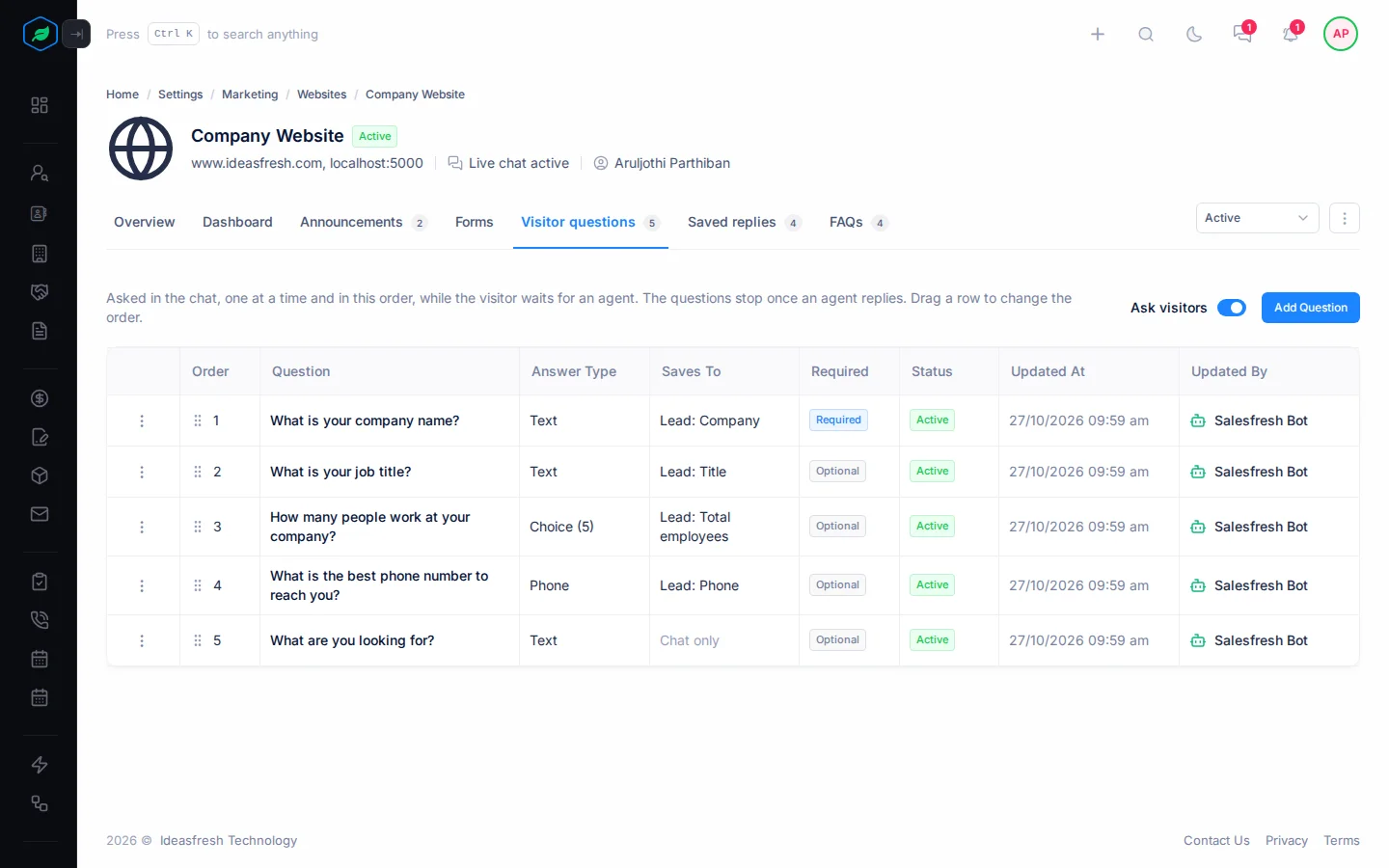
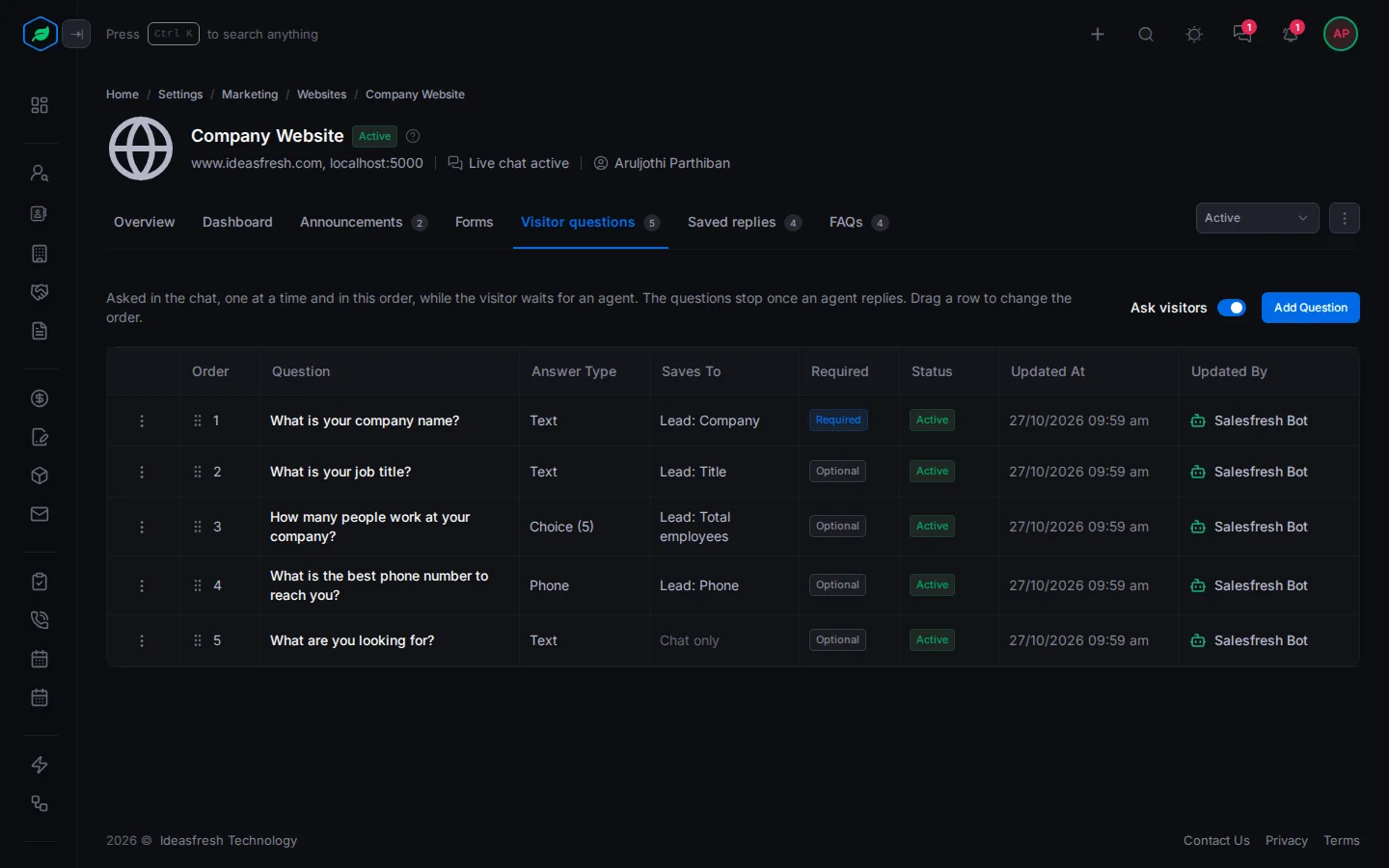
- Select Add Question.
- Pick a ready-made question under Start from, or A blank question.
- Fill in the fields and save.
| Field | What to enter |
|---|---|
| Question | What to ask, such as "How many people are on your team?" |
| Answer type | Text, Number, Phone, Website or One choice from a list, with 2 to 25 choices |
| Saves to | The lead field the answer fills, such as Company or Total employees, or Chat only |
| Required | Whether the visitor must answer |
You can have up to 8 questions. An answer fills its lead field only when the field is empty, so what your team typed is never replaced. The agent sees the answers under Visitor details in the chat.
Saved replies
Answers your agents send again and again. In a chat, they type / to pick one. See Answer website visitors.
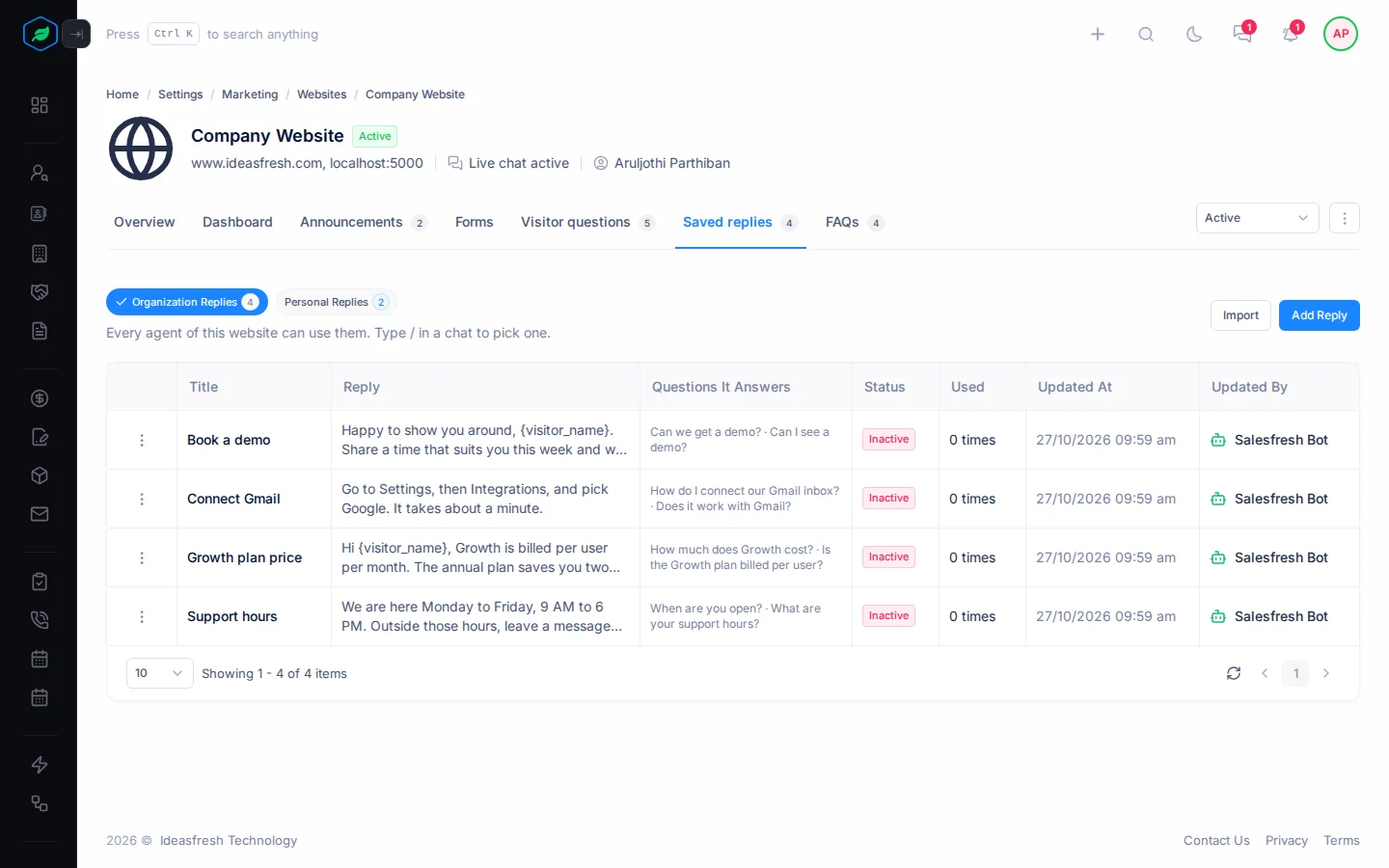
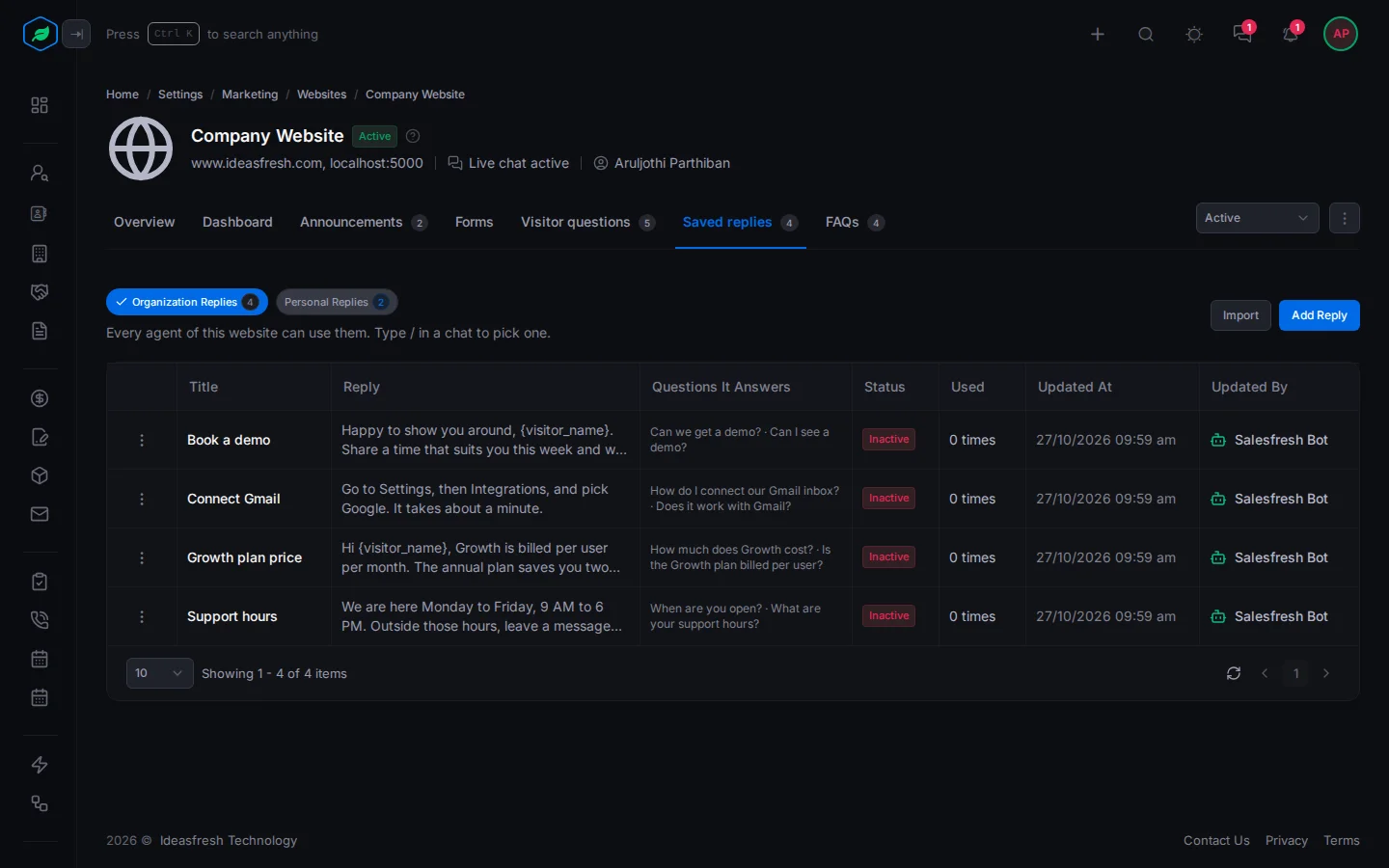
- Organization Replies: every agent of this website can use them.
- Personal Replies: only you see them, on every website you answer.
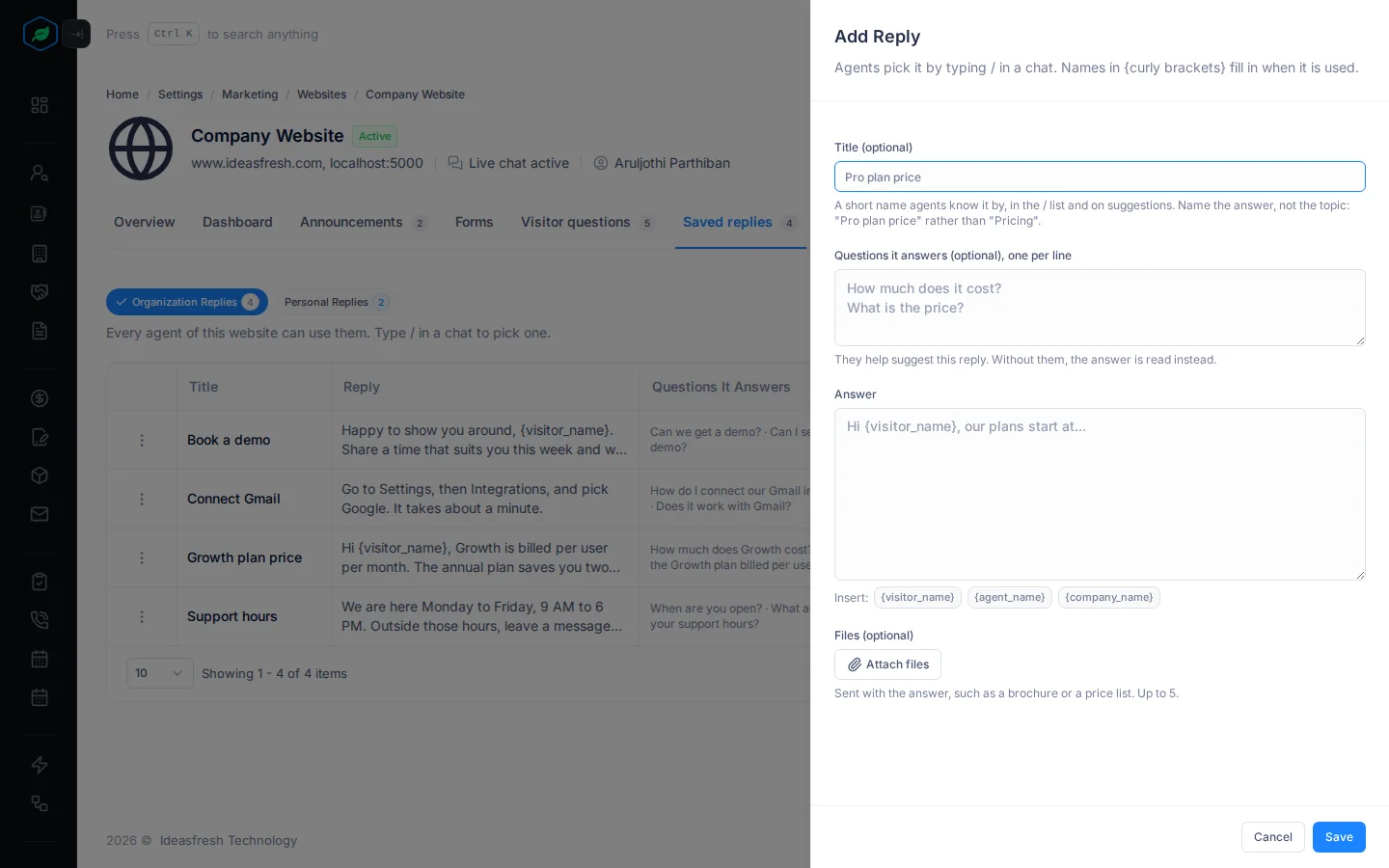
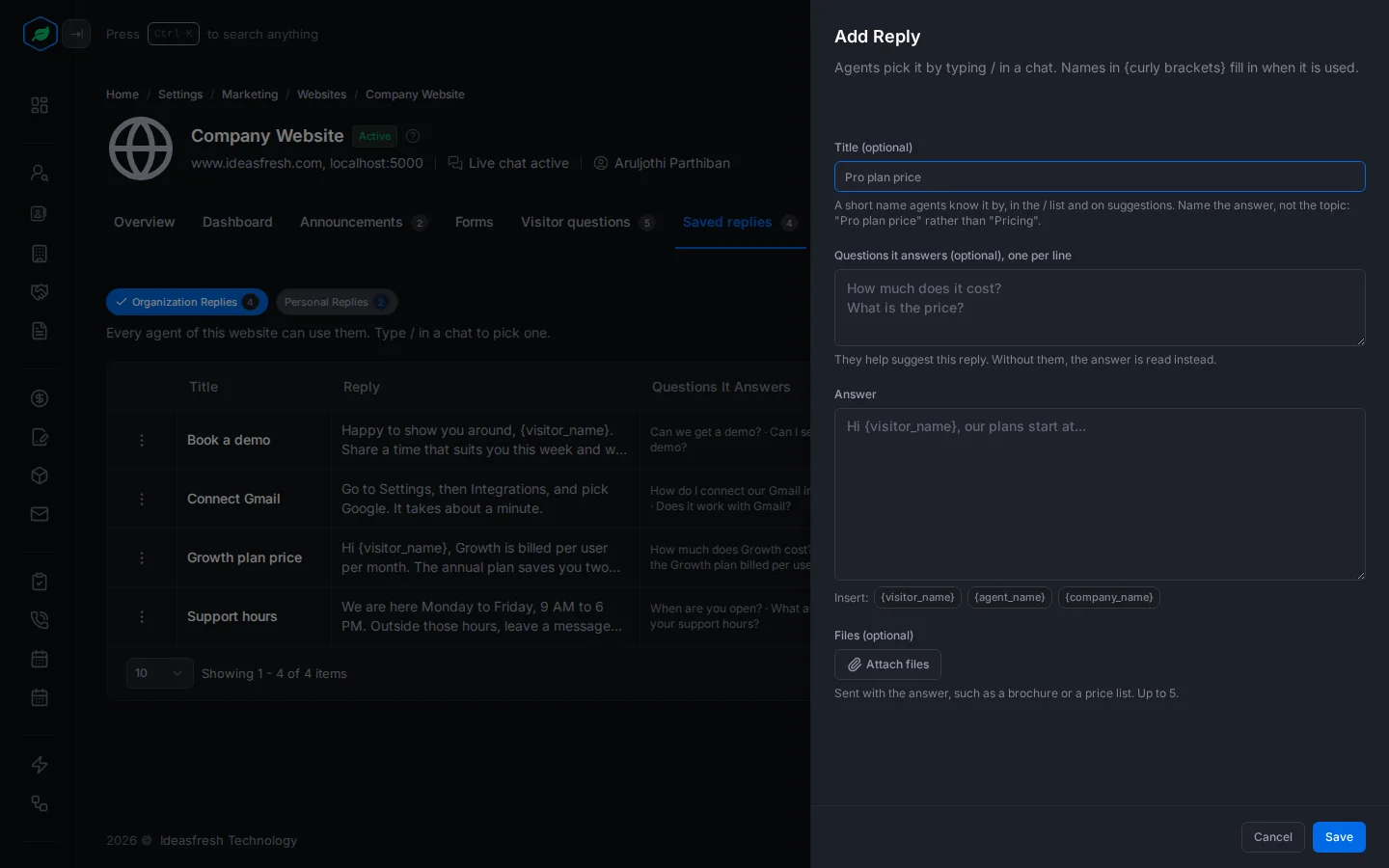
Select Add Reply and fill in the fields.
| Field | What to enter |
|---|---|
| Title (optional) | A short name to find it by |
| Questions it answers (optional) | The questions it answers, one per line, up to 10. They help Salesfresh suggest it |
| Answer | The reply, up to 2,000 characters. Insert: adds the visitor's name, the agent's name or your company name |
| Files (optional) | Up to 5 files to send with it |
FAQs
Answers to common questions. The chat can send them by itself, and show them on the website.
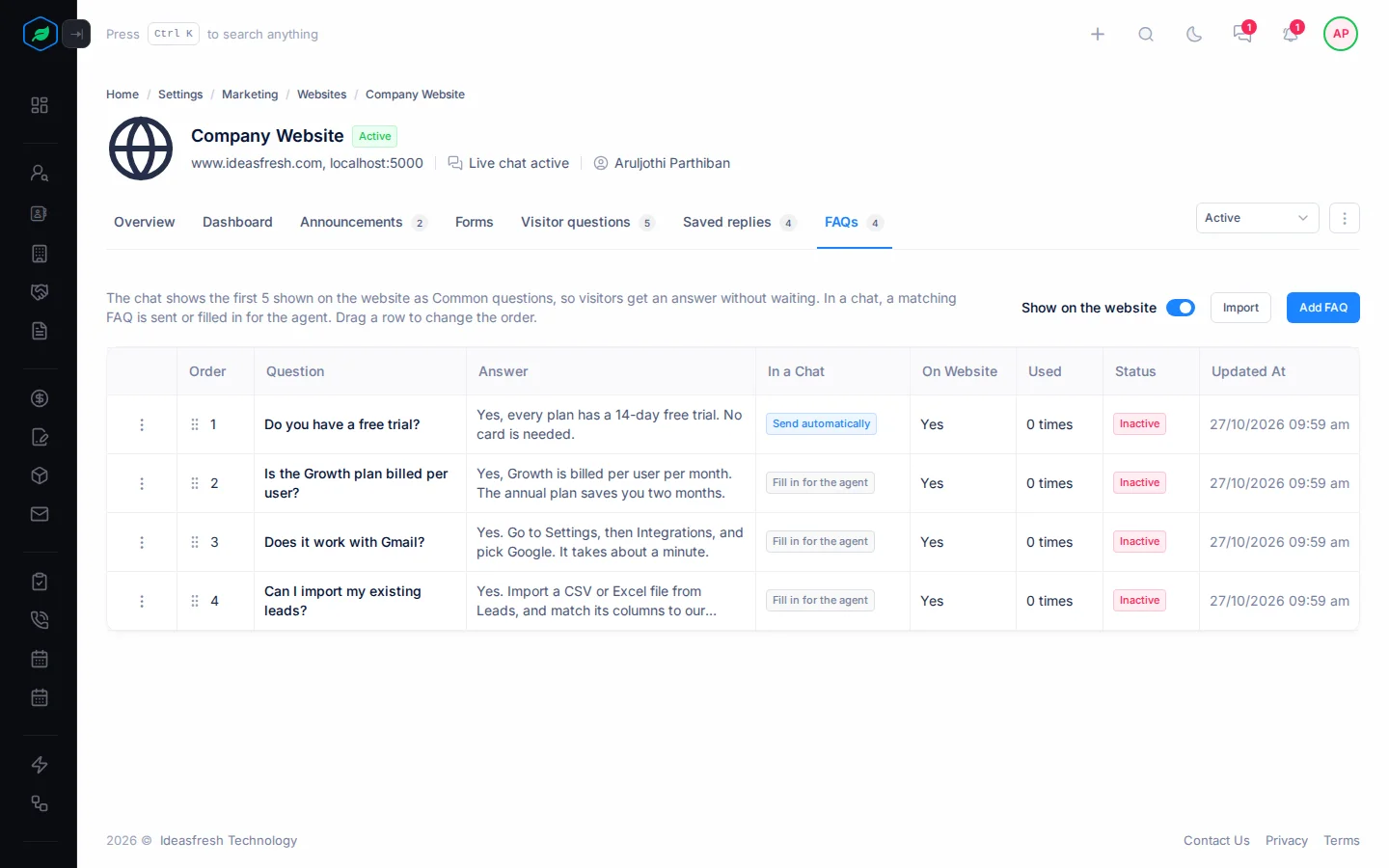
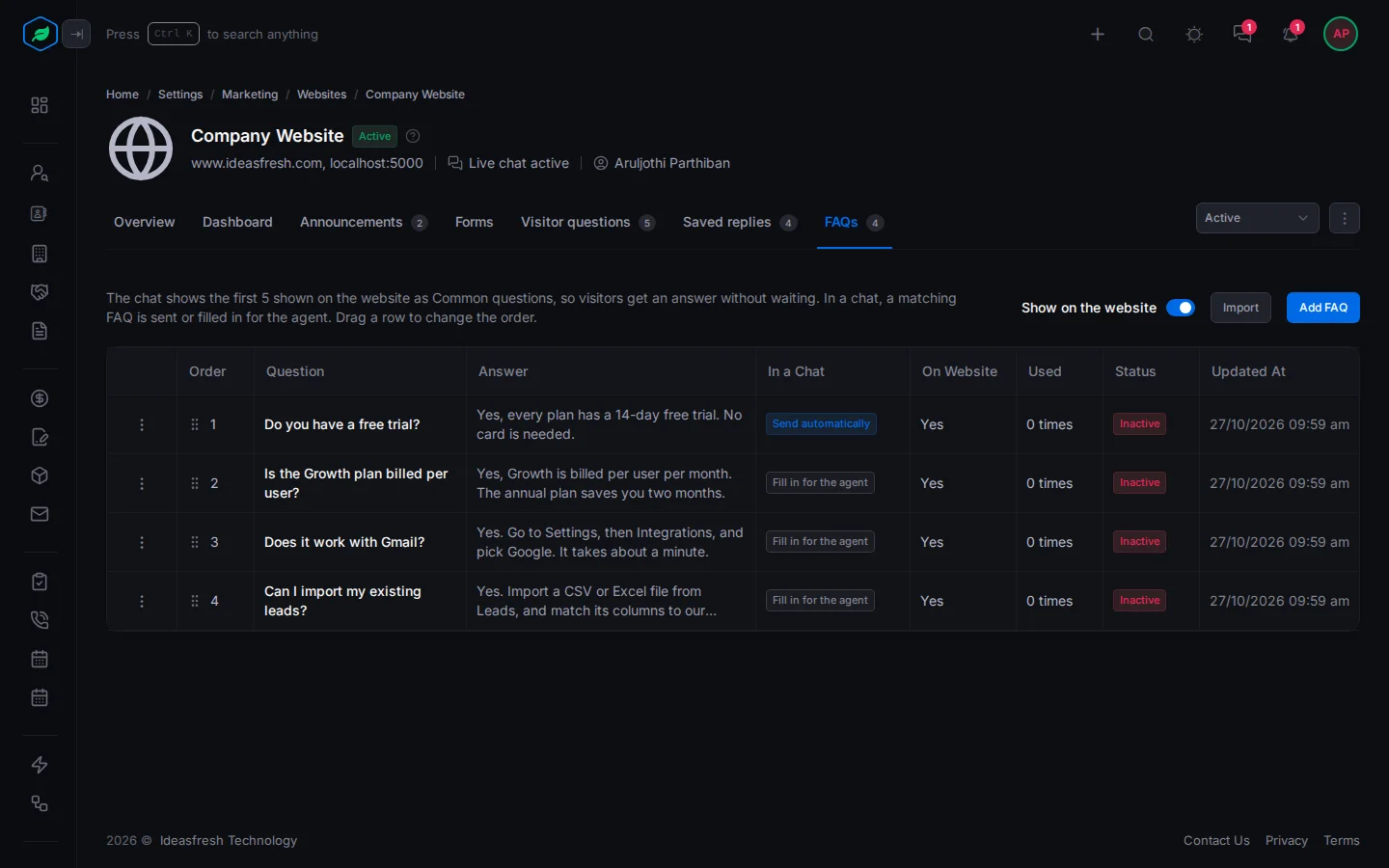
Select Add FAQ and fill in the fields:
| Field | What to enter |
|---|---|
| Question | The question, such as "Do you offer a free trial?" |
| Other ways of asking (optional) | Other wordings, one per line, up to 10 |
| Answer | The answer, up to 2,000 characters |
| In a chat | Send automatically to answer by itself, or Fill in for the agent to suggest it |
| Show on the website | Whether it's listed in the chat on your website |
A website can have up to 50 FAQs, and the chat shows the first 5. Turn off Show on the website at the top of the tab to hide them all.
Import and copy
- Import brings in FAQs, or organization replies, from a CSV or Excel file. Select Download a template for the columns. Up to 50 FAQs or 200 replies.
- Copy to website on a question, reply or FAQ's ⋮ copies it to another website. Personal replies can't be copied.
Troubleshooting
| Message | Why | What to do |
|---|---|---|
| "Pick another website." | You picked the website you're copying from | Pick a different website |
| Copying an FAQ fails | The other website already has 50 FAQs | Remove FAQs there first |
| Visitors aren't asked the questions | Ask visitors is off | Turn it on at the top of the tab |
Related
Still stuck?
Tell us what you were trying to do and we will help.