Set up live chat on your website
Add live chat to your website, choose who answers, what visitors fill in, when and where it shows, how it looks and what it says.
Updated 28 October 2026 · 6 min read
Live chat puts a chat button on your website. Visitors type a question, your team answers from the Chat panel in Salesfresh, and each visitor can become a lead without anyone typing them in.
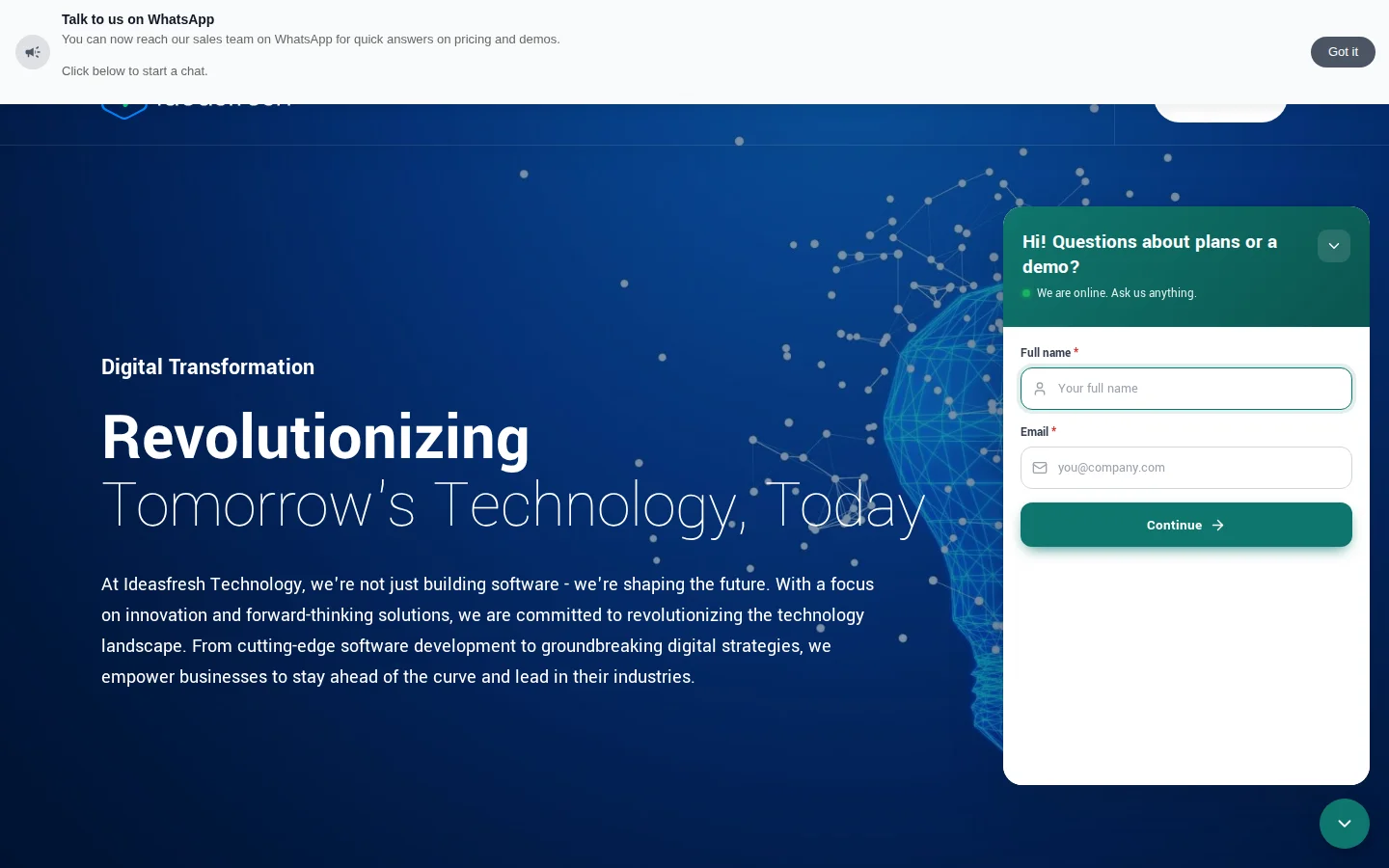
Say visitors leave your pricing page because nobody is there to answer a quick question. Add live chat to the website, pick three salespeople as agents, and set your support hours. The next visitor with a question asks it in the chat, and a salesperson answers in a minute.
Before you start
- Permission: Manage Live Chat.
- Plan: Every plan. See Plans and limits.
- Set up first: The website, with its install code on your pages. The same code shows the chat. See Websites.
The Live Chats page
Go to Settings → Marketing → Live Chats. Each row shows a website with live chat, its agents and status, how many visitors are waiting and how many chats are open, and its chats and leads.
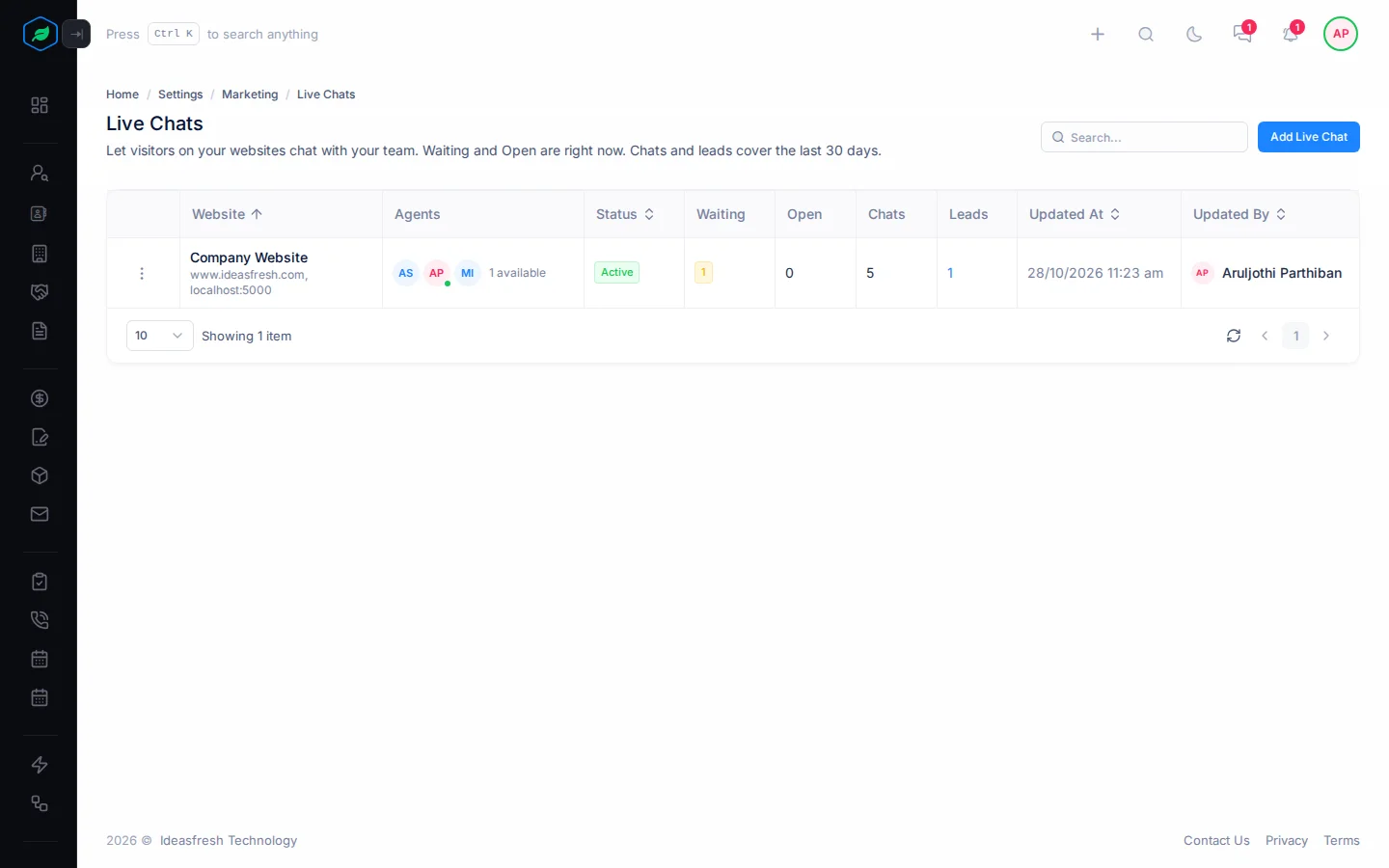
Select ⋮ on a row to Edit, Clone, Activate or Inactivate, or Delete a live chat. Deleting it takes the chat button off the website. Open chats can finish.
Add live chat
- Select Add Live Chat, or Set up live chat on the website's page. The Add Live Chat panel opens.
- Fill in each step and select Next. A preview on the right shows how the chat will look.
- On the last step, select Add Live Chat. The chat shows on every page that has the website's install code.
When you edit a live chat, Save shows on every step.
Site & agents
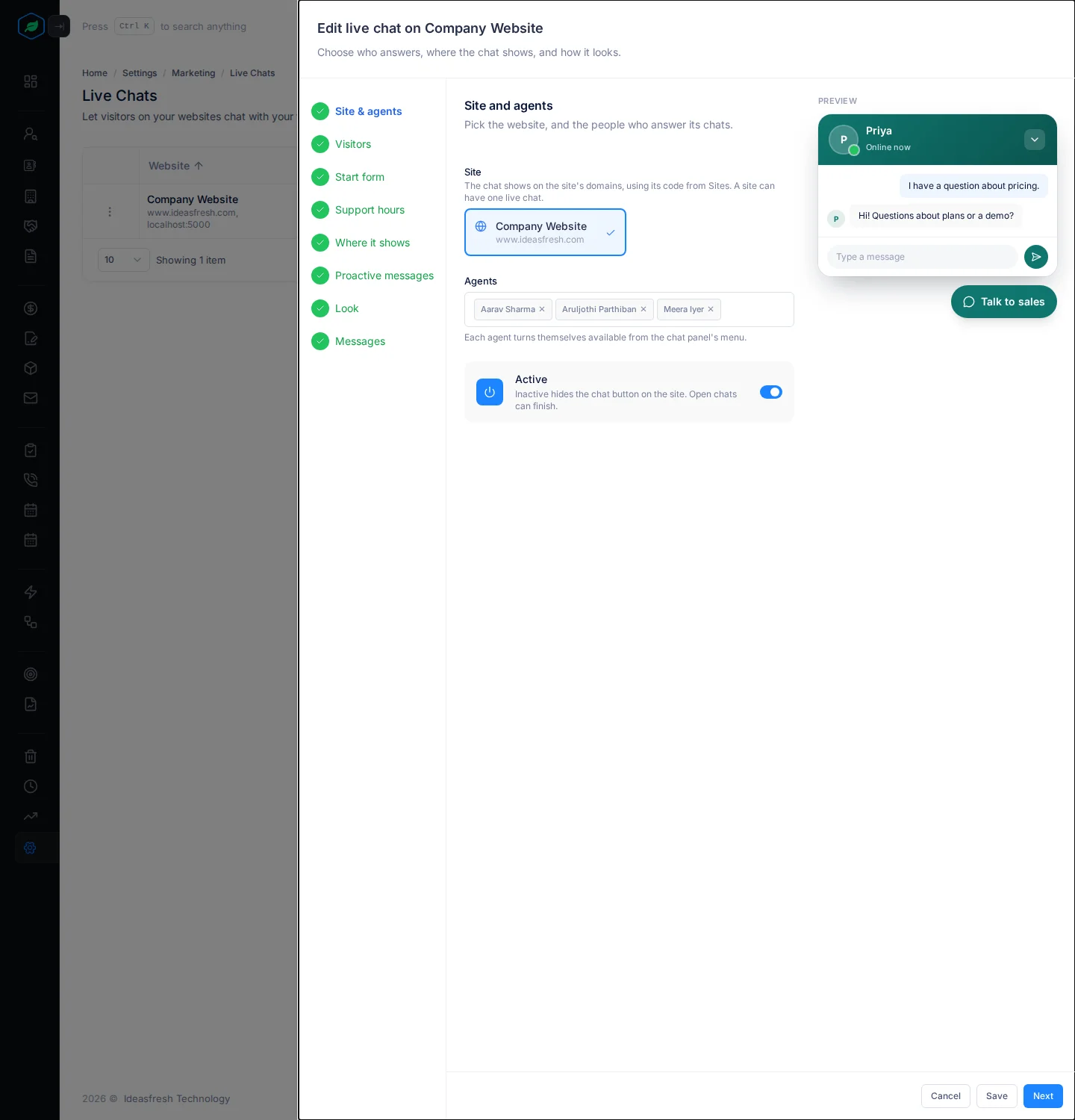
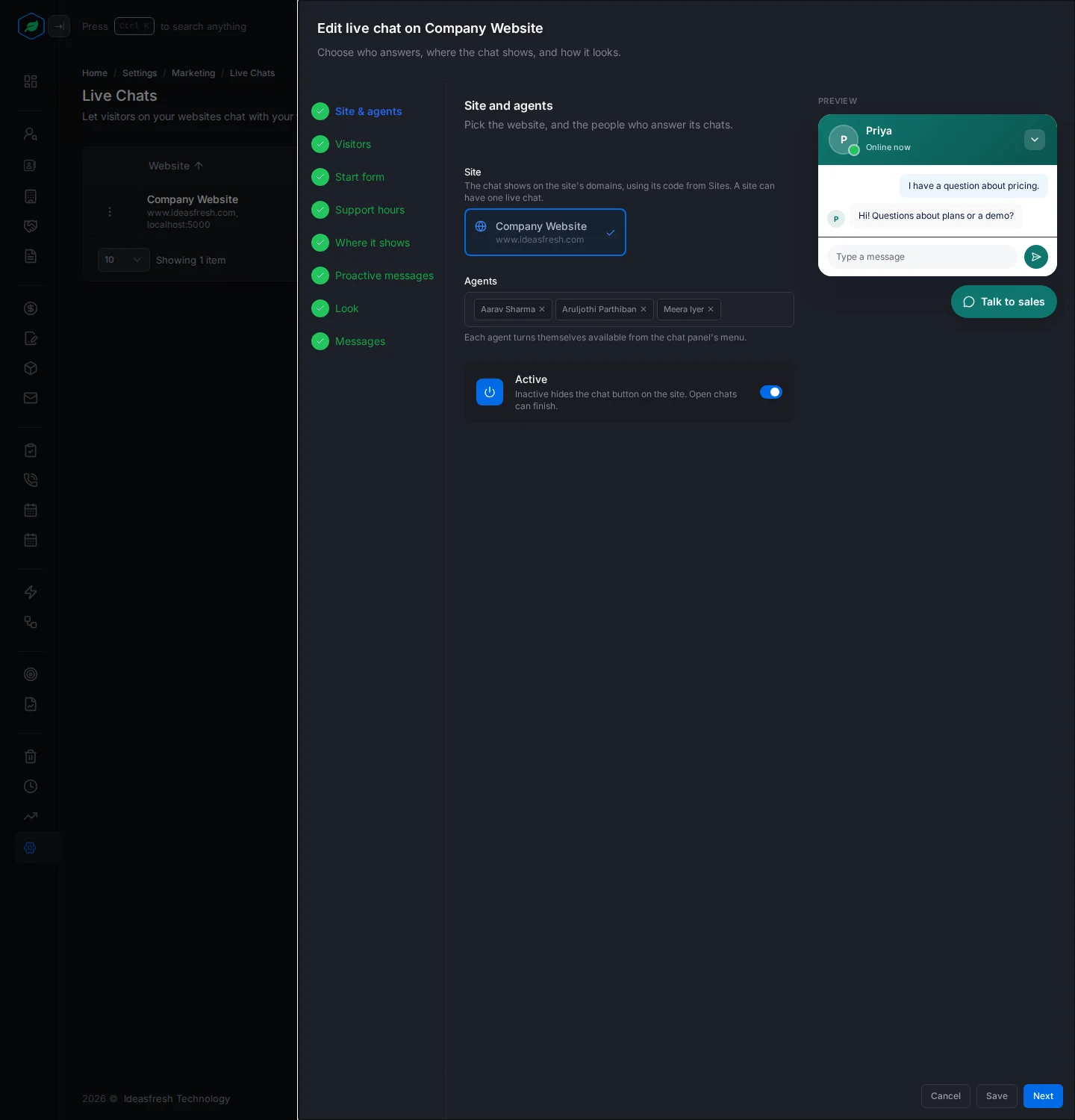
| Field | What to enter |
|---|---|
| Site | The website. A website can have one live chat. Not listed? Select Register a site |
| Agents | The teammates who answer its chats |
| Active | On at first. Turn it off to hide the chat button. Open chats can finish |
Each agent turns themselves available from the Chat panel's menu. See Answer website visitors.
Visitors
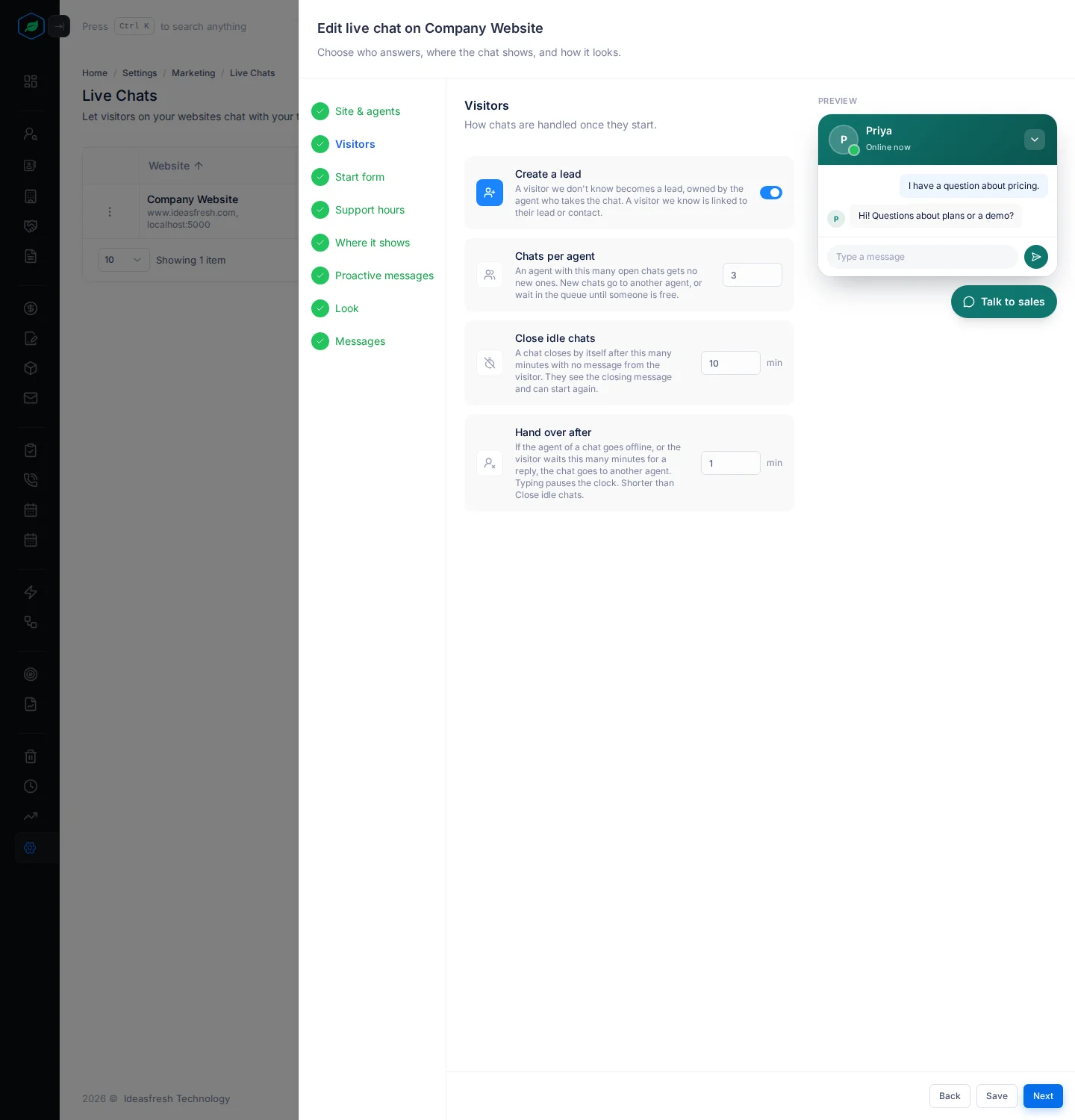
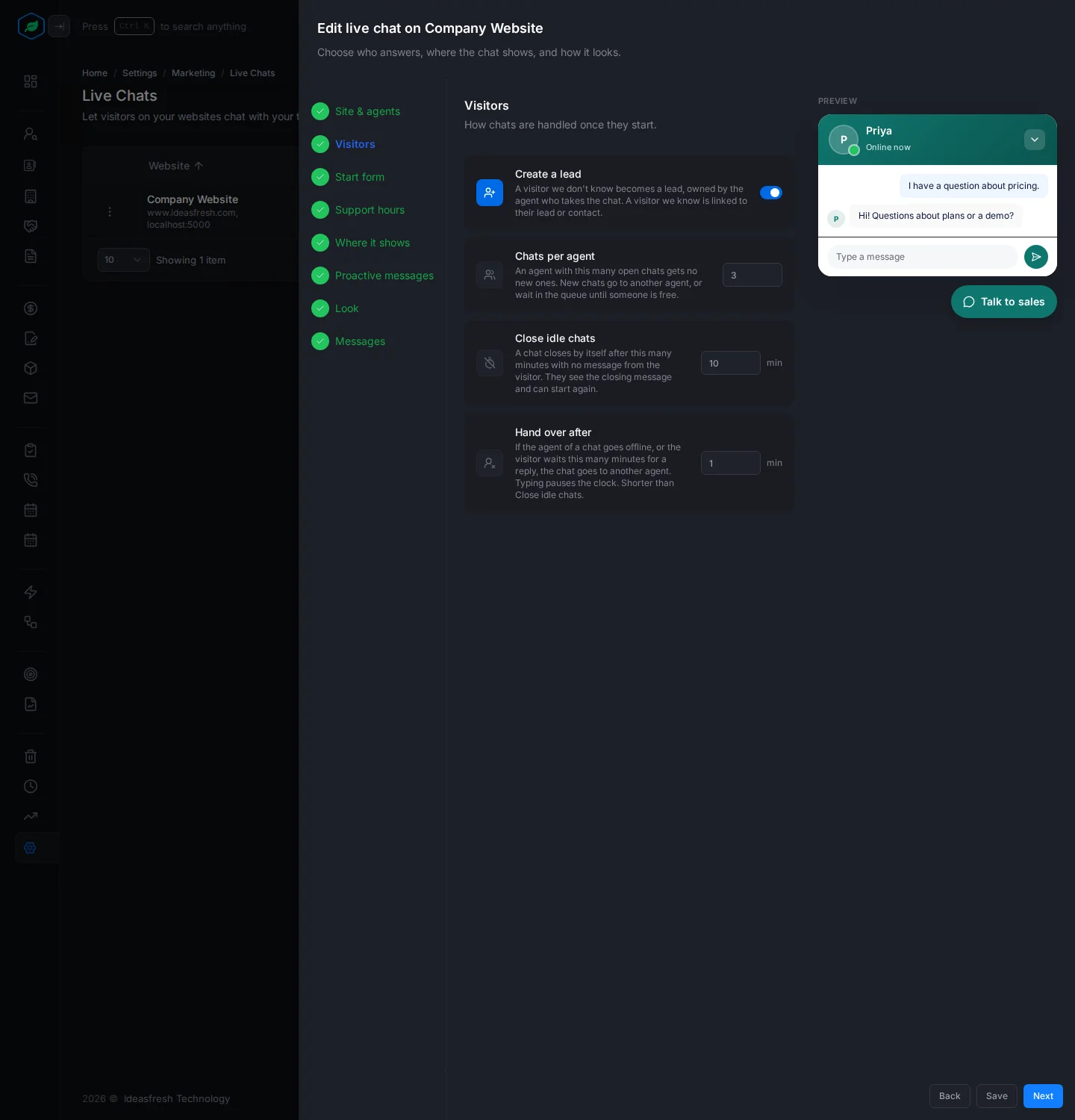
| Field | What to enter |
|---|---|
| Create a lead | On at first. Each new visitor becomes a lead with the source Live chat |
| Chats per agent | How many open chats each agent takes at once, from 1 to 20. Set to 3 at first |
| Close idle chats | Close a chat after this many minutes with no messages, from 5 to 120. Set to 10 at first |
| Hand over after | Move a chat to another agent if its agent hasn't replied in this many minutes, from 1 to 60. Set to 1 at first. It must be shorter than Close idle chats |
New chats go to the available agent with the fewest open chats.
Start form
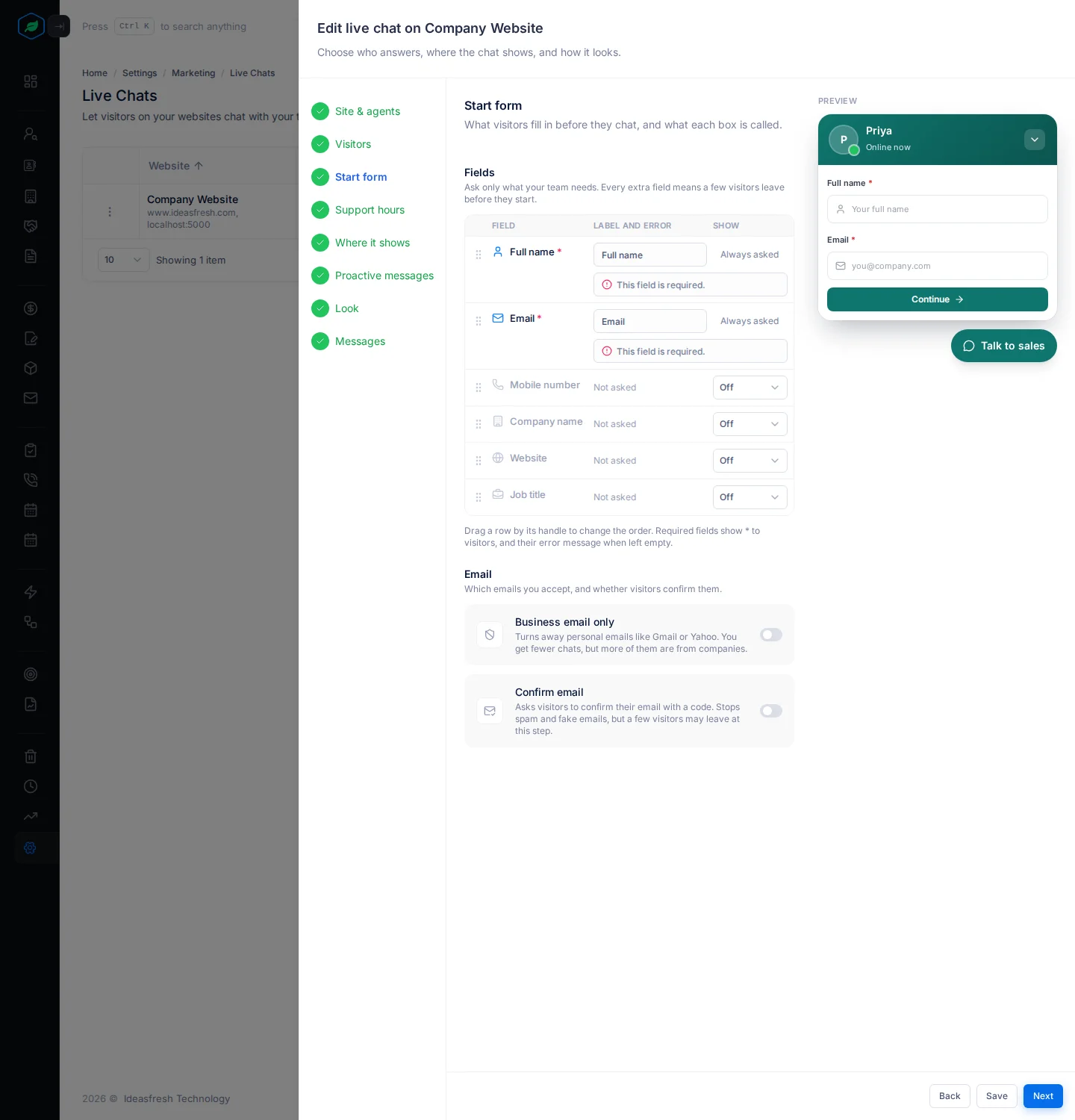
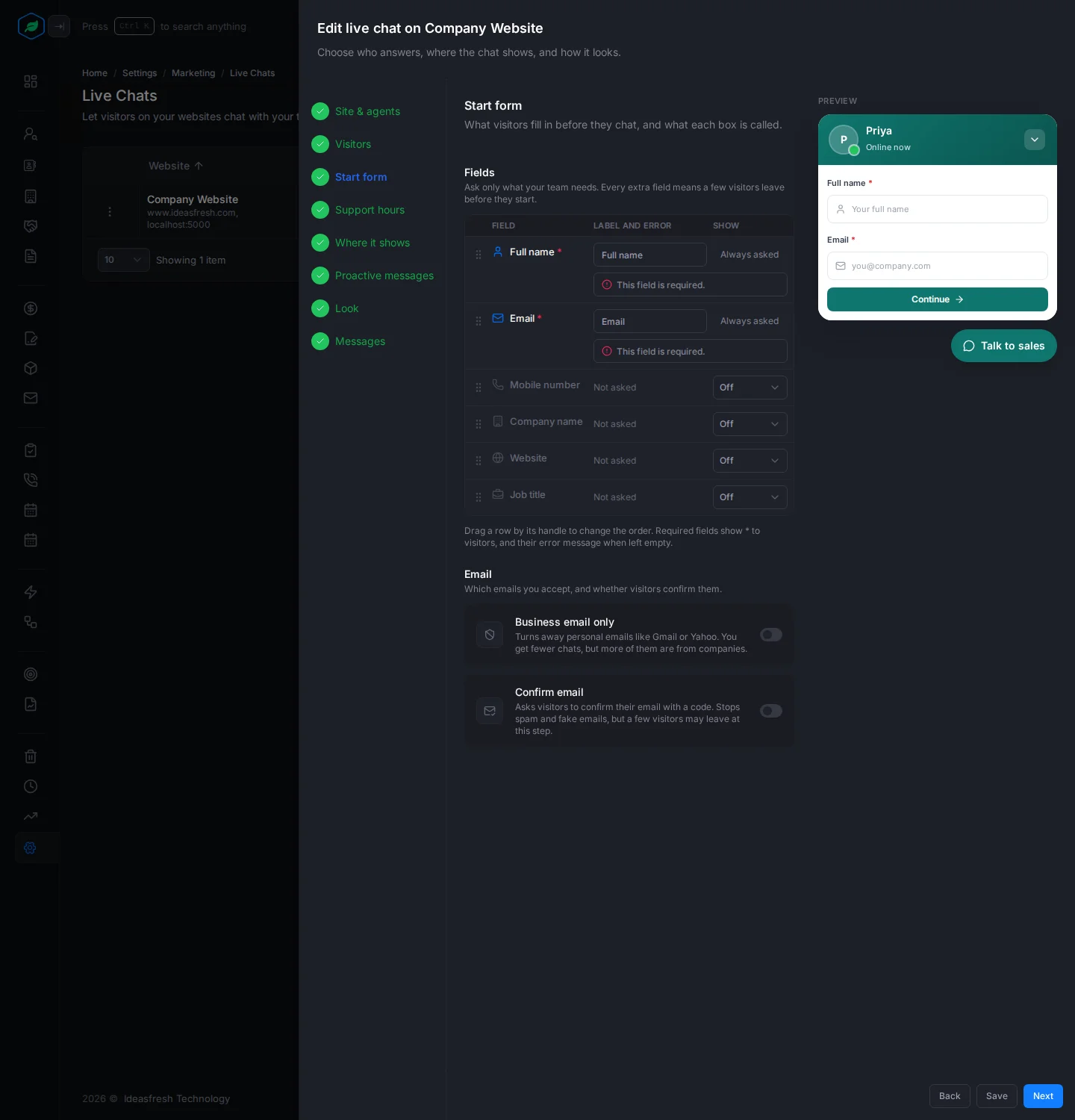
What visitors fill in before they chat. Full name and Email are always asked. Mobile number, Company name, Website and Job title can each be Off, Optional or Required. You can rename each field and write the message for a required one.
- Business email only turns away free email addresses, such as Gmail.
- Confirm email sends visitors a code to check their email is real.
Support hours
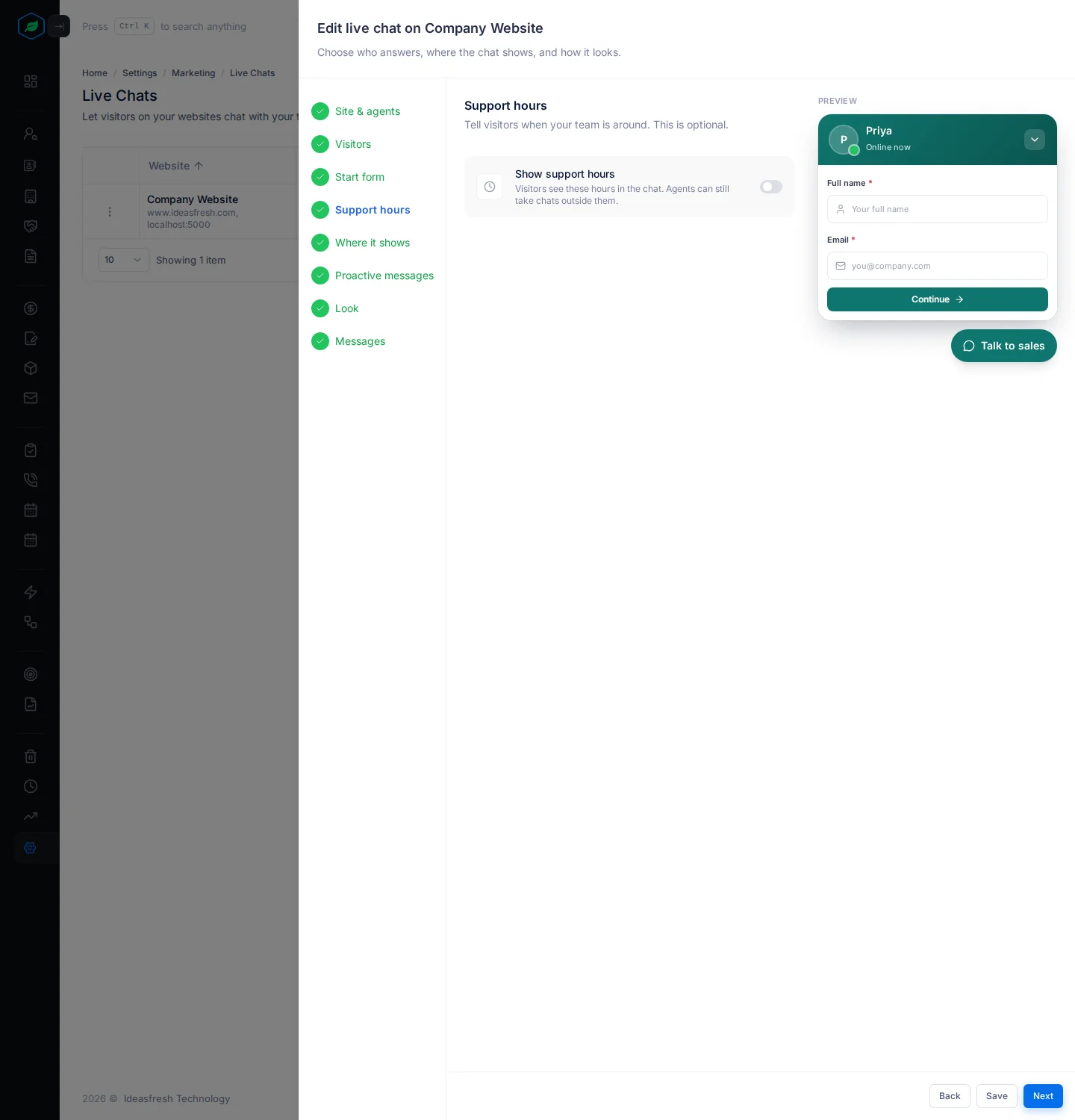
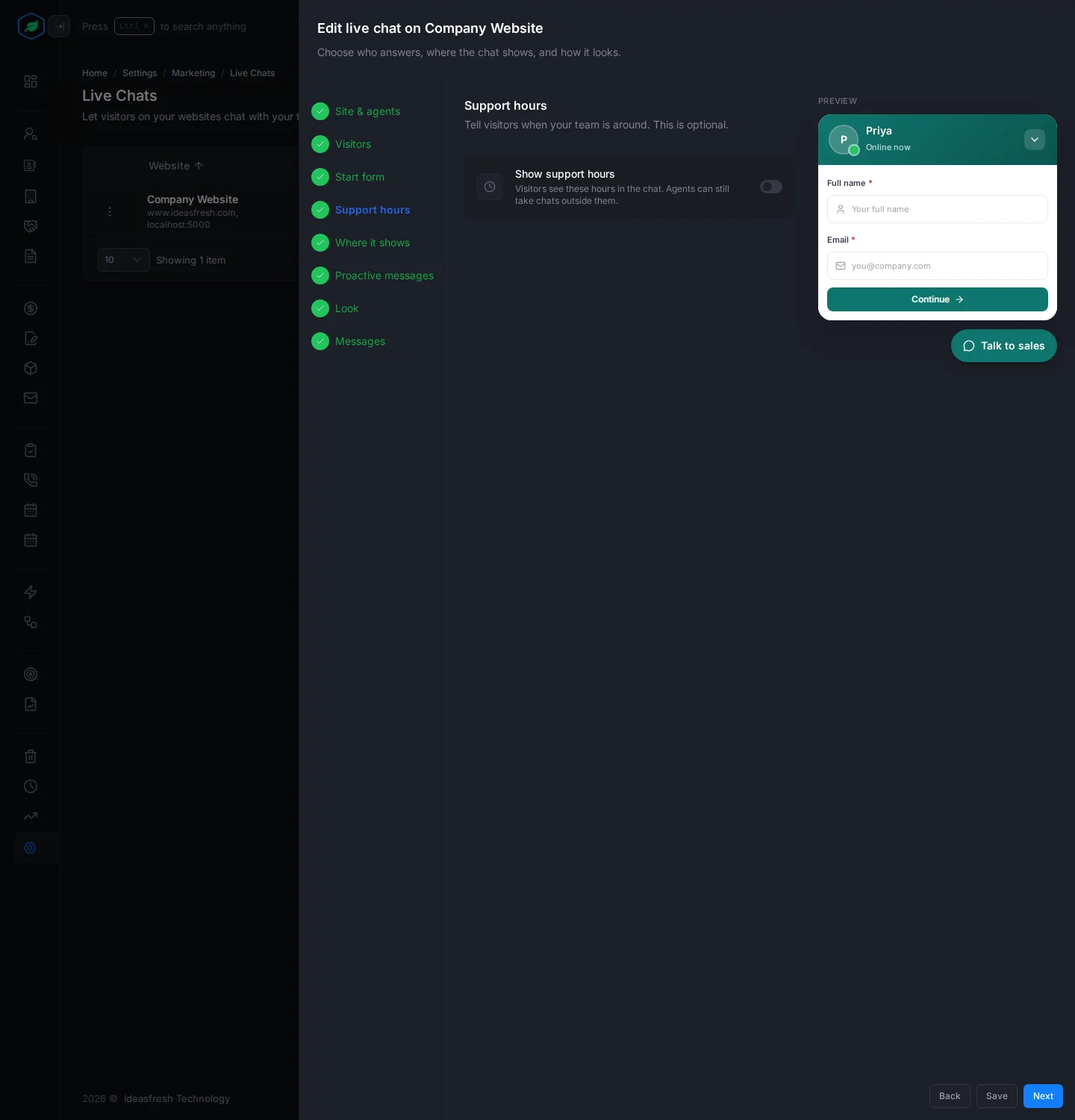
Turn on Show support hours, pick the country and time zone, and set when you open and close each day. It starts as Monday to Friday, 9 am to 6 pm. Visitors see the hours in the chat. Agents can still take chats outside them.
Where it shows
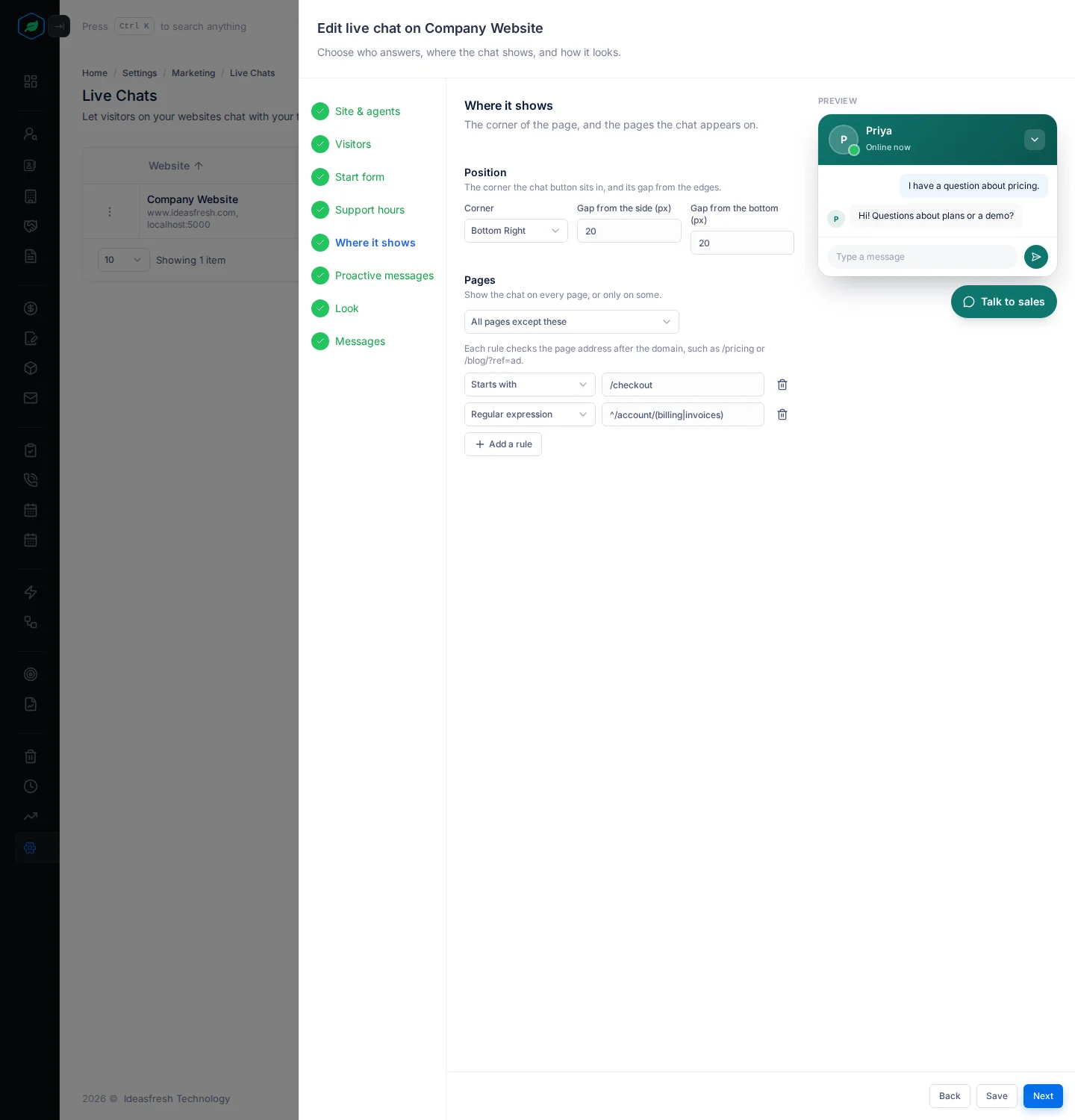
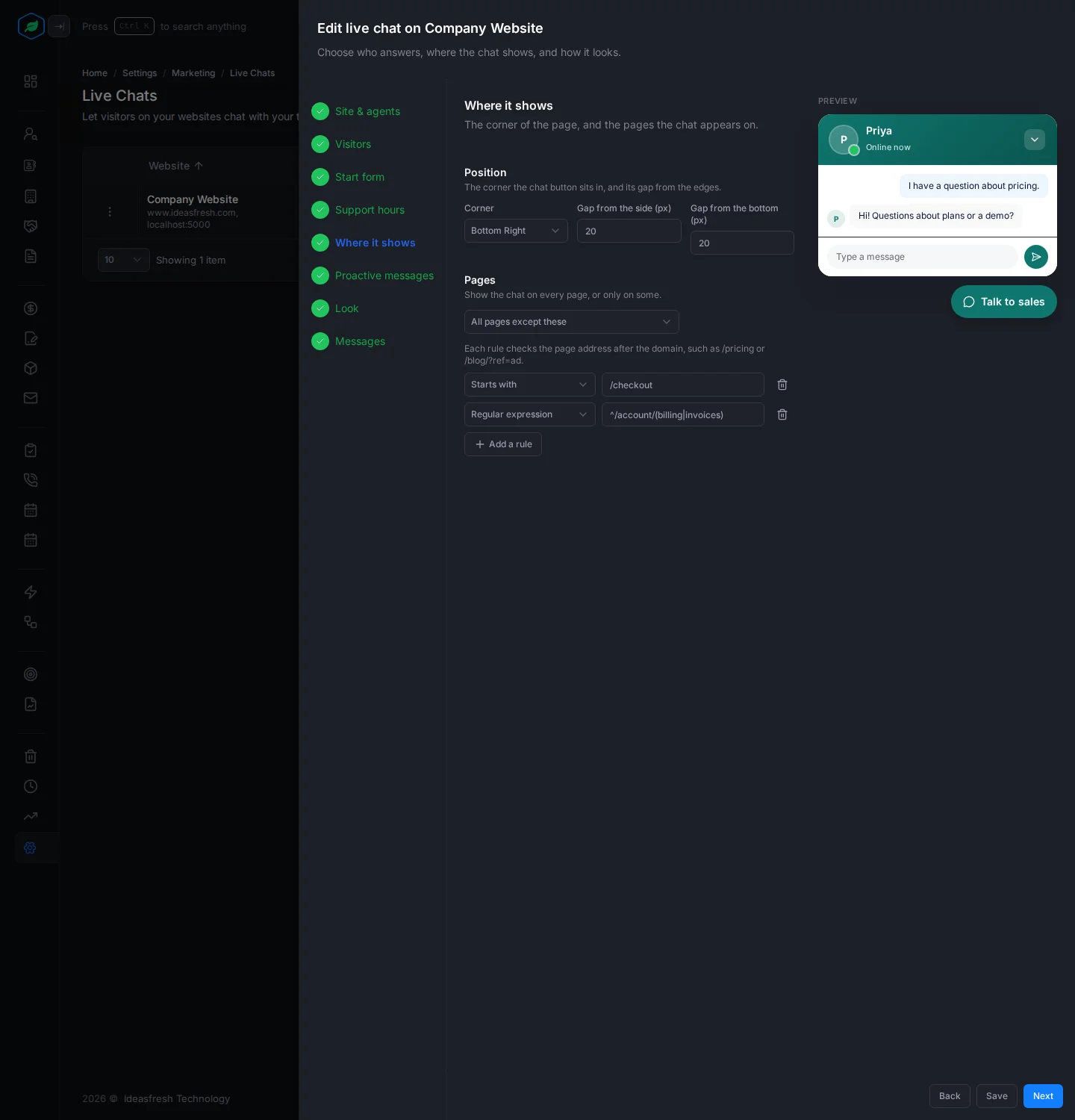
| Field | What to enter |
|---|---|
| Corner | Bottom Right or Bottom Left. Set to Bottom Right at first |
| Gap from the side (px), Gap from the bottom (px) | How far the button sits from the edge. Set to 20 at first |
| Pages | All pages, Only these pages or All pages except these. Select Add a rule and pick how the page's address matches: Contains, Equals, Starts with or Regular expression. Up to 20 rules |
Proactive messages
A greeting that opens by itself, such as after a visitor has spent 30 seconds on a page. See Proactive messages.
Look
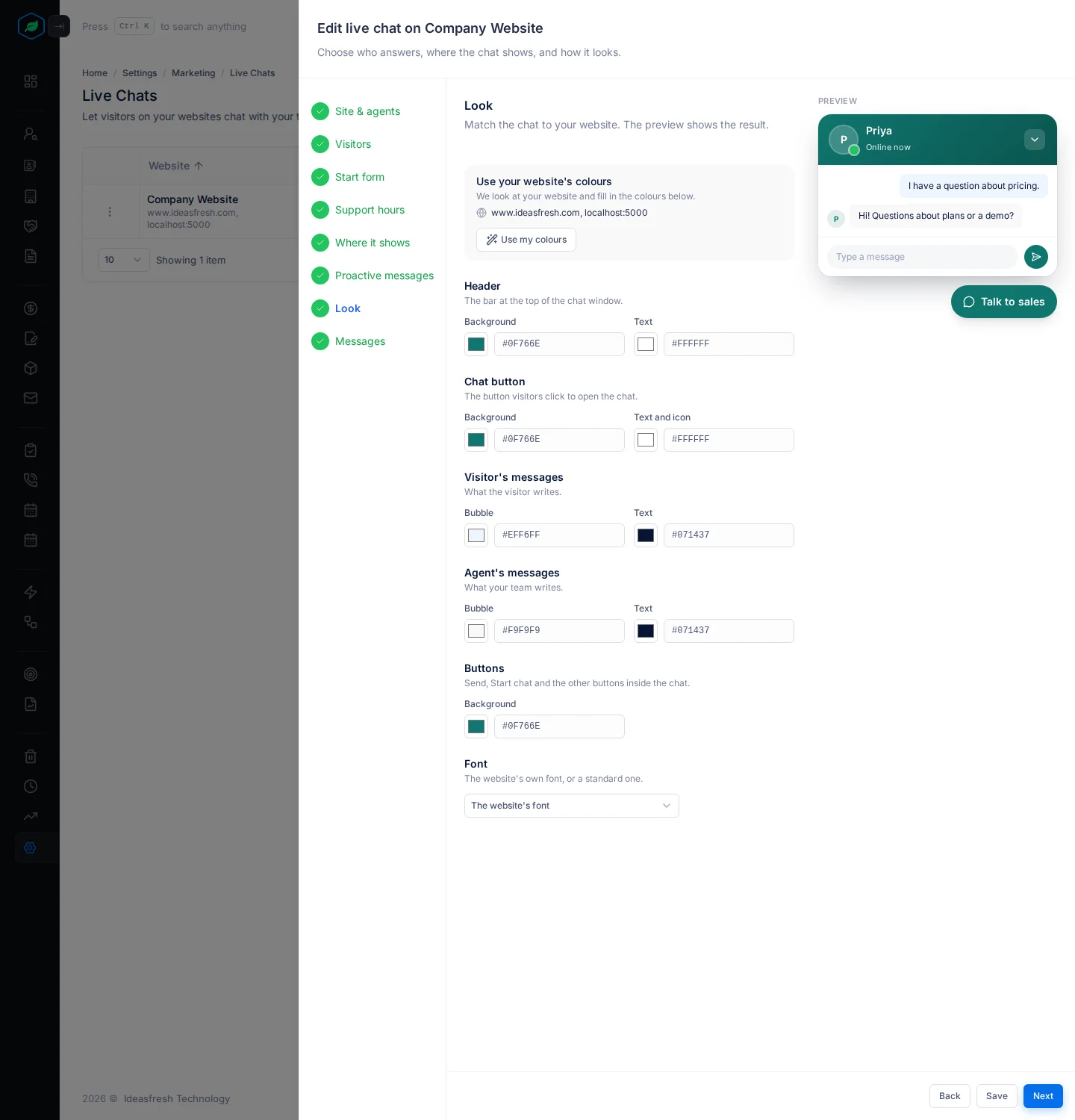
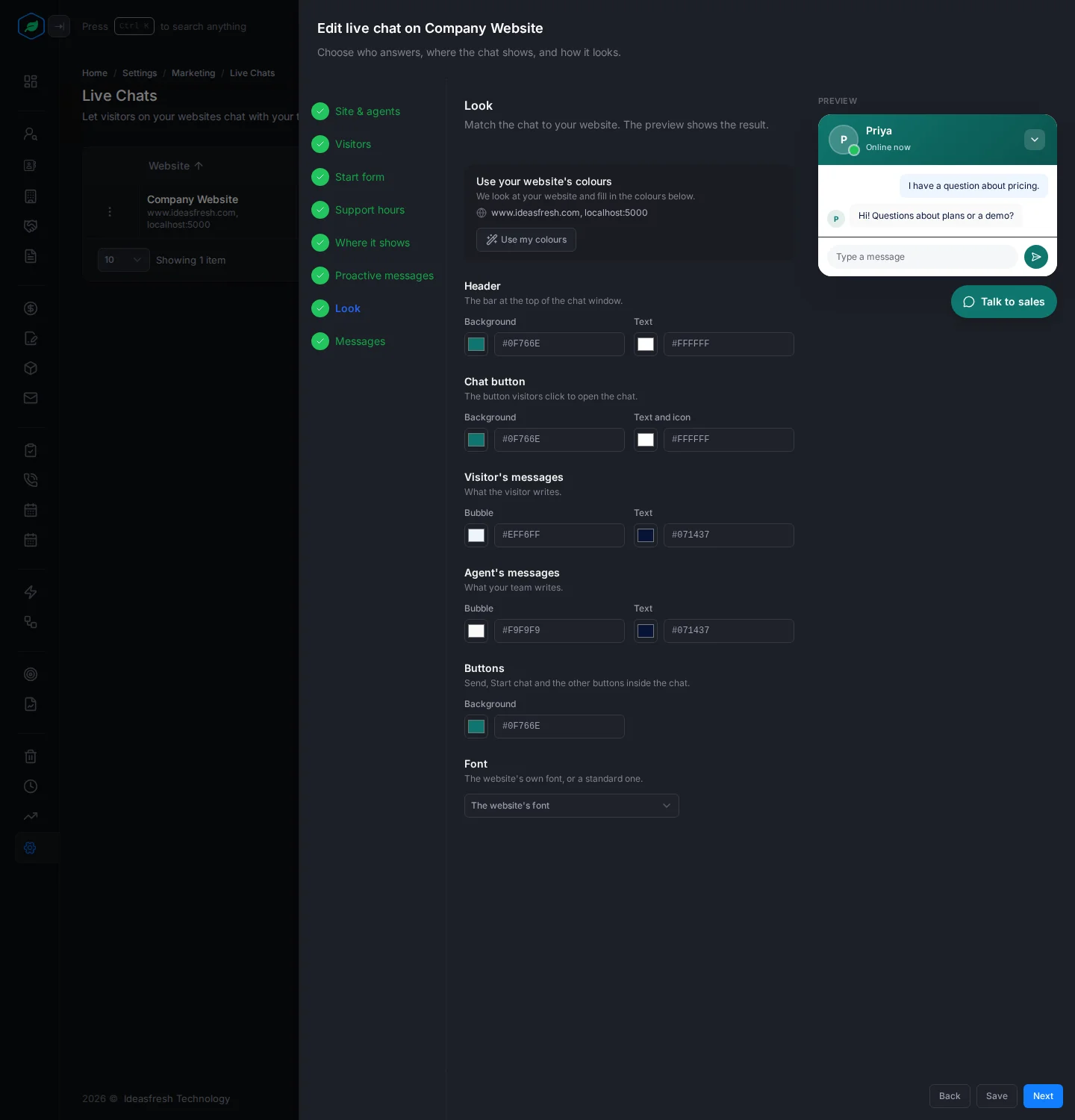
Pick colours for the header, the chat button, the visitor's and the agent's messages, and the buttons. Use my colours takes them from your website. Pick The website's font or Standard font.
Messages
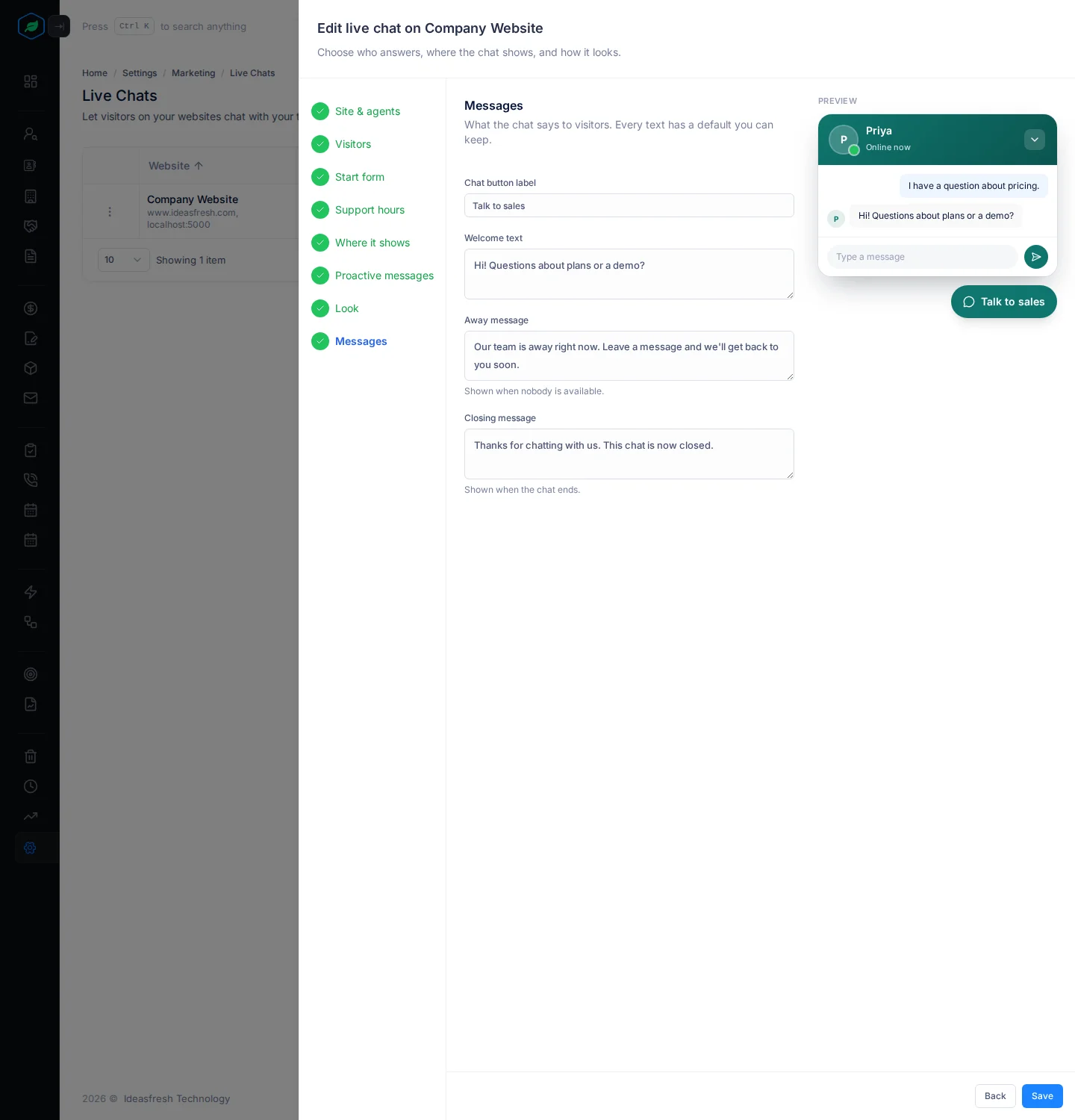
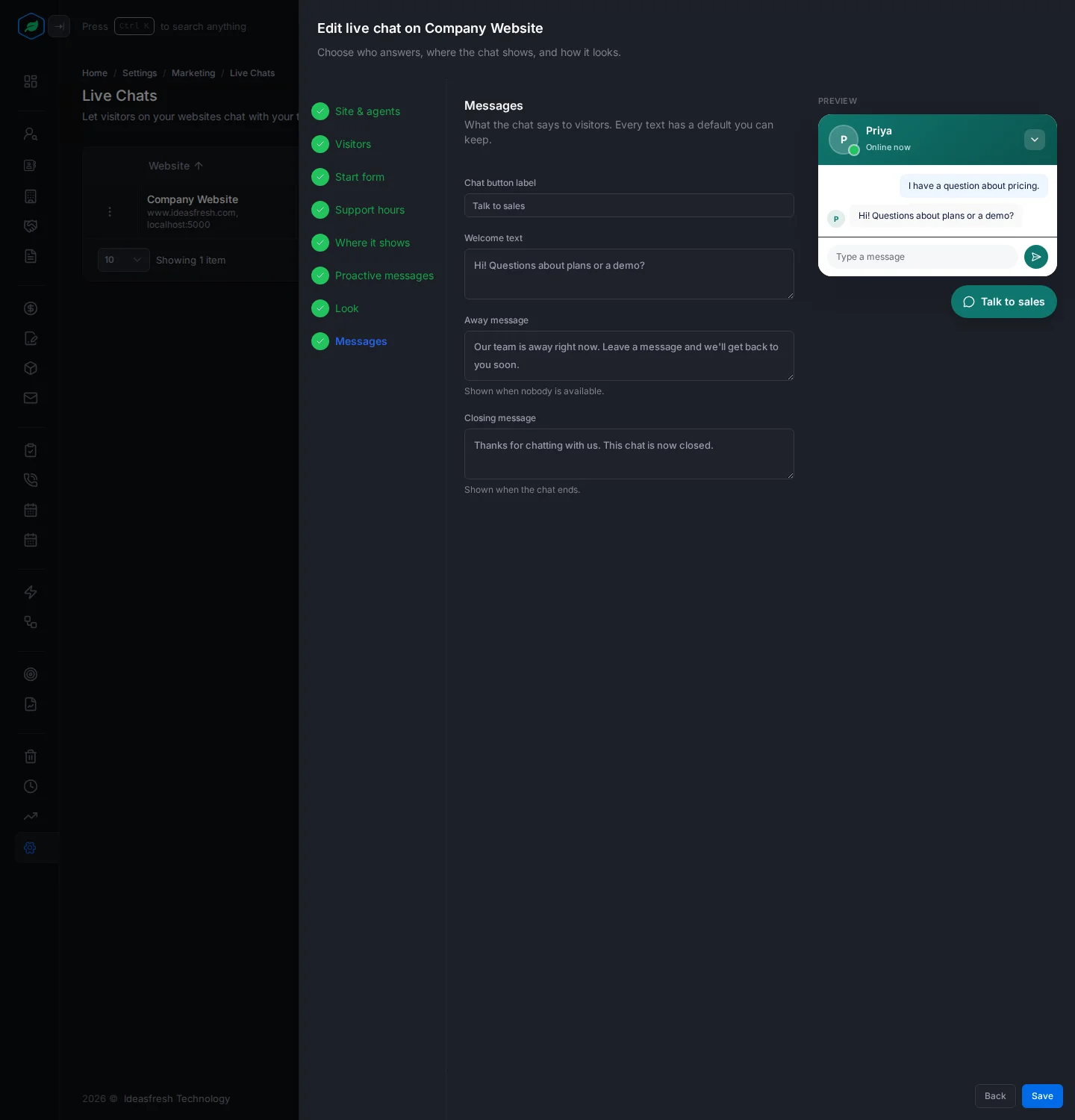
| Field | What to enter |
|---|---|
| Chat button label | The words on the button, up to 40 characters. Set to "Chat with us" at first |
| Welcome text | The first thing visitors read, such as "Hi! How can we help?" |
| Away message | What visitors see when nobody is available |
| Closing message | What visitors see when the chat ends |
After you add it
The chat button shows on every page with the website's install code, in the corner you picked. Chats come to your agents' Chat panel. See Answer website visitors.
Troubleshooting
| Message | Why | What to do |
|---|---|---|
| "Pick a site" | No website is picked | Pick one, or register your website first |
| "Add at least one agent" | Nobody answers the chats | Add an agent |
| "Hand over has to be shorter than Close idle chats" | A chat would close before it moved to another agent | Shorten Hand over after, or lengthen Close idle chats |
| The chat doesn't show on a page | The page isn't on the website's domains, the page rules leave it out, or the live chat is Inactive | Check the website's domains, the Where it shows step and the status |
Related
Still stuck?
Tell us what you were trying to do and we will help.