Answer website visitors
See and pick up chats from your website's visitors, reply with saved replies, link the visitor to a lead or contact, and hand over or close a chat.
Updated 28 October 2026 · 4 min read
When a visitor writes in the chat on your website, the chat comes to Salesfresh. If you're one of the website's agents, you answer it from the same Chat panel you use with your team.
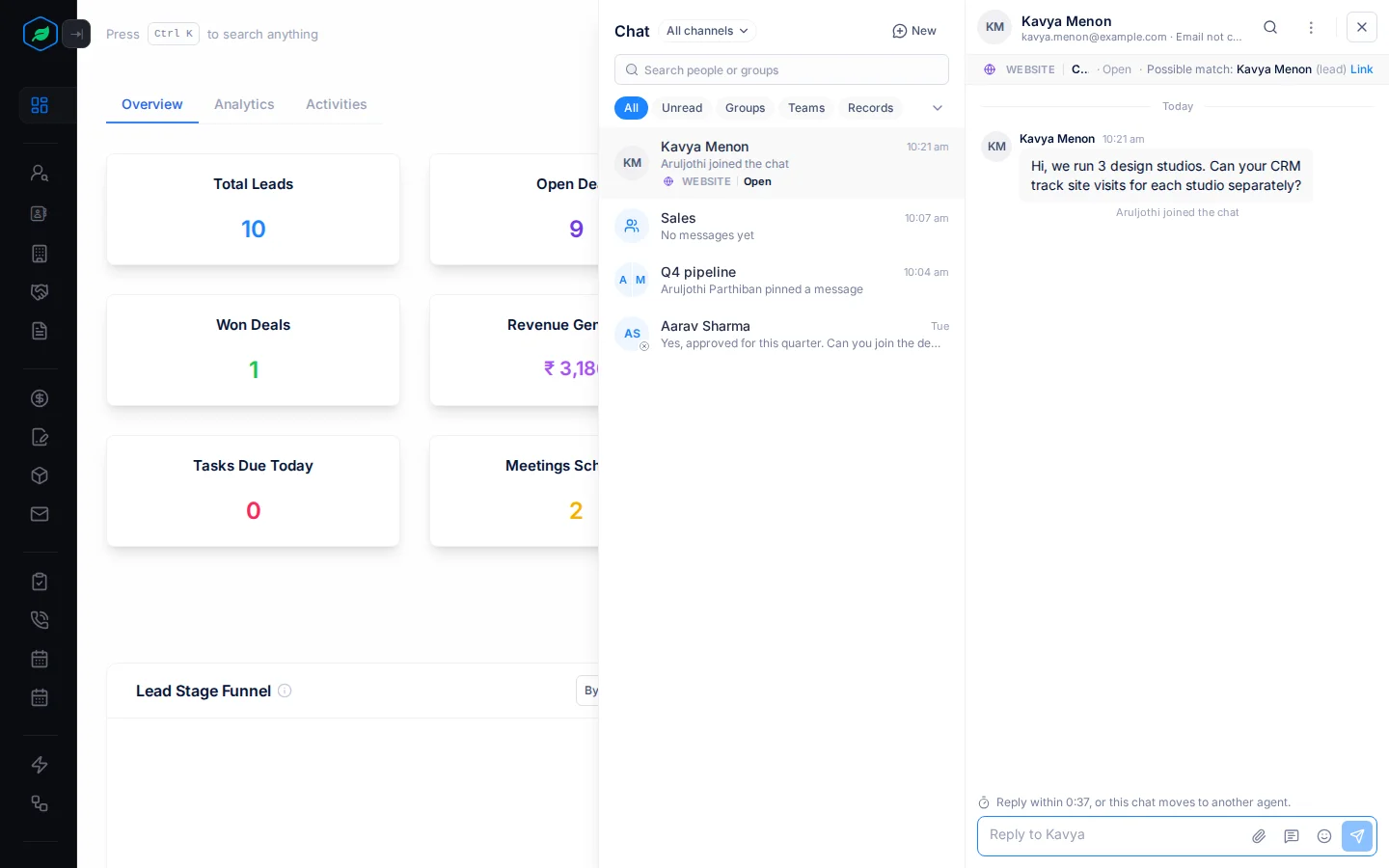
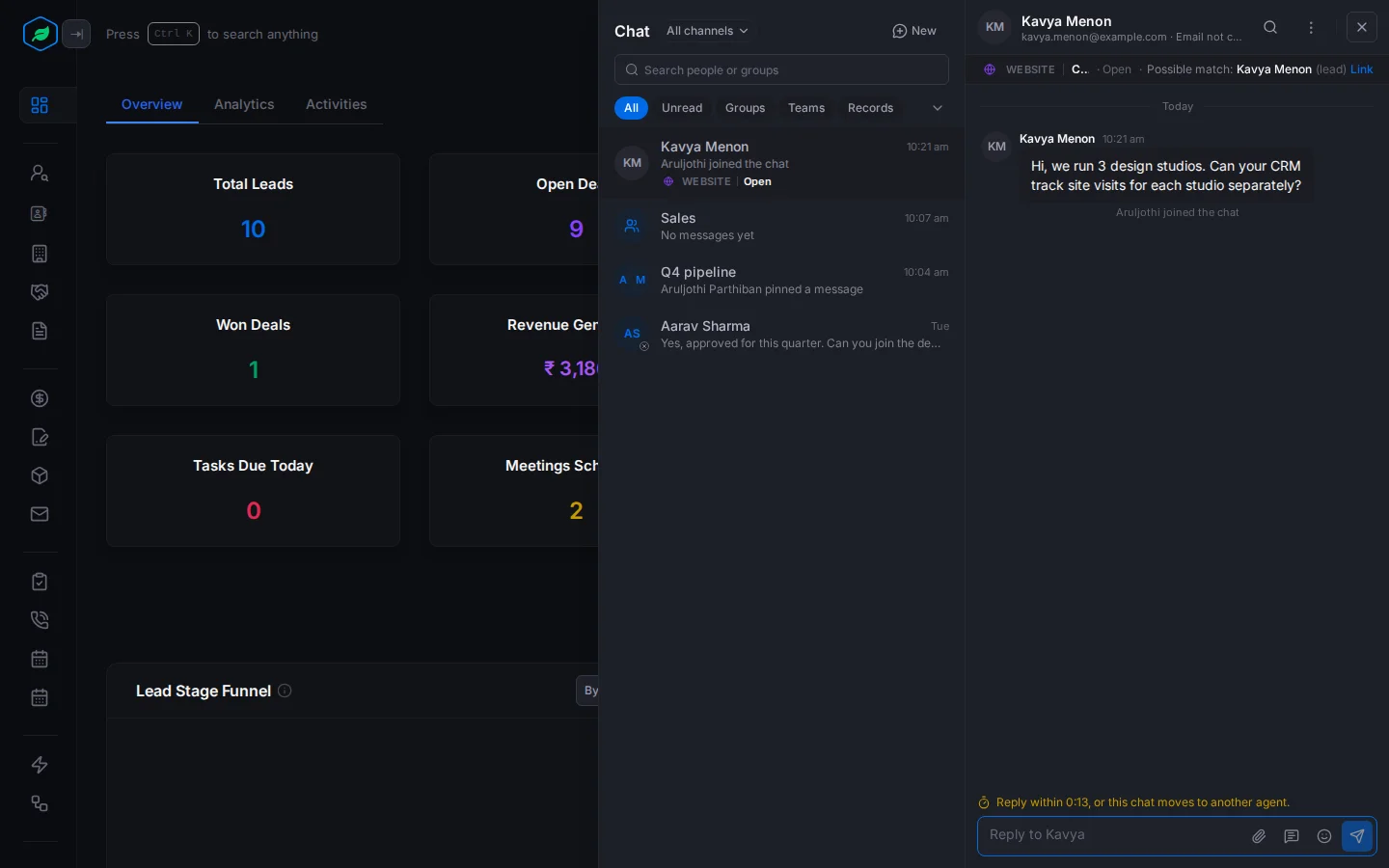
Say a visitor on your pricing page asks if your CRM fits three studios. The chat appears in your panel, you answer in a minute, and the visitor is saved as a lead, without anyone typing them in.
Before you start
- Permission: None to answer chats, once your admin makes you an agent on a website. View All Live Chats to see and reassign every live chat. Manage Live Chat to set it up.
- Plan: Every plan. See Plans and limits.
- Set up first: Your admin adds the chat to your website and makes you one of its agents. See Set up live chat.
Be available
Select ⋮ at the top of the Chat panel and turn on Available for live chat. While you're available, new chats can come to you. Turn it off, and your open chats move to another agent after a minute.
Where visitor chats show
Select the Live chip, or pick Live chat under All channels. The tabs are:
- Queue: chats waiting for someone,
- Mine: chats you're answering,
- All: every chat, if you can see them all.
Each row is marked Website with its status: Waiting for someone, Open, Away message or Closed. A chime plays when a visitor writes.
Pick up a chat
New chats go to an available agent with the fewest open chats, up to 3 each. A chat in the Queue isn't anyone's yet: open it and select Pick up. Until then, the box says "Pick up this chat to reply."
Once a chat is yours, reply before the timer runs out, or the chat moves to another agent.
The visitor
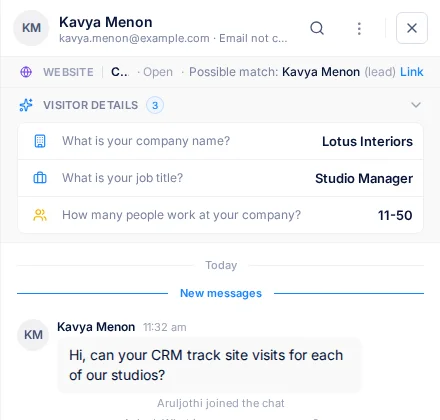
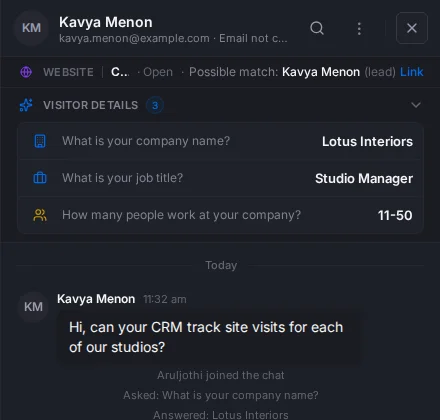
The top of the chat shows who the visitor is and which website they're on.
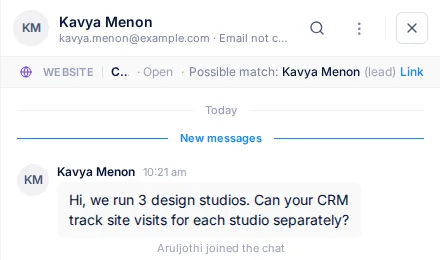
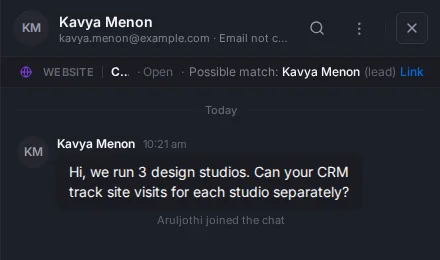
- Their name and email, with "Email confirmed" or "Email not confirmed".
- The website, the chat's status and the page they wrote from.
- Visitor details: their mobile, company, website and job title, and their answers to your website's questions.
Leads and contacts
If your website is set to save visitors, each new visitor becomes a lead with the source "Live chat". The lead belongs to whoever answers the chat. See Who owns and who can see a lead.
If the visitor's email isn't confirmed, but matches someone you already have, the bar shows "Possible match" with a Link button. Select it to link the chat to that lead or contact. Once linked, Open takes you to the record.
Reply
Type and send, as in any chat. You can also send files. Record cards, voice messages and forwarding aren't available in visitor chats.
- Saved replies: type
/in an empty box, or select Saved replies (/), and pick one. Use Search replies to find it. Replies are marked Organization, Personal or FAQ. - Suggestions: up to 3 suggested answers show above the box. Select one to use it.
- Save as reply: on a message you sent, select Save as reply to use it again later.
The visitor already has your message, so it can't be edited or deleted after you send it. Visitors can react to messages, and see your reactions.
Hand over or close
Select ⋮ at the top of the chat:
- Hand over passes the chat to another agent you pick.
- Close chat ends it. If the visitor writes again, a new chat starts.
A chat closes on its own after 10 minutes with no messages. Your admin can change the time.
Missed chats
If no agent is available, the visitor sees your away message, and the chat waits in the Queue. If you reply and the visitor has left, your reply is emailed to them after 5 minutes.
Troubleshooting
| Message | Why | What to do |
|---|---|---|
| "Someone else took this chat a moment ago." | Another agent picked it up first | Pick another chat |
| "Only the agent on this chat can hand it over." | The chat belongs to another agent | Ask that agent, or someone who can see all chats |
| "This chat is closed. If the visitor writes again, a new chat starts." | The chat was closed | Wait for the visitor to write again |
| "The visitor already has this message, so it stays as sent." | You tried to edit or delete a sent message | Send a correction instead |
Related
Still stuck?
Tell us what you were trying to do and we will help.