Chat with your team
Open Chat from the header, find a conversation, see who's online, and know how you're told about new messages.
Updated 28 October 2026 · 3 min read
Chat lets you message your teammates without leaving Salesfresh. A chat can carry a lead, deal or any other record as a card, so everyone is looking at the same thing, and customer details stay in your CRM instead of in personal messaging apps.
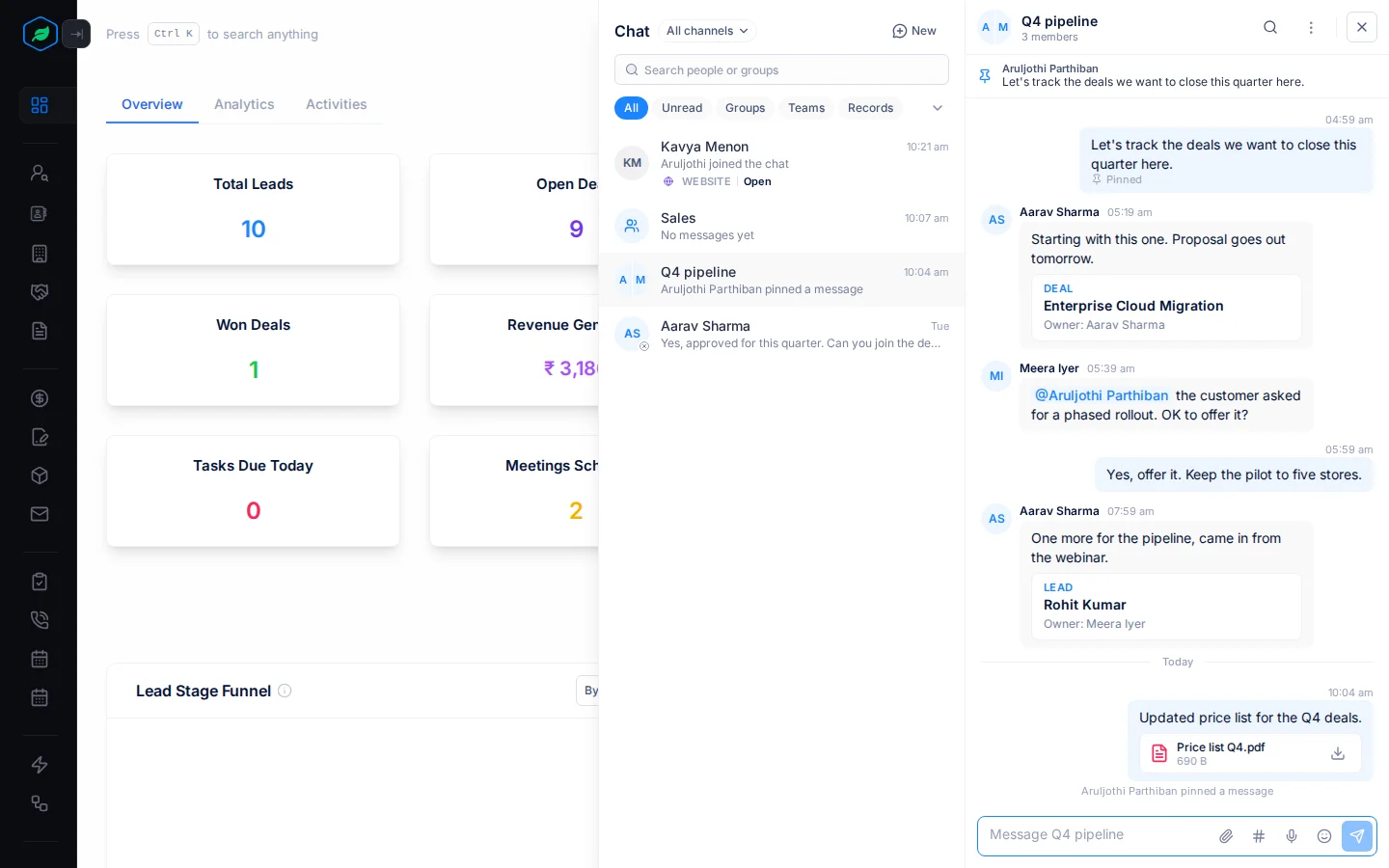
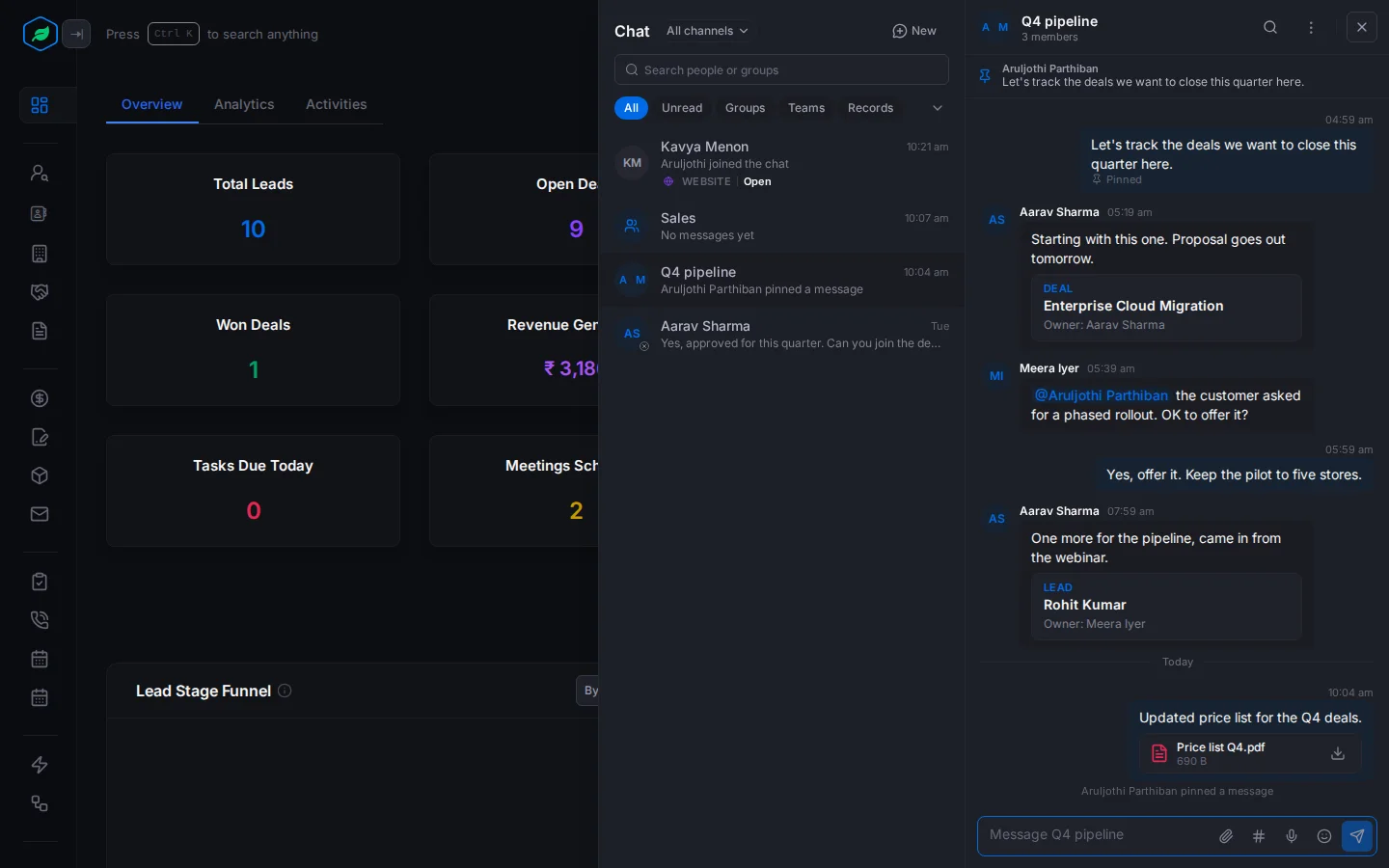
Say a teammate asks if a customer's budget was approved. Instead of answering on your phone, open Chat, reply, and drop the deal into the message. They open the deal from the chat, and the conversation stays with your team's work.
Before you start
- Permission: None. Everyone in your company can chat.
- Plan: Every plan. See Plans and limits.
- Set up first: None. Team chats come from your Teams.
Open Chat
Select the chat button in the header. Its red badge shows how many messages you haven't read, plus any website chats waiting. Point at it to see the numbers. Press Esc or select Close chat to close the panel.
Select ⋮ at the top of the panel to change Chat layout: Overlay opens over the page, Docked sits beside it, and Full view fills the screen. The choice shows when your screen is wide enough.
The conversation list
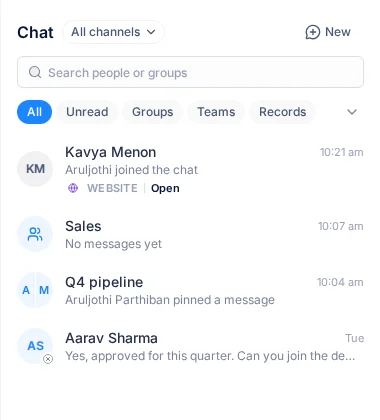
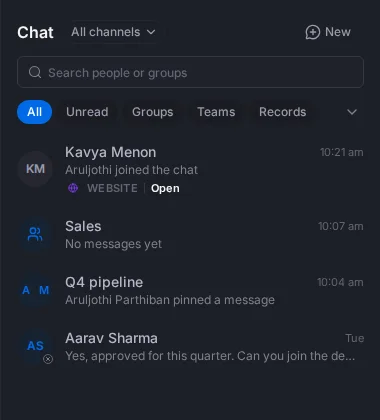
- All channels lets you show only Internal chats with your team, or Live chat with visitors on your websites.
- Search people or groups finds a conversation by name.
- The chips filter the list: All, Unread, Groups, Teams and Records. If you answer website chats, there's also Live.
- Favourite chats sit under Favourites, above Recent. See Pin, forward and clear chats.
Each row shows the last message and when it was sent. A blue number is how many messages you haven't read, grey if the chat is muted. "Draft:" means you started a message and didn't send it.
A green dot on a person's photo means they're online. Point at it to see Online or Offline.
Find a message
Open a conversation and select the search icon at the top. Type in Search messages, and narrow it with Anyone, From date and To date.
How you're told about new messages
| When | You get |
|---|---|
| A message arrives while you're elsewhere in Salesfresh | An alert in the corner with the start of the message, or that someone mentioned you |
| The Salesfresh tab is in the background | The tab title shows the unread count and flashes "New message from …" or "… mentioned you" |
| A direct message or a mention is still unread after 15 minutes | An email |
| A website visitor writes | A chime |
To get your computer's own notifications too, select ⋮ at the top of the panel, then Turn on browser notifications.
Mute a conversation
Busy group? Open it, select ⋮, and under Mute pick For 8 hours, For 1 week or Until I turn it back on. A muted chat doesn't count in your badge, and its header says "Muted until …". Select Unmute to hear from it again.
Troubleshooting
| Message | Why | What to do |
|---|---|---|
| "Notifications blocked in browser" | Your browser blocks notifications from Salesfresh | Allow them in your browser's site settings |
| "Chat is available to company users only." | Your account isn't part of a company | Ask your admin |
Related
- Direct, team and group chats
- Send messages, files and records
- Pin, forward and clear chats
- Answer website visitors
- Notifications
Still stuck?
Tell us what you were trying to do and we will help.