Start a direct, team or group chat
Start a direct message, use your CRM team's chat, and create and manage a group of up to 25 people.
Updated 28 October 2026 · 3 min read
There are three kinds of chat with your team: a direct message with one person, a team chat for each of your CRM teams, and a group you make yourself. You can also chat about a single record.
Say three of you are chasing the deals that should close this quarter. Make a group called "Q4 pipeline", add the other two, and keep every update on those deals in one place.
Before you start
- Permission: None. Everyone in your company can chat.
- Plan: Every plan. Groups hold up to 25 people. See Plans and limits.
- Set up first: None. Team chats need a team in Teams. See Teams.
Send a direct message
- In the Chat panel, select New. The New message screen opens on Direct message.
- Find the person under Search people and select them.
You have one direct chat with each person. Starting a new one opens the one you already have.
Team chats
Every CRM team has its own chat, named after the team. Its members are the team's members: when someone joins or leaves the team, they join or leave the chat. The chat shows "CRM team · 3 members", for example.
You can't leave, rename or add people to a team chat. Change the team instead. If a team is deleted, its chat stays to read, but nobody can write in it.
Create a group
- In the Chat panel, select New, then New group.
- Type a Group name, up to 80 characters.
- Find people under Search people and select them.
- Select Create group.
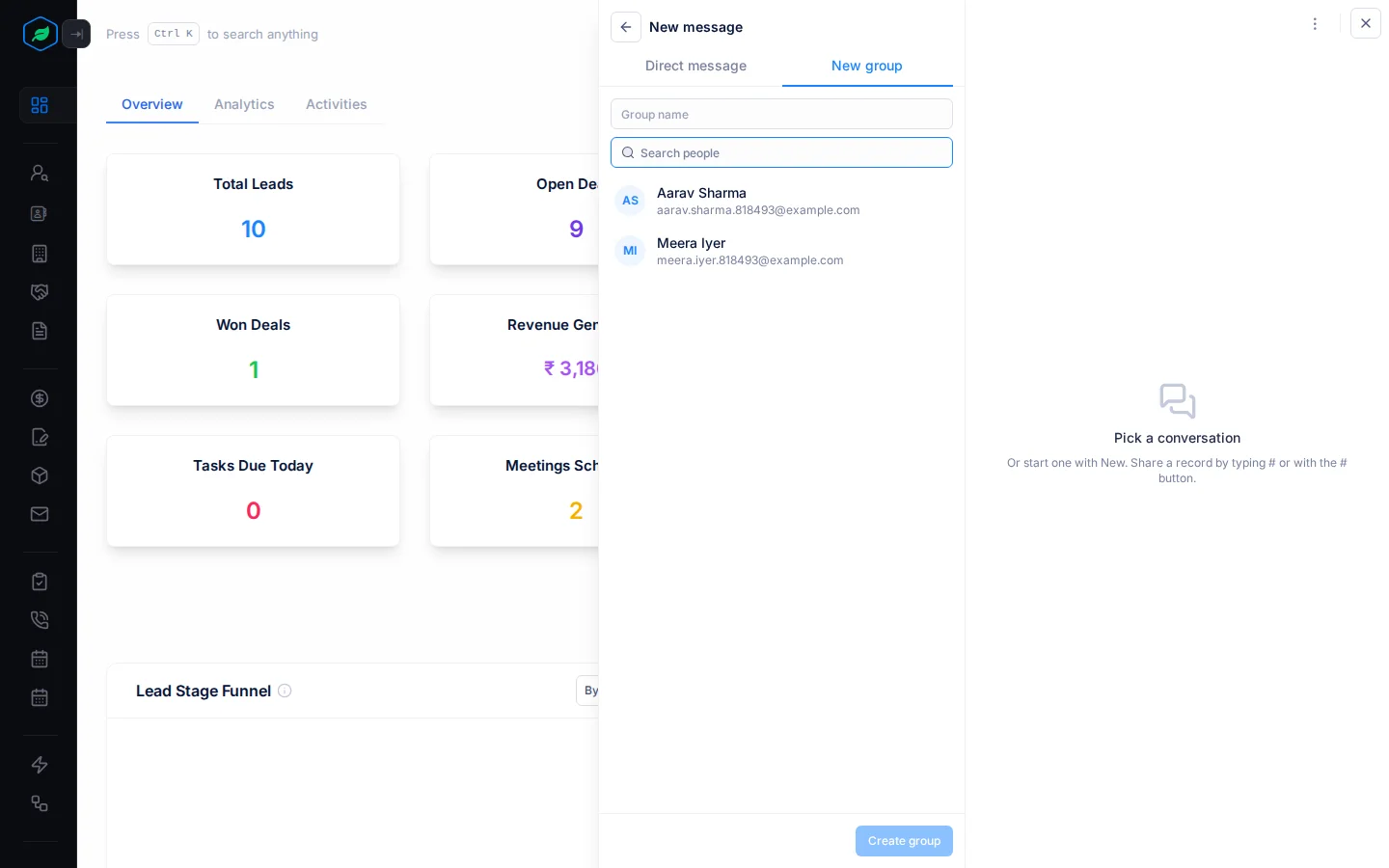
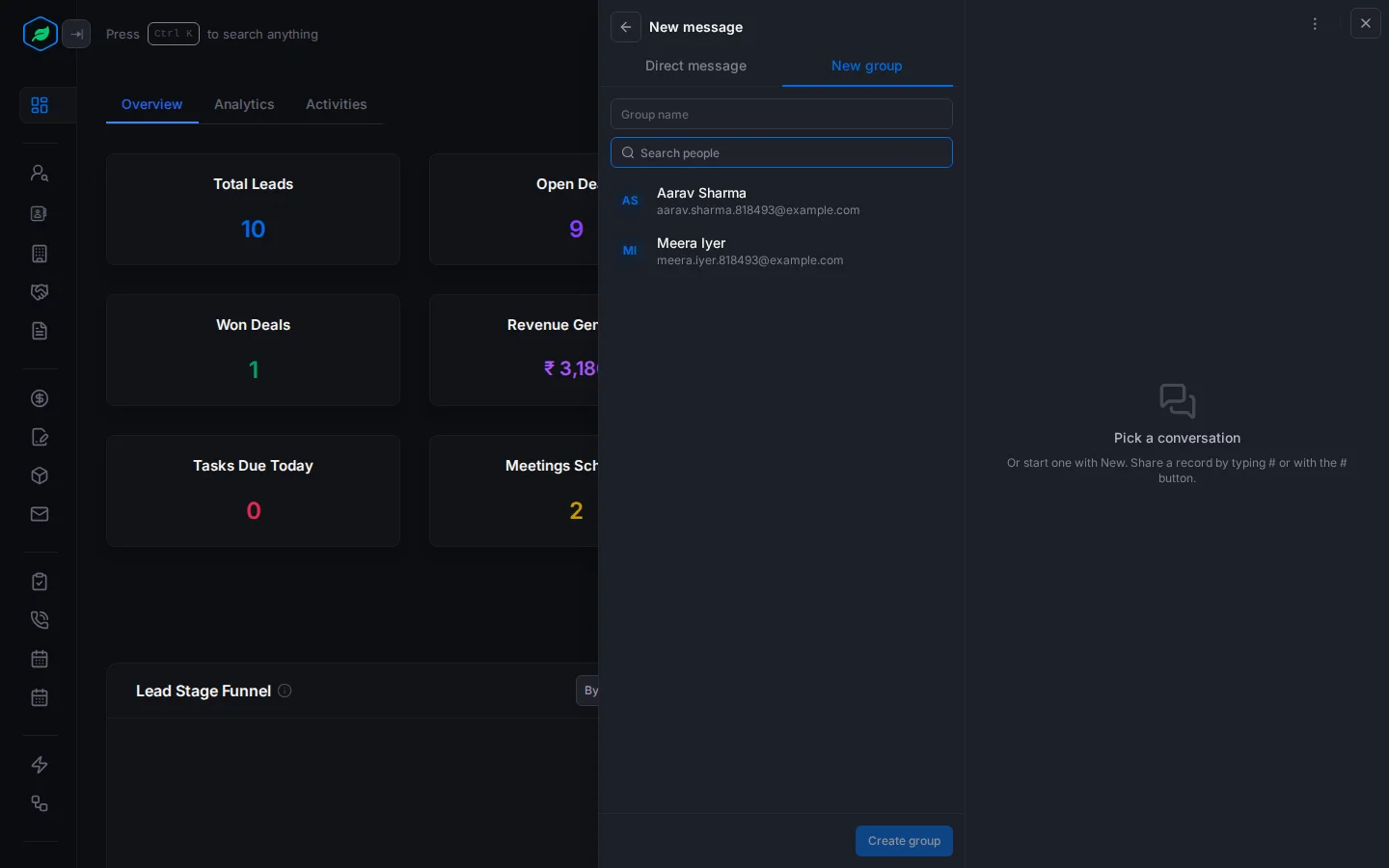
A group holds up to 25 people, you included. Larger groups work better as a CRM team. You're the group's admin.
Manage a group
Open the group and select ⋮. If you're its admin, you can:
- Rename group,
- change or remove the group's photo. Select the photo, pick an image up to 5 MB and crop it,
- Add people,
- see the Members, and Remove someone.
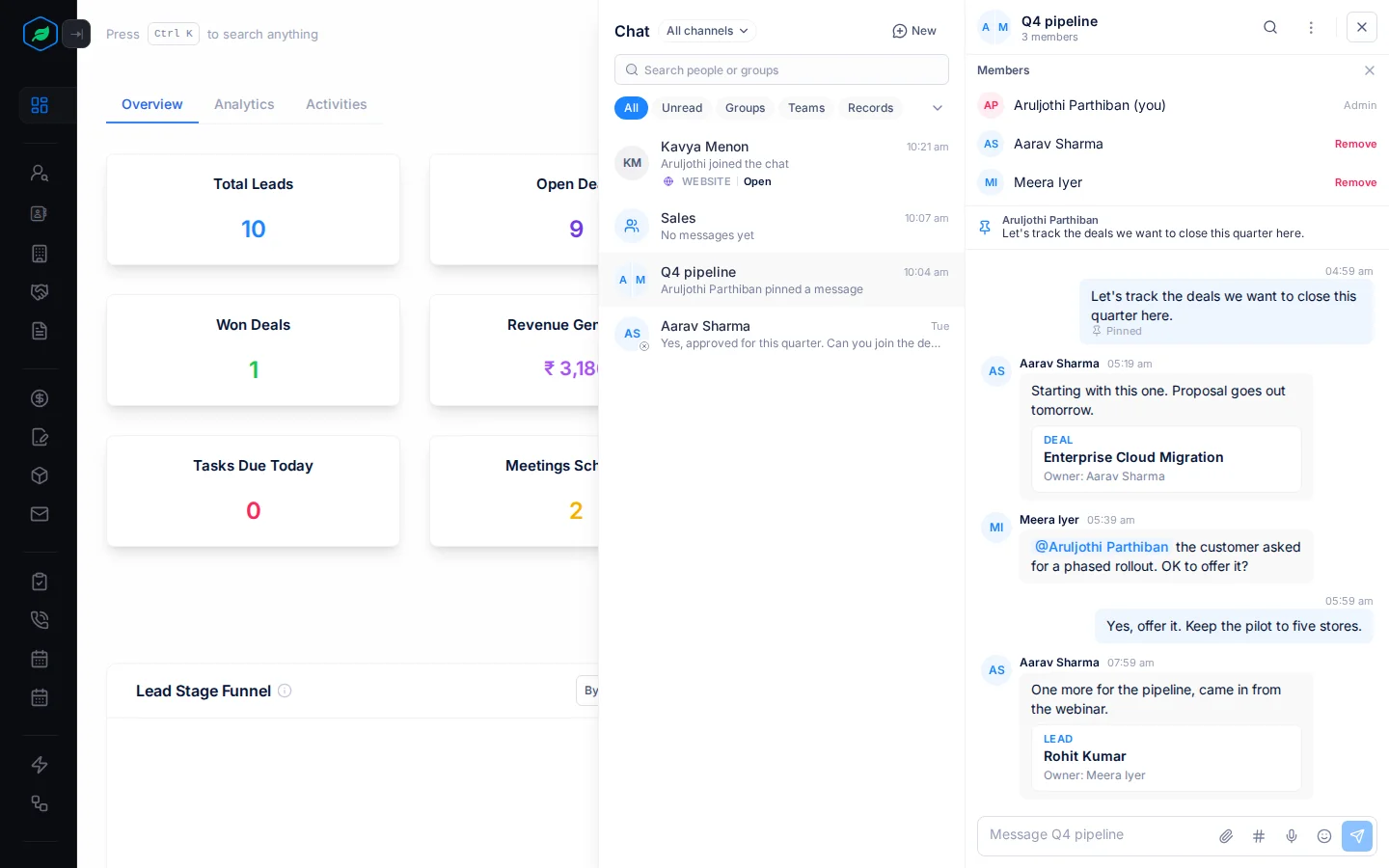
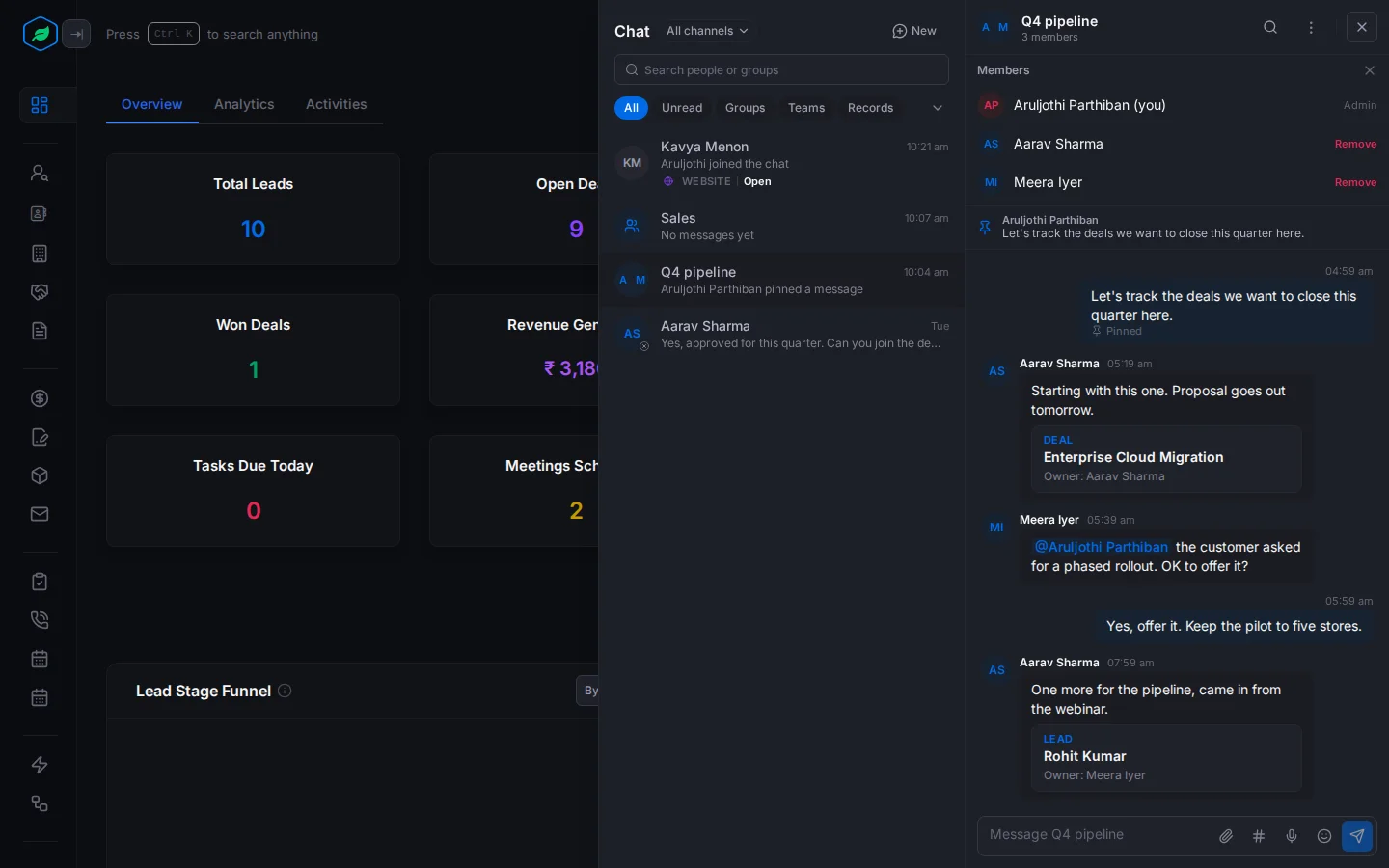
Changes show in the chat, such as "… added …" or "… renamed the group to …".
Leave a group
Open the group, select ⋮, then Leave group. If the last admin leaves, the person who has been in the group longest becomes its admin.
Chat about a record
On a record's page, select Chat about this …, such as Chat about this lead. It opens a chat about that record with its owner, so the conversation stays with the record. Find these chats under the Records chip. To leave one, select ⋮, then Leave chat.
Troubleshooting
| Message | Why | What to do |
|---|---|---|
| The group is full | A group holds up to 25 people | Remove someone, or use a CRM team instead |
| "Only a group admin can do this." | Only the admin can rename, change the photo, or add or remove people | Ask the group's admin |
| "You can only leave a group or a record chat." | You tried to leave a team chat | Ask your admin to take you off the team |
| "The photo must not exceed 5 MB." | The group photo is too big | Pick a smaller image |
| "Some of these people are no longer members of your company." | Someone you picked has left your company | Pick other people |
Related
Still stuck?
Tell us what you were trying to do and we will help.