Capture leads from your website with web forms
Capture leads from your website with web forms. Create a form, pick its purpose and type, start from a ready-made form, and manage your forms.
Updated 28 October 2026 · 5 min read
A web form is a box on your website where visitors type their details, such as their name, email and question. What they type comes straight into Salesfresh. A form for leads also adds each person as a new lead.
For example, an accounting firm has an email address on its website. A visitor emails about tax filing, but the email sits unread for two days, and then someone has to type the details into Salesfresh by hand. By then, the visitor has called another accountant. With a web form on the website, the visitor fills it in and is added as a lead at once. An auto-assign rule gives the lead to someone on the team, who calls the same day.
You can also use web forms to let people book a demo, sign up for an event, or send a support request or feedback.
Before you start
- Permission: View Forms to see forms. Create Forms to create or copy one, Edit Forms to change one and Delete Forms to delete one. View Automation to see what people sent.
- Plan: Your plan sets how many forms can be Active at once. See Plans and limits.
- Set up first: For a form on your website, register the website. See Websites.
How it works
- Create the form and pick its purpose. Only Lead Generation forms add leads.
- Pick its fields in the Designer. See Design a web form.
- Set the thank-you message and spam protection. See Web form settings.
- Put it on your website, or share its link. See Embed a web form.
- Follow up on what people send. See Form submissions.
The Forms page
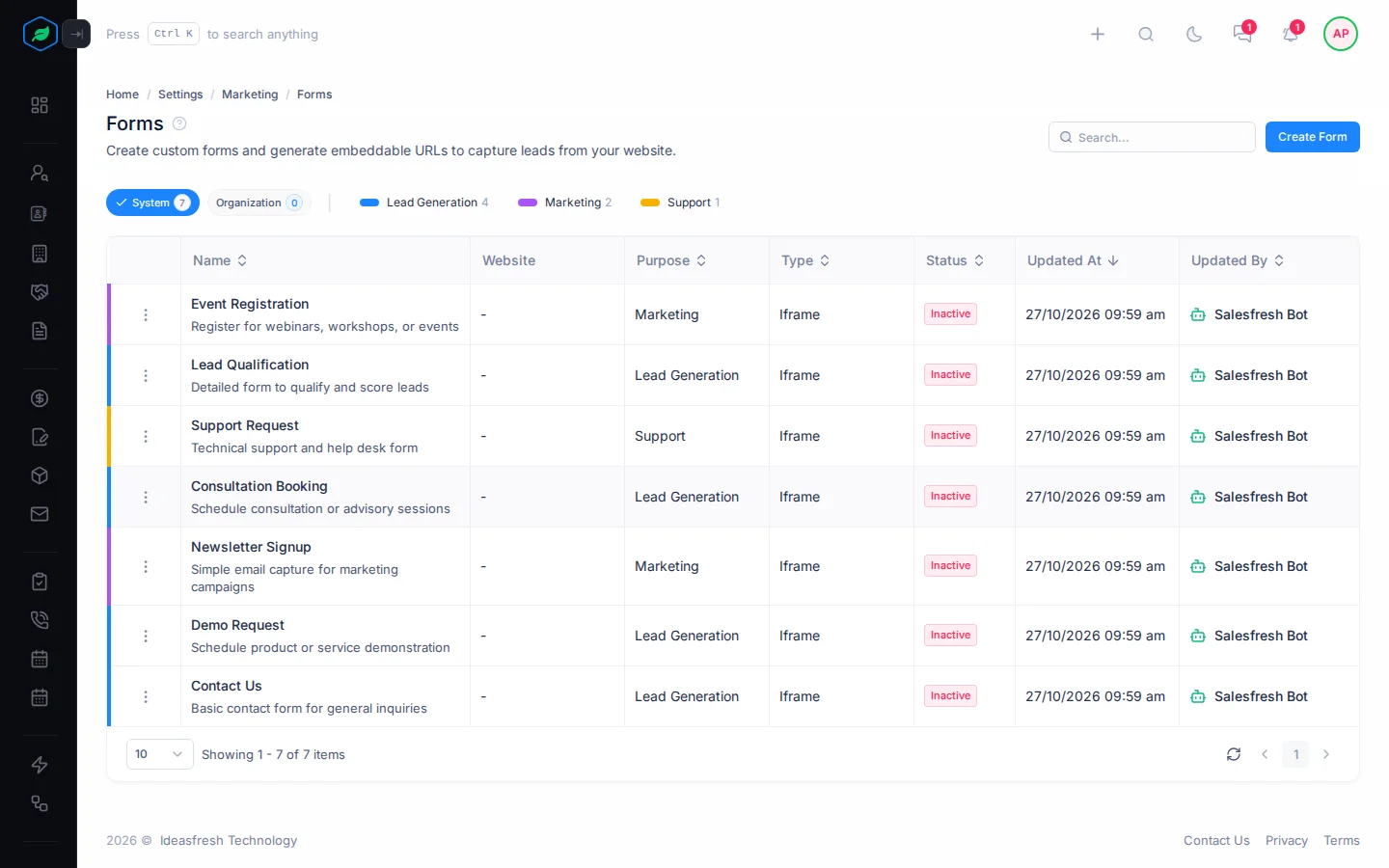
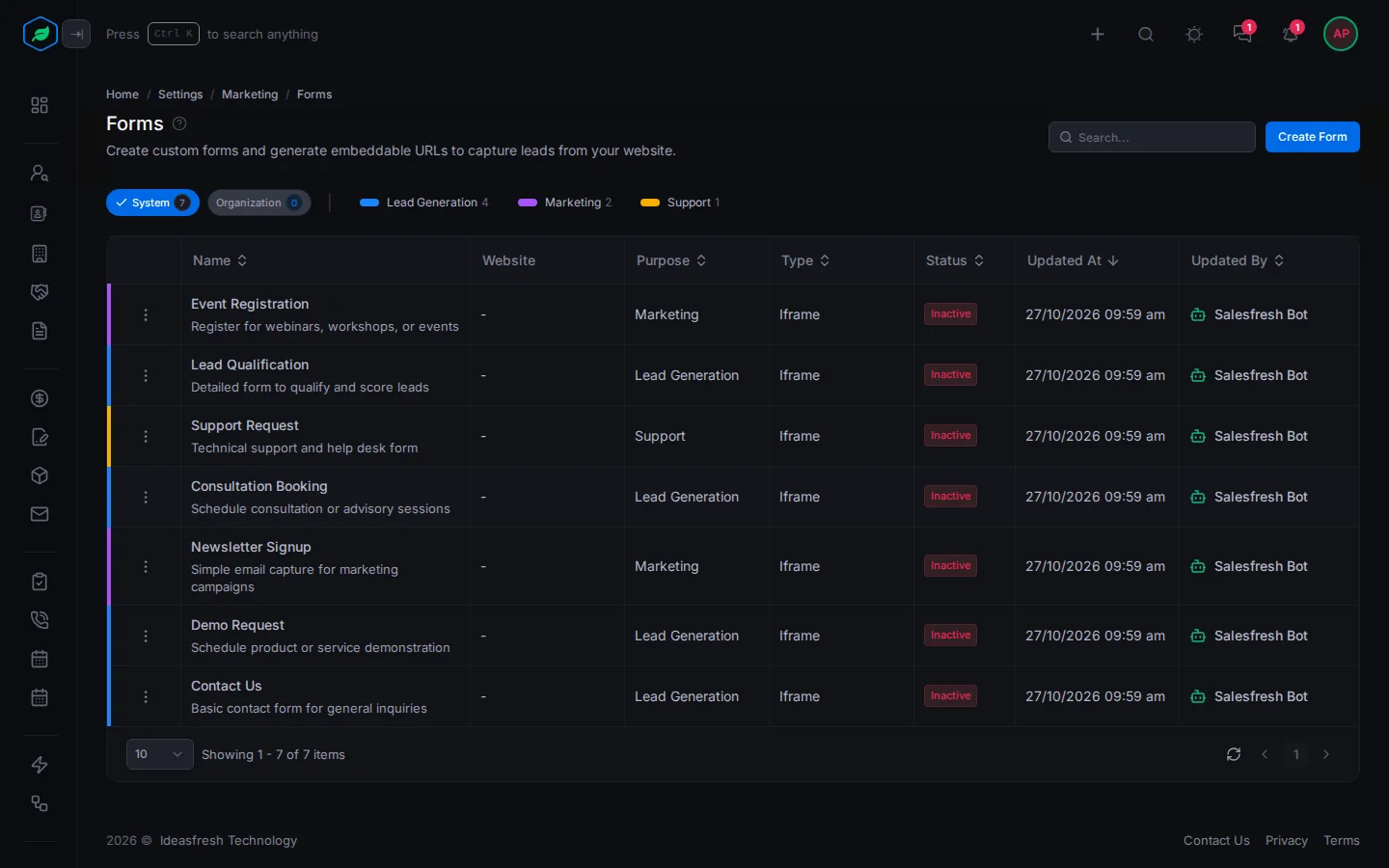
Go to Settings → Marketing → Forms. Forms are on two chips, each with a count:
- System: 7 ready-made forms, switched off at first. They are Contact Us, Demo Request, Newsletter Signup, Consultation Booking, Support Request, Lead Qualification and Event Registration. To use one, copy it with Clone.
- Organization: the forms your company made.
Each row shows the form's name and description, its website and domains, purpose, type and status, and who changed it and when. Select Designer to change its fields, or Submissions to see what people sent.
Each purpose also has its own coloured chip with a count. Select one, such as Lead Generation, to see only those forms.
Create a form
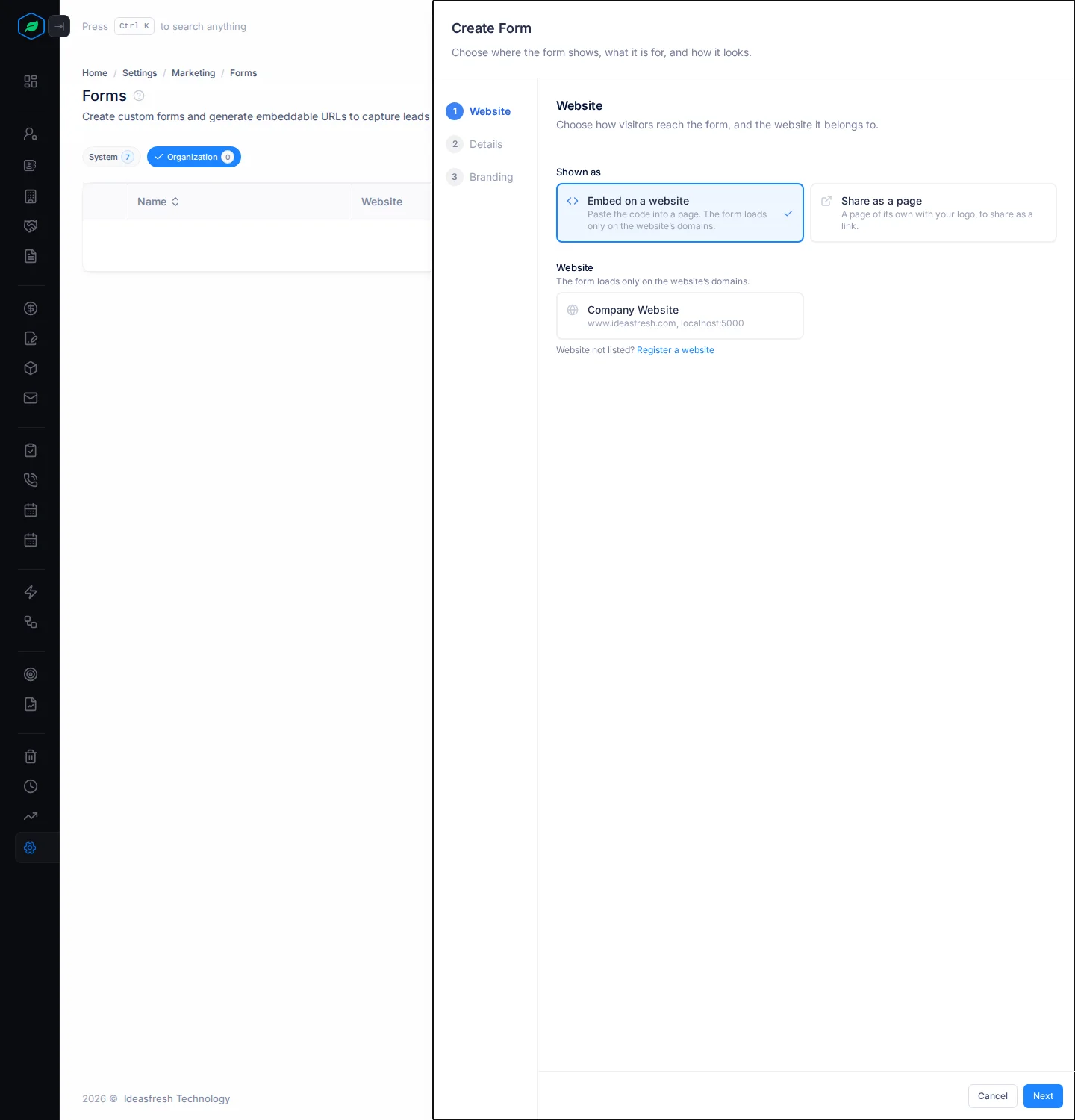
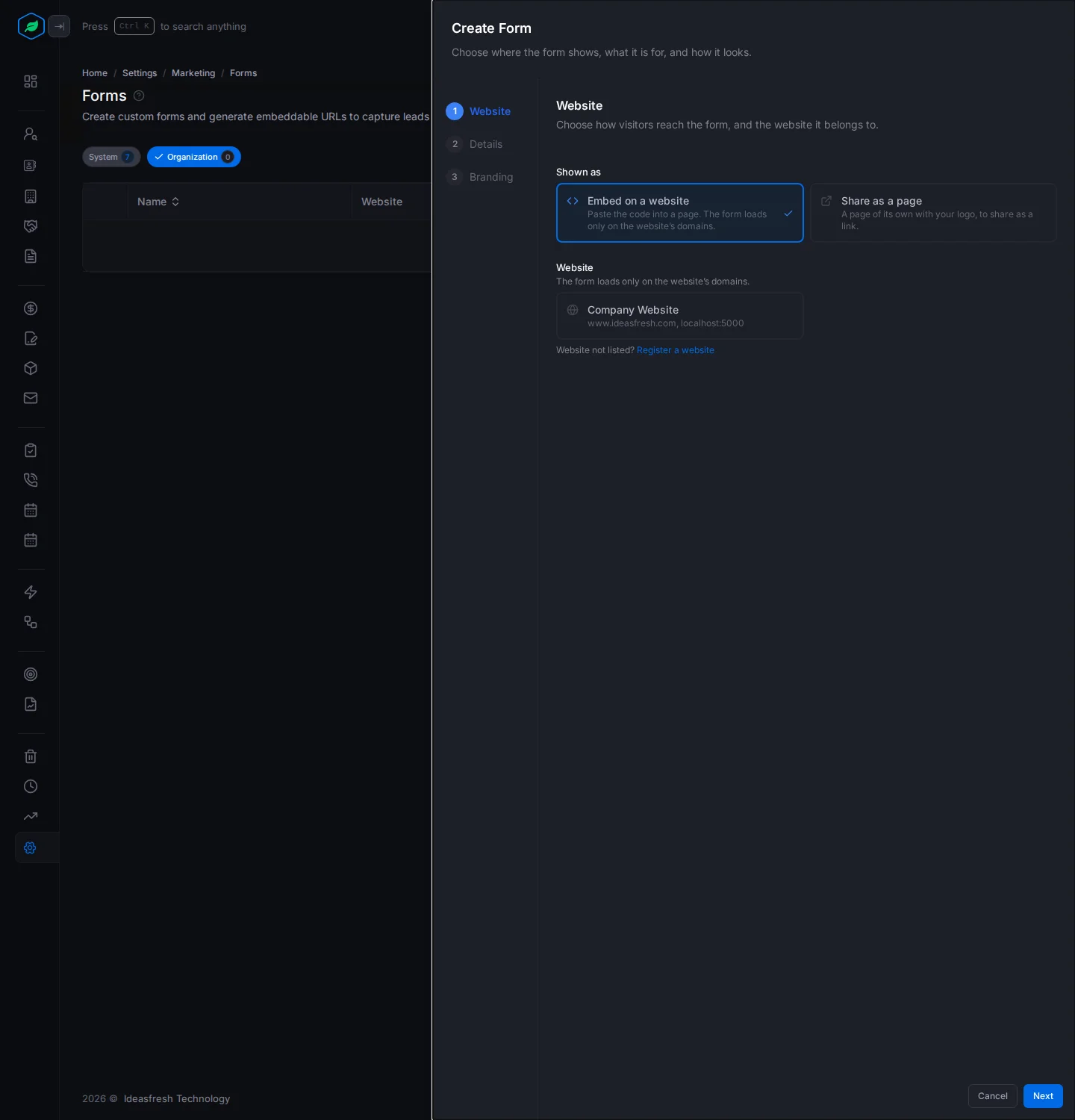
- Select Create Form. The Create Form panel opens on its first step.
- Fill in each step, Website, Details and Branding, and select Next. Fields marked * must be filled in.
- On the last step, select Create Form. The form is Active straight away.
- Select Designer on its row, check the fields, and select Update. The form has no fields until you do this.
Website
| Field | What to enter |
|---|---|
| Shown as * | Embed on a website to put it inside a page of your website. It loads only on that website's domains. Share as a page for a page of its own with your logo, to share as a link. The list shows these as Iframe and Standalone |
| Website * | The website the form goes on. Optional for a page. Not listed? Select Register a website. See Websites |
Details
| Field | What to enter |
|---|---|
| Name * | A name your team sees, such as "Contact Us Form". Each form needs its own name |
| Description * | What the form is for, such as "Enquiries from the Contact page" |
| Purpose * | Lead Generation to add each person as a lead. The others, such as Support, Feedback or Booking, only save what people send |
Branding
| Field | What to enter |
|---|---|
| Logo | Your logo, as a JPG, PNG, SVG or WEBP file up to 5 MB |
| Logo URL | A web address of your logo, instead of uploading it |
| Logo Size | How wide the logo is, such as 120px |
| Home Page URL | Your website's home page |
| Privacy Page URL | Your privacy policy page. It's linked at the bottom of the form |
| Terms Page URL | Your terms page. It's linked at the bottom of the form |
For a page, the logo size and the three page addresses must be filled in, and you need a Logo or a Logo URL. An embedded form takes its look from the page around it, so branding is optional.
When you edit a form, Save shows on every step, and you can jump to any step. The name and description of a System form can't be changed.
Change or remove a form
Select ⋮ on a form:
| Action | What it does |
|---|---|
| Edit | Changes the details above |
| Preview | Opens the form in a new tab. Only for Active forms |
| View Embed Code | Shows the code for your website. Only for Iframe forms |
| Inactivate / Activate | Stops or starts the form. A stopped form shows "Form is not active" |
| Clone | Makes a copy called "Name (Copy)" on the Organization chip, on the same website. The copy is Active |
| Delete | Removes the form. You can't delete a System form |
Troubleshooting
| Message | Why | What to do |
|---|---|---|
| "You have reached the maximum of … active forms on your current plan. Please upgrade for more." | Your plan's limit of Active forms is reached | Upgrade your plan. See Plans and limits |
| "Form already exists" | Another form has that name | Pick another name |
| "Pick a website" | An embedded form has no website | Pick one, or register your website first |
| "Invalid URL" | The logo or a page address isn't a full web address | Enter it with https:// |
| "Upload a logo or enter its URL" | A page form has no logo | Upload a logo or enter a Logo URL |
Related
Still stuck?
Tell us what you were trying to do and we will help.