Record service jobs and maintenance plans on an asset
Record repair and maintenance jobs on an asset with work orders, items and technician visits, and keep maintenance plans with service schedules.
Updated 12 October 2026 · 6 min read
Once you install something at a customer, you look after it. On the asset's page:
- Work Orders record each job, such as a repair, with the parts used and the technician's visits.
- Service Schedules record maintenance plans, such as a yearly service contract.
For example, a customer's air conditioner stops cooling. You open the asset and add a Repair work order. You list the gas refill and the labour as items, and book a technician visit for tomorrow. After the visit, you mark it Completed. The customer also has a yearly maintenance plan, so you add a service schedule, and check its Next Service Due date to book the next visit.
Before you start
- To see work orders, you need the View Assets permission.
- To add a work order, item or visit, you need the Create Assets permission. To change one, you need Edit Assets. To delete one, you need Delete Assets.
- To add or change a service schedule, you need the Create Accounts or Edit Accounts permission. To delete one, you need Delete Accounts.
- A service schedule must be linked to a customer subscription, so add that first. See Create and edit a subscription.
If you don't have a permission you need, ask your admin.
Work orders
A work order is one job on the asset, such as an installation or a repair.
- Open the asset and click Work Orders.
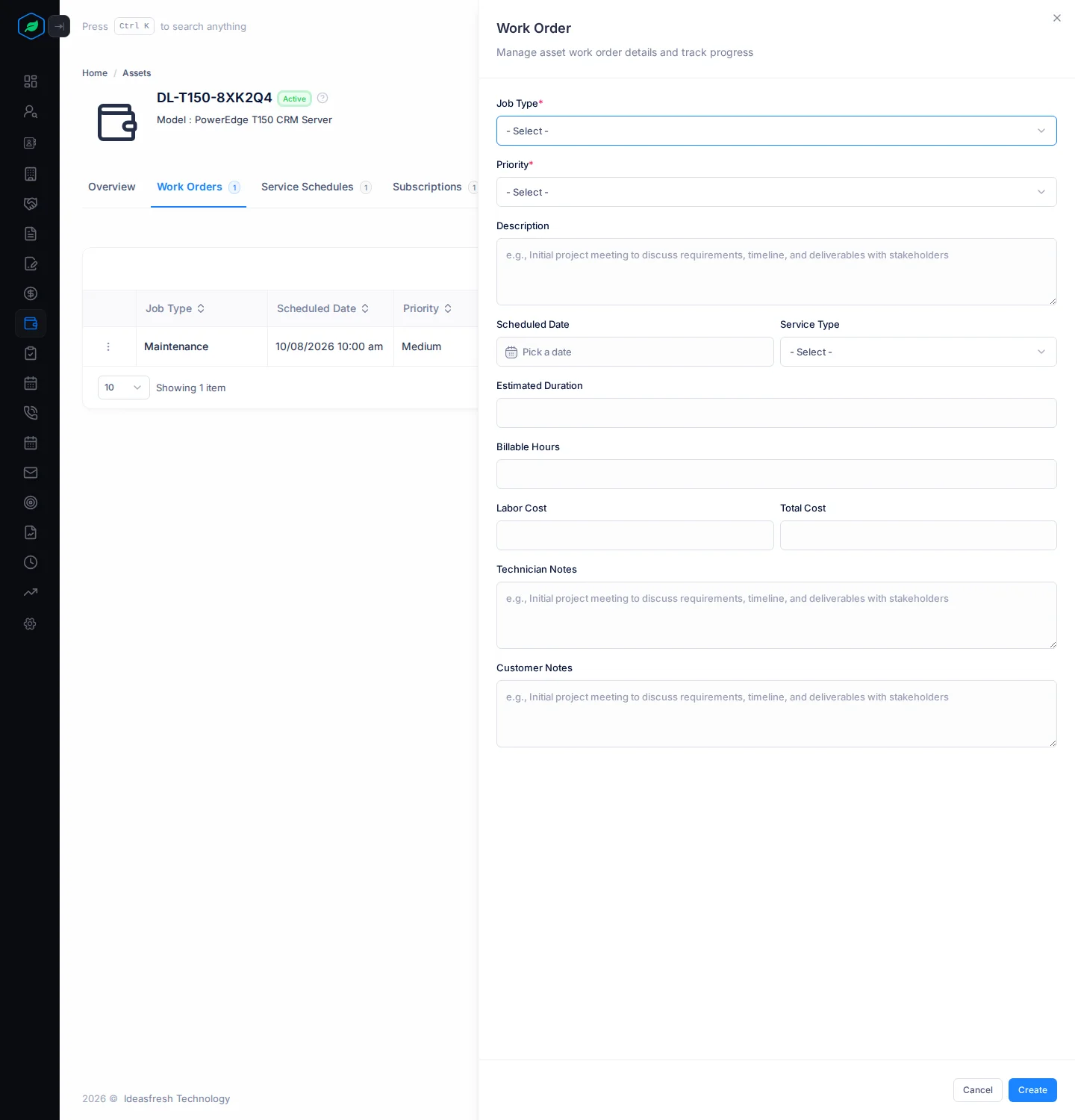
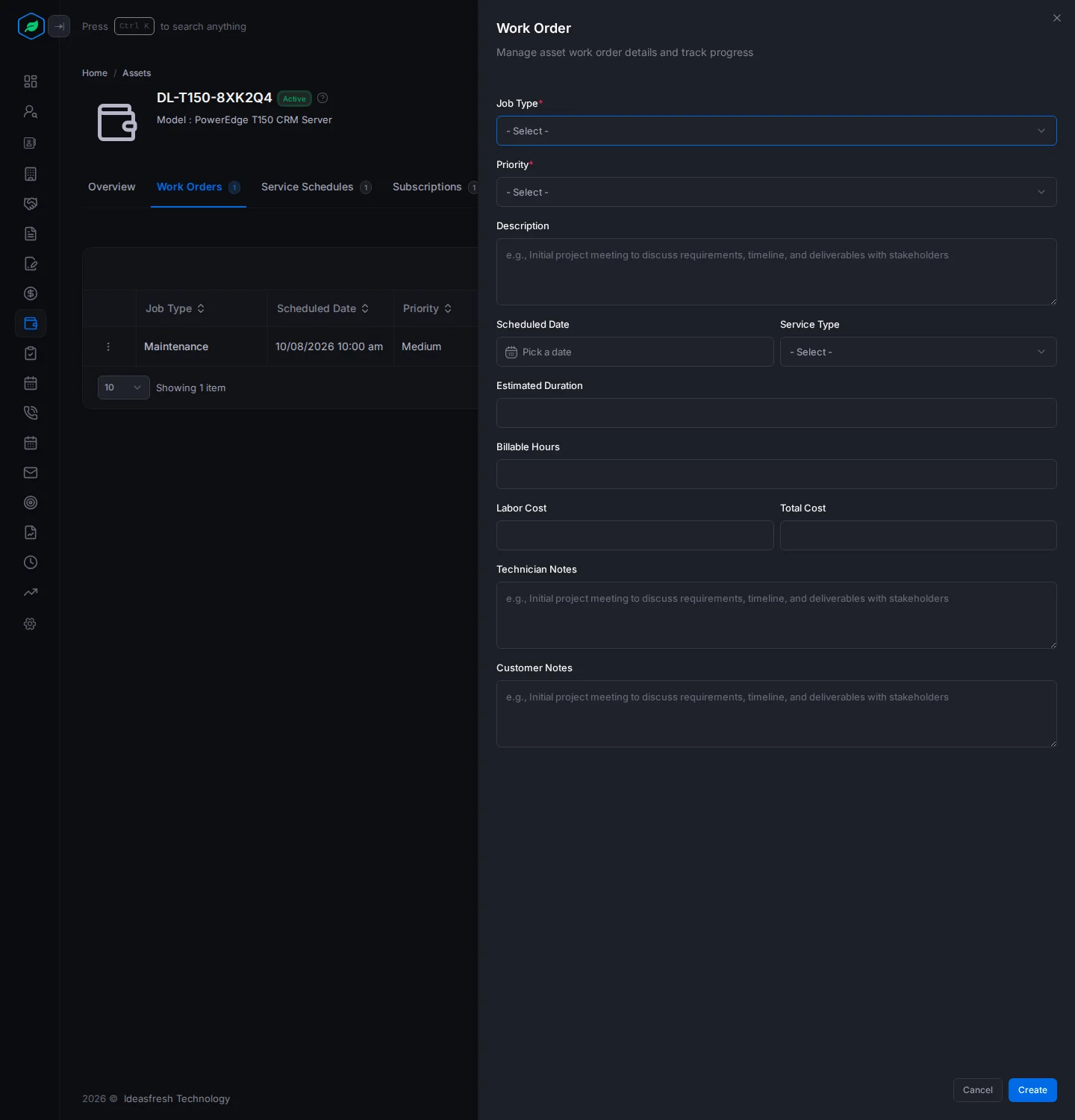
- Click Create. The Work Order panel opens.
- Fill in the fields and click Create.
| Field | What to enter |
|---|---|
| Job Type * | Install, Repair, Maintenance, Inspection or Replacement |
| Priority * | Low, Medium, High or Urgent |
| Description | What's wrong or what to do, such as "Not cooling, needs a gas check" |
| Scheduled Date | When the job is planned |
| Service Type | Preventive, Corrective, Emergency or Installation |
| Estimated Duration | How long it should take, in minutes, such as 90 |
| Billable Hours | The hours you charge for |
| Labor Cost | The cost of the work |
| Total Cost | The total cost of the job. Type it in yourself. It doesn't add up the items |
| Technician Notes | Notes for the technician |
| Customer Notes | Notes from or for the customer |
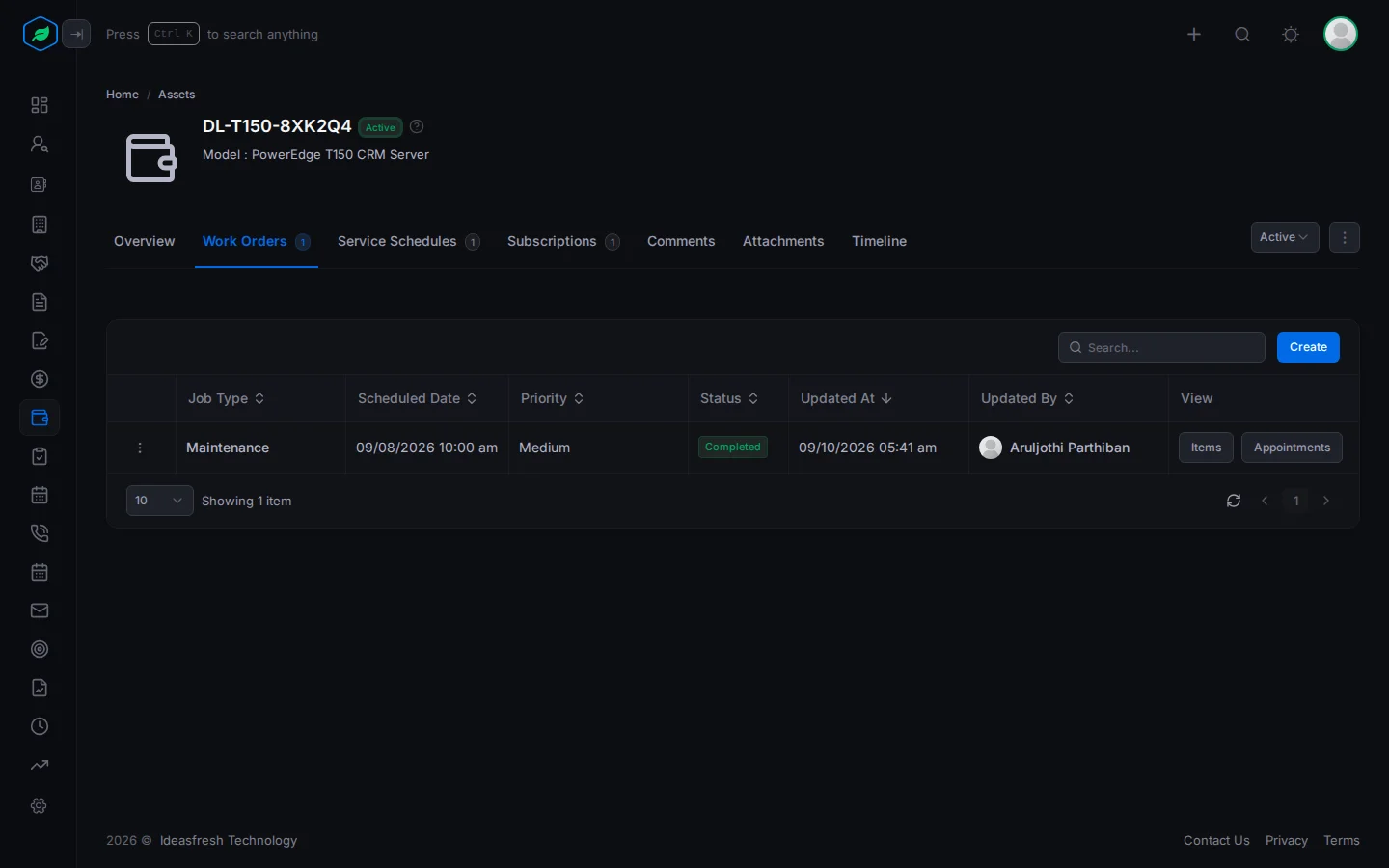
The tab lists each work order with its job type, date, priority and status. Click a job type to see all its details.
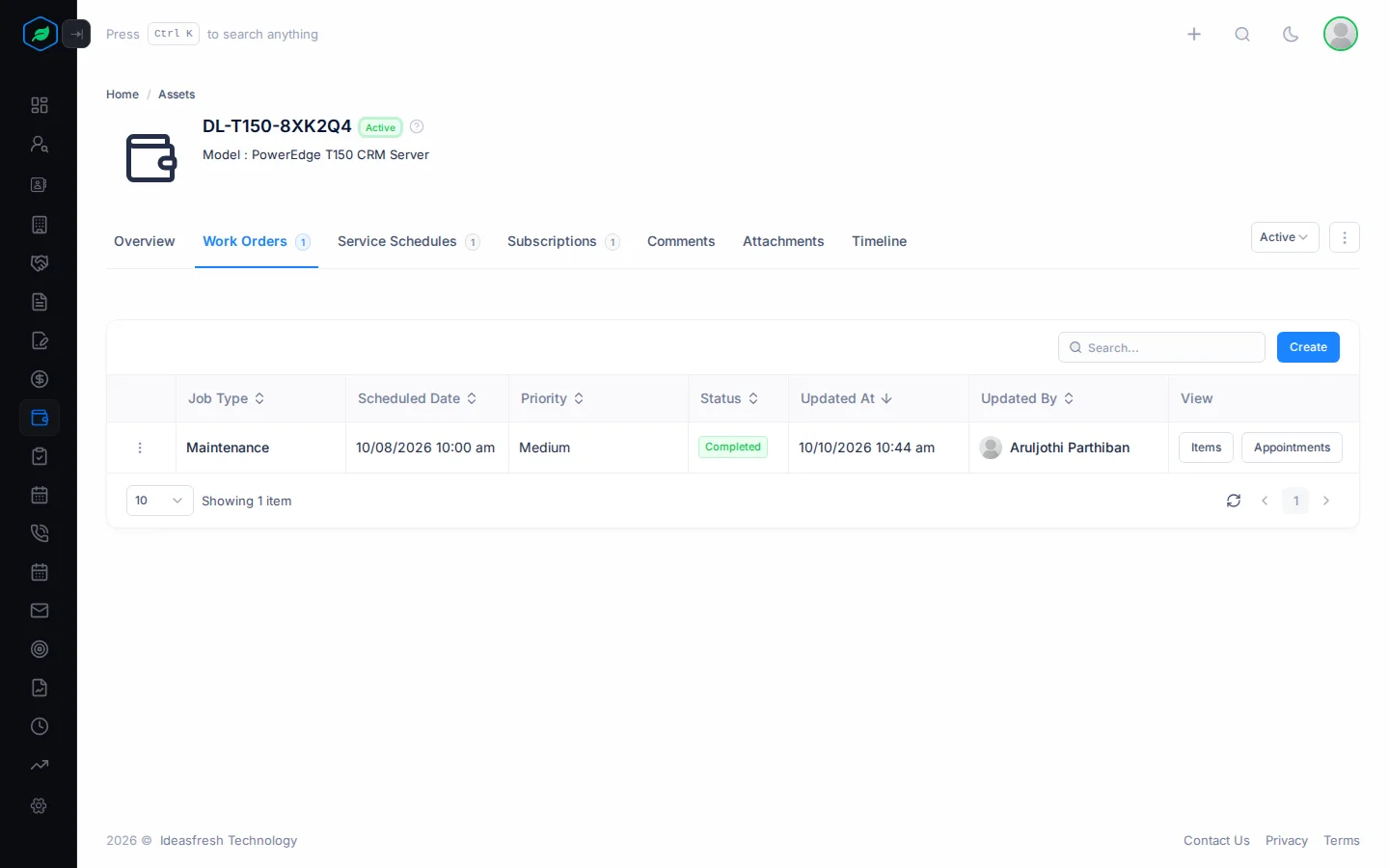
A work order stays Open. There's no button yet to start or finish it. Use its visits to record when the work was done.
Items: parts and labour
Items are the parts and labour used on a work order.
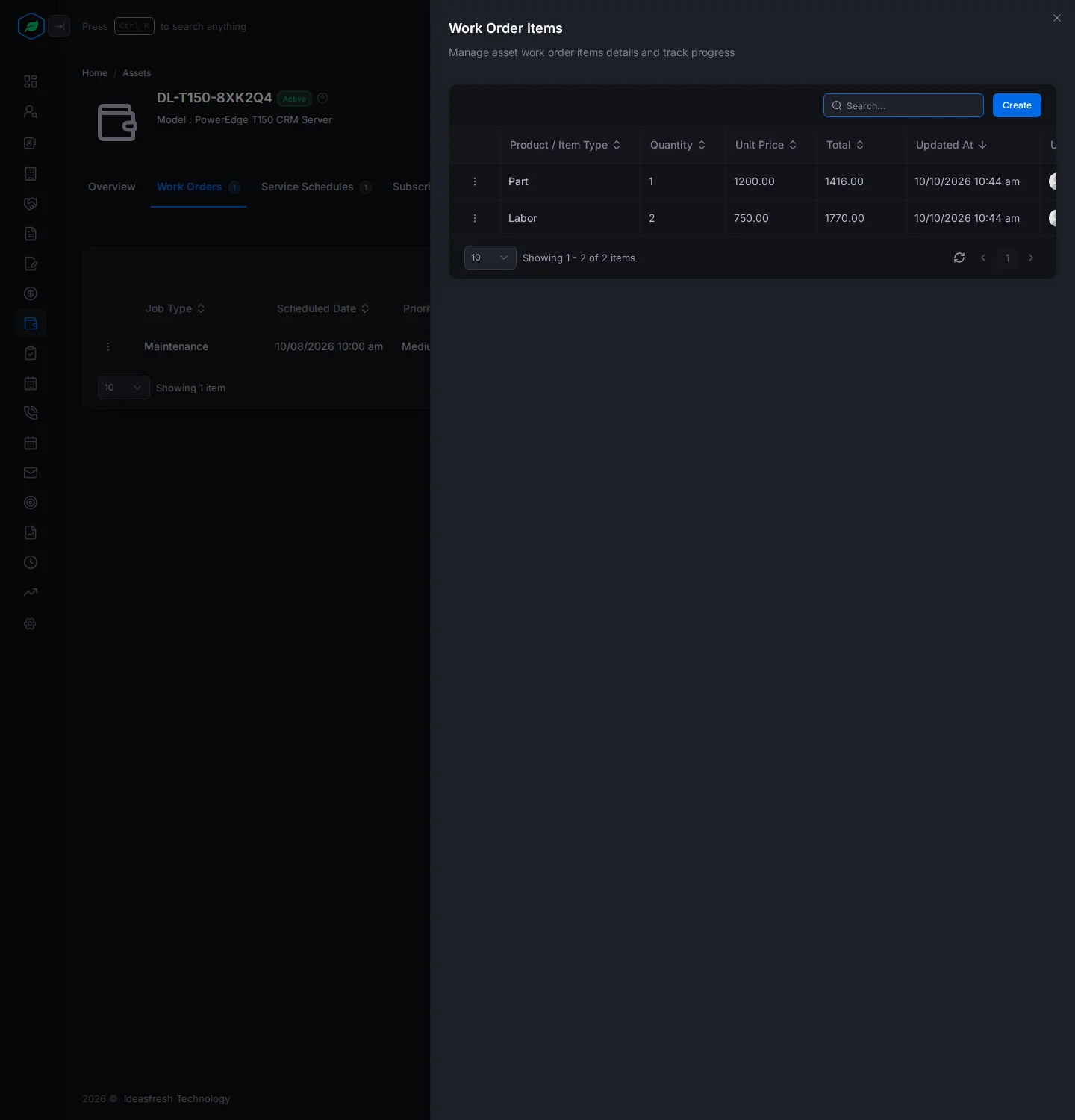
- Click Items on the work order. The Work Order Items panel opens, with each item's quantity, unit price and total.
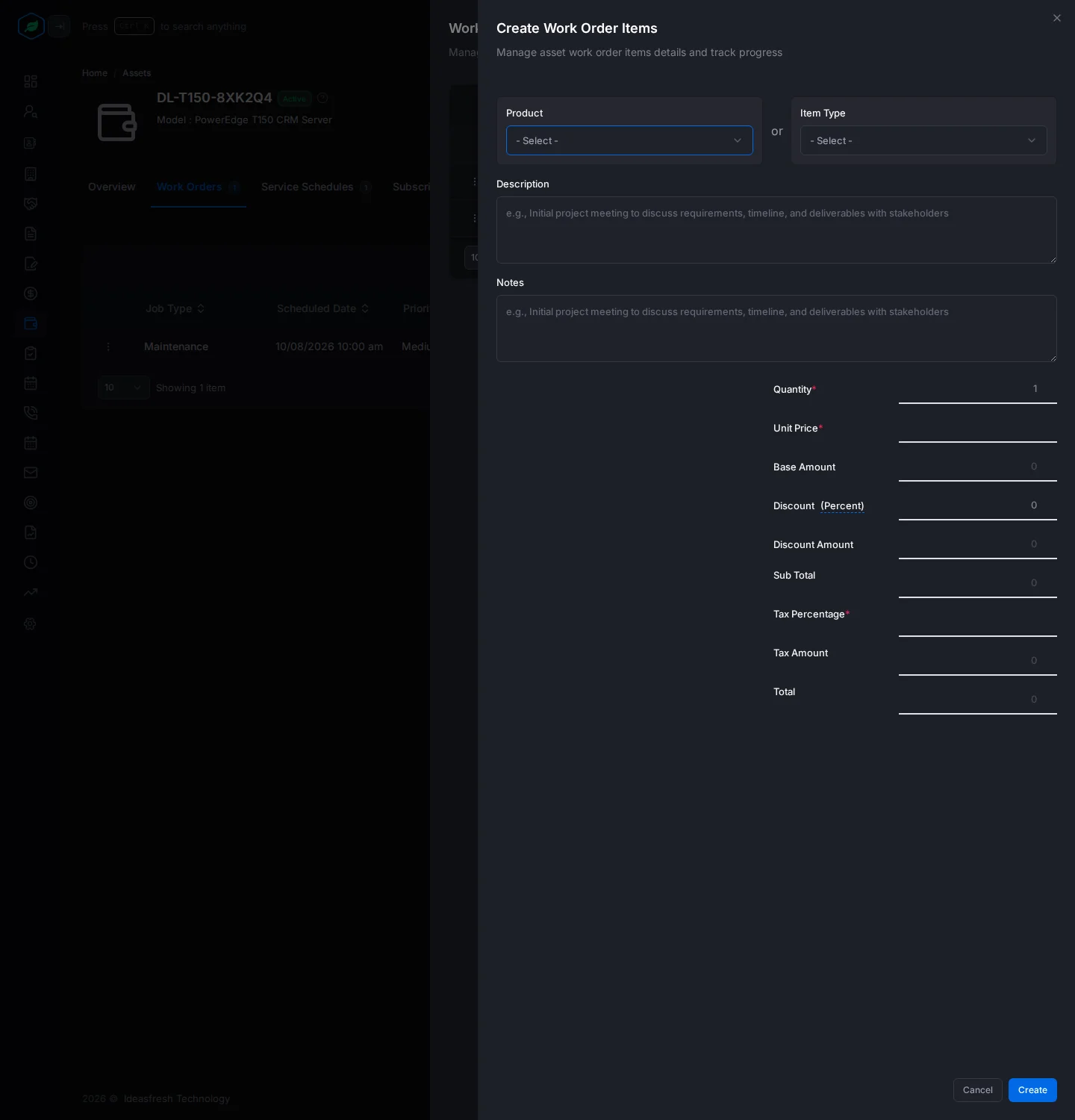
- Click Create. The Create Work Order Items panel opens.
- Fill in the fields and click Create.
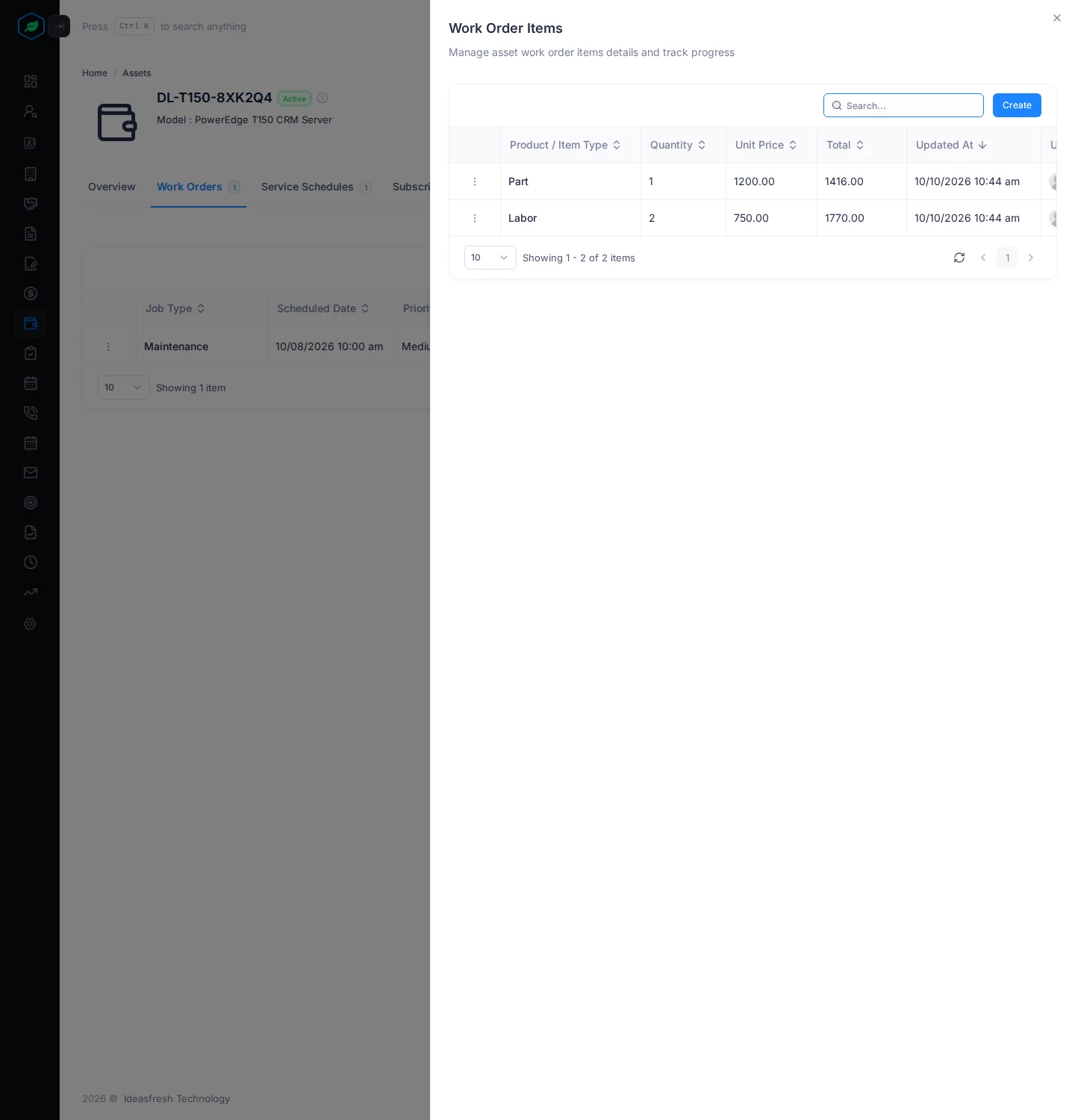
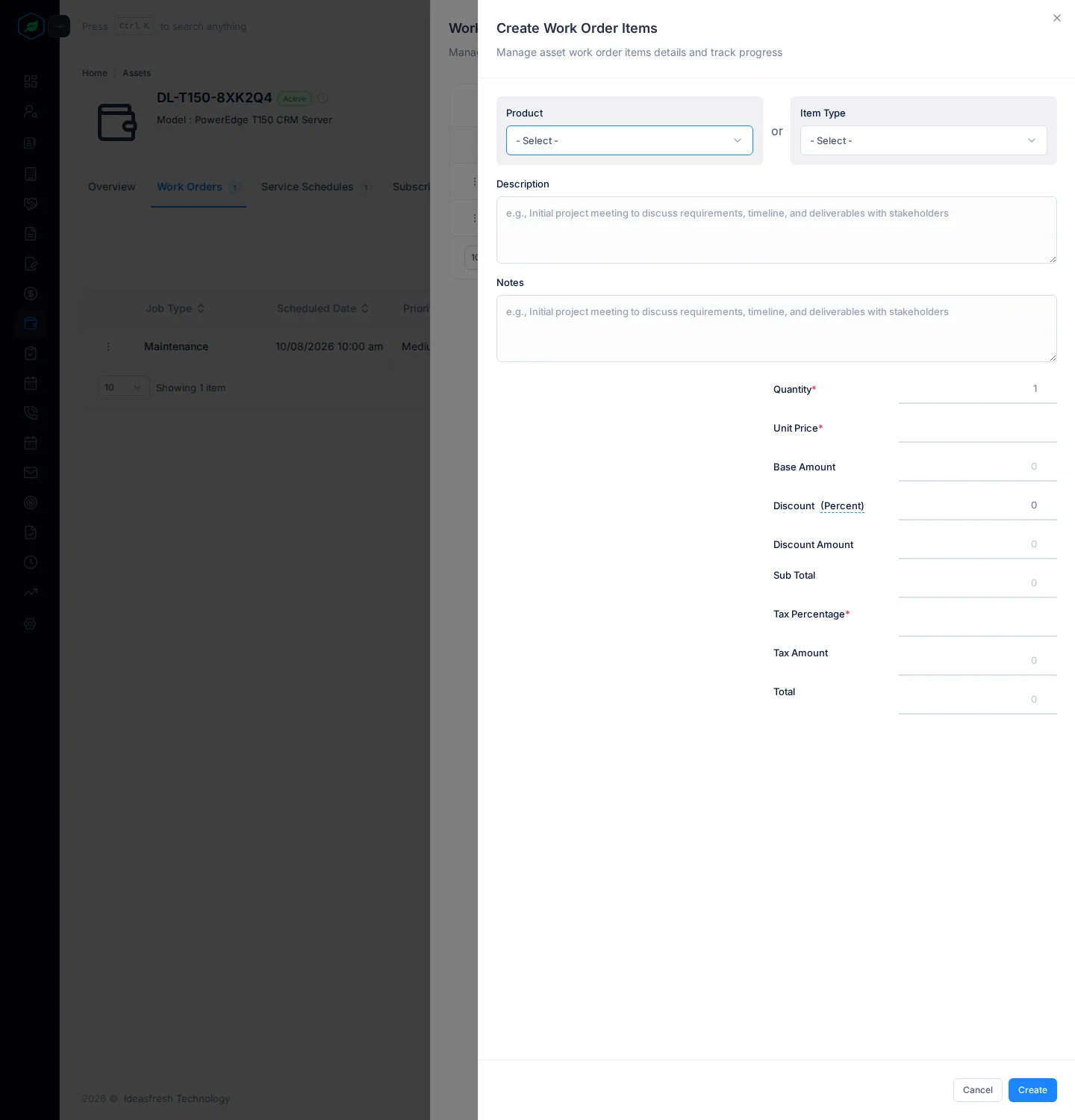
| Field | What to enter |
|---|---|
| Product or Item Type | Pick a product from your list, or a type: Part, Consumable, Labor or Misc. Not both |
| Description | What it is, such as "Gas refill" |
| Notes | Anything else |
| Quantity * | How many. Set to 1 at first |
| Unit Price * | The price of one. Filled in from the product if you picked one |
| Discount * | How much off. Click (Percent) to switch to (Fixed) |
| Tax Percentage * | The tax rate, such as 18 |
The base amount, discount amount, sub total, tax amount and total are worked out for you.
Appointments: technician visits
Appointments are the technician's visits for a work order.
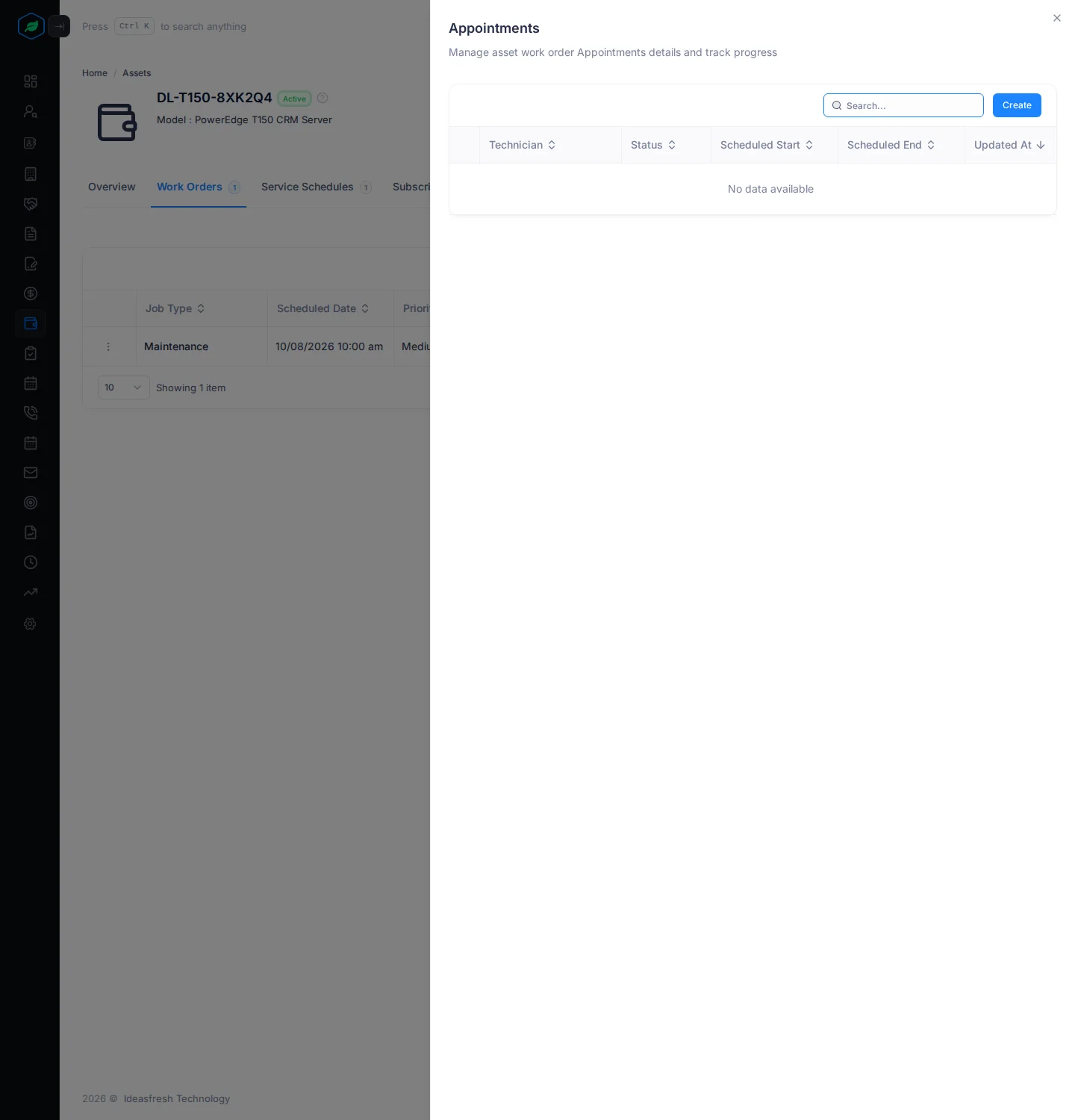
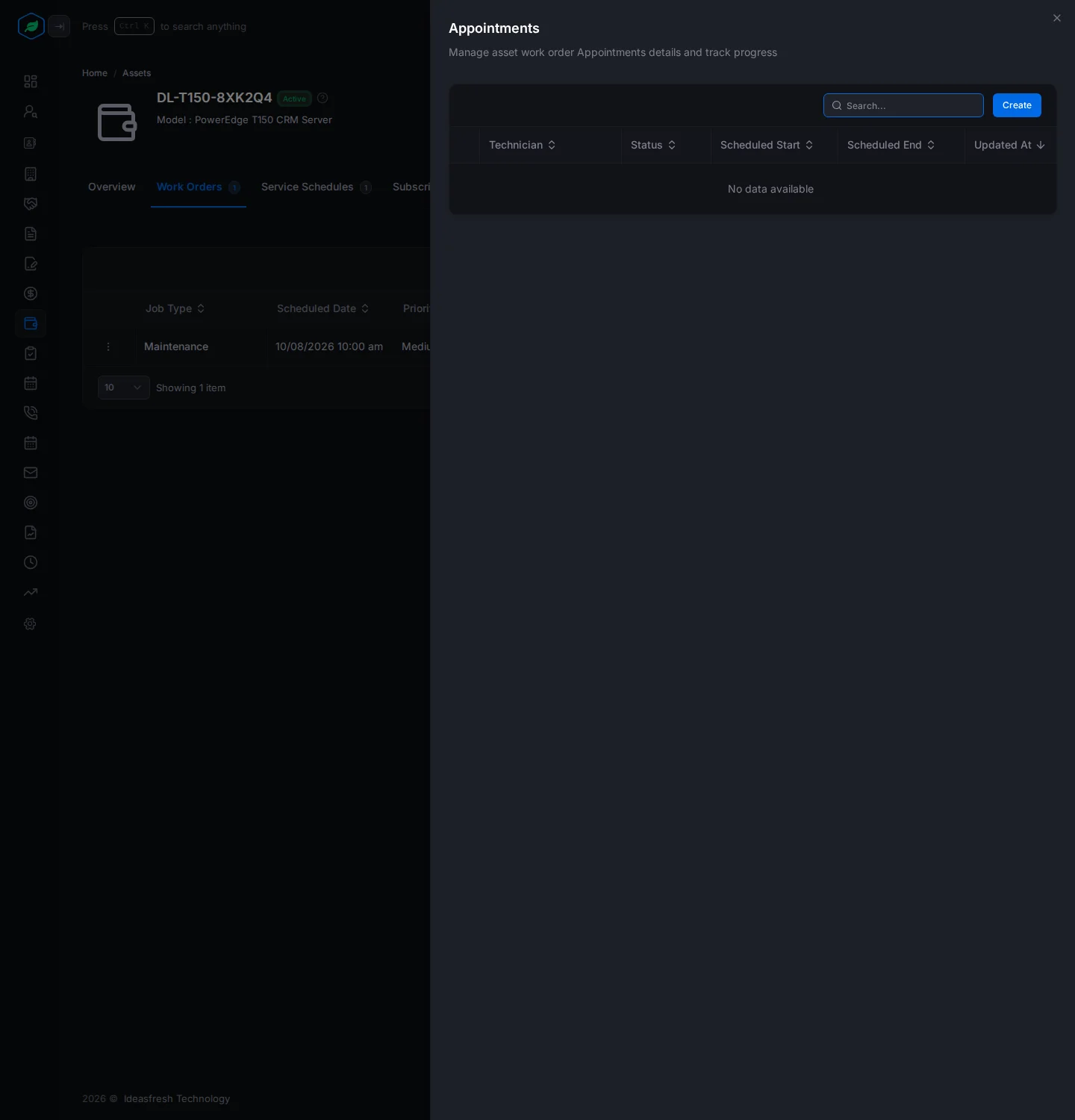
- Click Appointments on the work order. The Appointments panel opens, with each visit's technician, status and times.
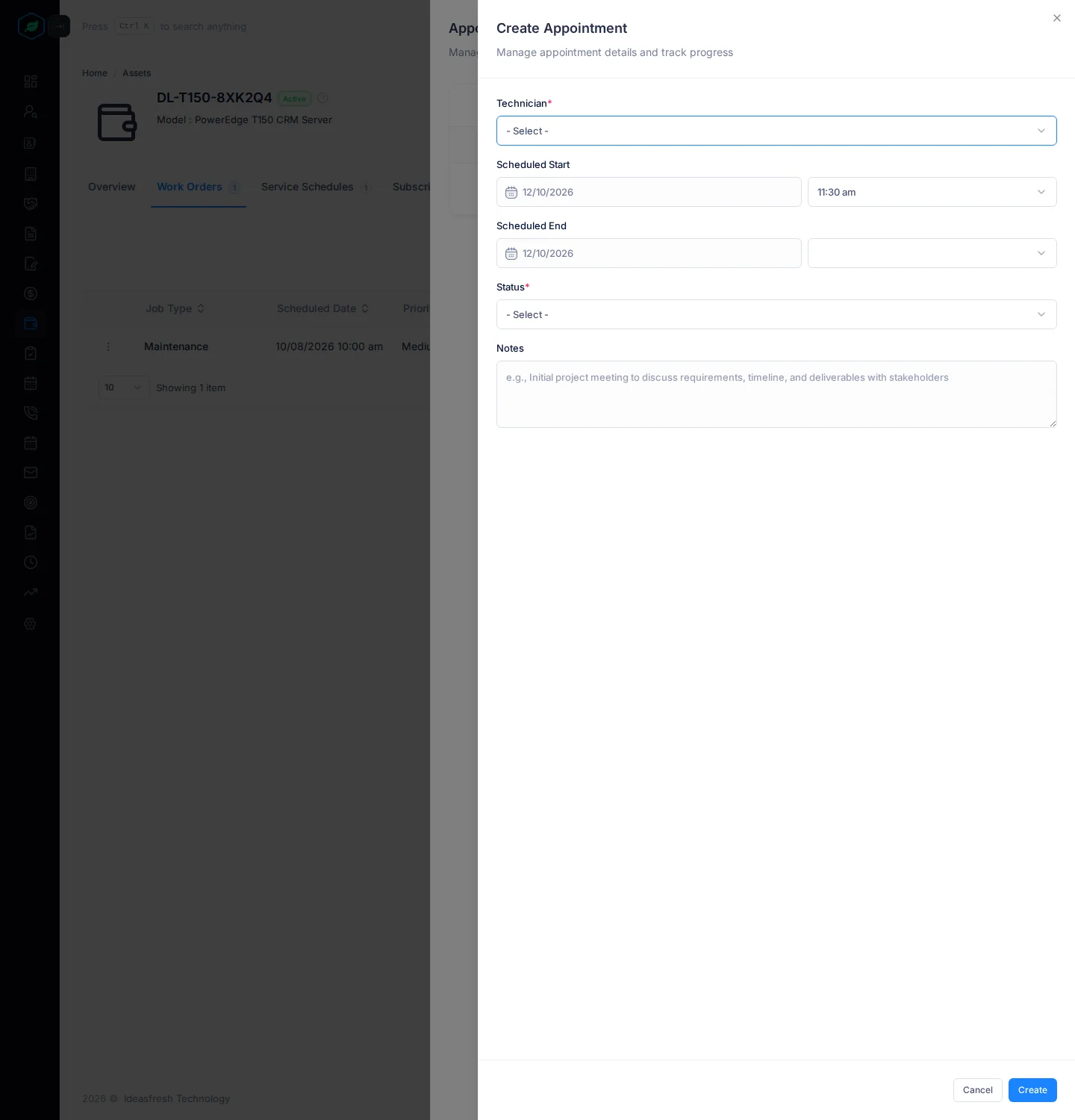
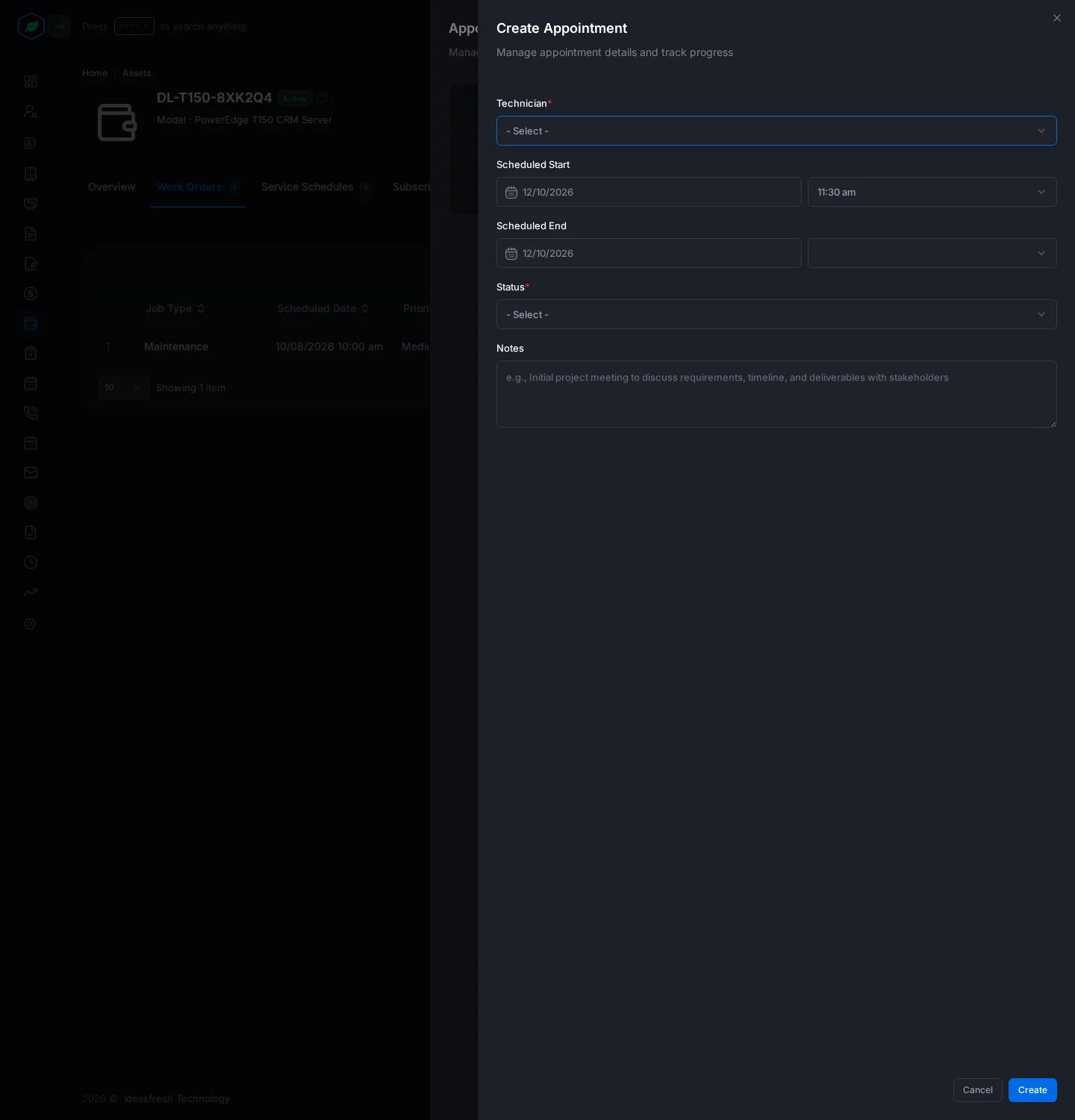
- Click Create. The Create Appointment panel opens.
- Fill in the fields and click Create.
| Field | What to enter |
|---|---|
| Technician * | The user who goes |
| Scheduled Start | When the visit starts. Set to now at first |
| Scheduled End | When the visit should end |
| Status * | Scheduled, On The Way, In Progress, Completed or Cancelled |
| Actual Start and Actual End | When the visit really happened. These show when you pick Completed, and you must fill them in |
| Notes | What was done |
Service schedules
A service schedule is a maintenance plan, such as a yearly service contract that includes a visit every quarter.
- Open the asset and click Service Schedules.
- Click Create. The Service Schedule panel opens.
- Fill in the fields and click Create.
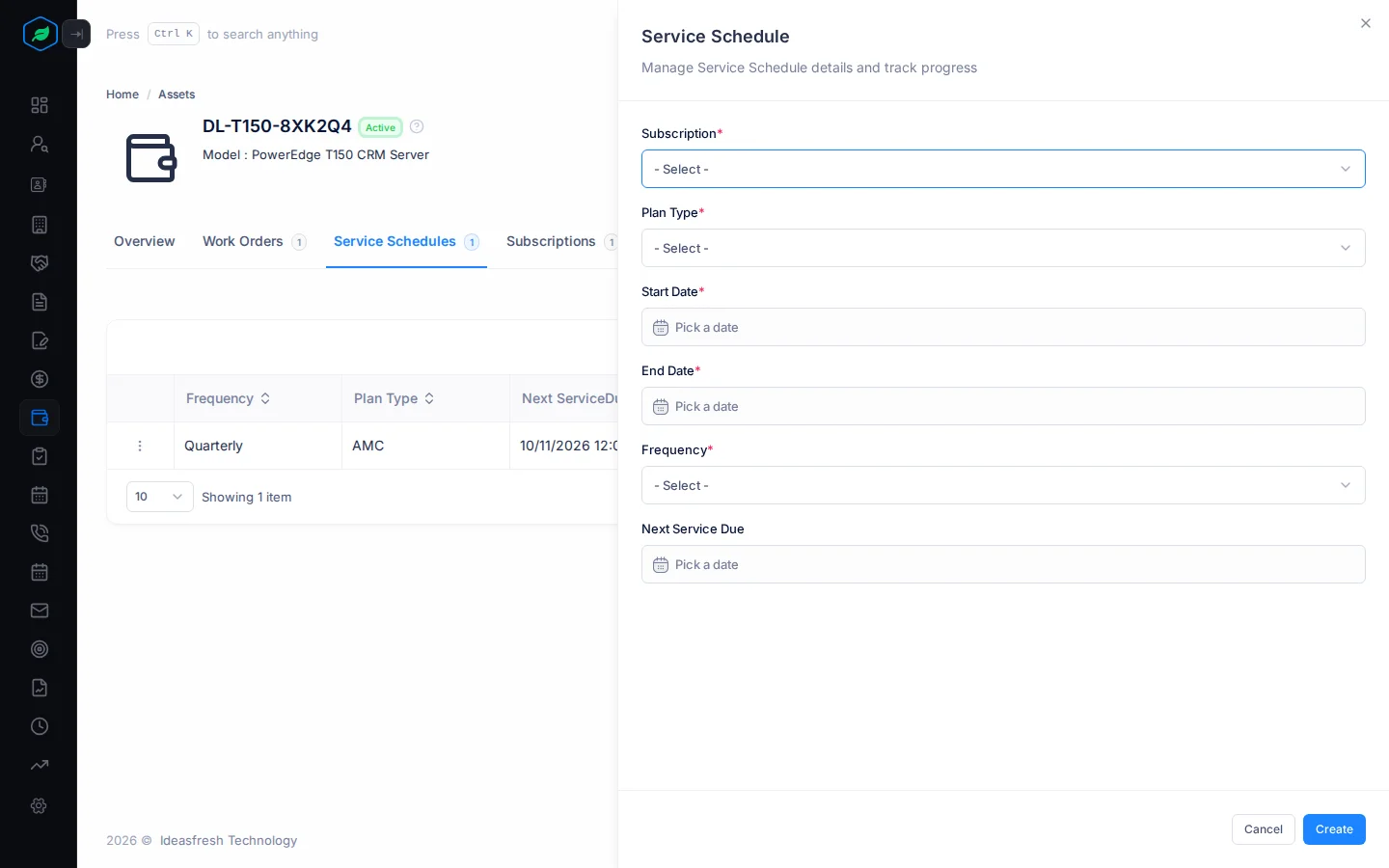
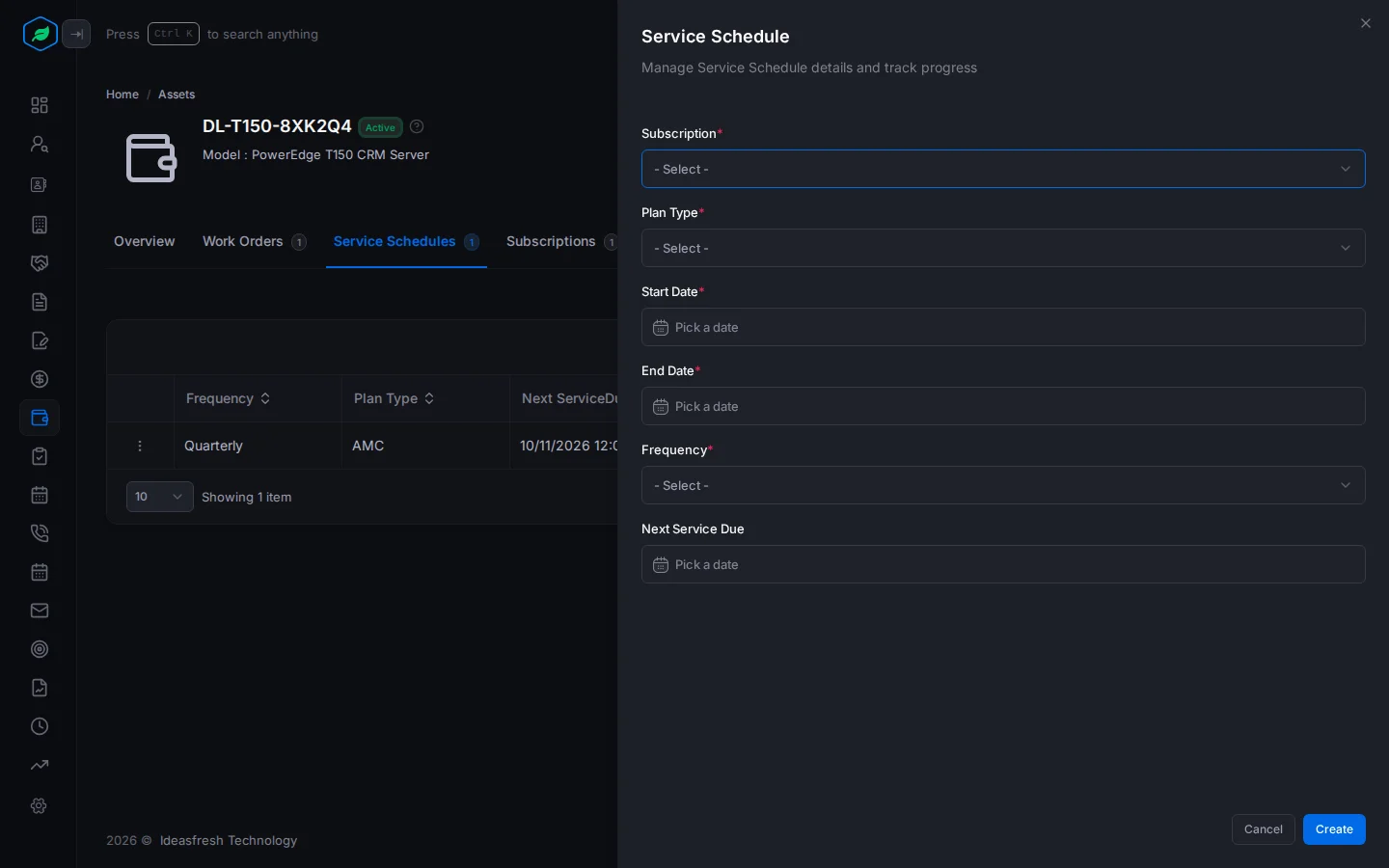
| Field | What to enter |
|---|---|
| Subscription * | The customer's subscription that pays for the plan |
| Plan Type * | AMC (yearly maintenance contract), PMC (preventive maintenance contract) or Extended Warranty |
| Start Date * and End Date * | How long the plan runs |
| Frequency * | How often to service it: Monthly, Quarterly, Semi-annual or Annual |
| Next Service Due | When the next visit is due |
The schedule changes to Expired on its own after its end date. To pause it, click ⋮, then Deactivate. To start it again, click Activate.
Service schedules don't make work orders or send reminders. Check the Next Service Due date, and add the work order yourself.
Troubleshooting
| You see | Why | What to do |
|---|---|---|
| "Job type is required" | You haven't picked a job type | Pick one |
| "Item type is required when product is not selected" | The item has no product or type | Pick one |
| "Cannot provide both product and item type at the same time" | You picked both | Pick only one |
| "Actual end must be greater than or equal to actual start" | The visit's times are the wrong way round | Fix the times |
| "End date must be greater than start date" | The schedule's end date isn't after its start | Pick a later end date |
| "Access denied" when you save a service schedule | You don't have the Create Accounts or Edit Accounts permission | Ask your admin for the permission |
Related
Still stuck?
Tell us what you were trying to do and we will help.