Create, edit and clone an asset
Every field on the asset form, from product and customer to warranty and value, and how to edit, clone and delete assets.
Updated 10 October 2026 · 5 min read
You use the asset form to record a product you sold or installed at a customer: what it is, where it is, and how long its warranty lasts.
For example, you install a printer at a customer's office. You click Create Asset, pick the printer product and the customer, and type its serial number and model. You set the warranty to 1 Year from today and click Save. When the customer calls next year, you know at once whether the warranty still covers them.
Before you start
- To create or clone an asset, you need the Create Assets permission.
- To edit an asset, you need the Edit Assets permission. To delete one, you need the Delete Assets permission.
- The product must be in your product list as a service. See Products and categories.
- The customer must already be a contact or an account.
If you don't have a permission you need, ask your admin.
Create an asset
- Click Create Asset on the Assets page, or click + at the top of any page and choose Asset.
- Fill in the form. Fields marked * must be filled in.
- Click Save.
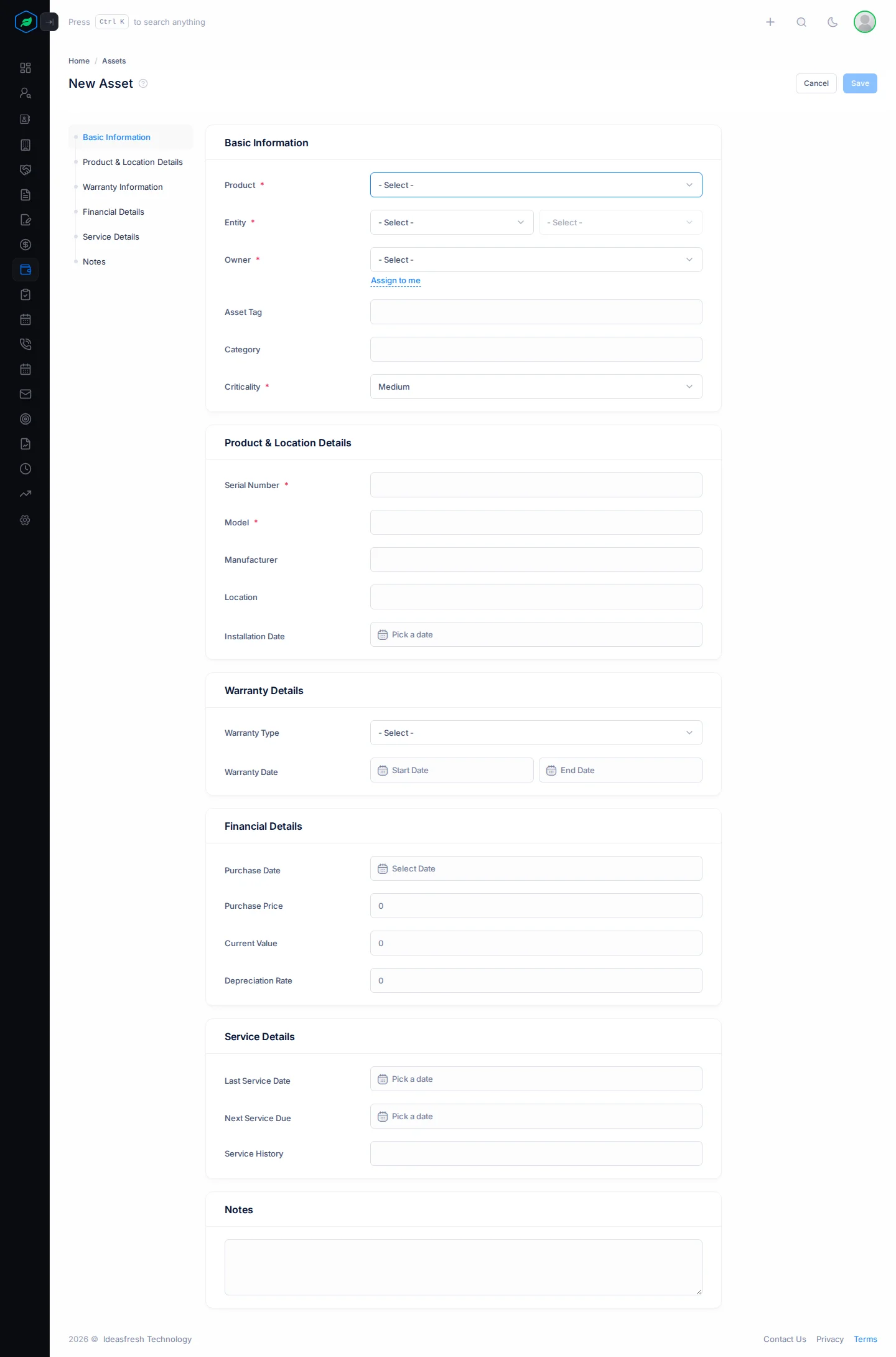
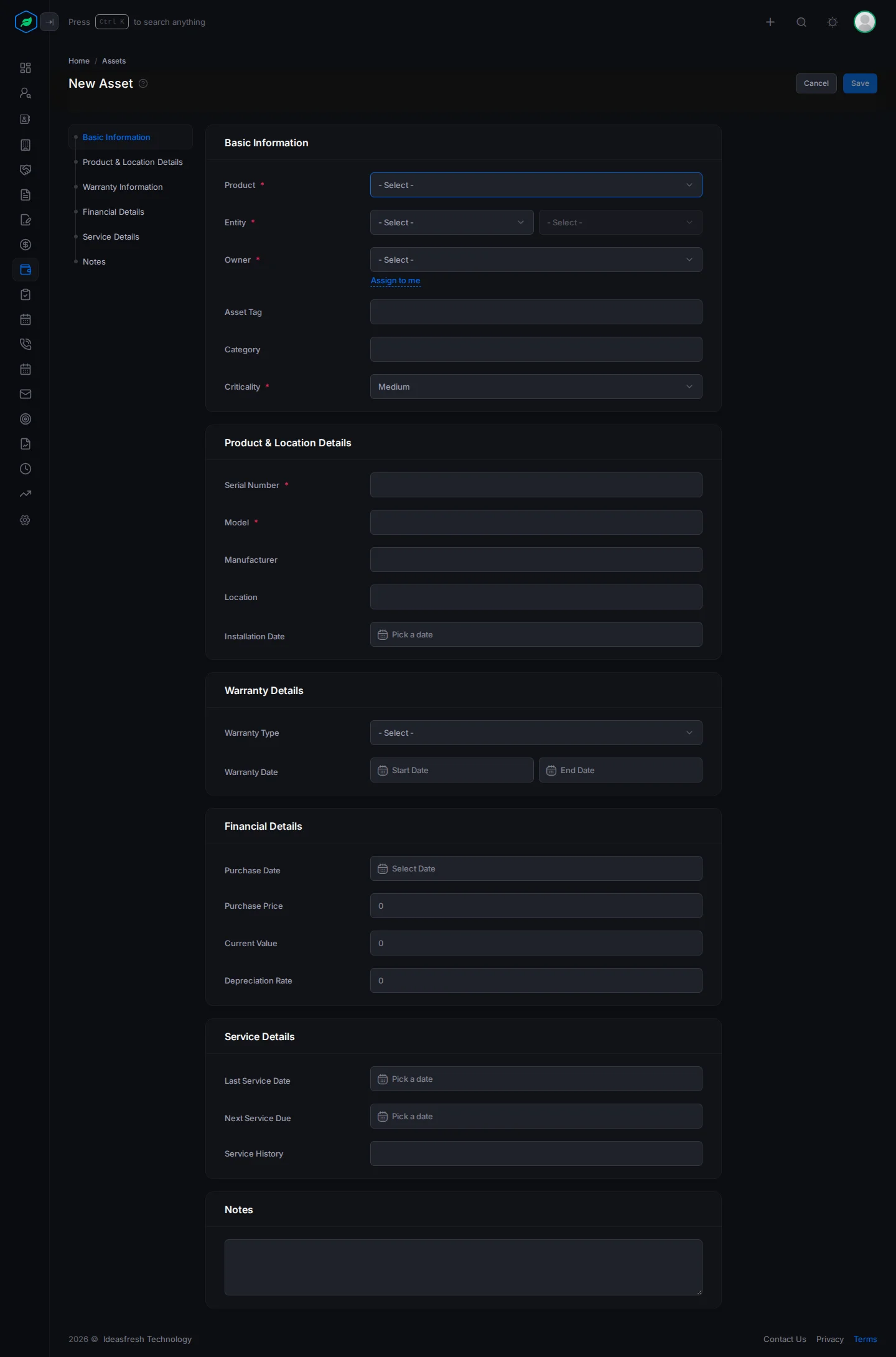
The asset starts as Active.
Basic Information
| Field | What to enter |
|---|---|
| Product * | What the asset is. Only service products are listed |
| Entity * | Pick Contacts or Accounts, then the customer who has it |
| Owner * | The person who looks after the asset. Click Assign to me to pick yourself |
| Team | One of the owner's teams. You only see this if the owner is in a team |
| Asset Tag | Your own label for it, such as "PRN-0042" |
| Category | The kind of asset, such as IT Equipment |
| Criticality * | How important it is: Low, Medium, High or Critical. Set to Medium at first |
Product & Location Details
| Field | What to enter |
|---|---|
| Serial Number * | The maker's serial number |
| Model * | The model, such as "LaserJet Pro 400" |
| Manufacturer | Who made it, such as HP |
| Location | Where it is, such as "Second floor reception" |
| Installation Date | When it was installed |
Warranty Details
| Field | What to enter |
|---|---|
| Warranty Type | Manufacturer or Extended |
| Warranty Date | The start and end of the warranty. After you pick the start, click 3 Months, 6 Months, 1 Year, 2 Years or 3 Years to fill in the end |
Financial Details
| Field | What to enter |
|---|---|
| Purchase Date | When the customer bought it |
| Purchase Price | What it cost, such as 25000. Set to 0 at first |
| Current Value | What it's worth now. It can't be more than the purchase price |
| Depreciation Rate | How much value it loses each year, as a percentage, such as 15 |
Service Details
| Field | What to enter |
|---|---|
| Last Service Date | When it was last serviced |
| Next Service Due | When it should be serviced next |
| Service History | A short note of past services |
Notes
Anything else your team should know.
Edit an asset
Click ⋮ on the asset's page or on its row, then Edit. Change what you need and click Update.
Clone an asset
Cloning saves time when you install the same kind of equipment again.
- Click ⋮, then Clone.
- Tick what else to copy: Work Orders (and their items and appointments), Asset Locations and Service Schedules. Confirm.
- A copy opens, with "(Copy)" after the serial number and asset tag. Type the new serial number and anything else, and click Update.
Delete an asset
Click ⋮, then Delete, and confirm. This also deletes the asset's work orders, appointments, service schedules and location.
Deleting an asset removes it for good. You can't restore it.
Troubleshooting
| You see | Why | What to do |
|---|---|---|
| "Current value cannot be more than the purchase price" | The current value is higher than what was paid | Check both amounts |
| "Warranty end date must be greater than warranty start date" | The warranty dates are the same or the wrong way round | Fix the dates |
| "Purchase date cannot be after the installation date" | The dates are in the wrong order | Fix the dates |
| "Installation date cannot be after the warranty end date" | The warranty ends before the installation | Fix the dates |
| "Depreciation rate cannot be more than 100" | The rate is over 100 | Enter 100 or less |
| A product isn't listed | Only service products can be assets | Ask your admin to change the product's type |
| "You have reached the maximum of … assets on your current plan. Please upgrade for more." | You have as many assets as your plan allows | Upgrade your plan |
Related
Still stuck?
Tell us what you were trying to do and we will help.