The asset detail page
What is on an asset's page, its tabs, how to change its status and add its location.
Updated 10 October 2026 · 3 min read
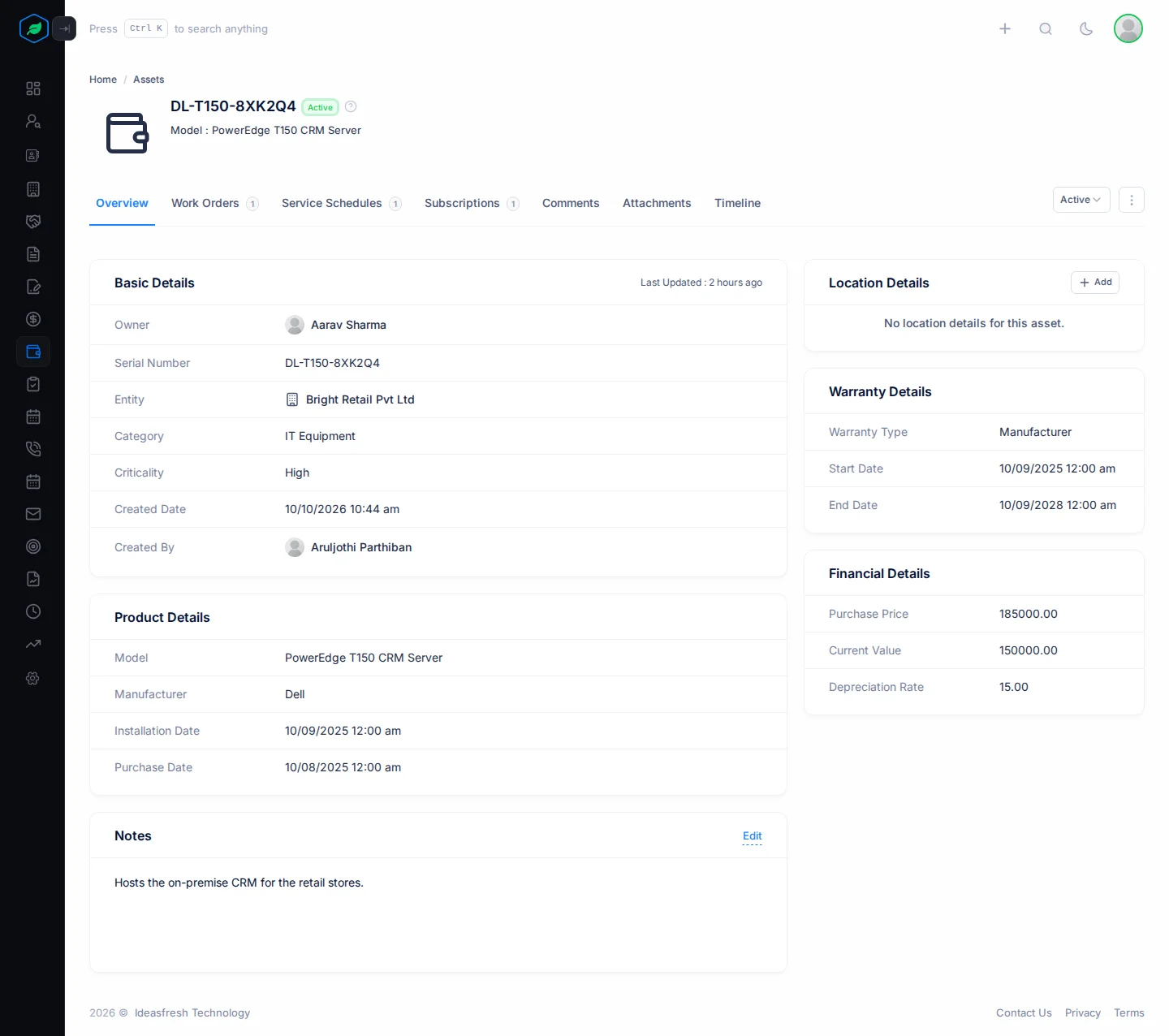
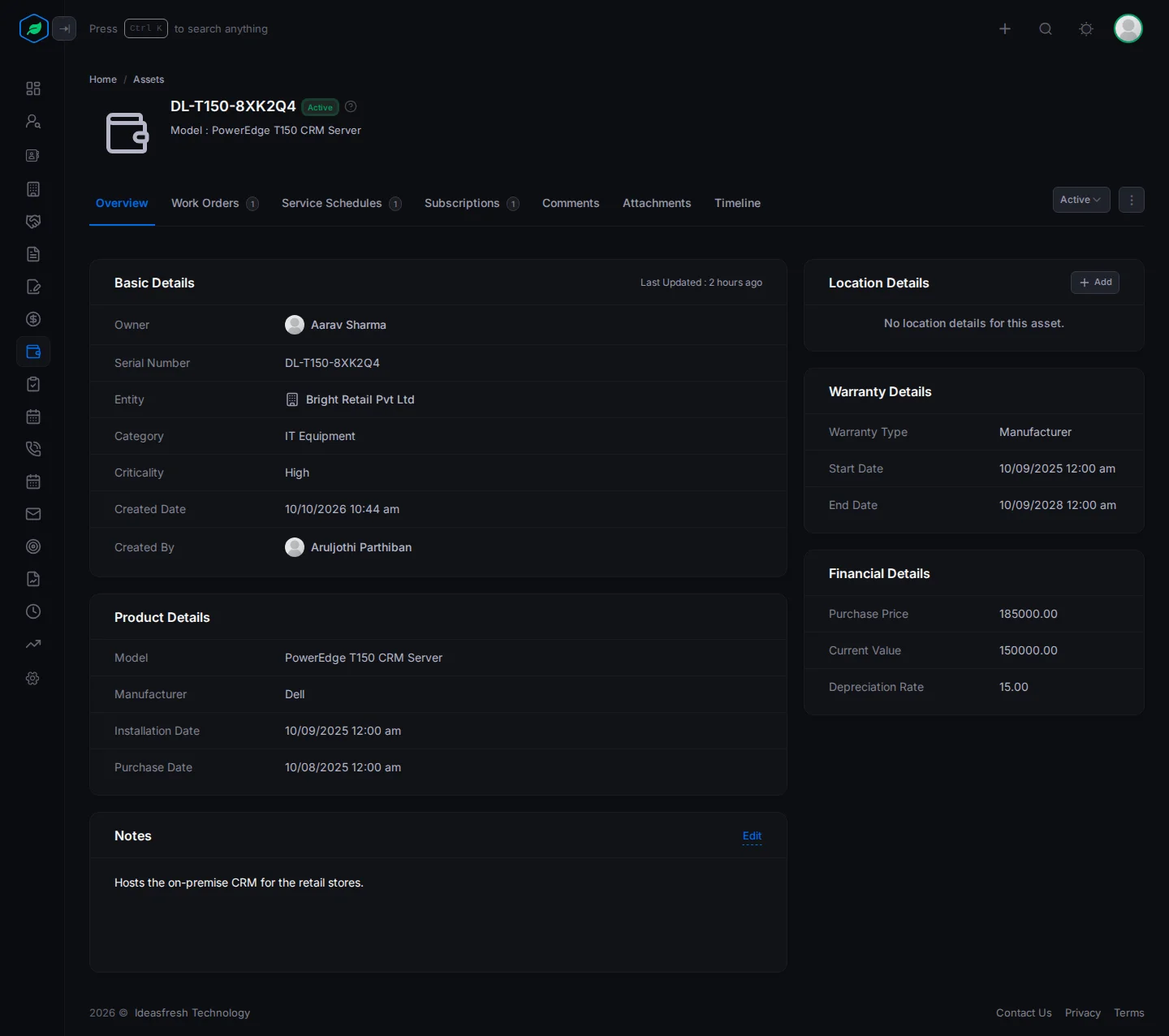
An asset's page shows everything about a product at a customer: what it is, where it is, its warranty and value, and the work done on it.
To open it, click an asset's serial number on the Assets page.
Before you start
- To open an asset, you need the View Assets permission.
- To change its status, you need the Edit Assets permission.
- To add or change its location, you need the Create Contracts or Edit Contracts permission.
If you don't have a permission you need, ask your admin.
At the top
The top of the page shows the serial number, the status and the model. On the right are the status dropdown and the ⋮ menu.
Overview
- Basic Details shows the owner, serial number, customer, category and criticality.
- Product Details shows the model, maker, and the installation and purchase dates.
- Location Details shows where the asset is and who to contact there. See Add the location.
- Warranty Details shows the warranty type and dates.
- Financial Details shows the purchase price, current value and depreciation rate.
- Notes is for anything your team should know. Click Edit to change it.
The tabs
| Tab | What it's for |
|---|---|
| Work Orders | Repair and maintenance jobs on the asset. See Work orders and service schedules |
| Service Schedules | Maintenance plans, such as a yearly service contract. See Work orders and service schedules |
| Subscriptions | The customer subscriptions that cover the asset. Click Create to add one. See Create and edit a subscription |
| Comments, Attachments and Timeline | Notes for your team, files, and every change. See Comments |
The number on a tab shows how many items it has.
Add the location
The location tells a technician exactly where to go and who to ask for. An asset has one location.
- On Location Details, click Add.
- Fill in the fields and click Create.
| Field | What to enter |
|---|---|
| Contact Person | Who to ask for on site |
| Contact's Phone Number | Their phone number |
| Location * | Where the asset is, such as "Head office, 2nd floor" |
| Address | The full address |
| Access Instructions | How to get in, such as "Ask for the key at reception" |
To change or remove it, click ⋮ on the card, then Edit or Delete.
Change the status
Pick a status from the dropdown at the top right and confirm. For example, if the customer reports the printer as stolen, pick Lost.
Salesfresh sets Warranty Expired for you once the warranty ends. See Statuses.
The ⋮ menu
Edit, Clone and Delete are in the ⋮ menu. See Create and edit an asset.
Troubleshooting
| You see | Why | What to do |
|---|---|---|
| The status doesn't change | You don't have the Edit Assets permission | Ask your admin for the permission |
| "Access denied" when you add the location | You don't have the Create Contracts or Edit Contracts permission | Ask your admin for the permission |
| "Location is required" | The Location field is empty | Fill it in |
Related
Still stuck?
Tell us what you were trying to do and we will help.