Announcements: overview, list and results
What an announcement is, how it reaches people on your website and by email, its statuses, and how to see who saw it.
Updated 28 October 2026 · 4 min read
An announcement tells your leads or contacts about something new, such as an offer, a new product or a change to your terms. You can show it as a banner or popup on your website, send it by email, or both.
For example, you have a clothing shop and want to show "Festival sale: 30% off" on your website for 4 days. Before, you asked your web developer to add the message, and again to take it down. With announcements, you type the message in Salesfresh and pick the start and end dates. It shows on your website on the start date and goes away on its own on the end date. Next month, you show a new offer the same way, in a few minutes.
Before you start
- Permission: View Announcements to see announcements. Create Announcements to create or copy one, Edit Announcements to change one and Delete Announcements to delete one. Publish Announcements to publish, pause, resume or complete one. View Announcement Analytics to see the results and Export Announcement Data to download them.
- Plan: Every plan. See Plans and limits.
- Set up first: For website banners, register your website and add its install code. See Websites.
How it reaches people
- On your website. Visitors see the announcement while the announcement is published and within its dates, in the style and at the moment you picked. Only visitors your website identifies get announcements with audience filters. See Websites.
- By email. It's sent once, when you publish it, to every lead or contact in the audience who has an email address and hasn't unsubscribed. It's sent in the name of the person who created the announcement, and replies go to them.
SMS and WhatsApp aren't available yet.
Statuses
| Status | Meaning |
|---|---|
| Draft | Not sent yet |
| Scheduled | Waiting for its start date. Salesfresh publishes it on that date |
| Published | Live |
| Paused | Hidden from your website. Emails already sent aren't taken back |
| Completed | Finished. A published announcement completes on its own at its end date |
The Announcements page
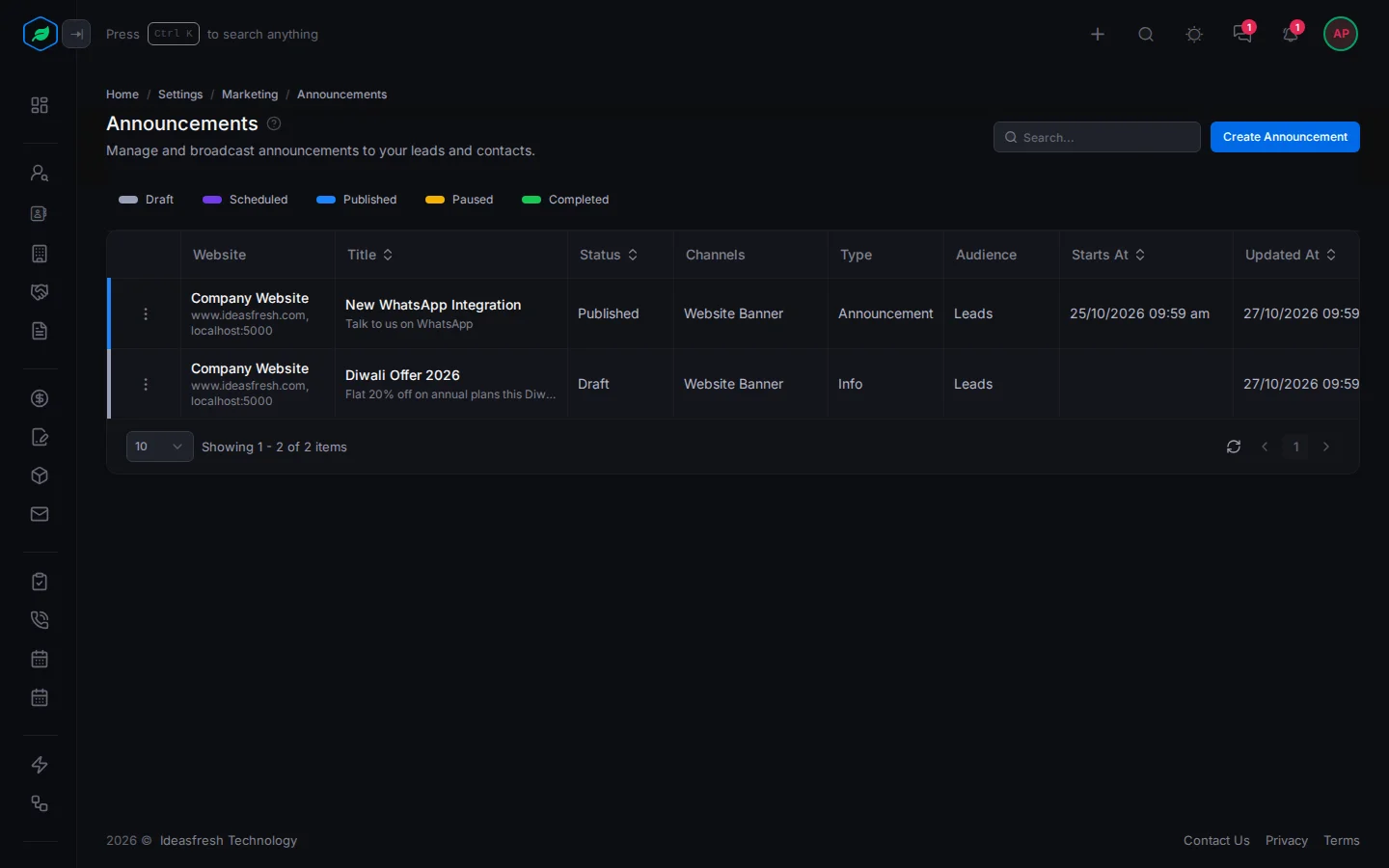
Go to Settings → Marketing → Announcements. Each row shows the announcement's title, status and channels, and for a website banner, its websites, or All websites. Select a status above the table to see only those.
To see the banners on one website, open the website and select its Announcements tab. See The website page.
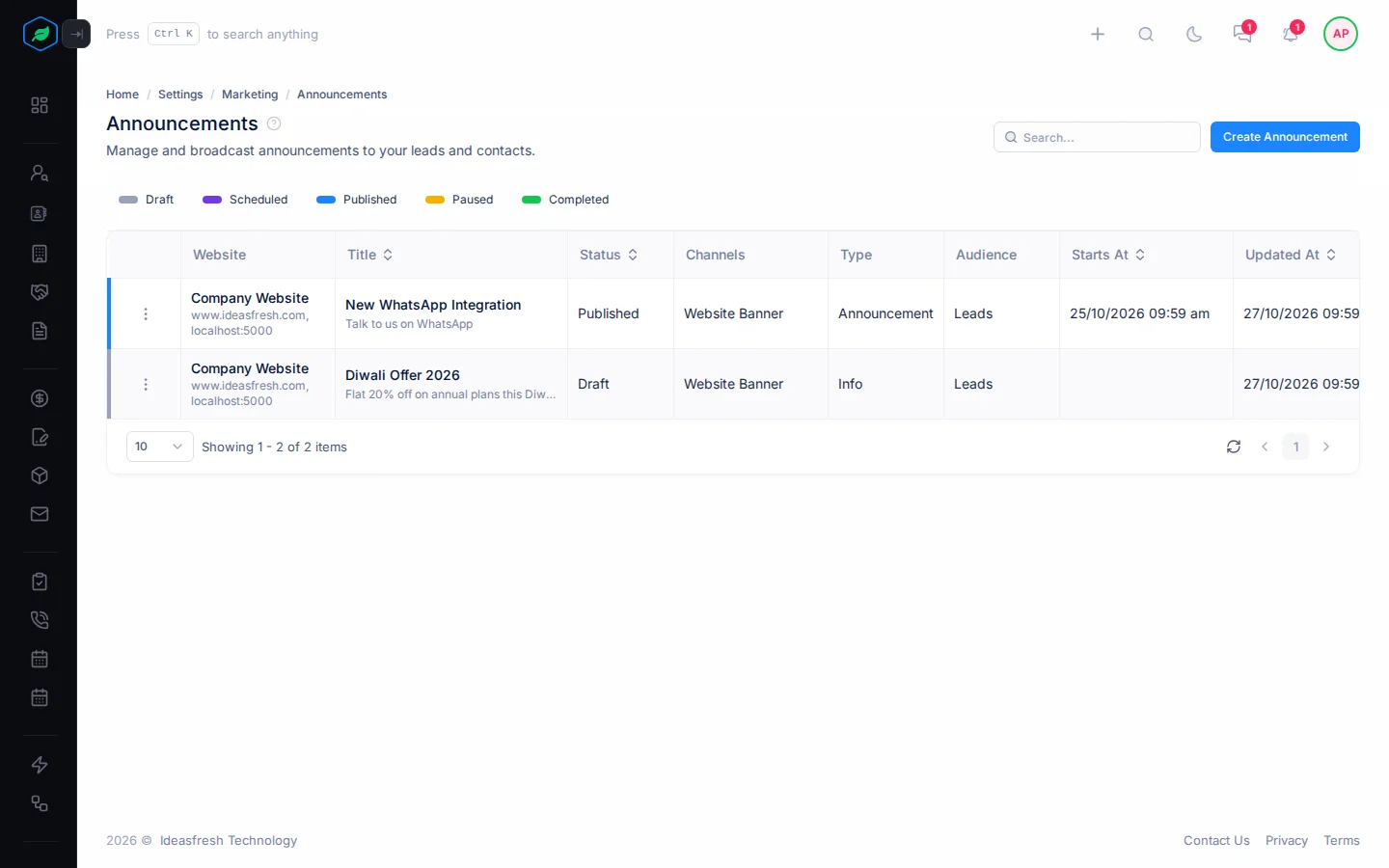
To add one, select Create Announcement. See Create an announcement.
What you can do
Select ⋮ on an announcement. What you see depends on its status:
| Status | Actions |
|---|---|
| Draft | Edit, Publish, Delete |
| Scheduled | Edit |
| Published | Pause, Mark Complete |
| Paused | Resume, Mark Complete |
| Completed | Nothing more. Copy it to send it again |
Every announcement also has View Analytics and Clone. Once it's been published, it also has View Audience. Clone makes a new draft with the same content, sites and dates. Change the dates before you publish the copy.
See who saw it
- View Analytics shows how many people it was Delivered to, and how many Acknowledged or Dismissed it.
- View Audience lists each event: who it was, the channel and the status, such as Sent, Delivered or Acknowledged. To download the list, select Export.
On your website, results are only recorded for visitors your website identifies by email or lead ID.
Troubleshooting
| Message | Why | What to do |
|---|---|---|
| "Only draft or scheduled announcements can be edited." | It's already published | Copy it with Clone and change the copy |
| "Only draft announcements can be deleted." | It has been published | Mark it complete instead |
| "Only published announcements can be paused." | It isn't live | Nothing to pause |
| Nothing shows on your website | It isn't published, it's outside its dates, or your website's snippet is missing | Check the status and dates, and see Websites |
Related
Still stuck?
Tell us what you were trying to do and we will help.