Create an announcement
The five steps of a new announcement, from the message and channels to the audience, schedule and review.
Updated 28 October 2026 · 4 min read
A new announcement takes five steps: what it says, where it shows, who sees it, when it runs, and a final check.
For example, you want a "Festive Sale" banner at the top of your website for leads, for one week. You type the message, pick Website Banner and Top Banner, keep the audience as all leads, and set the end date a week away. On the last step, you check everything and select Publish Now.
Before you start
- Permission: Create Announcements to create an announcement, and Publish Announcements to publish it.
- Plan: Every plan. See Plans and limits.
- Set up first: For a website banner, register your website. See Websites.
Start a new announcement
- Go to Settings → Marketing → Announcements.
- Select Create Announcement. The Create Announcement panel opens on the Content step.
- Fill in each step. The button to go on names the next step, such as Next: Channels. Select Back to go back.
- On the last step, select Save as Draft or Publish Now.
1. Content
What the announcement says.
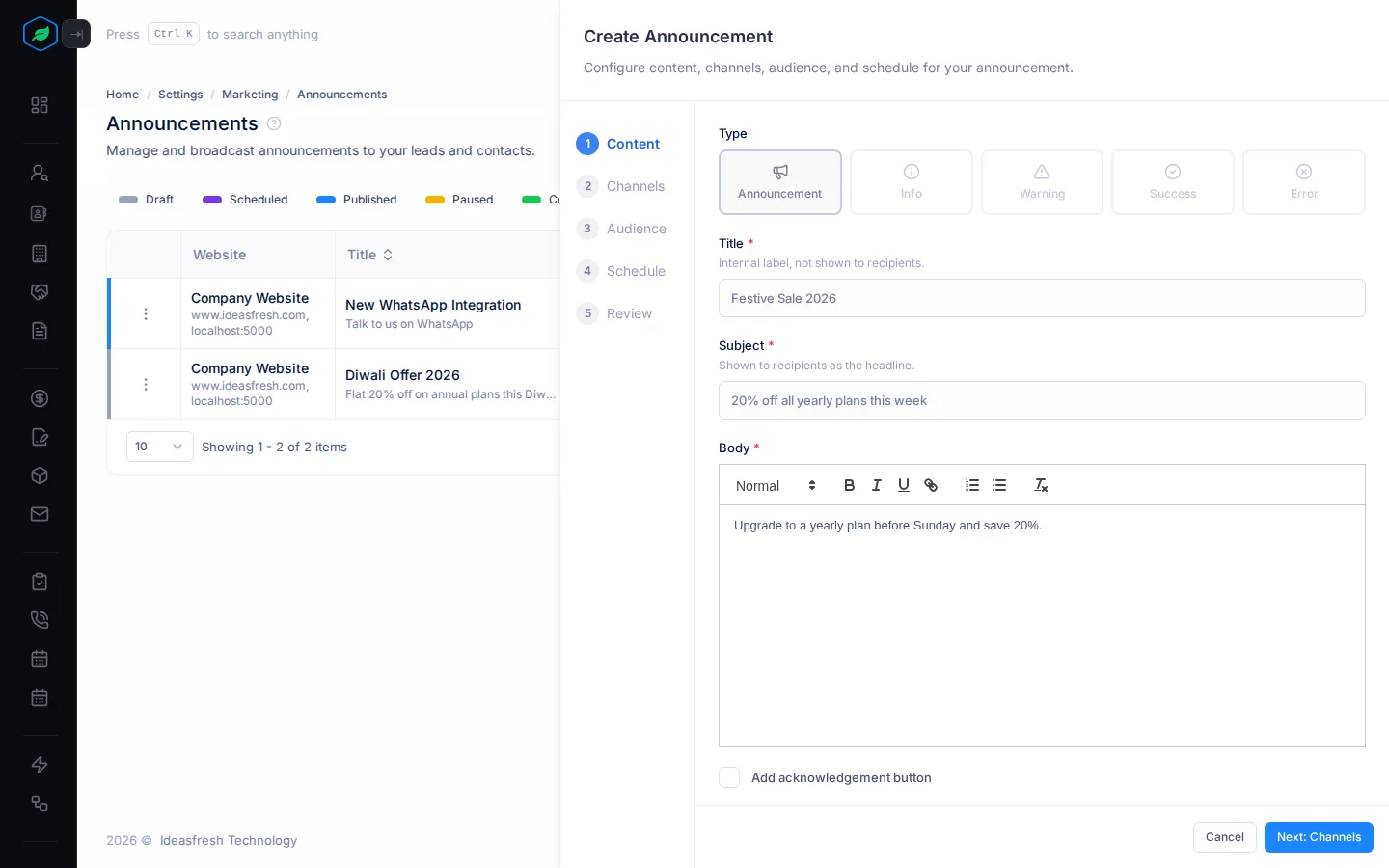
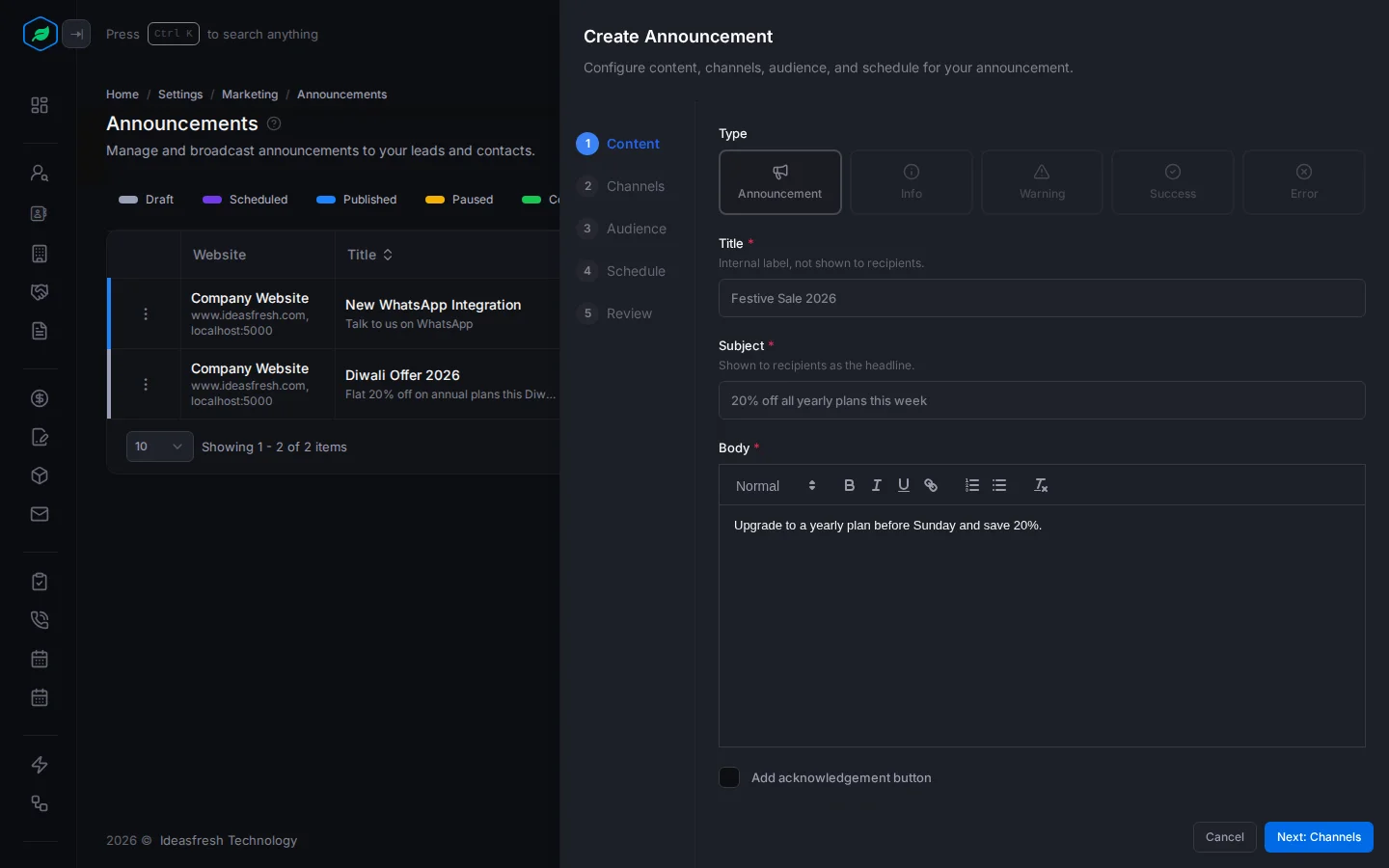
| Field | What to enter |
|---|---|
| Type | Announcement, Info, Warning, Success or Error. It sets the colour and icon. Set to Announcement at first |
| Title * | A name for your team, such as "Festive Sale 2026". People don't see it |
| Subject * | The headline people see, such as "20% off all yearly plans this week" |
| Body * | The message |
| Add acknowledgement button | Select it to add a button, such as "Got it". Then fill in the Button Label, and a Redirect URL to open when they select it, if you like |
2. Channels
Where the announcement shows.
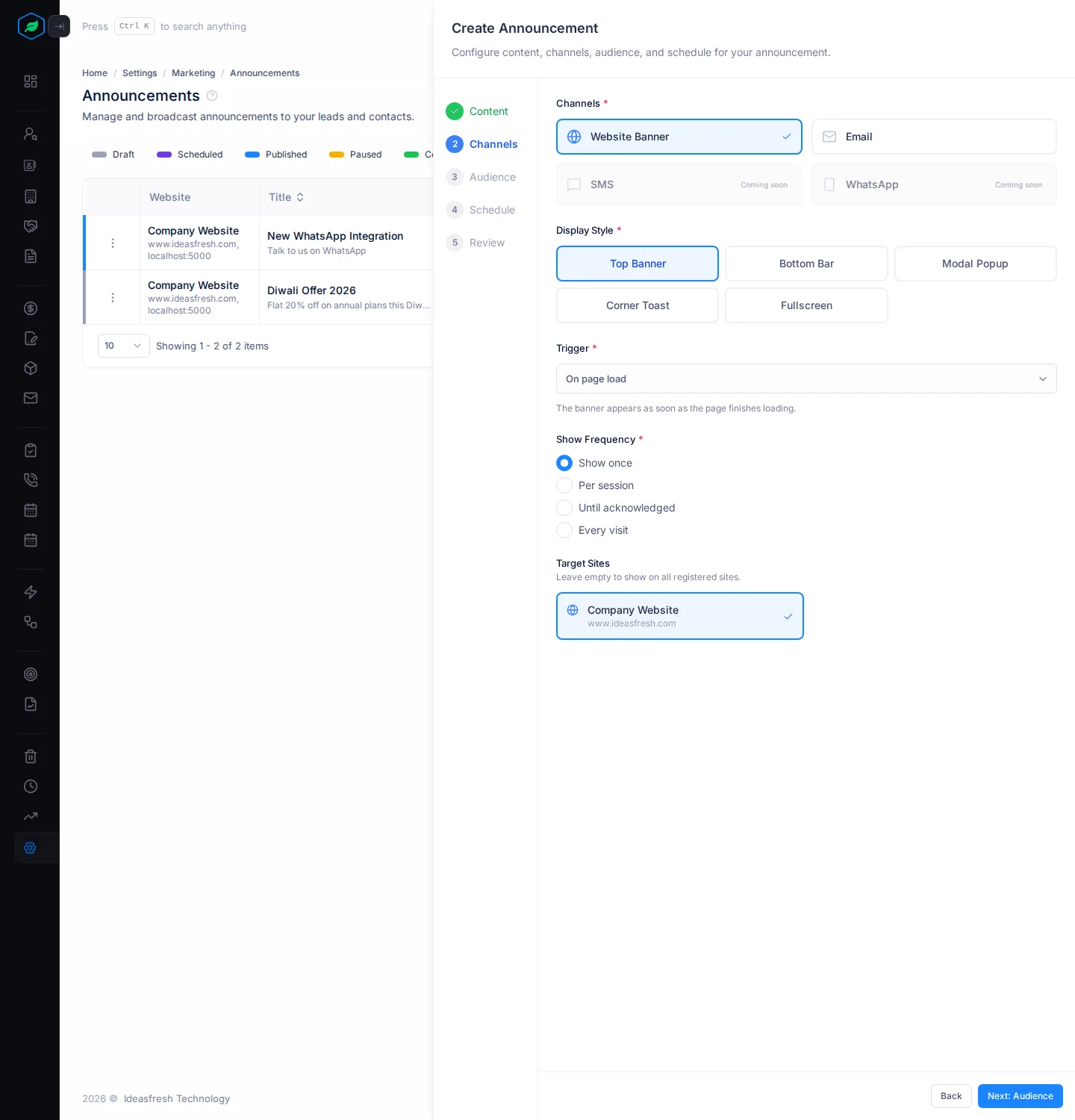
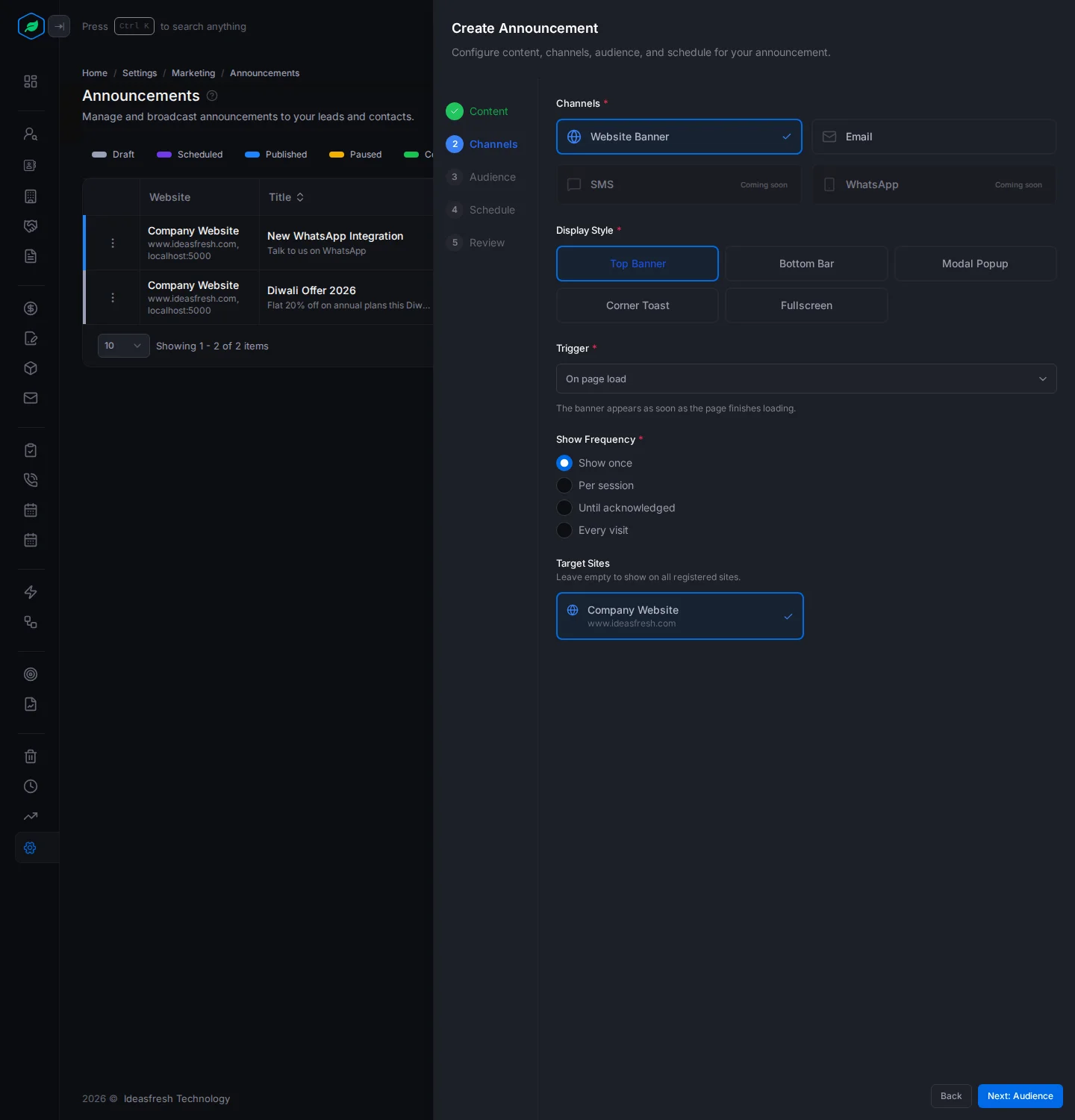
| Field | What to enter |
|---|---|
| Channels * | Website Banner, Email, or both |
| Display Style * | How it looks on your website: Top Banner, Bottom Bar, Modal Popup, Corner Toast or Fullscreen. Set to Top Banner at first |
| Trigger * | When it appears: On page load, On scroll (after a percentage of the page), After delay (a number of seconds), On exit intent (when the visitor moves to leave), or On URL pattern (on pages such as /pricing*). Set to On page load at first |
| Show Frequency * | How often a visitor sees it: Show once, Per session, Until acknowledged, or Every visit. Set to Show once at first |
| Target Sites | The websites to show it on. Leave it empty to show it on all your registered websites |
You only see the display style, trigger, frequency and sites when you pick Website Banner.
3. Audience
Who gets the announcement.
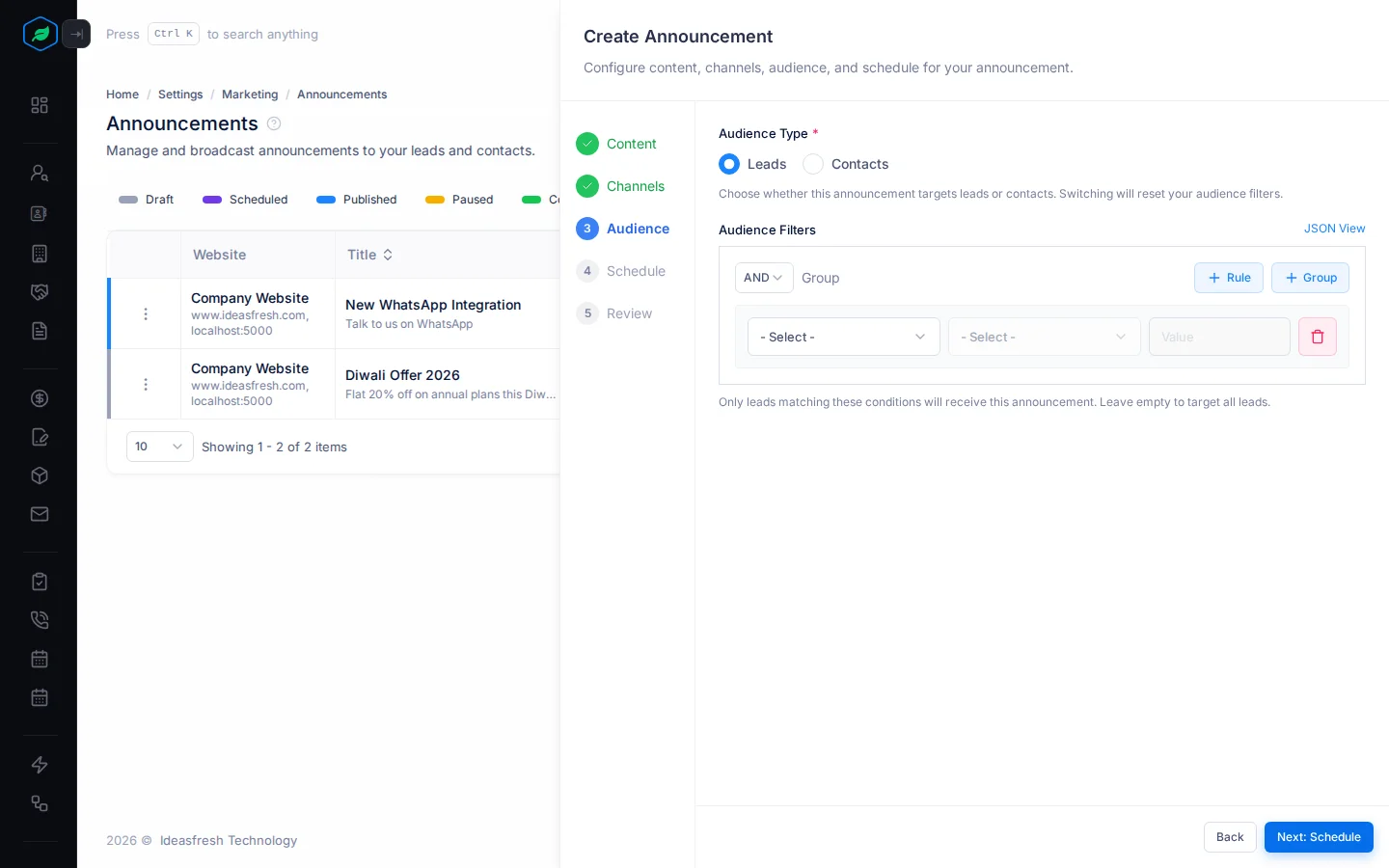
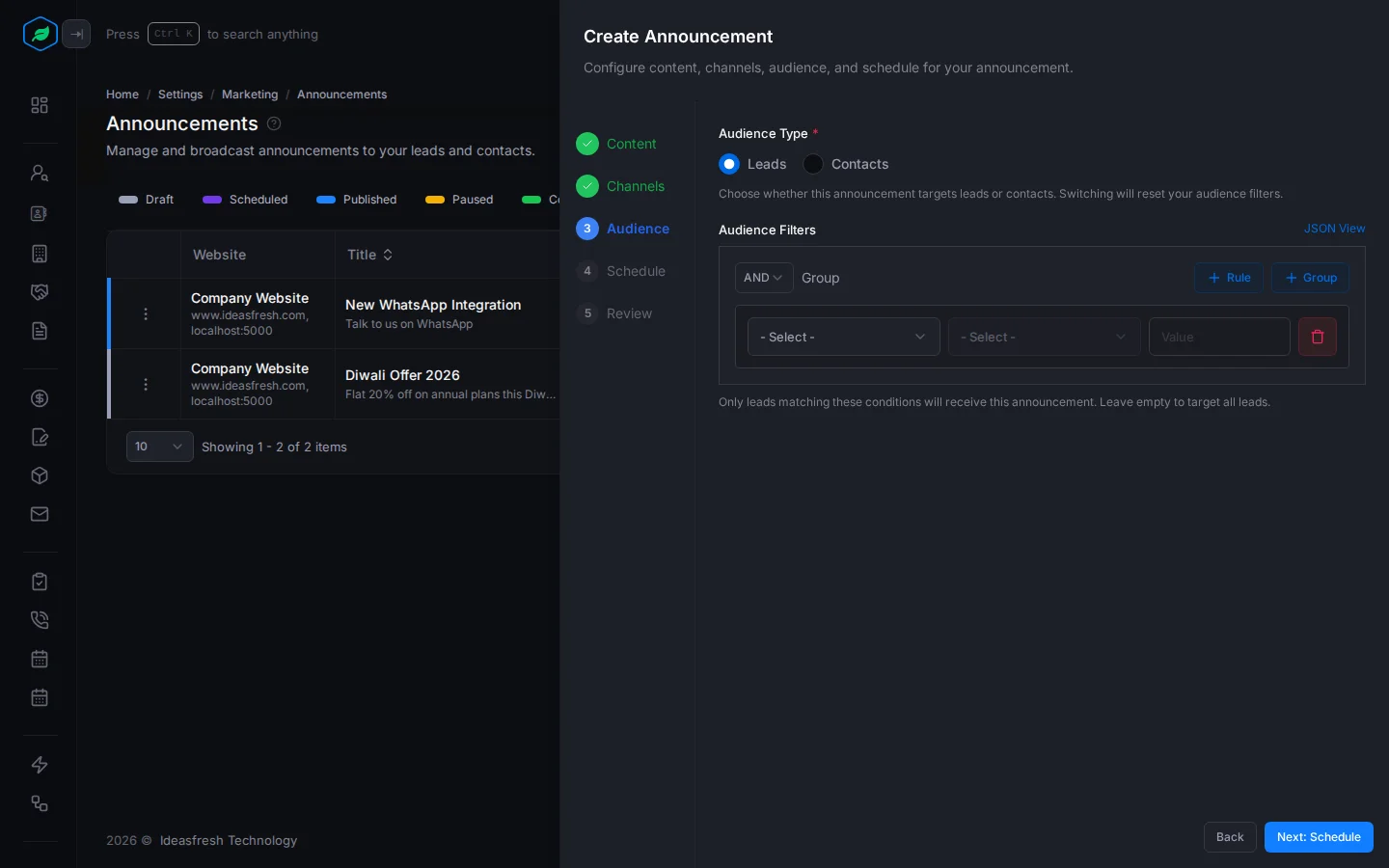
| Field | What to enter |
|---|---|
| Audience Type * | Leads or Contacts. Set to Leads at first. Changing it clears the filters |
| Audience Filters | Rules to narrow it down, such as Country equals India. Leave it empty to reach every lead or contact |
4. Schedule
When it runs.
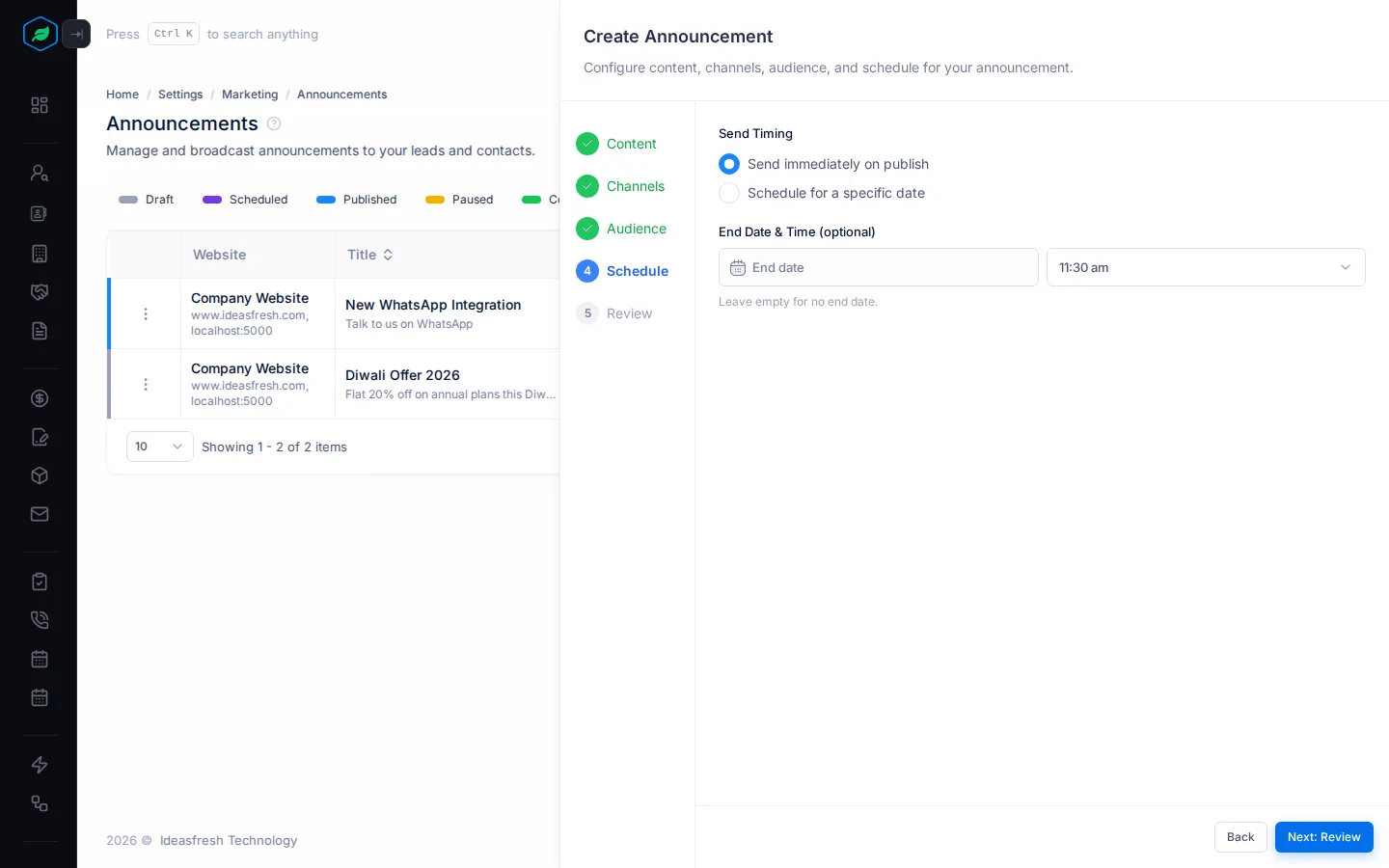
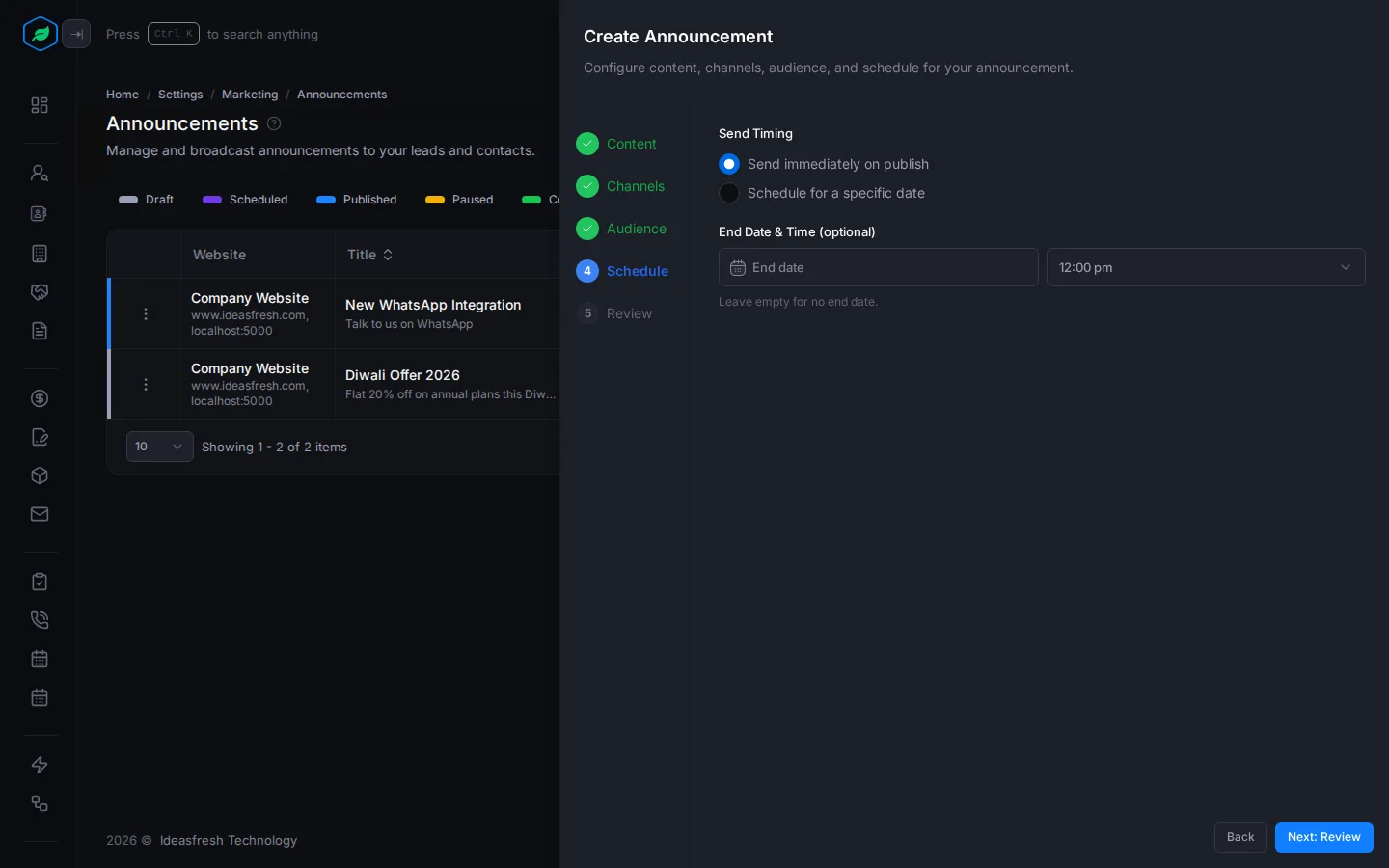
| Field | What to enter |
|---|---|
| Send Timing | Send immediately on publish, or Schedule for a specific date and pick the Start Date & Time |
| End Date & Time | When to stop showing it. Leave it empty for no end date |
5. Review
Check everything before you save. The review lists the content, channels, audience and schedule.
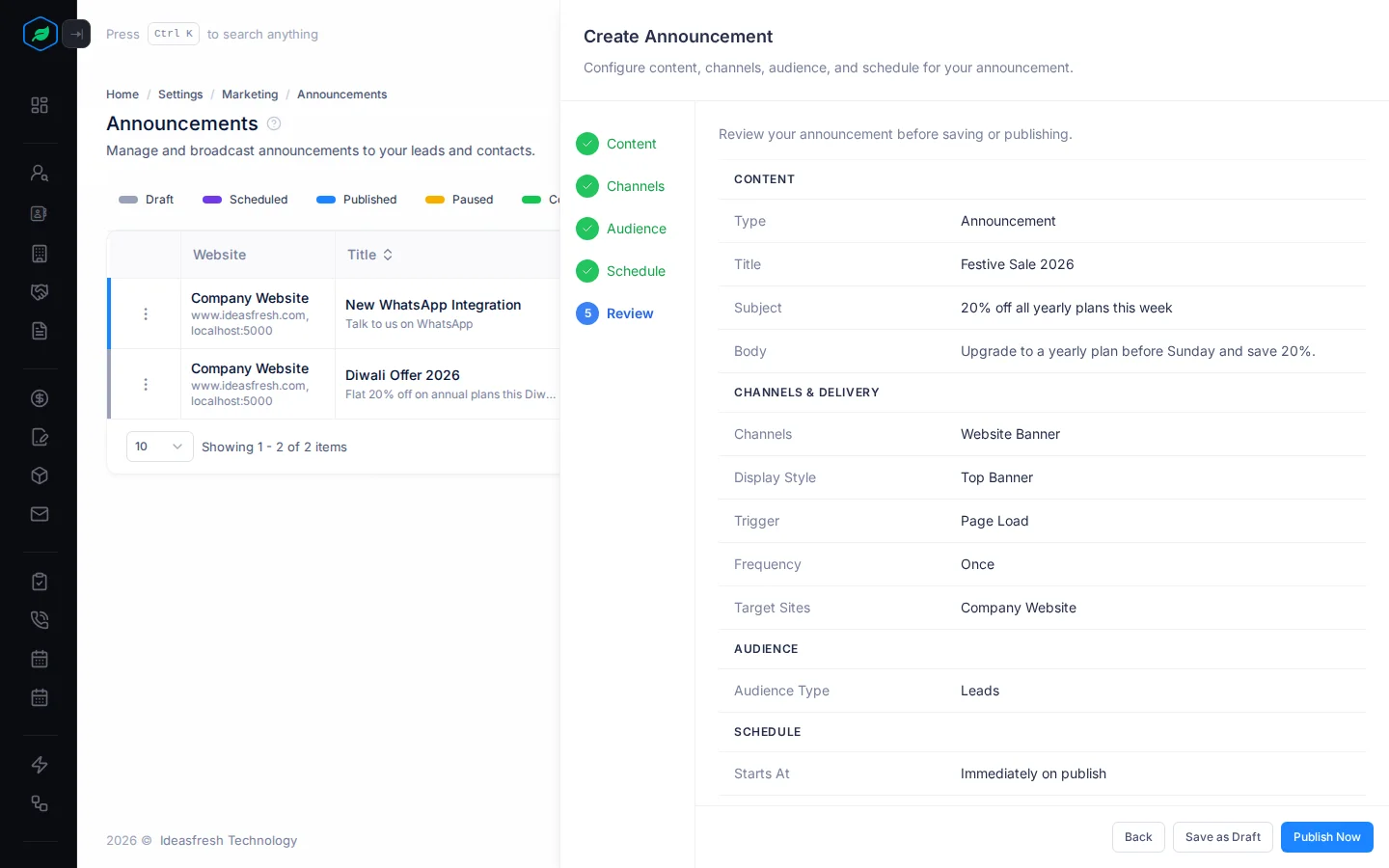
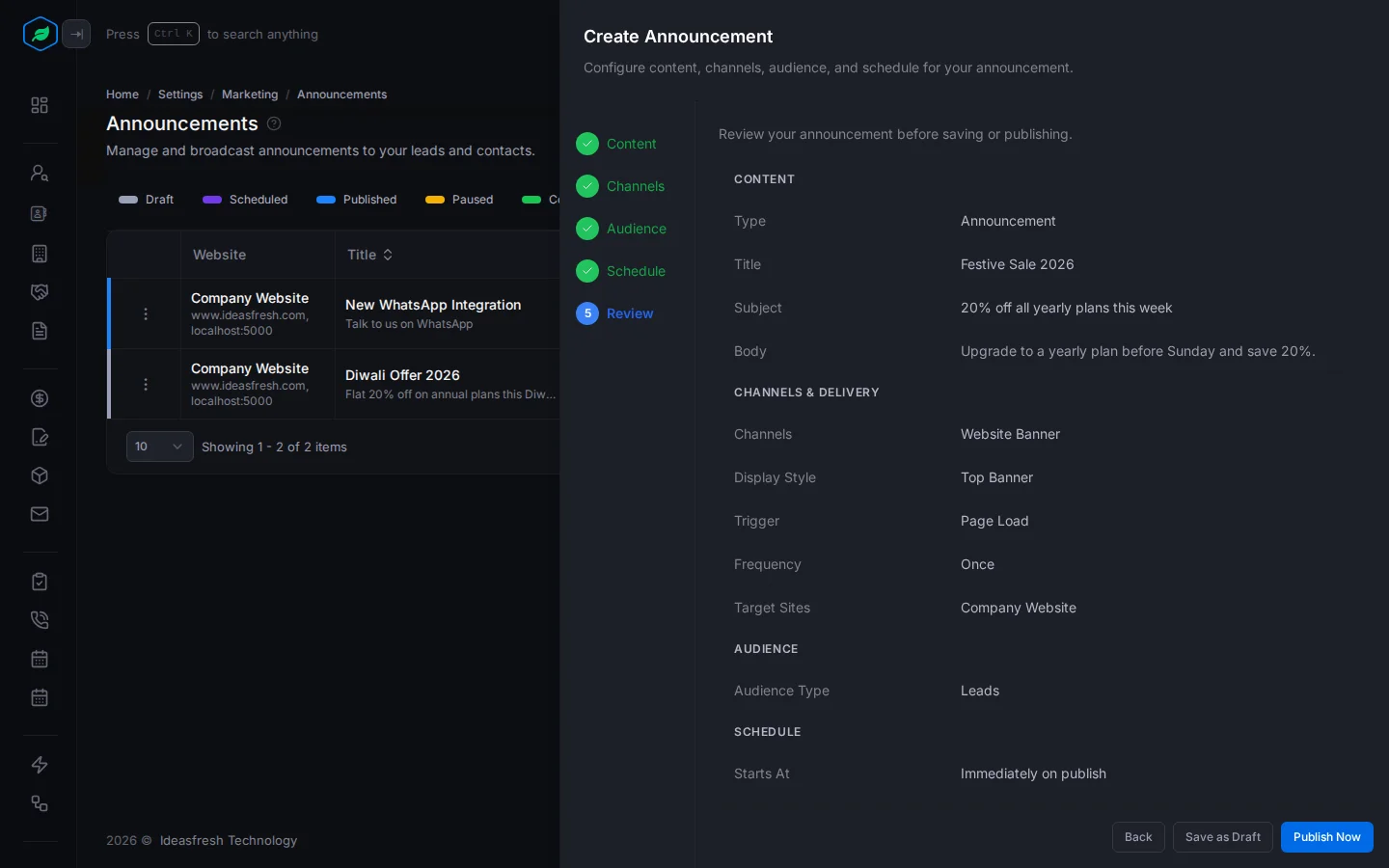
- Select Save as Draft to keep it without sending it.
- Select Publish Now to send it. If it has a start date, the button says Schedule instead, and it goes out on that date.
Troubleshooting
| Message | Why | What to do |
|---|---|---|
| "Select at least one channel" | You didn't pick a channel | Pick Website Banner or Email |
| "Title is required" or "Body is required" | A field on the Content step is empty | Fill it in |
| Next does nothing on Channels | The trigger needs a value, such as the scroll percentage or the number of seconds | Fill in the trigger's value. For After delay, enter 1 or more |
Related
Still stuck?
Tell us what you were trying to do and we will help.