What happens when someone sends your web form
What happens when someone sends your web form, the lead it adds, and where to find everything people sent.
Updated 12 October 2026 · 4 min read
Each time a visitor sends one of your forms, Salesfresh saves what they typed as a submission. On a Lead Generation form, it also adds them as a lead.
For example, a visitor fills in the form on your website and writes: "We have 50 staff and want to stop using spreadsheets by March." They're added as a new lead. Before calling, the salesperson opens the lead and reads the message. The call starts with what the customer needs and by when.
You can also use submissions to see which campaign each person came from, read support requests or feedback, and read messages from people who were already in Salesfresh.
Before you start
To see submissions, you need the View Automation permission. If you don't have it, ask your admin.
What the visitor sees
The visitor fills in the form and clicks Submit. They then see your thank-you message. If you added a Redirect URL, they go to that page 5 seconds later. See Web form settings.
If Enable Email OTP is on, a Verify Your Identity window opens first. The visitor gets an email with a 6-digit code, valid for 3 minutes, and enters it. Their answers are only saved once the code is right.
The lead that's added
On a Lead Generation form, each submission adds a lead:
| Lead field | Set to |
|---|---|
| Name, email, mobile and other details | The answers in the matching fields. See Design a web form |
| City, state, country, postal code | Worked out from where the visitor is |
| Lead Source | Contact Form |
| Lead Status | Pre Qualified |
| Stage | The open stage of your lead pipeline |
| Owner | Given by your auto-assign rules. If none match, the lead has no owner, so set one yourself |
| Interested products | Any products the visitor picked, with Medium priority |
Every answer is on the lead's Overview under Form Submission Details.
If a lead with the same email already exists, even in the recycle bin, no new lead is added and the old lead isn't changed. The submission is still saved, so check Submissions for messages from people already in Salesfresh.
Forms with any other purpose only save the submission.
See what people sent
Go to Settings > Forms and click Submissions on the form's row. The number on the button shows how many there are. The newest come first.
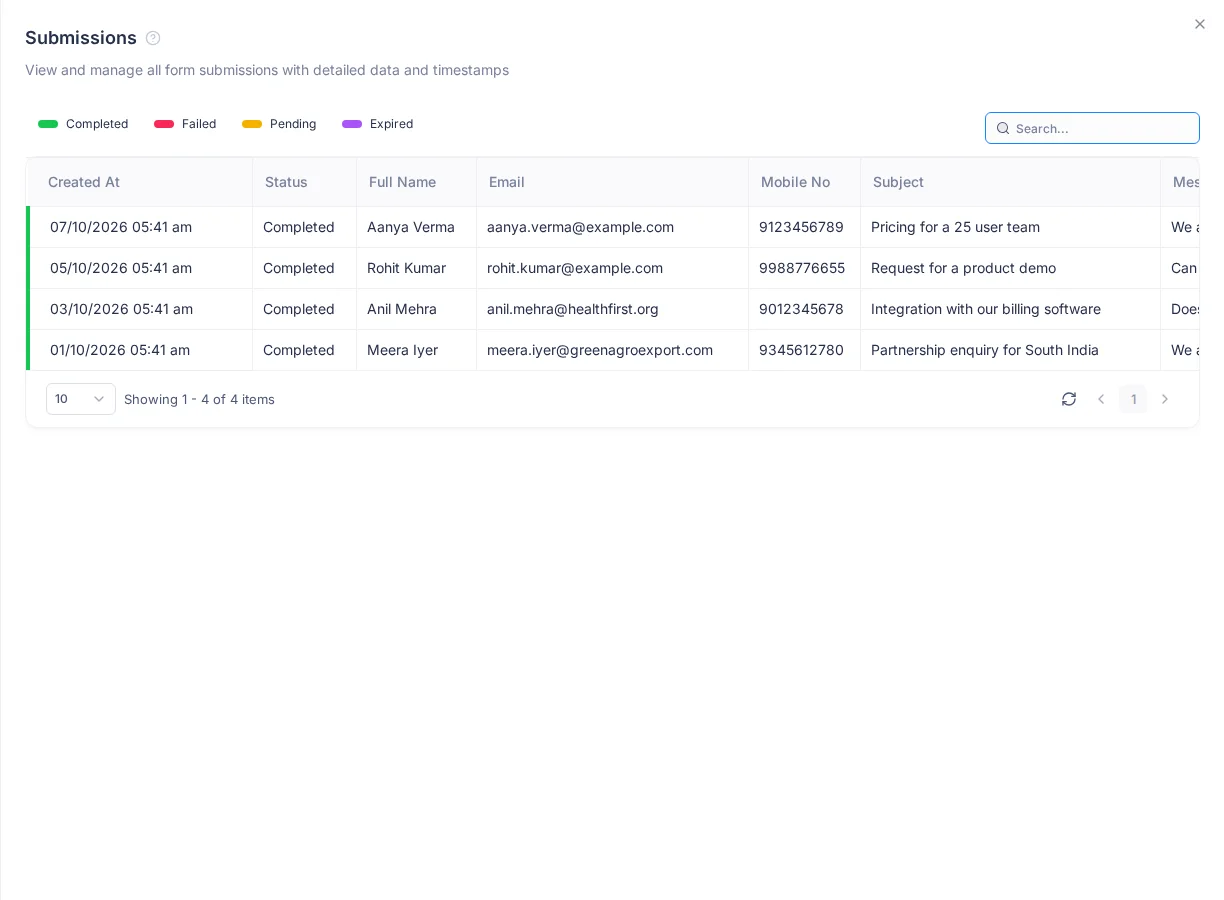
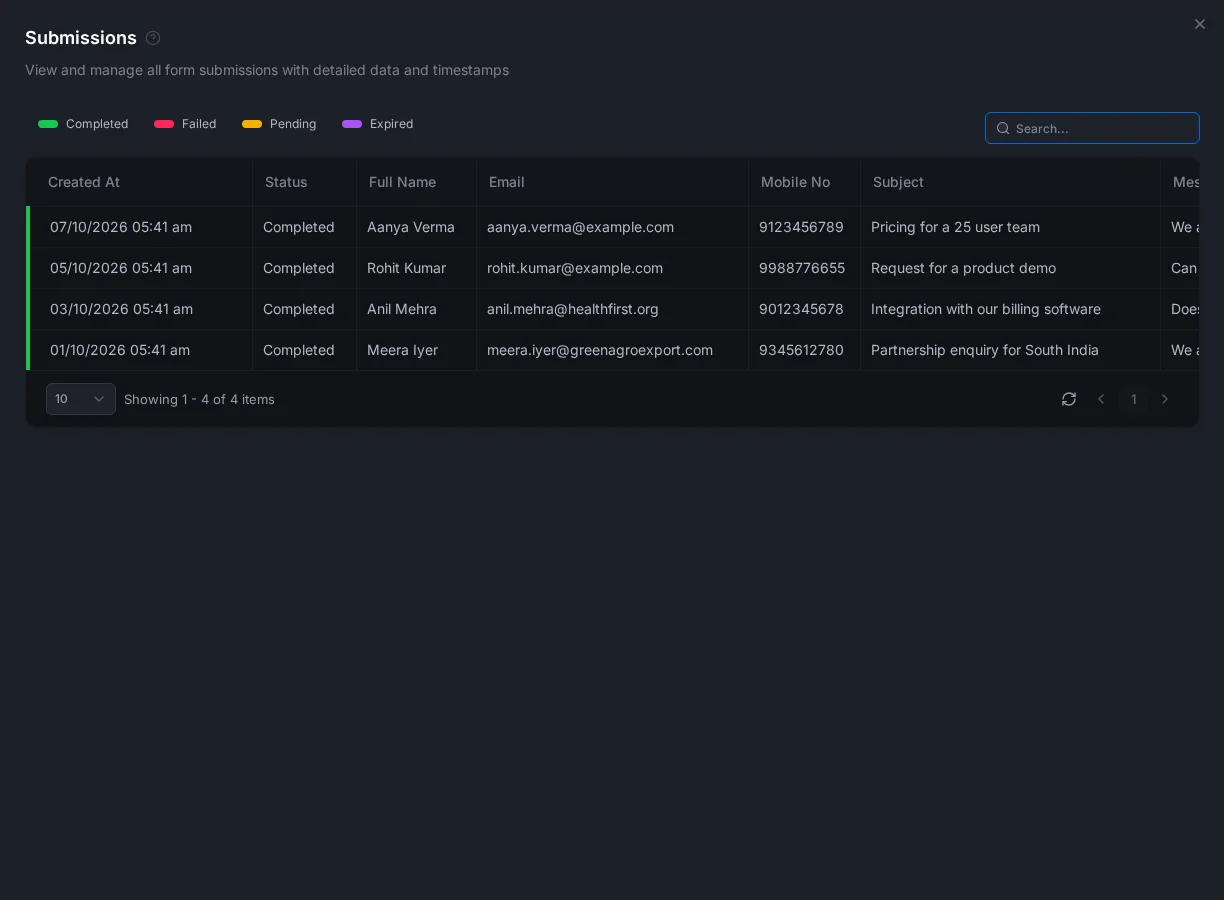
Each row shows:
- when it came in,
- an answer for each field on the form. To download an uploaded file, click it,
- the campaign tags in UTM Source, UTM Medium, UTM Campaign and UTM Content. See Embed a web form,
- the visitor's IP address, city, state, country, postal code, organization and browser.
To find a submission, type any answer in the search box.
Troubleshooting
| Visitor sees | Why | What to do |
|---|---|---|
| "Form is not active" or "Form not found" | The form is switched off or deleted | Activate it in Settings > Forms |
| "You have already submitted this form today. Please try again tomorrow." | That email or mobile number reached the daily limit | Raise or remove the limit in the form's settings |
| "Access denied. Domain '…' is not in the allowed domains list." | The address in the message isn't in Allowed Domains | Add that exact address. See Embed a web form |
| "Invalid email OTP" | The code is wrong | Check the email and type the code again |
| "OTP has expired" | More than 3 minutes passed | Reload the page and send the form again |
| "Submission is too large. Please upload a smaller file." | The uploaded files are too big | Upload smaller files |
| "This form is not accepting submissions right now." | Your subscription is read-only or blocked | Check My Subscription |
Related
Still stuck?
Tell us what you were trying to do and we will help.