Set up your web form's behaviour and spam protection
Set what visitors see after they send your web form, limit how often one person can send it, and keep out spam.
Updated 12 October 2026 · 3 min read
Each form has settings for what visitors see after they click Submit, and for keeping out fake entries.
For example, a training centre gets 50 fake entries a day from computer programs. The team wastes time deleting them. They turn on Enable Captcha, and most fake entries stop. They also add a Redirect URL, so after sending the form, visitors go to the page with the course dates and can pick a date at once.
Before you start
To save settings, you need the Edit Forms permission. If you don't have it, ask your admin.
Change the settings
- Go to Settings > Forms and click Designer on the form's row.
- Click the gear icon at the top. The Settings panel opens.
- Change what you need.
- Click Update.
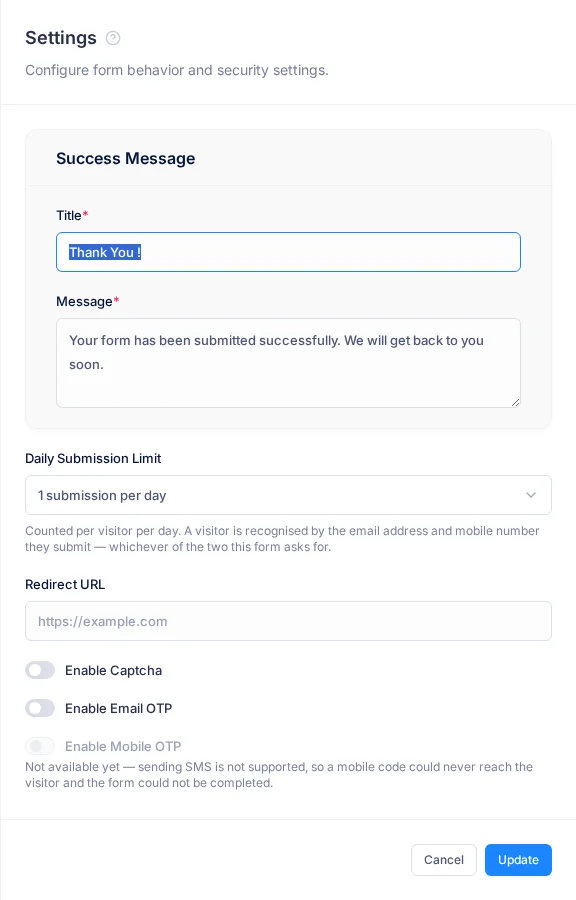
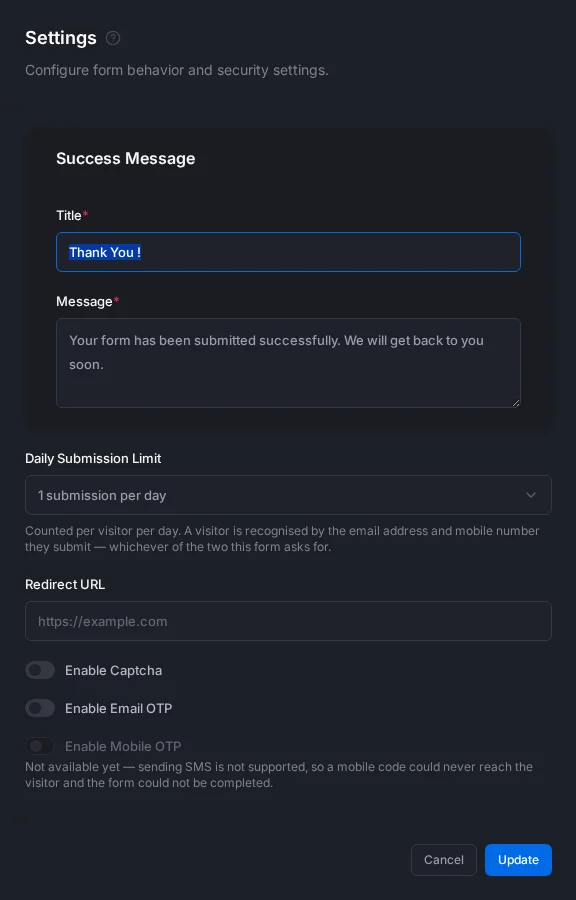
| Field | What to enter |
|---|---|
| Title * | The heading visitors see after sending the form, up to 100 characters. Set to "Thank You !" at first |
| Message * | The text under it, up to 500 characters. Set to "Your form has been submitted successfully. We will get back to you soon." at first |
| Daily Submission Limit | How many times one person can send the form in a day: no limit, or 1, 2, 3 or 5. Set to 1 at first |
| Redirect URL | A page to send visitors to after they see your message, such as your course dates page. Leave it empty to stay on the message |
| Enable Captcha | Turn on to block computer programs. Visitors don't see anything extra |
| Enable Email OTP | Turn on to send a 6-digit code to the visitor's email. Their answers are only saved once they enter it. Off at first |
How each one works
- Daily Submission Limit. A person is known by the email and mobile number they type. Only sent forms count, and the count starts again each day.
- Redirect URL. The visitor sees your message and "You will be redirected to … in 5 seconds", then goes to your page.
- Enable Captcha. It checks each visitor in the background, with no tick box.
- Enable Email OTP. It makes sure every email is real, so you can contact every lead. It adds a step for the visitor. The code goes to the form's Email field, so make Email required. You only see this setting when the form has a Mobile No field.
Enable Mobile OTP isn't available yet, because codes can't be sent by SMS.
Troubleshooting
| You see | Why | What to do |
|---|---|---|
| "Invalid redirect URL" | The address isn't a full web address | Enter it with https:// |
| "Success title is required" or "Success message is required" | The Title or Message is empty | Fill it in |
| Enable Email OTP is missing | The form has no visible Mobile No field | Add Mobile No in the Designer |
| "You have reached the maximum of … active forms on your current plan. Please upgrade for more." | Your plan's limit of Active forms is reached | Upgrade your plan |
Related
Still stuck?
Tell us what you were trying to do and we will help.