Design a web form with drag and drop
Pick your web form's fields in the Designer, set their labels and rules, and see which answers fill in the lead.
Updated 12 October 2026 · 5 min read
The Designer is where you pick the questions your form asks and how they look.
For example, a software company has two forms. The "Contact us" form asks only for a name, email and message, so more people finish it. The "Book a demo" form also asks for the company name and title. When someone books a demo, the salesperson already knows the company before the call. Ask only what you need. Each extra question means fewer people finish the form.
You can also add your own question, such as "How did you hear about us?", make a question compulsory, add an "I agree to the terms" tick box, or let people upload a file.
Before you start
- To save changes in the Designer, you need the Edit Forms permission. If you don't have it, ask your admin.
- Create the form first. See Web forms overview.
Open the Designer
Go to Settings > Forms and click Designer on the form's row.
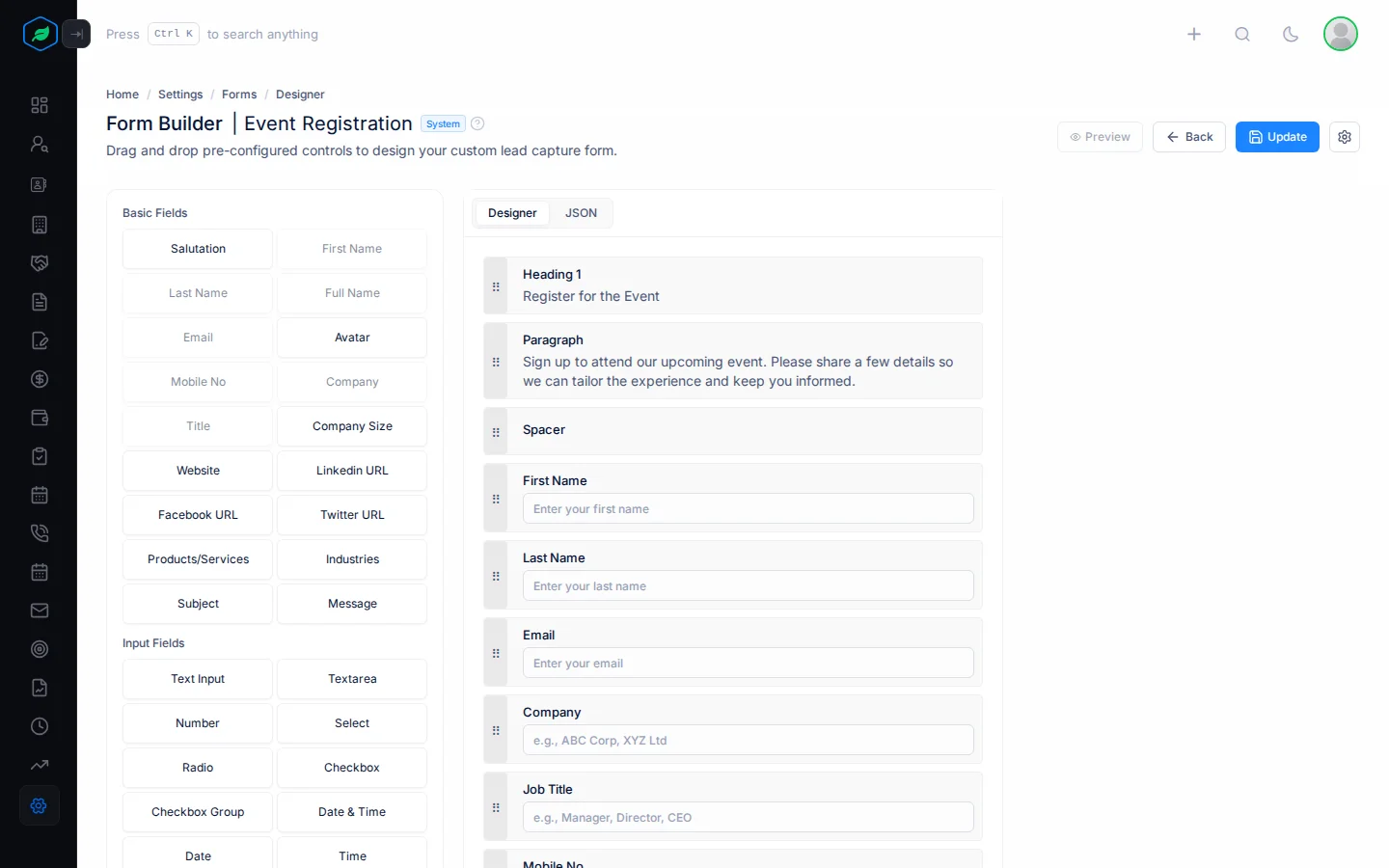
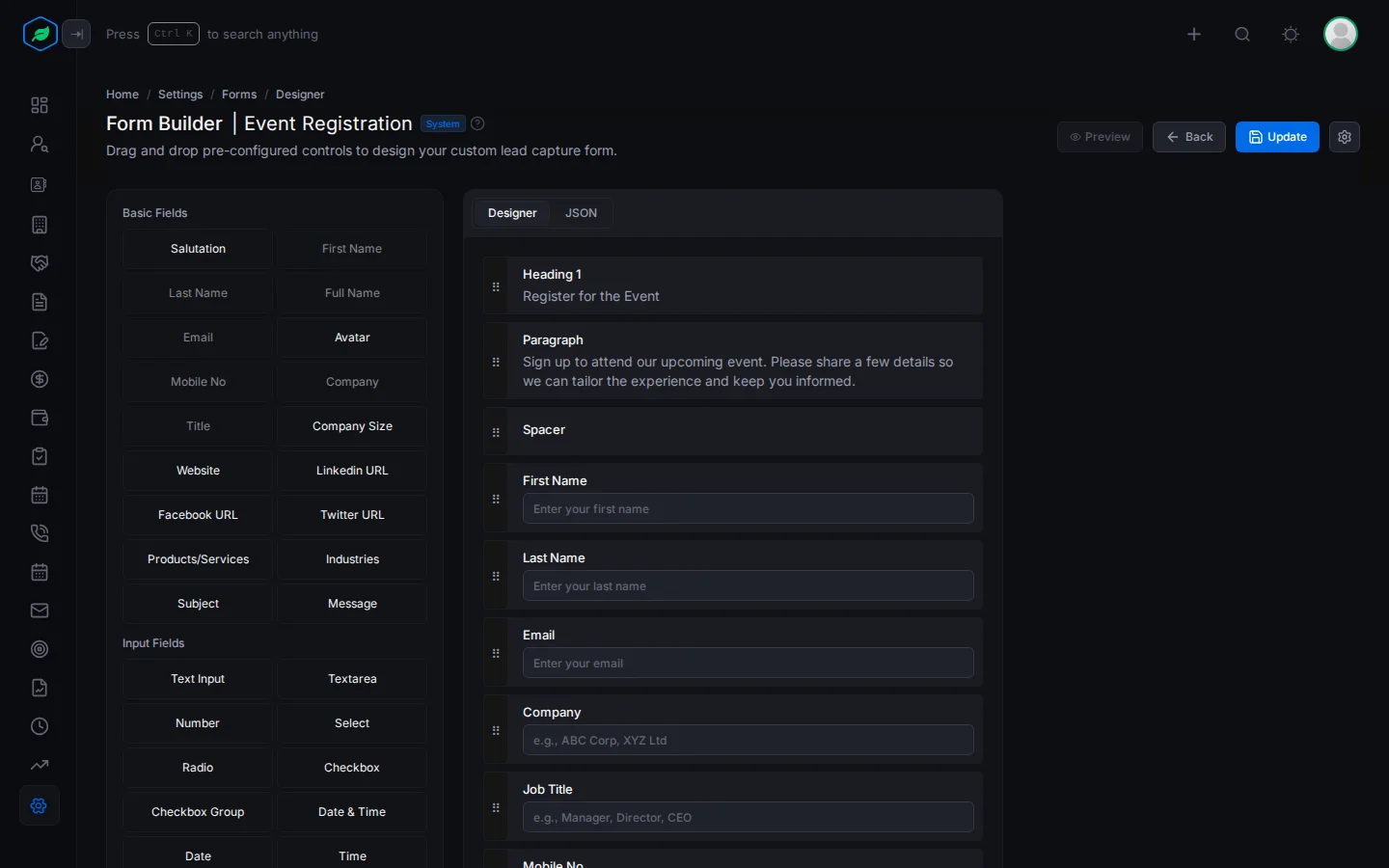
| Part | Use it to |
|---|---|
| Left | Drag a field onto the form |
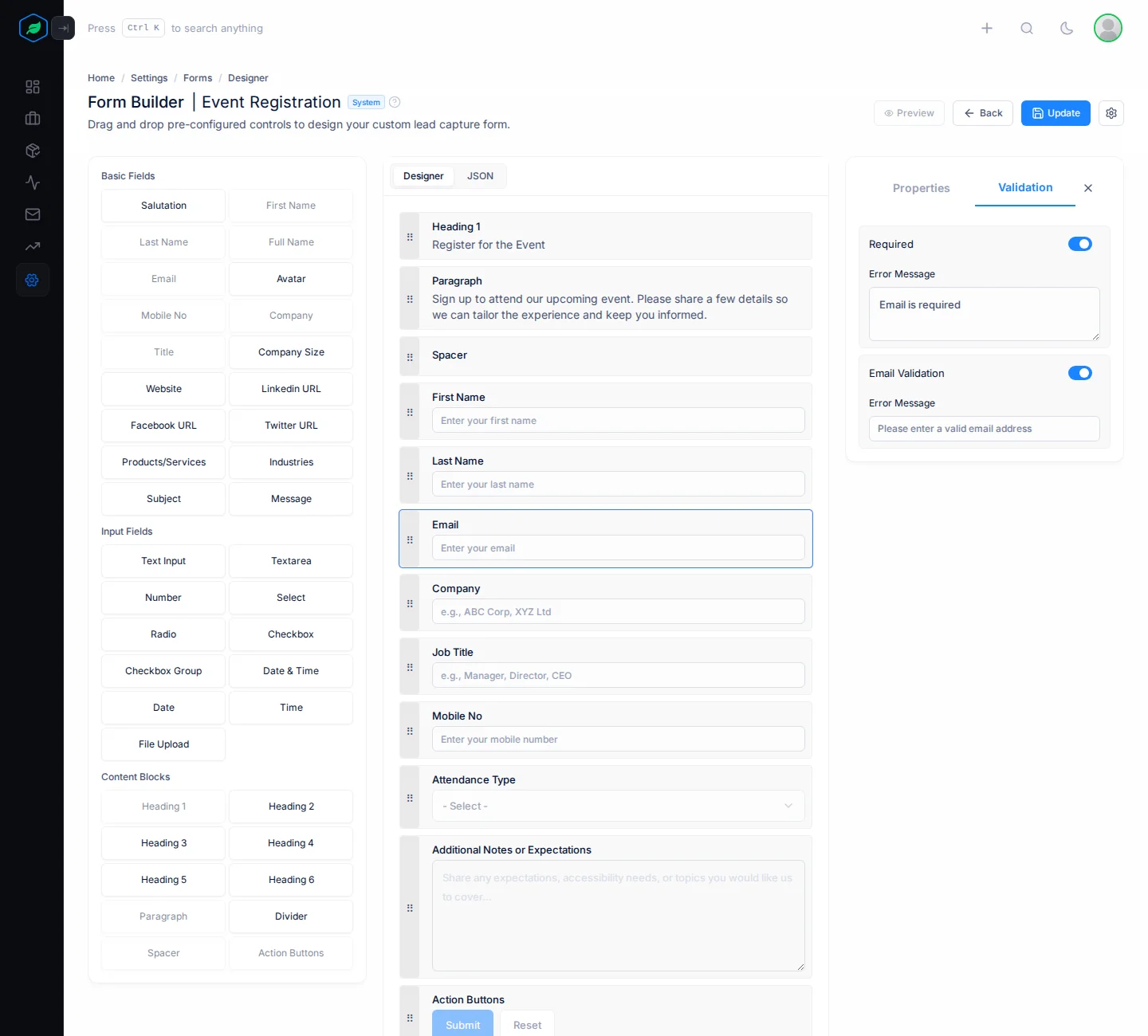
| Middle | See the form. Drag a field's ⋮⋮ handle to move it. Click a field to change it |
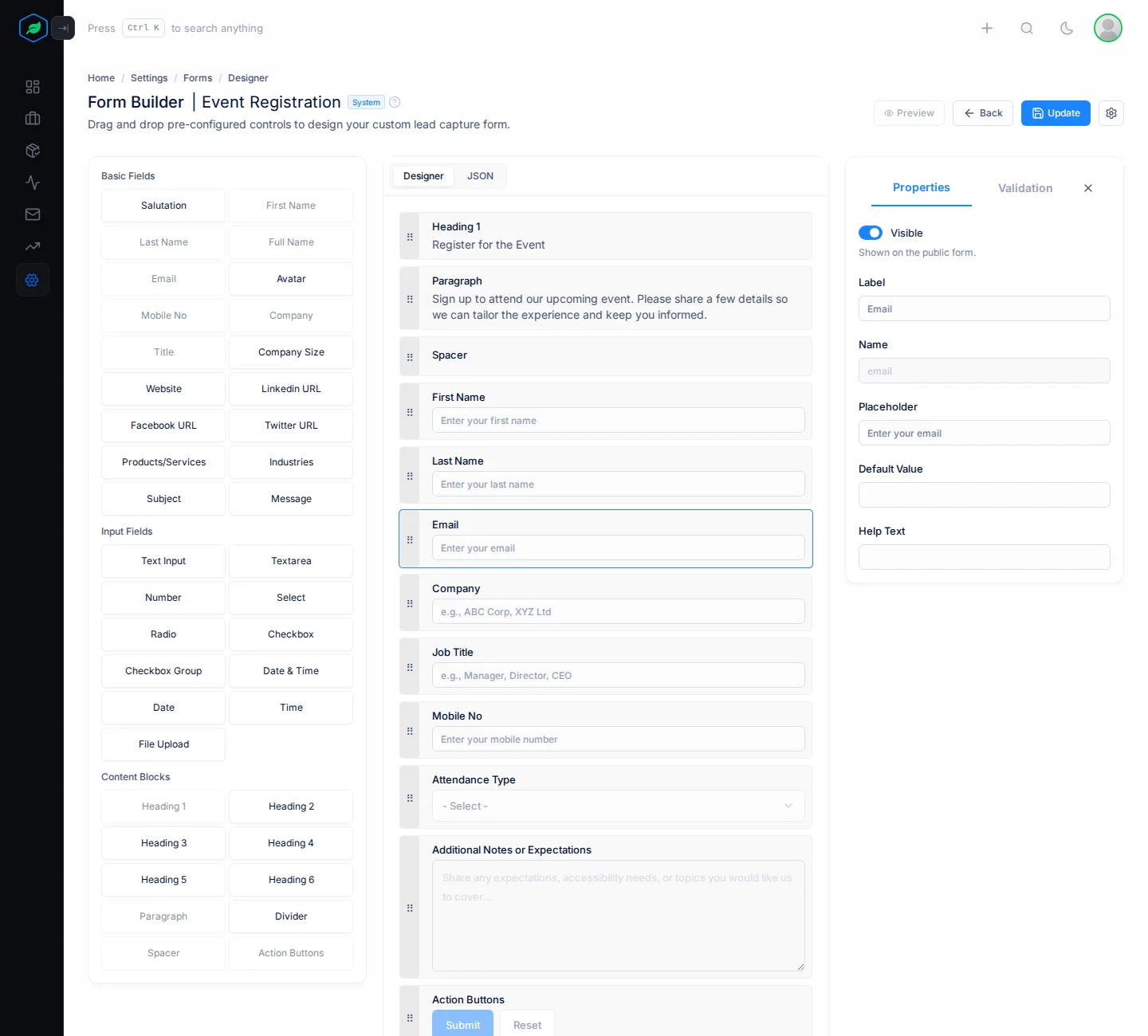
| Right | Change the selected field on the Properties and Validation tabs |
A new form starts with these fields: Heading 1, Paragraph, Spacer, First Name, Last Name, Email, Mobile No, Subject, Message, and the Submit and Reset buttons. They are only kept once you click Update.
You can't remove First Name, Last Name, Full Name or Email by dragging. On a System form, you can't add, move or remove fields. You can only change their properties.
Fields you can add
| Group | Fields |
|---|---|
| Basic Fields | Salutation, First Name, Last Name, Full Name, Email, Avatar, Mobile No, Company, Title, Company Size, Website, Linkedin URL, Facebook URL, Twitter URL, Products/Services, Industries, Subject, Message |
| Input Fields | Text Input, Textarea, Number, Select, Radio, Checkbox, Checkbox Group, Date & Time, Date, Time, File Upload |
| Content Blocks | Heading 1 to 6, Paragraph, Divider, Spacer, Action Buttons |
Each field can be on the form once. A field in the left panel turns grey when it's already on the form. Use either Full Name, or First Name and Last Name.
Which answers fill in the lead
On a Lead Generation form, some basic fields fill in the new lead:
| Form field | Goes to the lead's |
|---|---|
| Salutation, First Name, Last Name | Name. Full Name is split into first and last name |
| Mobile No | Phone, labelled Mobile |
| Company | Account name |
| Title, Website, Linkedin URL, Facebook URL, Twitter URL | The same fields |
| Industries | Industry. Only the first one picked |
| Products/Services | Interested products |
| Avatar | Photo |
Every other answer, such as Subject, Message or your own questions, is saved on the lead's Overview under Form Submission Details.
Field properties
Click a field and open Properties. You only see the properties that fit that field.
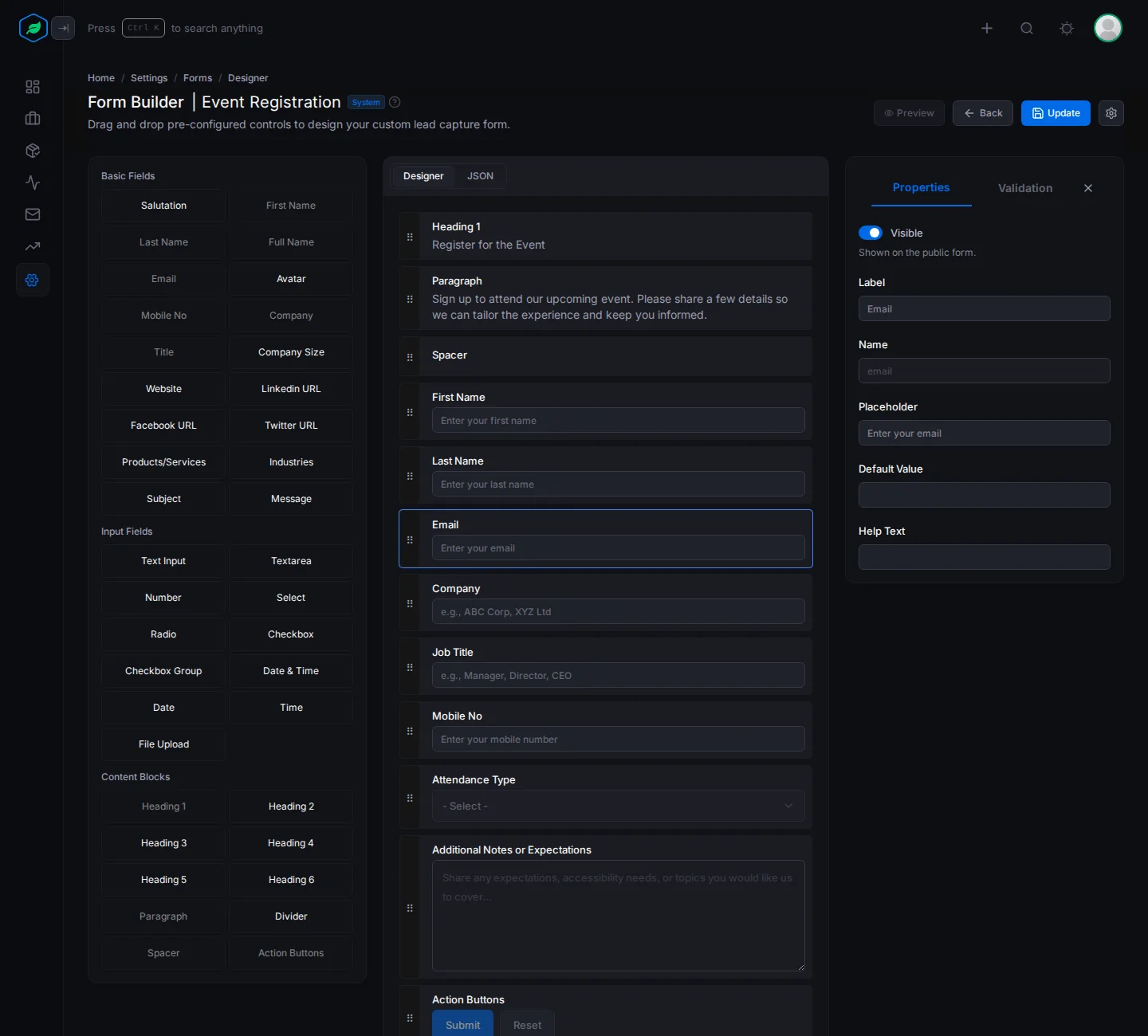
| Property | What it does |
|---|---|
| Visible | Turn off to hide the field without removing it. Hidden fields show a Hidden badge and aren't checked |
| Name | The field's code name. Each field needs its own. Don't change it on basic fields, or the answer won't fill in the lead |
| Label | The question, such as "Your email" |
| Placeholder | Grey example text inside the box |
| Help Text | A short hint under the field |
| Default Value | An answer filled in for the visitor |
| Options (one per line) | The choices for Select, Radio and Checkbox Group |
| Rows | How tall a Textarea or Message box is |
| Content | The text of a heading or paragraph |
| Text Align | Left, Center or Right |
Validation rules
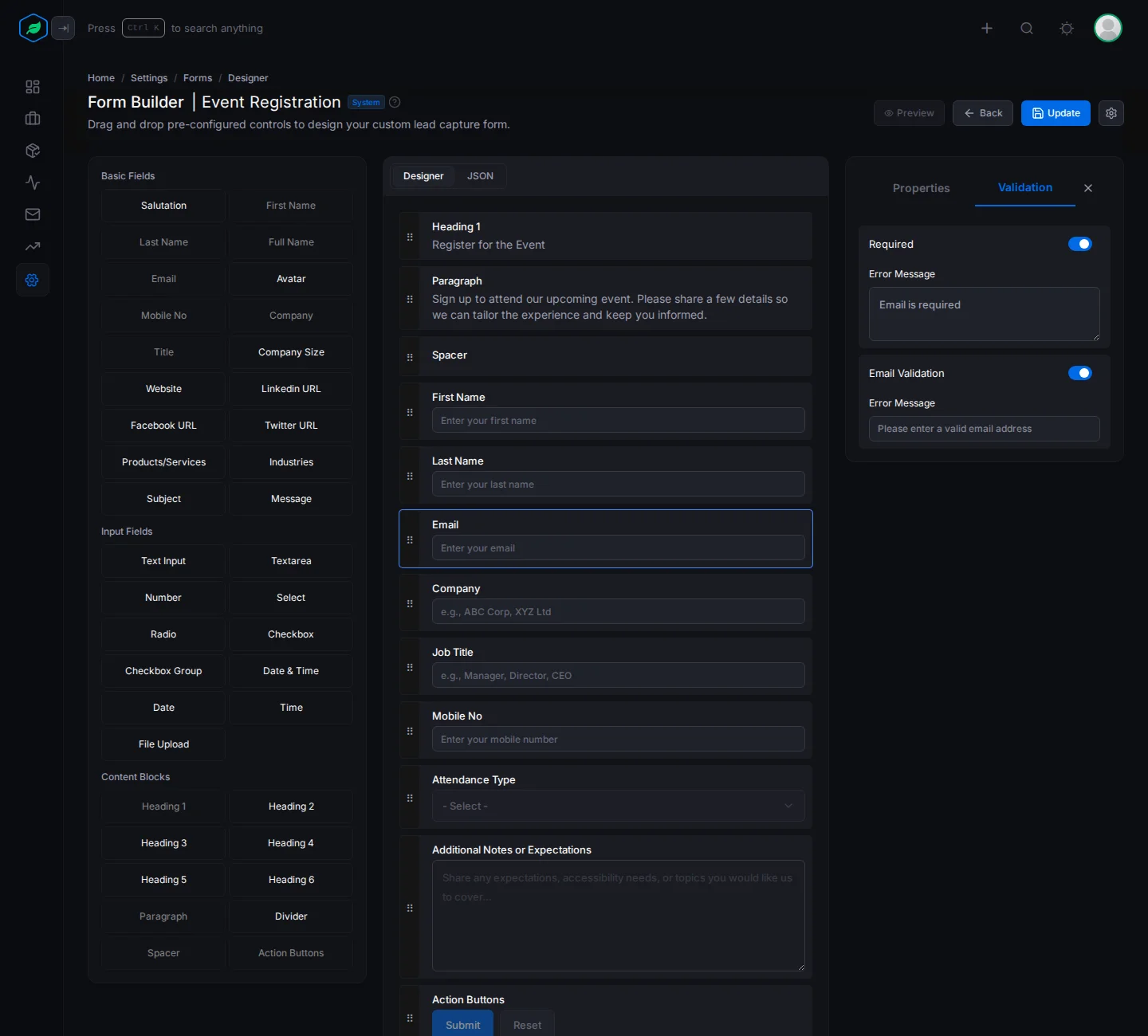
Click a field and open Validation. Turn on the rules it needs, and change the Error Message visitors see if you like.
| Rule | Checks |
|---|---|
| Required | The field is filled in. Write your own Error Message. Not on Checkbox, Date & Time, Products/Services or Industries |
| String Length | The shortest and longest answer |
| Email Validation | The answer is an email address |
| URL Validation | The answer is a web address |
| Mobile Number | The answer matches a pattern. Set to 10 to 15 digits at first |
| Number Range | The smallest and largest number |
| Acceptance Required | A tick box is ticked. Use it for "I agree to the terms" |
| Selection Range | How many options can be picked |
| Date Validation | The earliest and latest date. Only on Date |
| File Size Restriction | The largest file, up to 20 MB |
| File Format Restriction | Which file types are allowed |
Save and preview
Click Update to save. Nothing is saved until you do, and Back leaves without saving.
To see the form as visitors do, click Preview. It's greyed out until the form has saved fields and is Active.
Troubleshooting
| You see | Why | What to do |
|---|---|---|
| "The field name "…" is already used in this form. Please choose a different name for your field." | Two fields have the same Name | Change the Name of one |
| A field in the left panel is grey | That field is already on the form | Use the one on the form |
| Preview is grey and says "Form is inactive" | The form is switched off | Activate it in Settings > Forms |
Related
Still stuck?
Tell us what you were trying to do and we will help.