Register a website for announcements
Register your website and add a small snippet to it, so announcements can show there as banners and popups.
Updated 12 October 2026 · 3 min read
Before an announcement can show on your website as a banner or popup, you register the website here and add a small piece of code to it. You do this once for each website.
For example, you run a travel agency and want to show offers on your website. You register the website, and Salesfresh gives you a snippet of code. Your web developer adds it to the website once. After that, you can show any offer or notice from Salesfresh, without asking the developer again. If you have two websites, register both, and pick which one shows each announcement.
Before you start
- To see your sites, you need the View Announcements permission.
- To register a site, you need Create Announcements. To change one, you need Edit Announcements. To delete one, you need Delete Announcements.
- You need to be able to change your website's pages, or ask the person who does.
If you don't have a permission you need, ask your admin.
Register a site
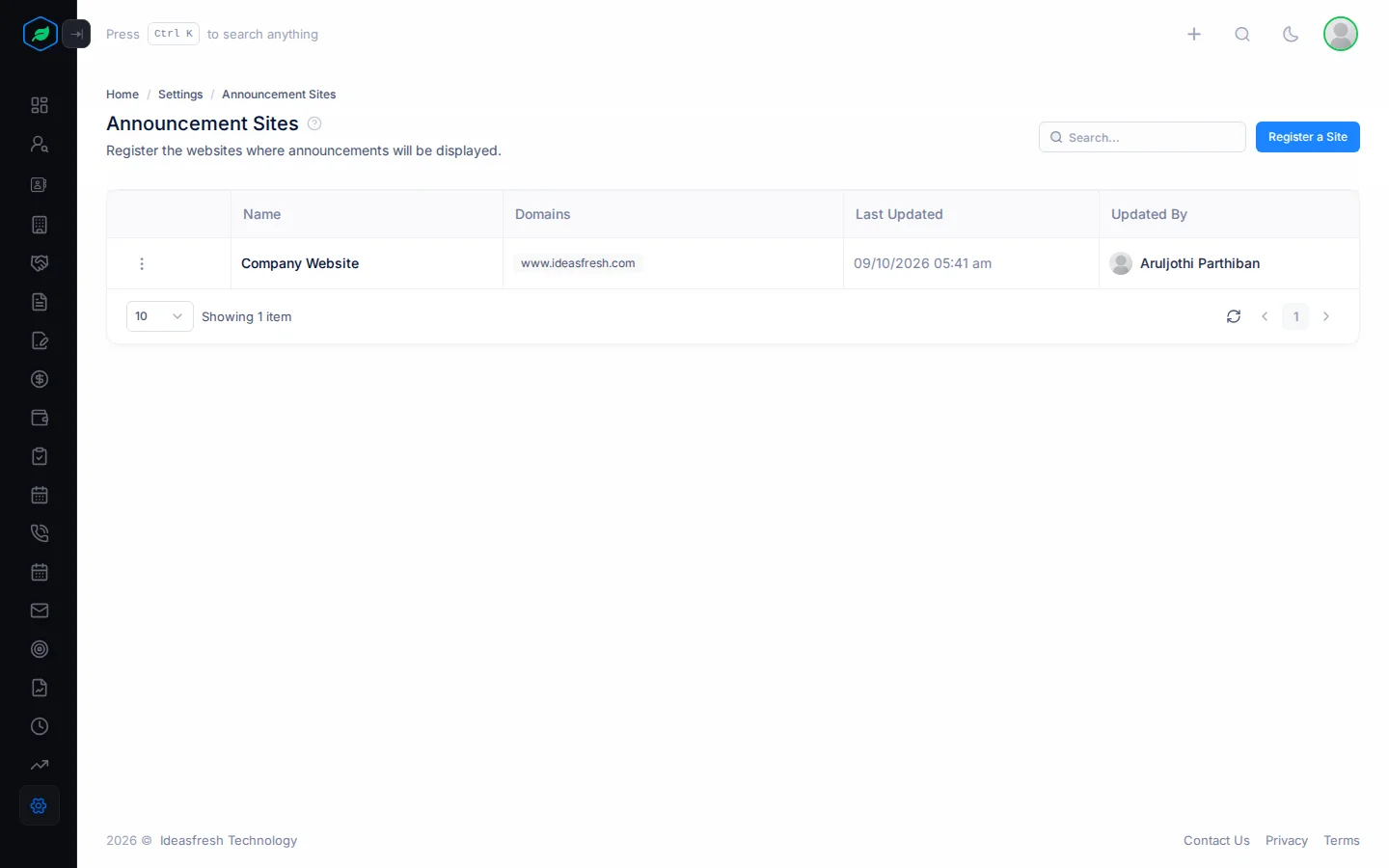
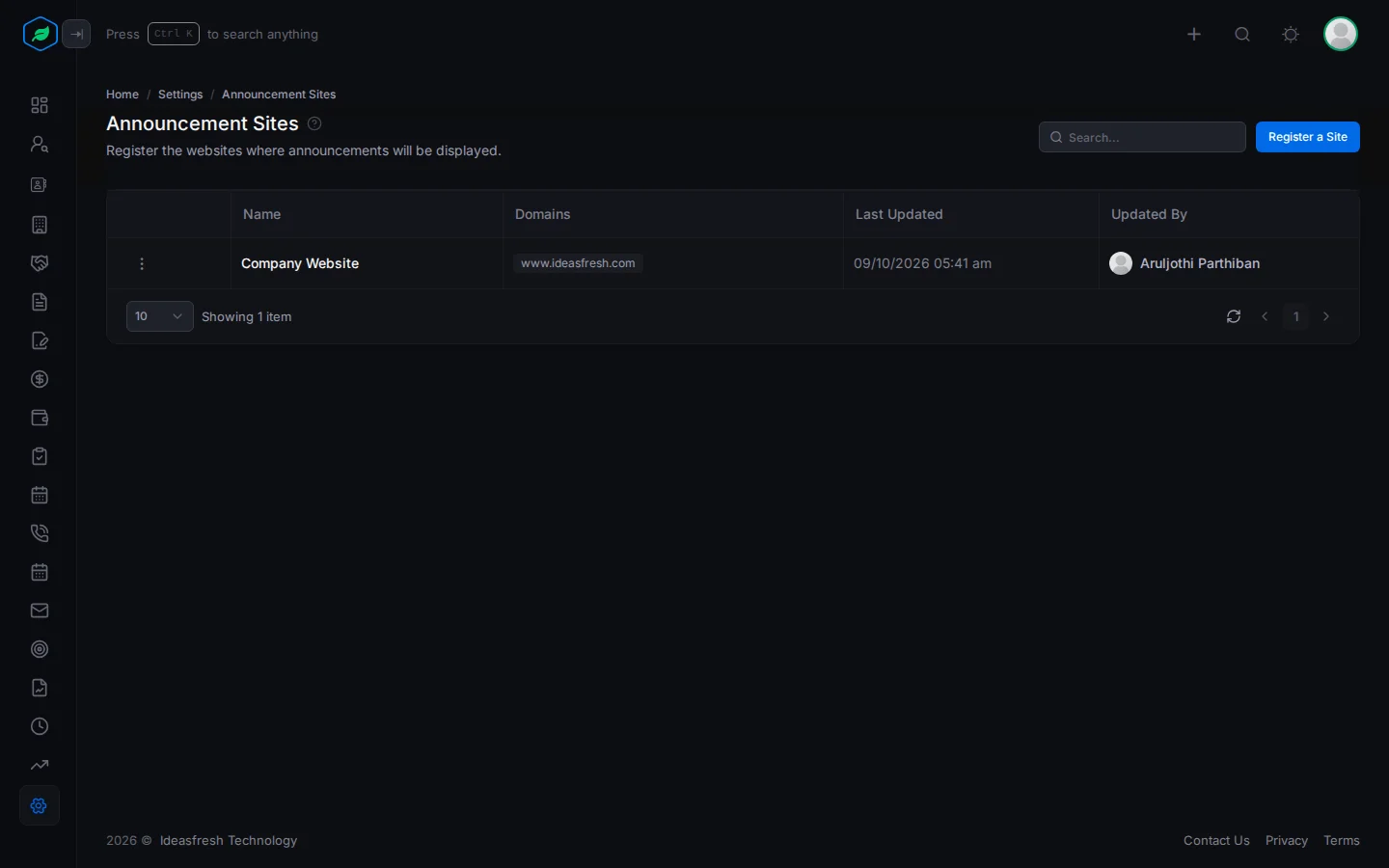
- Go to Settings > Announcements > Sites.
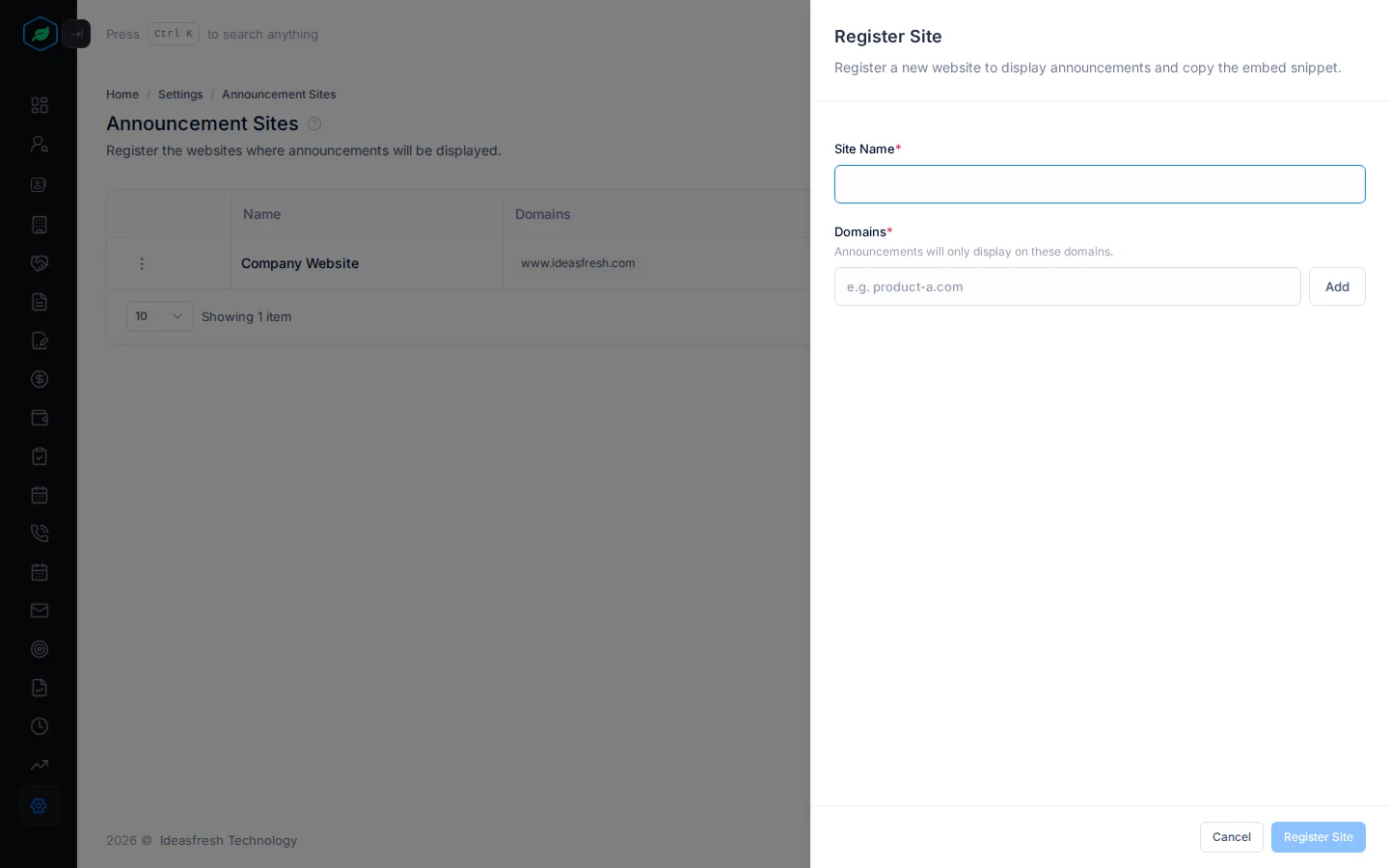
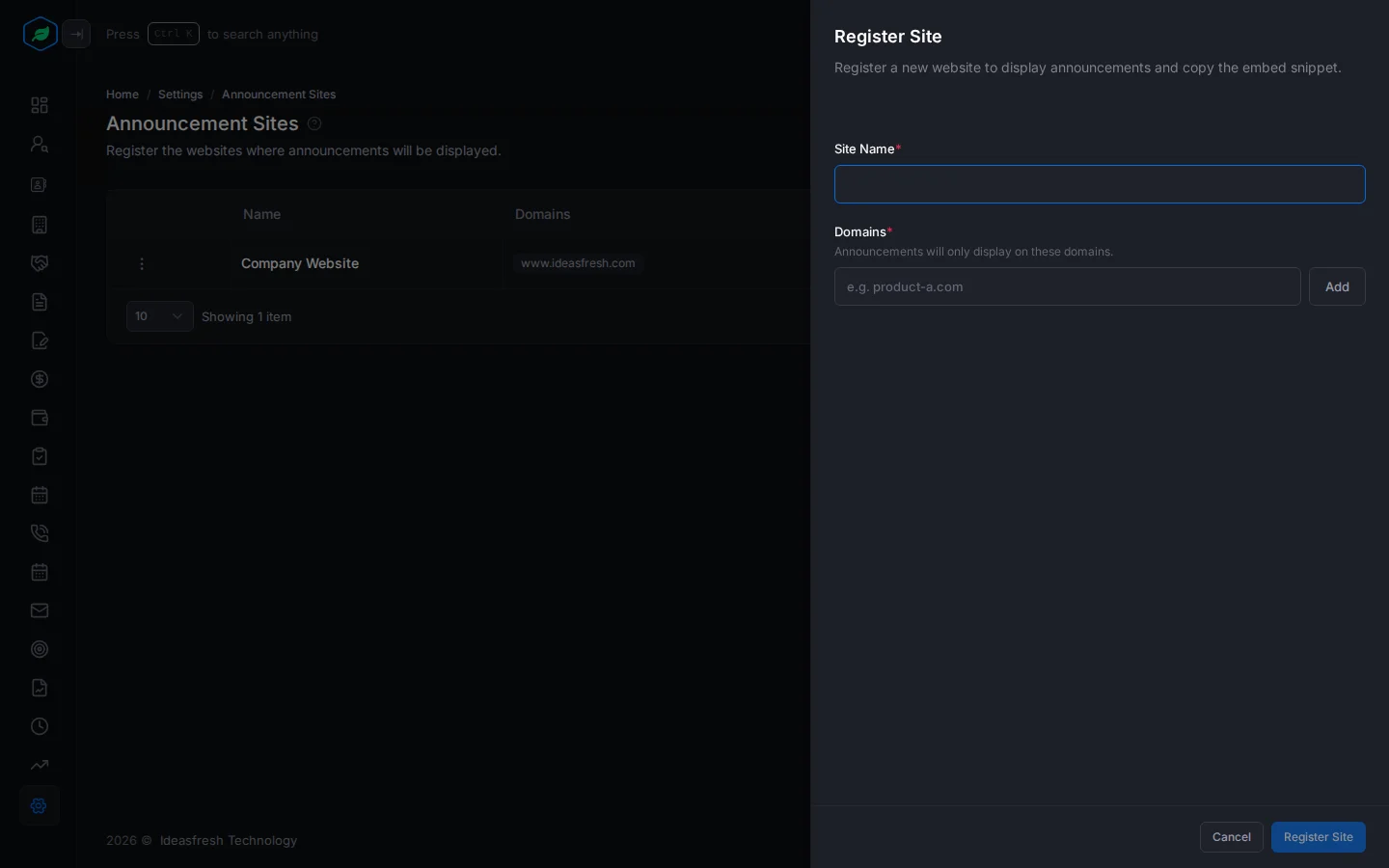
- Click Register a Site. The Register Site panel opens.
- Fill in the fields.
- Click Register Site. The panel shows the snippet.
- Click Copy, then Done.
| Field | What to enter |
|---|---|
| Site Name * | A name to tell your sites apart, such as "Marketing site" |
| Domains * | Each web address the site runs on, such as example.com. Type one and click Add. Add at least one |
Add the snippet to your website
Paste the snippet on every page where announcements should show, just before the </body> tag. To find the snippet later, click ⋮ on the site, then View Embed Key.
The snippet has a place for the visitor's details:
window.SF_VISITOR = {
  email:  "<lead-email>",
  leadId: "<lead-uuid>",
  phone:  "<lead-phone-number>"
};
Don't leave the example values in. If you do, no announcements show at all. Either delete this part, or fill it in with the visitor's real details.
- Delete it to show your announcements to every visitor. Visitors are then anonymous, so they only see announcements with no audience filters.
- Fill it in for visitors who have signed in to your website. Salesfresh finds the matching lead or contact by lead ID, then email, then phone. It then shows the announcements meant for them, and records when they see, accept or close one. To record this, you need the email or lead ID.
You can also store the same details in the browser's local storage or session storage, under the name SF_VISITOR.
Change or remove a site
Click ⋮ on a site:
- Edit changes its name and web addresses.
- View Embed Key shows the snippet again.
- Delete removes the site. Its snippet stops working.
You can't delete a site while a published, paused or scheduled announcement picks it under Target Sites. Mark published or paused announcements complete. For a scheduled one, edit it and remove the site.
Troubleshooting
| You see | Why | What to do |
|---|---|---|
| "At least one domain is required" | You didn't add a web address | Type one and click Add |
| "Site already exists" | Another site has that name | Pick another name |
| "This site has active announcements targeting it…" | Announcements still show on this site | Mark them complete, or remove the site from scheduled ones, then delete |
| Nothing shows on the website | The snippet is missing or still has the example values, or no announcement is published | Check the page's code for the snippet, and the announcement's status |
Related
Still stuck?
Tell us what you were trying to do and we will help.